How to Create a Facebook Business Page in 2026 — and Manage It with BitBrowser
 2026.03.31 05:12
 petro
petroCreating a Facebook Business Page in 2026 is still one of the easiest ways to build a brand presence, run ads, and communicate with customers. Once the page is live, teams often need a secure way to manage multiple accounts or separate work environments. BitBrowser positions itself as a multi-account browser with team collaboration and permission assignment features, including independent account access for team members.
Step 1: Create your Facebook Business Page
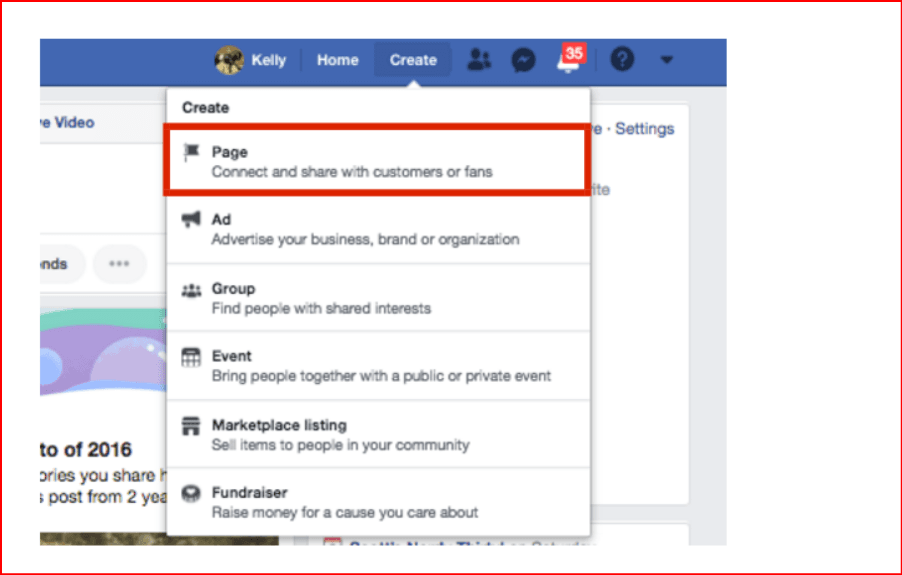
Log in to your Facebook account and go to the Page creation flow. Facebook requires a personal account to create and manage a Page, but the Page itself can represent your business rather than your personal profile.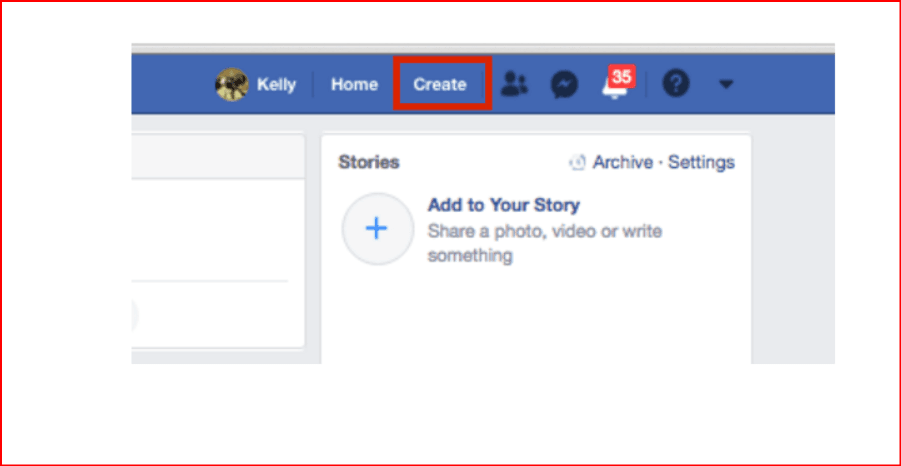
When you create the Page, enter:
- your business name
- the most accurate category
- a short description or bio
Keep the name consistent with your website, Instagram, and Google Business Profile so customers can recognize your brand more easily.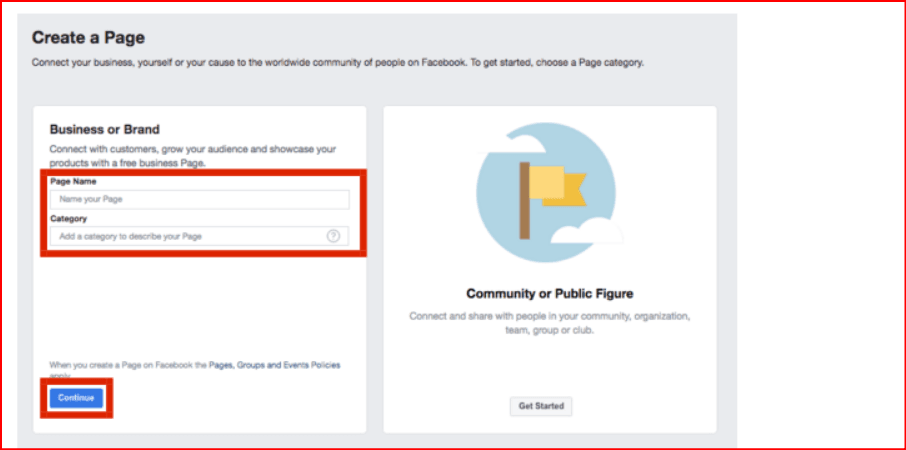
Step 2: Add professional branding
Upload:
- a profile photo such as your logo
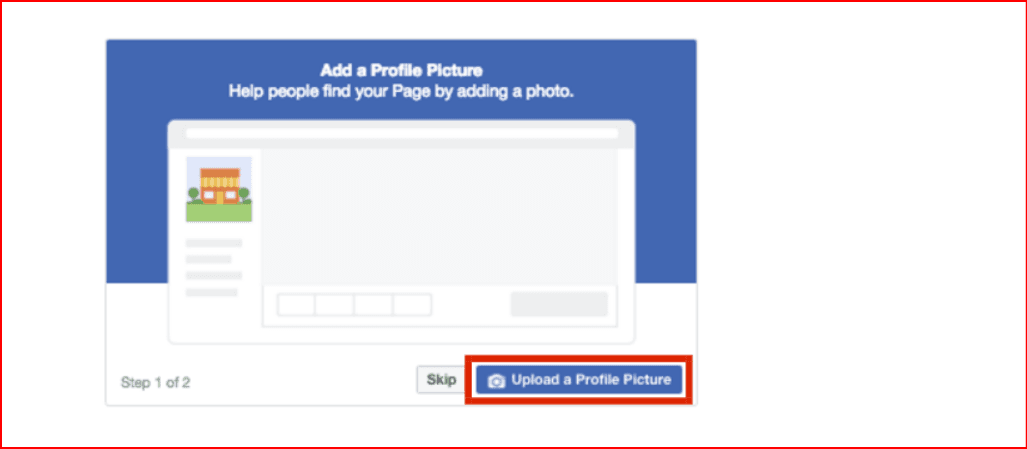
- a cover photo that explains what you sell or offer
A complete-looking Page tends to inspire more trust than one with missing visuals.
Step 3: Fill out business details
Before you publish heavily, add:
- website
- phone number
- business address if relevant
- business hours
- WhatsApp or contact options
This helps your Page look legitimate and reduces friction for potential customers.
Step 4: Set your action button
Choose the button that matches your business goal:
- Message
- Call Now
- Shop Now
- Book Now
For many service businesses, “Message” or “WhatsApp” works best. For product brands, “Shop Now” can be stronger.
Step 5: Publish your first content
Do not leave the Page empty. Publish at least 3 starter posts:
- a welcome post
- a product or service post
- a testimonial, offer, or FAQ post
That way, when someone visits the Page, it already feels active.
Step 6: Connect it to Meta Business tools
After setup, use Meta’s business tools to manage:
- posts
- messages
- ad campaigns
- insights
This is where most ongoing work happens once the Page is active.
How to Add Roles and Team Access
If by “add roles” you mean letting other people help manage the Page, the smart approach is to give access based on job function rather than giving everyone full control.
A practical setup looks like this:
Recommended team role structure
Owner / Founder
- Full control
- Billing
- Security
- Final admin decisions
Marketing Manager
- Content publishing
- Campaign setup
- Analytics review
Community Manager
- Replies to comments and messages
- Daily moderation
- Customer support triage
Designer / Content Creator
- Upload creatives
- Draft posts
- Coordinate assets
Ads Specialist
- Ad account work
- Retargeting
- Performance testing
Only a small number of people should have full administrative power. Everyone else should get the minimum access needed for their work.
How BitBrowser Fits Into the Workflow
BitBrowser’s official materials describe it as an anti-detect browser built for multiple account management, with team collaboration, permission assignment, and independent account access for team members. Its pricing page also lists multi-user team plans, and its documentation says each team member can be assigned an independent account.
Why some teams use BitBrowser
Teams managing several brands, ad accounts, or client environments may want:
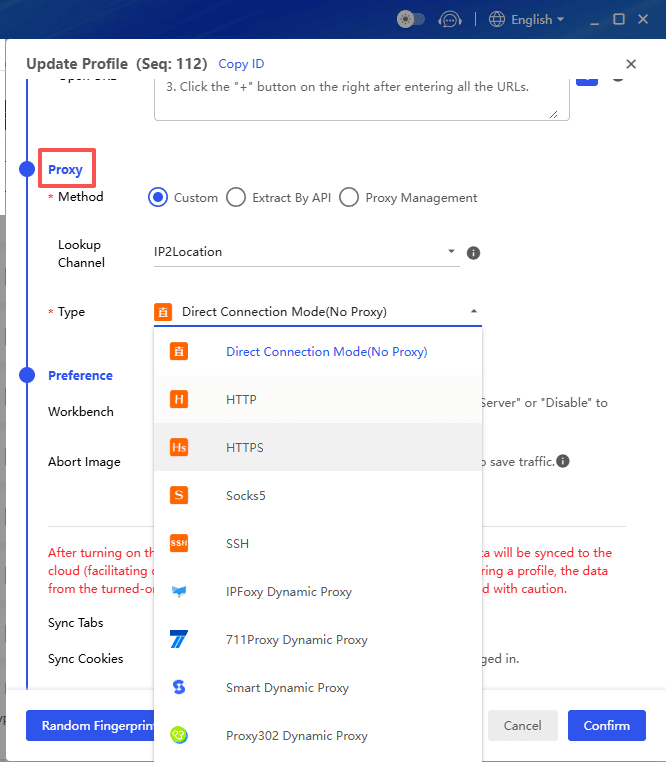
- separate browser profiles
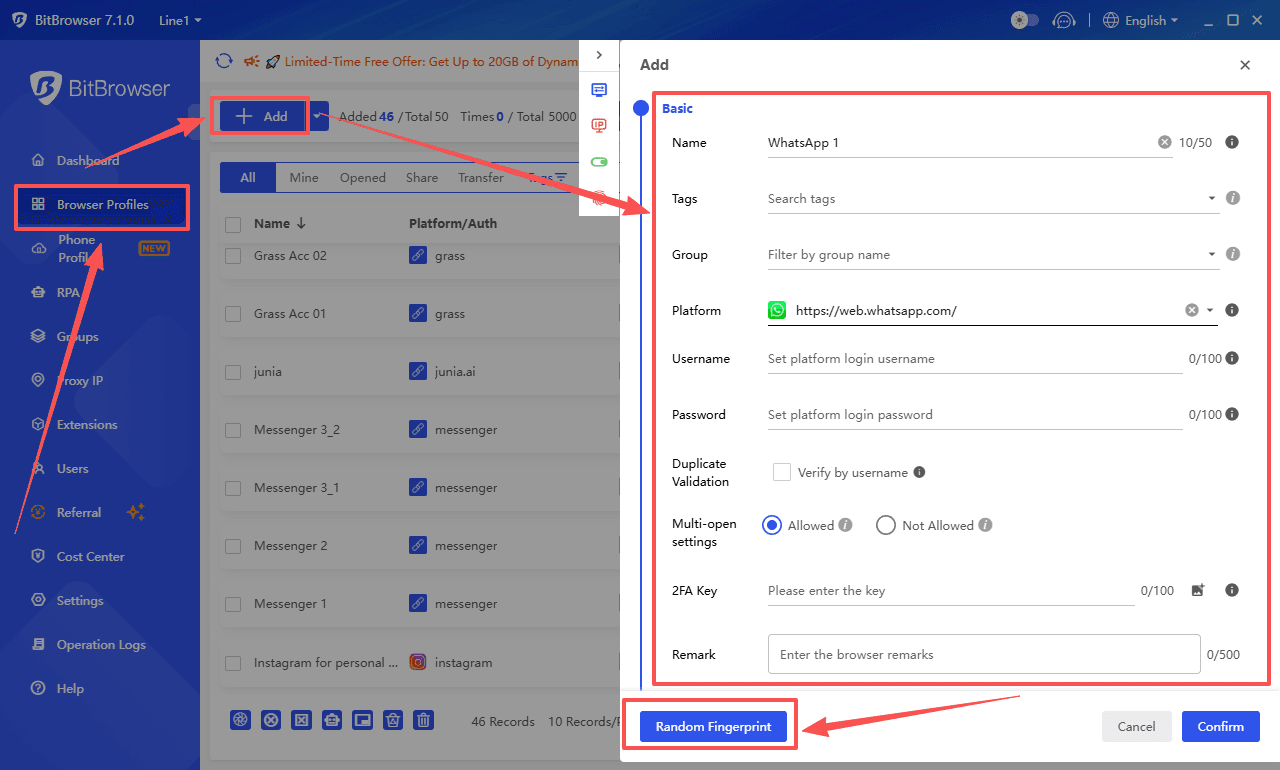
- different proxies or browser fingerprints
- controlled access for staff
- less password sharing across a team
BitBrowser says it supports browser profile management, team collaboration, and permission assignment for users.
Basic BitBrowser setup flow
According to BitBrowser’s official docs, the normal process is:
- sign up
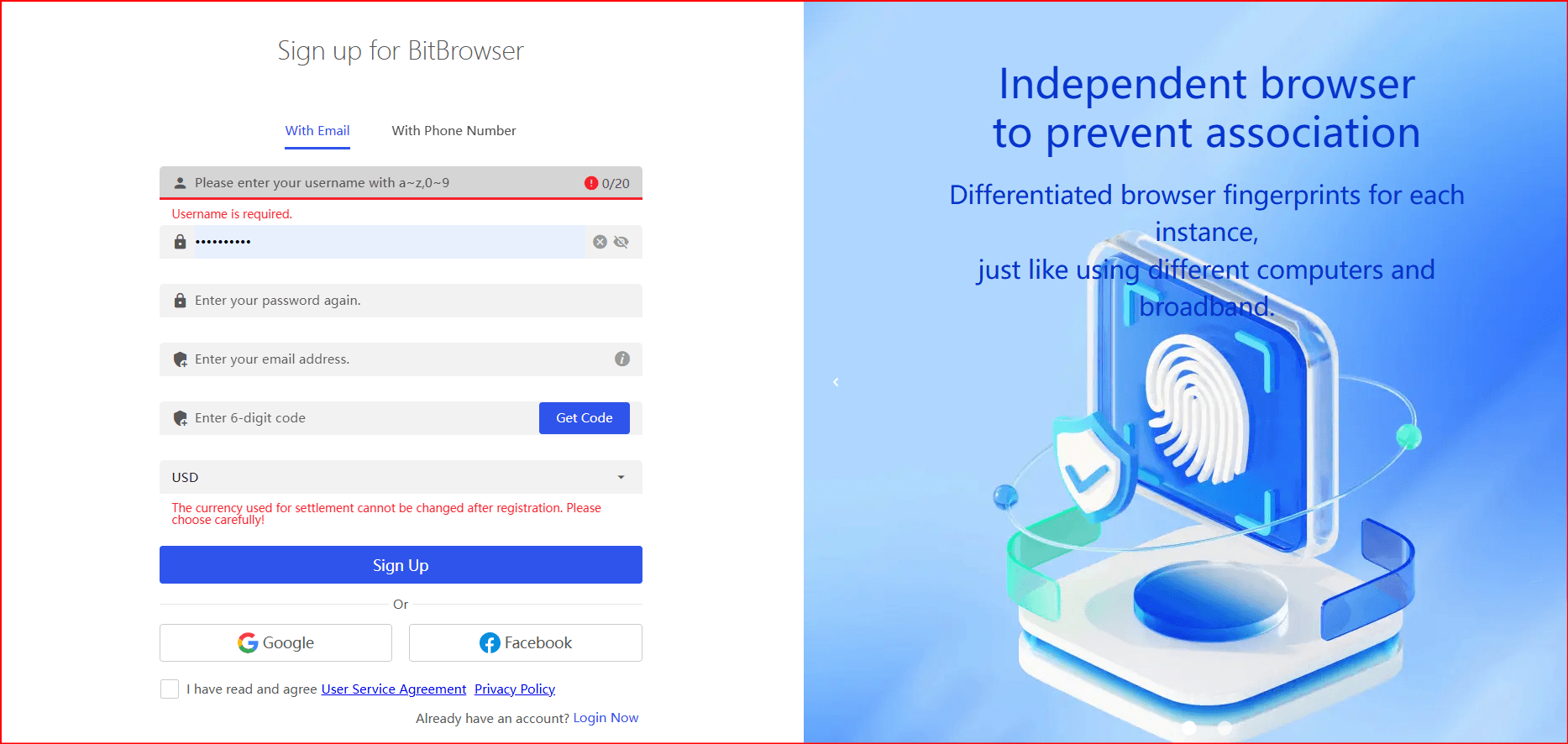
- download the app
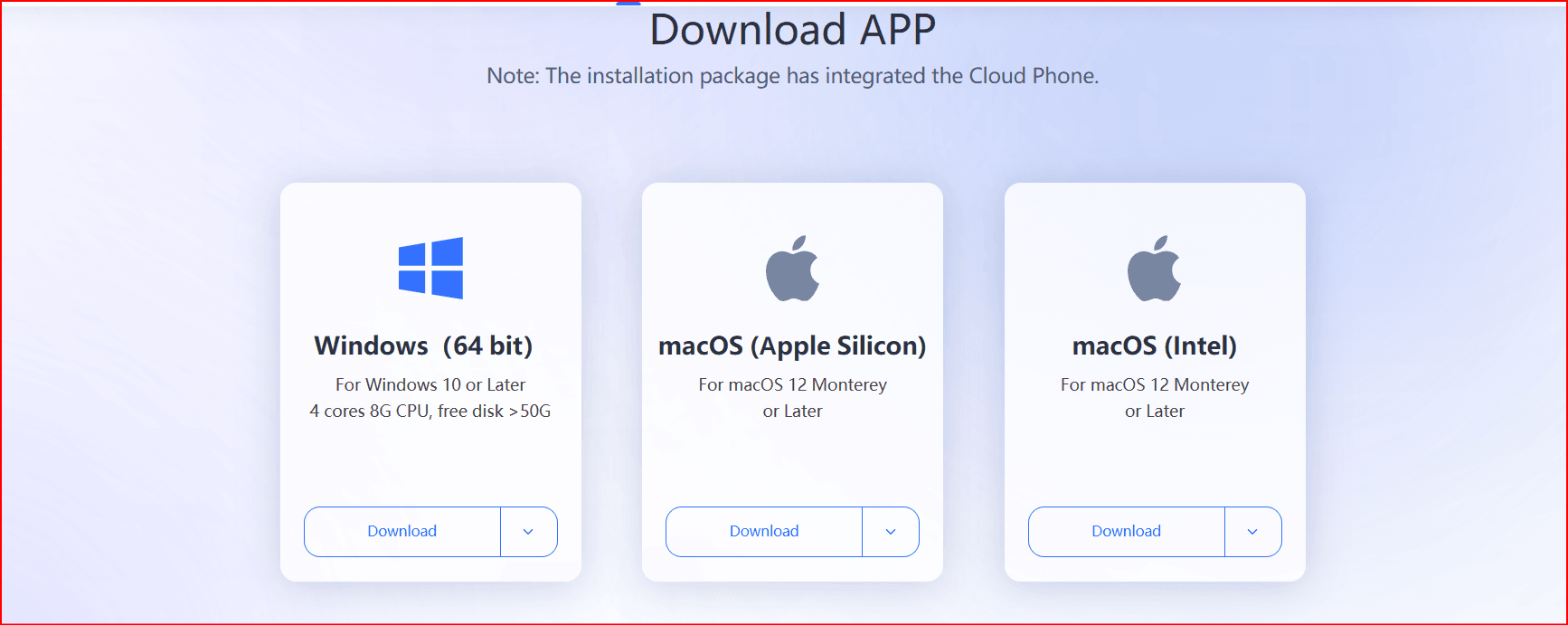
- install it
- create or manage browser profiles from the client
Suggested role mapping in BitBrowser
Here’s a simple structure you can use:
Admin
- Creates browser profiles
- Controls permissions
- Assigns staff access
- Handles security and ownership
Operator
- Uses assigned browser profiles
- Logs into the designated Facebook/Page workspace
- Publishes or moderates content
Ads Operator
- Access only to ad-related profiles
- No access to unrelated client assets
Analyst
- Read-only or limited-use workflow where possible
- Reviews campaign/account performance
Because BitBrowser emphasizes account/store authorization and login authorization for team usage, it makes sense to separate users by responsibility and avoid one shared login for everybody
Best Practices
Use this combination carefully:
- Keep one secure owner-level account outside daily operations.
- Give each teammate their own assigned environment instead of sharing one browser session.
- Document who manages content, ads, moderation, and billing.
- Change access quickly when contractors leave.
- Avoid giving full control unless absolutely necessary.
Sample workflow for a small business
A simple 3-person team could look like this:
You
- Full Page ownership
- Full BitBrowser admin rights
Content manager
- Assigned BitBrowser profile for posting and community replies
- Limited platform access
Ads freelancer
- Separate BitBrowser profile only for campaign work
- No access to unrelated business assets
This keeps work cleaner and reduces accidental crossover.
Final takeaway
To build a Facebook Business Page in 2026, create the Page, fully brand it, complete your business info, and start posting immediately. If you work with a team, organize access by role. BitBrowser’s official docs and site say it supports multi-account use, team collaboration, and permission assignment, so it can fit a structured Page-management workflow for teams that want separated environments.

 Multi-Account Management
 Prevent Account Association
 Multi-Employee Management
Recommended
See More 



