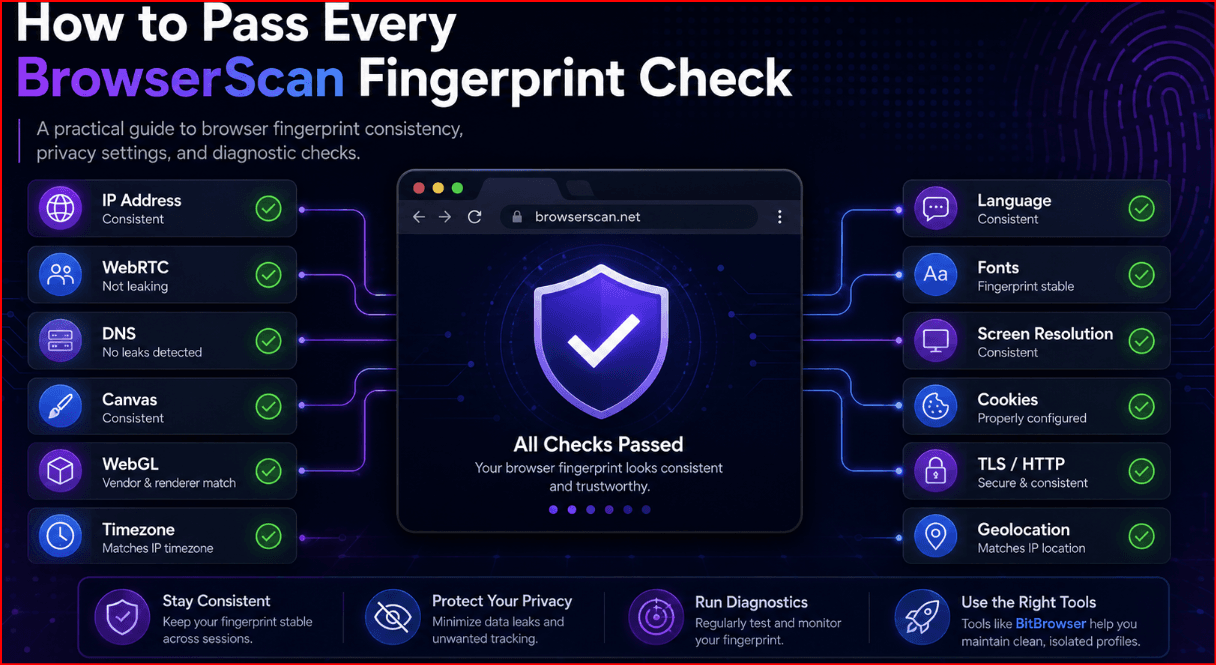
How to Pass Every BrowserScan Fingerprint Check
 2026.07.19 11:36
 petro
petroA strong result on BrowserScan does not come from changing every value at random. It comes from making the whole environment believable and internally consistent. This guide explains how to read the test, correct common privacy leaks, and understand the role of BitBrowser when you need isolated profiles for authorized testing, QA, advertising, e-commerce, or team workflows.
IMPORTANT: No tool can guarantee a permanent perfect score Browser versions, operating systems, proxy networks, and detection rules change. In this article, “pass” means reducing leaks and contradictions while using a profile that accurately represents an intended environment. Do not use fingerprint tools to evade platform rules, impersonate another person, or commit fraud. |
What BrowserScan Actually Examines
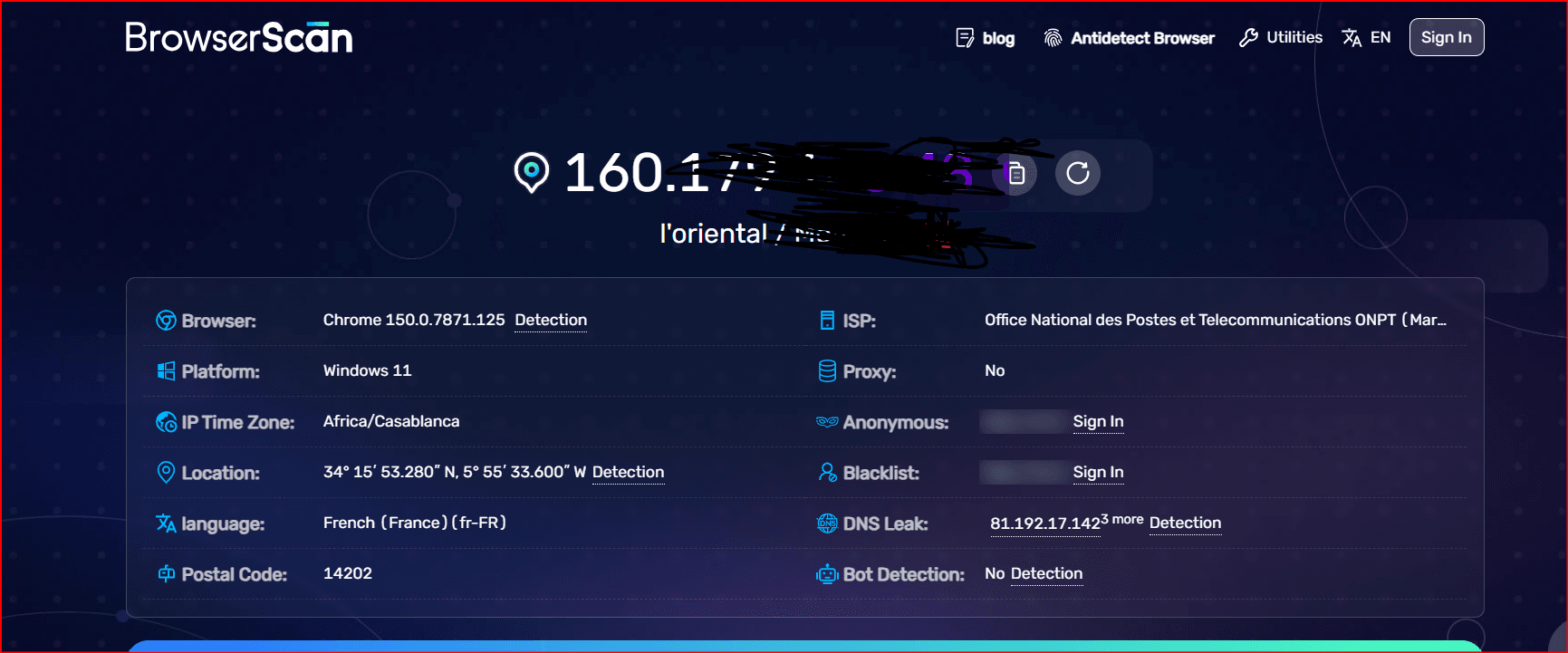
BrowserScan compares network, browser, hardware, software, and protocol signals. A profile may look normal in one field and still fail the overall consistency check because another field contradicts it. For example, an IP located in France combined with an Asian timezone, an English-only language profile, and a WebRTC address from a different network is a strong mismatch.
Signal | What is checked | Typical warning | Consistency goal |
|---|---|---|---|
IP and location | Country, city, ISP, proxy status and recent IP activity | Datacenter IP, blacklisted IP or location mismatch | Use a clean, authorized IP that matches the intended region |
WebRTC and DNS | Local/public IP exposure and DNS resolver route | Real IP or ISP DNS appears outside the proxy route | Keep WebRTC and DNS aligned with the network path |
Browser identity | User-Agent, Client Hints, OS, version and kernel | UA claims a version or OS that the engine cannot support | Use a current, compatible browser profile |
Hardware surface | Canvas, WebGL, WebGPU, audio, screen and media devices | Impossible GPU, screen or device combination | Use realistic values from one device family |
Software context | Timezone, language, fonts, cookies and storage | IP region conflicts with timezone, locale or font set | Make regional settings coherent |
HTTP/TLS | HTTP/2 behavior, JA3/JA4 and TLS capabilities | Protocol signature conflicts with browser family | Use a genuine browser engine and avoid unsupported patches |
A Practical BrowserScan Preparation Workflow
Update the browser or BitBrowser application before testing. Old kernels and outdated User-Agent strings create avoidable inconsistencies.
Select one intended device identity: operating system, browser family, version, screen size, language, timezone, and hardware class.
Connect the authorized proxy or network first, then verify its country, ISP type, blacklist status, and stability.
Align timezone, geolocation permission, language, Accept-Language, and regional formats with the IP location.
Check WebRTC and DNS separately before running the full fingerprint scan. A single leak can invalidate the rest of the setup.
Open BrowserScan in a clean profile, run the test once, record warnings, correct only the relevant settings, and test again.
Do not randomize every parameter
Excessive randomization often makes a fingerprint more unusual, not more private. A common desktop configuration is usually safer than a rare combination of fonts, GPU values, mobile touch support, and an uncommon screen resolution. Stability also matters: the same profile should not change its Canvas, WebGL, or timezone every time it starts.
The Role of BitBrowser
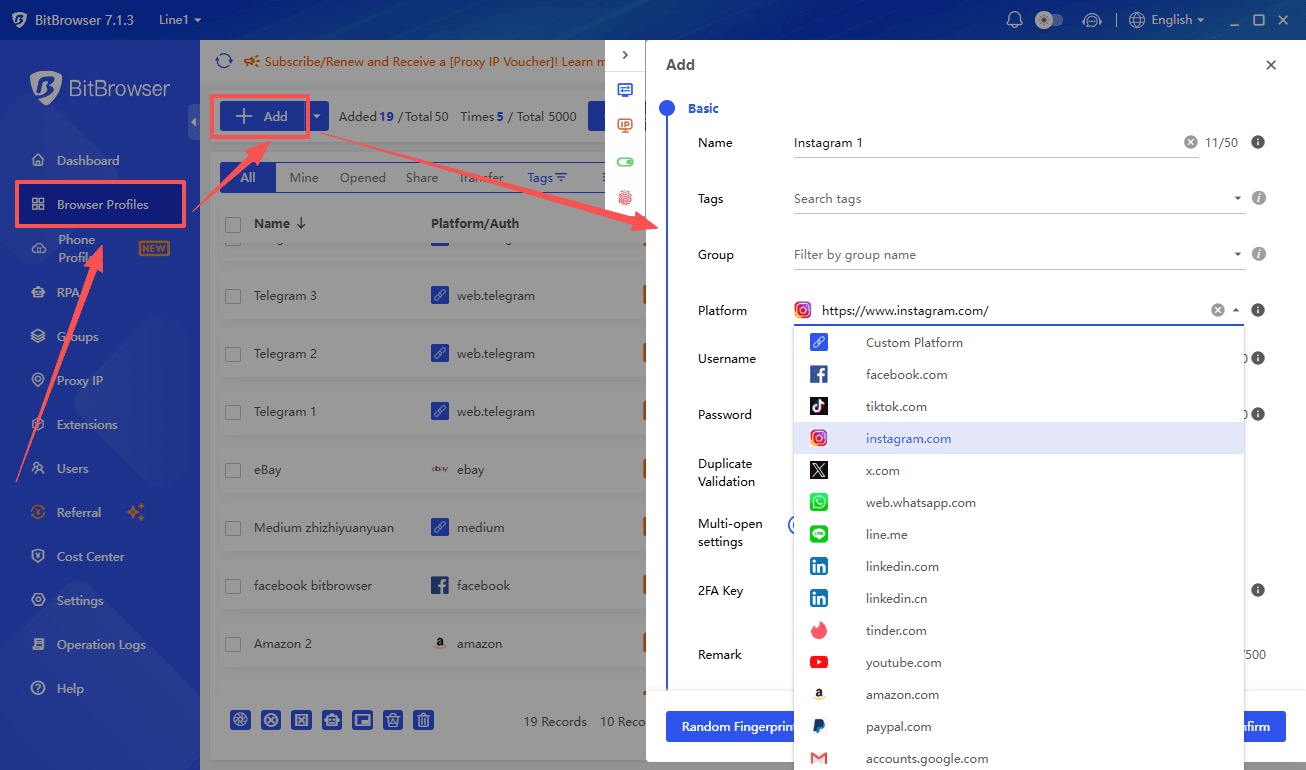
According to the BitBrowser fingerprint documentation, profiles can manage fields such as IPv4/IPv6, language, resolution, audio, timezone, geolocation, fonts, SSL, proxy, DNS, Canvas, WebGL, User-Agent, IndexedDB, and WebRTC. The useful role of BitBrowser is profile isolation and centralized configuration—not a promise that every external detector will approve every profile.
BitBrowser function | Responsible use | What to verify in BrowserScan |
|---|---|---|
Isolated profiles | Keep cookies, storage and sessions separated for approved accounts or testing personas | Cookies, storage, visitor ID and profile stability |
Proxy binding | Assign the correct network route to the correct profile | IP country, ISP, WebRTC and DNS |
Fingerprint controls | Keep browser and device parameters coherent | UA/kernel, screen, Canvas, WebGL, fonts and timezone |
Team workflow | Share controlled profiles without mixing local environments | The same profile produces stable results on each approved workstation |
Common Failures and How to Fix Them
IP and timezone mismatch: use automatic timezone based on the proxy region or set the correct zone manually.
WebRTC leak: disable direct UDP exposure or configure WebRTC to follow the proxy without revealing the host IP.
DNS leak: use the proxy/VPN DNS path or a resolver in the same region; then repeat the DNS test.
User-Agent and kernel mismatch: choose a browser version supported by the actual engine rather than editing the string alone.
Canvas/WebGL inconsistency: keep the same mode for the life of the profile and avoid impossible GPU/OS combinations.
Font anomaly: use a normal font set for the claimed operating system and locale.
TLS mismatch: avoid extensions or middleboxes that rewrite TLS behavior in a way that conflicts with the browser family.
Final Checklist Before You Publish or Log In
Check | Pass condition | Action if it fails |
|---|---|---|
Network | IP, WebRTC and DNS show one coherent route | Replace or reconfigure the network before changing browser settings |
Regional settings | Timezone, language and geolocation fit the IP | Correct locale values and restart the profile |
Browser identity | UA, Client Hints, engine and OS agree | Regenerate a compatible profile |
Hardware identity | Screen, GPU, Canvas, WebGL and media devices are plausible | Use a realistic preset and keep it stable |
Protocol identity | HTTP/2 and TLS resemble the selected browser family | Remove conflicting software, extension or proxy layer |
Conclusion
The reliable way to improve a BrowserScan result is to build a coherent profile, eliminate leaks, and make small evidence-based corrections. BitBrowser can help organize isolated environments and keep fingerprint settings consistent, but responsible configuration, a clean network, and realistic values remain essential.

 Multi-Account Management
 Prevent Account Association
 Multi-Employee Management
Recommended
See More