Account Privacy / Cookies Login
1. What is a Cookie?
A Cookie is a small text file stored by a website in the browser. It is used to record information such as the user's login status and preference settings, and serves as an "identity credential" for the user when accessing the website.
Core Process of Cookie Login
First-Time Login
Enter account and password Server verification passed Generate unique session ID Package into Cookie and return to browser
Automatic Re-login
2. Steps for Cookie Login in BitBrowser
Step 1: Create an Independent Browsing Browser profiles
Open BitBrowser and click "New Window" in the upper left corner
Select "Custom Configuration" in the pop-up window, and set the browser fingerprint as needed (Default random fingerprint is recommended to simulate a real device Browser profiles)
Name the window (e.g., "Amazon Main Account") for easy management later
Step 2: Import Account Cookie Information
Enter the window settings page, find the "Account Management" module, and click "Add Account"
Select the corresponding platform (e.g., Facebook/Shopee, etc.)
Manually enter or paste the Cookie content (the format must include name=value key-value pairs, which can be obtained from the developer tools)
Optional: Enter account password and two-factor authentication key
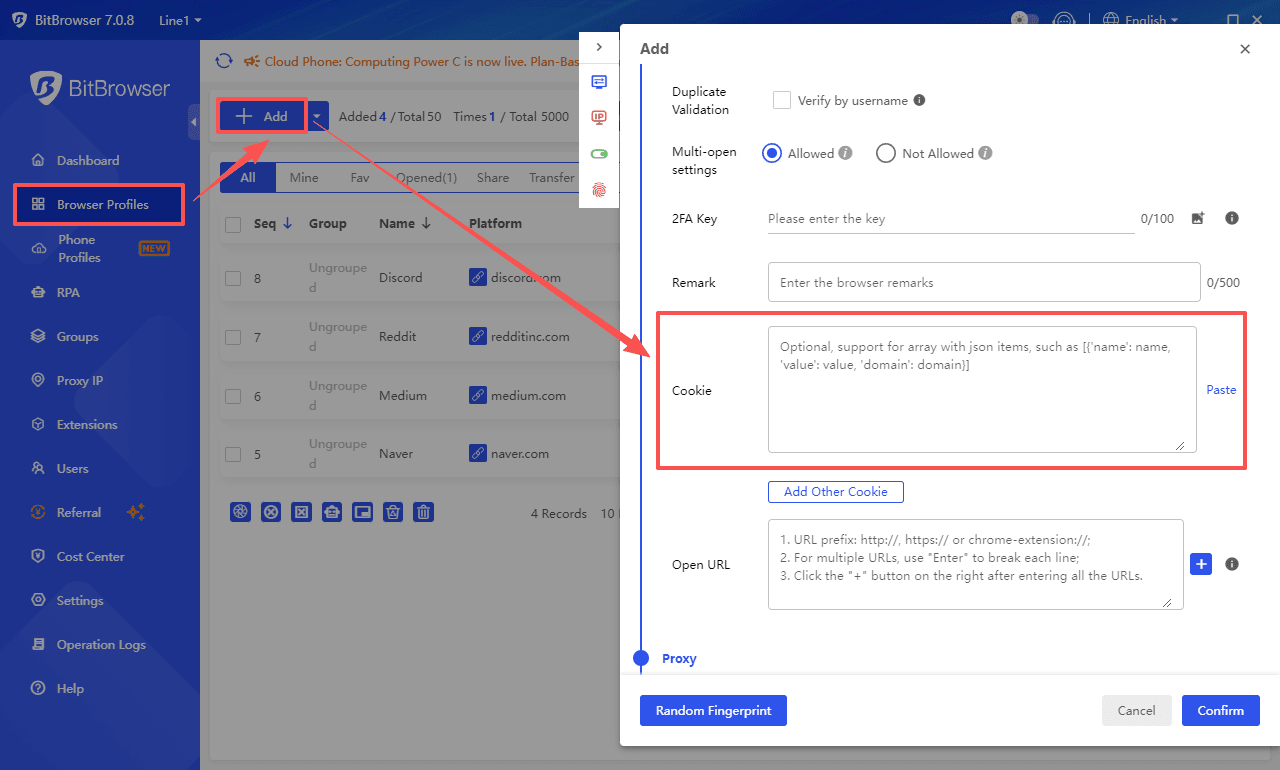
Step 3: Launch the Browser profiles and Verify Login Status
Return to the main interface and launch the corresponding window icon
The browser automatically loads the preset Cookie and accesses the target website
Verification result: No need to enter account and password, directly enter the logged-in state (If the Cookie expires during the first use, you will be prompted to verify manually once)
Step 4: Multi-Account Isolation Management
Repeat Steps 1-3 to create multiple independent windows, with each window corresponding to a different platform/account
View the status of all accounts on the "Browser profilesManagement" page, which supports batch export/import of Cookie data
Enable the "Fingerprint Anti-Association" function (enabled by default) to ensure that the device fingerprint (browser version/time zone/plugins, etc.) of each window is completely independent
3. Common Problems and Solutions
1. What to do if the Cookie expires?
Enter the corresponding window settings, delete the old Cookie, and re-import the latest value (obtainment method: after logging in to the target website, copy it from "Application-Cookies" in the browser console)
2. How to avoid association between multiple accounts?
Ensure that each window uses a different IP (with a proxy tool) + independent fingerprint configuration + isolated Cookie storage. BitBrowser has implemented a three-layer isolation mechanism by default.
3. Which platforms are supported for login?
Theoretically, it supports all websites based on Cookie verification, including e-commerce platforms (Amazon/Shopee), social media (Facebook/Instagram), and office systems (Google Workspace), etc.
Summary: Through the above steps, users can implement a secure management mode of "one window, one account" in BitBrowser. The Cookie data of each account is completely isolated, and combined with random device fingerprint technology, it blocks platform association risks at the bottom level. It is especially suitable for scenarios such as cross-border e-commerce multi-store operation and social media matrix management.