How to Clear the Twitter (X) Cache on Android, iPhone, and iPad
 2025.12.14 04:30
 petro
petroThe Twitter (X) mobile app stores temporary files—such as images, GIFs, and website data—to help content load faster. Over time, this cached data can take up storage space and slow down the app. Clearing the Twitter cache is a simple way to free up space and improve performance without affecting your account.
This article explains how to clear the Twitter cache on iPhone, iPad, and Android devices.
Why You Should Clear the Twitter Cache
Clearing cached data can help you:
- Free up storage space on your device
- Remove unused photos, GIFs, and web data
- Improve Twitter app speed and responsiveness
- Fix minor loading or display issues
Clearing the cache does not delete your account, tweets, or followers.
How to Clear Twitter Cache on iPhone and iPad
On iOS devices, Twitter allows you to clear cached media and web data directly from the app.
Clear Media Cache
Open the Twitter app.
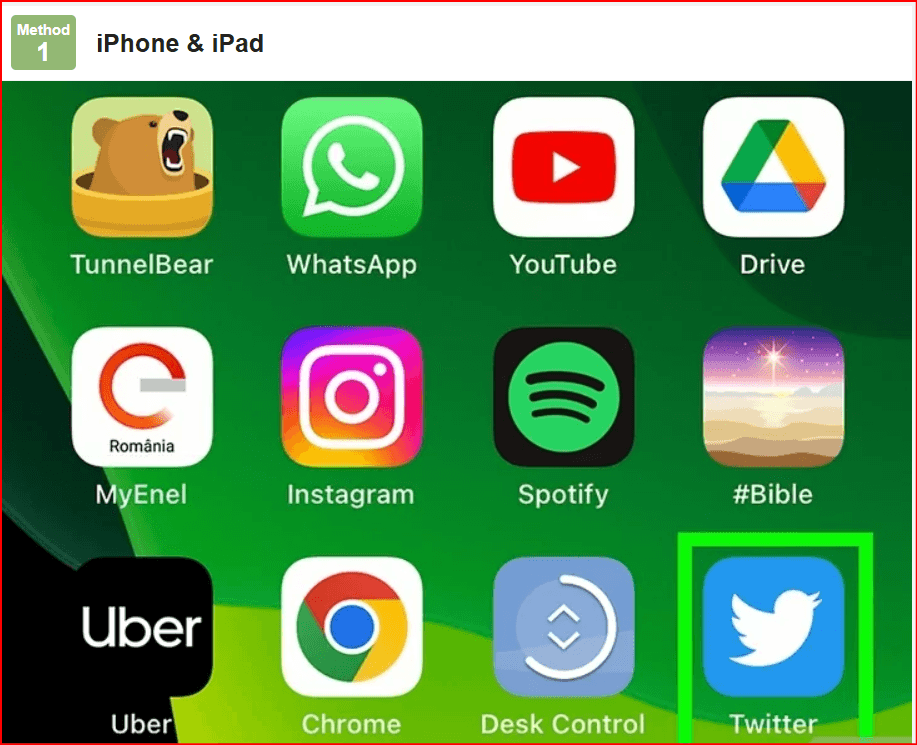
Tap your profile photo in the top-left corner.

Go to Settings and privacy.
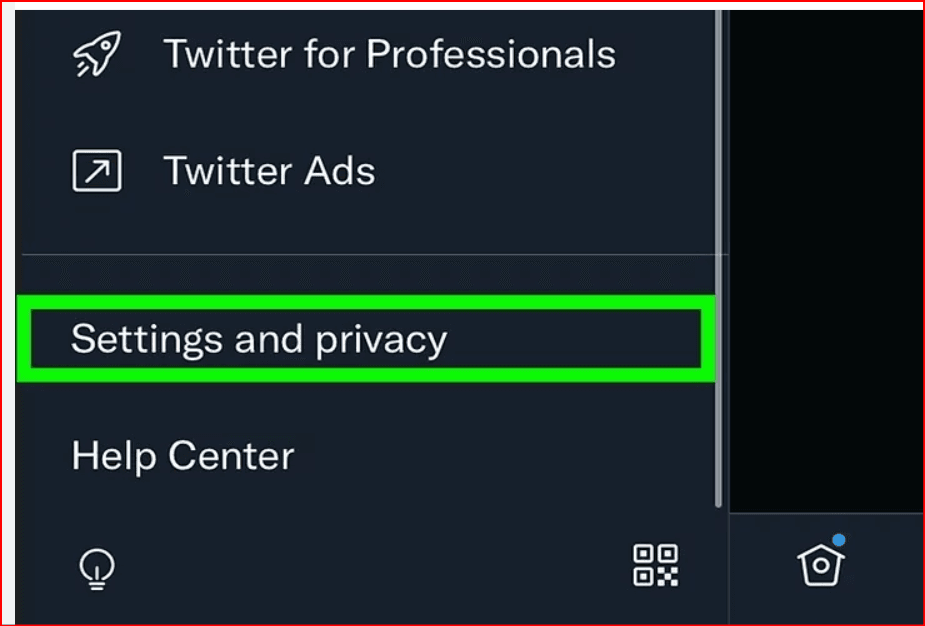
Tap Accessibility, display, and languages.

Select Data usage.
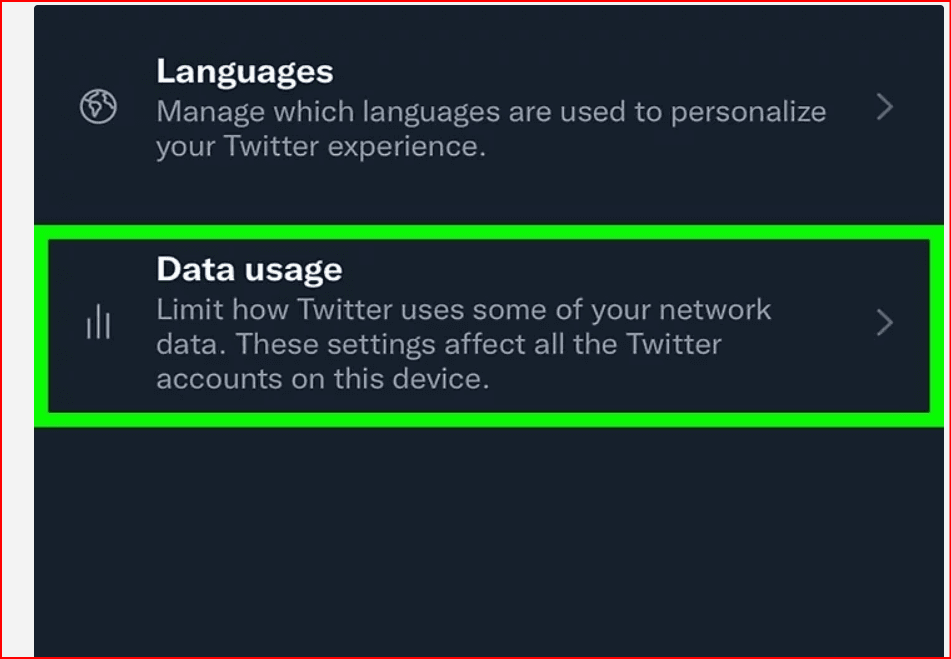
- Tap Media storage.
Tap Clear media storage and confirm.
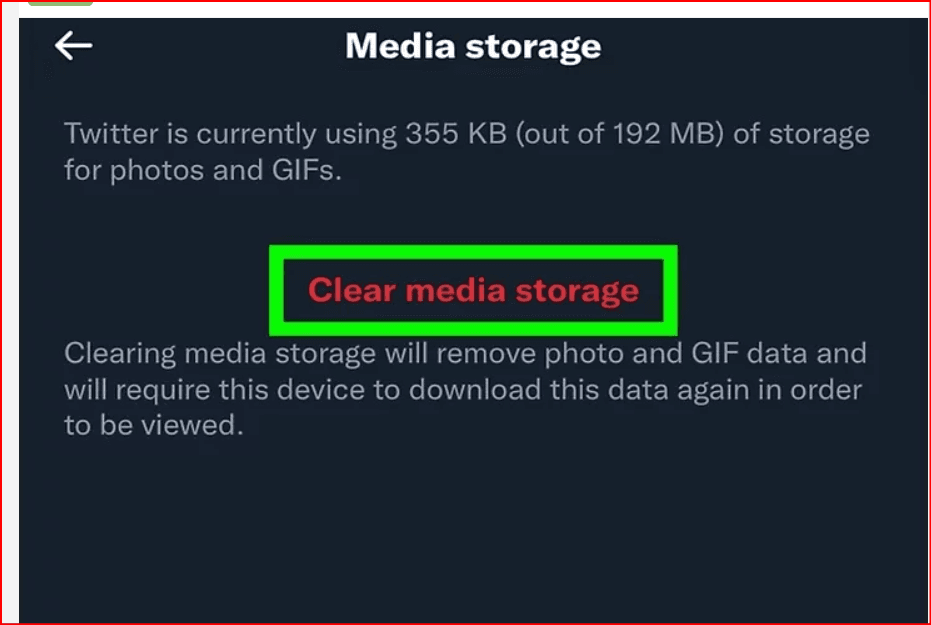
This removes cached images, videos, and GIFs stored by the app.
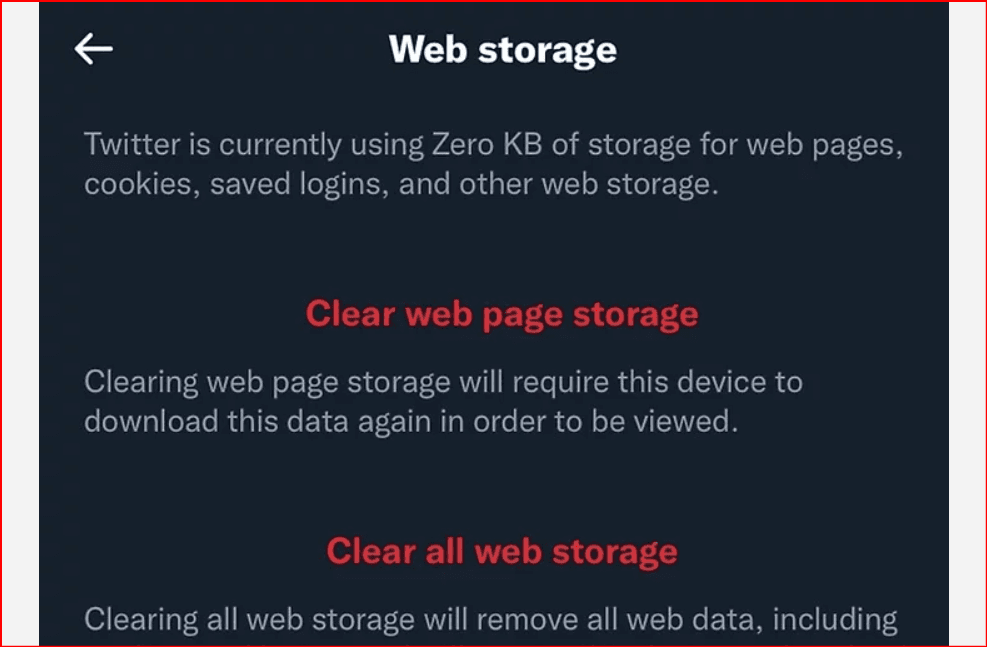
Clear Web Cache
- From the Data usage screen, tap Web storage.
- Choose one of the following options:
- Clear web page storage – deletes cached websites but keeps cookies and saved logins.
- Clear all web storage – removes all web data, including cookies and saved website logins.
- Confirm your selection.Note: Clearing web storage will not log you out of Twitter itself.
How to Clear Twitter Cache on Android
The Twitter app on Android does not include a built-in cache-clearing option. Instead, you must clear the cache through your device settings.
- Open Settings on your Android device.
- Tap Apps or App management.
- Select Twitter from the app list.
- Tap Storage or Storage and cache.
- Tap Clear cache.
The cache will be cleared immediately, freeing up space without deleting your account data Do not tap Clear data unless you want to reset the app and sign out of your Twitter account
Tips for Managing Twitter Storage
- Clear the cache regularly if you use Twitter heavily
- Limit media downloads in Data usage settings
- Restart the app after clearing cache for best performance
Final Thoughts
Clearing the Twitter cache is a quick maintenance task that can significantly improve app performance and free up storage space. Whether you’re using an iPhone, iPad, or Android device, following these steps helps keep Twitter running smoothly.

 Multi-Account Management
 Prevent Account Association
 Multi-Employee Management
Recommended
See More 



