How to Use ChatGPT with a Proxy in BitBrowser
 2025.12.28 02:28
 petro
petroImagine you're at work trying to use ChatGPT, but your network blocks it. Or, perhaps you're automating tasks and need consistent, rotating access. Maybe you're in an area with unstable connectivity to OpenAI's servers. This is where ChatGPT proxies come into play. They're not magic, but they can solve real problems.
In this guide, we’ll cover everything you need to know: what proxies do, how to choose the right one, how to set it up across different devices, and how to troubleshoot common issues. Let’s keep it practical, with real solutions for anyone needing a proxy setup.

What is a ChatGPT Proxy? (Benefits + When to Use One)
A proxy is an intermediary server that sits between your device and the internet. Instead of directly connecting to ChatGPT, your device sends traffic through this server, which can mask your real IP address and potentially route traffic from a different location.
Why does this matter? Sometimes, ChatGPT might block or restrict your access due to network restrictions, flagged IPs, or regional throttling. A proxy helps you bypass these obstacles by providing a different entry point.
Common Use Cases for ChatGPT Proxies
- Network Restrictions: If your workplace or school blocks websites or services like ChatGPT, a proxy allows you to access them.
- Automation: For automation scripts that need stable connections without triggering rate limits.
- Geographic Connectivity: If your area has unreliable access to OpenAI's servers, a proxy closer to OpenAI’s infrastructure can reduce latency.
- Multiple Accounts: If you manage several accounts for business tasks (e.g., customer support bots or research tools), proxies help distribute your requests efficiently.
- IP Rate Limiting: If your personal IP is rate-limited, switching to a new IP via a proxy can help solve the issue quickly.
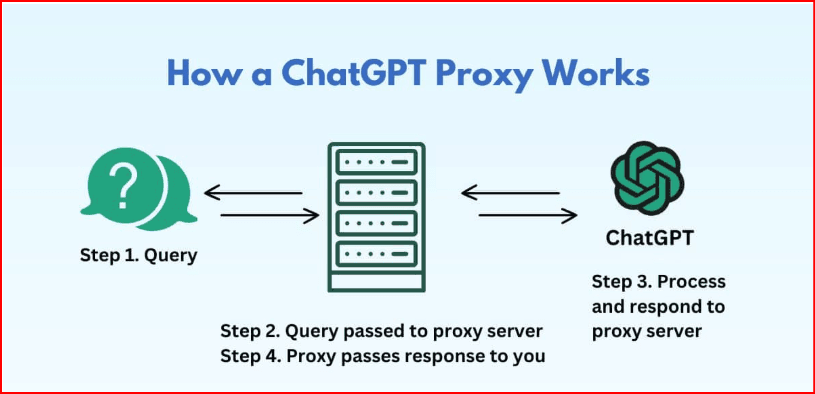
Proxy Types and Protocols for ChatGPT (What You Need to Know)
Not all proxies work the same way, and the type you choose will affect your proxy’s speed, reliability, and cost. Here’s a breakdown:
Datacenter Proxies
- What they are: These proxies run on cloud servers in data centers. They’re fast, inexpensive, and widely available.
- Pros: Ideal for personal use, testing, and cost-effective solutions.
- Cons: OpenAI can easily detect datacenter IPs, so they aren’t as stealthy.
- Best for: Basic access where detection isn’t a concern, and you want to save on costs.
Residential Proxies
- What they are: These proxies use real IPs provided by ISPs to homes and businesses.
- Pros: Appear like normal internet traffic, reducing detection risk. They offer better stability than datacenter proxies.
- Cons: More expensive than datacenter proxies.
- Best for: Stable, long-term use with fewer detection risks.
Mobile Proxies
- What they are: These proxies route traffic through mobile networks, appearing as though it’s coming from mobile devices.
- Pros: Very difficult to block and appear as legitimate mobile users.
- Cons: Expensive and often slower than datacenter proxies.
- Best for: High-detection environments or when other proxies are blocked.
HTTP(S) vs SOCKS5 + WebSocket Support
- WebSocket Support: ChatGPT uses WebSockets for real-time communication. If your proxy doesn’t support WebSocket tunneling, you’ll experience disconnections during chats.
- SOCKS5 Proxies: A lower-level protocol that handles various traffic types, including WebSockets, making it more stable for ChatGPT sessions.
- Sticky vs Rotating Proxies: Sticky sessions keep you on the same IP throughout your session, which is recommended for ChatGPT. Rotating proxies, which change IPs frequently, are better for automation but can cause issues with ChatGPT’s chat continuity.
How to Choose the Right Proxy for ChatGPT (Quick Checklist)
Before choosing your proxy, consider the following:
- Does the proxy support SOCKS5 or HTTP(S) with WebSocket support? (Essential for ChatGPT functionality.)
- What’s your primary use case? (Personal use, automation, business, etc.)
- Do you need sticky sessions or IP rotation? (Sticky sessions work best for chat; rotate IPs for automation tasks.)
- Is your network restrictive or just slow? (Restrictive networks might need residential or mobile proxies, while slow networks can work with faster proxies.)
- What’s your tolerance for latency? (Aim for under 150ms delay for smooth ChatGPT use.)
- Does the proxy provider offer IP rotation without rate limits?
- Can you whitelist IPs or use authentication methods for added security?
How to Set Up a Proxy for ChatGPT Using BitBrowser
If your network blocks ChatGPT, your IP gets rate-limited, or you manage multiple ChatGPT sessions, using a proxy inside BitBrowser is one of the simplest and most reliable solutions. BitBrowser lets you assign a unique proxy to each browser profile, keeping sessions stable and isolated.
This guide walks you through setting up a proxy in BitBrowser specifically for ChatGPT, step by step.
Why Use BitBrowser for ChatGPT?
BitBrowser is an anti-detect browser designed to manage multiple browser profiles with separate fingerprints and IPs. For ChatGPT, this means:
- Each profile can use a different proxy
- Stable sessions without IP crossover
- Better control over sticky IPs
- Reduced risk of rate limits or access blocks
- No system-wide proxy changes required
Step-by-Step: Set Up a Proxy for ChatGPT in BitBrowser
Step 1: Create a New Browser Profile
- Open BitBrowser.
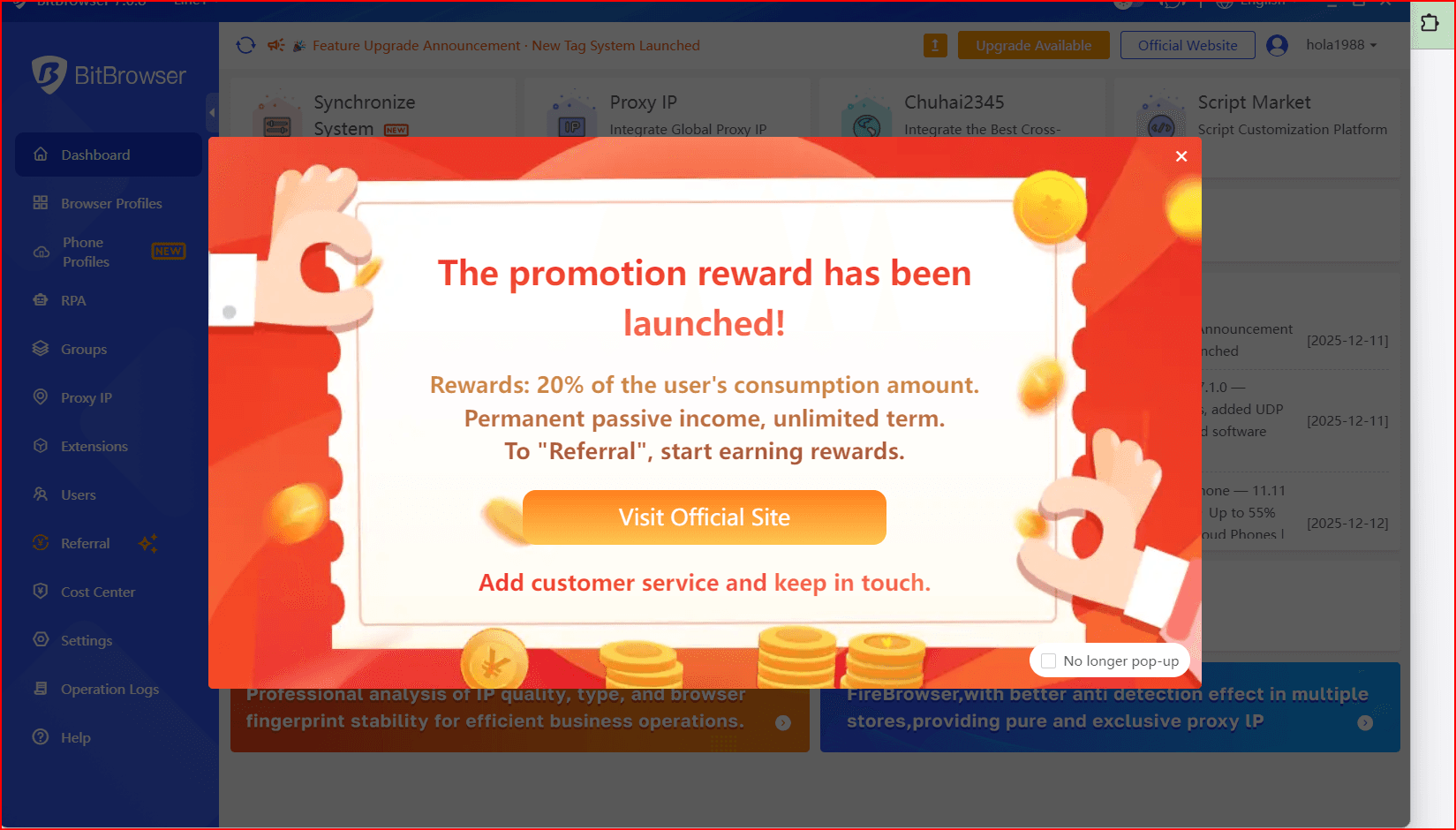
Click Create Profile.
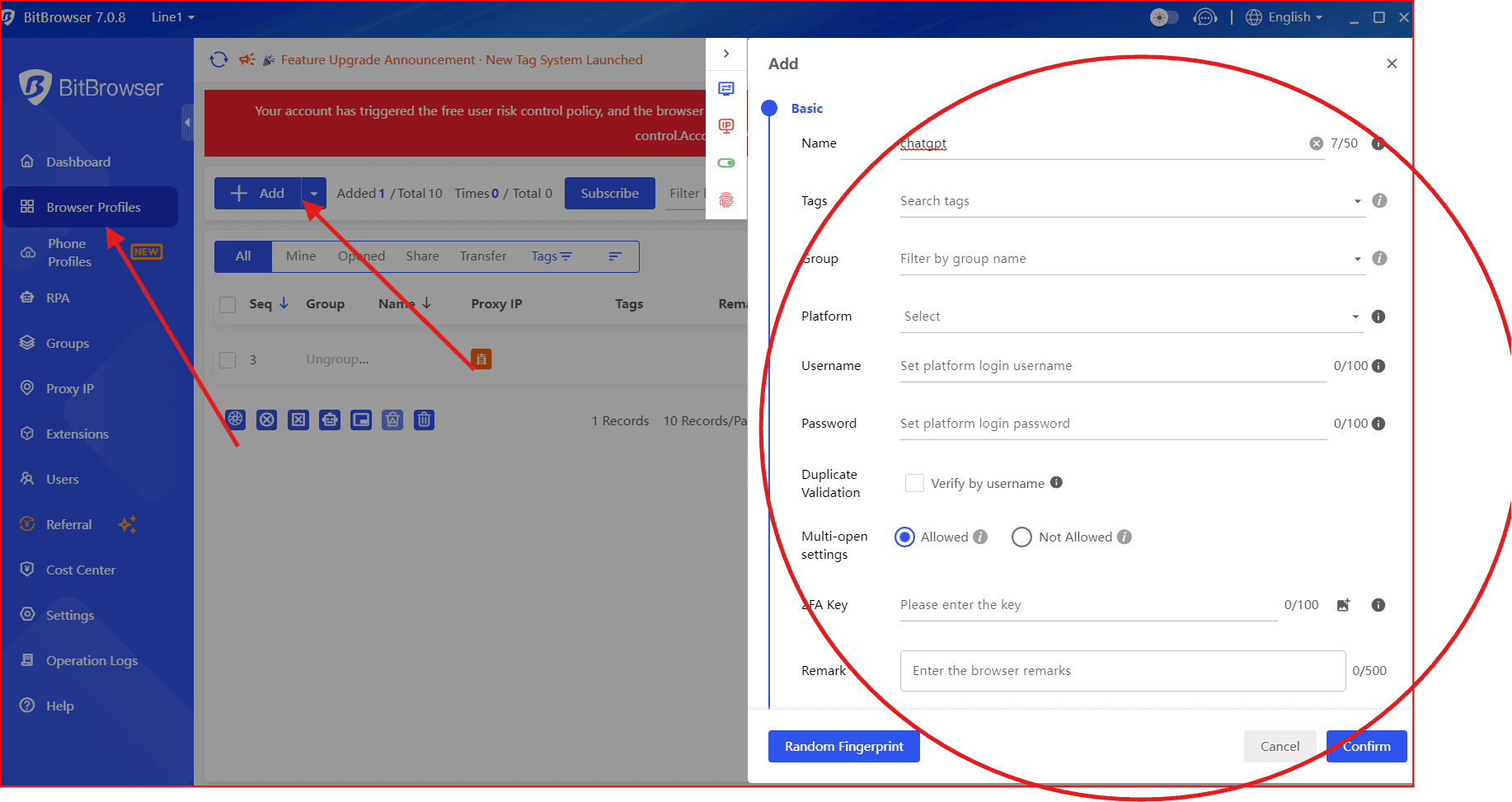
- Choose a browser type (Chromium is recommended).
- Configure basic fingerprint settings (default is usually fine for ChatGPT).
Step 2: Configure the Proxy
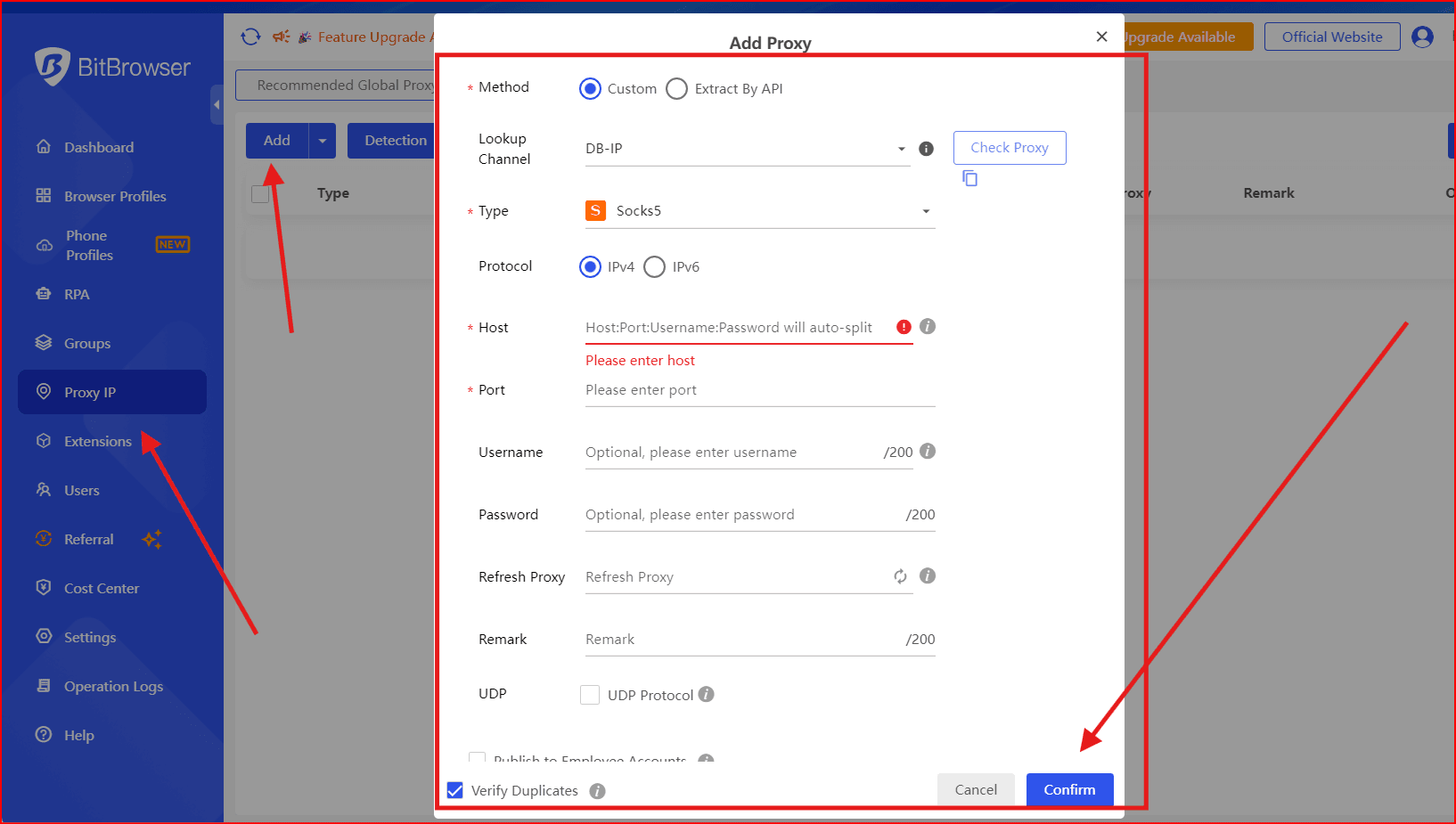
In the Proxy Settings section of the profile:
- Select your proxy protocol:
- SOCKS5 (recommended for ChatGPT)
- or HTTP(S) if SOCKS5 is not available
- Enter your proxy details:
- Host / IP
- Port
- Username & Password (if required)
- Click Test Proxy to confirm the connection works.
- Save the profile.
Tip: Enable sticky sessions on your proxy provider’s dashboard if available. ChatGPT works best when the IP stays the same during a session.
Step 3: Launch the Profile and Open ChatGPT
- Start the newly created BitBrowser profile.
- Go to https://chat.openai.com.
- Log in to your ChatGPT account.
- Start a conversation and confirm responses stream normally.
Recommended Proxy Settings for ChatGPT
For best results:
- Protocol: SOCKS5
- WebSocket support: Required
- Session type: Sticky IP
- Avoid rotating IPs mid-session
ChatGPT uses WebSockets for streaming responses. If your proxy doesn’t support WebSockets, messages may stop or disconnect mid-response.
How to Verify the Proxy Is Working
Inside the BitBrowser profile:
- Visit an IP-check site (e.g., WhatIsMyIP).
- Confirm the IP matches your proxy, not your real location.
- Send a longer prompt in ChatGPT.
If the response streams smoothly without reconnects, your setup is correct.
Common Issues and Fixes
ChatGPT Won’t Load or Shows Access Errors
Cause: Proxy IP is blocked or flagged.
Fix:
- Switch to a new IP
- Use a residential or mobile proxy instead of datacenter
Random Logouts or Disconnected Messages
Cause: IP rotation or no WebSocket support.
Fix:
- Enable sticky sessions
- Use SOCKS5 proxies
- Avoid rotating IPs during active chats
Slow Responses
Cause: High proxy latency or distant server location.
Fix:
- Choose a proxy closer to your region
- Aim for under 150 ms added latency
Best Practices for Using ChatGPT with BitBrowser
- Use one ChatGPT account per BitBrowser profile
- Keep IPs sticky for the entire session
- Avoid free proxies (unstable and often blocked)
- Space out requests if using automation
- Test each profile before long sessions
How to Test If Your Proxy Works
To ensure your proxy is functioning correctly:
- Check IP/DNS: Visit a site like WhatIsMyIP to verify if your IP has changed.
- Check Latency: Open ChatGPT and see if the response time is acceptable (under 150ms is ideal).
- Test WebSocket Stability: Send a longer prompt. If the chat disconnects, your proxy may not support WebSockets properly.
Common Proxy Issues (And How to Fix Them)
- Connection Blocks: If ChatGPT blocks your connection, request a new IP from your proxy provider, or switch to residential proxies for better stability.
- Latency or Session Drops: Ensure your proxy is not rotating IPs mid-session or overloaded. Switch to sticky sessions or use a faster proxy if necessary.
- Rate Limiting: If you’re running automated scripts, rotate your IPs more frequently or slow down requests to avoid hitting OpenAI’s limits.
Proxy Best Practices
- Avoid Free Proxies: Free proxies are unreliable and can compromise your privacy. Invest in a paid proxy for better speed and security.
- Rotate IPs for Automation: For personal browsing, sticky sessions are best, but rotate your IP for heavy automation or if you’re running numerous requests.
- Test Your Proxy: Always test your proxy before fully relying on it for important tasks to ensure it works as expected.
Proxy Type Comparison
Proxy Type | Best For | Pros | Cons | Price/Availability |
Datacenter | Personal use, testing | Fast, cheap, great for testing | Easily detected, may be restricted | Low cost, available |
Residential | Stable use, AI automation | Natural traffic, stable performance | More expensive than datacenter | Mid-range, common |
Mobile | High-detection environments | Hard to block, looks like phone traffic | Most expensive, slower speeds | Premium, limited |
Final Thoughts
ChatGPT proxies offer solutions to common access issues, improving stability and automating tasks. Whether you choose datacenter, residential, or mobile proxies, ensure the option you choose supports WebSocket, fits your needs, and provides reliable service. Always test your setup and troubleshoot before relying on it for important work.

 Multi-Account Management
 Prevent Account Association
 Multi-Employee Management
Recommended
See More 



