Can’t Log Into Facebook in 2026? A Step by Step Guide to Fix It Fast
 2026.05.28 06:43
 YT.Shi
You type your email and password. You hit enter. Nothing happens, or worse, a vague error message stares back at you. Getting locked out of Facebook is always annoying, and in 2026 it still happens to millions of people every day. The security checks are tighter, the app updates more frequent, and sometimes a tiny setting on your device is all it takes to block you.
Before you panic and assume you were hacked, take a slow breath. Most login failures are easy to fix from your side, and I will walk you through every step. I will use plain English, no complicated jargon, and all the exact steps that actually work this year.
Step 1: Check If Facebook Is Down for Everyone
The very first thing to confirm is whether the problem is on Meta’s side. In 2026, Facebook still experiences global and regional outages that can lock everyone out for a few hours. If the platform itself is having issues, no amount of password resetting will help you get in.
Here is what to do right now.
● Visit DownDetector.com and search for “Facebook”. A large spike in reports means it is not just you. Or you can go directly to Facebook's status check page.
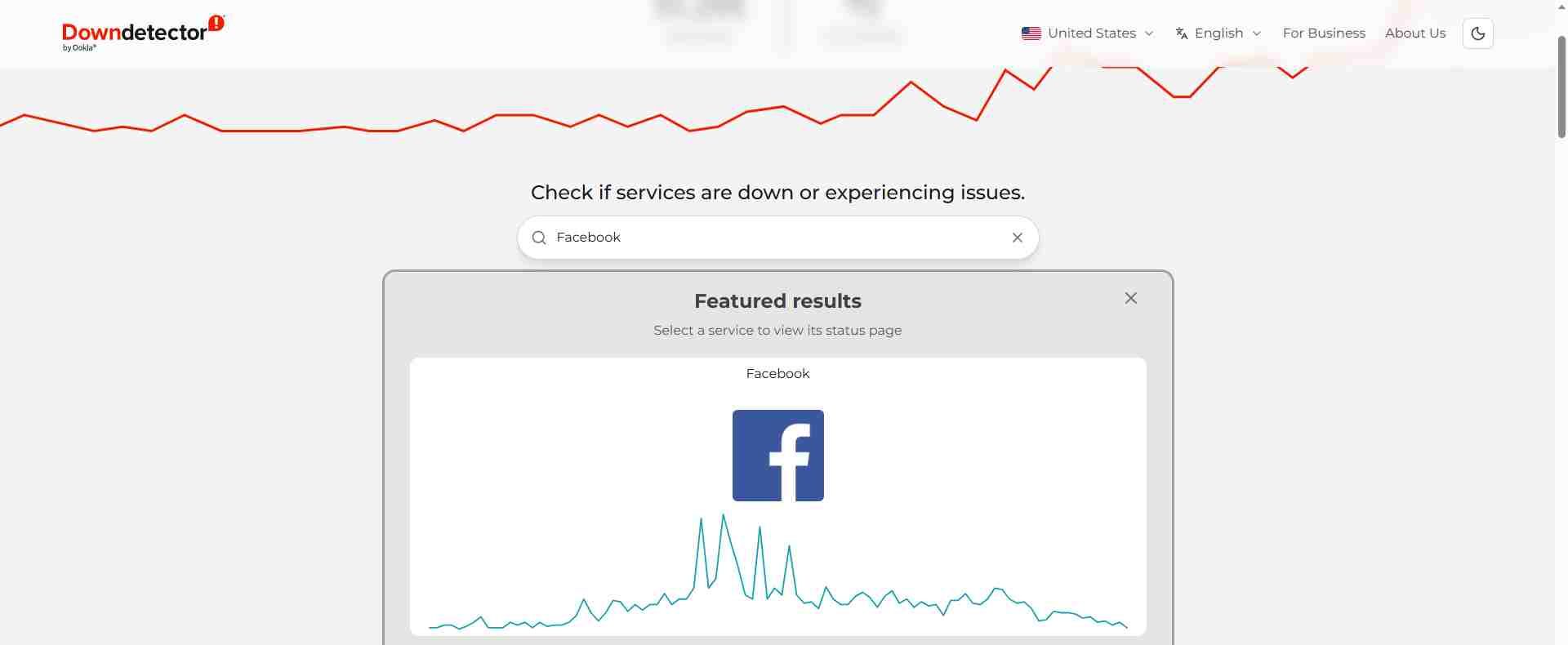
● Look at Twitter or X. Search for “Facebook down”. If it is a major outage, it will be trending within minutes.
If you see confirmation of an outage, save yourself the frustration and wait. Most issues are fixed within an hour. You can also use this time to finish reading this guide so you are prepared if the problem comes back later.
Step 2: Try the Simplest Fixes First
Assuming there is no major outage, your issue is local. That is good news because you can fix it quickly with these basic moves.
Force close the app and reopen it. On your phone, swipe the Facebook app away completely. Do not just minimize it. On a computer, close your browser fully, wait ten seconds, then open it again. This clears temporary memory glitches that often break the login flow.
Update the Facebook app. An outdated app version in 2026 will frequently refuse to connect to the current servers. Go to your device’s app store, search for Facebook, and tap Update if one is available. Do not skip this step even if you think auto update is on.
Step 3: Clear Your Browser Cache and Cookies
Corrupted files in your browser are one of the top reasons you see login errors even with a correct password. Your browser saves old images and scripts, and when those conflict with Facebook’s newer code, the page simply breaks.
The exact steps depend on your browser, but they all follow a similar path. Let’s use Chrome as an example because it is the most widely used.
1. Click the three dots in the top right corner and select Settings.
2. Go to Privacy and security and then Clear browsing data.
3. Choose a time range of All time. Make sure Cookies and other site data and Cached images and files are both checked.
4. Tap Clear data. Once done, restart the browser completely.
If you do not want to clear everything, you can quickly test with an incognito or private window. On Chrome, click the three dots and select New Incognito Window. Try logging in there. If it works, your normal browser data is definitely corrupted and needs clearing.
Step 4: Check Your VPN, Proxy and Browser Extensions
In 2026, Facebook’s automated security systems aggressively flag logins from IP addresses that shift unexpectedly. This means your VPN or proxy can easily get you temporarily blocked, even if you have used the same VPN for years.
● Turn off your VPN entirely. Disconnect it and try to log in with your real IP. This resolves the problem for many people immediately.
● Disable browser extensions. Ad blockers, privacy tools, or script blockers sometimes interfere with Facebook’s login scripts. Temporarily disable all of them, reload the login page, and try again.
● Fix your device’s date and time. If your system clock is wrong by even a few minutes, Facebook’s security certificates will not match. Go to your device settings and enable Set time automatically. This tiny fix solves a surprising number of two factor authentication failures.
Step 5: Solve Account Specific Login Blocks
If the steps above did not work, Facebook itself is probably stopping you on purpose for security reasons. Pay close attention to the exact message on your screen. It tells you what kind of lock you are facing.
1. You forgot your password or it is not being accepted.
Make sure Caps Lock is off and you are using the correct email or phone number. Do not copy and paste your password with extra spaces at the end.
If you are still stuck, click the Forgotten password? link on the login page. Meta will send a code to your recovery email or phone number. Use it quickly because the codes expire fast.
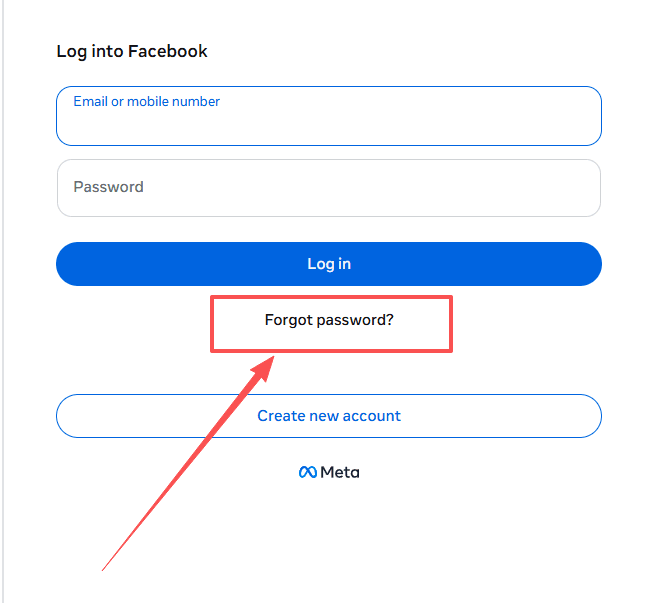
2. Your account is temporarily locked.
This usually means Facebook noticed a login from a new device or location and wants to verify it is really you. Follow the on screen instructions to confirm your identity. You will typically need to receive a code on your phone or email. In some cases, you may have to upload a photo of your ID.
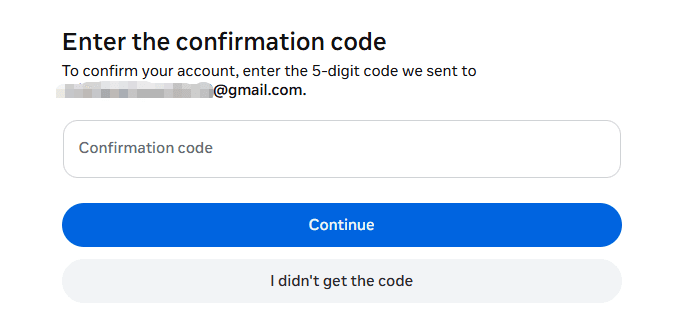
3. Two factor authentication code is not working.
If you use an authenticator app, make sure you are selecting the correct entry for Facebook. Next, check that your phone’s date and time are set to update automatically. A manual offset causes the six digit codes to fail.
If you use SMS codes, never request multiple new ones in a row. Each new request invalidates the previous one, which makes the situation worse.
4. Your account was disabled.
A message saying your account is “disabled” or “suspended” means Facebook believes you violated its community standards. You can go to the "Facebook Help Center" and appeal. Most often you will need to submit a clear photo of a government ID to prove your identity.
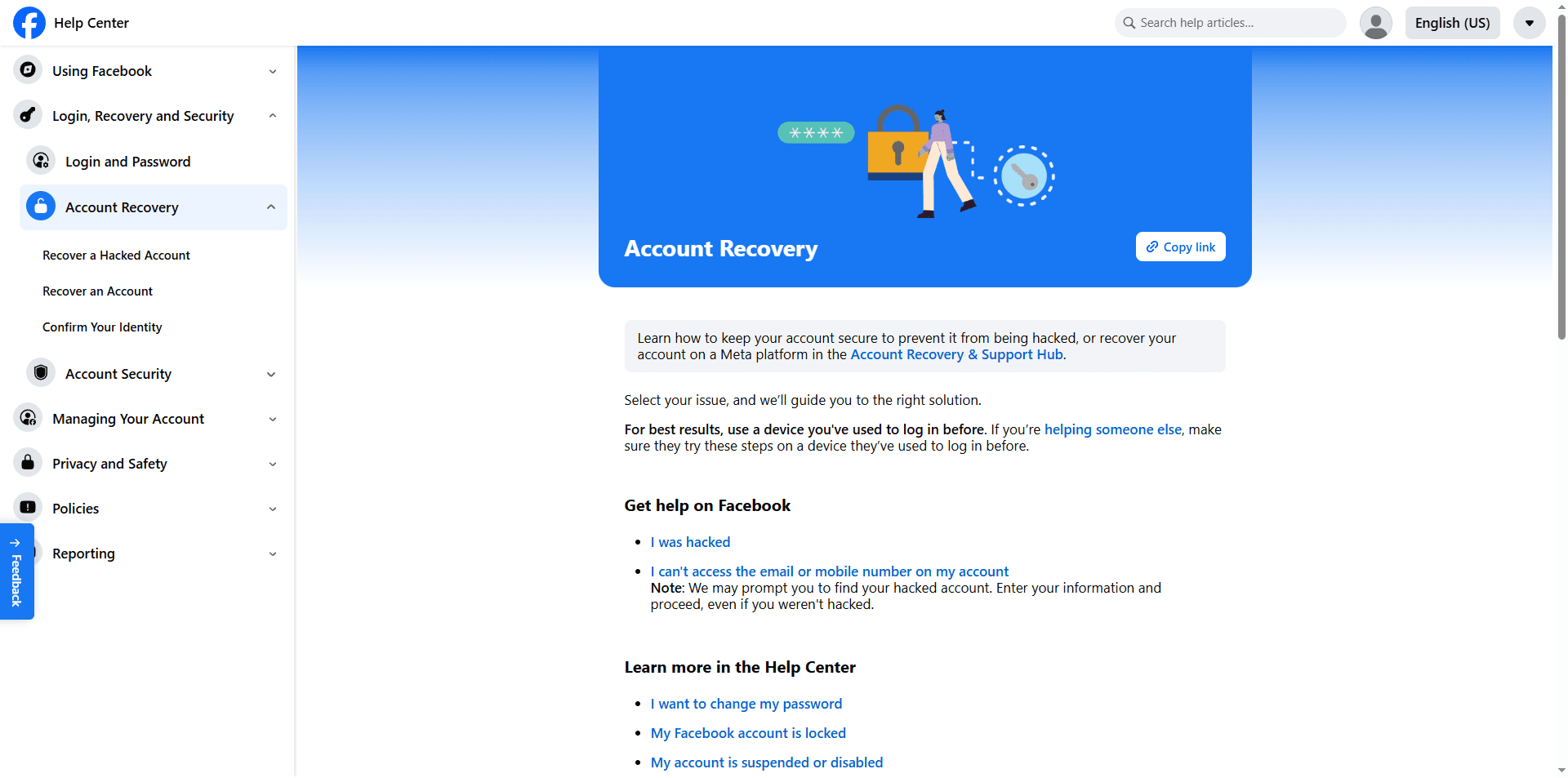
Guide to Recovering Your Facebook Account:
● How to Recover a Disabled Facebook Account in 2026
● How to Recover a Disabled Facebook Ad Account in 2026
5. You were logged out suddenly.
If your session just expired, perhaps after a password change or a security sweep, the fix is simple. Log in again with your current password. If it asks you to verify your identity, follow the steps for a temporarily locked account.
6. You believe your account was hacked.
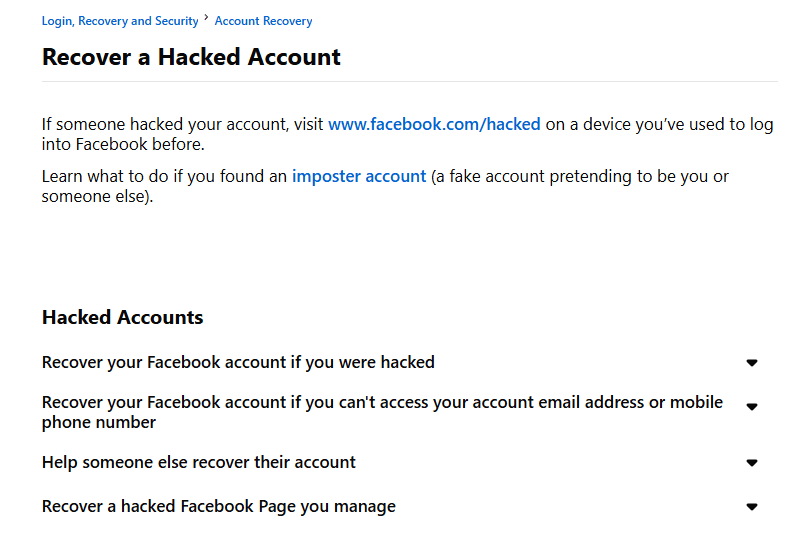
Go to the Facebook login page, enter your email or phone, and click Forgotten password?. If the hacker changed your recovery information, Facebook may still offer to help you through trusted contacts or by matching your face to your profile photos. Act fast and use the dedicated recovery flow at the Facebook Help Center.
Stay Safe and Avoid Future Login Headaches
For a single personal account, the steps above will solve nearly every login issue. But if you manage multiple Facebook accounts, for work, ads, or business pages, repeated locks often have a different cause. Facebook detects when multiple accounts share the same browser fingerprint and IP address, and it treats that as suspicious behavior.
The simplest fix is to isolate each account completely. A tool like BitBrowser creates separate browser profiles, each with its own stable fingerprint, cookies, and proxy.
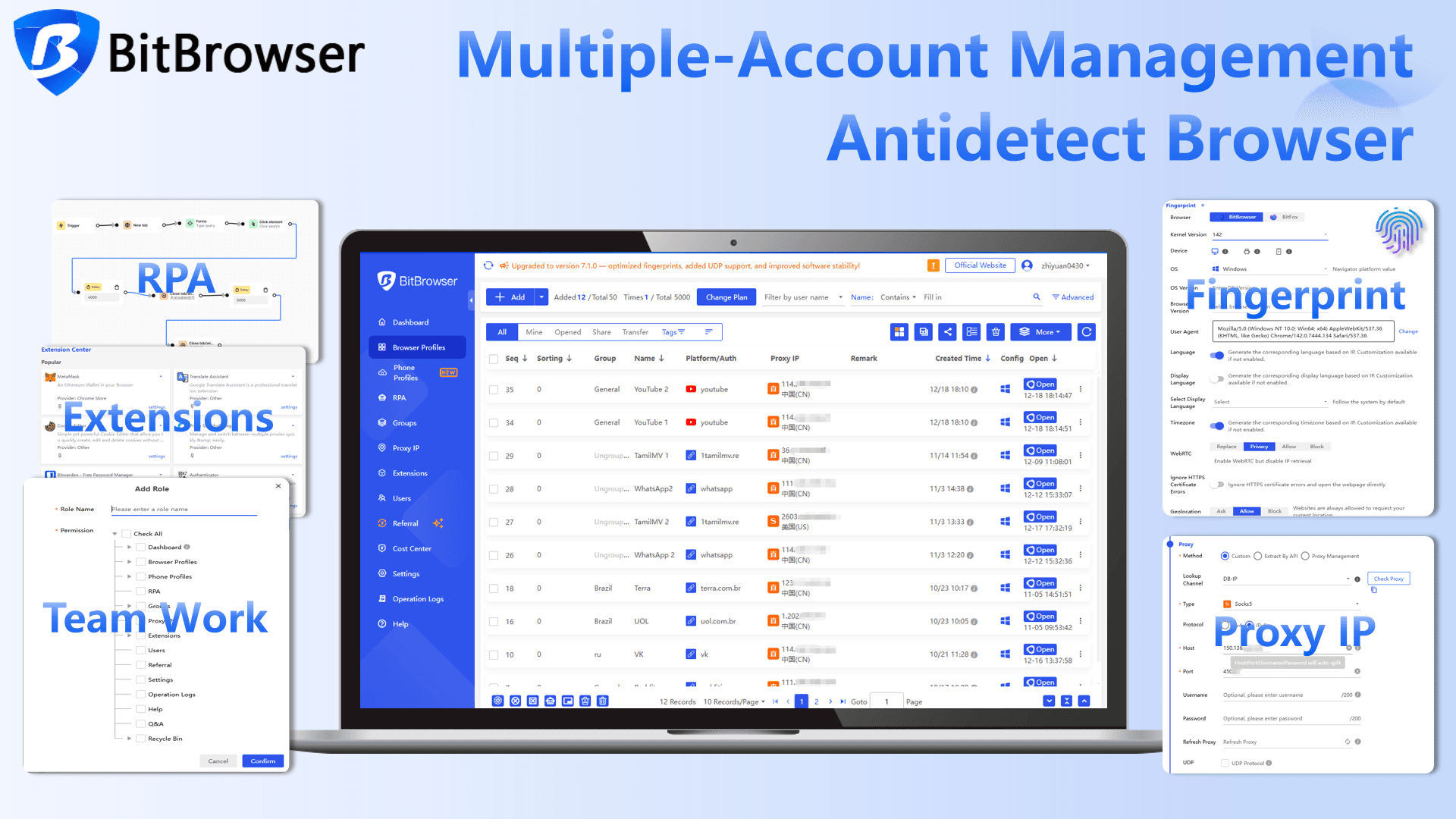
This makes every account look like a real, independent user on its own device, so you stop triggering verification loops and stay logged in. If you are tired of repeating the recovery steps in this guide, a clean, dedicated browser setup is the smart next move.
Sign Up
Conclusion
Repeated Facebook login problems usually trace back to shared browser fingerprints or unstable IP addresses, especially for anyone managing multiple accounts. The most effective way to prevent these locks is to isolate each profile in its own clean environment.
BitBrowser makes this simple by giving every account a stable fingerprint, dedicated cookies, and its own proxy. That way, Facebook sees each login as a real, separate user, and you stay logged in without constant recovery steps. Keep your accounts separated, and your login experience will finally stay smooth and secure.

 Multi-Account Management
 Prevent Account Association
 Multi-Employee Management
Recommended
See More 



