How to Recover a Disabled Facebook Ad Account in 2026: Appeal, Fix & Restore Access
 2026.04.15 14:11
 YT.Shi
If your Facebook ad account gets disabled in 2026, it can feel like everything stops overnight. Your campaigns are gone, your traffic drops, and your business scaling plan is suddenly blocked.
The good news is that recovery is still possible in many cases. The key is understanding why the restriction happened and fixing the real root cause before submitting an appeal.
In this guide, I will walk through a structured recovery process based on common real world cases inside Meta’s advertising ecosystem.
If your personal account has been deactivated. Check for instructions on how to reactivate your Facebook account.
Why Meta May Restrict or Disable an Ad Account
Do not click the "Request Review" button right away. You need to understand exactly what Meta restricted before you can fix it.
Navigate to your Meta Business Suite, open All Tools, and click on Business Help Center (formerly Account Quality). Meta does not always ban the ad account itself. The advertising restriction might be placed on your Personal Profile, your Business Manager, or a specific Facebook Page.
Below are the most common situations where Meta may impose advertising limits or disable access.
1. Policy non compliance
Meta may restrict advertising accounts when advertisers fail to comply with its core rules, including Community Standards, Advertising Standards, and Business Policies. Even repeated minor violations can accumulate and lead to account level restrictions or full disablement.
2. Suspicious or compromised account activity
Restrictions may be triggered if Meta detects signs that a business portfolio, ad account, or related assets have been compromised. This can include unusual login activity, unauthorized changes, or abnormal campaign behavior that does not match historical patterns.
This is often caused by unstable environments rather than actual hacking. To reduce risk, keep your login setup consistent. Some advertisers use tools like BitBrowser to maintain stable fingerprints and IPs. You can also use this anti-detect browser tool to browse Facebook anonymously and prevent multiple accounts from being linked.
In such cases, restrictions are often applied as a protective security measure.
3. Failure to meet security requirements
Meta enforces strict account security standards. If required protections such as two factor authentication are not enabled, advertising access may be limited or blocked until security settings are properly configured.
4. Temporary limits on spending and payment functions
In some cases, Meta applies partial restrictions instead of full disables. These may include reduced daily spending limits, restricted billing frequency, or limited access to payment features while the account is under review for compliance and trust evaluation.
5. Payment issues or abnormal billing activity
Payment related signals are a major factor in enforcement decisions. High payment failure rates, declined transactions, disputed charges, or unusual billing patterns may indicate financial risk, leading Meta to temporarily restrict or pause advertising activity until the issue is resolved.
Note: If your ad account is disabled for policy violations and cannot be recovered within 6 months, any unused prepaid funds may be forfeited where legally allowed. After 6 months, recovery is no longer possible. In some cases, Meta may also permanently disable the account within this period.
What to Do Before Submitting a Meta Ad Account Review
Before you submit a review request, it is important to understand that Meta does not evaluate appeals in isolation. The system will re scan your account during the review process, which means your current setup directly affects the outcome. This is why preparation is often more important than the appeal itself.
1. Clean and fix your ad account content
The first step is to remove anything that could trigger policy violations again during the review.
This includes:
● Resolve Payment Issues: Contact your bank to clear any blocks and ensure a reliable credit card is active on your billing page.
● Remove Problematic Content: If an ad was flagged for policy violations, delete it completely. Even paused ads with violations can cause subsequent bans. Ensure your remaining ad copy uses objective language. Avoid exaggerated marketing claims or absolute guarantees, as Meta's AI actively scans for unrealistic promises.
● Enable Two-Factor Authentication (2FA): Meta penalizes accounts that lack basic security hygiene. Ensure 2FA is active for all admins within the Business Manager.
The goal here is to make sure your account looks fully compliant at the moment of review. If Meta detects the same issues again, the appeal is usually rejected automatically.
2. Secure your account and complete verification
After cleaning your ads, the next step is to secure your account and complete all required checks in Meta Business Support Home before submitting a review.
Go to Account status overview
Open Meta Business Support Home on desktop, go to Account Overview, select your restricted account, then open Account status overview. Check the “What you can do” section to see required actions.
Confirm your identity
Meta may ask you to verify your identity using:
● Email or SMS code
● Government ID such as passport or driver’s license
● Payment method confirmation
Complete verification and security steps
You may see “Start verification” or “Request review.” Follow the on screen steps to confirm ownership.
In many cases, you will also need to:
● Enable two factor authentication
● Verify your business email
● Get admin approval if required
Once completed, your account may be reinstated and the review option unlocked.
3. Stabilize account activity before appeal
After making corrections and completing security steps, it is recommended to keep the account stable for a short period.
This means:
● Avoid creating new ads immediately
● Do not repeatedly change campaign structures
● Keep activity consistent and low risk for a short time
● Allow the system to re evaluate signals naturally
This short stabilization period helps improve trust signals before submitting your appeal.
How to Submit a Professional Appeal for a Disabled Advertising Account
You typically have only a limited number of opportunities to request a review, so your submission must be accurate, concise, and professional.
Where to Request a Review
To submit an appeal:
1. Go to Meta Business Support Home
2. In the left menu, select Account Status Overview
3. Choose the restricted ad account
4. In the “What you can do” section, click Request Review
5. Follow the on-screen instructions to complete your submission
Note: You must be an admin of the account to request a review.
How to Write a Strong Appeal
When submitting your review request:
● Keep the tone objective and professional
● Avoid emotional or confrontational language
● Clearly explain the possible trigger (e.g., new payment method, unusual login location)
● Confirm that your business information is accurate and verified
You can use a template like this:
“Dear Meta Support Team,
My ad account [Insert ID] was recently disabled. We suspect this may have been an automated security measure triggered by [specific reason, e.g., a newly added payment method or recent location login].
We have verified our business details and attached the requested identification.
Kindly initiate a manual review so we can resume our scheduled campaigns. Thank you.”
What Happens After Submission
● Meta typically completes the review within 48 hours (may take longer in some cases)
● If approved → your account will be reinstated
● If rejected → the restriction will remain in place
Important:
● The decision is usually final once the review is completed
● Submitting a review won’t negatively impact your account standing, even if rejected
Note: If your account is reinstated, previously running ads will NOT restart automatically. You must manually turn them back on in Meta Ads Manager.
If Your First Appeal Fails
This is very common, and it does not always mean permanent rejection.
Step 1: Wait and improve
Wait 3 to 7 days and make additional corrections:
● Remove any borderline content
● Replace risky creatives
● Improve landing page transparency
Step 2: Appeal again
Submit a second review request with a more stable setup.
Step 3: Contact support if available
If your account has access to live chat inside Meta Business Manager, use it. Provide your Case ID and politely request that the ticket be escalated for a manual review.
If you have an assigned Meta account representative (Meta Marketing Pro), contact them directly. They can escalate your case to the internal policy team to override the algorithmic decision.
How to Prevent Future Ad Account Bans
To minimize the risk of future downtime, especially if you manage high-volume operations, you need to establish strict operational protocols.
Distribute Admin Access
Never rely on a single admin for your Business Manager. Always maintain at least two trusted admins so you are not completely locked out if one personal profile is flagged.
Warm Up Accounts Incrementally
Warm up new ad accounts slowly. Gradually increase your daily budget over time rather than spending aggressively on the first day, which Meta's AI often flags as suspicious behavior.
Use Antidetect Browsers
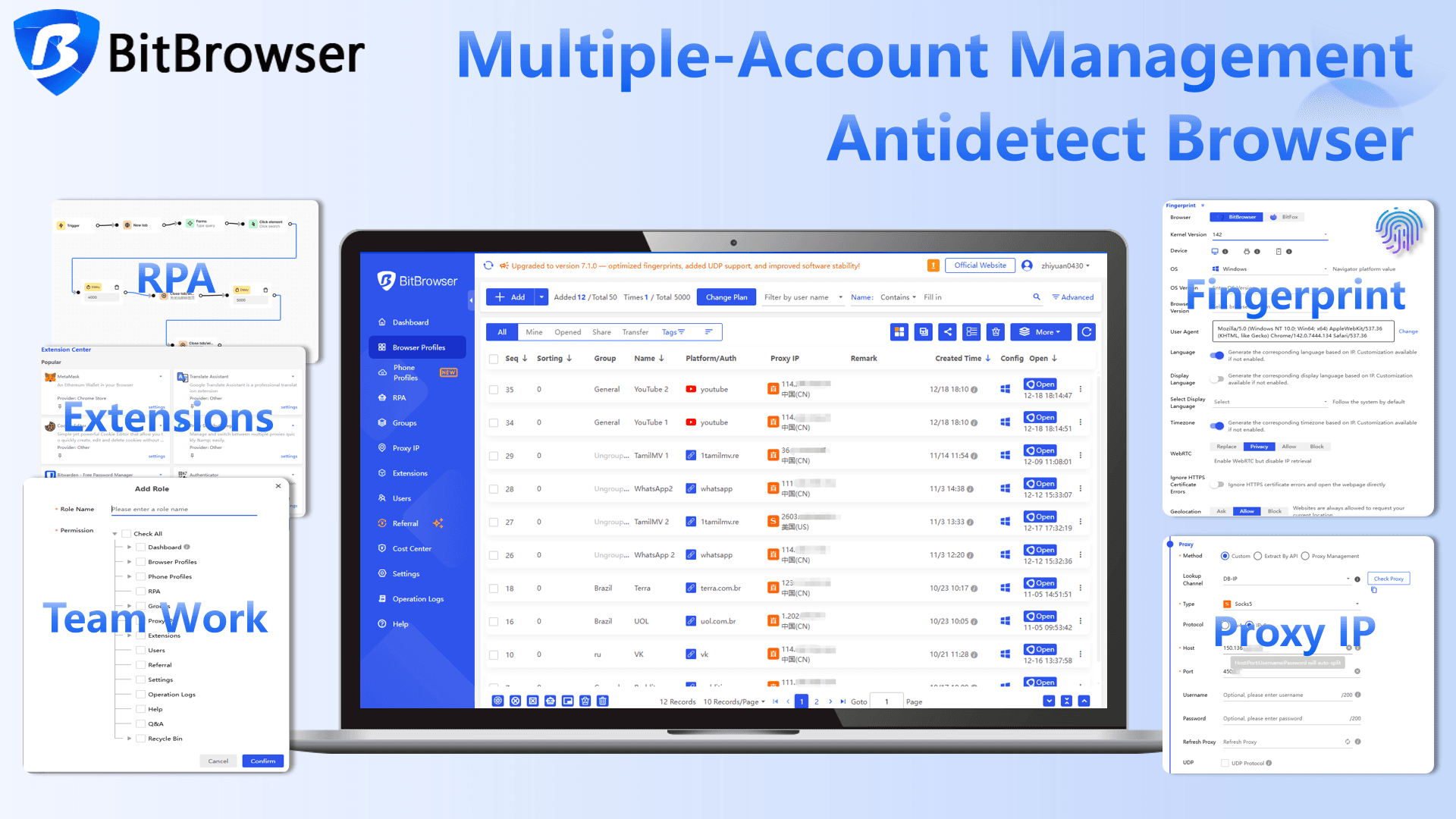
For digital marketers managing multiple Facebook accounts, proper account isolation is critical. Utilizing anti-detect browsers like BitBrowser or cloud phone solutions like BitCloudPhone allows for reliable proxy integration. This ensures that each account maintains a distinct digital fingerprint and IP address, preventing cross-contamination if one specific advertising asset gets flagged by Meta's security systems.
Sign Up
Conclusion
Recovering a disabled Facebook ad account in 2026 is not about rushing to submit an appeal. The real key is identifying the root cause, fixing compliance and security issues, and presenting a clean, stable account for review. When done correctly, many accounts can be restored, and future risks can be significantly reduced.

 Multi-Account Management
 Prevent Account Association
 Multi-Employee Management
Recommended
See More 



