How to Create and Manage Multiple Yahoo Mail Accounts (2026 Guide)
 2026.03.11 10:46
 YT.Shi
Most people start with one email address and then life happens. One for family stuff, one for shopping, one for job applications, one you give to banks, one you use when a website feels a little sketchy. Pretty soon you’re asking the practical question: can I create multiple Yahoo accounts without making a mess?
Yahoo Mail is still a solid option for personal use and for signing up to online services that you do not want tied to your main inbox. The good news is you can create multiple Yahoo Mail accounts, switch between them easily, and keep things organized on desktop and mobile. You can also reduce the need for extra accounts by using features like disposable addresses (often called Yahoo Mail aliases).
This guide walks you through how to create a second Yahoo email account, how to manage multiple Yahoo accounts (including on iPhone), and how to clean up later if you decide to delete a Yahoo Mail account.
Why you might want multiple Yahoo Mail accounts
A second or third inbox sounds annoying until you have a reason that actually matters.
Common situations:
● Personal vs. professional: One inbox that is you, another that is “work you”.
● Shopping and signups: Keep receipts and promo emails out of your main inbox.
● Travel and bookings: A dedicated inbox for airline, hotel, and rental confirmations.
● Side projects: Newsletters, a blog, a small online store, client communication.
● Privacy: One email you share publicly, one you keep private.
If you are trying to create multiple Yahoo Mail accounts because you’re drowning in spam, consider using aliases first. Not always, but often, it solves the problem with less hassle.
Before you start (what you’ll need)
Creating accounts is easy. Getting locked out later is what hurts. So set this up properly.
You should have:
● A strong password (unique, long, not reused).
● A recovery method you actually control (phone number and or a recovery email).
● A plan for how you’ll keep track of accounts (password manager helps a lot).
And yes, the big question.
Can I create multiple Yahoo accounts with same phone number?
Sometimes, yes. Yahoo may allow you to reuse the same phone number across more than one account, but it is not guaranteed, and it can change based on risk checks, region, or how many accounts are already tied to that number.
If Yahoo blocks reuse of your number, you have a few options:
● Use a different phone number (secondary SIM, work number, trusted family number with permission).
● Use a recovery email instead, if Yahoo offers that route during sign up.
● Create the account on a different day or device if Yahoo is rate limiting, though do not rely on this.
If you are creating accounts for a team or business, do not stack everything onto one phone number. It becomes a single point of failure.
How to create multiple Yahoo Mail accounts (step by step)
You can create multiple Yahoo Mail accounts from the same computer or phone. The key is to sign out, or use a private window, so you do not overwrite or confuse sessions.
Create a new Yahoo Mail account on desktop
1. Open a browser and go to mail.yahoo.com.
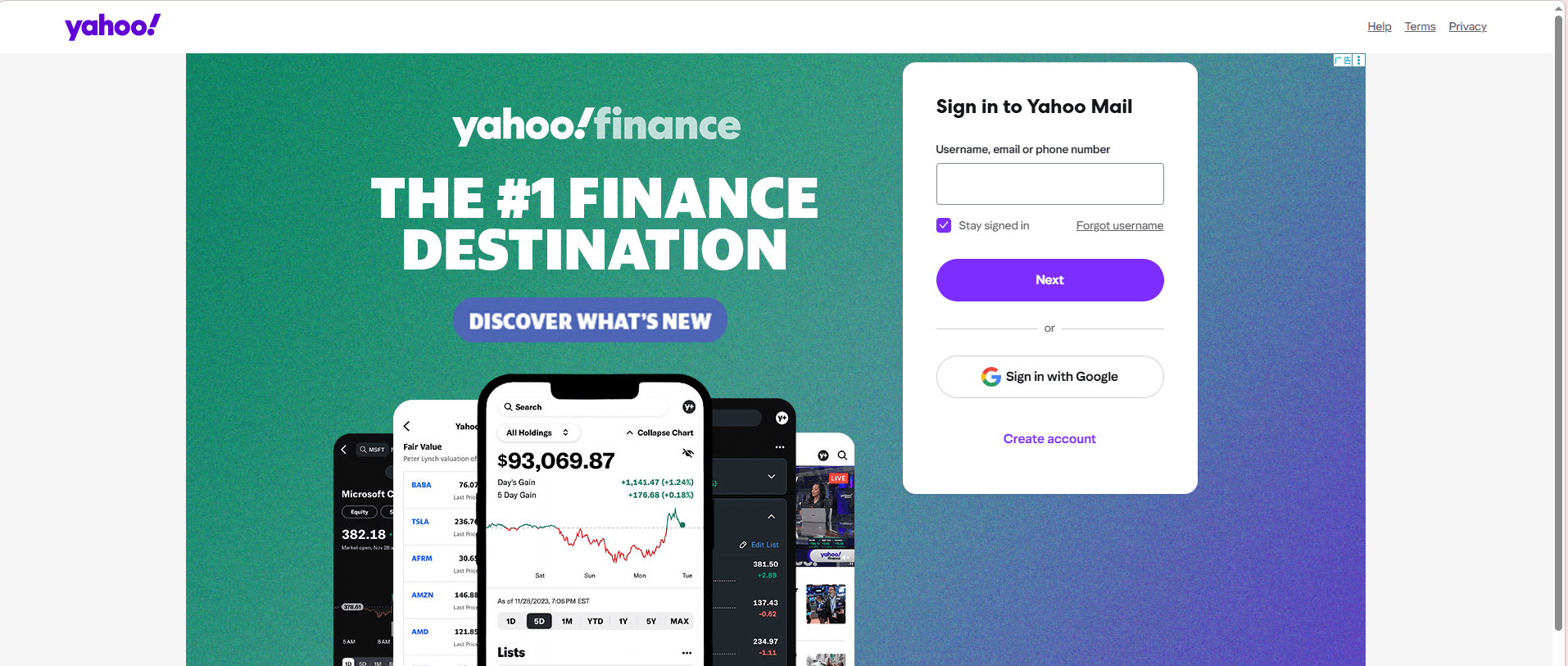
2. Click Create an account.
3. Enter your name.
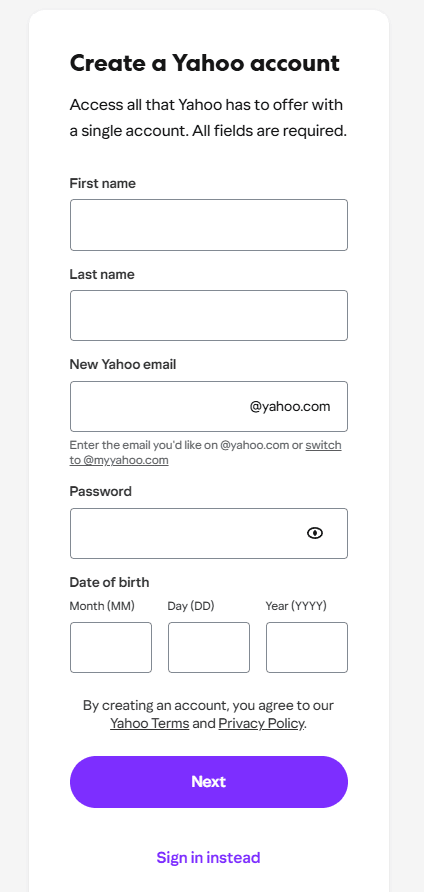
4. Choose a Yahoo email address (this is your new username).
5. Create a password.
6. Add your phone number (or recovery method, if prompted).
7. Verify using the code Yahoo sends.
8. Follow any remaining prompts to finish setup.
Now repeat for the next one. That is it. That is the core of “create multiple Yahoo Mail accounts”.
Tip: If Yahoo keeps auto logging you into the first account, use an incognito private window for the second signup.
You can add up to 10 Yahoo accounts and switch between them without logging out each time.
To do this, sign in, mouse over or click your profile image, select "Add or Manage accounts," and then "Add account." After adding, you can toggle between accounts easily.
Create a second Yahoo email account on mobile (browser)
If you are doing it on your phone without the app:
1. Open Safari or Chrome.
2. Go to mail.yahoo.com.
3. Tap Create an account.
4. Fill in details, verify, and finish.
5. Log out and repeat for additional accounts.
Mobile signups can be a bit more aggressive with verification. If you hit a wall, desktop signup can be smoother.
Yahoo Mail Aliases: How to Create Multiple Email Addresses in One Yahoo Account
Yahoo offers features like disposable email addresses (sometimes called throwaway addresses) and, in some setups, extra email addresses tied to the same mailbox. These allow you to give out different addresses for signups while keeping all messages in one inbox. If one address receives too much spam, you can disable it without affecting your main email.
Disposable email addresses typically consist of a “nickname” and a keyword (for example, nickname-keyword@yahoo.com). You can create, edit, or delete these through Yahoo Mail settings. This feature is available to Yahoo Mail Plus subscribers and users with existing disposable addresses, and in some regions users can try up to three disposable addresses for free.
How to Use Aliases or Disposable Addresses
The exact menus may change, but the process is usually:
1. Open Yahoo Mail.
2. Go to Settings.
3. Select More Settings.
4. Look for Mailboxes, Disposable addresses, or Aliases.
5. Create a new alias name and use it for signups.
6. Optionally filter emails from that alias into a folder.
If you do not see alias features, they may be limited by your account type or region. In that case, creating another Yahoo account may be the simpler option.
A simple rule of thumb:
● If you need separate logins, identities, or sent mail history, create another Yahoo account.
● If you only need different signup addresses, disposable addresses (aliases) are a cleaner solution.
How to manage multiple Yahoo accounts without losing your mind
Once you have more than one inbox, the real win is switching quickly and keeping boundaries. Yahoo gives you a few ways to do that.
Option 1: Use Yahoo account switching (same browser)
If you are signed into one Yahoo account already, you can add another and switch.
1. Go to mail.yahoo.com.
2. Click your profile icon (usually top right).
3. Choose Add another mailbox or Add account (wording can vary).
4. Sign in to the second Yahoo account.
5. After adding, Switch between accounts from the same profile menu.
This is the simplest way to manage multiple Yahoo accounts on desktop.
Option 2: Forward mail into one inbox (if you want one hub)
If your goal is reading everything in one place, forwarding can help.
Basic approach:
1. In the account you want to “empty out,” go to Settings in Yahoo Mail.
2. Look for More Settings.
3. Find Mailboxes or Forwarding (this varies).
4. Enable forwarding to your main inbox.
This allows you to send a copy of incoming messages from one Yahoo account to another, making it easier to read everything in one place.
Forwarding is useful, but it can also create confusion when you hit Reply from the wrong address. If you do this, test carefully and watch your From field.
However, this feature is only available to Yahoo Mail Plus users and may not be available in all regions. If you don't see the forwarding option in your account, it might not be available to you.
Option 3: Use a Desktop Email Client
Another practical way to manage multiple Yahoo Mail accounts is by using a desktop email client. These clients let you connect several mailboxes in one application, so you can read and send emails without logging in and out of each account.
Popular desktop clients that support Yahoo Mail include Microsoft Outlook, Mozilla Thunderbird, and Apple Mail. They connect to Yahoo using standard protocols like IMAP and SMTP, keeping your inboxes synced across accounts.
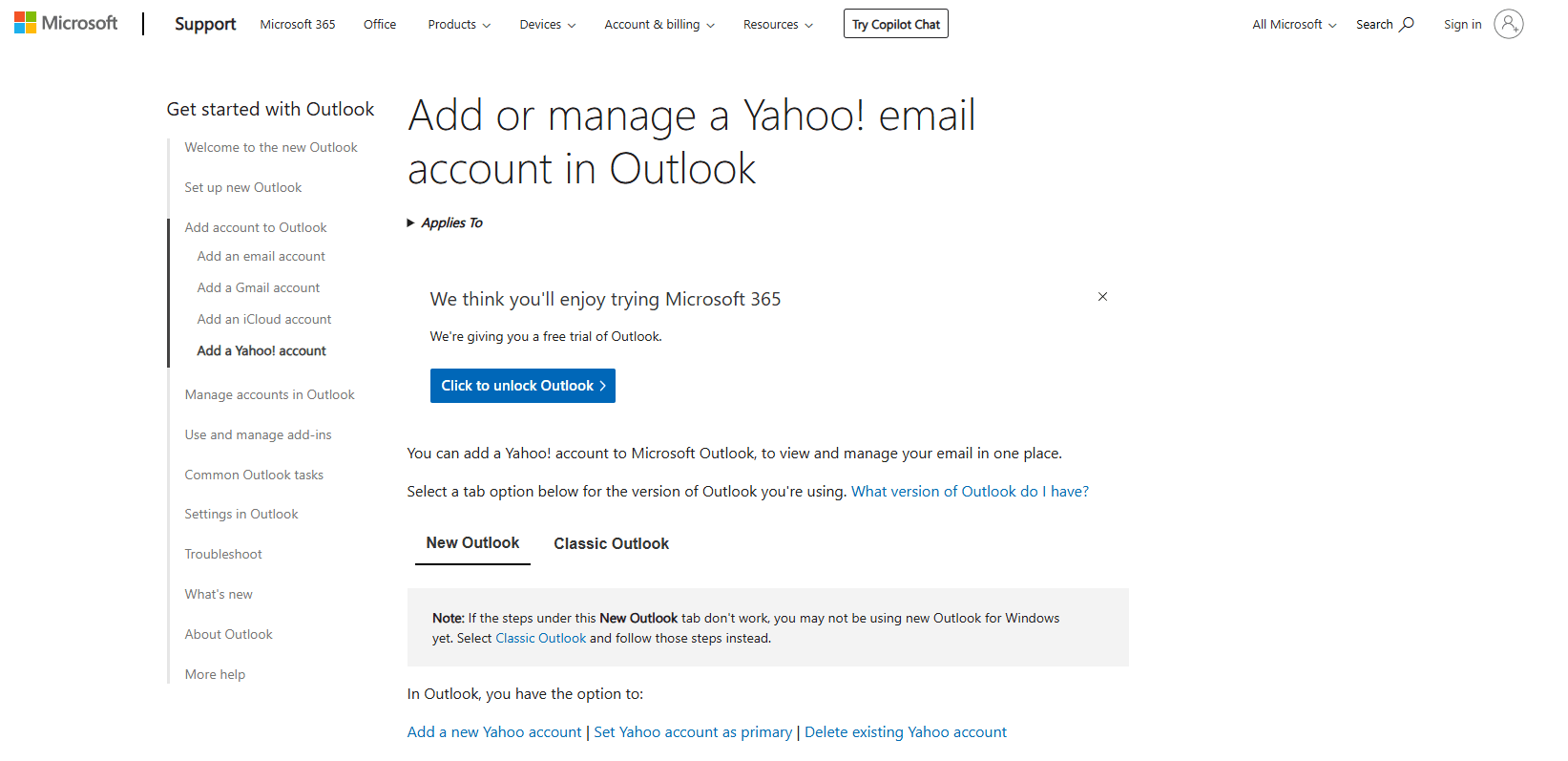
The general steps are:
1. Install and open your desktop email client.
2. Go to Add Account or Account Settings.
3. Enter your Yahoo email address and password.
4. Select IMAP if prompted.
5. Repeat for each additional Yahoo account.
Once connected, all accounts can be accessed in one interface, and messages from each inbox are automatically synced. This makes switching between accounts easier and more efficient without using a browser.
Option 4: Use BitBrowser Anti-Detect Profiles (Strict Separation)
If you want stricter separation between multiple Yahoo Mail accounts, using BitBrowser is a highly effective method:
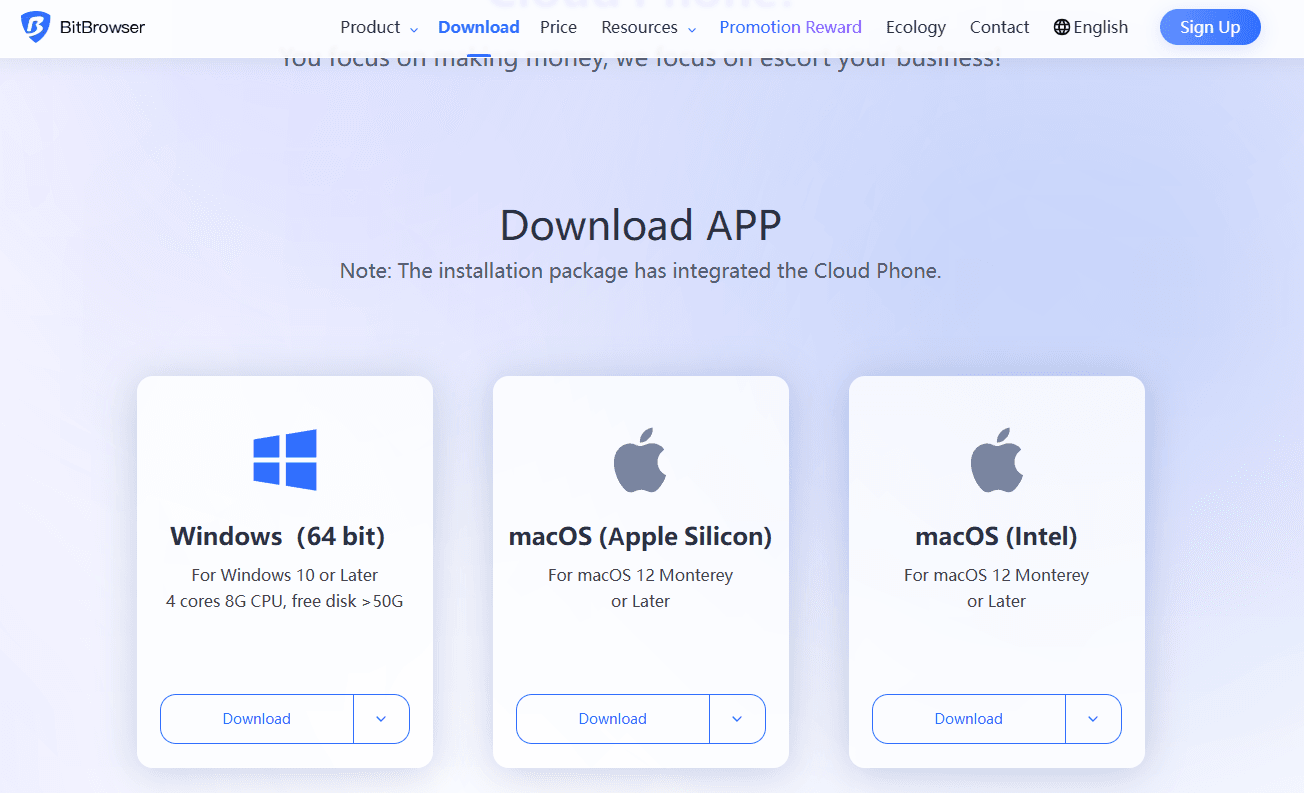
1. Register and download BitBrowser: Create an account and install the software.
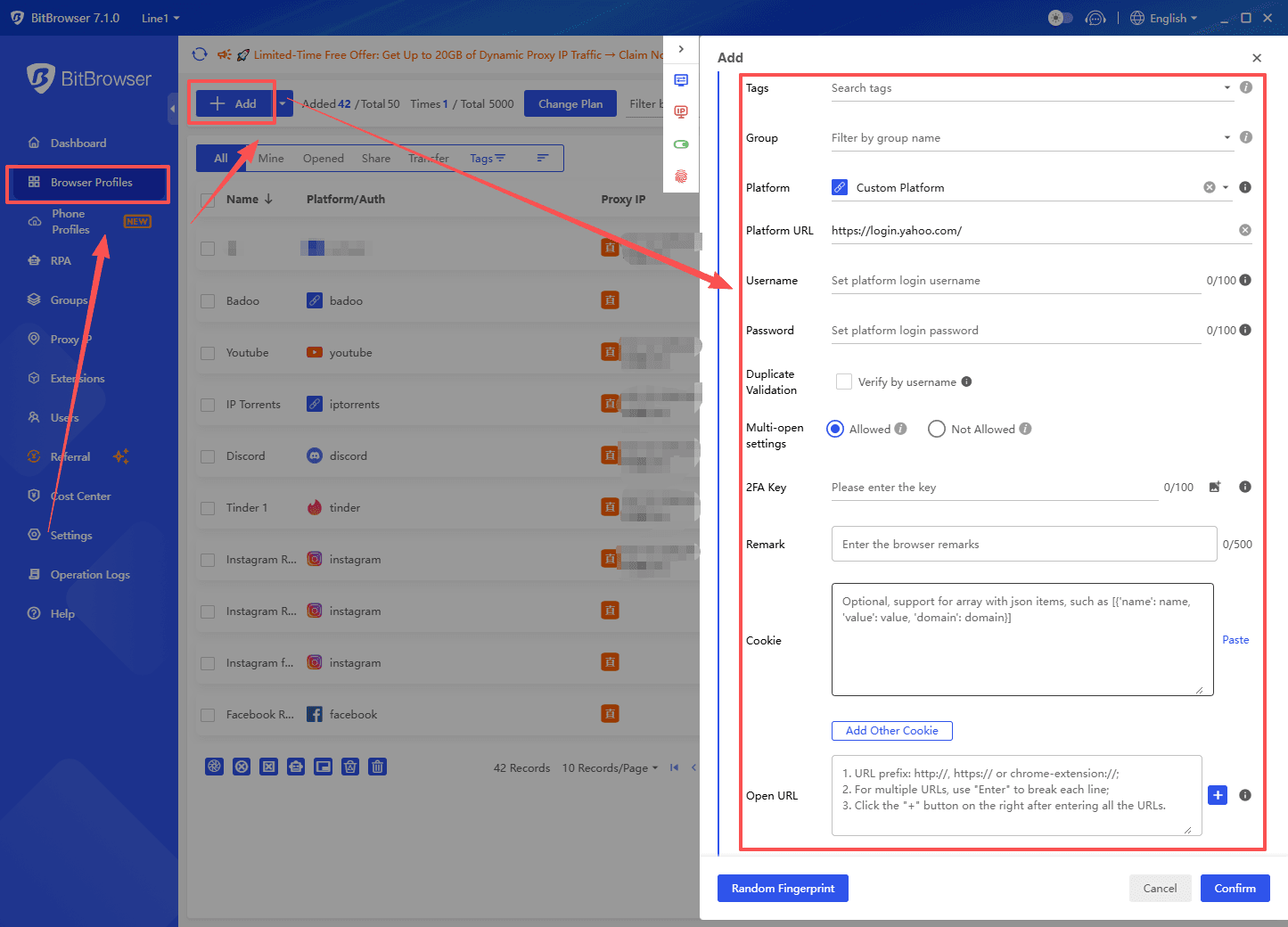
2. Create a profile for each Yahoo account: Set up a separate browser profile for every Yahoo Mail account. You can also import existing cookies if needed.
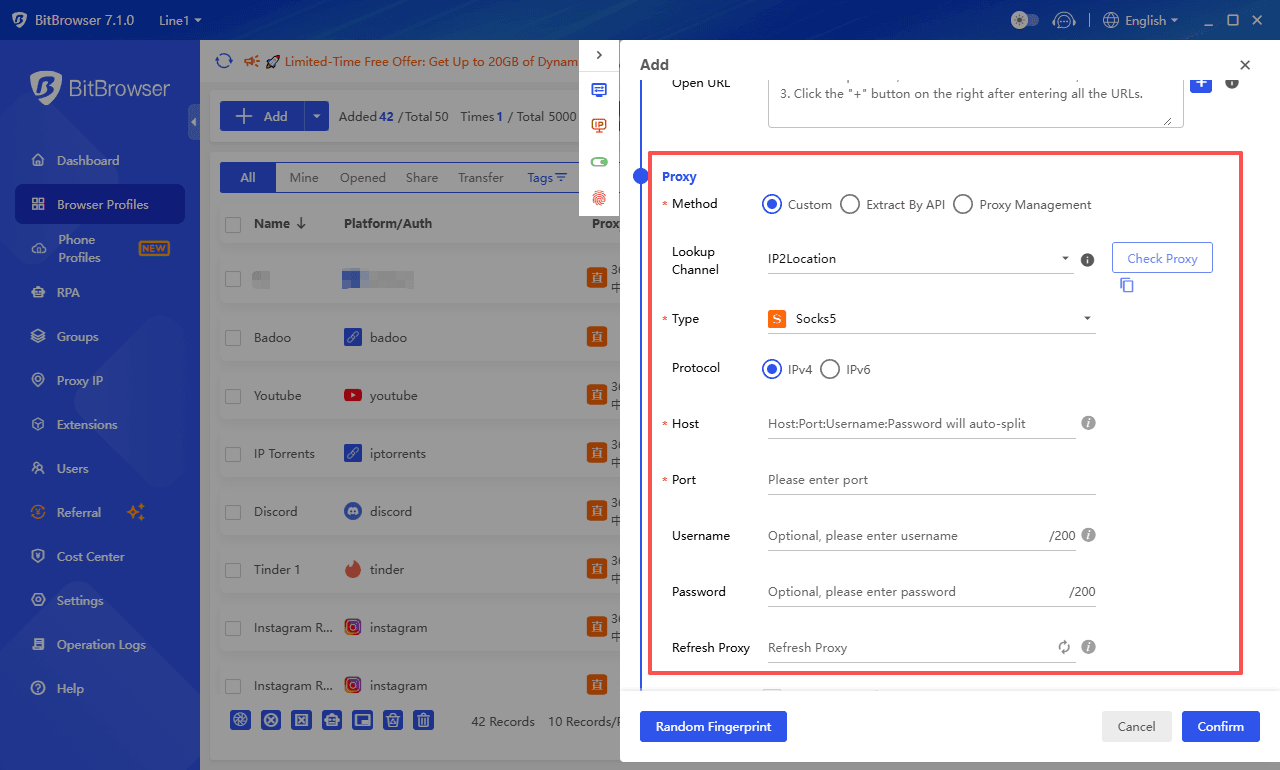
3. Optional: Set different proxy IPs: Assign a different proxy to each profile if you want separate network environments.
4. Configure browser fingerprints: Customize fingerprint settings for each profile or use one‑click random generation.
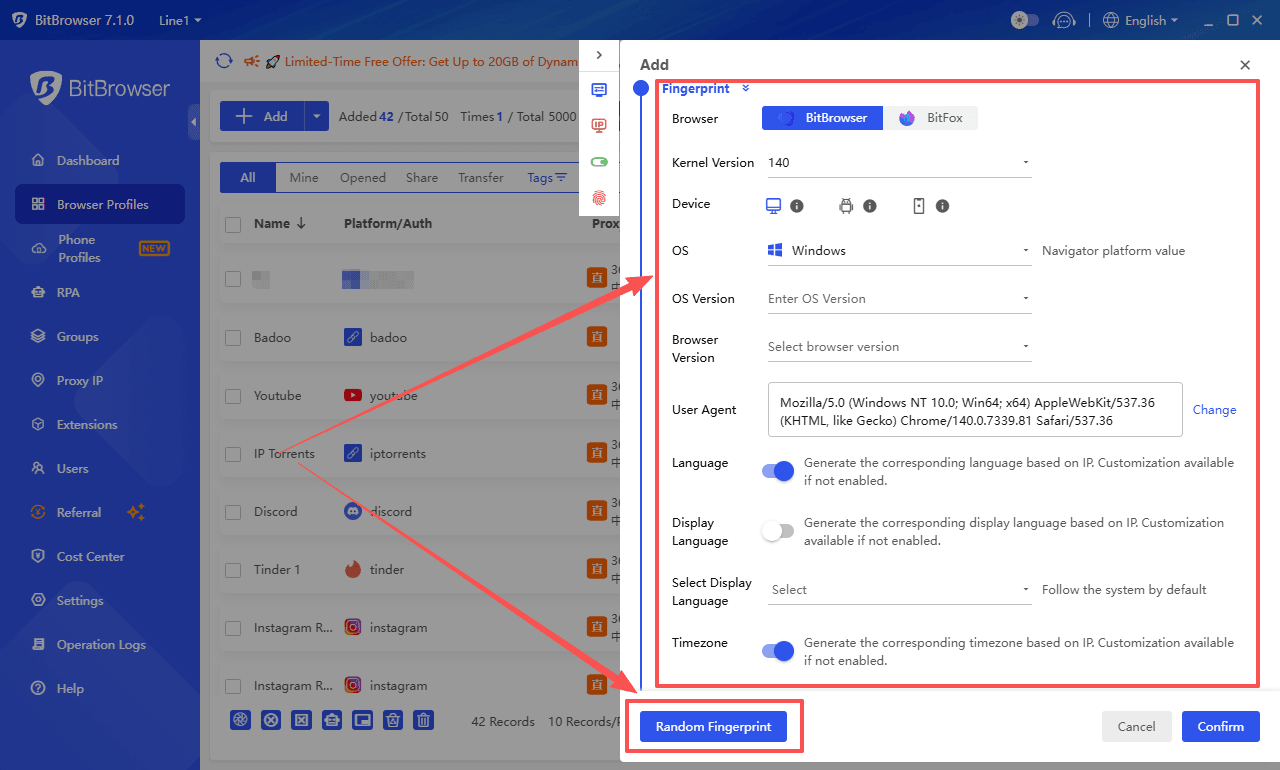
After setup, open the corresponding profile to access each Yahoo account separately, making it easier to manage multiple inboxes without conflicts.
It may sound like extra steps, but this approach is excellent if you are juggling personal, work, or project-related inboxes and want to avoid accidental cross-posting, login conflicts, or replying from the wrong account.
With BitBrowser, each profile runs in an isolated environment with separate cookies, fingerprints, and IP settings. It also helps streamline daily workflows with organized workspaces, batch profile management, and optional team collaboration, making multi-account management much easier than switching tabs in a normal browser.
Get 10 browser profiles permanently free
How to sign out and switch accounts cleanly
This matters because people get stuck in a loop where Yahoo keeps logging them into the wrong inbox.
On desktop
1. Click your profile icon (top right).
2. Click Sign out.
3. Sign into the other account.
If you are switching constantly, add both accounts and use the account switcher instead of logging out.
On the Yahoo Mail iPhone app
1. Tap profile icon.
2. Tap the account name to switch.
3. To remove an account, tap Manage accounts (or similar), then remove.
How to Remove a Yahoo Mail account
To remove a Yahoo account, the steps depend on whether you want to remove the account from your device (such as the Yahoo Mail app) or from your browser.
If you want to remove a Yahoo Mail account from the Yahoo Mail app:
1. Tap the Profile icon.
2. Tap Manage Accounts.
3. Tap Edit.
4. Beside your account, tap Remove.
5. Tap Remove again to confirm.
If you want to unlink an email account that you have added to your Yahoo Mail app (such as a Gmail or Outlook account):
1. Tap the Profile icon.
2. Tap Settings.
3. Tap Manage mailboxes.
4. Tap the X next to the account you want to remove.
5. Tap Remove, then confirm.
These steps will only remove the account from the app or unlink the mailbox, but will not delete the Yahoo account itself.
Conclusion
Creating and managing multiple Yahoo Mail accounts is straightforward with the right setup. You can use separate accounts or disposable addresses to organize different parts of your online activity. For users handling several inboxes, tools like BitBrowser can make the process easier by keeping accounts in isolated browser profiles, helping you switch between them quickly while maintaining clear separation.
Get 10 browser profiles permanently free
FAQ
1. Can I create multiple Yahoo Mail accounts?
Yes. You can create several Yahoo Mail accounts and sign in to them on the same device. Yahoo also allows you to add and switch between multiple accounts without logging out each time.
2. Can I create multiple Yahoo accounts with the same phone number?
Sometimes. Yahoo may allow the same phone number to verify more than one account, but this depends on factors like region, security checks, and how many accounts are already linked to that number.
3. Can I have multiple email addresses in one Yahoo account?
Yes, in some cases. Yahoo offers features such as disposable email addresses or aliases, which let you use multiple email addresses that all deliver messages to the same inbox.
4. How can I manage multiple Yahoo Mail accounts easily?
You can use Yahoo’s built-in account switcher, connect accounts through a desktop email client, forward emails to a main inbox, or use separate browser profiles to keep accounts organized.
5. Can I delete a Yahoo Mail account later if I don’t need it?
Yes. You can permanently close a Yahoo account through the Yahoo account termination page, but make sure to save important emails and update any services connected to that address before deleting it.

 Multi-Account Management
 Prevent Account Association
 Multi-Employee Management
Recommended
See More 



