How to Create Multiple Accounts on Ozon with BitBrowser
 2026.05.25 01:04
 BitBrowser
Managing multiple Ozon accounts requires careful browser isolation, separate sessions, and proper fingerprint management. BitBrowser is commonly used for this purpose because it allows users to create independent browser environments with separate cookies, fingerprints, and proxy settings.
This guide explains how BitBrowser works with Ozon and how to configure multiple browser profiles responsibly.
What Is BitBrowser?
BitBrowser is an anti-detect browser designed to manage multiple browser identities independently. Each profile acts like a separate physical device with its own:
This separation helps avoid session overlap between accounts.
image.png
Why Use BitBrowser for Ozon?
Users commonly use BitBrowser for:
Each browser profile functions independently, reducing the risk of cookie contamination between accounts.
Important Note About Compliance
Before creating multiple Ozon accounts, you should carefully review Ozon’s Terms of Service and marketplace policies.
Some platforms restrict or regulate multi-account usage, especially when accounts are used for:
Always ensure your usage complies with platform rules and local regulations.
Step 1 — Install BitBrowser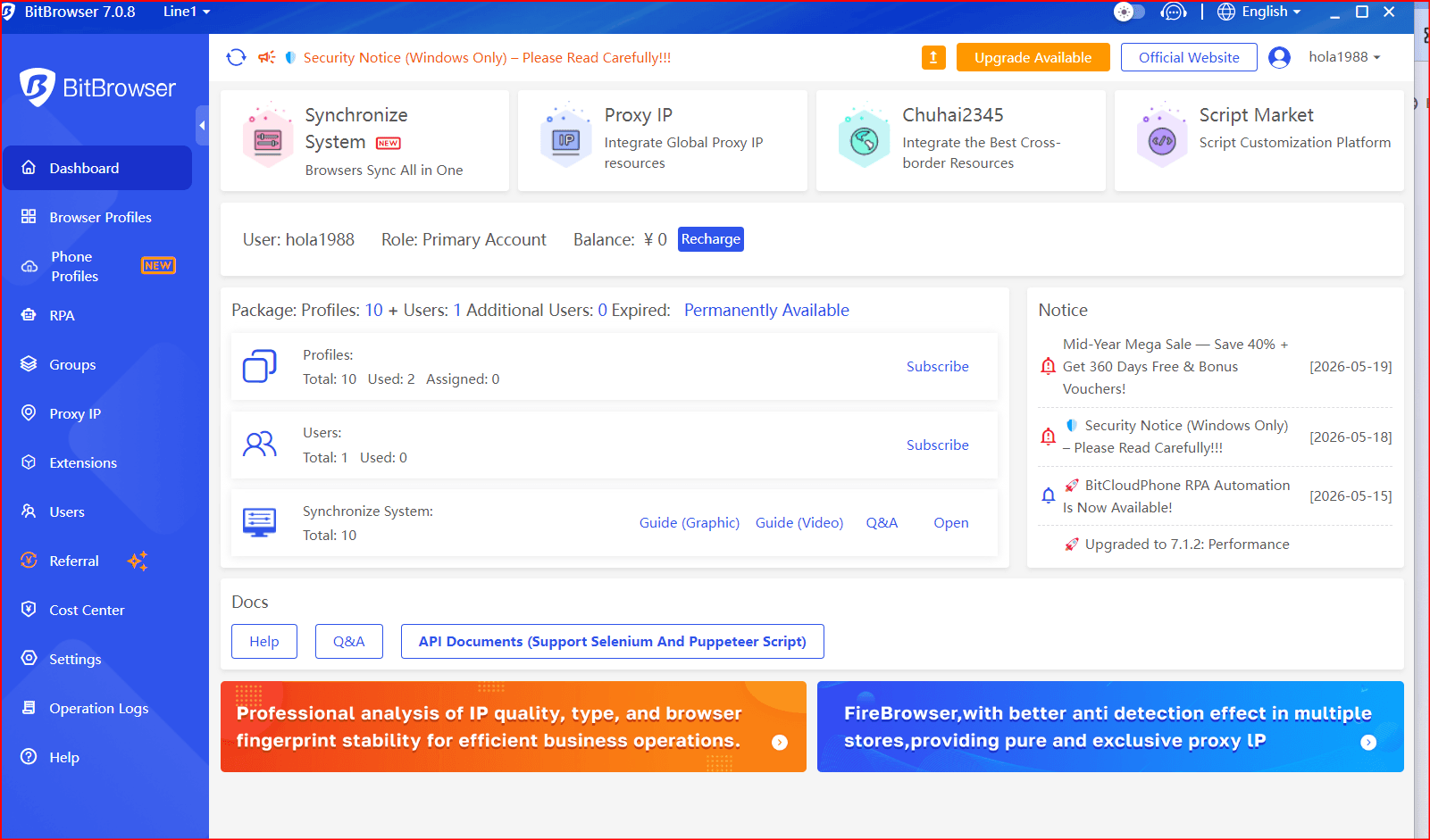
Download BitBrowser from the official website and install the application.
After installation:
- Create an account
- Log into the dashboard
- Open the browser profile management panel
image.png
Step 2 — Create a New Browser Profile
Inside BitBrowser:
- Click Create Profile
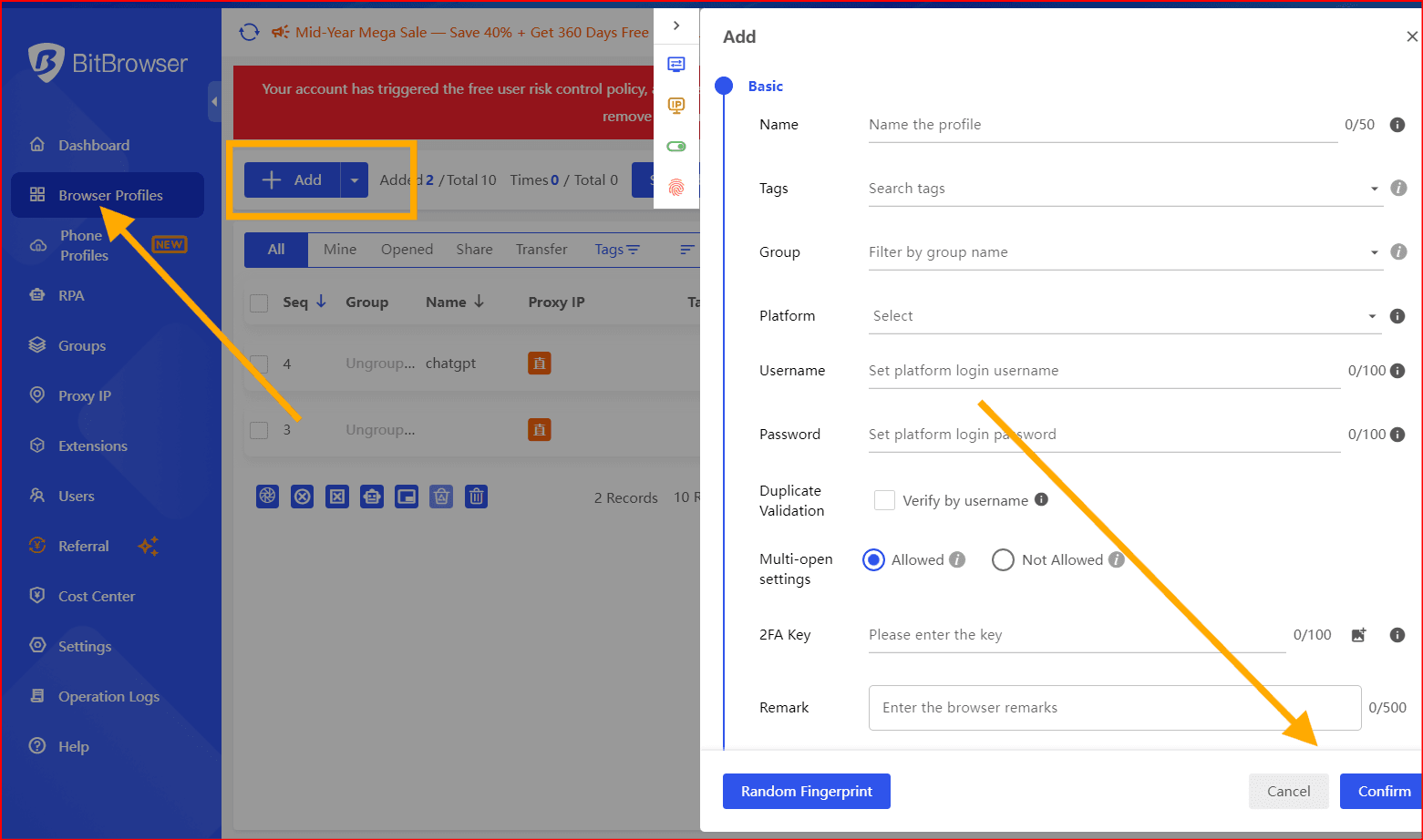
- Choose a profile name
- Configure the browser environment
image.png
Recommended settings include:
Each profile should appear as a different browser environment.
Step 3 — Configure a Proxy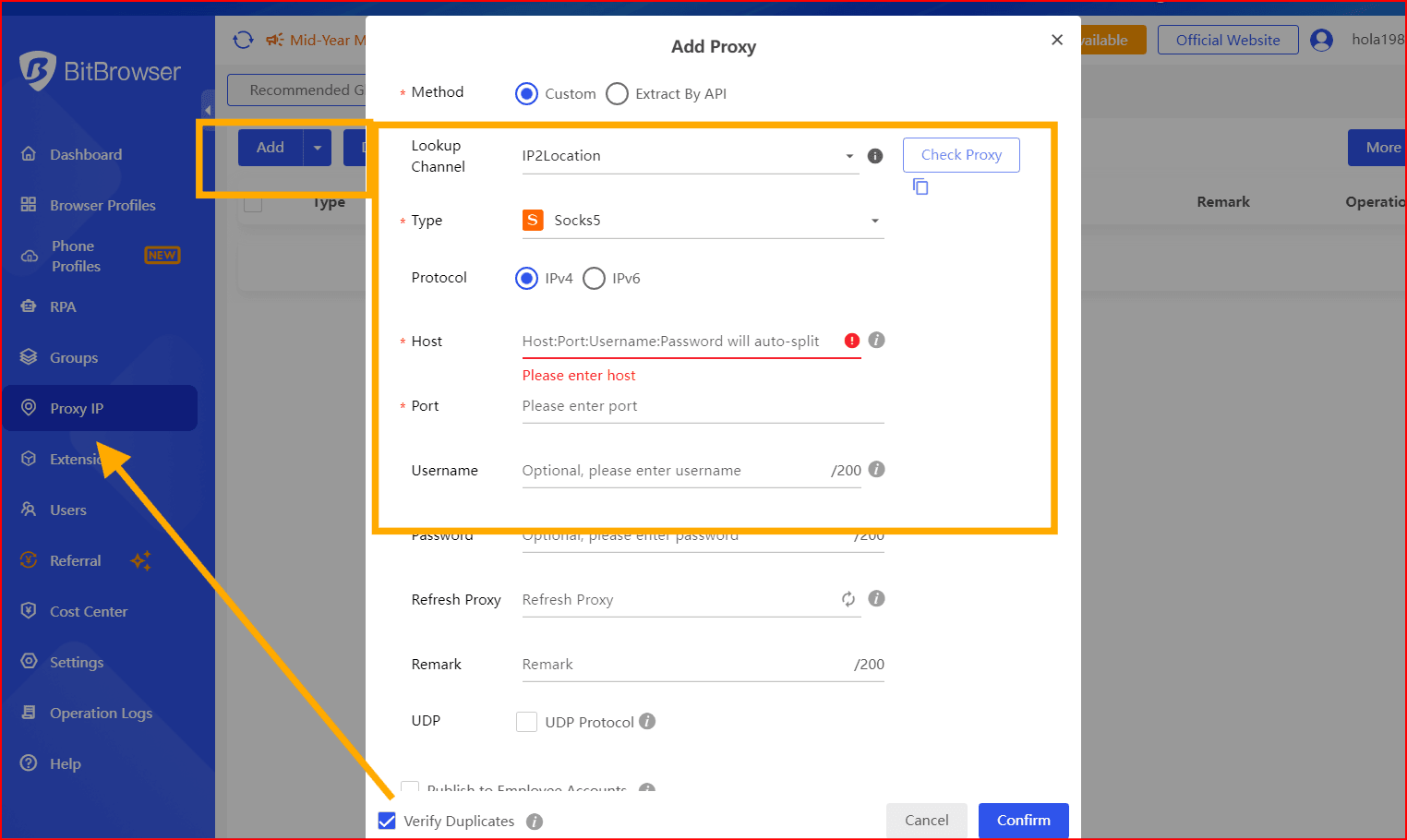
Using separate proxies for each Ozon account is strongly recommended.
BitBrowser supports:
image.png
Why proxies matter:
Residential or ISP proxies are generally more stable for marketplace platforms.
Step 4 — Launch the Browser Profile
Once configured:
- Open the browser profile
- Visit Ozon
- Register or log into the account
- Use that profile only for the specific account
Avoid logging multiple Ozon accounts inside the same browser profile.
Step 5 — Maintain Account Separation
Proper separation is essential when managing multiple accounts.
Best practices include:
- One account per browser profile
- One proxy per profile
- Separate email addresses
- Separate phone numbers when required
- Avoid sharing cookies or sessions
- Maintain consistent login behavior
This helps reduce accidental cross-account association.
Browser Fingerprinting and Ozon
Modern platforms analyze browser fingerprints to identify devices.
Common fingerprint signals include:
- Screen resolution
- Operating system
- Browser version
- Canvas fingerprint
- WebGL data
- Fonts and hardware configuration
- Time zone and language
BitBrowser helps customize these parameters for profile isolation.
Recommended Proxy Types
Proxy Type | Recommendation |
Datacenter Proxies | Fast but easier to detect |
Residential Proxies | More reliable |
ISP Proxies | Stable long-term usage |
Mobile Proxies | High trust level |
Residential proxies are commonly preferred for marketplace management.
Common Mistakes to Avoid
Many users unintentionally link accounts by:
- Reusing the same IP address
- Using identical browser fingerprints
- Logging into multiple accounts in one session
- Sharing cookies between profiles
- Using identical account information
Maintaining strict separation reduces operational problems.
Can BitBrowser Guarantee Account Safety?
No tool can guarantee complete account safety.
Platforms like Ozon use advanced security systems that may analyze:
- Login behavior
- Device fingerprints
- IP reputation
- Payment methods
- Account activity patterns
BitBrowser is designed for browser isolation and profile management, but users remain responsible for complying with platform policies.
Alternative Tools
Other anti-detect browsers commonly used for profile management include:
- AdsPower
- GoLogin
- Multilogin
- Incogniton
Some users also use simpler alternatives like:
- Chrome profiles
- Firefox Multi-Account Containers
- Virtual machines
Final Thoughts
BitBrowser can be useful for managing multiple Ozon accounts by isolating browser environments, cookies, and fingerprints. Proper setup usually includes unique browser profiles, separate proxies, and consistent account management practices.
The most important factor is responsible usage and compliance with Ozon’s marketplace policies. Proper organization and account separation improve workflow efficiency while reducing technical issues related to session overlap or browser tracking.

 Multi-Account Management
 Prevent Account Association
 Multi-Employee Management
Recommended
See More 



