How to Download YouTube Videos Safely in 2026: 6 Proven Methods
 2026.02.26 13:46
 YT.Shi
In 2026, even with ultra‑fast 5G and limitless streaming, the demand for offline YouTube access is still surging. Whether you’re traveling, researching, creating content, or managing digital campaigns, downloading YouTube videos can be incredibly useful — when done safely and responsibly.
Before we begin, important safety and legal note:
Downloading copyrighted videos without permission can violate YouTube’s Terms of Service and applicable copyright law. The methods below focus on legal use cases (e.g., downloading your own content, Creative Commons videos, educational content with permission). Always respect rights and privacy.
Why People Need to Download YouTube Videos?
1. Watch Anytime, Anywhere: Even with 5G, internet can fail on planes or in remote areas. Downloading means you can watch smoothly without buffering or using up expensive data.
2. Save Videos Before They Disappear: Great tutorials or videos can be deleted at any time. Saving a copy to your computer means you own it forever and can edit it much faster.
3. Essential for Social Media Marketing: For creators running many accounts, downloading is the first step. It lets you analyze competitors and repurpose content across different platforms easily.
4. Avoid Account Blocks and Limits: In 2026, YouTube is much stricter about "bot" behavior. Using the right tools helps you download many videos without getting your IP address banned.
Quick Overview: 7 YouTube Download Methods
Compare the main methods by use case, quality, platform, speed, and whether they provide a local video file.
Method | Best For | Quality | Platform | Speed | Local File | |
|---|---|---|---|---|---|---|
| 01 | YouTube Premium Official offline viewing | Casual viewers & mobile users | Up to 1080p* | Mobile / Desktop | Fast | No |
| 02 | YouTube Studio Your own videos | Creators & channel owners | 720p or 360p* | Web / Mobile | Fast | Yes |
| 03 | Desktop Software 4K Video Downloader & others | High-quality & playlist downloads | Up to 4K / 8K* | Windows / Mac / Linux | Fast | Yes |
| 04 | Online Downloaders Web-based tools | Quick, one-off downloads | Varies | Any browser | Medium | Yes |
| 05 | Browser Extensions Video DownloadHelper & others | Convenient browser workflows | Varies | Desktop browsers | Medium | Yes |
| 06 | yt-dlp Command-line tool | Advanced users & automation | Source quality* | Windows / Mac / Linux | Fast | Yes |
| 07 | BitBrowser Multi-profile workflow | Agencies & multi-account workflows | Depends on tool | Desktop | Workflow-focused | Via tools |
* Quality and download availability can vary by video, account, device, region, and the tool being used. Only download and reuse content when you have the necessary rights or permission.
Method 1: YouTube Premium (The Official Solution)
Best For: Mobile users, casual viewers, and anyone who wants an official way to watch YouTube videos offline.
Why It’s Safe: YouTube Premium is YouTube’s built-in offline viewing feature, so you don’t need third-party downloaders or browser tools.
Step‑by‑Step:
1. Subscribe to YouTube Premium: Visit youtube.com/premium or open the YouTube app and choose “Try Premium.”
2. Open the YouTube app and sign in to your Premium account.
3. Find the video you want to save.
4. Tap the Download button (usually below the video title).
5. Choose quality: (e.g., 1080p, 720p — options vary by device & video).
6. Go to You → Downloads to access your saved videos.
Notes:
● Premium downloads are intended for offline playback within YouTube, not as standalone MP4 files that you can freely move or edit.
● You need to reconnect to the internet periodically so YouTube can verify the availability of the downloaded content.
● Download availability can vary by video, region, device, and account.
Method 2: Download Your Own YouTube Videos (YouTube Studio)
Best For: Creators who want to save their own YouTube videos as local files.
Why It’s Useful: YouTube Studio lets you download videos you have uploaded to your channel without using third-party downloader websites.
Step-by-Step:
1. Open YouTube Studio and sign in to your account.
2. Select Content from the left-hand menu.
3. Find the video you want to download.
4. Click the three-dot menu next to the video.
5. Select Download or Save to device, depending on your device and YouTube Studio version.
6. Save the video to your computer or mobile device.
Notes:
● You can only download an individual video up to five times per day.
● Some videos cannot be downloaded due to copyright issues, Community Guidelines strikes, or pre-approved audio tracks.
● The downloaded file can be used as a local copy for editing, backup, or republishing where you have the necessary rights.
● If you want to watch someone else's video offline, use the YouTube Premium download feature instead.
● YouTube Studio downloads and YouTube Premium offline downloads are different. Studio provides a video file, while Premium is designed for offline playback inside YouTube.
Method 3: High‑Quality Desktop Software (4K Video Downloader)
Best For: Archiving high‑resolution videos, playlists, and subtitles.
Overview: 4K Video Downloader is trusted for preserving video quality up to 4K/8K and grabbing entire playlists.
Recommended Desktop YouTube Video Downloaders
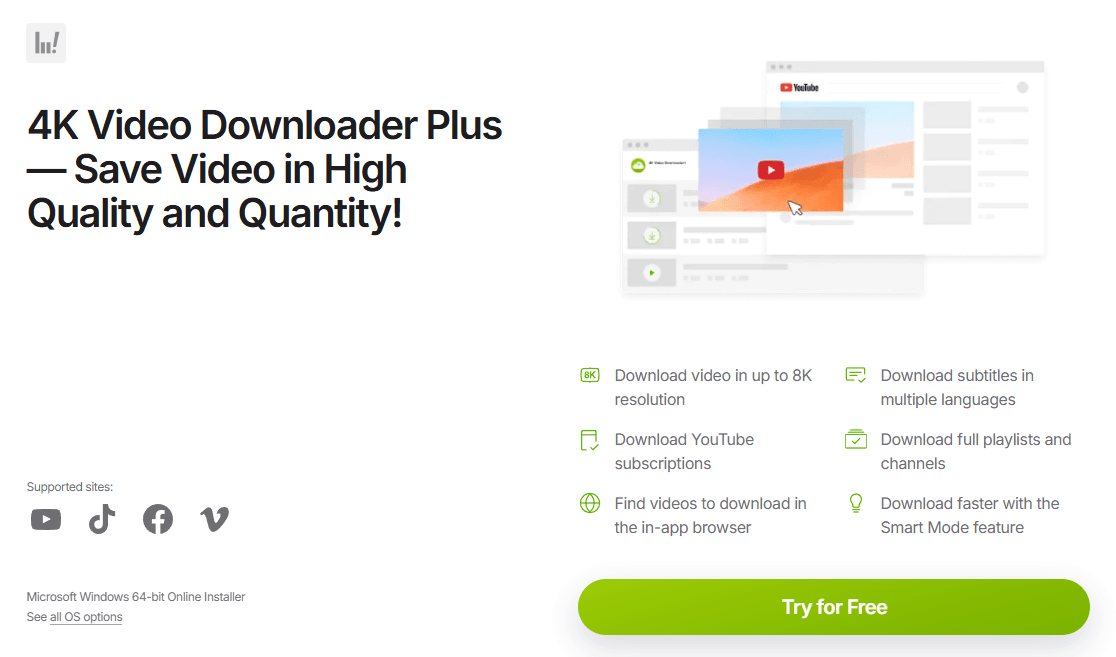
4K Video Downloader: A user‑friendly desktop tool for downloading YouTube videos, playlists, and subtitles in up to 8K quality.
Website: www.4kdownload.com
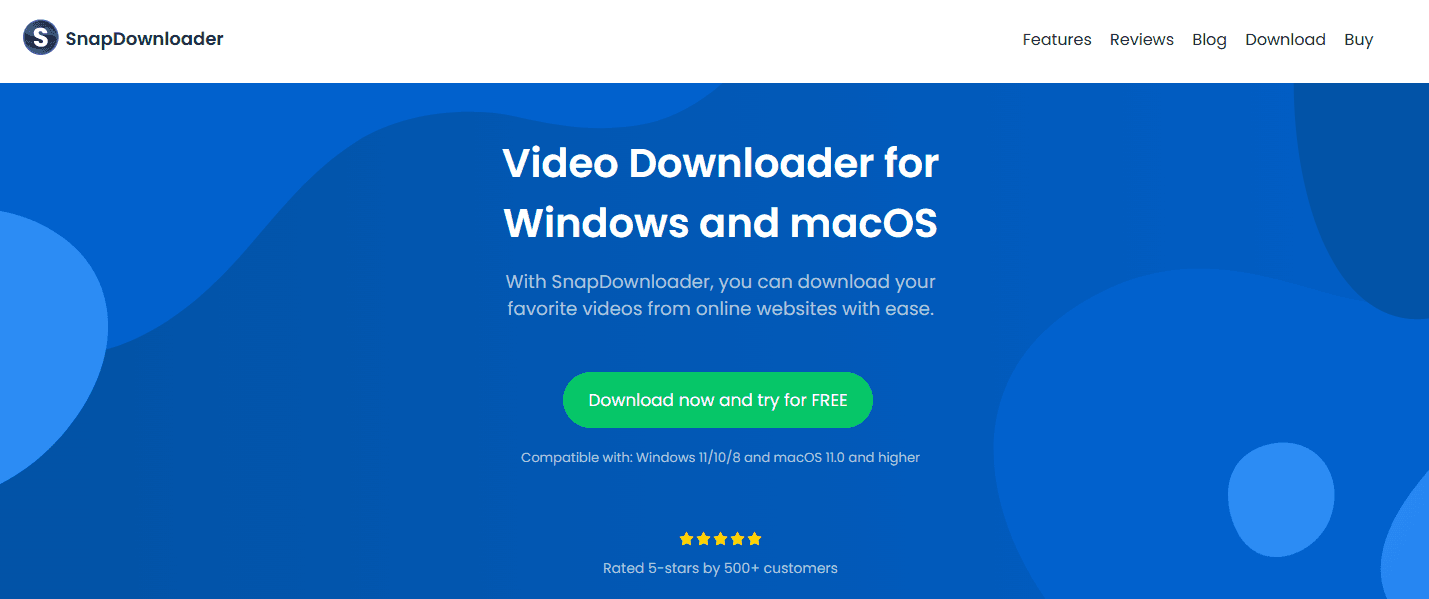
SnapDownloader: A fast multi‑platform video downloader that supports batch downloads, format conversion, and resolutions up to 8K.
Website: snapdownloader.com
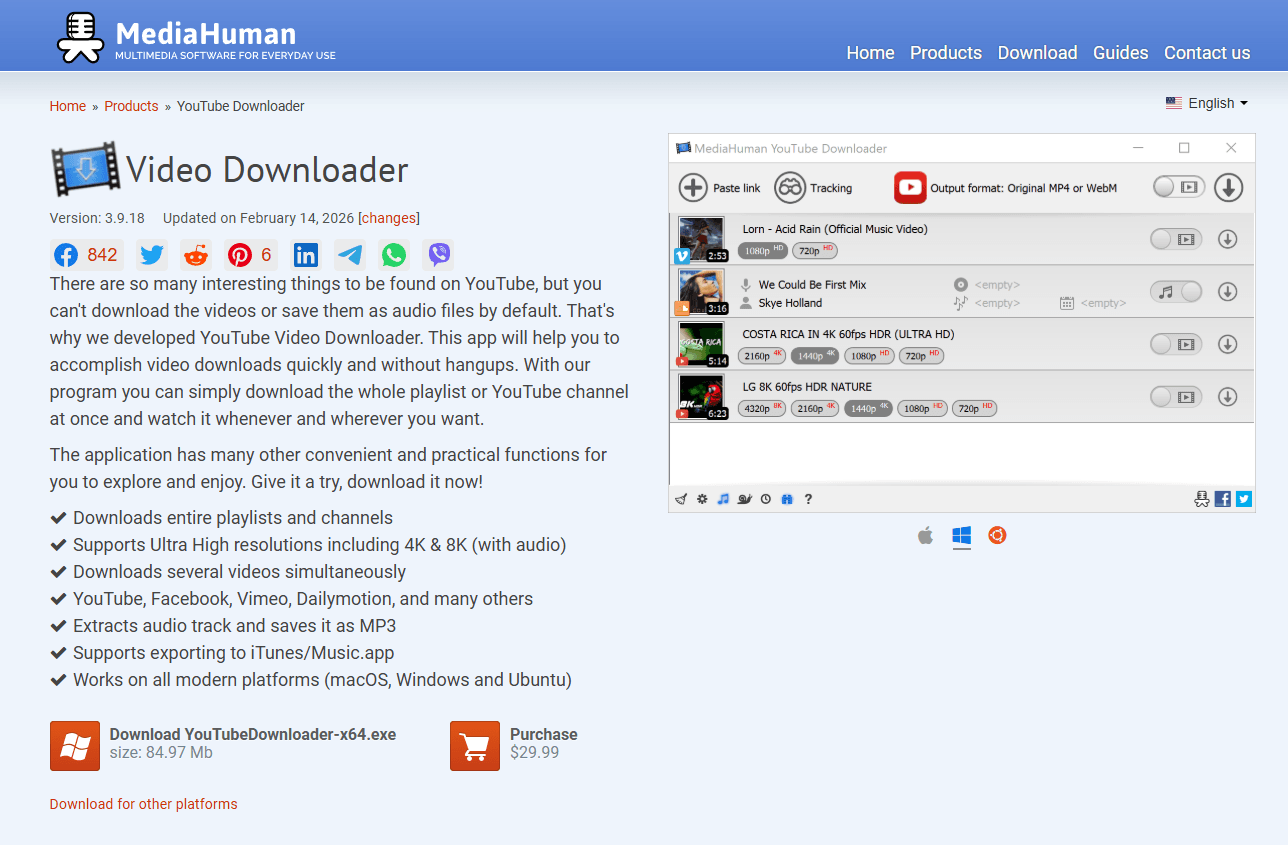
MediaHuman YouTube Downloader: A lightweight and simple downloader ideal for quick video or MP3 extraction with playlist monitoring.
Website: mediahuman.com/youtube-downloader
Step‑by‑Step:
1. Download & Install 4K Video Downloader: Go to the official site and install the app for Windows, macOS, or Linux.
2. Open YouTube and copy the video URL from the address bar.
3. Launch the 4K Video Downloader app.
4. Click “Paste Link.”
5. Select quality: MP4/MKV, resolution (1080p, 4K, etc.), audio only if needed.
6. Choose a save location and click Download.
Pro tips:
● You can download entire playlists or channels at once.
● Supports subtitles and multi‑format exports.
Method 4: Online Web‑Based Tools (Y2Mate, SaveFrom.net, Others)
Best For: Quick, one‑off downloads without installing software.
Safety tip: Only use reputable sites. Avoid sites with excessive ads or “scare” pop‑ups.
Step‑by‑Step:
1. Copy the YouTube video URL.
2. Open the downloader site (e.g., savefrom.net).
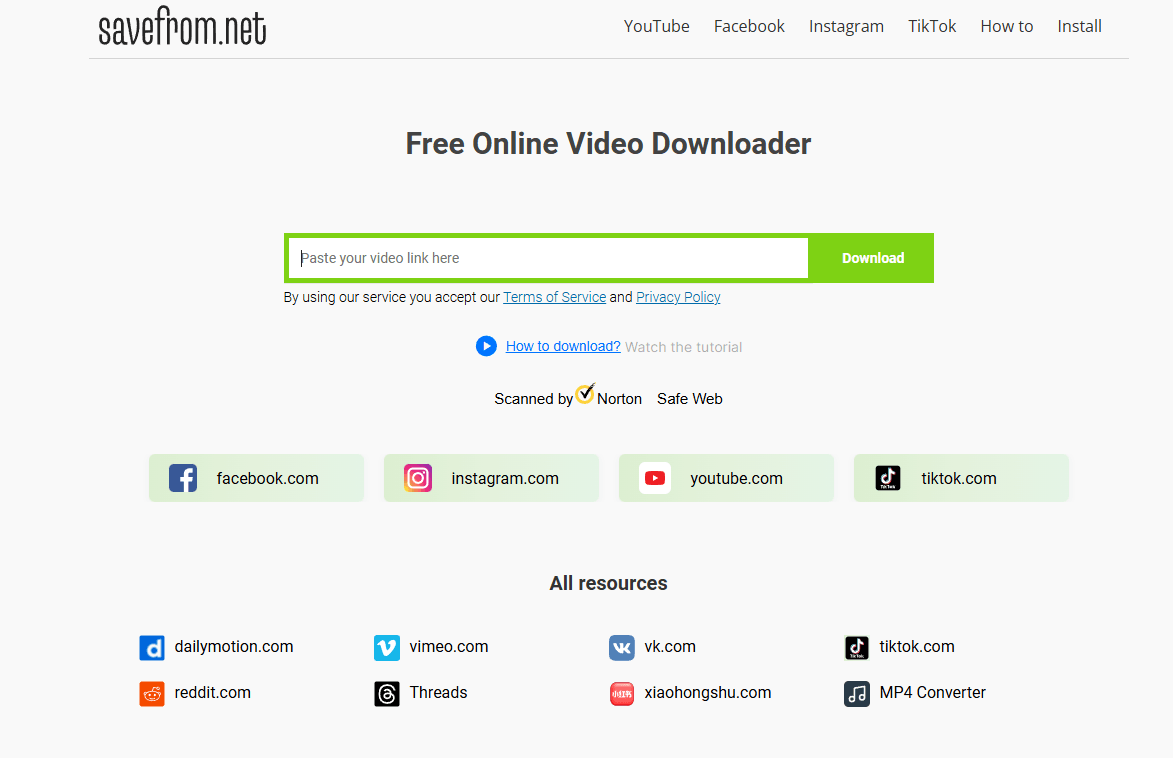
3. Paste the URL into the site’s input box.
4. Choose video quality/format (MP4 recommended).
5. Click Convert/Download.
6. Save the video file to your device.
Note: Browser security may flag some sites — only proceed with antivirus in place.
Method 5: Browser Extensions (Video DownloadHelper)
Best For: “As‑you‑watch” convenience on desktop browsers.
Overview: Extensions add a download button directly to your browser toolbar.
Recommended Browser Extensions
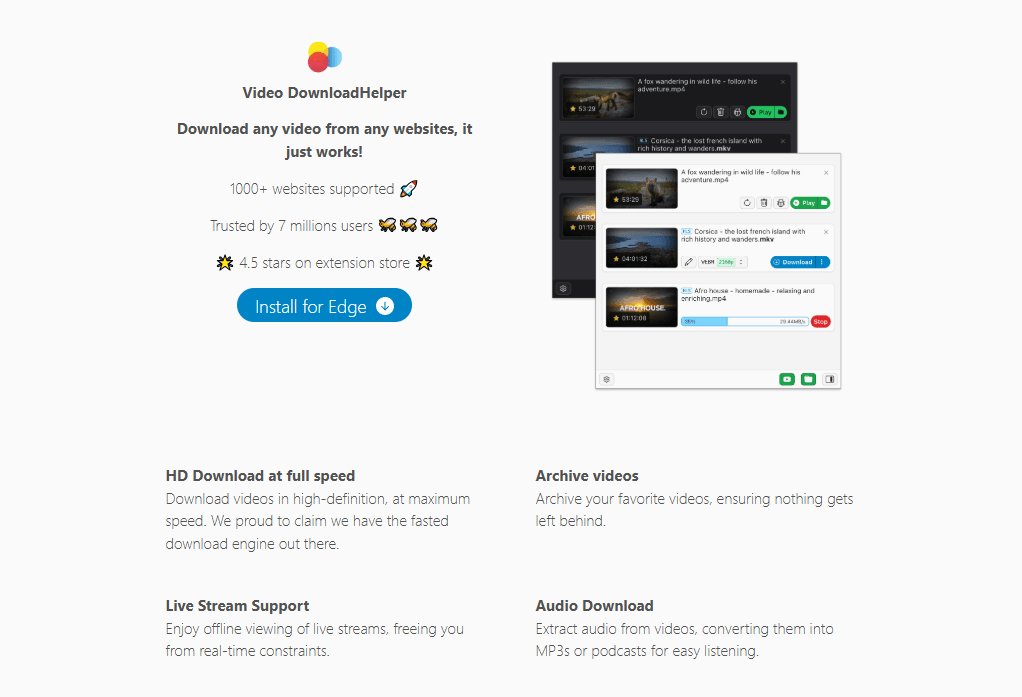
Video DownloadHelper – Video DownloadHelper: A popular extension that adds a download button directly to your browser and supports multiple formats and sites.
Website: downloadhelper.net
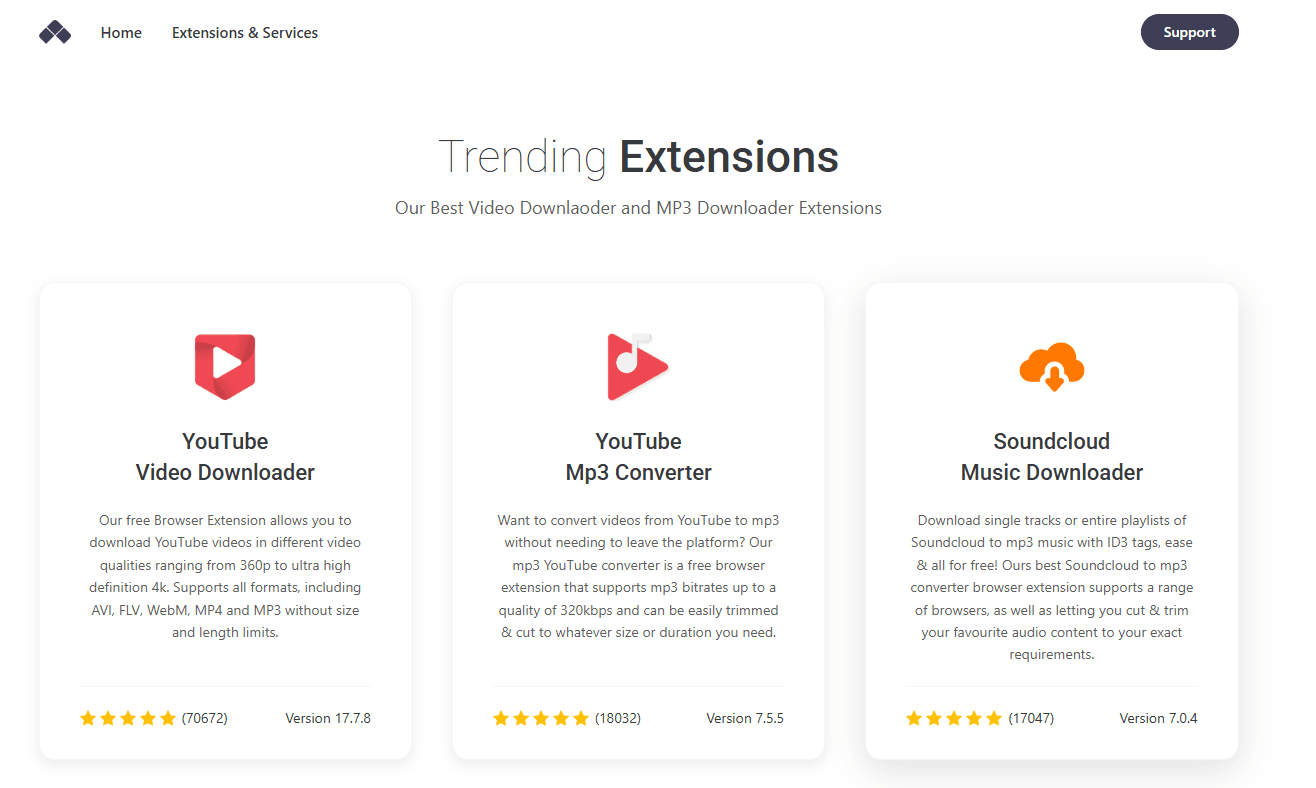
Addoncrop – YouTube Video Downloader (Addoncrop): A flexible extension that enables direct YouTube downloads with resolution and format selection, often installed manually outside official stores.
Website: addoncrop.com
CocoCut – CocoCut Video Downloader: A browser extension designed to capture streaming media segments and save them locally, useful for sites where direct downloads are hidden.
Website: cococut.net

Step‑by‑Step:
1. Install the extension from your browser’s add‑ons store: Firefox Add‑ons; Chrome Web Store (where permitted)
2. Go to YouTube and play the video you want.
3. Click the DownloadHelper icon in the toolbar.
4. Choose the file format/quality (MP4 recommended for compatibility).
5. Confirm and save the file to your computer.
Tip: Some extensions work better on Firefox due to stricter Chrome store policies.
Method 6: Professional Command‑Line Tool (yt‑dlp)
Best For: Tech‑savvy users, automation, higher control, scripting.
Overview: yt‑dlp is the actively updated fork of the classic youtube‑dl. It supports advanced options like audio extraction, custom naming, and automated batch processing.
Step‑by‑Step (Mac/Windows/Linux):
1. Download yt‑dlp binary:
Windows: download .exe
macOS/Linux: install via Homebrew or pip
2. Open Terminal (macOS/Linux) or CMD/PowerShell (Windows).
3. Enter: yt‑dlp https://www.youtube.com/watch?v=XXXXXXXXXXX
4. Wait for the tool to download the highest quality by default.
5. Find the file in your terminal’s current directory.
Advanced flags:
● Extract audio only: yt‑dlp -x --audio-format mp3 [URL]
● Choose exact resolution: yt‑dlp -f "bestvideo[height<=1080]+bestaudio/best" [URL]
Professional Guide: Batch Downloading with BitBrowser
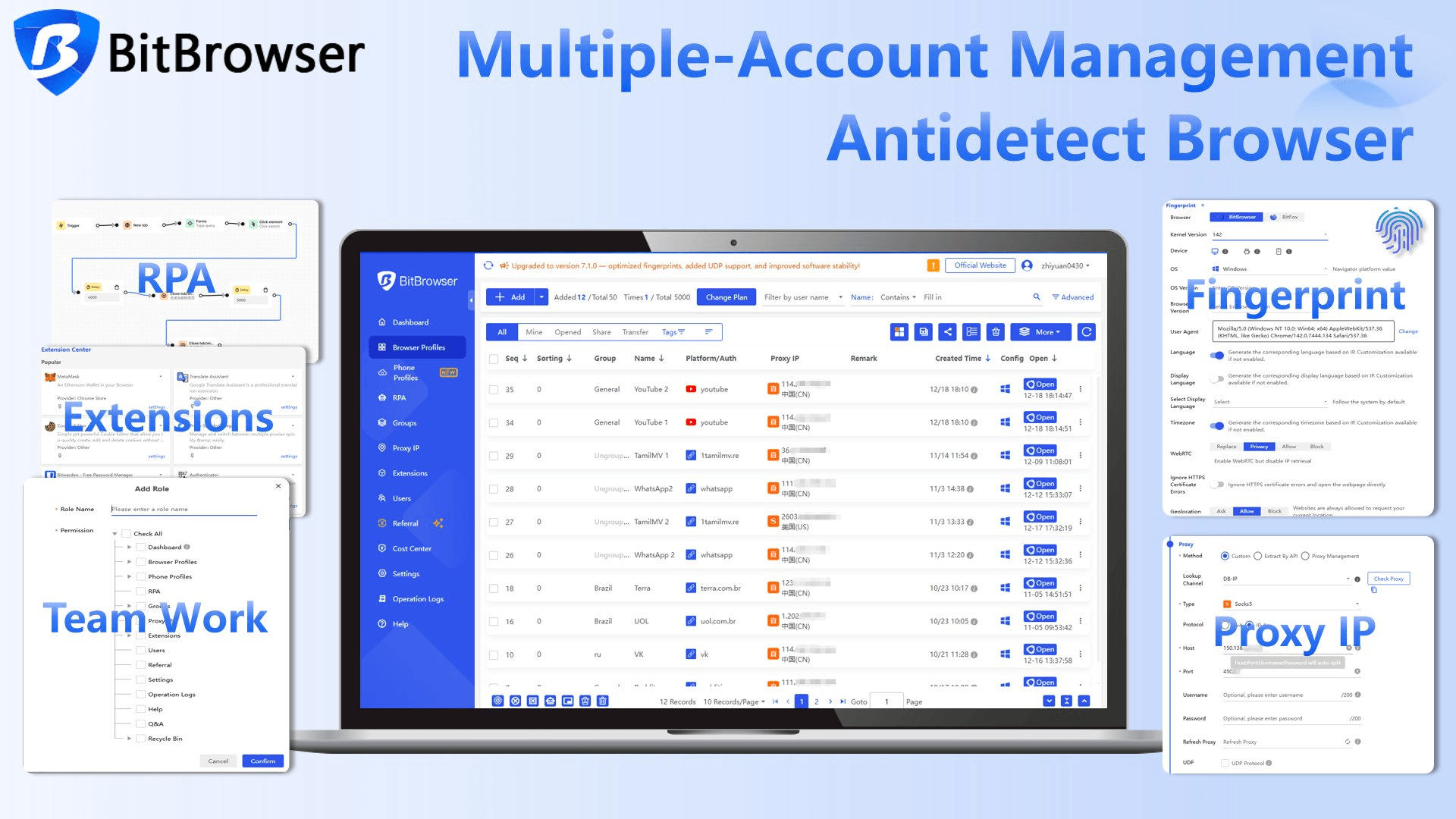
Bulk downloading YouTube content with standard browsers can trigger anti‑bot defenses like CAPTCHAs, IP bans, or throttling. For marketers, agencies, and researchers, the solution is to use a specialized multi‑profile browser setup like BitBrowser.
Why BitBrowser Helps for Batch Downloading
● Profile Isolation: Each profile appears as a unique device fingerprint.
● IP Management: Easily pair profiles with different residential proxies.
● Efficiency: Run dozens of sessions concurrently without detection.
Sign Up
4 Steps for High‑Efficiency Batch Operations Using BitBrowser
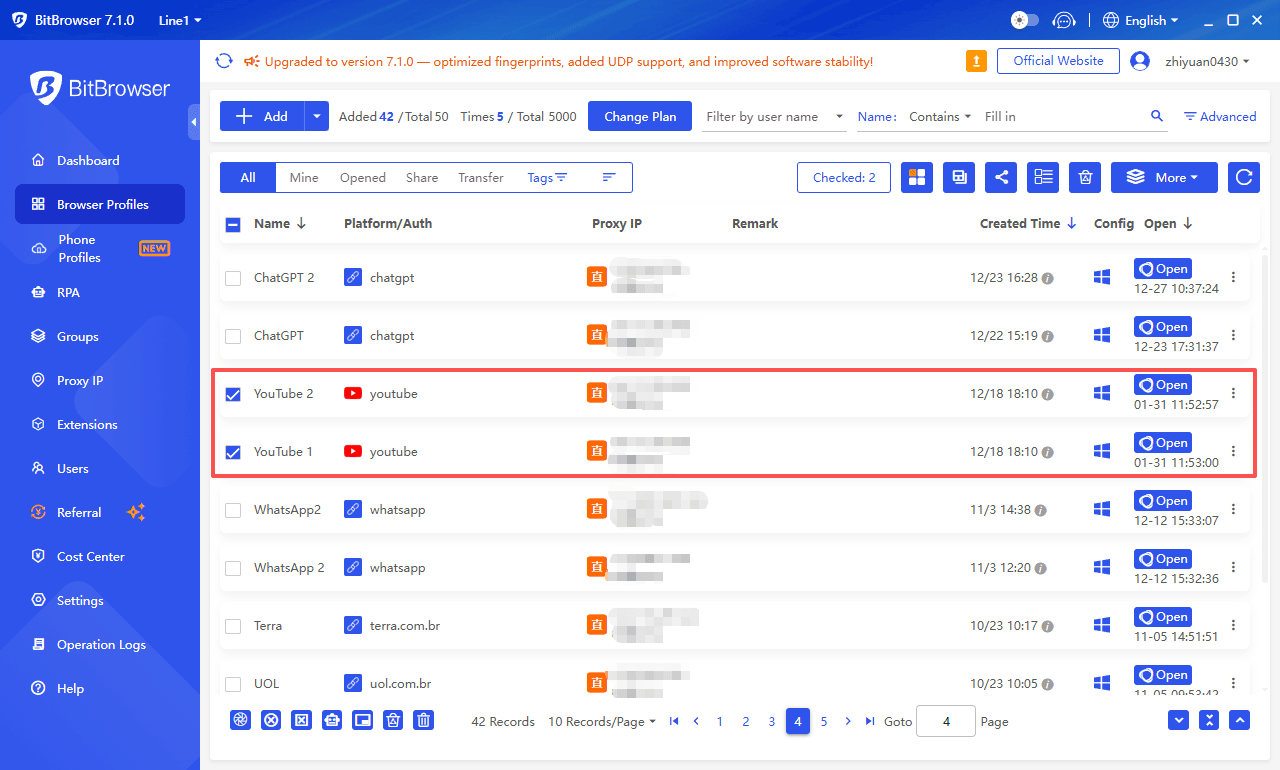
1. Environment Setup
● Create multiple independent profiles in BitBrowser.
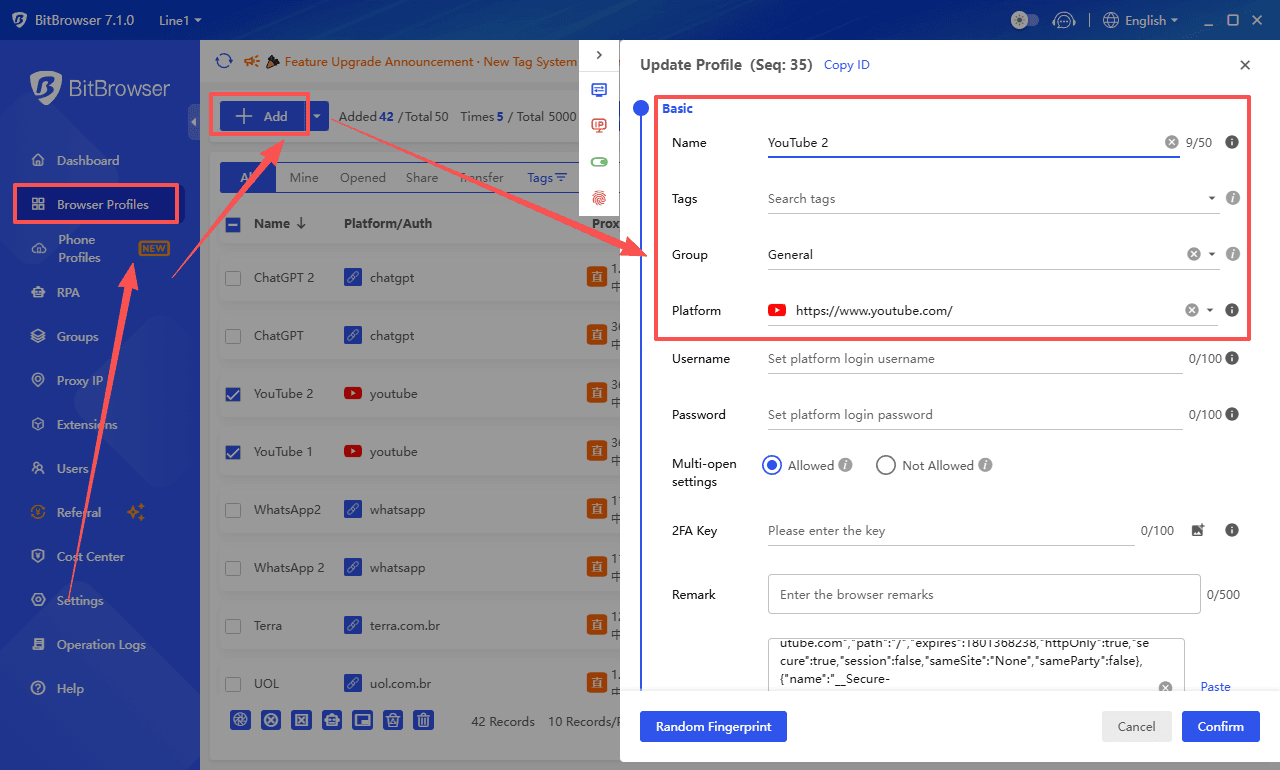
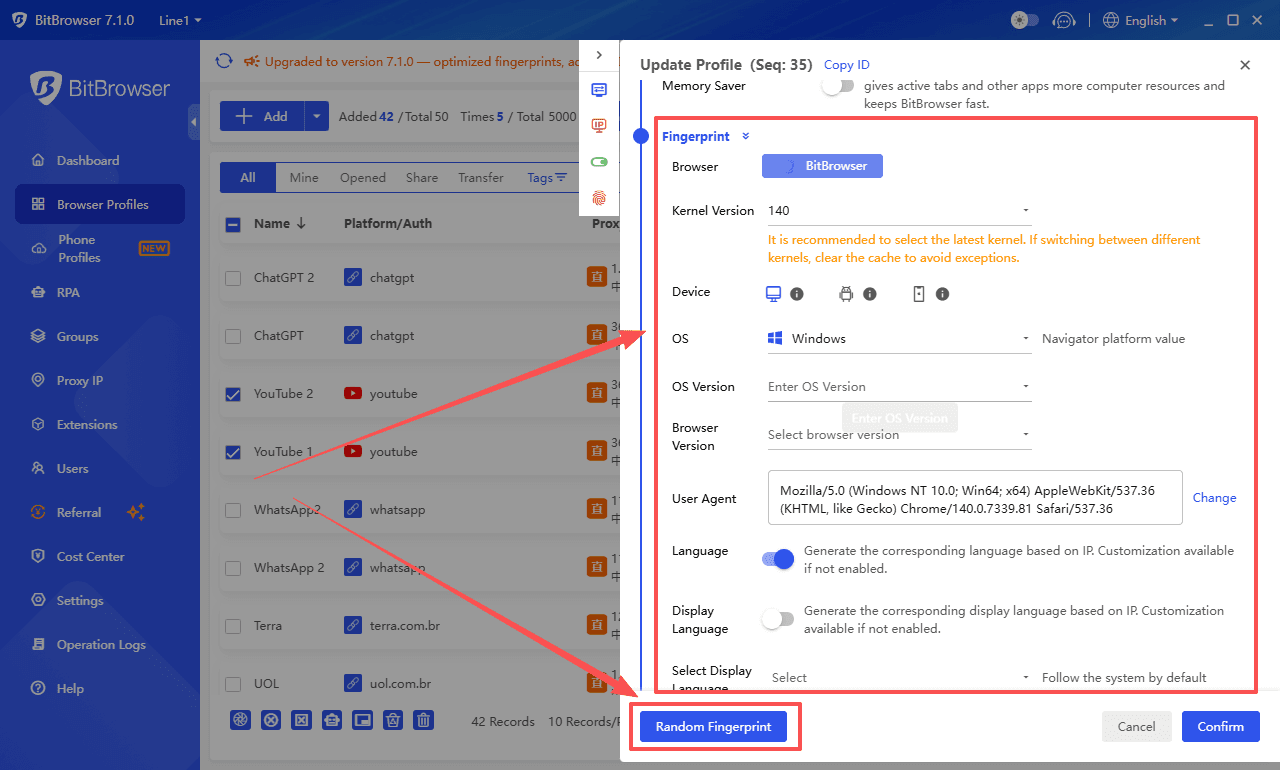
● Assign distinct fingerprints and configurations.
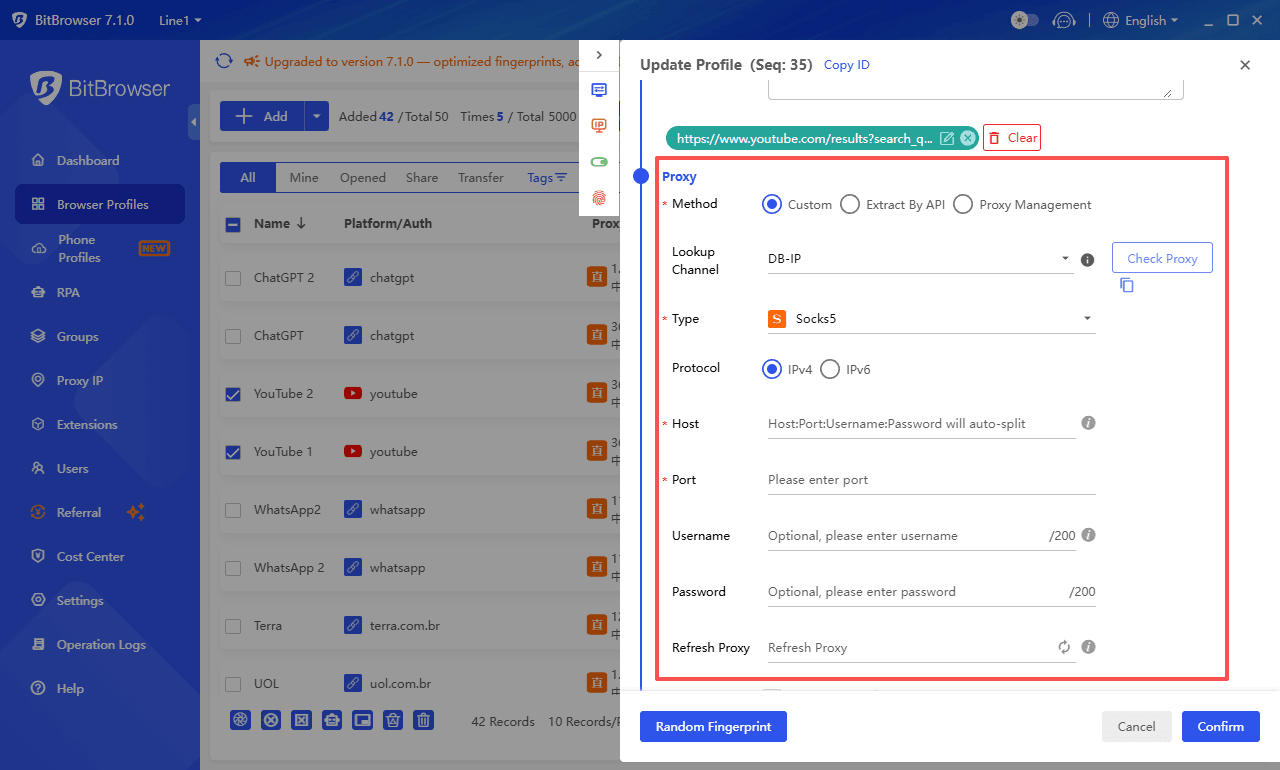
● Pair each profile with a unique residential proxy.
2. Synchronizer Control
● Use BitBrowser’s built‑in synchronizer to control all active windows with one click.
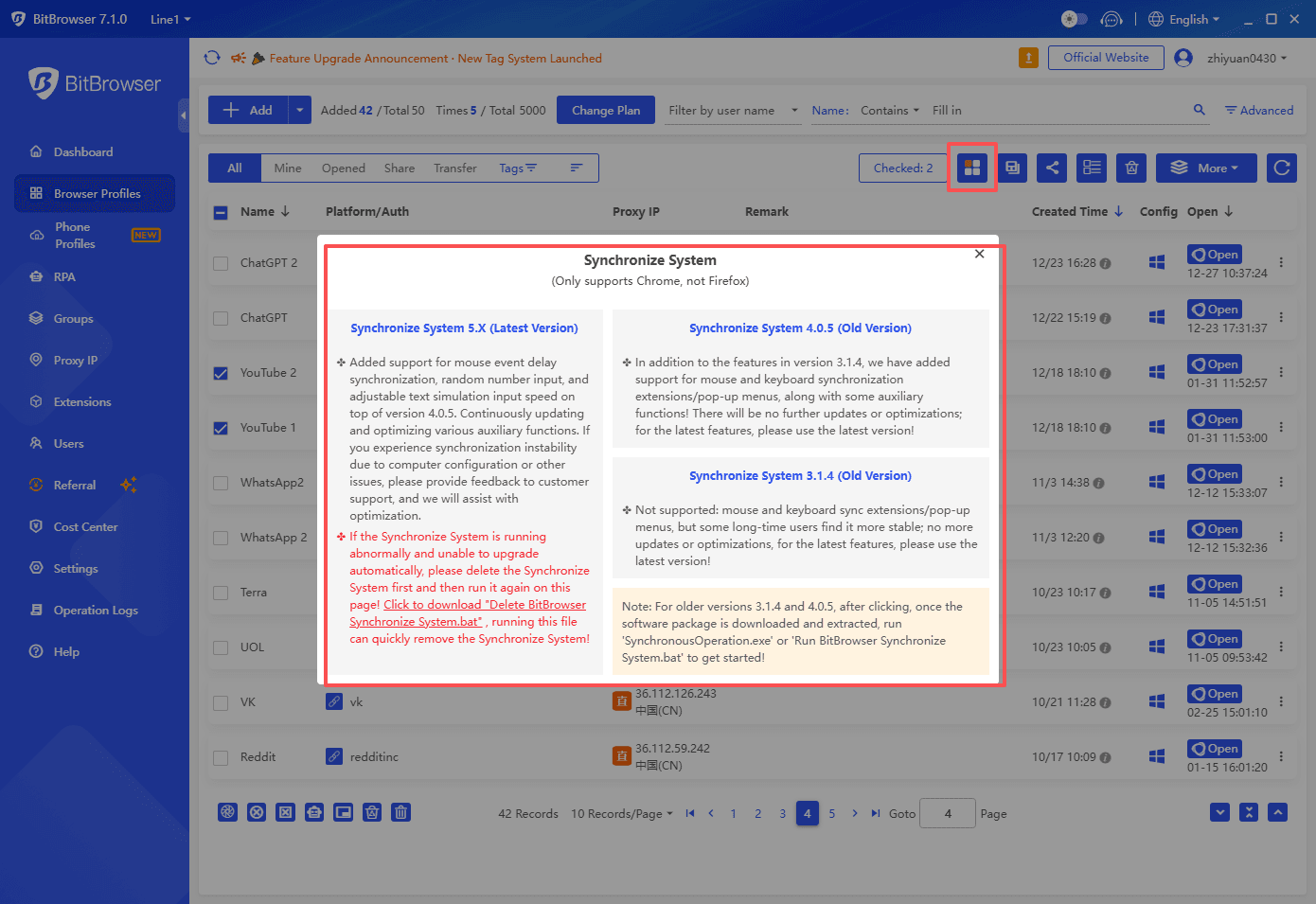
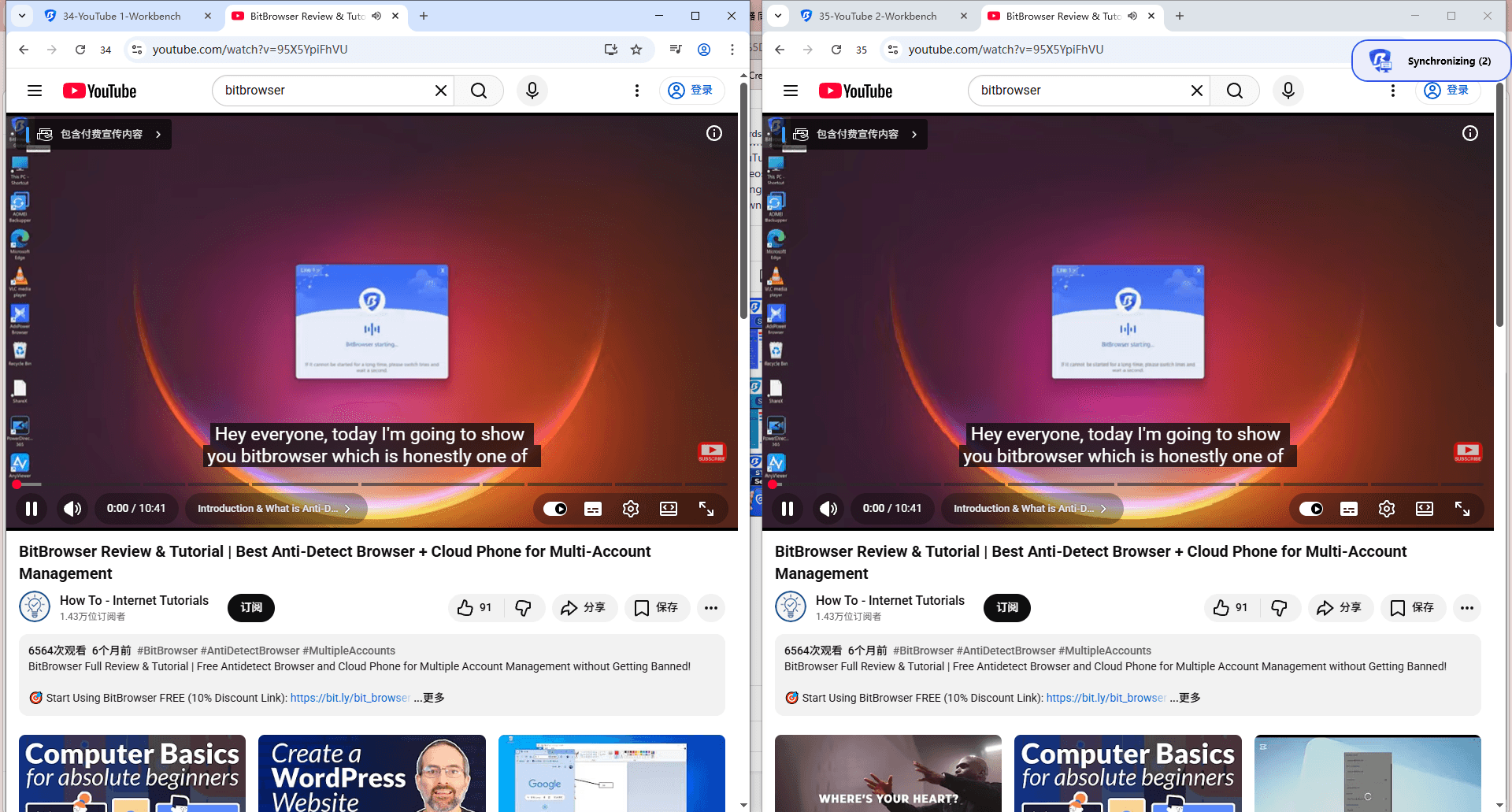
● Save time by launching simultaneous searches or playback.
Sign Up
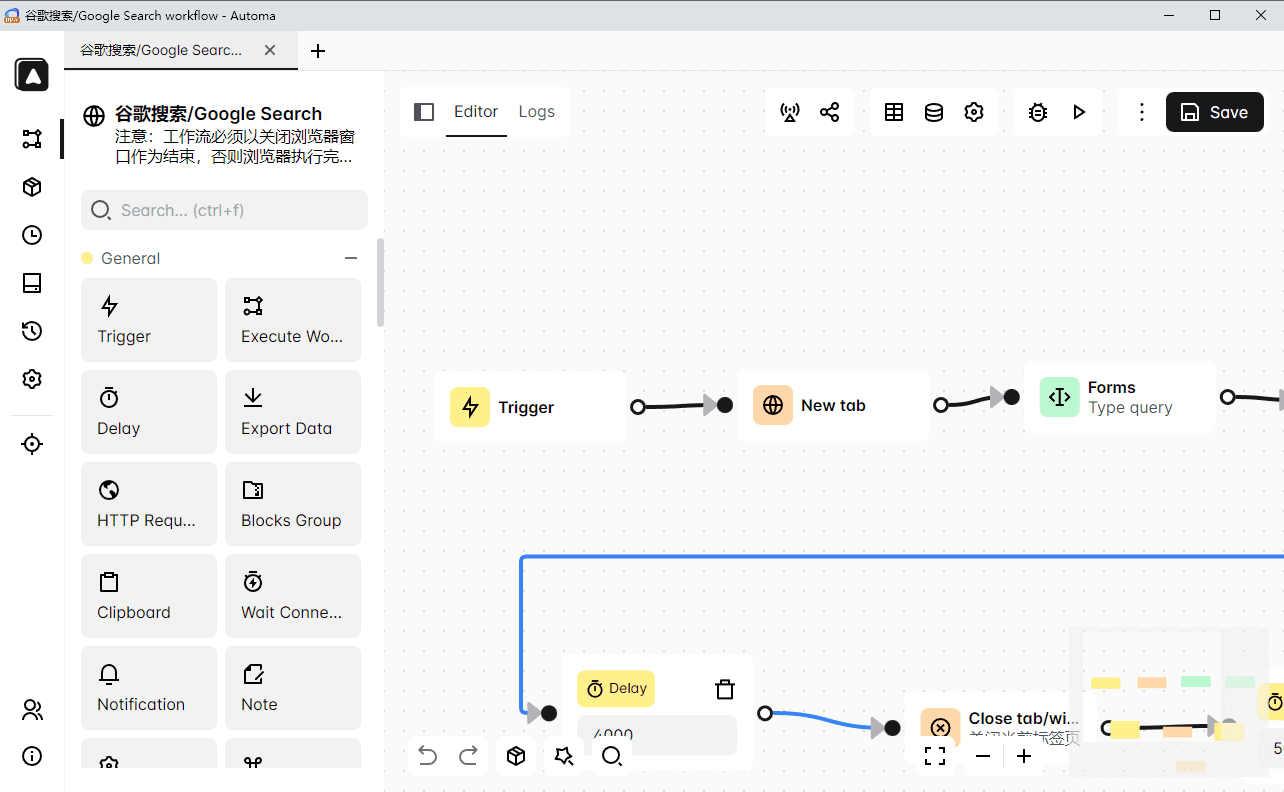
3. RPA Automation
Integrate Robotic Process Automation (RPA) scripts to:
● Open YouTube
● Search keywords
● Click thumbnails
● Execute downloads (via APIs or internal browser logic)
4. Local API Integration
● Connect BitBrowser to local automation frameworks like Python + Selenium.
● Use loops to handle massive scales, handle failures, and log activity.
⚠️ Important: Follow YouTube’s API Terms if you’re automating at scale.
Summary
Not all YouTube download methods are the same. Some are best for simple offline viewing, others focus on higher quality, and a few are designed for automation or large-scale work.
Security Tips
● Avoid “free download” sites with malicious ads.
● Block pop‑ups and run antivirus scan before downloading tools.
● Respect copyright and only download content you own or have rights to.
Frequently Asked Questions
Is It Legal to Download YouTube Videos in 2026?
It depends on the video and how you use it. YouTube Premium supports official offline downloads, while YouTube Studio lets creators download their own videos. Downloading copyrighted content without permission may violate YouTube's terms or copyright laws.
Can I Download YouTube Videos Without YouTube Premium?
For other users' videos, YouTube Premium is the official option for offline viewing. For your own videos, you can use YouTube Studio to download a local copy.
Does YouTube Premium Download Videos as MP4 Files?
No. Premium downloads are designed for offline playback within YouTube. They are not standard MP4 files you can freely transfer or edit.
How Do I Download My Own YouTube Videos?
Open YouTube Studio → Content, find your video, click the three-dot menu, and select Download when available.
Can I Download YouTube Videos on My Phone?
Yes. YouTube Premium lets you download eligible videos for offline viewing through the YouTube app.
Why Can't I Download Some YouTube Videos?
The Download option may vary by video, region, device, account, and content rights. Some videos may not support offline viewing.
How Long Do YouTube Premium Downloads Last?
You need to reconnect to the internet periodically to verify the video's availability and your Premium account.

 Multi-Account Management
 Prevent Account Association
 Multi-Employee Management
Recommended
See More 



