How to Block Ads on Pinterest: Complete Guide (Desktop & Mobile)
 2026.02.19 04:47
 petro
petroPinterest earns revenue by displaying ads from advertisers while keeping the platform free for users. These demographic-targeted ads promote products and services based on user interests and behavior.
While Pinterest is a fantastic platform for inspiration and creativity, frequent ads can interrupt your browsing flow. If you’re tired of scrolling through a cluttered feed filled with sponsored posts, you’re not alone.
Many users are searching for ways to reduce or block ads on Pinterest. In this guide, we’ll explore multiple methods — including browser extensions, privacy settings, and practical tips — to help you minimize ads and enjoy a cleaner Pinterest experience.
Method 1: Block Pinterest Ads Using uBlock Origin
Best for desktop users
uBlock Origin is a powerful browser extension that blocks ads, including targeted ads on Pinterest.
How to Set It Up:
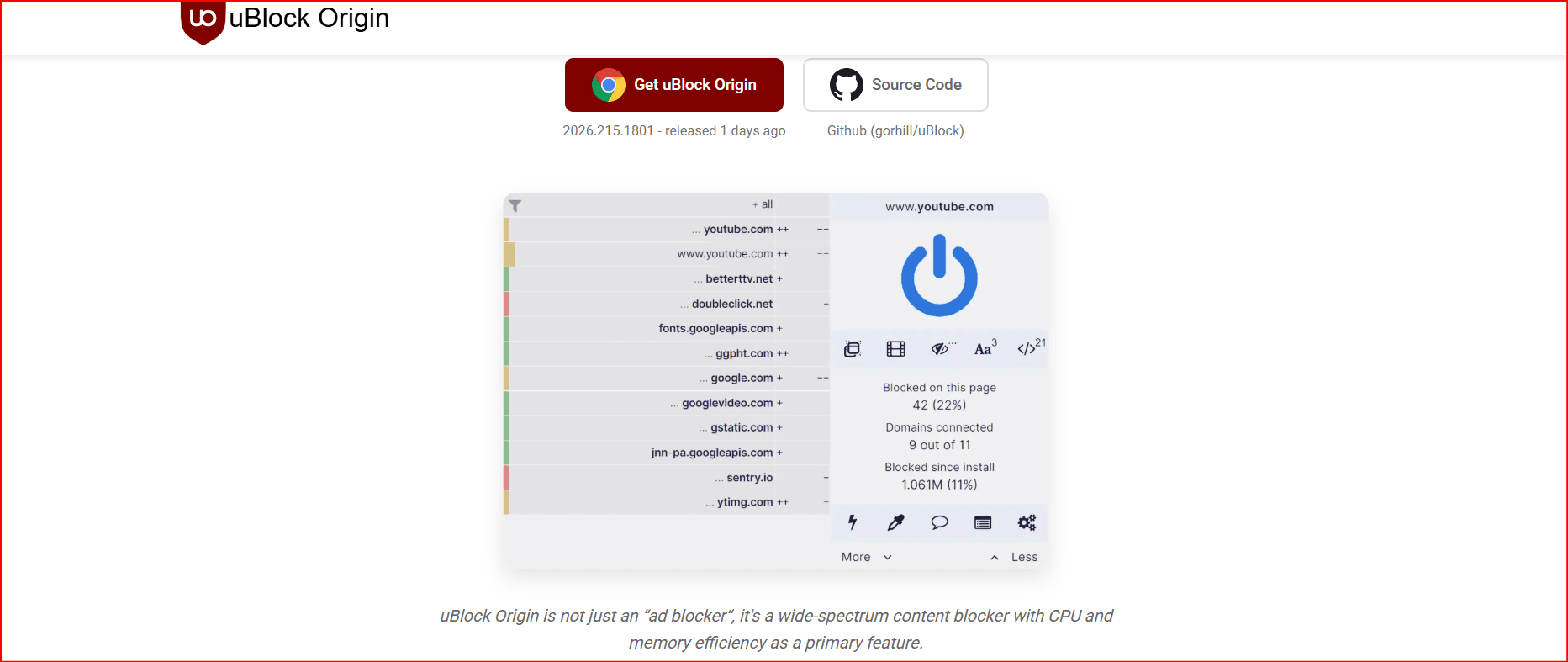
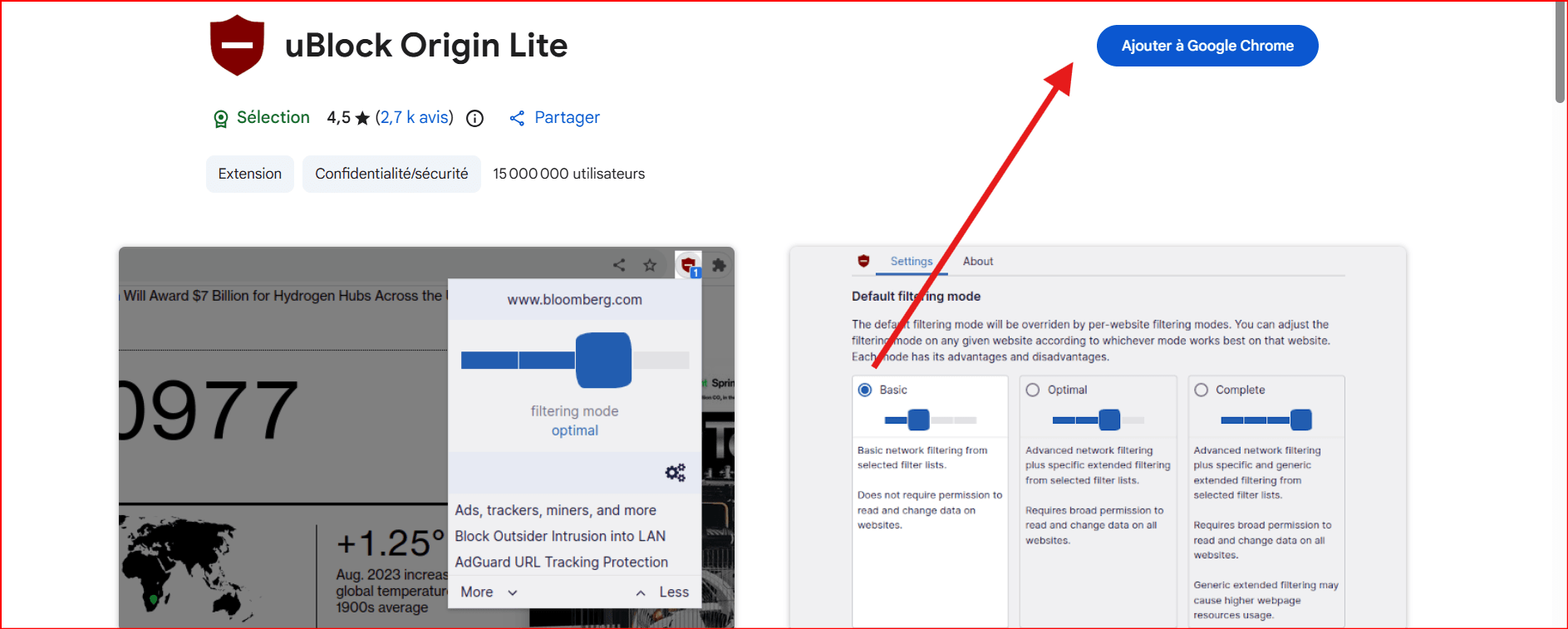
- Download and install uBlock Origin from your browser’s extension store (Chrome, Firefox, Edge).
- Enable the extension.
Click the uBlock icon in your browser toolbar.
- Go to Dashboard.
- Click the gear icon (Settings).
Add custom filters to block Pinterest ads.
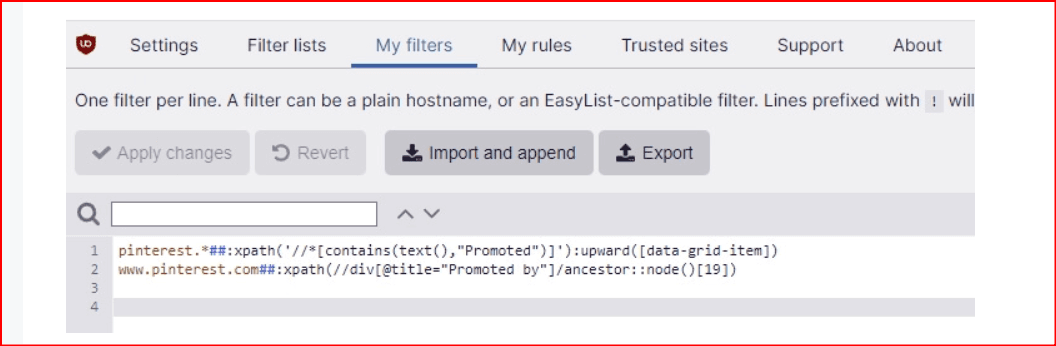
You can use filters like:
pinterest.*##:xpath(//*[contains(text(),"Promoted")]):upward([data-grid-item])
www.pinterest.com##:xpath(//div[@title="Promoted by"]/ancestor::node()[19])
- Save the changes.
- Reload Pinterest and check if ads are removed.
If ads still appear, clear your browser cache and reload again.
Method 2: Block Pinterest Ads Using AdBlock
AdBlock works on Chrome, Firefox, and Edge and allows custom filters.
Steps:
- Click the AdBlock icon in your browser toolbar.
- Click the gear icon.
- Open the Customize tab.
- Click Edit under custom filters.
- Paste this filter:
pinterest.*##[data-grid-item]:has([class="x8f INd _O1 KS5 mQ8 OGJ YbY"])
- Click Save.
- Reload Pinterest.
Clear cache if necessary to ensure changes take effect.
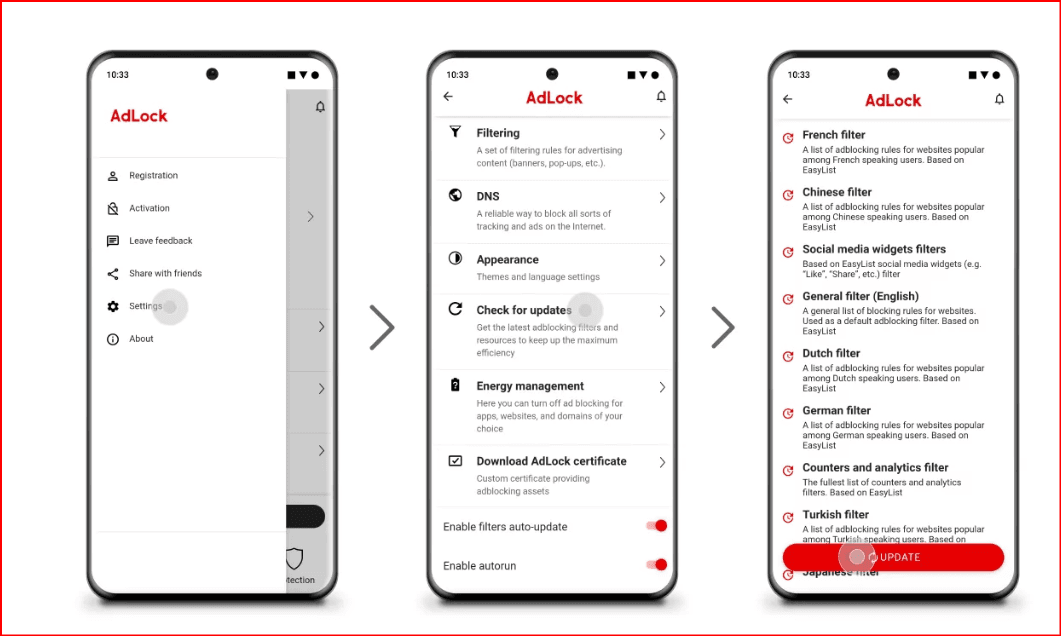
Method 3: Block Ads with AdLock
AdLock works across multiple devices, including mobile.
How to Use:
- Download and install AdLock.
- Open the app and configure ad-blocking settings.
- Add Pinterest to the block list if needed.
- Go to Allow List and manage exceptions.
- Check for updates from the three-dot menu.
- Keep AdLock running in the background.
This method helps reduce mobile Pinterest ads significantly.
Method 4: Block Pinterest Ads Using AdGuard
AdGuard is another effective ad-blocking solution for desktop and mobile.
Setup Steps:
- Download AdGuard from the official website or app store.
- Launch and configure ad-blocking.
- Go to User Rules.
- Add custom filters such as:
pinterest.*##[data-grid-item]:has([class="Eqh zI7 iyn Hsu"])
pinterest.com##DIV[data-test-pin-id="-"]
- Save and ensure AdGuard runs in the background.
Other Ways to Reduce Ads on Pinterest
Since Pinterest doesn’t offer an official “remove ads” option, combining different methods works best.
1. Turn Off Personalized Ads
Pinterest personalizes ads based on your activity. You can limit this.
On Desktop:
- Go to Settings
- Uncheck:
“Use information from our partners to improve recommendations and ads”
On Mobile:
- Tap your profile picture
- Tap the three dots
- Go to Settings > Privacy and data
- Turn off:
- “Use partner info to improve recommendations and ads”
2. Turn Off “Ads About Pinterest”
- Go to your Profile
- Open Settings
- Navigate to Privacy and data
- Toggle off “Ads About Pinterest”
3. Block Specific Advertisers
You can block up to 1,000 advertisers.
- Tap the three dots on a promoted pin.
- Select Hide Pin
- Choose a reason.
This helps train the algorithm to show fewer similar ads.
4. Use Pinterest on Desktop
Some users report seeing fewer ads on desktop browsers compared to the mobile app. Additionally, a larger screen improves browsing experience.
5. Turn Off Push Notifications
On Desktop:
- Go to Settings > Notifications
- Edit notification types (Pinterest, Email, Push)
On Mobile:
- Tap profile
- Go to Notifications
- Customize or disable push alerts
How to Identify Malicious Ads on Pinterest
While reducing ads is helpful, recognizing harmful ads is equally important.
1. Low-Quality Graphics
Blurry, poorly designed ads may indicate scams.
2. Grammatical Errors
Professional brands proofread. Scam ads often contain awkward wording.
3. Unrealistic Offers
“Free iPhone!” or extreme discounts from unknown brands are red flags.
4. Suspicious Redirects
If clicking an ad immediately redirects you to an unknown website, exit immediately.
5. Poor Brand Reputation
Check reviews before engaging with unknown brands.
6. Requests for Sensitive Information
Legitimate businesses won’t ask for financial details through ads.
Can You Completely Block Ads on Pinterest?
No. Pinterest relies on advertising revenue to keep the platform free. However, using:
- Ad blockers
- Privacy settings adjustments
- Blocking advertisers
- Clearing browsing history
can significantly reduce the number of ads you see.
Conclusion
Pinterest is a powerful platform for inspiration, hobbies, and marketing. While ads are unavoidable, you can minimize their impact using browser extensions, privacy settings, and smart filtering methods.
There’s no official “remove all ads” button, but combining these techniques can drastically improve your browsing experience.

 Multi-Account Management
 Prevent Account Association
 Multi-Employee Management
Recommended
See More 



