How to Find Your Discord ID on Mobile & PC in 2026: User, Server, Channel & Message ID Guide
 2026.08.14 07:26
 YT.Shi
Discord is more than just a chat app – it’s a hub for communities, gaming teams, study groups, and professional collaborations. While most people use Discord with their username and avatar, there’s a hidden layer of identification that powers everything behind the scenes: the numeric ID.
Every user, every server, every channel, and even every single message has its own unique 17‑ to 19‑digit ID. You don’t need these numbers for everyday chatting, but they become essential when:
· You contact Discord Support and they ask for a specific ID to investigate an issue.
· You’re setting up bots that require server, channel, or user IDs for permissions or commands.
· You want to link directly to a message so others can jump straight into a conversation.
· You’re a server administrator troubleshooting permissions or logging.
In this comprehensive guide, we’ll walk you through the latest practical methods for finding every type of Discord ID on both desktop and mobile. The steps are based on the latest practices in 2026 and may differ slightly from Discord’s official descriptions or interface wording. However, they have been tested to work effectively, with detailed screenshots provided for each step. We’ll also explain what each ID is used for and answer the most common questions.
Manage Multiple Discord Accounts in BitBrowser
Why Would You Ever Need These IDs? (Real‑World Use Cases)
Many users wonder: “Why do I need a bunch of numbers?” Here are the most common scenarios:
✅ Discord Support Tickets
When you submit a support request, the team may ask for the Server ID or User ID to locate the issue quickly. Without it, they have to manually search, which delays your response.
✅ Bot Configuration
Popular bots like MEE6, Dyno, or Carl‑bot often require you to enter channel IDs to set up logging, welcome messages, or auto‑moderation. You’ll paste the ID into the bot’s dashboard or command.
✅ Creating Direct Message Links
If you’re a server admin, you can share a link to a specific message so users can see a rule clarification or an announcement without scrolling.
✅ Developer Debugging
If you’re building a custom Discord bot, you’ll constantly use IDs to target specific users, channels, or servers in your code.
✅ Reporting Abuse
When reporting harassment or spam, including the Message Link helps Discord’s Trust & Safety team locate the exact content instantly.
Before You Start: Enable Developer Mode
Discord hides the “Copy ID” options by default to keep the interface clean. To reveal them, you must turn on Developer Mode – a simple toggle that unlocks these copy functions.
On Desktop (Windows, Mac, Linux, or Web App)
1. Open Discord and look at the bottom‑left corner of the window. Click the gear icon (⚙️) – that’s your User Settings.
2. In the left sidebar, scroll down and click on Developer.
3. On the right panel, find Developer Mode and toggle it ON – a green checkmark will appear.
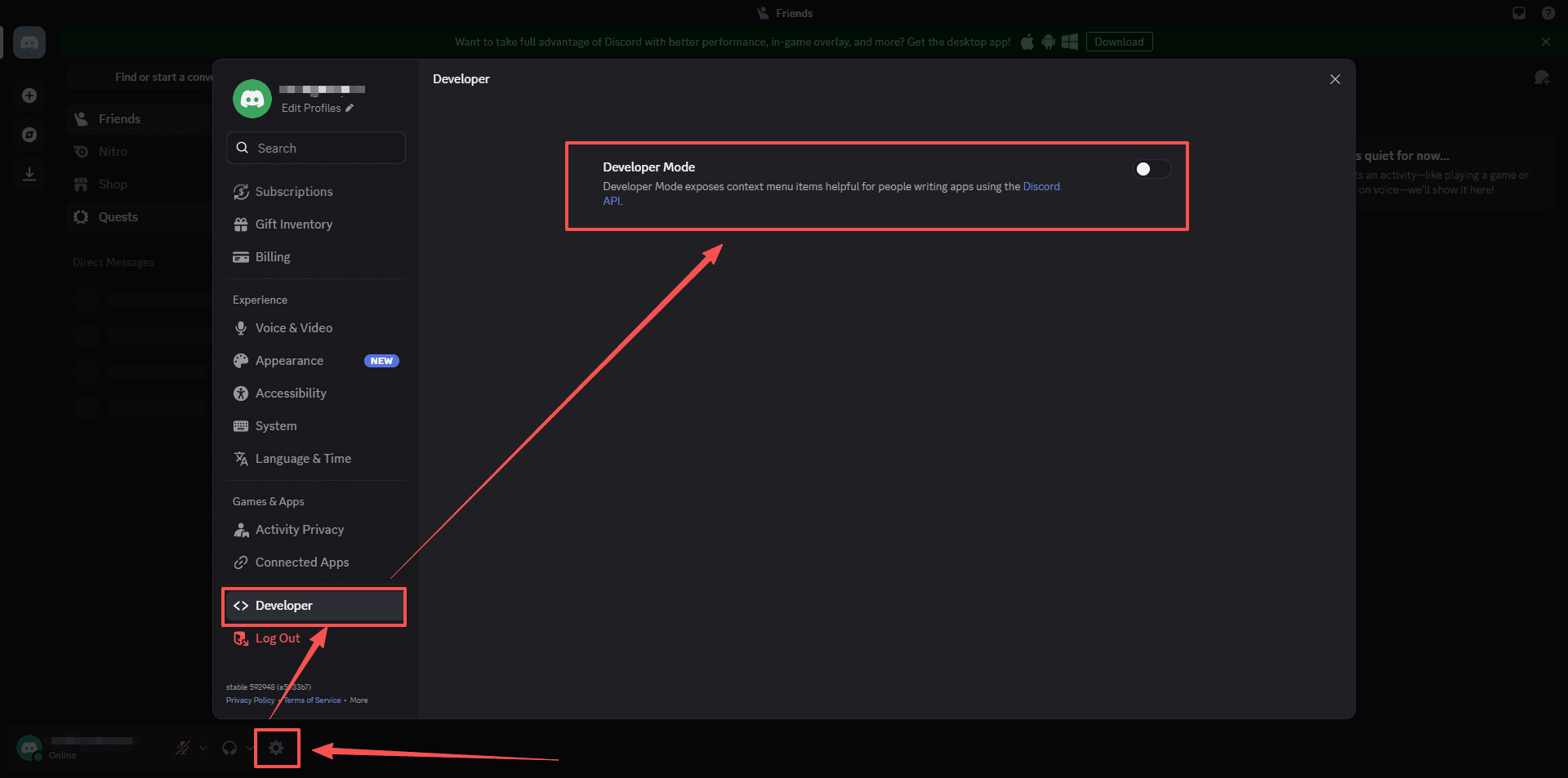
💡 Pro tip: Developer Mode also enables other debugging tools, but you don’t need to worry about them – just leave it on and the copy options will stay available.
On Mobile (Android & iOS)
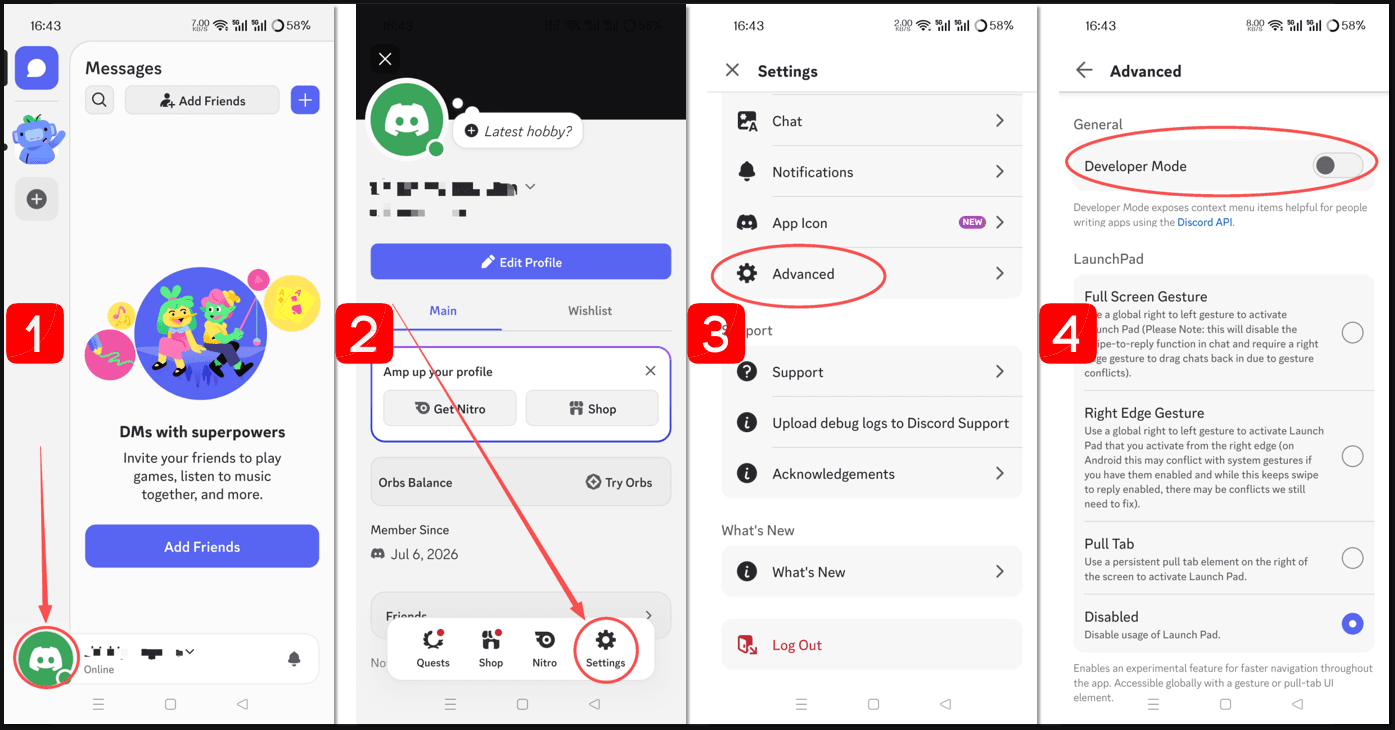
1. Launch the Discord app and tap your avatar in the bottom‑right corner to open your settings.
2. Tap the gear icon (⚙️) in the top‑right corner to access User Settings.
3. Scroll down until you see Advanced under “App Settings” – tap it.
4. Tap the toggle next to Developer Mode to enable it (it will turn green).
Once enabled, you’re ready to copy any ID. The process is slightly different on each platform, so follow the sections below carefully.
How to Find Your Own User ID (and Other Users’ IDs)
Your User ID is a permanent number tied to your account – it never changes, even if you change your username or discriminator (tag). This is the ID you’ll most often give to Discord Support or to bot developers.
On Desktop
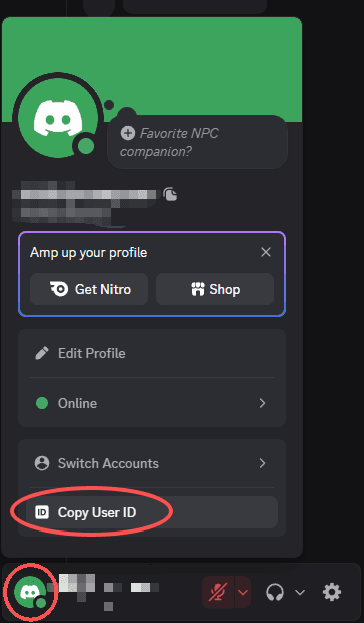
1. Click your own avatar anywhere – it can be in a server member list, in a direct message, or at the bottom of the main interface.
2. From the context menu, select Copy User ID.
3. The number is now copied to your clipboard – paste it with Ctrl+V (or Cmd+V on Mac).
To copy another user’s ID, simply right‑click their avatar or username anywhere (in a server, DM, or group chat) and choose Copy User ID from the same menu.
On Mobile
1. Go to a server channel or direct message where you have posted a message.
2. Tap your avatar to open your profile card.
3. Tap the three dots (⋯) in the top‑right corner of the card.
4. Select Copy User ID – it’s instantly copied to your phone’s clipboard.
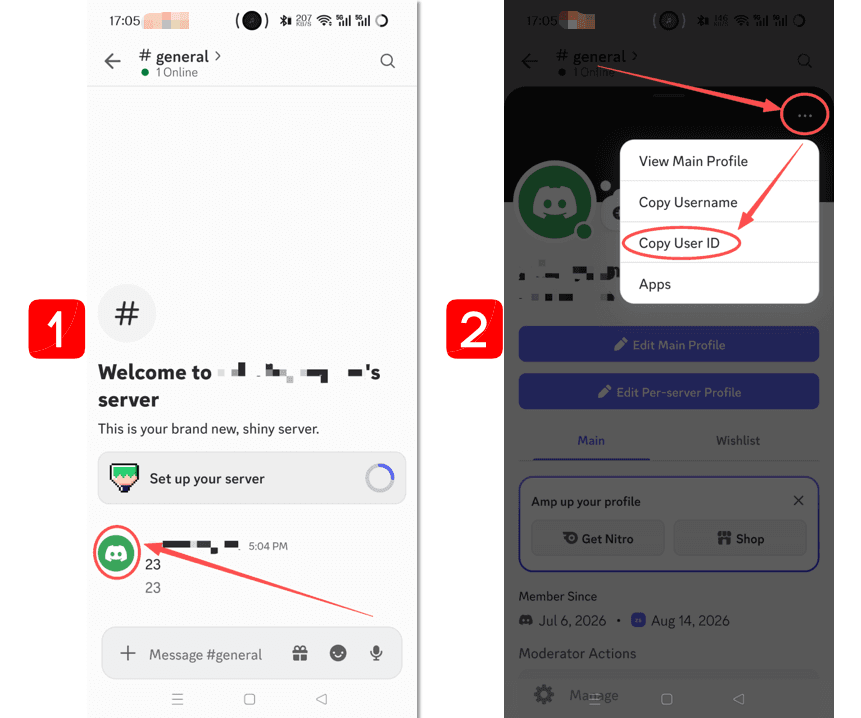
For other users: tap their avatar to open their profile, then tap the same three‑dot menu and select Copy User ID.
⚠️ Important: You must have Developer Mode enabled, otherwise these options won’t appear. If you don’t see them, go back and double‑check the toggle.
How to Find a Server ID
Server IDs (also called Guild IDs) are unique to each Discord server. They’re often required when you’re using bot commands that act on a whole server, or when reporting a server‑wide issue to Discord.
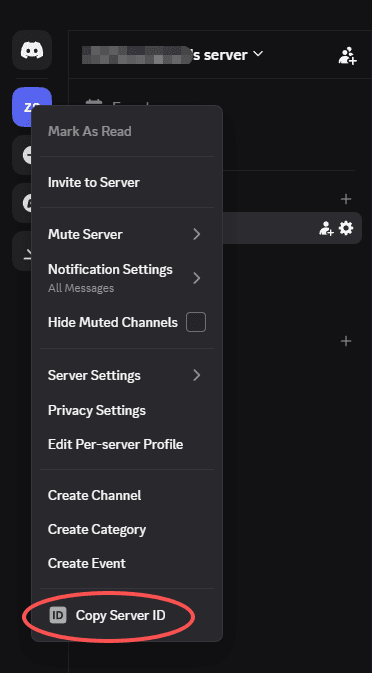
On Desktop
1. In the left server list, click the icon of the server you want the ID for.
2. From the dropdown menu, click Copy Server ID.
3. Paste it wherever you need – the ID is now in your clipboard.
On Mobile
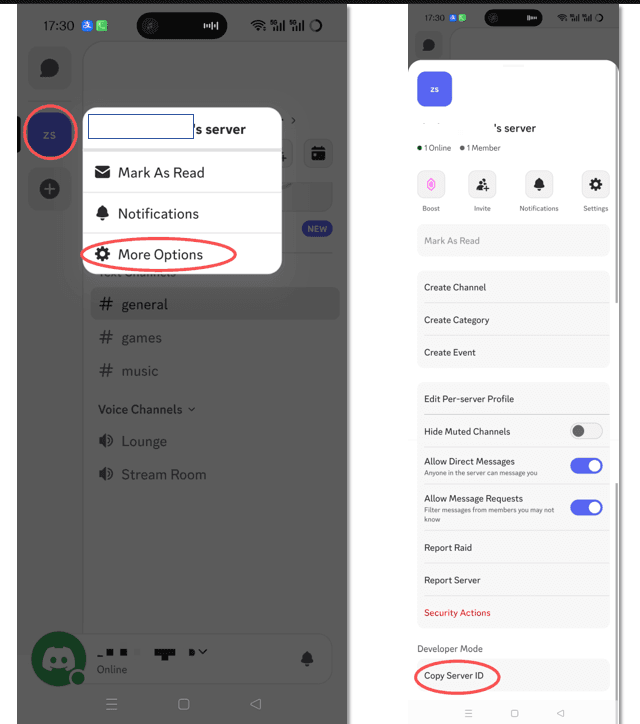
1. Long press the server icon you want to get the ID from.
2. Tap More Options from the pop-up menu.
3. Scroll down in the menu and tap Copy Server ID – the server ID will be copied to your clipboard.
📌 Note: You need the “Manage Server” permission to see this option? Actually, no – any member of the server can copy the server ID as long as they have Developer Mode enabled. Discord does not restrict this option to administrators.
How to Find a Channel ID
Every text channel, voice channel, and category has its own ID. Channel IDs are widely used by bots to restrict commands to specific channels, or to generate invite‑like links that point directly to a channel.
On Desktop
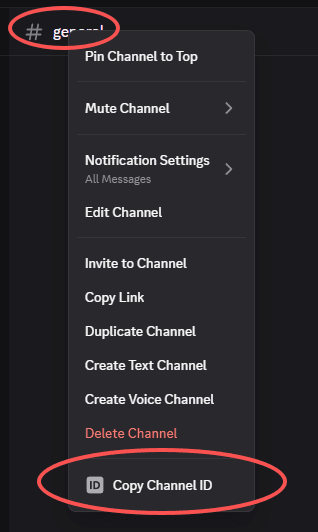
1. Hover over the channel name in the left channel list.
2. Right‑click it (text or voice channel – it works for both).
3. Choose Copy Channel ID from the menu.
On Mobile
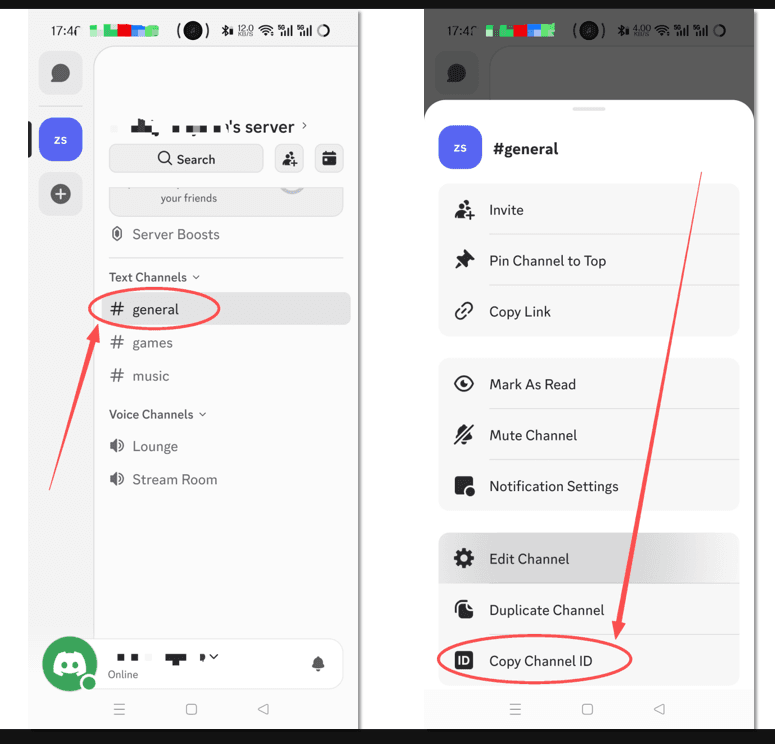
1. Long‑press (tap and hold) the channel name in the channel list.
2. A context menu will pop up – tap Copy Channel ID (you may need to scroll down if you’re on a small screen).
💡 Bonus trick: If you have a Channel ID, you can make it clickable inside Discord by typing #<channelID> (replace with the actual number). Other users with access to that channel can click it to jump directly there.
How to Get a Message Link (which includes the Message ID)
Message links are incredibly useful – they let you share a specific message with anyone who has permission to view it. Instead of saying “go to #general and scroll up,” you can paste a link that takes them right to that exact message.
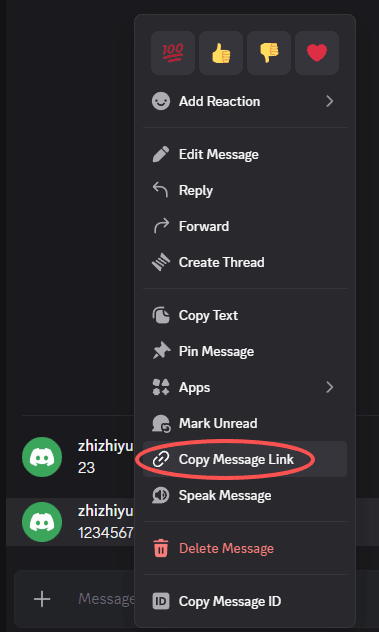
On Desktop
1. Find the message you want to link.
2. Right‑click anywhere on the message (or on the timestamp).
3. From the menu, select Copy Message Link.
On Mobile
1. Locate the message and long‑press it (tap and hold).
2. In the pop‑up actions, choose Copy Message Link.
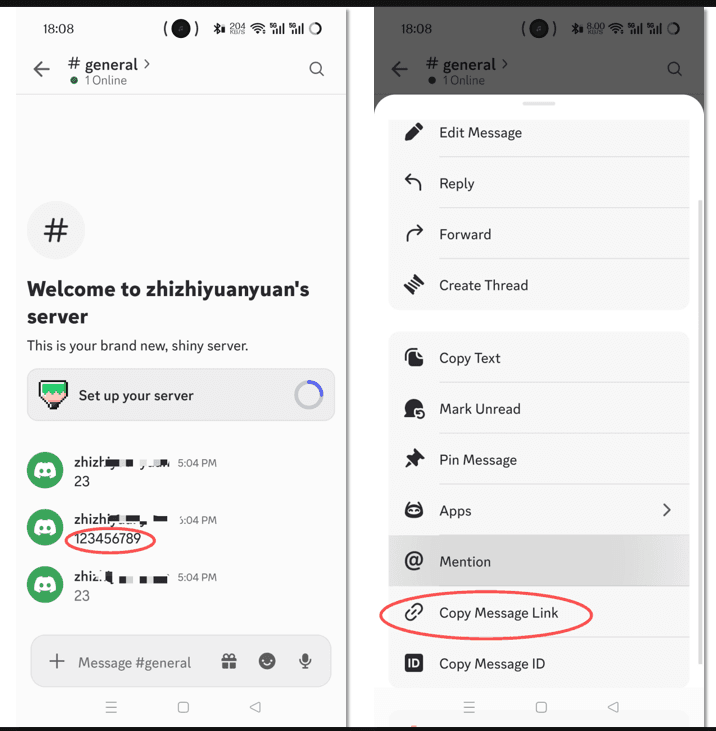
The link will look something like:
https://discord.com/channels/123456789/987654321/111222333
The last number is the Message ID, the middle is the Channel ID, and the first is the Server ID. You don’t have to parse them – just share the link as‑is.
📎 Pro tip: Message links work in DMs and group DMs too. For group DMs, the format is slightly different but the copy method is identical.
How to Find IDs in Group DMs (Private Conversations)
What if you’re not in a server but in a group direct message? You can still copy most IDs.
User IDs – follow the same steps (tap/right‑click a member’s avatar).
Channel ID – in a group DM, the conversation itself acts as a channel. On desktop, right‑click the group name in the DM list and select Copy Channel ID. On mobile, long‑press the group name and choose Copy Channel ID.
Message links – right‑click or long‑press any message and select Copy Message Link – the link will work for all participants.
What Do All These IDs Look Like?
All Discord IDs are pure numeric strings – no letters or special characters. Examples:
· User ID: 286442994527764480
· Server ID: 81384788765712384
· Channel ID: 102354567890123456
· Message ID: 978654321012345678
They are always 17 or 18 digits (sometimes 19) and are generated by Discord’s internal system.
Troubleshooting: Why Can’t I See “Copy ID”?
If the option isn’t showing up, check these points:
· Developer Mode is still off – double‑check the toggle in Settings > Advanced.
· You’re right‑clicking the wrong area – for a User ID, you must click the name/avatar, not the message box.
· App version is outdated – update Discord to the latest version (especially on mobile).
· You’re in a read‑only channel – even then, you should still be able to copy IDs; permissions don’t block the copy function.
Final Thoughts
Finding your Discord ID may seem like a hidden trick, but it’s actually simple once you enable Developer Mode. Whether you need it for support, bot setup, or sharing message links, these numeric IDs help you manage Discord more precisely.
If you manage multiple accounts for communities, testing, or business, BitBrowser provides isolated fingerprint profiles to help run them safely side by side.
Remember, your User ID is permanent. Keep it handy and only share it when needed. Server and Channel IDs are also safe to share with trusted users who have access to the server. With this guide, you’ll always know how to find any Discord ID quickly whenever you need it.
Frequently Asked Questions About Discord IDs
What is a Discord ID?
A Discord ID is a unique numeric identifier assigned to every user, server, channel, and message on Discord. Unlike usernames, these IDs do not change and are mainly used for support, bots, moderation, and technical tasks.
How do I find my Discord ID?
To find your Discord ID, enable Developer Mode in Discord settings first. Then open your profile menu, right click or tap your avatar, and select Copy User ID. The ID will be copied automatically.
Why can’t I see the “Copy ID” option on Discord?
The Copy ID option only appears when Developer Mode is enabled. If you cannot find it, go to Settings > Advanced and turn on Developer Mode. Updating Discord to the latest version may also help.
Is it safe to share my Discord ID?
Yes. Discord IDs are generally safe to share when needed, such as for contacting support, setting up bots, or troubleshooting. However, never share your password, login codes, or other account security information.
Can I change my Discord ID?
No. Your Discord User ID is permanent and cannot be changed. It remains the same even if you update your username, avatar, or other profile information.

 Multi-Account Management
 Prevent Account Association
 Multi-Employee Management
Recommended
See More 



