How to Use Discord Web in a Browser: Login, Setup & Troubleshooting (2026 Guide)
 2026.07.03 10:03
 YT.Shi
Discord Web (aka Discord in your browser) is basically the full Discord experience inside Chrome, Firefox, Safari, Edge, whatever you use. It’s perfect if you’re on a work laptop, a school computer, a borrowed device, or you just do not feel like installing another app.
This is the 2026 guide to using Discord Web properly. Logging in, signing up, verification, browser requirements, permissions, common issues, privacy stuff, and the little quality of life tweaks that make it feel less annoying.
What is Discord Web (and what’s different from the desktop app)
Discord Web is the browser version of Discord. Instead of opening a desktop application, you access Discord directly through its official website in a browser.
▸ Discord Web: https://discord.com
▸ Discord Login: https://discord.com/login (login page)
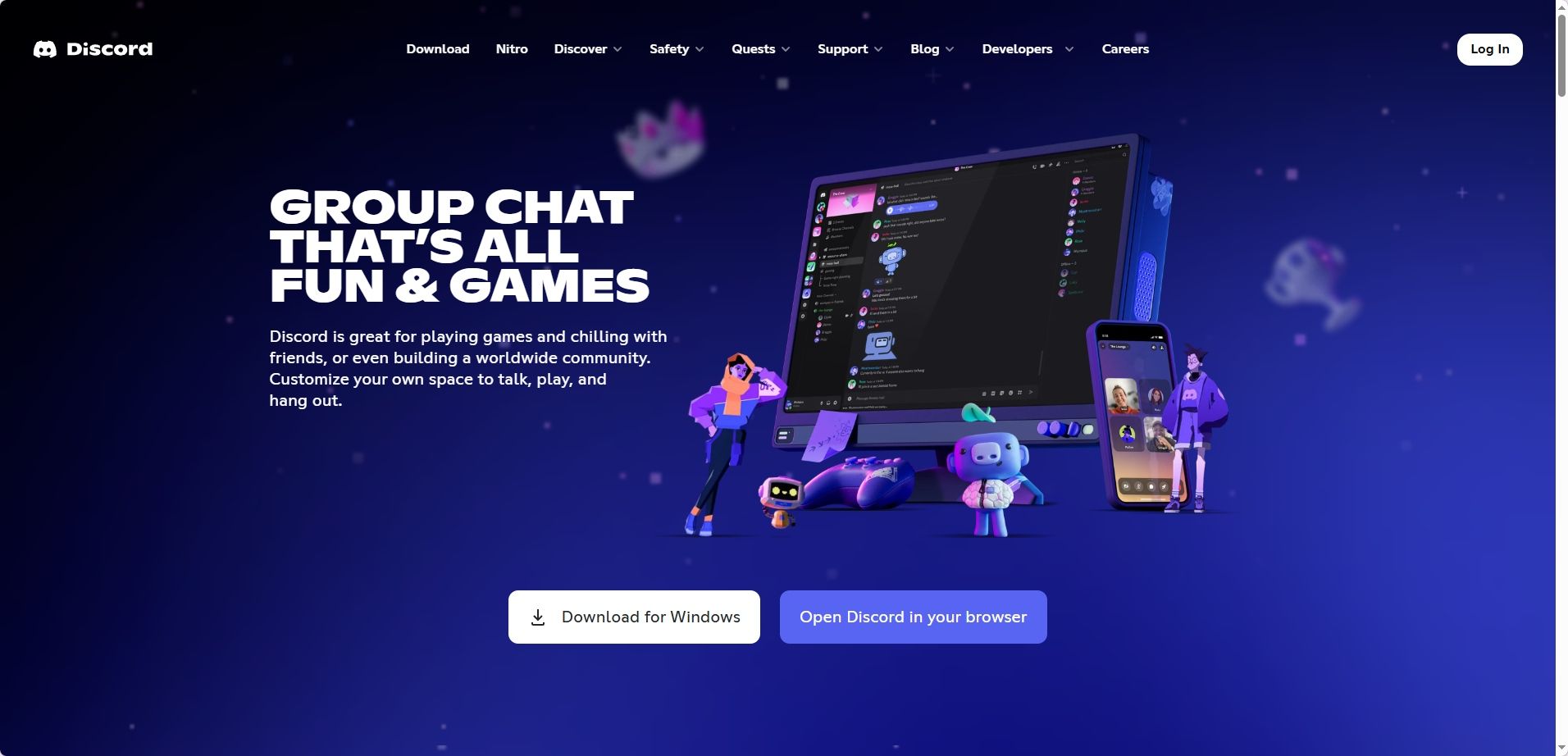
It looks almost identical to the desktop app. Most features are there. You can join servers, DM people, stream your screen, join voice channels, share your camera, upload files, manage roles (if you have perms), all of it.
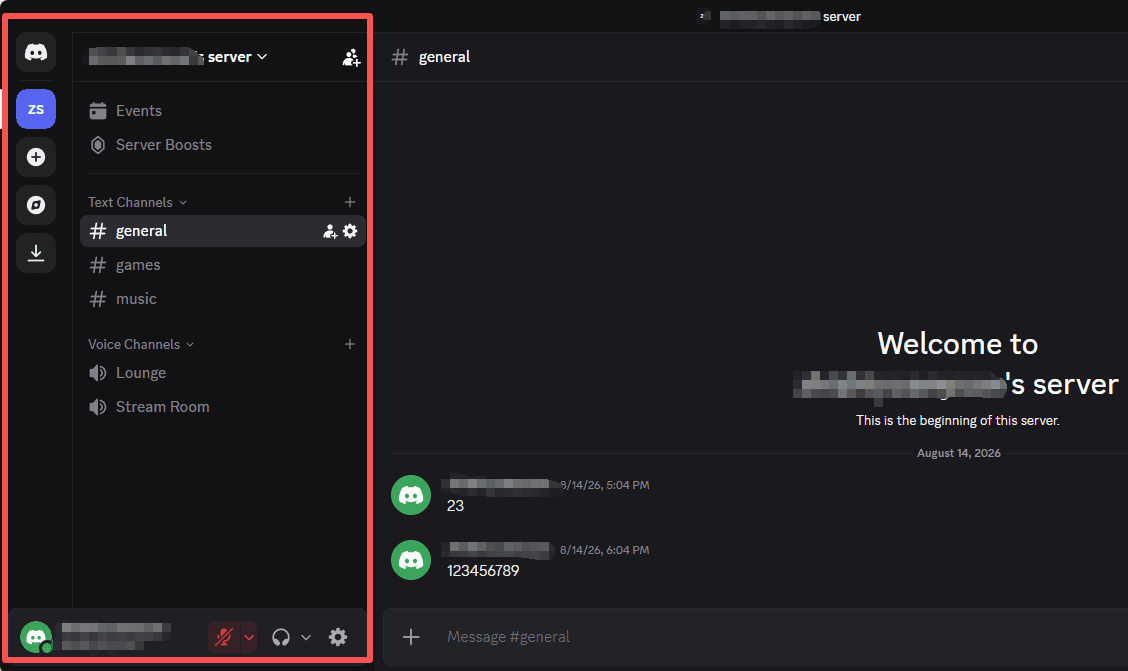
But. A few practical differences still matter:
▸ Performance depends on your browser. Desktop app tends to run smoother on older machines.
▸ Push notifications are browser based. Sometimes they’re great, sometimes they silently fail until you poke settings.
▸ Mic and camera permissions are handled by the browser. Which is good and bad.
▸ Some advanced features or integrations can behave a bit differently (screen share audio, hardware acceleration, stuff like that).
Discord Web vs. the Desktop App
Both versions let you access your Discord account, but they differ in convenience, background behavior, and compatibility.
| Feature | Discord Web | Desktop App |
|---|---|---|
| Installation | Not required | Required |
| Text chat and DMs | Supported | Supported |
| Server management | Supported | Supported |
| Voice and video calls | Supported on compatible desktop browsers | Supported |
| Screen sharing | Supported, with browser-dependent behavior | Supported, with fuller audio and control options |
| Microphone and camera | Controlled through browser permissions | Uses app and operating system permissions |
| Notifications | Browser-based and dependent on tab state | Native app notifications with OS-level integration |
| Background activity | Depends on the browser tab remaining loaded | Designed for persistent background operation |
| Global hotkeys and Push-to-Talk | Limited to the active browser tab | System-wide functionality |
| Game activity status | Not available | Supported |
| Game overlay | Not available | Fully supported |
| Switching devices | Convenient on any browser | Requires installing the app on the device |
Discord Web wins on accessibility and low installation friction. The desktop app wins on notifications, background reliability, system-level features, and sustained call performance.
How to log in to Discord Web (email or phone)
If you already have an account, logging in via the browser is straightforward.
1. Go to the Discord login page: https://discord.com/login
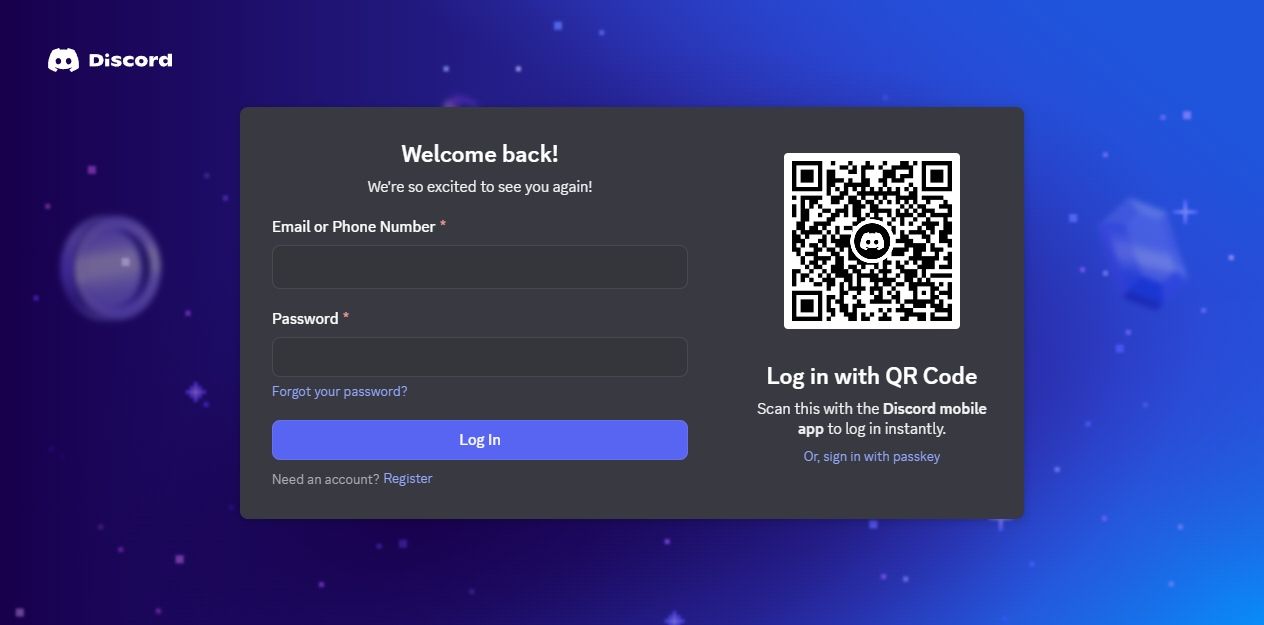
2. Enter either your email address or a phone number that has been officially verified on your Discord account.
3. Enter your password.
4. Click Log In.
If you have 2FA enabled (and you probably should), you'll be prompted for your authentication code.
Small note: if you try to log in using a phone number that is not verified on your Discord account, Discord will not accept it. Use your email instead.
How to Log In with a QR Code
QR code login is one of the easiest and safest ways to access Discord Web, especially when using a shared or public computer. Instead of typing your password, you simply scan a QR code with the Discord mobile app and approve the login.
Step 1: Log In to Discord on Your Phone
Make sure you're already signed in to the Discord mobile app.
Step 2: Open the QR Scanner
1. Tap your profile avatar in the bottom-left corner.
2. Tap the Settings (cog) icon.
3. Select Scan QR Code from the Overview page.
Step 3: Scan the QR Code
1. Open the Discord login page on your computer.
2. Scan the QR code displayed on the screen using your phone.
3. Approve the login request in the mobile app.
Once confirmed, you'll be logged into Discord Web instantly.
Security Tip: Only scan QR codes you see on the official Discord site. If you scan a random “Discord QR” from a message or a sketchy website, you can hand over your account. Discord scams love QR tricks.
How to sign up for Discord on the web (registration)
If you don't have an account yet, follow these steps:
1. Go to https://discord.com
2. Click Login, then choose Register.
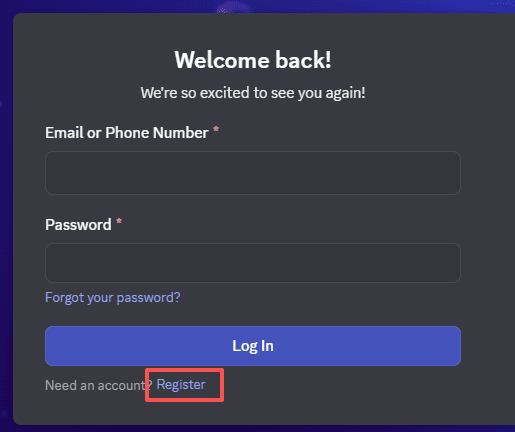
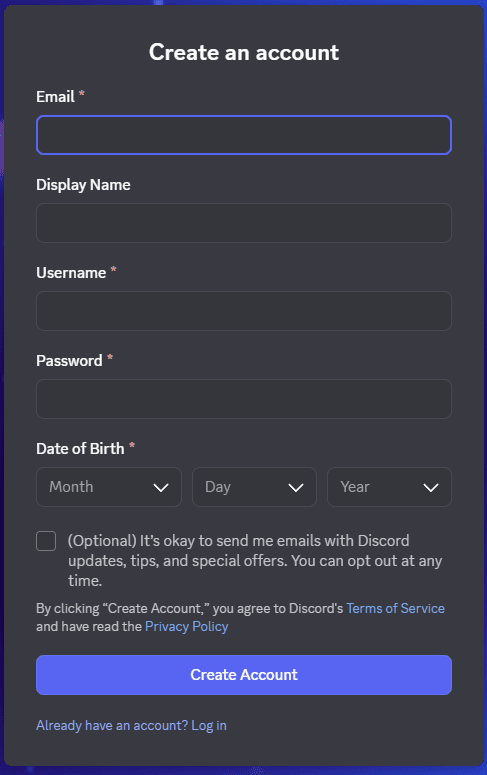
3. Enter your email, display name and username, password, and date of birth. Discord has evolved its username system, so follow the prompts as they appear.
4. Complete any CAPTCHA or human verification prompts.
5. Confirm your email using the verification message Discord sends you.
After that, you can join servers via invite links and start using Discord normally.
Quick tip on passwords
If you use Discord in a browser on multiple devices, a password manager is worth it. Discord accounts are high-value targets because they can be tied to servers, Nitro subscriptions, payment methods, and social engineering. It's not just "a chat app" anymore.
Best Browsers for Discord Web (Browser Requirements 2026)
Discord Web works best on modern browsers. If you are using some ancient version of a browser, or a locked down corporate setup, Discord might load weirdly, or voice might not work, or you'll get stuck in an infinite loading loop.
Supported Desktop Browsers
| Browser | Minimum Version | Compatibility and Features |
|---|---|---|
| Google Chrome | Google Chrome 108+ | Most consistent option for Discord Web. Offers reliable compatibility when kept up to date. |
| Microsoft Edge | Microsoft Edge 86+ | Chromium based browser that generally works well with Discord Web. |
| Mozilla Firefox | Firefox 142+ | Works well with Discord Web, although permission prompts may differ from Chromium based browsers. |
| Safari | Safari 15.4+ | Suitable for newer macOS versions, but may occasionally be more restrictive with permissions. |
| Opera | Opera 72+ | Chromium based browser that supports Discord Web smoothly and includes built in productivity features. |
| BitBrowser | Chromium and Firefox based | Supports Chromium and Firefox kernels, with isolated profiles for managing multiple Discord accounts separately. |
These are minimum requirements, not recommendations to keep using old browser versions. For better compatibility and security, update your browser whenever possible. If you are unsure whether your setup is supported, check Discord's official system requirements.
Can You Use Discord Web on a Phone / Mobile Browser?
Discord does not officially support mobile browsers as an environment for Discord. The website may still load, but if problems occur, Discord does not guarantee support or fixes. The official recommendation is to use the dedicated Discord mobile app.
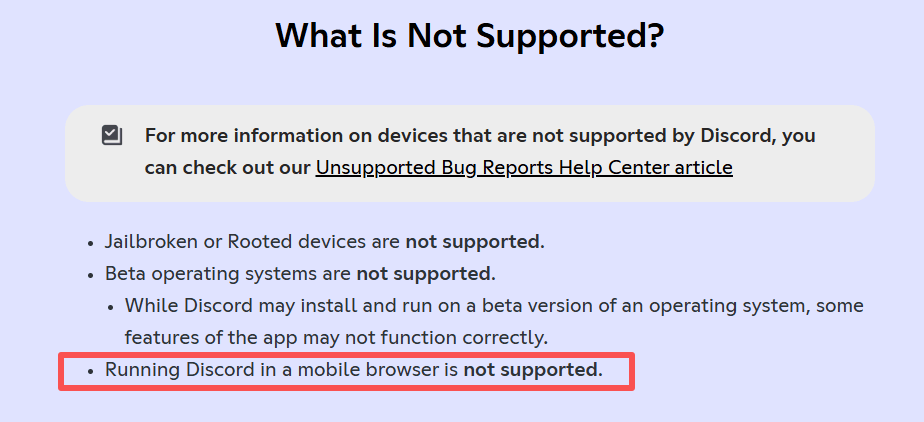
The main limitations involve voice and video calls, push notifications, and background activity. Calls may be interrupted when switching apps or moving the browser to the background, especially on iOS. Browser notifications also depend on browser support and permissions, making timely delivery less reliable than with the official app.
Discord Web on a Phone vs. the Official App
| Feature | Discord Web on Phone | Official Discord App |
|---|---|---|
| Text chat | Good for basic messaging | Stable and optimized |
| Voice and video | Unstable, especially in the background | Stable and reliable |
| Notifications | Limited, browser dependent | Timely and reliable |
| Background activity | May disconnect when switching apps | Better background support |
| Screen sharing | Limited features and controls | More features and controls |
| Performance | Varies by browser and device | Optimized for mobile |
Discord Web on a phone may be sufficient for occasional, short text conversations, but it is not a reliable substitute for the official app. For voice and video calls, background connectivity, and timely notifications, use the Discord mobile app.
What Can Prevent Discord Web from Working
Common causes include:
▸ Disabled cookies, especially third party cookies in strict setups
▸ Aggressive ad blockers or script blockers
▸ Corporate firewall rules blocking Discord domains
▸ Browser extensions that interfere with WebRTC, which Discord uses for voice and video
▸ Out of date browser versions
If Discord Web feels broken, the fastest "sanity test" is: open an incognito/private window with no extensions, log in, see if the problem disappears.
Email verification, phone verification, and why Discord nags you about it
Discord will let you do basic things without verifying everything, but sooner or later you'll hit limits.
Email verification
Email verification is usually required for full access. If you see a banner asking you to verify, do it. Check your spam folder if the email doesn't arrive.
Phone verification
Phone verification is often triggered by joining many servers quickly, messaging many people quickly, using a VPN that looks suspicious, logging in from different locations frequently, or joining a server that requires it for anti-spam purposes. Some servers also require a verified phone number before you can chat.
How to Set up Discord Web Permissions (mic, camera, notifications)
This is where most people get stuck. Discord Web relies on browser permissions.
1. Microphone or Camera Access
When you join a voice channel or start a call, the browser will prompt something like: “Allow discord.com to use your microphone?”
Click Allow.
If you accidentally clicked Block, you can fix it:
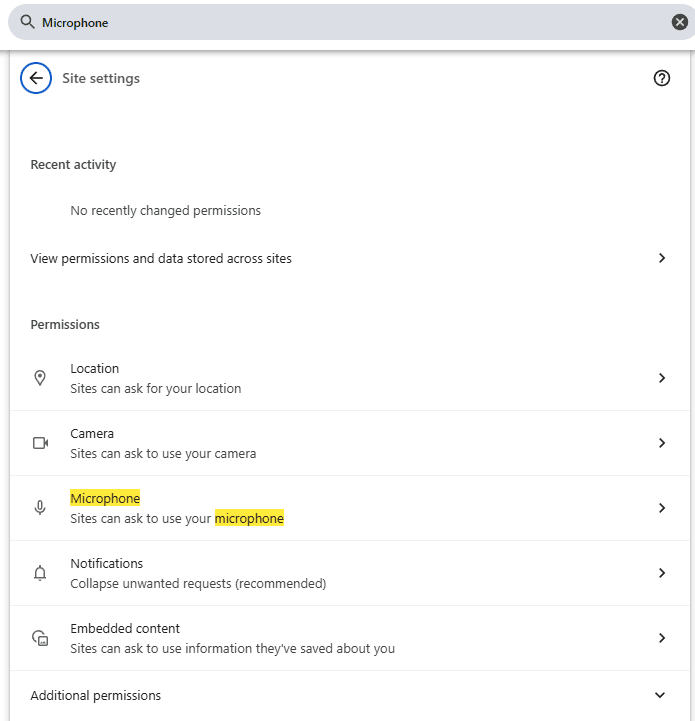
▸ Chrome/Edge: click the padlock icon near the address bar → Site settings → Microphone/Camera → Allow. (Or you can simply search for "Microphone" in Settings.)
▸ Firefox: click the site info icon → permissions → allow mic/camera.
▸ Safari: Safari settings → Websites → Microphone/Camera → allow for discord.com.
If the permissions are already enabled, open Discord's User Settings → Voice & Video and confirm that the correct input and output devices are selected.
Also check your operating system's privacy settings and make sure another application isn't exclusively using the device.
2. Discord Web Notifications
Discord Web notifications depend on three permission layers: Discord settings, browser site permissions, and operating system notification controls.
▸ Discord notification settings inside the app.
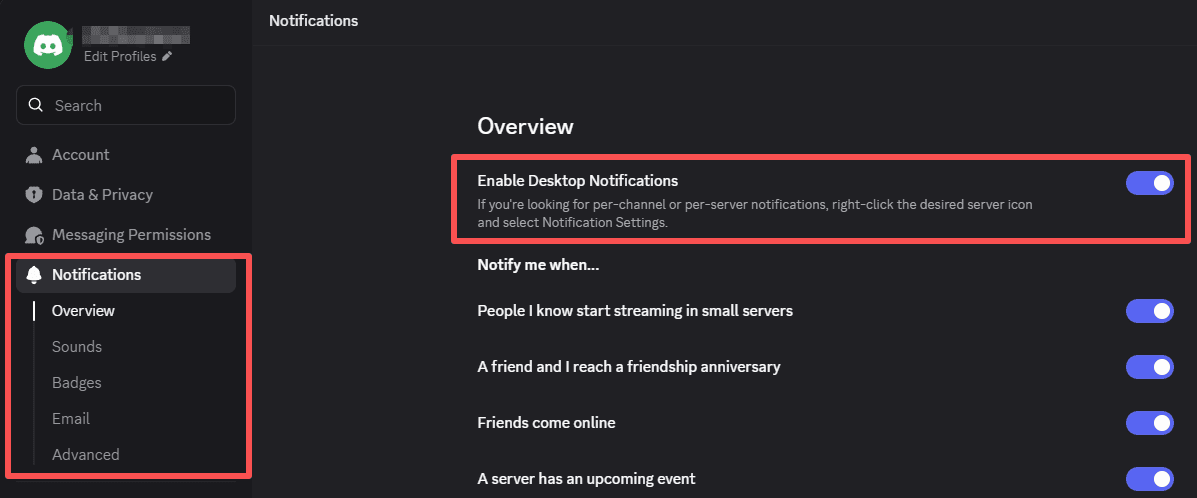
Open Discord's User Settings, and select Notifications. Make sure Desktop Notifications is enabled. Also check whether the affected server, channel, or direct message is muted.
▸ Browser permission to show notifications.
| Browser | Quick Check | Settings Path |
|---|---|---|
| Chrome | Click the site controls icon beside the address bar and allow notifications | Settings > Privacy and security > Site Settings > Notifications |
| Firefox | Click the padlock icon and allow notifications | Settings > Privacy & Security > Permissions > Notifications |
| Edge | Click the site controls icon and allow notifications | Settings > Cookies and site permissions > Notifications |
| Safari (macOS) | Find Discord in the website list and allow notifications | Safari > Settings > Websites > Notifications |
If Discord is missing from the list or the permission prompt never appeared, clear the site's cookies and data in Chrome or Firefox, then reload Discord and grant permission when prompted. Also check that the browser allows websites to request notifications globally.
How to Fix Common Discord Web Problems
If Discord Web isn't loading or a feature isn't working, try these checks before reinstalling anything or changing multiple settings at once.
1. Discord Web Is Stuck on the Loading Screen
If Discord stays on a blank screen or keeps loading without opening the login page, try the following:
1. Refresh the page and update your browser.
2. Open Discord in a private or incognito window.
3. Disable browser extensions, especially script blockers.
4. Clear cookies and cached data for discord.com.
5. Check the Discord Status page for outages.
If Discord works in a private window, an extension or saved site setting may be causing the problem.
2. Discord Web Is Stuck on RTC Connecting
The RTC Connecting message appears when Discord is trying to establish a voice connection. If it doesn't clear, the issue may involve your browser, network, or voice connection.
1. Leave the voice channel and join again.
2. Refresh Discord Web.
3. Check whether your microphone and other browser permissions are enabled.
4. Temporarily disable extensions that may interfere with network connections.
5. Update your browser and test another supported browser.
6. Check whether a firewall or network policy is restricting voice traffic.
If the problem occurs only on a school or work network, the network administrator may be restricting the connections Discord needs. Testing a different permitted network can help identify the cause.
For additional steps, consult Discord's voice and video troubleshooting guide.
3. Discord Web Keeps Logging You Out
If you have to sign in repeatedly, check whether your browser clears cookies when you close it.
Also review:
▸ Private browsing mode, which generally discards session data when closed
▸ Browser settings that automatically delete cookies
▸ Privacy extensions that clear site data
▸ Whether you are using a managed computer with restricted browser settings
On a trusted personal computer, allowing the necessary site data can help maintain your session.
On a shared or public computer, logging out when you're finished is the safer choice.
Using Multiple Discord Accounts in BitBrowser
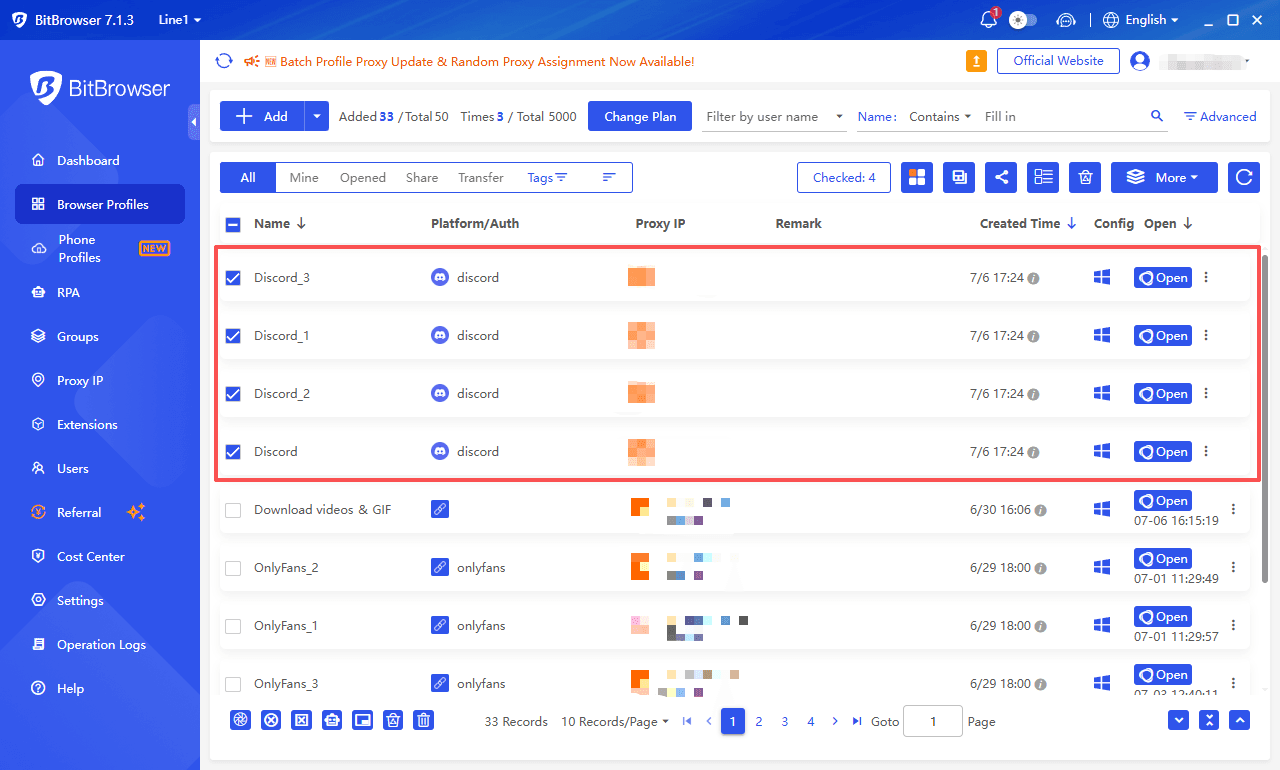
If you manage multiple Discord accounts, such as personal, community, or work accounts, constantly logging in and out can quickly become frustrating.
For users who regularly manage multiple Discord accounts, BitBrowser offers a more scalable solution.
It supports both Chromium and Firefox kernels and provides isolated browser profiles with separate cookies, storage, and browser fingerprints, allowing multiple Discord accounts to stay logged in simultaneously while helping reduce account association risks.
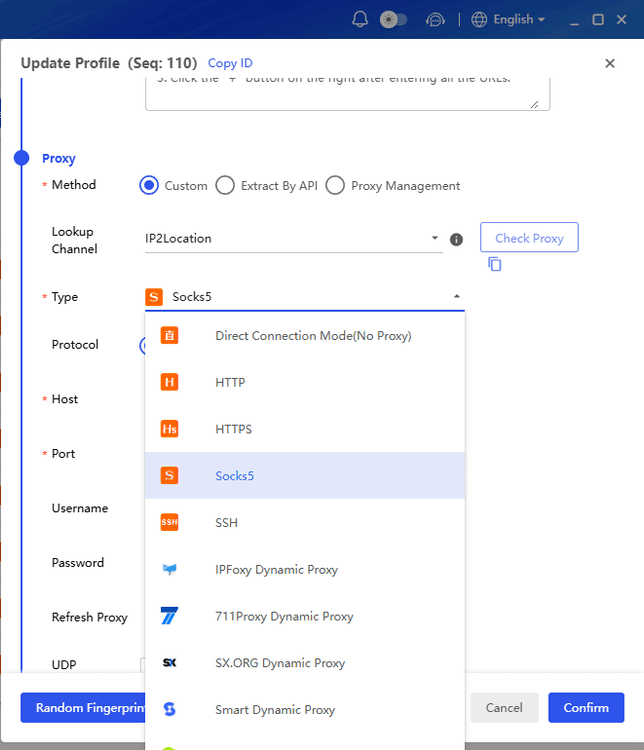
If different Discord accounts require different network environments, BitBrowser also supports proxy integration directly within each browser profile.
For teams managing Discord communities, moderation tasks, or customer support servers, BitBrowser's team collaboration features make it easier to share browser profiles and workflows without sharing account passwords.
This can help keep multiple Discord accounts organized while reducing the need to constantly switch browsers, profiles, or devices.
Wrap up
Discord Web provides a convenient way to access Discord without installing the desktop app. You can log in with your email or verified phone number, use QR code authentication, join servers, and manage conversations directly through a supported desktop browser.
If you manage multiple Discord accounts for personal use, communities, or work, separate browser profiles can help you keep login sessions organized. Tools like BitBrowser offer isolated browser profiles, making it easier to manage multiple Discord accounts without constantly switching sessions.
Frequently Asked Questions
Can I Use Discord Web Without Downloading the App?
Yes. You can access Discord at https://discord.com through a supported desktop browser without installing the desktop app. You'll still need a Discord account to log in.
Is Discord Web Safe to Use?
Yes, when you use the official Discord website and keep your browser updated. Avoid suspicious login links, never scan untrusted QR codes, and enable two-factor authentication to help protect your account.
Can I Use Discord Web Without an Account?
You can open the Discord website without an account, but you need to register and log in to use Discord's messaging, servers, and other account features.
Why Is Discord Web Not Working in My Browser?
Common causes include outdated browsers, blocked cookies, interfering extensions, network restrictions, or Discord service outages. Try opening Discord in a private window, disabling extensions, and checking the Discord Status page.
Can I Use Two Discord Accounts at the Same Time?
Yes. You can use separate browser profiles to keep different Discord accounts signed in simultaneously. A multi-profile browser like BitBrowser can help manage these sessions without repeatedly logging in and out.
Does Discord Web Work on Mobile?
Discord's website may load in a mobile browser, but mobile browsers aren't officially supported for Discord. For more reliable voice calls, notifications, and background activity, use the official Discord mobile app.

 Multi-Account Management
 Prevent Account Association
 Multi-Employee Management
Recommended
See More 



