Manage Work and Personal GitHub Accounts Easily with BitBrowse
 2026.03.01 05:16
 petro
petroHow to Use BitBrowser to Manage Multiple GitHub Accounts
If you prefer using BitBrowser (anti-detect / multi-profile browser) instead of SSH or terminal configuration, you can easily manage multiple GitHub accounts by isolating each account in a separate browser profile.
This method is simple and perfect if:
- You don’t want to deal with SSH keys
- You manage multiple client accounts
- You want clean session separation
- You work with multiple GitHub logins in the browser
What Is BitBrowser?
BitBrowser allows you to create multiple isolated browser profiles.
Each profile has its own:
- Cookies
- Sessions
- Local storage
- Fingerprint
- IP (if proxy is configured)
That means each GitHub account stays fully separated.
Method 1: Create Separate BitBrowser Profiles
Step 1: Create a Profile for Each GitHub Account
Inside BitBrowser:
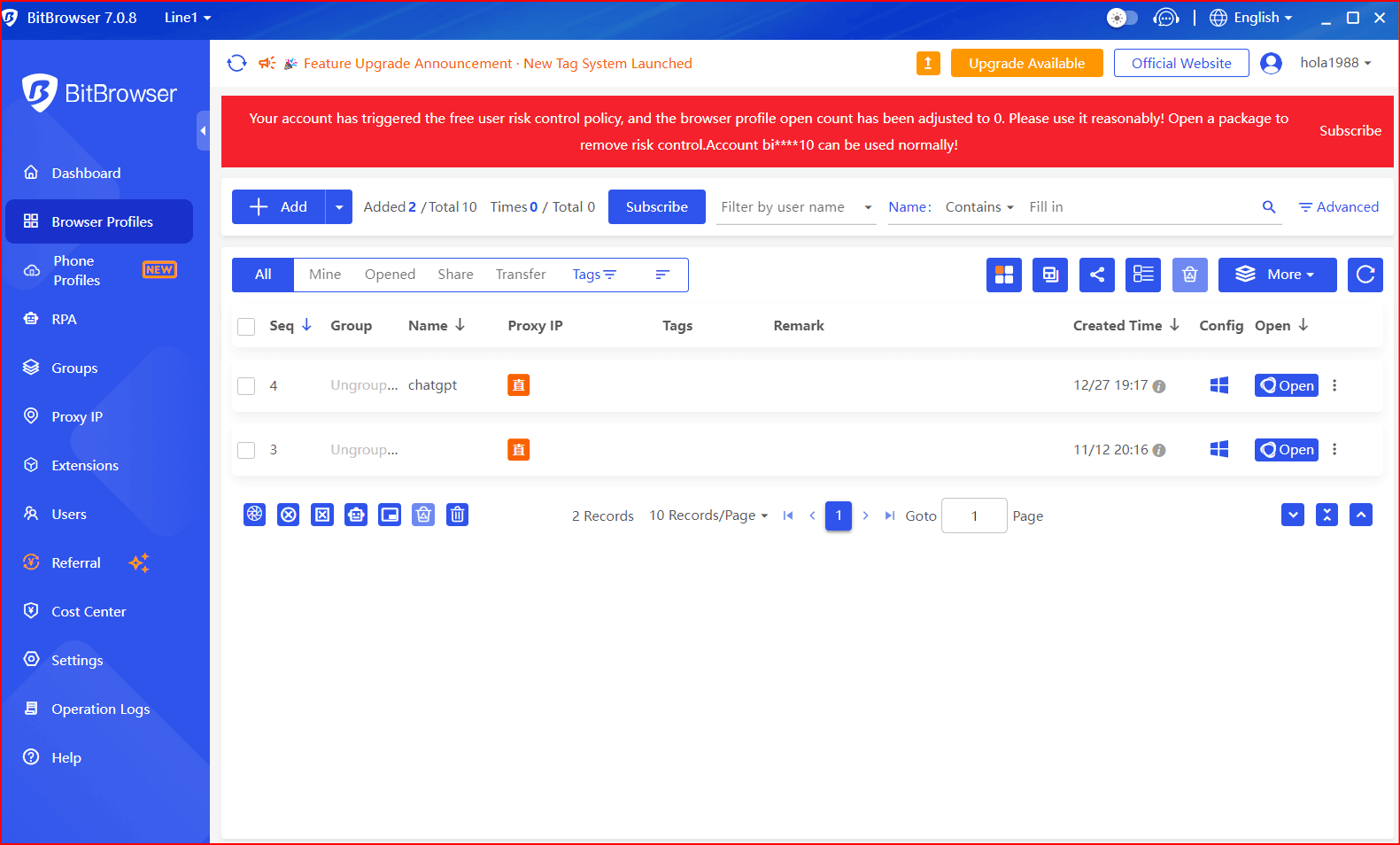
Click Create Profile
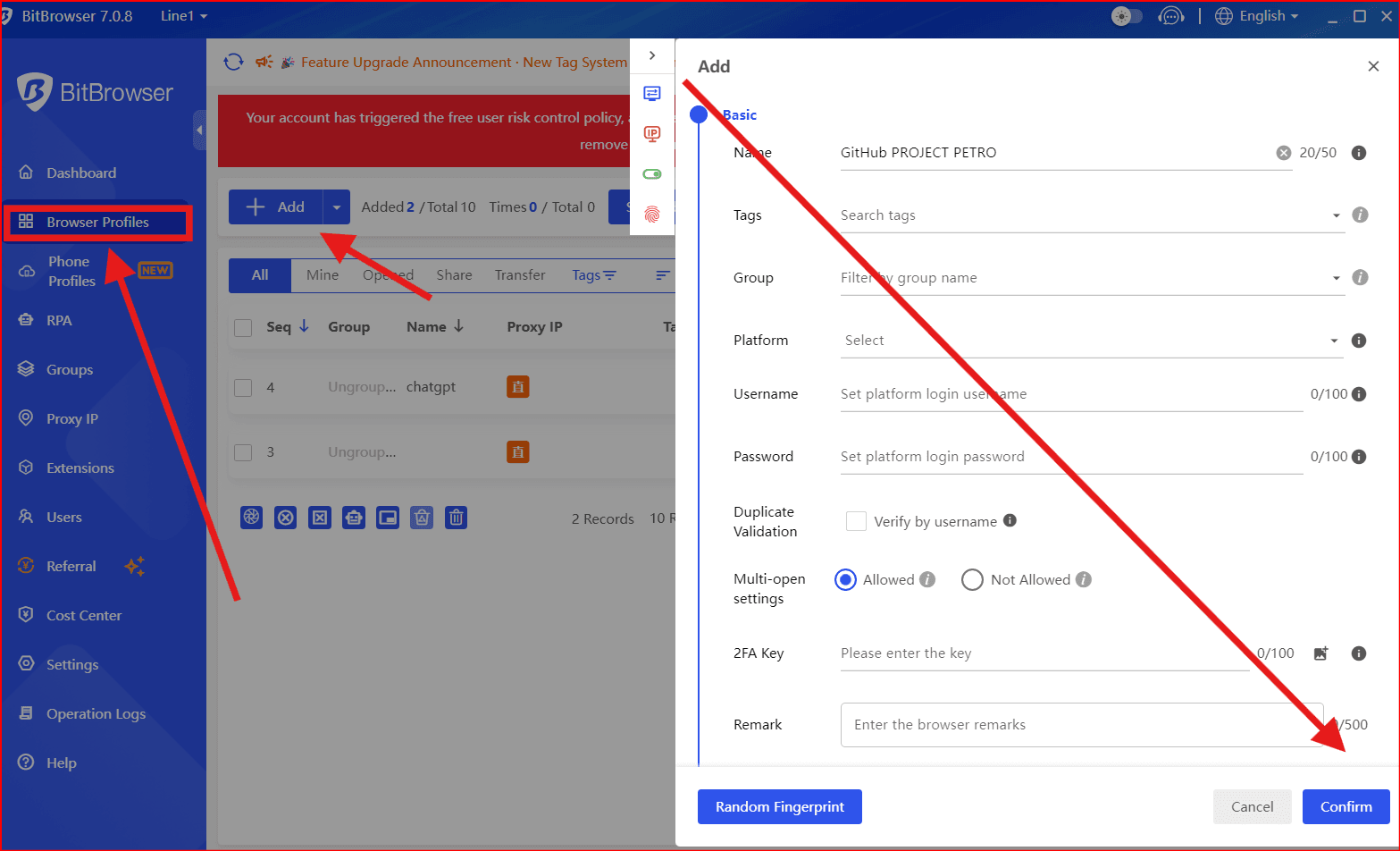
- Name it:
GitHub - PersonalGitHub - Work
- (Optional) Assign a different proxy if needed
- Save
Now you have two completely separate browsers.
Step 2: Log Into Each GitHub Account Separately
Open the profile:
Profile 1 → Login to Personal GitHub
Go to:
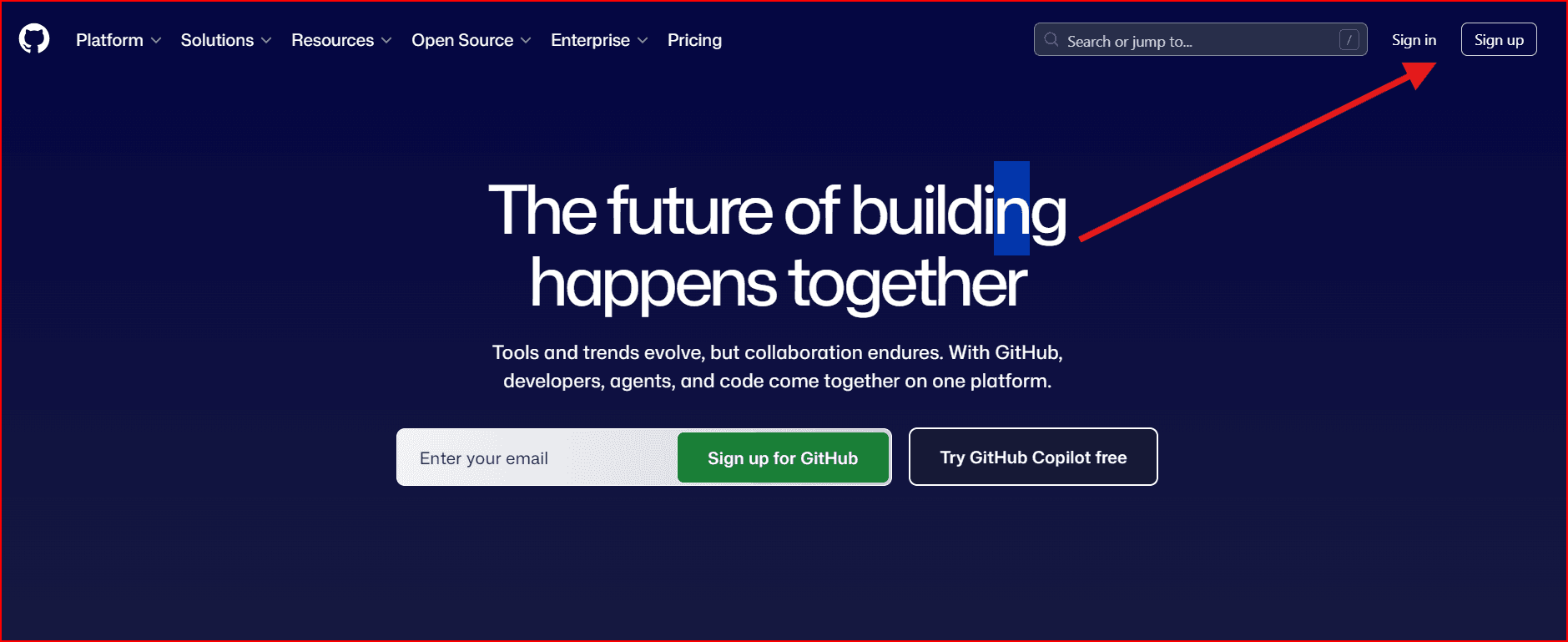
https://githuLogin with your personal credentials.Profile 2 → Login to Work GitHub
Open second profile → login with work account.
Now:
- Each profile stores its own login session
- No need to logout/switch accounts
- No conflicts
Method 2: Use BitBrowser + HTTPS Git Authentication
If you're using Git with HTTPS (not SSH), this is how to connect it properly.
Step 1: Generate a Personal Access Token (PAT)
For each GitHub account:
Go to:
GitHub → Settings → Developer Settings → Personal Access Tokens- Generate a new token
- Copy it
Step 2: Clone Using HTTPS
Example:
git clone https://github.com/username/repo.git
When prompted:
- Username → Your GitHub username
- Password → Paste the Personal Access Token
Step 3: Store Credentials Per Project
Set credential helper:
git config --global credential.helper store
Git will store credentials per repository.
⚠️ If both accounts use github.com, sometimes credentials conflict.
If that happens, SSH is still cleaner.
Method 3 (Best Professional Setup): BitBrowser + SSH Keys
BitBrowser manages your web logins.
SSH manages Git operations.
This is the cleanest separation:
- BitBrowser handles browser access
- SSH keys handle git push/pull
They work independently.
Recommended Setup (Best Practice)
Use:
| Purpose | Tool |
|---|---|
| GitHub website login | BitBrowser profiles |
| Git push/pull | SSH keys per account |
| Commit identity | Git config per repo |
This gives you:
- No session conflicts
- No authentication errors
- Clean professional workflow
Folder Organization Tip
Keep repos separated:
~/projects/personal/
~/projects/work/
This avoids mixing accounts accidentally.
Common Mistakes to Avoid
❌ Logging into two GitHub accounts in the same profile
❌ Using one SSH key for both accounts
❌ Using global git email for everything
❌ Mixing work & personal repos in the same directory
When Should You Use BitBrowser?
Use it if:
- You manage multiple clients
- You run automation tools
- You want fingerprint isolation
- You handle marketing/dev accounts
If you're just coding locally, SSH alone is enough.

 Multi-Account Management
 Prevent Account Association
 Multi-Employee Management
Recommended
See More 



