How to Safely Manage Multiple LinkedIn Accounts with BitBrowser
 2026.03.04 06:34
 petro
petroManaging multiple LinkedIn accounts can be necessary for agencies, recruiters, consultants, and businesses handling client profiles. However, LinkedIn’s policies are strict: each individual is generally allowed only one personal account, and misuse can lead to restrictions or permanent bans.
If you are managing multiple accounts legitimately (for example, client accounts with permission), using a browser isolation tool like BitBrowser can help organize workflows securely — but it must be done responsibly and in compliance with LinkedIn’s Terms of Service.
This guide explains both the principles and the step-by-step setup process.
1. Understand LinkedIn’s Rules First
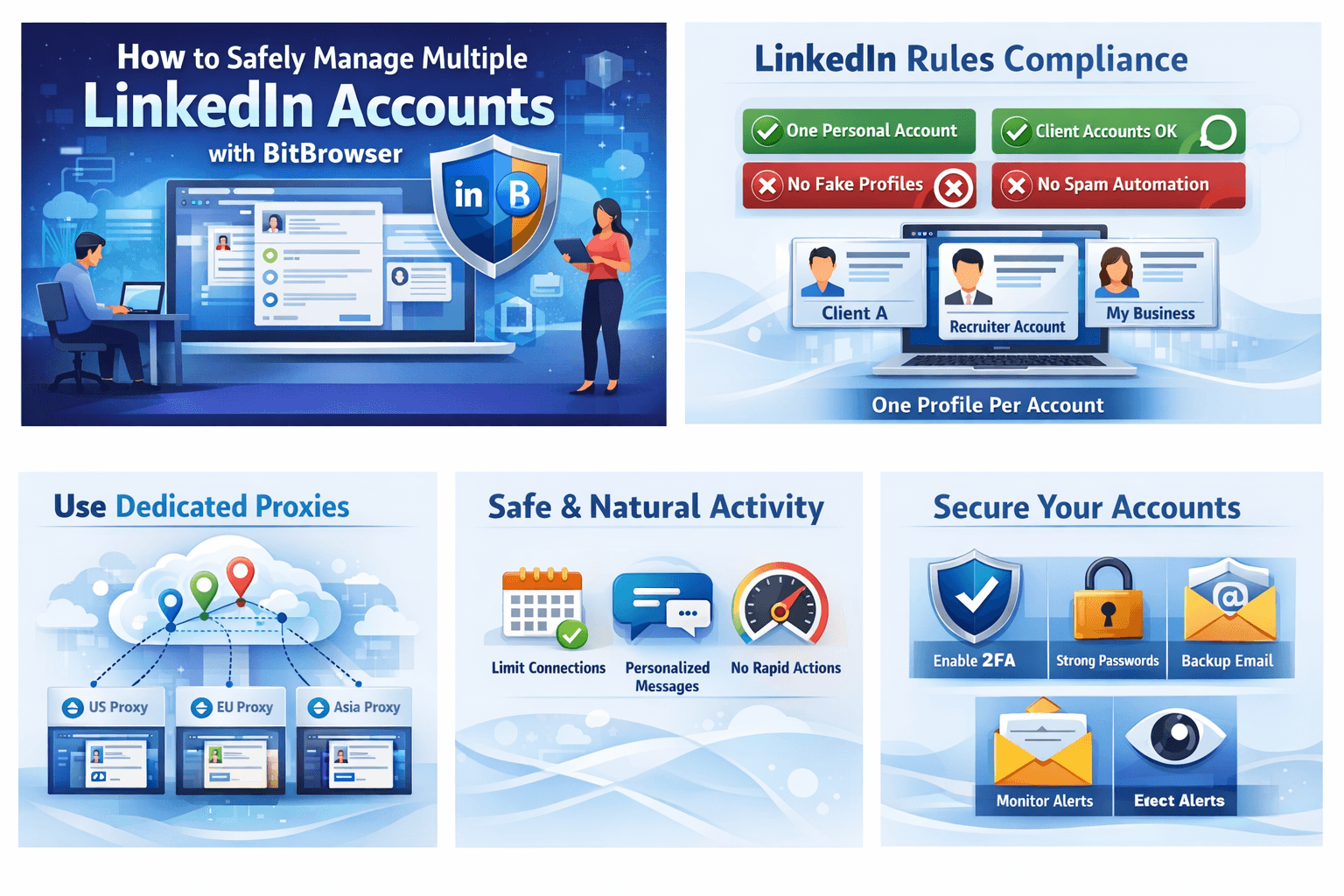
Before using any technical tools, it’s critical to understand what LinkedIn allows:
✔ Each real person should maintain only one personal LinkedIn profile
✔ Agencies can manage company pages through official admin roles
✔ Teams can collaborate using LinkedIn Business Manager
❌ Creating fake identities or duplicate personal accounts violates LinkedIn policies
❌ Automating spam outreach or scraping data can lead to account suspension
No browser tool can protect an account that is violating platform rules. Compliance always comes first.
2. When Managing Multiple Accounts Is Legitimate
Using multiple LinkedIn logins may be appropriate when:
- You manage LinkedIn accounts for different clients with permission
- You operate separate businesses with distinct company pages
- You handle recruiting or marketing activities across organizations
- You need isolated work environments for operational security
In these cases, the goal is not to bypass LinkedIn’s systems — but to maintain clean separation between accounts for workflow organization and security.
3. What BitBrowser Does
BitBrowser creates isolated browser profiles. Each profile:
- Stores separate cookies and sessions
- Has independent browser fingerprints
- Can be assigned its own proxy (if needed)
- Prevents account session overlap
It functions like having multiple separate computers inside one machine.
However, it does not override LinkedIn policies. Responsible usage is still required.
4. Step-by-Step: How to Manage Multiple LinkedIn Accounts with BitBrowser
Below is a structured, safe setup process.
Step 1: Install and Set Up BitBrowser
Download BitBrowser from the official website.
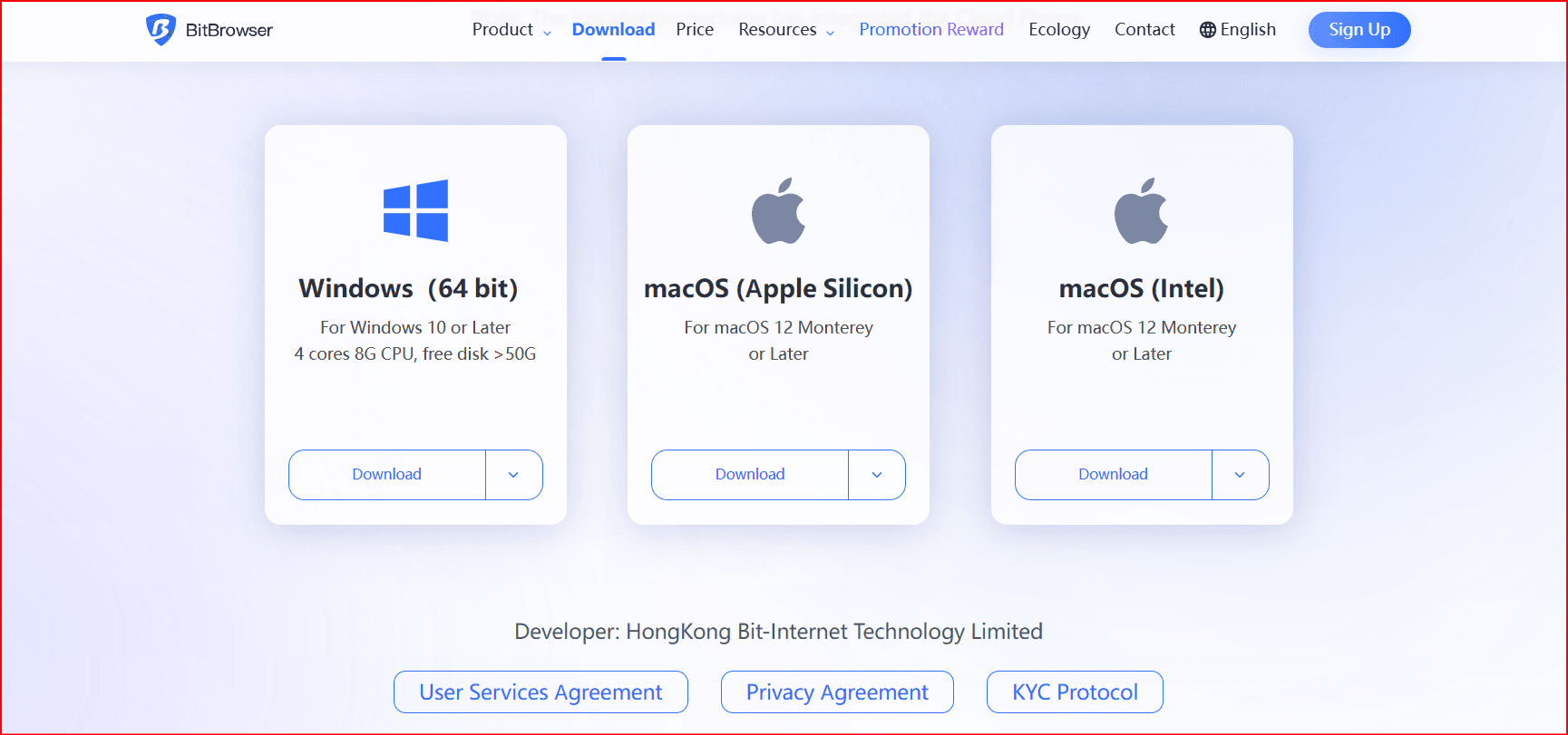
Install and create your main BitBrowser account.
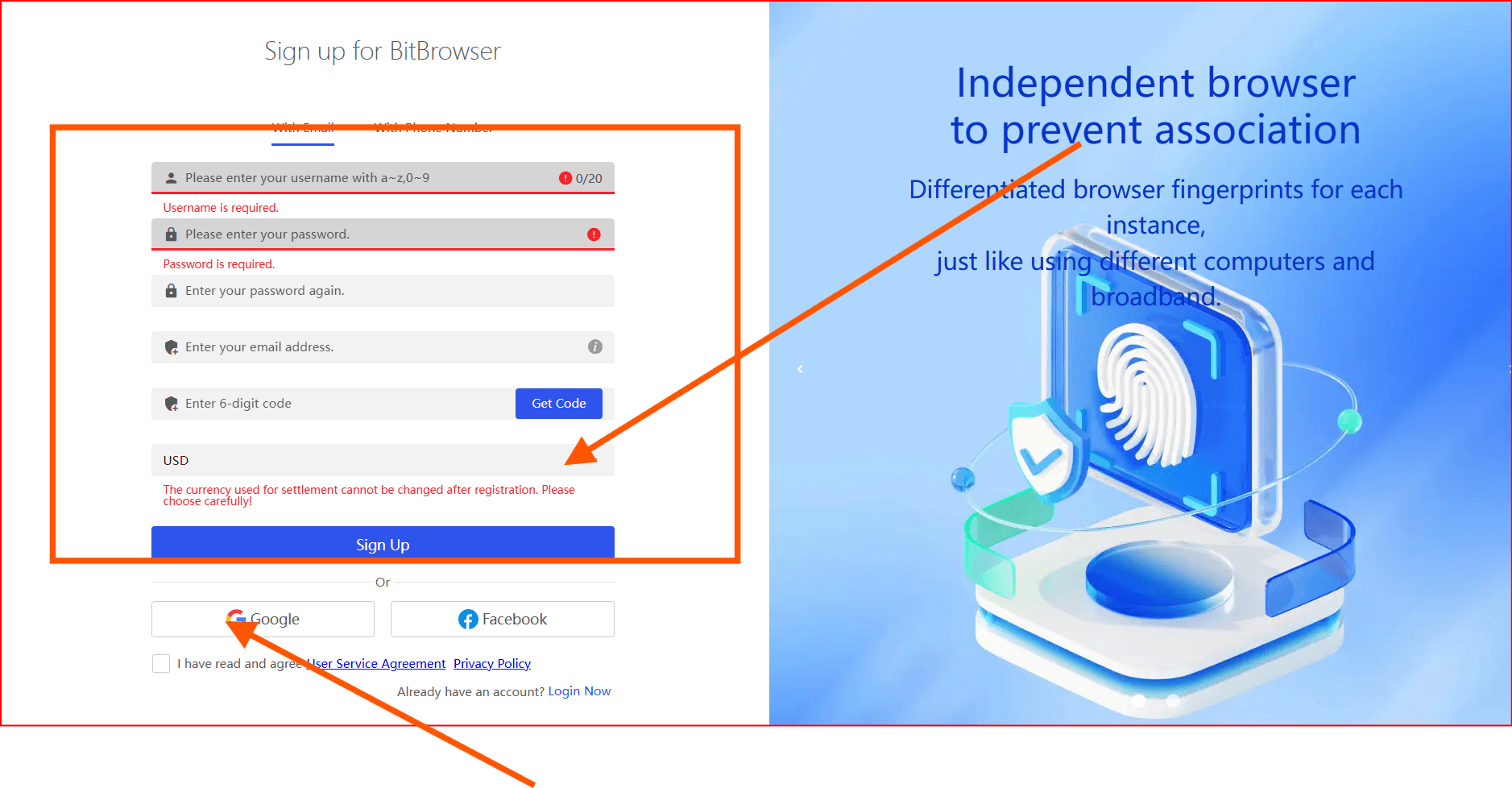
- Secure your BitBrowser login with a strong password and 2FA (if available).
Step 2: Create One Profile Per LinkedIn Account
For every LinkedIn account you manage:
Click “Create New Profile.”
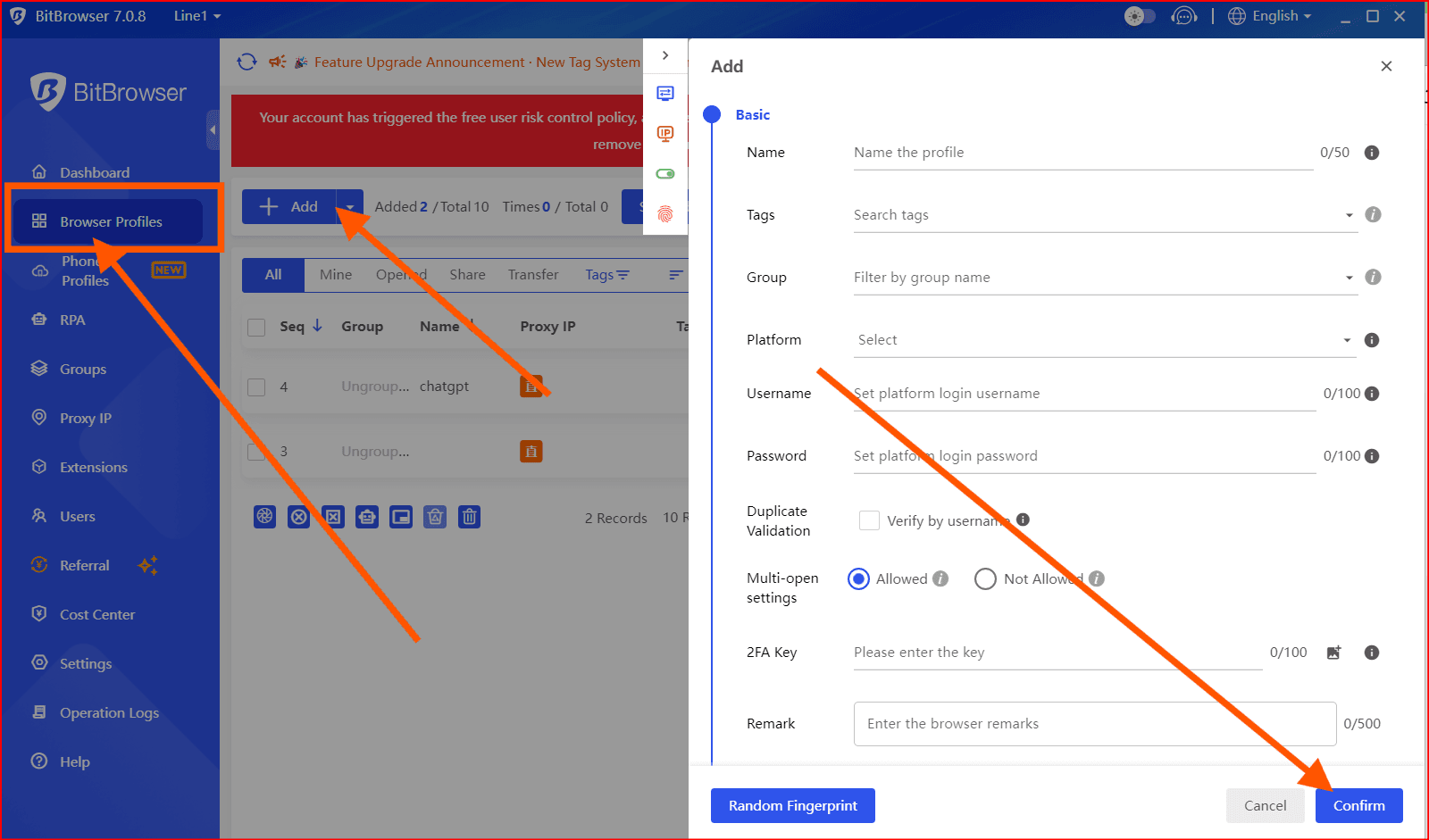
- Name it clearly:
- “LinkedIn – Client A”
- “LinkedIn – Recruitment Account”
- “LinkedIn – Personal”
- Choose a browser engine (usually Chromium is standard).
- Keep default fingerprint settings unless you have a legitimate reason to customize.
Important:
Do not reuse the same profile for multiple LinkedIn accounts.
Step 3: Configure Proxy (Optional but Recommended for Separate Clients)
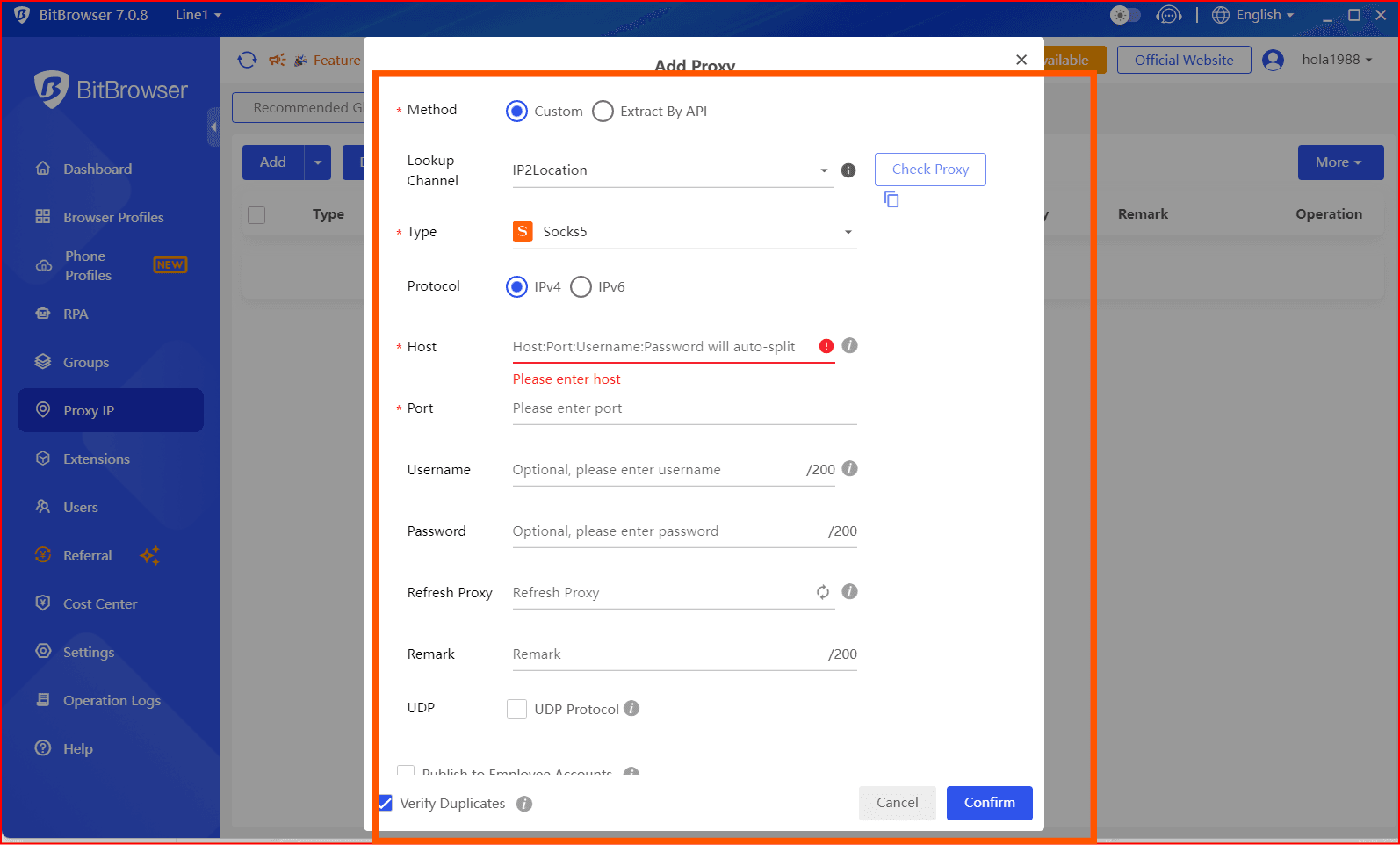
If managing accounts for different businesses in different regions:
- Assign a dedicated high-quality residential or ISP proxy per profile.
- Match the proxy’s country to the LinkedIn account’s actual location.
- Never share the same proxy across many LinkedIn accounts.
If you are managing accounts within the same company/location, a proxy may not be necessary — consistency is more important than complexity.
Step 4: Log Into LinkedIn Separately
- Open the first BitBrowser profile.
Log into the corresponding LinkedIn account.
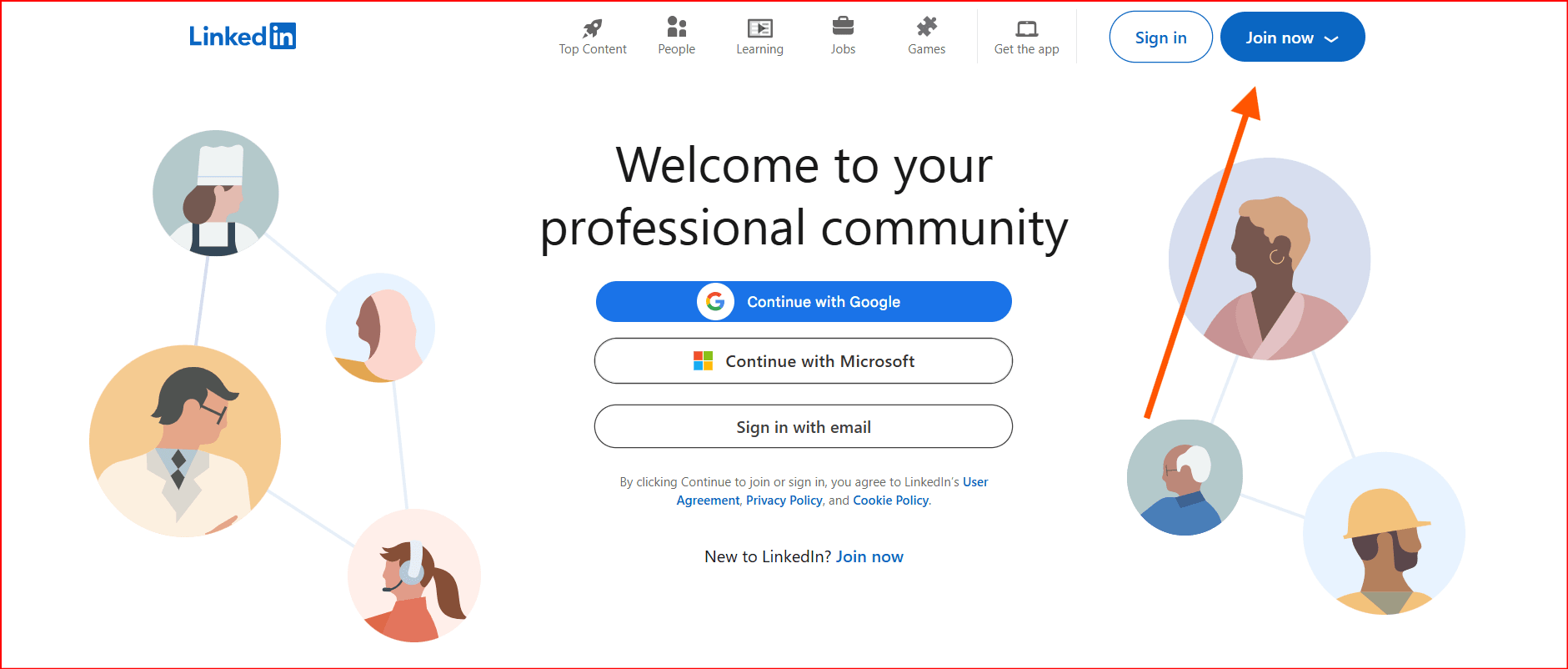
- Enable 2FA inside LinkedIn.
- Close the profile when finished.
Repeat this process for each profile/account.
Avoid:
- Logging into multiple LinkedIn accounts within the same profile.
- Rapidly switching between profiles every few minutes.
Step 5: Maintain Natural Usage Patterns
LinkedIn monitors behavior more than browser setup. Follow these guidelines:
- Limit daily connection requests.
- Personalize outreach messages.
- Avoid sending identical messages from multiple accounts.
- Do not scale activity too quickly.
If managing multiple clients:
Schedule work blocks instead of switching constantly between accounts.
Example:
Morning → Client A
Afternoon → Client B
Next day → Recruitment account
Consistency reduces risk.
Step 6: Use LinkedIn’s Official Tools When Possible
For the safest management:
- Use LinkedIn Page Admin roles instead of logging into personal accounts.
- Use LinkedIn Business Manager for ad accounts.
- Avoid password sharing when possible.
Browser isolation should complement official tools — not replace them.
5. Common Mistakes to Avoid
6. Best Security Practices
Always:
- Enable two-factor authentication
- Use unique passwords per LinkedIn account
- Keep recovery emails separate
- Monitor LinkedIn security alerts
- Keep profile information complete and professional
A strong, authentic profile lowers risk significantly.
7. Key Takeaway
Using BitBrowser can help you organize and isolate multiple LinkedIn sessions for legitimate business use. However, safety comes from:
- Following LinkedIn’s Terms of Service
- Managing only authorized accounts
- Maintaining authentic identities
- Avoiding aggressive automation
- Using natural activity patterns
Technical setup reduces accidental linkage. Responsible behavior reduces account bans.
Long-term success on LinkedIn always depends on compliance and professionalism — not evasion.

 Multi-Account Management
 Prevent Account Association
 Multi-Employee Management
Recommended
See More 



