What Is Incognito Mode? How to Turn It On and Off
 2026.10.26 07:44
 YT.Shi
Incognito mode lets you browse the web without saving your browsing history, cookies, and site data to your regular browser session. It's useful when you want to search privately on a shared device, sign in to another account temporarily, or keep a browsing session separate from your everyday activity.
However, incognito mode doesn't make you completely anonymous online. Websites, internet service providers (ISPs), and network administrators may still be able to see some of your activity.
In this guide, you'll learn what incognito mode does, how to turn it on and off in popular browsers, and when a separate browser profile may be a better option.
What Is Incognito Mode?
Incognito mode is a private browsing feature built into web browsers such as Google Chrome. Other browsers offer similar features under different names, including InPrivate in Microsoft Edge and Private Browsing in Firefox and Safari.
When you open an incognito or private browsing window, the browser starts a temporary session that is separate from your regular browsing session. After you close all private windows or tabs, the browser generally removes the browsing history, cookies, and site data associated with that session.
The exact behavior varies by browser. Files you download and bookmarks you save usually remain on your device even after the private session ends.

Incognito mode is particularly useful when you want to:
▸ Search for something without adding it to your regular browsing history.
▸ Sign in to a second account without immediately logging out of your main account.
▸ Use a shared computer without leaving your browsing history in the browser.
▸ Test a website without relying on some of your existing cookies or site data.
What Does Incognito Mode Do?
Incognito mode limits the information your browser saves locally. It does not prevent every form of tracking.
| Activity | What happens in incognito mode? |
|---|---|
| Browsing history | Generally not saved to the regular browser history |
| Cookies and site data | Temporary session data is generally deleted when the session ends |
| Form entries | Usually not retained as regular browsing history data |
| Downloaded files | Remain on your device unless you delete them |
| Bookmarks | Remain saved if you create them |
| Websites you visit | May still collect information about your activity |
| ISP or network administrator | May still be able to observe network activity |
| IP address | Not automatically hidden by incognito mode |
Incognito mode is best understood as a way to reduce local browsing traces, not as a complete privacy or anonymity solution.
If you sign in to a website or service, that service may still associate your activity with your account. Browser extensions, parental controls, workplace monitoring tools, and network-level logging may also affect what information is visible.
How to Turn On Incognito Mode
The steps depend on the browser and device you're using. Here are the common ways to open a private browsing session.
| Browser | Private browsing feature | Desktop shortcut |
|---|---|---|
| Google Chrome | Incognito mode | Windows/Linux: Ctrl + Shift + N; Mac: Command + Shift + N |
| Microsoft Edge | InPrivate | Ctrl + Shift + N |
| Mozilla Firefox | Private Browsing | Windows/Linux: Ctrl + Shift + P; Mac: Command + Shift + P |
| Safari | Private Browsing | Open File → New Private Window on Mac |
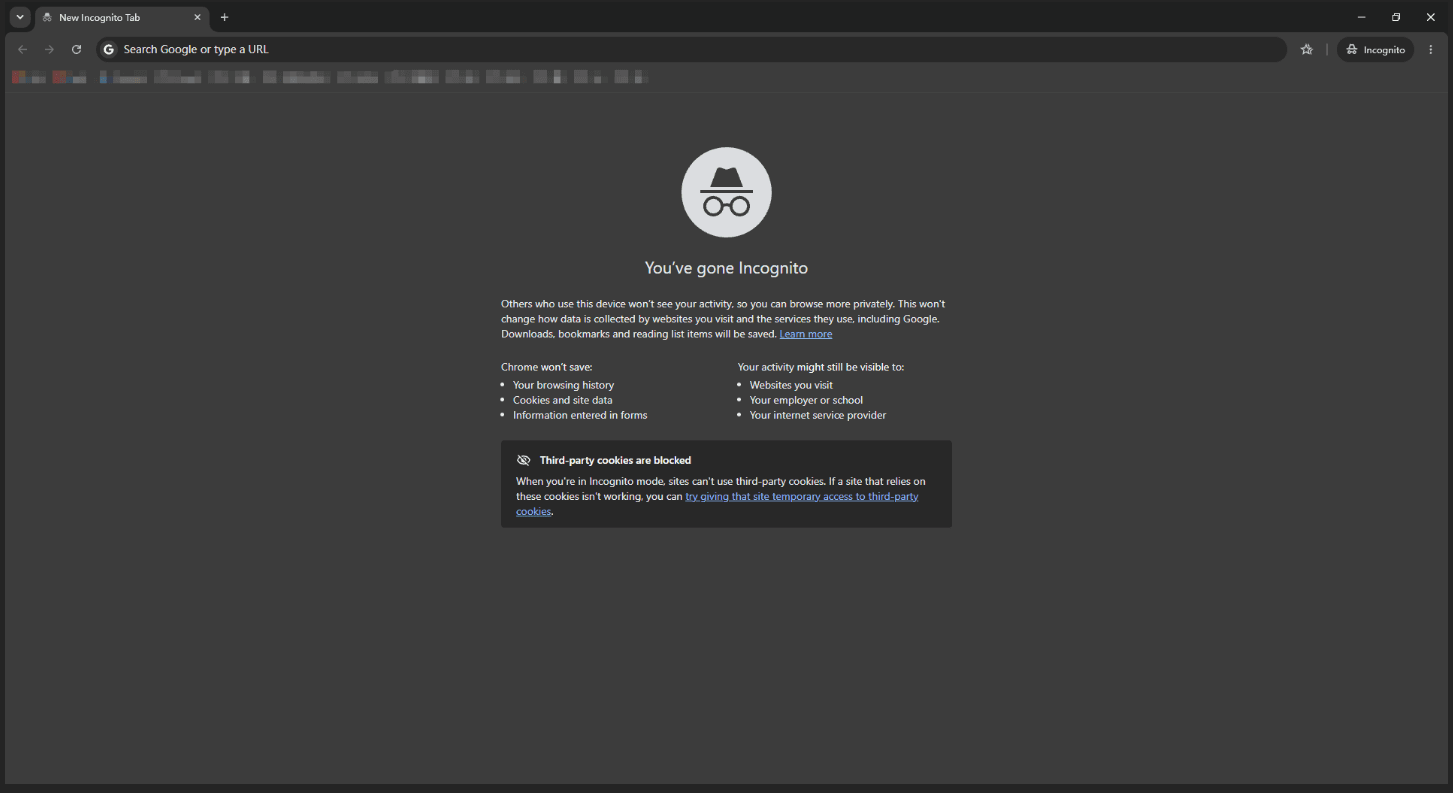
1. Google Chrome on Windows, Mac, and Linux
▸ Open Google Chrome.
▸ Click the three-dot menu in the upper-right corner.
▸ Select New Incognito window.
▸ A new window opens with the Incognito indicator.
You can also use a keyboard shortcut:
▸ Windows and Linux: Ctrl + Shift + N
▸ Mac: Command + Shift + N
The new window is separate from your regular Chrome windows, so you can switch between the two sessions.
2. Google Chrome on Android
▸ Open Chrome on your Android device.
▸ Tap the three-dot menu.
▸ Select New Incognito tab.
▸ Start browsing in the new Incognito tab.
Incognito tabs appear in a separate tab group from regular tabs. Use the tab switcher to move between them.
3. Google Chrome on iPhone and iPad
▸ Open Chrome on your iPhone or iPad.
▸ Tap More.
▸ Select New Incognito Tab.
▸ Start browsing in the new tab.
To switch between regular and Incognito tabs, open the tab switcher and move between the two tab groups.
4. Microsoft Edge
Microsoft Edge calls its private browsing feature InPrivate.
To open an InPrivate window:
▸ Open Microsoft Edge.
▸ Click the three-dot menu in the upper-right corner.
▸ Select New InPrivate window.
On Windows, you can also use Ctrl + Shift + N.
An InPrivate window helps prevent Edge from saving browsing history, cookies, site data, and form information in the usual way. Downloads and favorites you save are not automatically deleted when you close the window.
5. Mozilla Firefox
Firefox calls its private browsing feature Private Browsing.
To open a private window:
▸ Open Firefox.
▸ Click the menu button.
▸ Select New private window.
▸ Look for the private browsing indicator to confirm that you're in a private window.
On Windows and Linux, use Ctrl + Shift + P. On Mac, use Command + Shift + P.
Firefox Private Browsing does not save your regular browsing history, and temporary cookies and site data are cleared when the private session ends. However, bookmarks and downloaded files remain on your device.
6. Safari on Mac
▸ Open Safari.
▸ Select File from the menu bar.
▸ Choose New Private Window.
You can identify a private window by its private browsing interface. Safari's private browsing sessions are separate from regular browsing sessions.
7. Safari on iPhone
On current versions of iOS:
▸ Open Safari.
▸ Tap More.
▸ Select New Private Tab.
▸ Browse using the Private tab.
On iOS 17 and earlier, open the tab switcher, select the Private tab group, and switch to a private tab.
Safari can also lock private browsing tabs when you're not using them, helping prevent other people with access to your device from opening them without authentication.
How to Turn Off Incognito Mode in Chrome
Turning off incognito mode usually means closing the private windows or tabs, or switching back to regular browsing. The exact steps depend on your browser.
On a computer:
▸ Find all open Incognito windows.
▸ Close each Incognito window to end the session.
On Android:
▸ Open Chrome and tap the tab switcher.
▸ Switch to the Incognito tab group.
▸ Close the Incognito tabs you no longer need, or close all of them to end the session.
On iPhone and iPad:
▸ Open Chrome and tap the tab switcher.
▸ Select the Incognito tab group.
▸ Tap Edit, then select Close All Tabs.
The Incognito session ends when all Incognito windows or tabs are closed. Downloaded files and saved bookmarks remain on your device.
How to Turn Off Private Browsing in Other Browsers
Microsoft Edge
To turn off InPrivate browsing:
▸ Close all open InPrivate windows.
▸ Return to a regular Edge window to continue browsing.
Edge clears private browsing data when all InPrivate windows are closed. However, downloaded files and saved favorites remain on your device.
Mozilla Firefox
You can end a Firefox Private Browsing session in two ways:
▸ Close all private windows: Close every open Private Browsing window to end the session.
▸ Use End Clear Private Session: In Firefox 151 and later, click the End Clear Private Session button near the address bar and confirm. Firefox clears the current private session and starts a fresh one without closing the browser.
Downloaded files and saved bookmarks are not automatically deleted when you end a private session.
Safari on iPhone
To switch back to regular browsing:
▸ Open Safari.
▸ Tap More.
▸ Select New Tab.
On iOS 17 and earlier, open the tab switcher, leave the Private tab group, and select a regular tab group.
Switching to regular browsing does not necessarily close all private tabs. To end the private session completely, open the Private tab group and close any remaining private tabs.
Troubleshooting Incognito Mode
Why Is Incognito Mode Disabled?
If you cannot open an Incognito window, the feature may be restricted by device or browser policies. This can happen on managed work or school devices, or on devices configured by a parent or administrator.
Why Can't I Open an Incognito Window?
▸ Restart your browser and try again.
▸ Check whether a browser update is available.
▸ Review any organization-managed browser restrictions.
▸ If the problem persists, check your browser's official troubleshooting documentation.
How Do I Close All Incognito Tabs at Once?
▸ On mobile, open the browser's tab switcher and select the Incognito or private tab group. Look for the option to close all private tabs.
▸ On desktop, close all Incognito or private windows. In Firefox 151 and later, you can also use End Clear Private Session to clear the current private session without closing the entire browser.
Why Can I Still See Downloaded Files After Closing Incognito Mode?
Incognito mode generally prevents the browser from retaining a record of the download in its regular browsing history, but it does not automatically delete the downloaded file from your device.
Is Incognito Mode Really Private?
Incognito mode offers some privacy by keeping browsing history, cookies, and site data from being saved to your regular browser session.
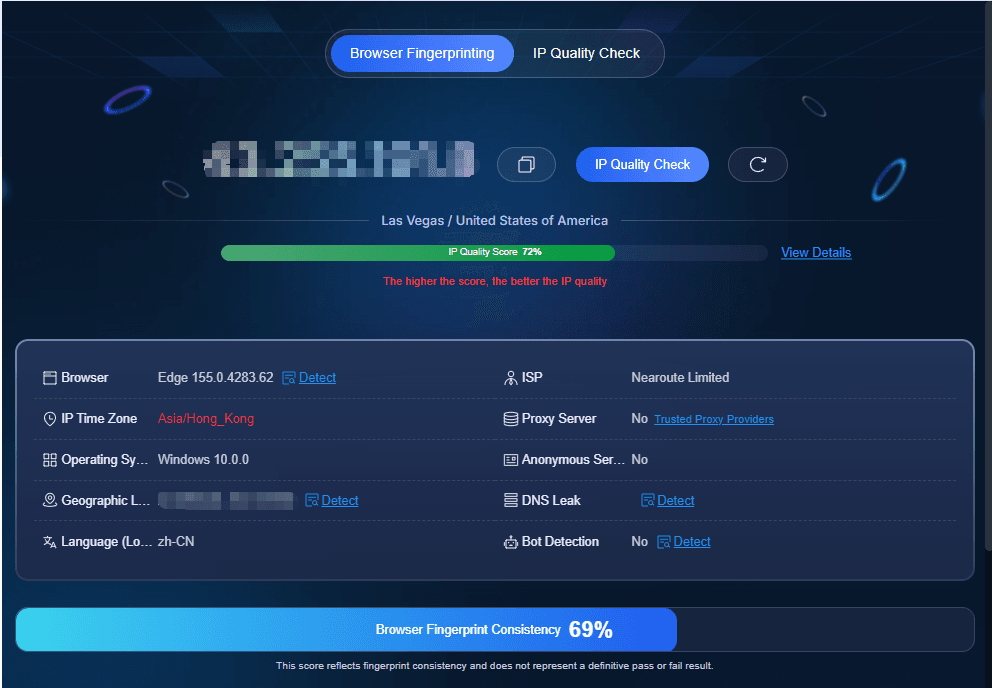
However, its protection has limits: it doesn't hide all online activity or automatically change your browser fingerprint, which combines browser and device characteristics that websites can use to distinguish your browsing environment.
A browser fingerprint combines signals from your browser and device, such as:
▸ Browser and system details: browser version, operating system, and language settings.
▸ Display and hardware characteristics: screen resolution, device capabilities, and graphics rendering behavior.
▸ Browser configuration: fonts, supported technologies, and other detectable settings.
Together, these signals can form a distinctive pattern that helps websites distinguish one browser environment from another. Clearing cookies doesn't automatically change this fingerprint.
How an Anti-detect Browser Differs from Incognito Mode
An anti-detect browser like BitBrowser is designed for managing multiple browser environments, rather than just temporary private sessions.
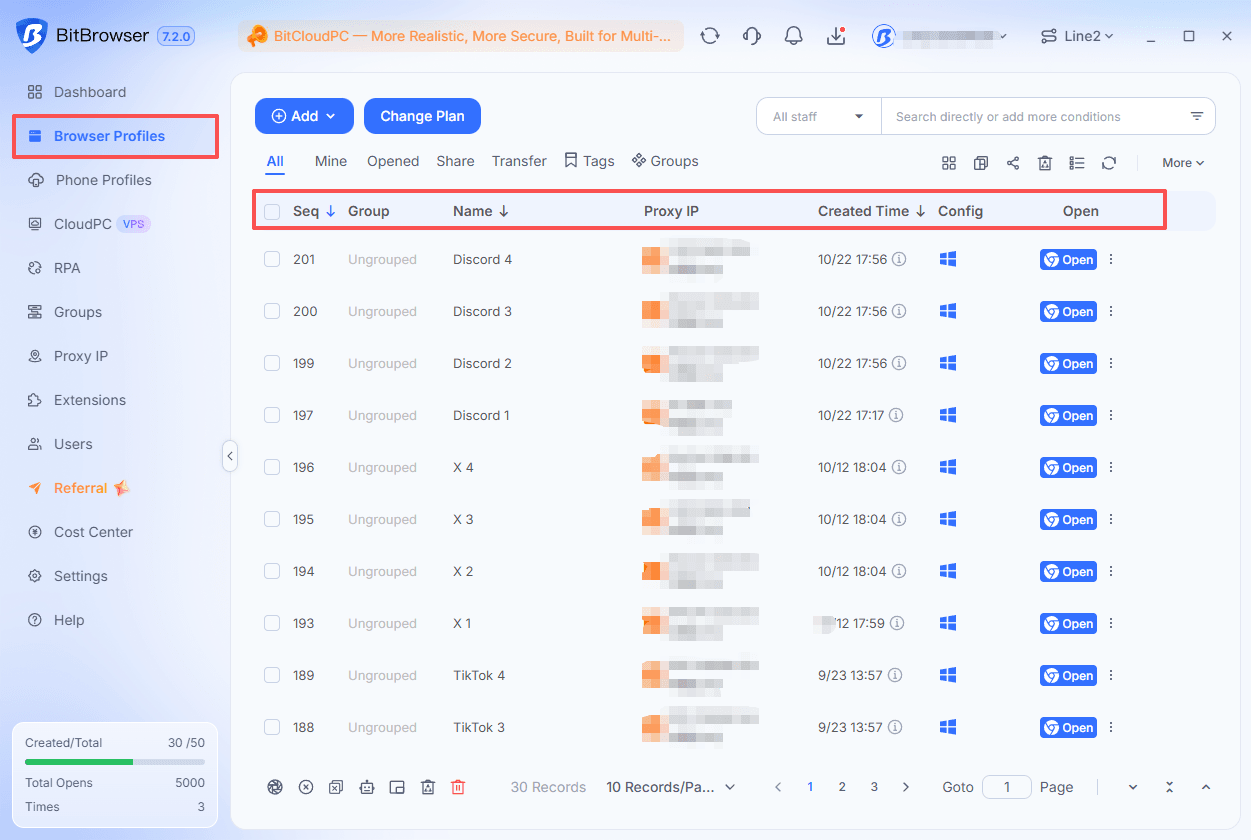
▸ Configurable browser fingerprints: Customize fingerprint settings for different browser environments, helping distinguish them from one another.
▸ Persistent sessions: Retain cookies, local storage, and login sessions between uses.
▸ Isolated account environments: Keep each environment's browsing data, settings, and proxy configuration separate.
▸ Simplified multi-account management: Open and manage multiple browser environments without repeatedly switching accounts in one window.
Stay Anonymous with BitBrowser
Incognito Mode vs. Anti-detect Browser
| Feature | Incognito Window | BitBrowser |
|---|---|---|
| Main purpose | Temporary private browsing | Managing multiple accounts in separate browser environments |
| Privacy and browsing history | Limits locally saved browsing history and session data | Separates browsing data across environments completely |
| Browser fingerprint | Doesn't automatically change fingerprint characteristics | Offers configurable fingerprint settings |
| Session data | Temporary; generally cleared when all private windows close | Can persist between sessions |
| Account separation | Separates private browsing from the regular session | Supports separate environments for multiple accounts |
| Proxy settings | Doesn't automatically assign a separate proxy to each window | Supports individual proxy configurations |
| Multi-account management | Suitable for occasional secondary logins | Designed for ongoing multi-account workflows |
How to Create an Isolated Browser Window in BitBrowser
1. Create a browser profile: Open BitBrowser and create a new profile for the account you want to manage.
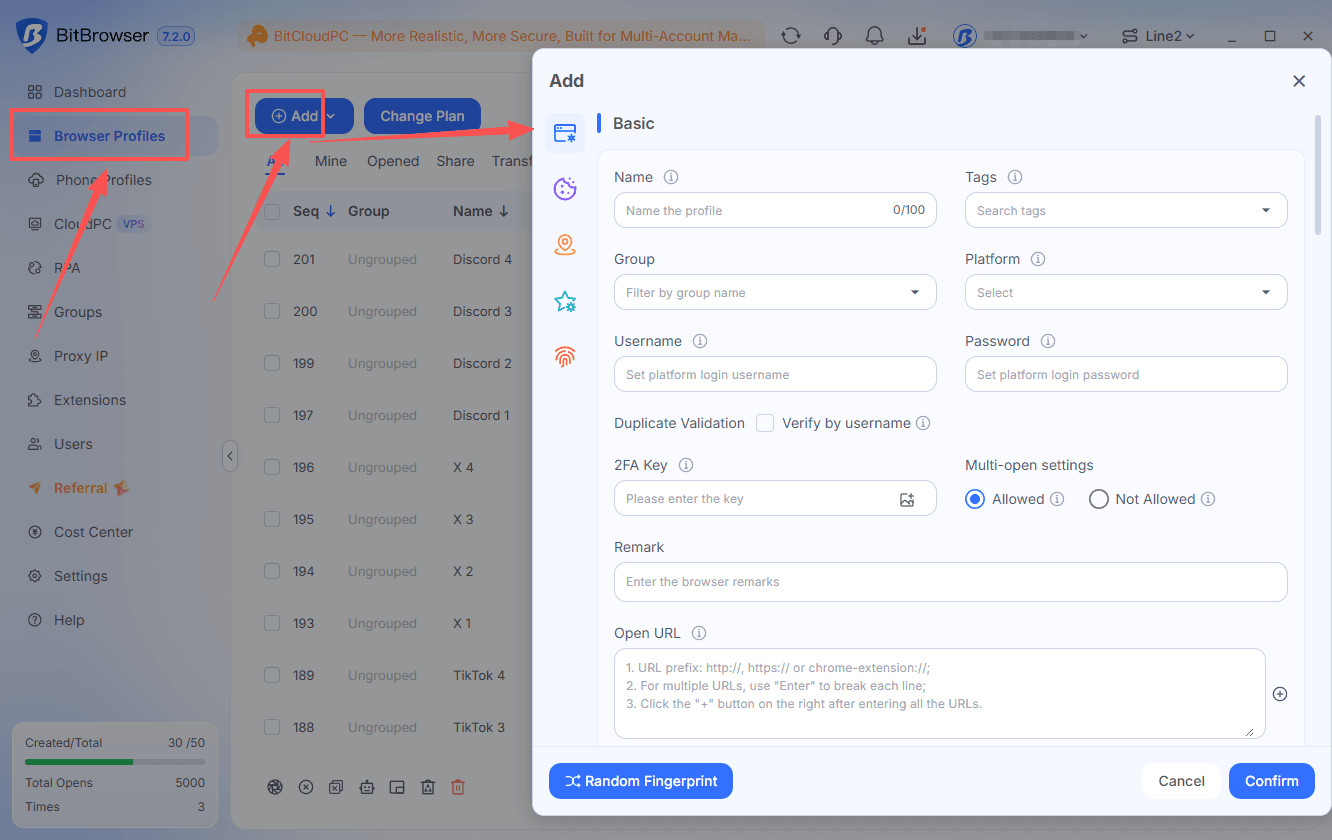
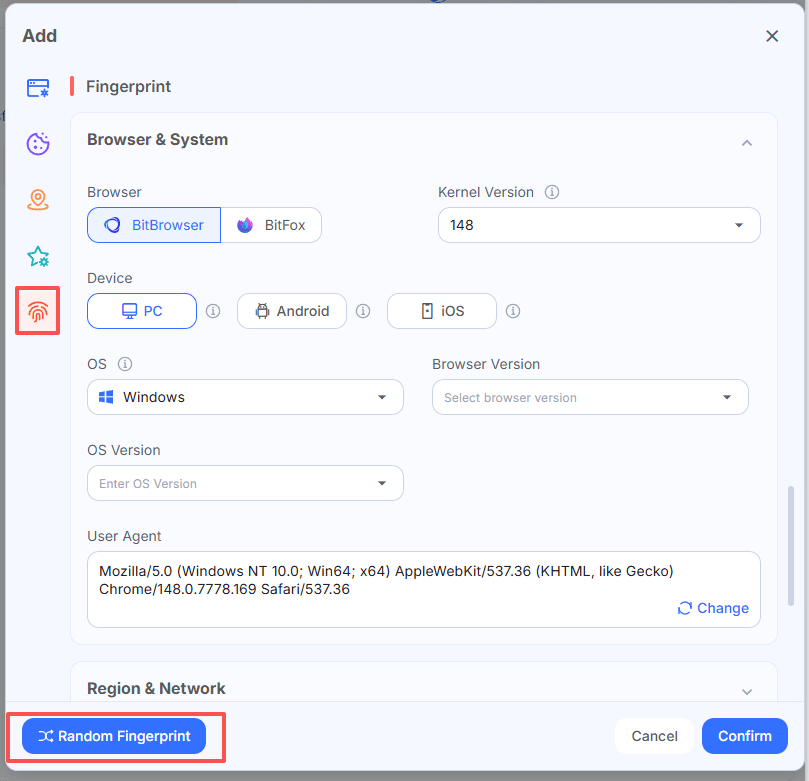
2. Configure the browser fingerprint: Customize settings manually or use one-click randomization to generate a unique combination of fingerprint settings.
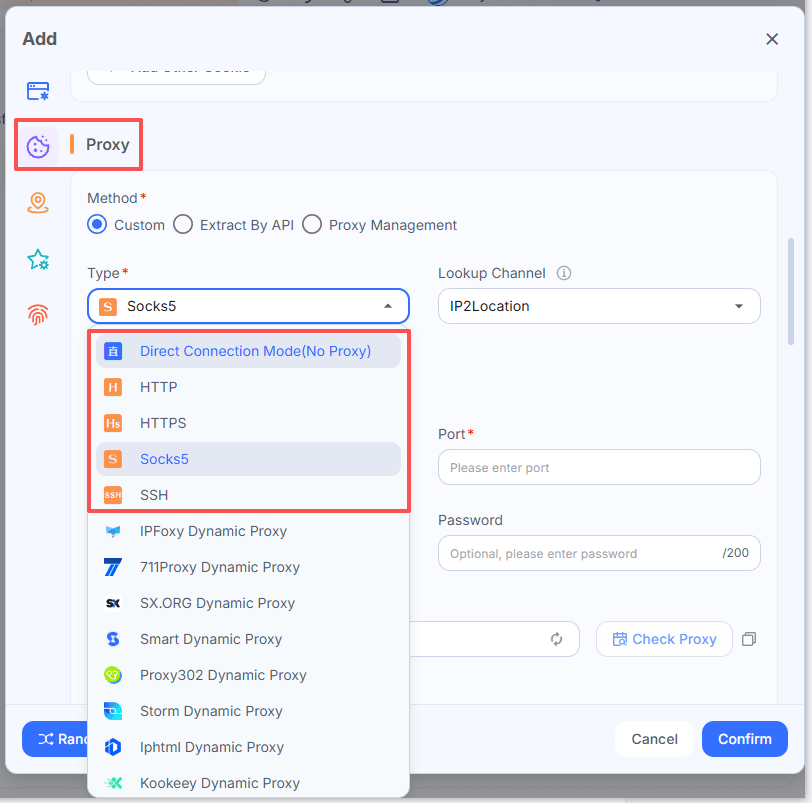
3. Set up a proxy: Assign a proxy to the profile if needed.
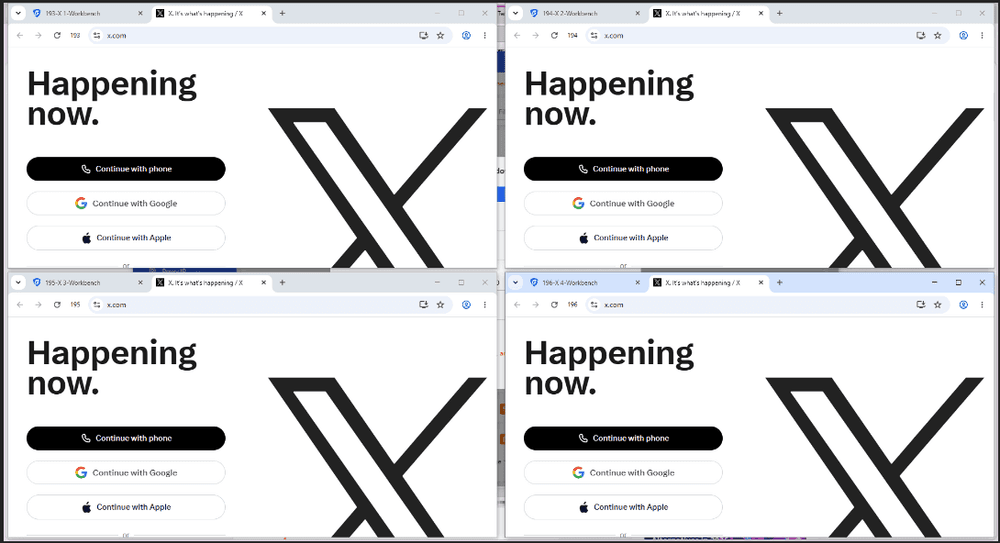
4. Save and launch: Open the new browser window with its own cookies, login sessions, and settings.
5. Repeat for other accounts: Create separate profiles to keep each account's browsing environment isolated.
Stay Anonymous with BitBrowser
Tips for Keeping Accounts Separate
▸ Don't log in to different accounts in the same browser profile.
▸ Use the same proxy for an account each time you open its browser window.
▸ Keep each browser environment's settings consistent.
▸ Cookies can contain login information and session data.
Frequently Asked Questions
1. What Is Incognito Mode?
Incognito mode is a private browsing feature that prevents your browser from saving certain data, such as browsing history, cookies, and site data, to your regular browsing session. It does not make you completely anonymous online.
2. How Do I Turn On Incognito Mode?
In Google Chrome, click the three-dot menu and select New Incognito window. On Windows and Linux, you can also press Ctrl + Shift + N. Other browsers offer similar features under names such as InPrivate or Private Browsing.
3. How Do I Turn Off Incognito Mode?
Close all open Incognito windows on your computer. On mobile devices, open the tab switcher and close your Incognito tabs. The exact steps depend on your browser and device.
4. Does Incognito Mode Hide My Browser Fingerprint?
No. Incognito mode mainly limits the browsing data saved locally. Websites may still collect browser and device signals, such as your operating system, screen resolution, and browser configuration, to help distinguish your browsing environment.
5. What Is the Difference Between Incognito Mode and an Anti-detect Browser?
Incognito mode is designed for temporary private browsing, while an anti-detect browser supports configurable browser fingerprints and separate, reusable browsing environments. The latter is more suitable for ongoing multi-account management, but it does not guarantee anonymity.
6. Can I Manage Multiple Accounts with an Anti-detect Browser?
Yes. An anti-detect browser like BitBrowser lets you create separate browser environments with their own cookies, login sessions, fingerprint settings, and proxy configurations. This helps keep multiple account workflows organized and separated.

 Multi-Account Management
 Prevent Account Association
 Multi-Employee Management
Recommended
See More 



