How to Use Proxies on Telegram and Manage Multiple Accounts With BitBrowser
 2026.06.23 15:18
 petro
petroTelegram is one of the most popular messaging apps in the world. It is fast, easy to use, and available on mobile, desktop, and web. However, in some countries, workplaces, schools, or restricted networks, Telegram may be slow, unstable, or blocked.
One common solution is to use a proxy. A proxy helps route your Telegram connection through another server, which can improve access and stability in restricted environments.
For users who manage several Telegram accounts, tools like BitBrowser can also help keep each account separated, organized, and easier to manage.
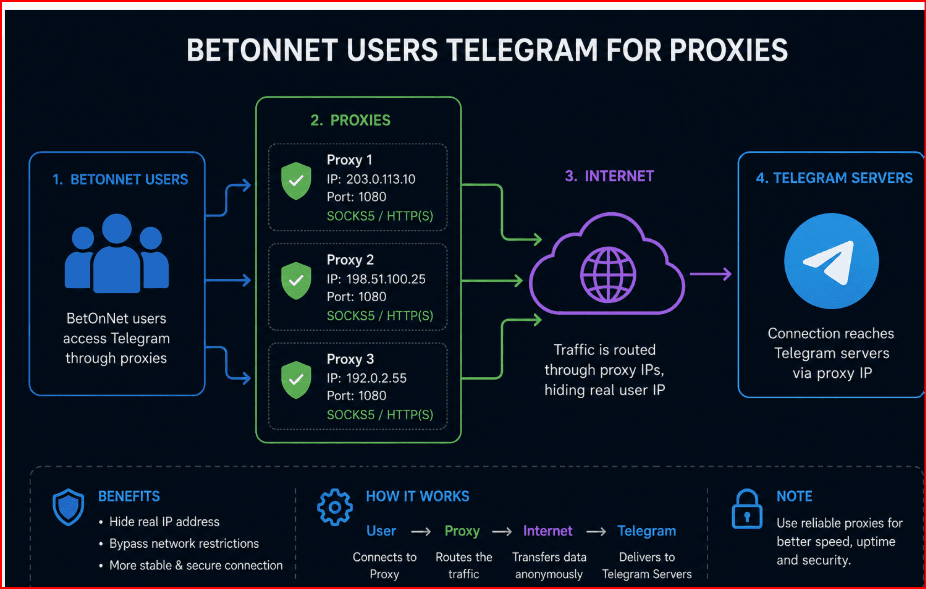
What Is a Telegram Proxy?
A Telegram proxy is a server that sits between your device and Telegram. Instead of connecting directly to Telegram, your app connects through the proxy server.
Telegram proxies are commonly used to:
- Access Telegram when it is blocked
- Improve connection stability
- Separate account connections
- Manage Telegram access without using a full-device VPN
- Keep business or project accounts organized
A proxy is not the same as a VPN. A VPN usually routes all internet traffic from your device, while a Telegram proxy mainly works inside Telegram or inside the browser/profile where it is configured.
Main Types of Telegram Proxies
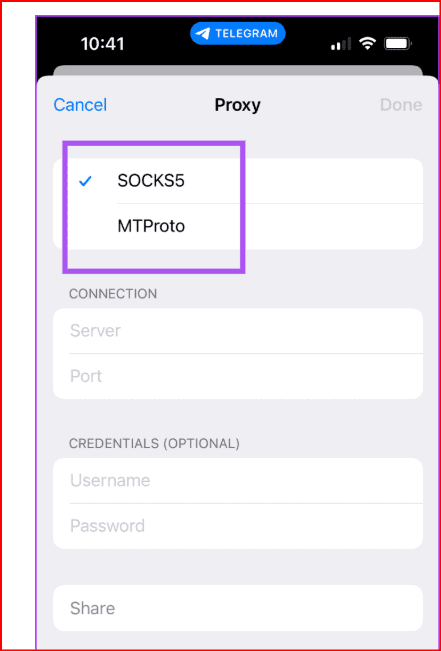
Telegram commonly supports two proxy types: SOCKS5 and MTProto.
SOCKS5 Proxy
SOCKS5 is a general proxy protocol that can be used by many apps and platforms. In Telegram, a SOCKS5 proxy usually requires:
- Server address
- Port
- Username, optional
- Password, optional
SOCKS5 is simple and widely available. It is useful if you already have a reliable proxy provider.
MTProto Proxy
MTProto is Telegram’s own proxy system. It is designed specifically for Telegram traffic.
An MTProto proxy usually requires:
- Server address
- Port
- Secret key
MTProto is often preferred for Telegram because it is made for Telegram connections and can be easier to use inside the Telegram app.
How to Add a Proxy on Telegram Mobile
On Android
Open the Telegram app.
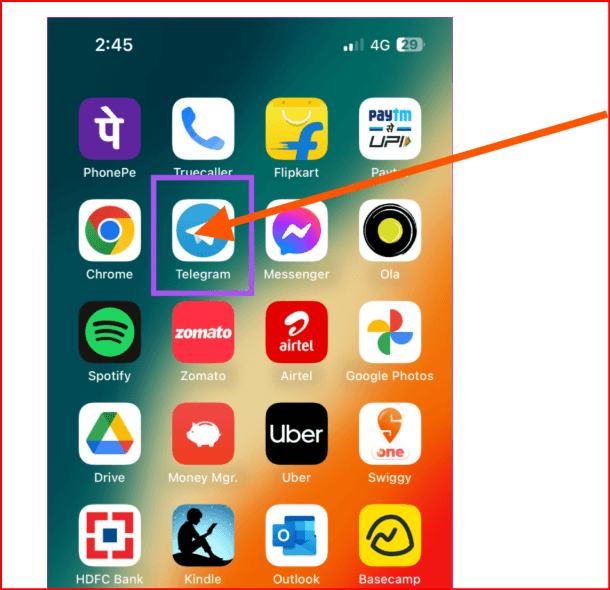
- Tap the menu icon.
Go to Settings.
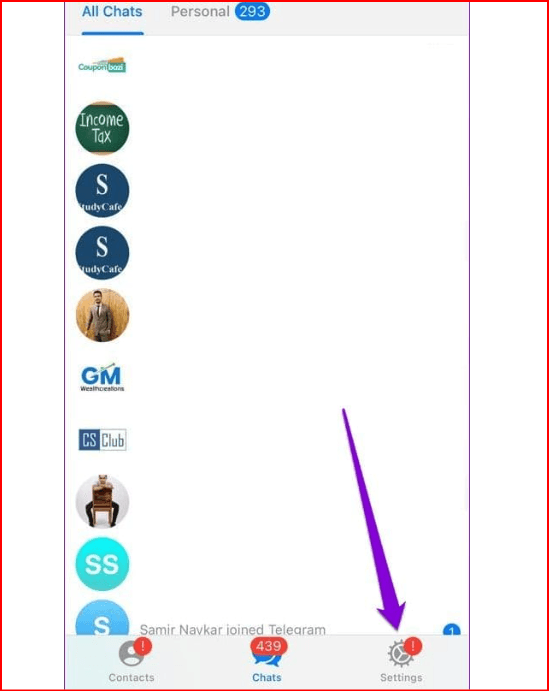
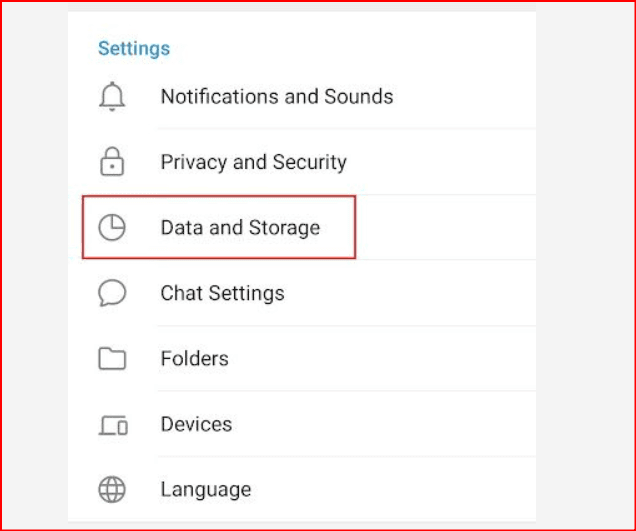
Open Data and Storage.
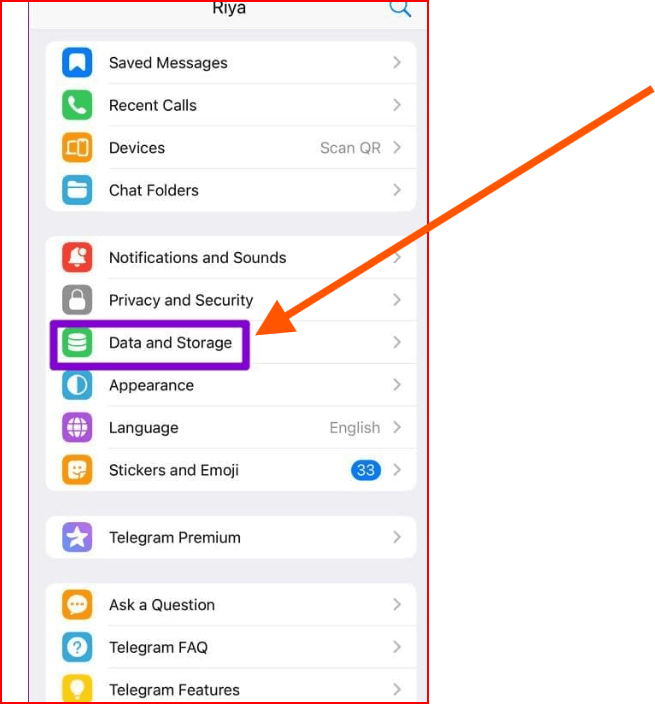
- Scroll to Proxy Settings.
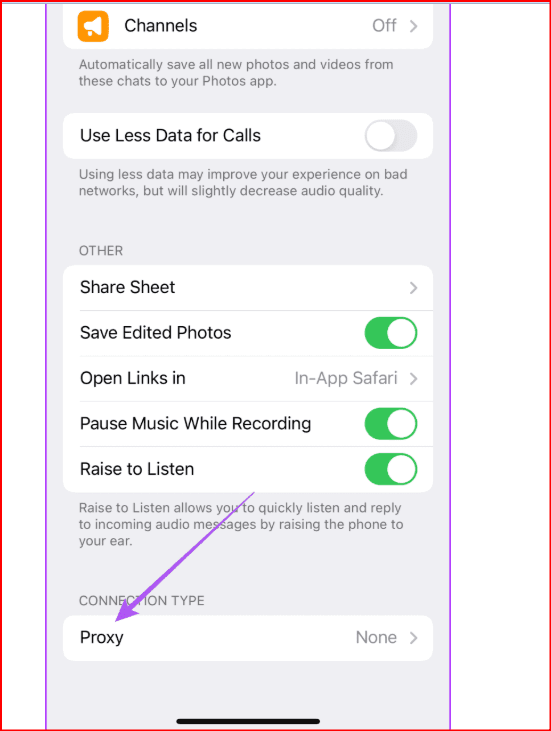
Tap Add Proxy.
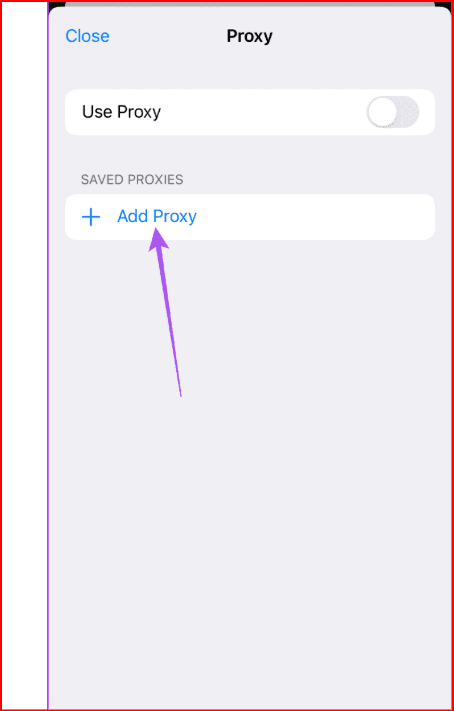
- Choose SOCKS5 or MTProto.
Enter the proxy details.
Save the settings.
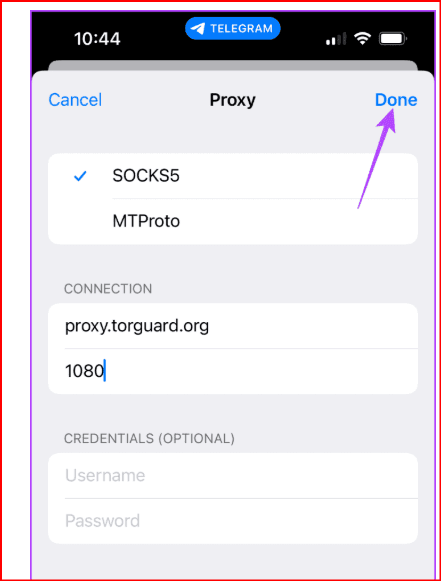
- Turn on Use Proxy ,i've use lik nscoks .net and proxyEmpire very good for telegram .
On iPhone or iPad
- Open Telegram.
Go to Settings.
Tap Data and Storage.
Open Proxy.
Tap Add Proxy.
- Select SOCKS5 or MTProto.
- Enter the server, port, and other required details.
- Save the proxy.
- Enable Use Proxy.
How to Add a Proxy on Telegram Desktop
- Open Telegram Desktop.
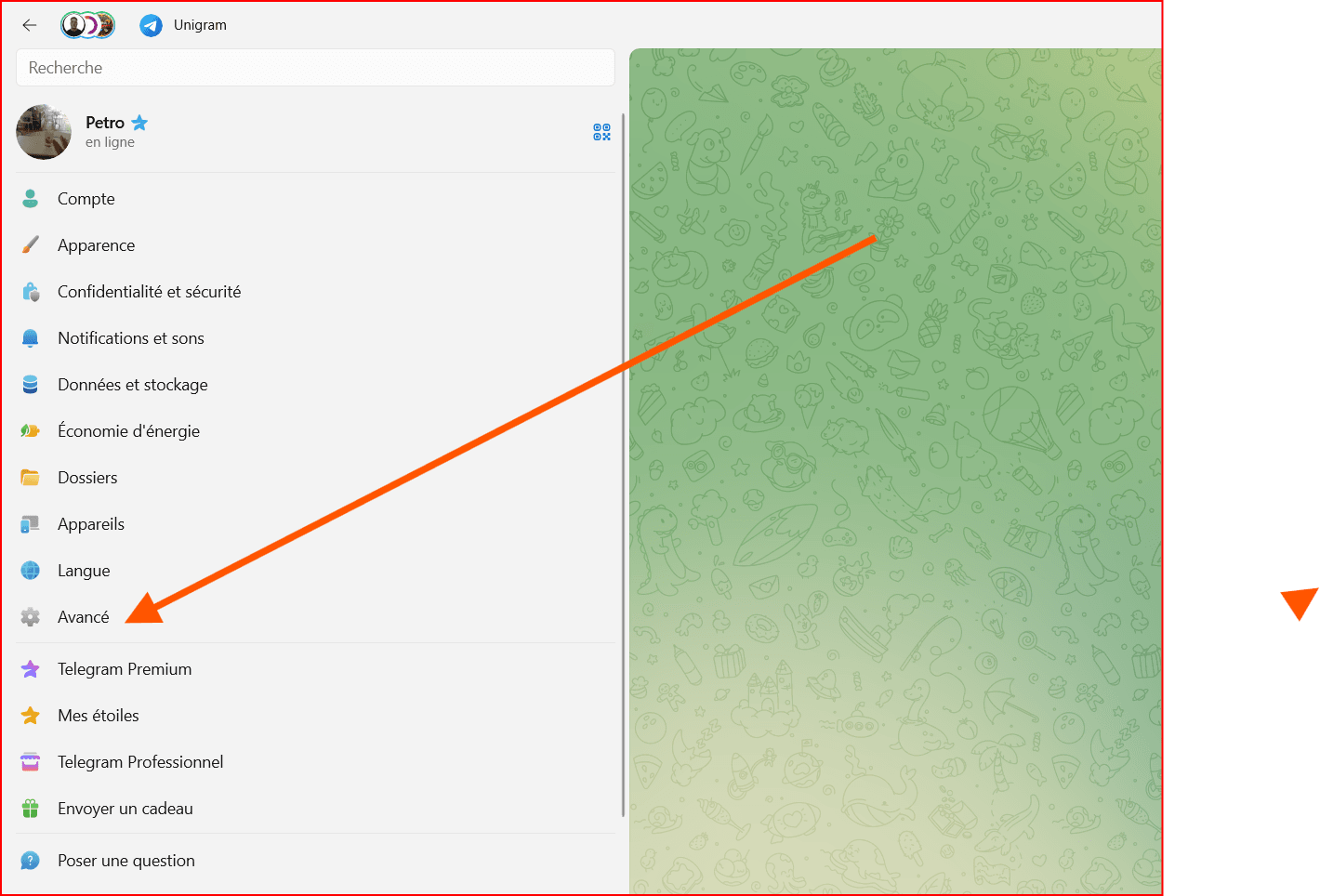
- Go to Settings.
- Open Advanced.
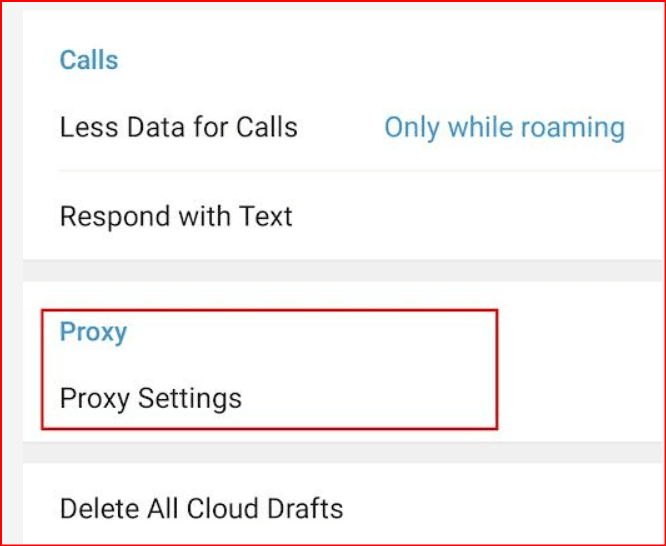
- Find Connection Type or Proxy Settings.
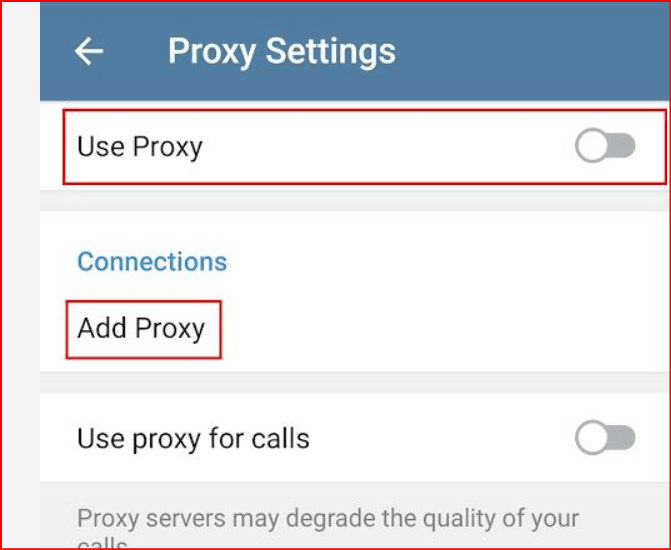
- Choose Use Custom Proxy.
- Select SOCKS5 or MTProto.
- Enter the proxy information.
- Save and connect.
If the proxy is working, Telegram should connect through the new server.
Using Telegram Proxy Links
Some proxy providers share direct Telegram proxy links. When you click one of these links, Telegram may automatically open the proxy setup screen and fill in the details.
This is convenient, but you should be careful. Only use proxy links from trusted providers or trusted contacts. Unknown free proxies can be slow, unstable, or unsafe.
Why Use BitBrowser for Telegram Multi-Account Management?
If you only use one Telegram account, the Telegram app or Telegram Desktop may be enough. But if you manage multiple accounts for business, customer support, marketing, community management, testing, or client projects, things can become confusing.
This is where BitBrowser can help.
BitBrowser is a multi-account browser that allows users to create separate browser profiles. Each profile can have its own cookies, fingerprint settings, login session, and proxy configuration.
This means you can manage multiple Telegram Web accounts in separate browser environments instead of mixing all accounts inside one normal browser.
The Role of BitBrowser in Telegram Proxy Management
BitBrowser does not replace Telegram. It works as a management tool for Telegram Web accounts.
For example, you can create one browser profile for each Telegram account:
- Telegram Account 1 → BitBrowser Profile 1 → Proxy 1
- Telegram Account 2 → BitBrowser Profile 2 → Proxy 2
- Telegram Account 3 → BitBrowser Profile 3 → Proxy 3
This setup helps keep accounts separated. Each profile can have its own browser data and proxy, which reduces confusion when switching between accounts.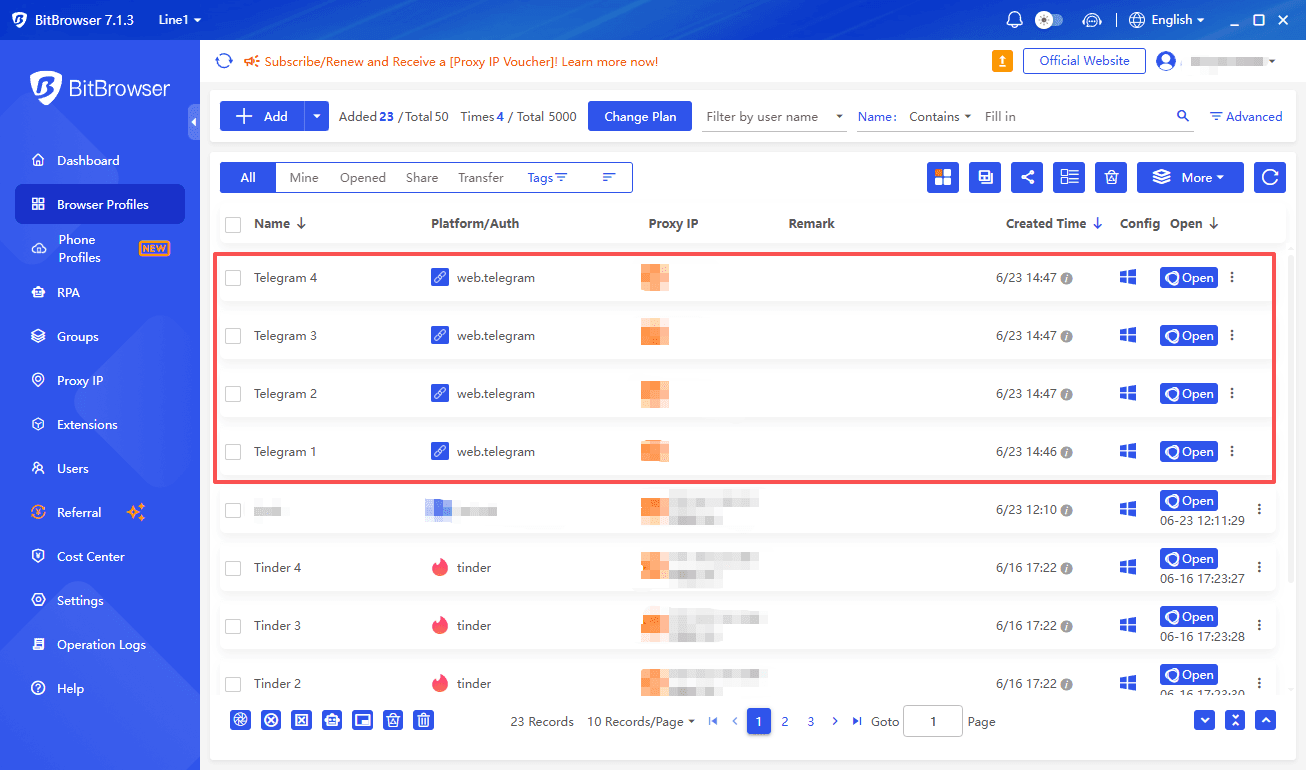
How to Use BitBrowser With Telegram Accounts
- Download BitBrowser from the official website.
- Create a new browser profile for each Telegram account.
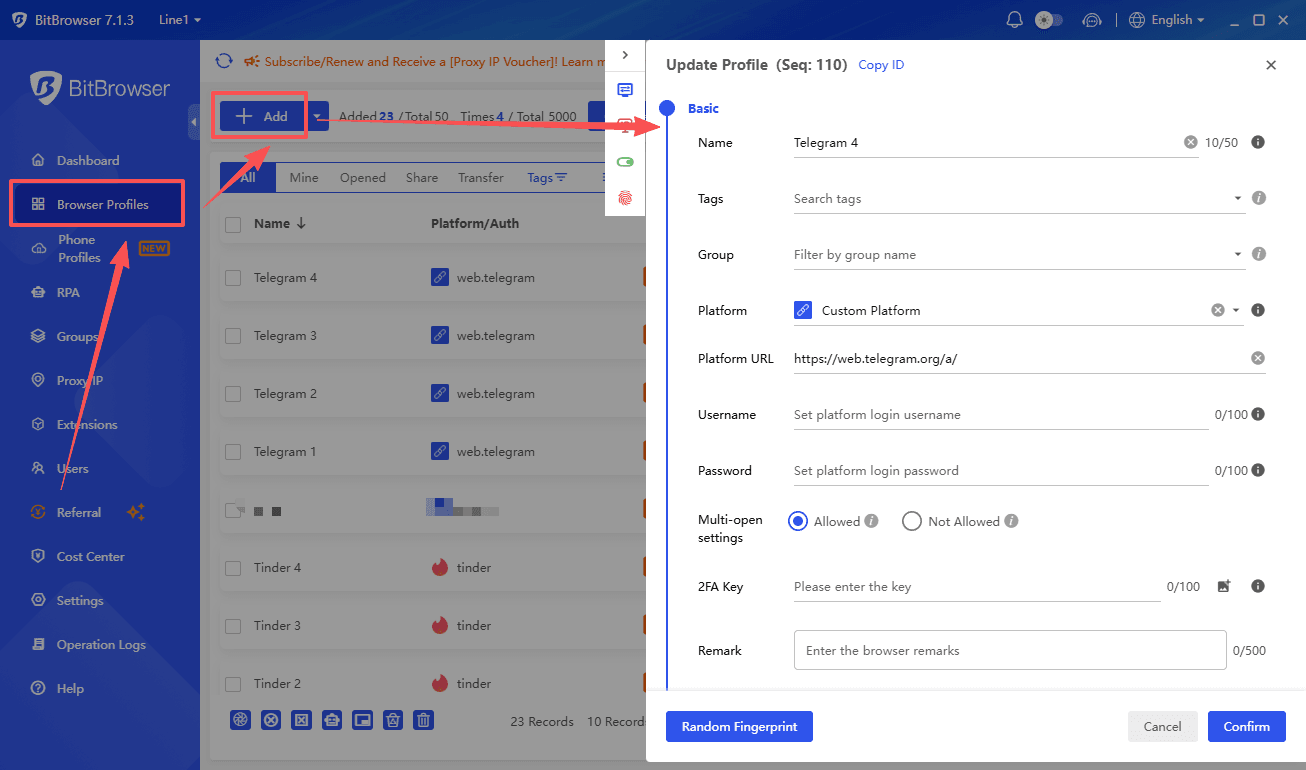
- Give each profile a clear name, such as Support Account, Marketing Account, or Client Account.
- Add a proxy to each profile.
- Use a different proxy for each important account.
- Open Telegram Web inside the correct BitBrowser profile.
- Log in to the matching Telegram account.
- Save the profile and use it only for that account.
This makes account management cleaner and more organized.
Example Setup
A simple setup may look like this:
| Purpose | Browser Profile | Proxy | Telegram Use |
|---|---|---|---|
| Customer Support | Support Profile | Proxy 1 | Reply to users |
| Marketing | Marketing Profile | Proxy 2 | Manage campaigns |
| Community | Community Profile | Proxy 3 | Manage groups |
| Testing | Test Profile | Proxy 4 | Test bots or features |
This structure is useful for teams, agencies, and businesses that handle multiple Telegram accounts.
Best Practices for Telegram Proxies and BitBrowser
Use trusted proxies only. Avoid random free proxies because they may be overloaded, unreliable, or unsafe.
Keep one Telegram account per BitBrowser profile. Do not log many accounts into the same profile, because it can mix cookies and sessions.
Use clear names for profiles. This helps prevent mistakes, especially when managing many accounts.
Keep a record of which proxy belongs to which account. This makes troubleshooting easier.
Do not use proxies or multi-account browsers for spam, scams, impersonation, or violating Telegram’s rules. These tools should be used for legitimate account organization, business operations, support, testing, or team workflows.
Common Problems and Fixes
Telegram Does Not Connect
Check the proxy server, port, username, password, or MTProto secret key. One wrong detail can stop the connection.
Telegram Is Slow
The proxy may be overloaded. Try a different trusted proxy.
Proxy Works in Telegram but Not in BitBrowser
Make sure the proxy is added inside the correct BitBrowser profile. Also check that the proxy type, port, and authentication details are correct.
Wrong Telegram Account Opens
You may be using the wrong BitBrowser profile. Check the profile name and make sure each account has its own separate profile.
Account Sessions Get Mixed
Avoid logging multiple Telegram accounts into the same browser profile. Create a separate profile for each account.
Is It Safe to Use Proxies With Telegram?
Proxies can help with access and organization, but they do not make you completely anonymous. A proxy provider may still see connection metadata, such as when you connect or how much traffic passes through the server.
For better safety:
- Use trusted proxy providers.
- Avoid suspicious public proxy links.
- Keep Telegram updated.
- Use strong passwords.
- Enable two-step verification on Telegram.
- Use Secret Chats when you need end-to-end encrypted conversations.
- Do not share proxy credentials publicly.
BitBrowser vs a Normal Browser
A normal browser can open Telegram Web, but it is not ideal for managing many accounts. Cookies, sessions, and browser data can become mixed.
BitBrowser is more useful when you need profile separation. Each profile can act like a separate browser environment, making it easier to manage different Telegram accounts without confusion.
Final Thoughts
Using proxies on Telegram can help improve access, stability, and account organization. For normal users, adding a SOCKS5 or MTProto proxy directly inside Telegram may be enough.
For users who manage multiple Telegram accounts, BitBrowser can add another layer of organization. By creating separate browser profiles and assigning a different proxy to each profile, you can keep Telegram Web accounts cleaner, safer, and easier to manage.
The best setup is simple: use trusted proxies, keep one account per profile, label everything clearly, and use these tools only for legitimate business, support, testing, or community management.

 Multi-Account Management
 Prevent Account Association
 Multi-Employee Management
Recommended
See More 



