Pixelscan Review 2026: What It Tests and How to Improve Your Browser Fingerprint
 2026.06.29 07:13
 YT.Shi
Every time you open a browser, you leave behind a digital trail. Your screen size, installed fonts, timezone, and even how your graphics card renders images all combine to create a browser fingerprint. Unlike cookies, you can't just clear it.
Pixelscan is a free tool that analyzes your fingerprint and shows how detectable you really are. In this Pixelscan review, we'll explore what it does, why it matters, and how to improve your setup.
What Is Pixelscan?
Pixelscan is a browser based testing tool that checks your browser fingerprint and highlights inconsistencies. It collects signals like canvas rendering, WebGL properties, audio context, fonts, timezone, IP address, and more. Then it tells you if your fingerprint looks natural or suspicious.
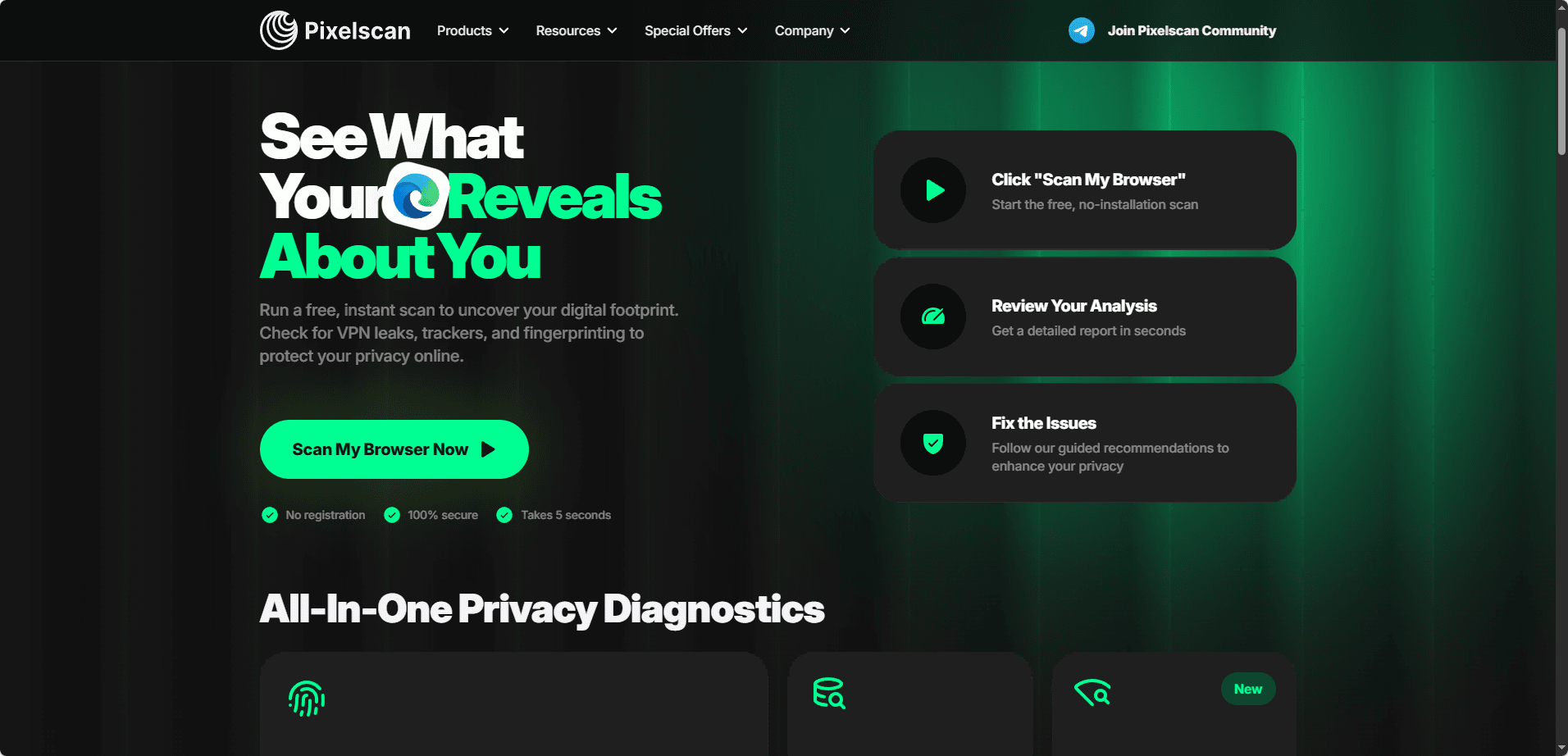
The tool is free, requires no registration, and gives clear feedback on what needs fixing. This review covers everything from how the test works to practical steps you can take.
Why Do People Use Pixelscan?
There are three main reasons.
First, understanding fingerprinting. Websites collect dozens of data points from your device. Alone, each one is common, but together they create a unique ID that persists even after clearing cookies.
Second, privacy and security. If you use a VPN or proxy, Pixelscan reveals whether your real IP, DNS, or location is leaking through.
Third, multi account management. People who run multiple social media, ecommerce, or ad accounts need each profile to look like a unique device. Pixelscan helps test those setups before they go live.
What Does Pixelscan Check?
Pixelscan looks at many fingerprint signals:
· Browser fingerprint – user agent, OS, screen resolution, language, extensions.
· Canvas fingerprint – how your browser renders hidden images; each device produces a unique hash.
· WebGL fingerprint – GPU model, vendor, and driver info from 3D rendering.
· Audio fingerprint – latency and frequency quirks of your audio hardware.
· Fonts – the list of installed fonts, which is surprisingly distinctive.
· Timezone – checks if your system time matches your IP location.
· IP and location – visible IP, ISP, and geographic data.
· DNS – whether your DNS requests leak outside your proxy or VPN.
· WebRTC – detects if your real IP is exposed through WebRTC.
· Proxy/VPN detection – flags blacklisted IPs or transparent proxies.
· Bot detection – looks for automation flags like navigator.webdriver.
How to Run a Pixelscan Test
Running the test is simple:
1. Visit pixelscan.net.
2. Click "Scan My Browser Now" or "Fingerprint Check".
3. Wait a few seconds while the analysis runs.
4. Review your results.
No signup, no downloads. You can test on any modern browser.
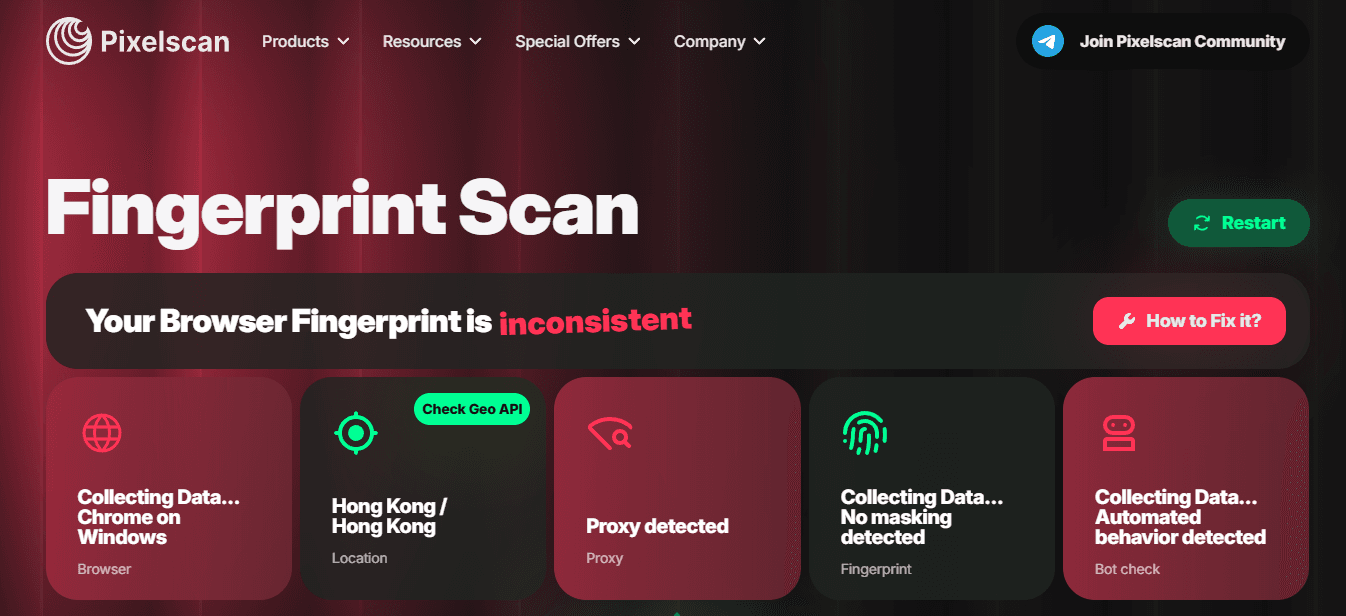
How to Read Pixelscan Results
The main result is a status: consistent (green) means your signals align; suspicious or inconsistent (red or yellow) means something contradicts.
Below that, individual parameters are color coded:
Green – normal.
Yellow – a warning to investigate.
Red – a clear leak or problem.
Common warnings include:
· Timezone mismatch – your system time doesn't match your IP location.
· WebRTC leak – your real IP is exposed.
· DNS leak – your ISP handles DNS instead of your VPN.
· IP inconsistency – your IP location doesn't match other signals.
Remember: Pixelscan checks consistency, not uniqueness. A unique fingerprint is fine; a contradictory one gets flagged.
Common Problems Found by Pixelscan and How to Fix Them
Timezone mismatch – Change your system timezone to match your proxy or VPN location. On Windows, go to Settings > Time & Language; on Mac, System Preferences > Date & Time.
WebRTC leaks – Disable WebRTC in your browser or use an extension that blocks leaks. Many VPNs also have built in protection.
DNS leaks – Check your VPN settings to ensure DNS traffic routes through the VPN. Enable DNS leak protection if available.
IP inconsistencies – Make sure your proxy or VPN is working and that your IP location aligns with your timezone and language.
Browser fingerprint issues – If you use spoofing tools, ensure all parameters are consistent (e.g., a Windows user agent should have Windows specific WebGL and fonts).
Does Passing Pixelscan Mean You Are Safe?
Not entirely. Passing Pixelscan means your fingerprint is internally consistent, but it doesn't guarantee full stealth.
Detection systems also look at behavior – mouse movements, typing speed, scrolling patterns. They also consider your account history, past activity, and stored cookies. Even with a perfect fingerprint, a blacklisted IP or a history of suspicious actions can trigger flags.
So treat Pixelscan as a useful diagnostic, not a magic shield. It helps you catch obvious issues, but long term safety requires consistent behavior and clean IP reputation too.
Pixelscan vs BrowserScan vs CreepJS
| Feature | Pixelscan | BrowserScan | CreepJS |
|---|---|---|---|
| Beginner Friendly | Excellent | Good | Moderate |
| IP Leak Detection | Excellent | Good | Limited |
| Proxy Checks | Strong | Moderate | Limited |
| Fingerprint Analysis | Good | Good | Very Detailed |
| Ease of Understanding | Excellent | Good | Lower |
| Technical Depth | Moderate | Moderate | High |
| Best For | General users | Routine checks | Advanced fingerprint research |
Each tool has its place. For most users, Pixelscan offers the best balance of breadth and simplicity.
Which One Should You Use?
· Use Pixelscan for everyday fingerprint testing.
· Use BrowserScan for additional validation.
· Use CreepJS when you want deeper technical fingerprint analysis.
Many experienced users run multiple tests because different tools focus on different signals.
Best Practices for Maintaining a Consistent Browser Fingerprint
A consistent environment often matters more than constantly changing settings. Some practical recommendations include:
Keep Browser Settings Stable
Frequent configuration changes can create unusual fingerprint patterns.
Match Timezone and Location
Timezone should generally align with the IP location being used.
Use Reliable Proxies
Unstable or poorly configured proxies often create inconsistencies.
Avoid Excessive Modifications
Changing too many fingerprint attributes at once may make a browser appear less natural.
Test Regularly
Run periodic fingerprint tests after:
· Browser updates
· Proxy changes
· System changes
· New profile creation
Pixelscan + Anti Detect Browsers: Boosting Privacy and Anonymity
Pixelscan tells you how exposed you are, but it doesn't protect you. That's where anti detect browsers come in.
As one of the most secure and efficient solutions, BitBrowser allows you to:
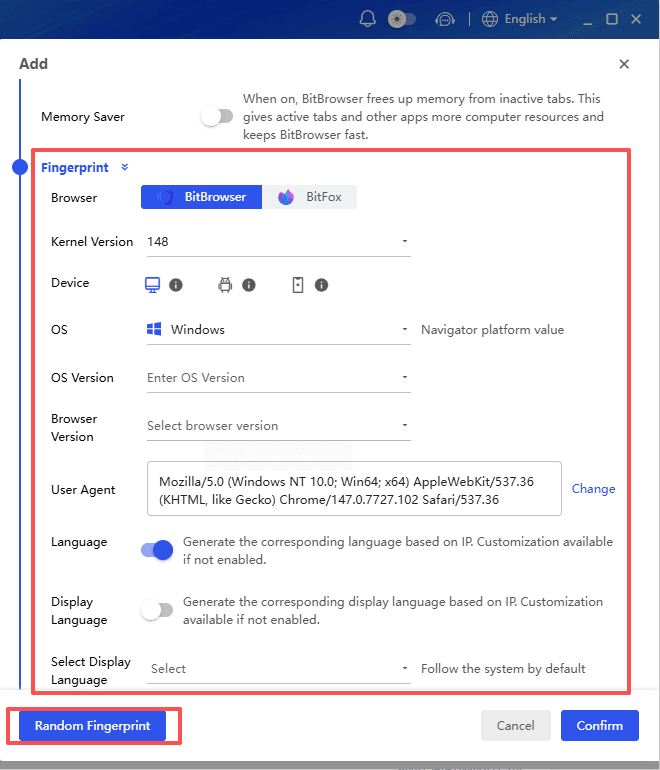
· Create separate browser profiles, each with unique fingerprints.
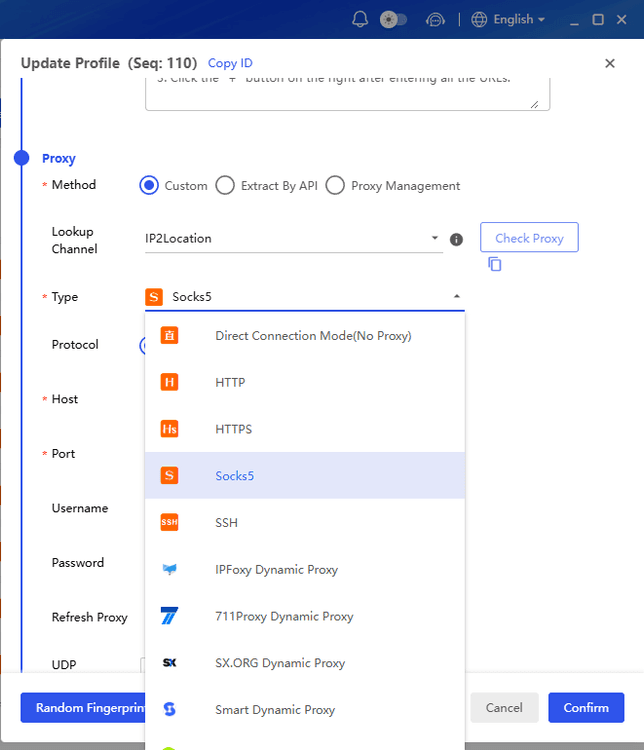
· Integrate proxies to mask IP addresses.
· Manage multiple accounts without cross tracking.
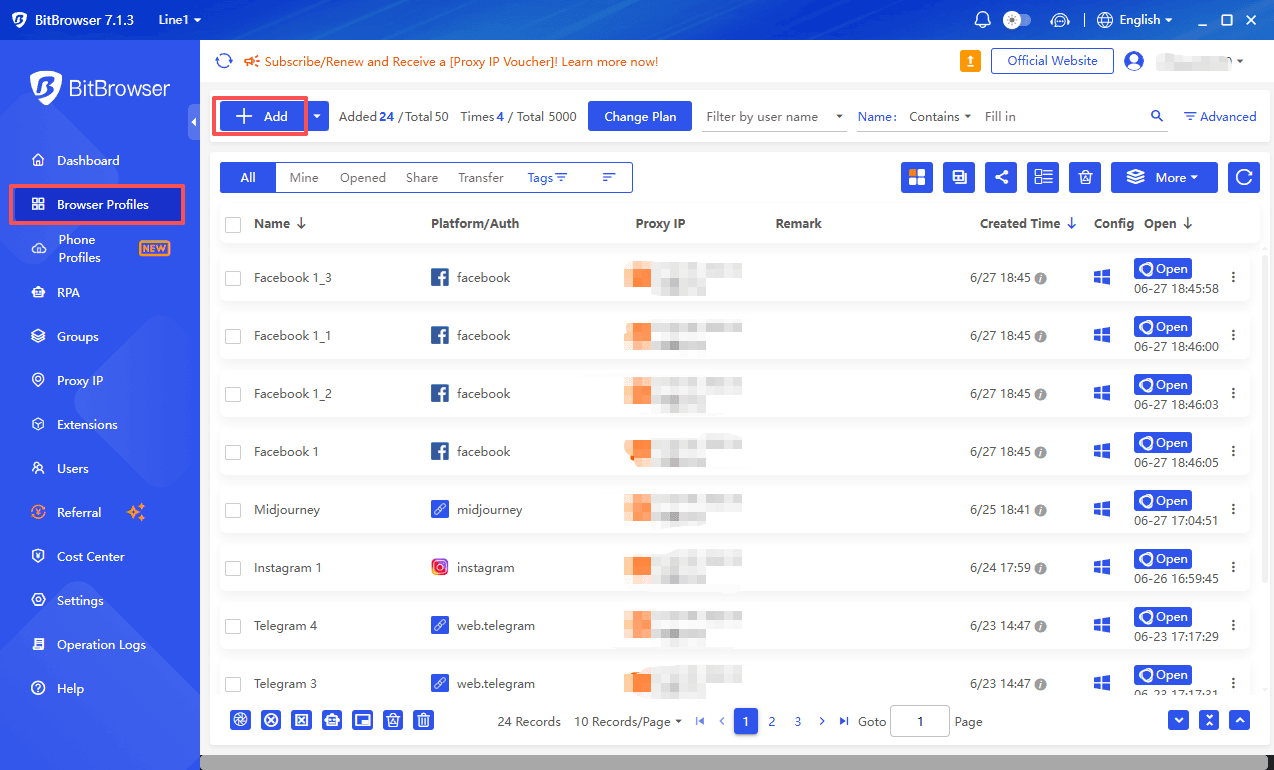
· Pass fingerprint tests, including Pixelscan, with safer setups.
Think of it this way:
Pixelscan = diagnosis tool.
BitBrowser = treatment.
Use Pixelscan to test, then BitBrowser to protect. Together, they form a reliable privacy stack. For mobile environments, BitCloudPhone offers similar isolation for mobile profiles.
Conclusion
Pixelscan remains one of the most useful browser fingerprint testing tools in 2026. It helps users quickly identify issues such as WebRTC leaks, DNS leaks, timezone mismatches, and browser fingerprint inconsistencies.
However, Pixelscan is designed to detect problems, not solve them. If the test reveals configuration issues, you may need to adjust your browser, proxy, or profile settings to improve consistency.
For users managing multiple accounts, a common workflow is to use Pixelscan to check an environment and then use a browser profile management tool such as BitBrowser to maintain separate profiles, cookies, and proxy settings.
While no fingerprint test can guarantee privacy or account safety, Pixelscan remains a valuable tool for understanding how your browser appears to websites and identifying potential issues before they become larger problems.
FAQ
1. Is Pixelscan accurate for browser fingerprint testing?
Pixelscan is generally considered a reliable tool for detecting common browser fingerprint signals, IP information, WebRTC leaks, DNS leaks, and configuration mismatches. However, different websites may use additional fingerprinting techniques that Pixelscan does not measure.
2. Why does Pixelscan show a suspicious or inconsistent fingerprint?
A suspicious result usually appears when multiple browser signals do not match naturally. Common causes include timezone mismatches, proxy configuration issues, unusual browser settings, or inconsistencies between hardware and browser fingerprints.
3. Can Pixelscan detect proxy leaks?
Yes. Pixelscan can identify several types of network-related issues, including IP inconsistencies, DNS leaks, and WebRTC leaks that may reveal information outside of your proxy connection.
4. How can I improve my Pixelscan results?
The most common fixes include matching your browser timezone to your IP location, preventing WebRTC leaks, using reliable proxies, and maintaining consistent browser fingerprint settings. After making changes, run another test to verify the results.
5. Do anti-detect browsers help with Pixelscan tests?
Anti-detect browsers can help users create separate browser profiles with isolated cookies, proxy settings, and fingerprint configurations. Many users test these profiles with Pixelscan to check for leaks, inconsistencies, or other configuration issues before using them regularly.

 Multi-Account Management
 Prevent Account Association
 Multi-Employee Management
Recommended
See More 



