WebRTC Leak: What It Means and How to Prevent It
 2026.02.28 11:13
 YT.Shi
If you use proxies, VPNs, or manage multiple accounts, you may assume your real IP is hidden. In many cases that is not completely true. Browsers can still reveal network information through WebRTC, which can expose your real location even when traffic is routed through a proxy.
A WebRTC leak is one of the most common reasons users see location mismatches, repeated verification requests, or unexpected account links. Understanding how it works and how to prevent it is an important part of maintaining a stable browsing environment.
This guide explains what a WebRTC leak means, how it happens, how to test for it, and the practical ways to prevent it.
What Is WebRTC?
Before diving into leaks, we must understand the technology behind them. WebRTC (Web Real-Time Communication) is an open-source project that provides web browsers and mobile applications with real-time communication (RTC) capabilities via simple JavaScript APIs.
It allows peer-to-peer communication, enabling browsers to share voice, video, and data directly without needing third-party plugins. Popular services like Discord, Zoom, Google Meet, and WhatsApp Web all rely on WebRTC to function seamlessly.
How WebRTC Works: The 3 Core APIs
● getUserMedia: Accesses your camera and microphone.
● RTCPeerConnection: Handles the audio/video stable connection.
● RTCDataChannel: Allows the transfer of non-media data between peers.
To establish these connections, browsers must exchange network addresses. This is where the vulnerability lies.
What are WebRTC Leaks?
To find the fastest route, WebRTC sometimes bypasses your proxy/VPN and requests your actual network information. If a website triggers this, it can detect your real public IP address, local IP, and ISP, rendering your VPN useless.
The exposed data can include:
● Public and Local IP addresses
● Network route details
● ISP information
How WebRTC Leaks Happen
There are several common causes.
● Proxy not fully applied: Some proxies route browser traffic but do not cover WebRTC requests. The browser still contacts STUN servers directly.
● VPN limitations: VPNs replace your public IP but may still allow local network information to appear.
● Default browser settings: Most major browsers enable WebRTC by default. Users rarely change these settings.
● Environment mismatch: If device type, timezone, and network signals do not align, WebRTC data can highlight the inconsistency.
These situations often lead to proxy mismatch where a website sees both proxy IP and real network signals.
The Risks of a WebRTC Leak
● Account Bans: For users managing multiple accounts (Amazon, eBay, TikTok, etc.), linking all profiles to one real IP triggers immediate platform bans.
● Geo-Block Failure: Streaming services can pinpoint your real location, bypassing your proxy.
● Cyber Attacks: Exposed IPs make you vulnerable to DDoS attacks and physical tracking by malicious actors.
Learn how to hide your IP address while browsing the web.
How to Run a WebRTC Leak Test
Running a WebRTC leak test takes only a few minutes and should be done whenever you change proxies or browser setups.
Method 1: Online test tools
1. Connect your proxy or VPN
2. Open a WebRTC leak testing website: bitbrowser.net/whoer; browserleaks.com/webrtc; ipleak.net
3. Look for the IP results section
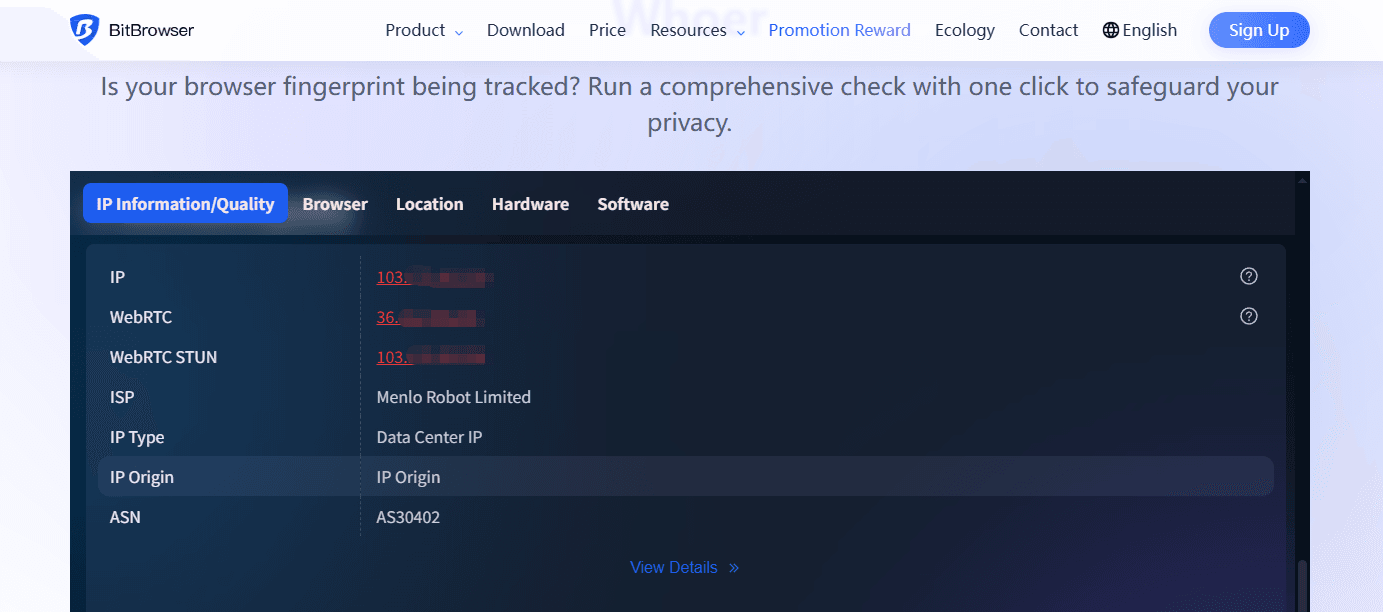
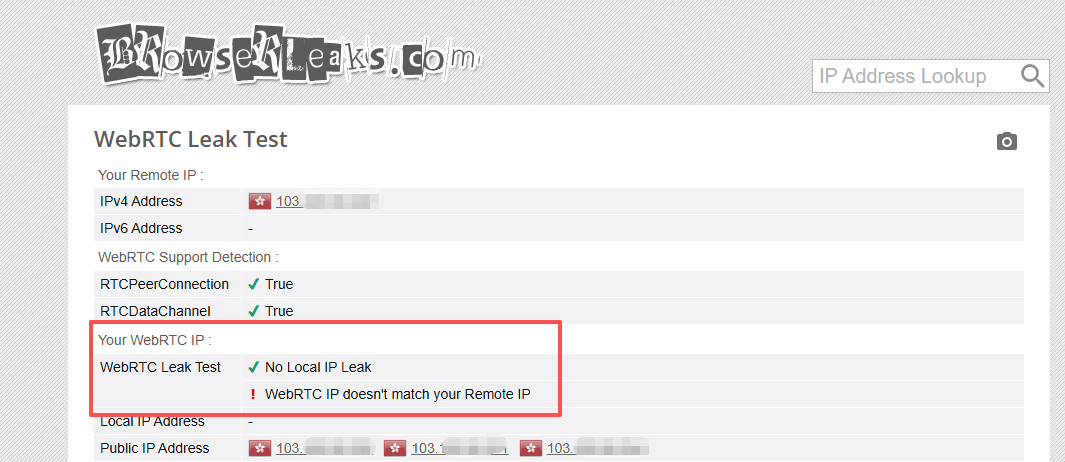
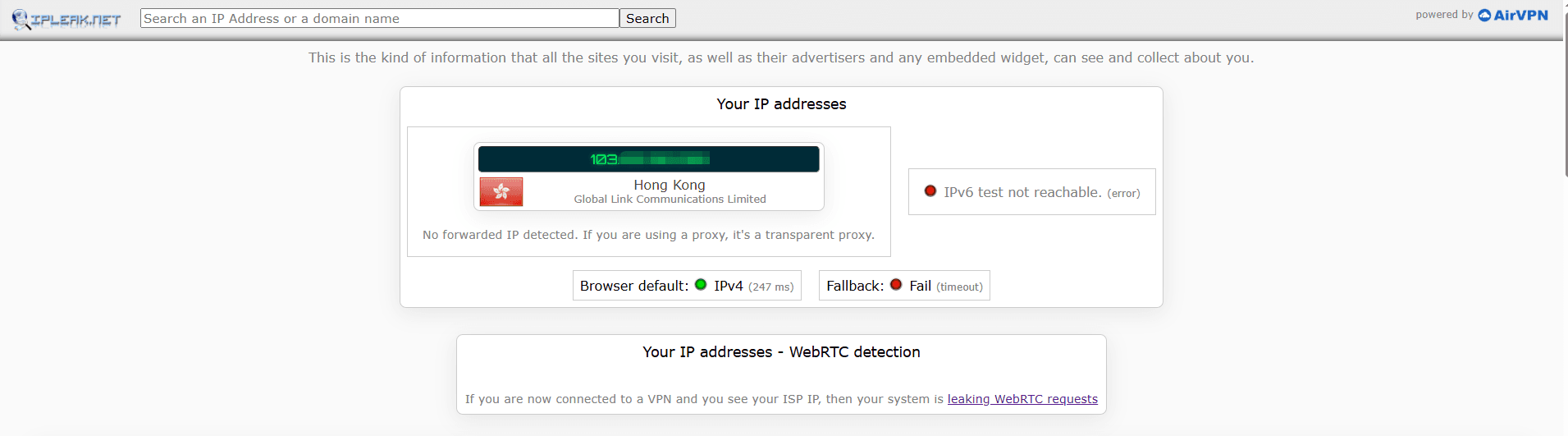
4. Compare detected IP with your proxy IP
If your real ISP IP appears, you have a leak. Also check whether a local IP is displayed. Seeing local network addresses is common but should be masked in high isolation setups.
Method 2: Manual Console Test (For Chrome/Edge)
This method provides a deeper check.
1. Open Chrome/Edge in Incognito mode
2. Right click the page and choose Inspect > Console
3. Open the Console tab
4. Paste the following code to see if your real IP appears:
var rtc = window.RTCPeerConnection || window.mozRTCPeerConnection || window.webkitRTCPeerConnection;
var pc = new rtc({ iceServers: [] });
pc.createDataChannel("");
pc.createOffer(pc.setLocalDescription.bind(pc), function() {});
pc.onicecandidate = function(ice) {
  if (ice && ice.candidate && ice.candidate.candidate) {
    console.log("Potential Leak Detected: " + ice.candidate.candidate.split(" ")[4]);
  }
};
If the output contains your real IP, WebRTC is exposing it.
Repeat the test after any configuration changes.
Common Ways to Prevent a WebRTC Leak
Users usually try a few basic methods first. They can help but often have limitations.
Disable WebRTC in Firefox
1. Type about:config in the address bar
2. Accept the warning
3. Search media.peerconnection.enabled
4. Set it to false
This blocks WebRTC but some websites may detect that it is disabled.
Limit WebRTC in Chrome / Edge
Chrome and Edge lack a native option to fully disable WebRTC, but IP exposure can be reduced through browser policies or extensions.
Install an extension such as WebRTC Control or uBlock Origin (manual setup required). After installation, enable the “Disable WebRTC” setting and verify the “Blocked” status on the plugin icon.
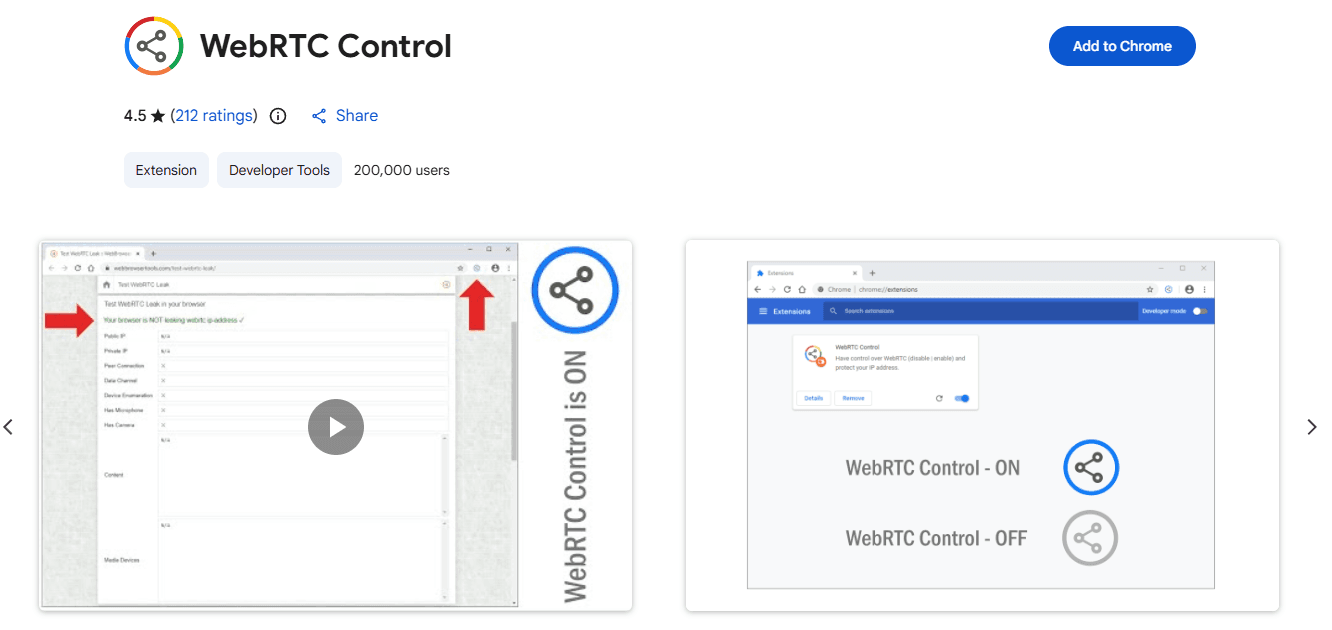

Note: Extensions provide only partial control over WebRTC and are not entirely reliable. For best protection, combine them with a VPN and regular DNS leak tests.
Use VPN or proxy
A quality VPN replaces the public IP and reduces risk. However, it does not guarantee WebRTC consistency and may still expose local signals.
These approaches are helpful for casual browsing but can be unstable for long term account work.
The Ultimate Solution: WebRTC Protection in BitBrowser
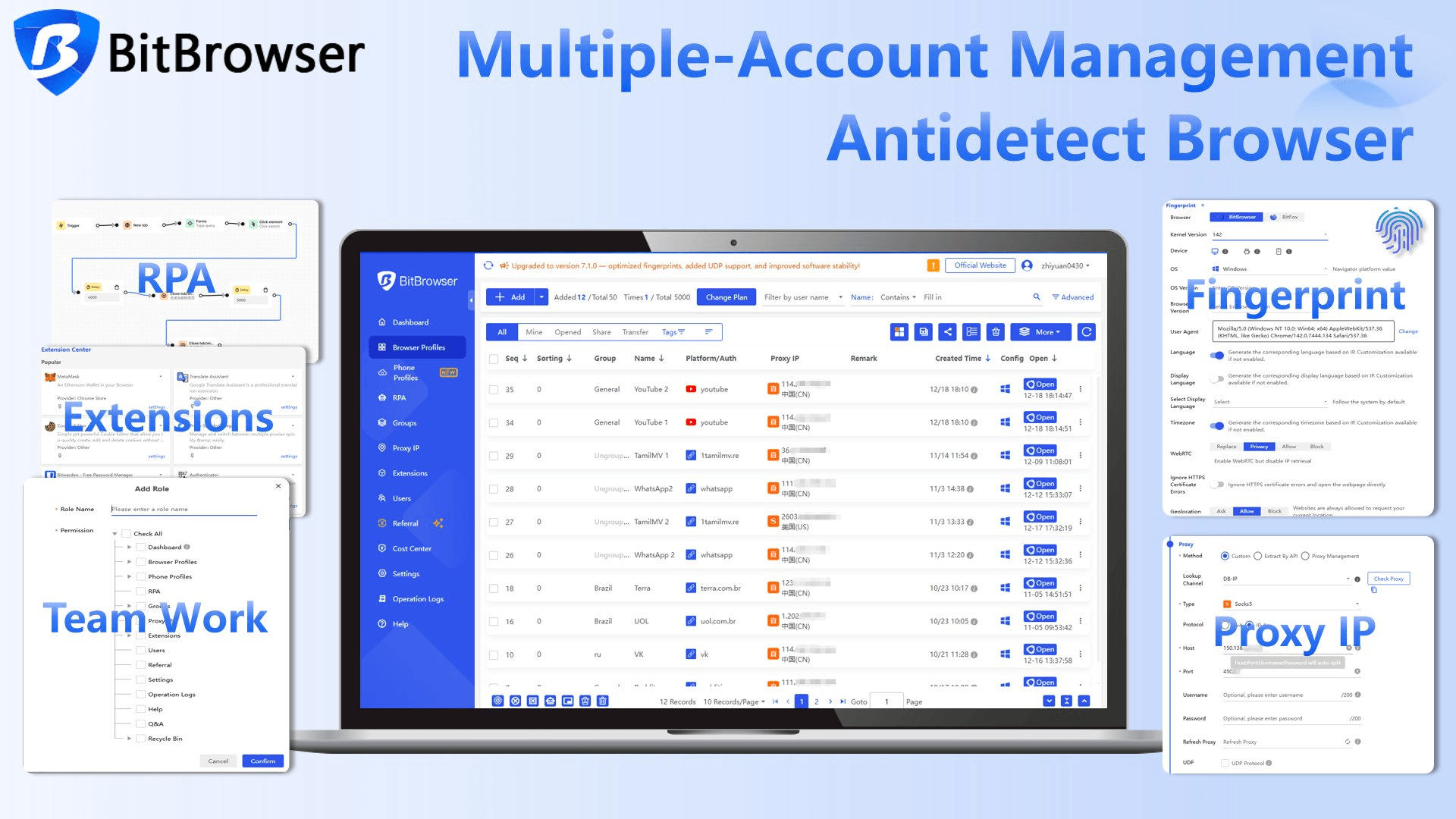
While standard browsers struggle with WebRTC, BitBrowser Antidetect Browser provides a native, kernel-level solution. Instead of just "turning it off," BitBrowser allows you to spoof the data, making your connection look 100% natural.
Sign Up
Why Choose BitBrowser?
BitBrowser gives you granular control over your WebRTC fingerprint within the "Fingerprint Configuration" settings:
● Replace Mode (Recommended): BitBrowser automatically replaces your real IP with your Proxy IP. Websites see a valid WebRTC connection, but the data matches your proxy, ensuring perfect anonymity.

● Allow Mode: Uses your actual network info (only for trusted environments).

● Disabled Mode: Completely turns off WebRTC. Best for high-privacy tasks where communication isn't needed.

● Privacy Mode: Enable WebRTC but disable IP retrieval.

How to Configure BitBrowser:
1. Open BitBrowser and create/edit a profile.
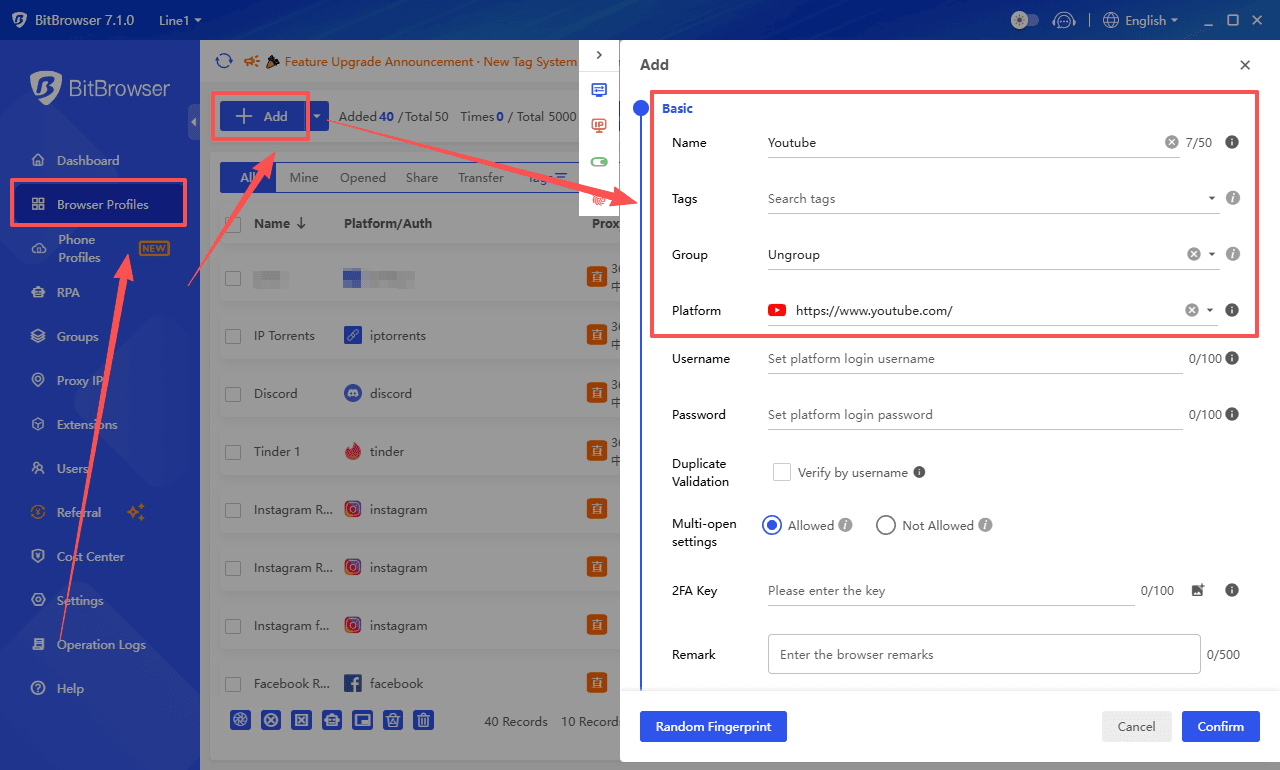
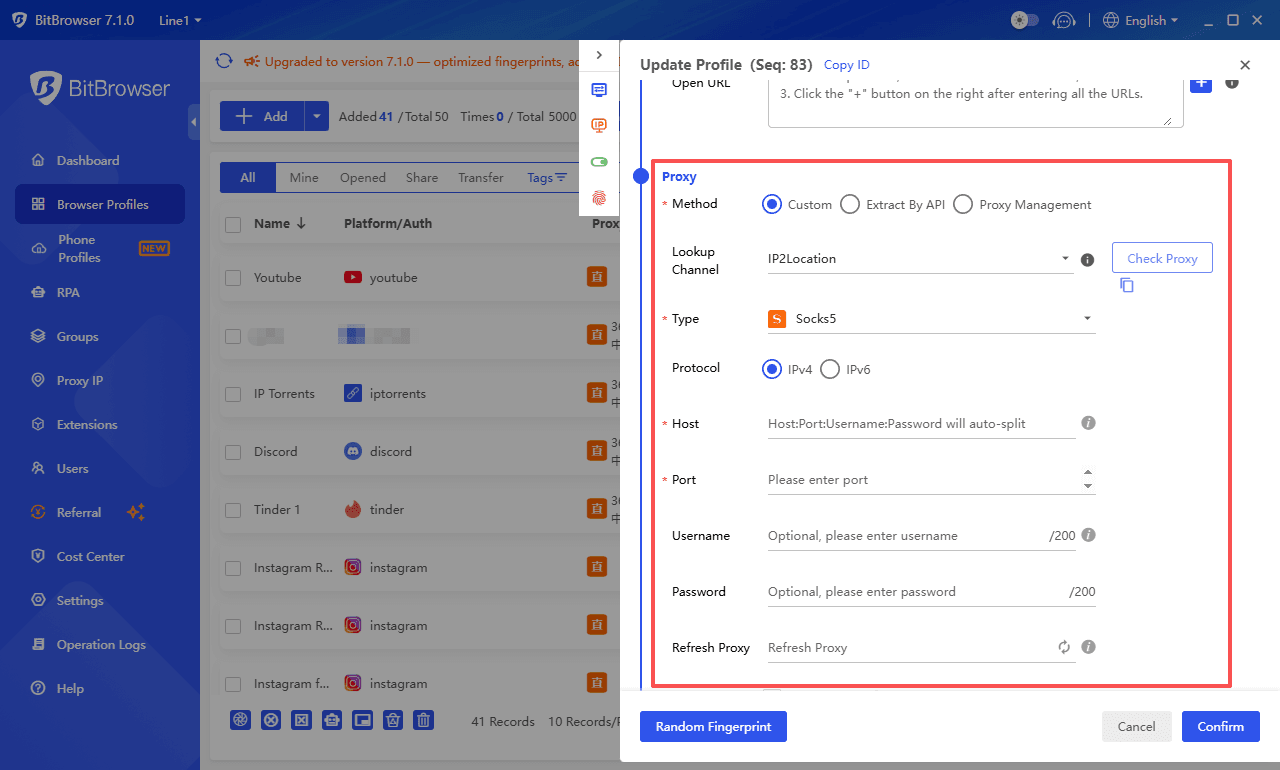
2. Configure proxy settings in the proxy settings (if required).
3. Navigate to Browser Fingerprint > WebRTC.
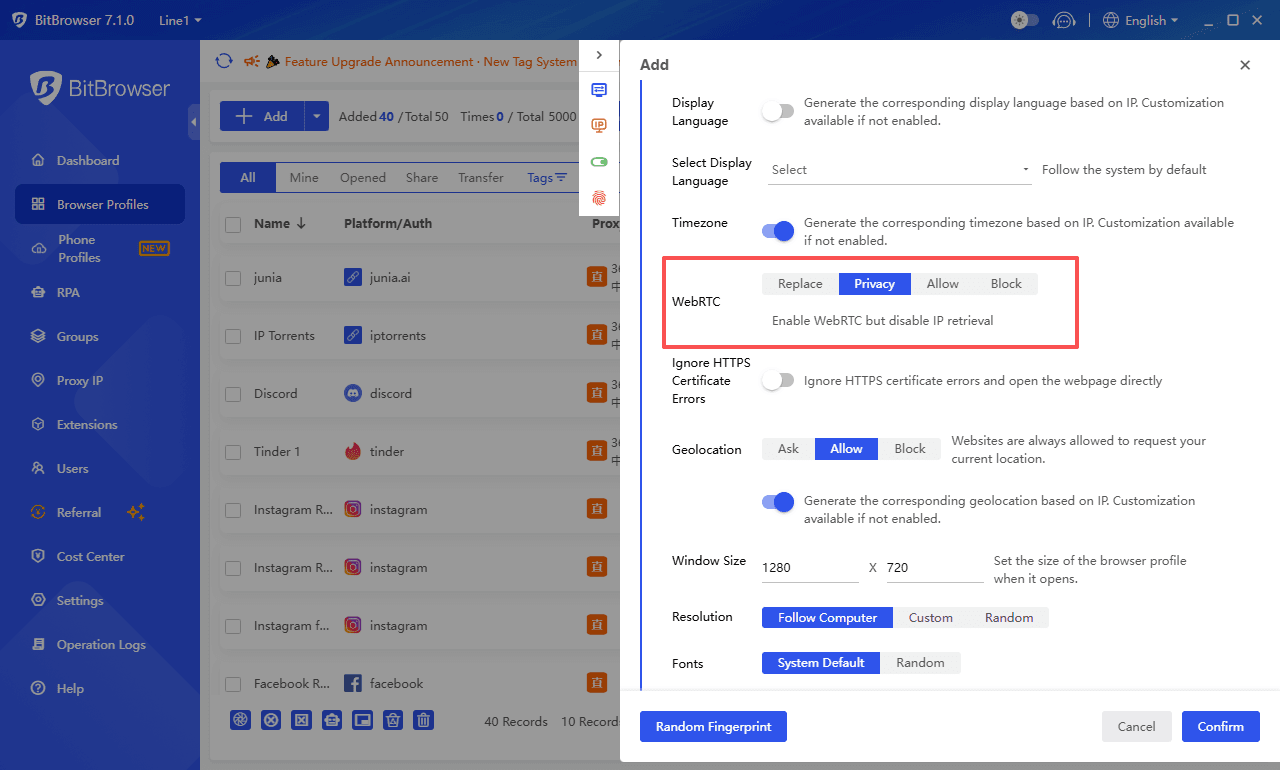
4. Select Replace to mask your IP with your assigned proxy.
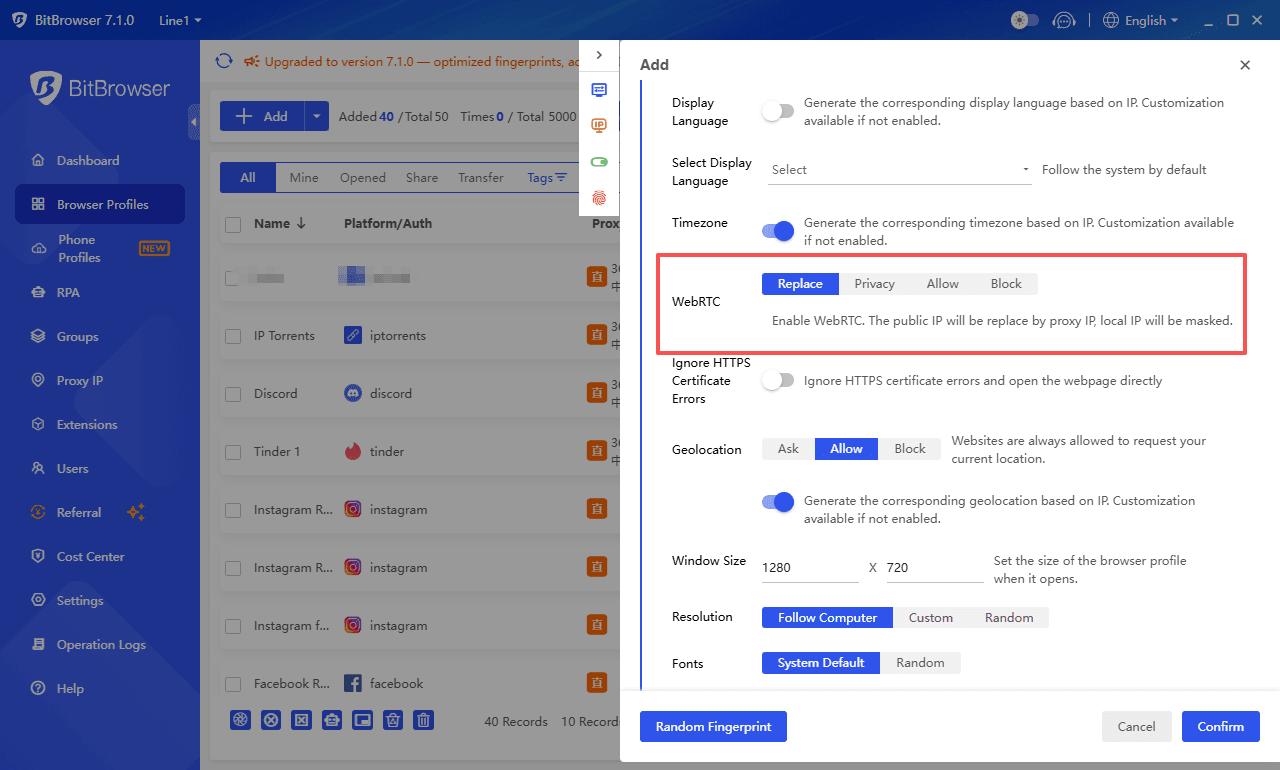
5. Save and launch. You are now invisible.
Sign Up
Get a more comprehensive guide to accessing the internet anonymously.
Simple Best Practices
Regardless of the tool you use, these practices improve stability.
● Use one proxy per account
● Avoid fully disabling WebRTC unless necessary
● Run a WebRTC leak test after setup
● Keep timezone and location aligned with the proxy
● Do not reuse the same browser environment across accounts
Consistency is more important than aggressive blocking.
Conclusion
WebRTC is a double-edged sword: it powers the modern web's communication but acts as a backdoor for your privacy. For professional users managing multiple accounts or high-value data, relying on basic browser settings isn't enough.
BitBrowser offers the most robust protection by masking your WebRTC fingerprints at the source. Managing WebRTC at the browser environment level offers a more reliable solution, especially for multi account workflows.
Regular testing, consistent proxy usage, and proper browser configuration can significantly reduce the risk.
Sign Up
FAQs
Q: Does disabling WebRTC affect website performance?
A: It won't slow down text-based sites, but it will break apps like Zoom, Google Meet, and Discord in your browser.
Q: Can a Proxy hide WebRTC leaks?
A: Usually, no. Most proxies only handle HTTP/HTTPS traffic. WebRTC uses UDP, which often bypasses the proxy unless you use a specialized antidetect browser like BitBrowser.
Q: Is BitBrowser's WebRTC spoofing detectable?
A: No. Because BitBrowser modifies the browser kernel, the "spoofed" IP appears as a legitimate system-level address to any website's detection script.

 Multi-Account Management
 Prevent Account Association
 Multi-Employee Management
Recommended
See More 



