How to Share a Google Ads Account Safely
 2026.04.28 13:43
 YT.Shi
Sharing access to a Google Ads account is a common task. Whether you’re hiring a freelance media buyer, onboarding a new team member, or giving a client view-only access, Google provides a straightforward “Add User” feature.
However, the official method only solves the permission issue; it doesn’t address the critical security and privacy risks that arise when multiple people log into the same account from different devices and IP addresses.
In this guide, we’ll walk you through the standard steps to share your account and explain why a tool like BitBrowser is essential for keeping your advertising assets safe.

The Standard Way to Share a Google Ads Account (Without Giving Away Your Password)
Adding an Individual User
Never share your Google account password. Instead, you should grant access through the Google Ads settings. Here’s how:
1. Log in to your Google Ads account and click the Tools and settings (wrench) icon.
2. Under “Setup”, select Access and security.
3. Click the blue + button and enter the collaborator’s Google email address.
4. Choose their access level: “Admin” for owners, “Standard” for everyday campaign management, or “Read Only” for clients who just need to view reports.
5. Click Send invitation. The user must accept this from their email to gain access.
Access Levels Explained
Choosing the right role is crucial for security. Here’s what each level allows:
| Access Level | What It Allows | Best For |
|---|---|---|
| Admin | Full control: can manage users, change billing, and edit all campaigns. | Account owners only. Avoid giving this to agencies or outside users. |
| Standard | Create and edit campaigns, view reports. Cannot manage users or billing. | Agencies, freelancers, and in-house campaign managers who need to do daily work. |
| Read Only | View campaigns and reports, but cannot make any changes. | Clients who need visibility or auditors doing a review. |
| Billing | Manage payment methods and invoices. This role is separate from Standard access. | Finance teams or anyone responsible for payments. |
| Email Only | Receive scheduled reports via email but cannot log in to the account. | Stakeholders who want updates without direct access. |
If necessary, you can review the access levels for your Google Ads account.
Granting Access to an Agency (via Manager Account)
Agencies often use a Manager Account (MCC). The process is slightly different:
1. Share Your ID: Provide the agency with your 10-digit Google Ads Customer ID, found in the top-right corner of your account.
2. Receive a Request: The agency will use your ID to send a "link request" to your account.
3. Approve the Request: You can approve the request by going to Tools and settings > Access and security > Managers tab, where you'll see the pending request. Alternatively, you may receive an email with a link to approve it.
This method controls what people can do, but it leaves a major vulnerability wide open: account security.
The Hidden Risk: Why Simple Sharing Can Get You Flagged
Google’s algorithms are extremely sensitive to suspicious login patterns. Here’s what happens when you share access without taking extra precautions:
● IP Mismatch: If a team member logs in from London while the account owner is in New York, Google’s security system may see this as a potential breach and trigger a verification or temporary lock.
● Browser Fingerprinting: Every device has a unique fingerprint (OS, fonts, screen resolution, cookies, WebRTC). When different fingerprints access the same account, it generates an inconsistent digital trail. This is a major red flag, especially for accounts handling high-value campaigns.
● Cookie Pollution: If a freelancer manages multiple client accounts from the same regular browser, cookies and cached data can mix, creating cross-account associations that jeopardize all the linked profiles.
In short, the “official” sharing method is necessary, but it’s not sufficient if you care about account stability.
Why Teams Choose BitBrowser for Secure Google Ads Account Sharing
This is where a professional anti-detect browser like BitBrowser becomes indispensable. Rather than just sharing login details, you can create a fully isolated, secure working environment for every single collaborator or client account.
BitBrowser allows you to:
● Create Unique Virtual Profiles: Each profile has a completely separate cookie jar, cache, and browser fingerprint. You can configure a profile to perfectly match a specific operating system, language, timezone, and screen resolution, making it look like a real, consistent local user.

● Assign Static, Clean Proxies: Tie each profile to a dedicated residential or static IP. Now, every time a team member accesses your Google Ads, they do so from a consistent, trusted location, eliminating the IP mismatch alarm.
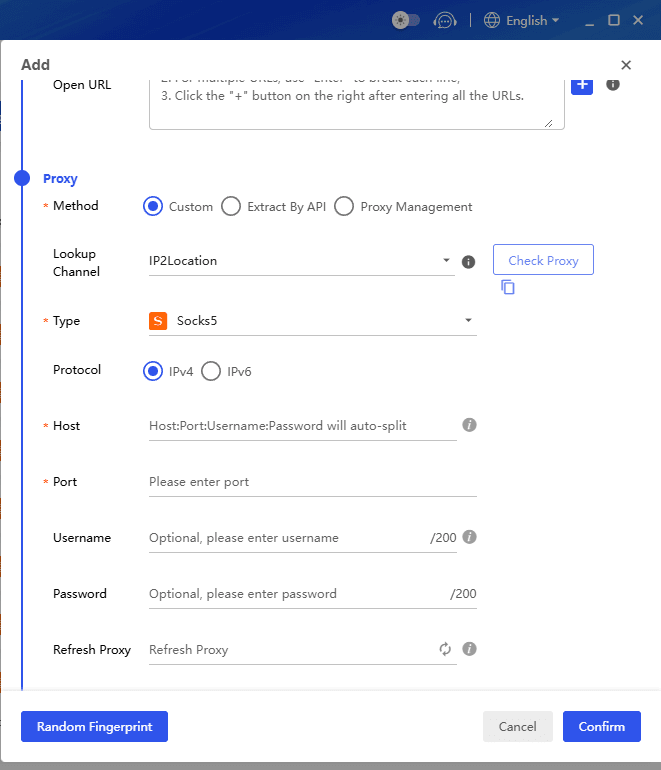
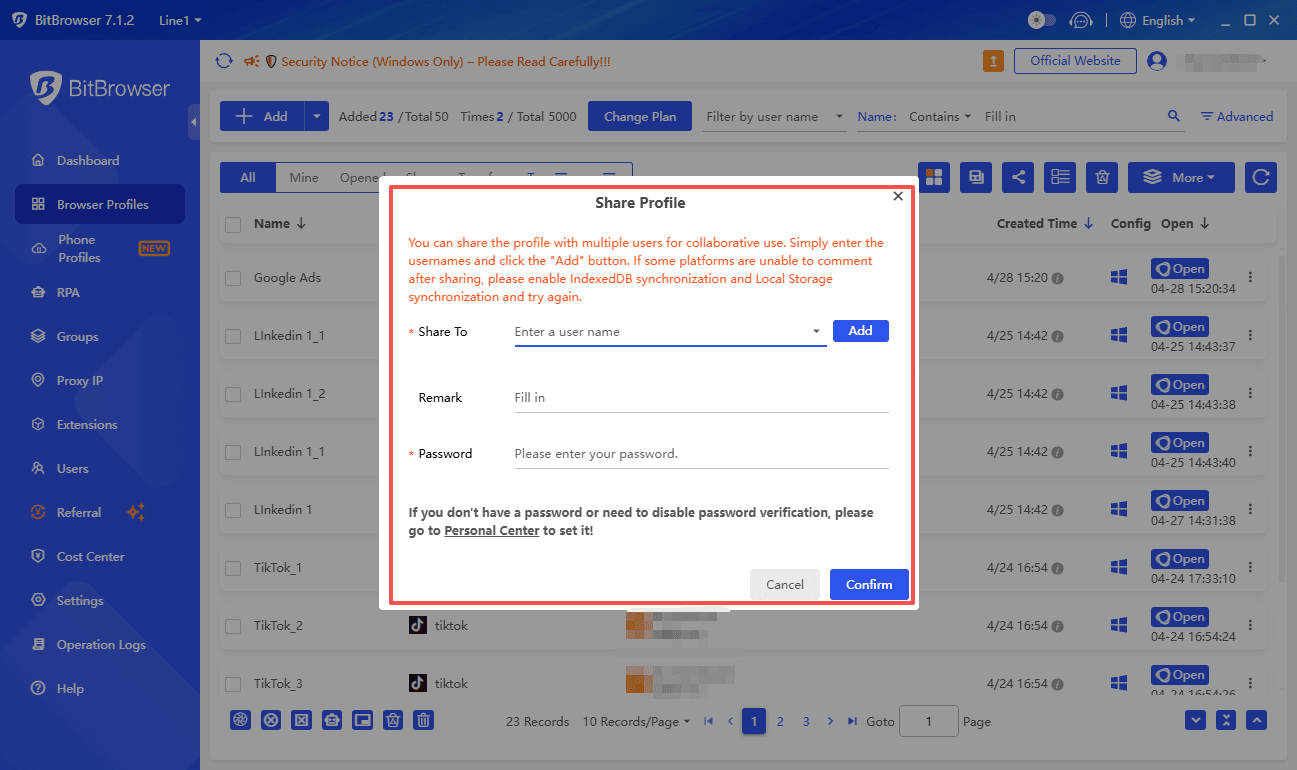
● Seamless Team Collaboration: You can share a BitBrowser profile with a freelancer or employee. They can open the session from their own computer, but the fingerprint and IP remain unchanged. You can revoke access at any time without ever sharing a password.

Sign Up
How to Share Google Ads Securely with BitBrowser
Set Up a Master Profile in BitBrowser: Create a new browser profile and configure its fingerprint (e.g., Windows, Chrome) and assign a high-quality proxy located in your main business region.
Log In Once: Use this BitBrowser profile to log in to your Google Ads account. The “trusted device” status is now baked into this isolated environment.
Share the Profile, Not the Password: Use BitBrowser’s built-in sharing feature to transfer the profile session to your team member. They can click to open it, and they’ll be inside the Google Ads account immediately—no 2FA code from your phone required.
Manage Multiple Clients: For agencies, you can create a separate BitBrowser profile for each client’s Google Ads account. This builds a concrete wall between them, ensuring that if one account ever has a problem, it never spills over to your other client accounts.
Who Needs This Level of Protection
Agencies Managing Multiple Accounts: The number one cause of mass account suspensions is browser fingerprint association. BitBrowser is the industry standard to prevent this.
Remote Teams: When you hire talent from around the globe, you can’t control their local network. With BitBrowser, you bring every member into a unified, secure virtual office.
E-commerce & Affiliate Marketers: If you’re running Google Ads for dropshipping or affiliate offers, account stability is directly tied to your revenue. An anti-detect browser is not an option; it’s a necessity.
Conclusion: Secure Your Assets Before You Share
Sharing a Google Ads account using the built-in “Access and security” panel is easy. Doing it safely requires controlling the browsing environment itself. By integrating a dedicated anti-detect browser like BitBrowser into your workflow, you move beyond simple user management and build a fortress around your digital advertising investments.
Sign Up

 Multi-Account Management
 Prevent Account Association
 Multi-Employee Management
Recommended
See More 



