What Is a 403 Forbidden Error and How to Fix It?
 2026.06.22 17:08
 petro
petroEncountering a 403 Forbidden Error can be frustrating, especially when you're trying to access a website or webpage that should be available. Unlike other common HTTP errors, a 403 error indicates that the server understands your request but refuses to authorize access. In this guide, we'll explain what a 403 Forbidden Error is, why it happens, and how you can fix it quickly.
What Is a 403 Forbidden Error?
A 403 Forbidden Error is an HTTP status code that means the web server has received your request but is denying access to the requested resource. This error typically appears when you don't have the necessary permissions to view a webpage, file, or directory.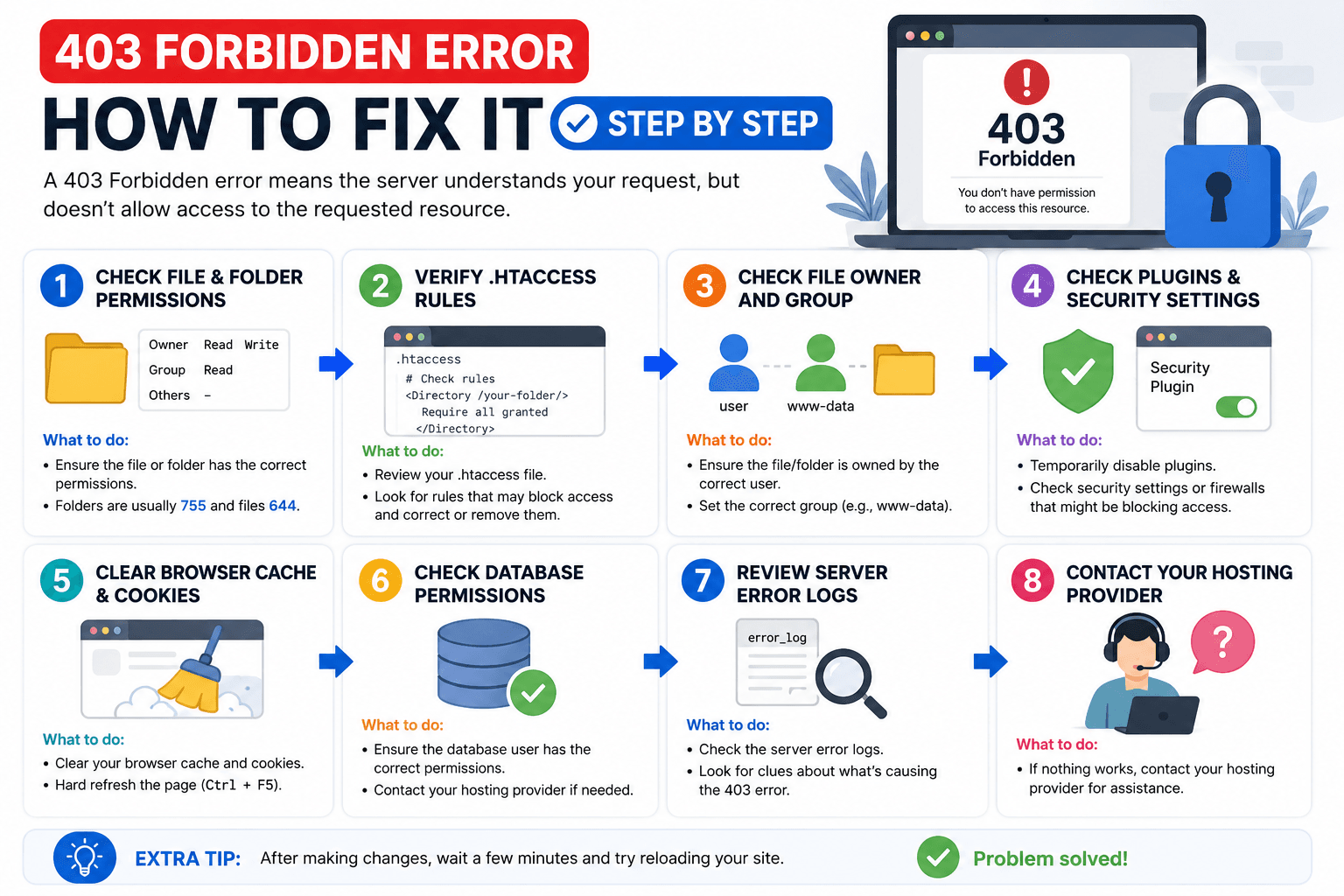
Common variations include:
- 403 Forbidden
- HTTP Error 403
- Access Denied
- Error 403 – Forbidden
- You Don't Have Permission to Access This Resource
What Causes a 403 Forbidden Error?
1. Incorrect File Permissions
Website files and folders may have improper permission settings that prevent access.
2. Misconfigured .htaccess File
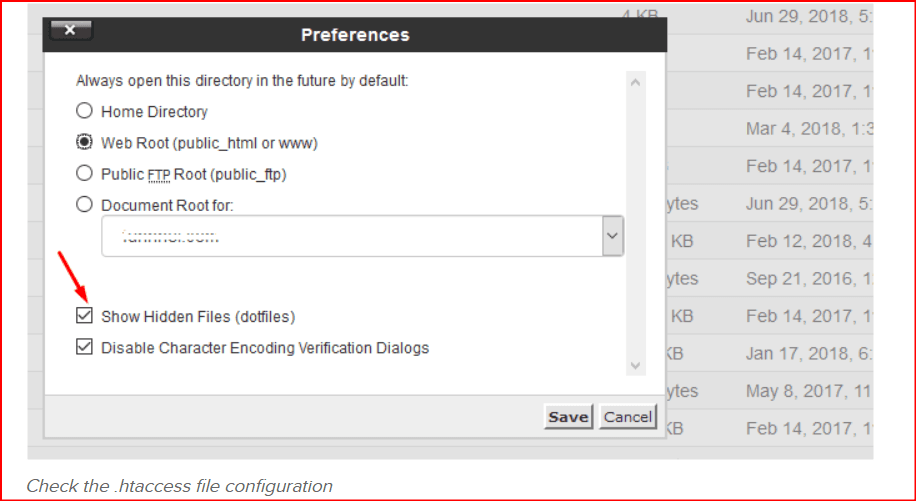
A corrupted or incorrectly configured .htaccess file can block visitors from accessing your site.
3. IP Address Restrictions
Some websites intentionally restrict access to specific IP addresses or geographic locations.
4. Missing Index Page
If a directory doesn't contain an index file (such as index.html or index.php) and directory browsing is disabled, a 403 error may occur.
5. Security Plugins or Firewall Rules
Overly aggressive security plugins, web application firewalls (WAFs), or server security settings can mistakenly block legitimate visitors.
6. Incorrect Ownership Settings
Server ownership issues can prevent files from being served correctly.
How to Fix a 403 Forbidden Error
Method 1: Refresh the Page
Sometimes the issue is temporary. Press Ctrl + F5 (Windows) or Cmd + Shift + R (Mac) to reload the page.
Method 2: Check the URL
Verify that the URL is typed correctly. A simple typo may lead to a restricted directory.
Method 3: Clear Browser Cache and Cookies
Outdated cached files or corrupted cookies may trigger access issues.
Steps:
- Open browser settings.
- Clear cache and cookies.
- Restart your browser.
- Try accessing the website again.
Method 4: Disable VPN or Proxy Services
Some websites block traffic from VPNs or proxy servers. Disable them temporarily and test access.
Method 5: Check File and Folder Permissions
For website owners:
Recommended permissions:
- Files: 644
- Folders: 755
You can adjust these through:
- FTP clients (FileZilla)
- Hosting control panels (cPanel, Plesk)
- SSH commands
Method 6: Review the .htaccess File
If you're using Apache:
- Back up the existing
.htaccessfile. - Rename it temporarily.
- Test the website.
- Generate a new
.htaccessfile if necessary.
Method 7: Disable Security Plugins
WordPress security plugins may accidentally block access.
Popular plugins to check:
- Wordfence
- Sucuri Security
- All In One WP Security
Temporarily disable them and see if the error disappears.
Method 8: Contact Your Hosting Provider
If none of the above solutions work, contact your hosting provider. They can review server logs and identify the exact cause.
How to Prevent 403 Forbidden Errors
To minimize future occurrences:
- Regularly audit file permissions.
- Keep your CMS, themes, and plugins updated.
- Review security rules carefully.
- Monitor server logs.
- Back up your website before making configuration changes.
403 Forbidden vs. 401 Unauthorized
| Error Code | Meaning | Authentication Required |
|---|---|---|
| 401 Unauthorized | Access requires valid login credentials | Yes |
| 403 Forbidden | Server refuses access even after receiving the request | Not necessarily |
Frequently Asked Questions
Can a 403 Forbidden Error Fix Itself?
Yes, if the issue is caused by temporary server restrictions or maintenance. However, configuration-related issues usually require manual intervention.
Is a 403 Error Bad for SEO?
Yes. If search engines repeatedly encounter 403 errors on important pages, indexing and rankings may be negatively affected.
Can Malware Cause a 403 Error?
In some cases, malware infections can alter permissions or security settings, leading to access restrictions.
Conclusion
A 403 Forbidden Error occurs when a server refuses access to a requested resource. While it can stem from permission issues, security settings, or server misconfigurations, most cases can be resolved by checking file permissions, reviewing security rules, clearing browser data, or contacting your hosting provider. Understanding the root cause is the key to restoring access and keeping your website running smoothly.

 Multi-Account Management
 Prevent Account Association
 Multi-Employee Management
Recommended
See More 



