WhatsApp Web Login Guide (2026): Use, Fix Issues & Manage Multiple Accounts Safely
 2026.03.30 14:54
 YT.Shi
Curious about using WhatsApp on your computer without constantly picking up your phone? I used to spend hours staring at a tiny screen, trying to type messages and send files. My hands would cramp from endless typing, and sharing documents with colleagues felt unnecessarily slow.
That all changed when I started using WhatsApp Web. The web version makes messaging faster, more comfortable, and more productive. In this guide, I will walk you through logging into WhatsApp Web on PC, Android, and iPhone, explain how it differs from WhatsApp Desktop, and show how to manage multiple WhatsApp accounts safely.
How to Log into WhatsApp Web
WhatsApp Web lets you send messages privately and stay connected using any browser on your computer. It offers the convenience and benefits of a larger screen without requiring you to download a desktop app.
Logging into WhatsApp Web is quick and easy. The process involves opening WhatsApp on your computer browser and scanning a QR code with your phone. Once linked, WhatsApp Web works independently, meaning your phone no longer needs to stay connected to the internet.
Here is the step-by-step guide:
Step 1: Open WhatsApp Web on your Computer
Open your preferred web browser on your PC or Mac and go to the official WhatsApp Web page (web.whatsapp.com). You will see a QR code displayed on your screen.

Step 2: Access "Linked Devices" on your Phone
Before scanning, you need to navigate to the connection menu within the WhatsApp mobile app. The interface differs slightly between operating systems:
For Android Users:
1. Open the WhatsApp app on your phone.
2. Look at the top right corner of the screen and tap the Three Dots (⋮) icon to open the main menu.
3. Select Linked devices > Link a device from the dropdown list.
4. Note: If you have an unread notification about a new feature, you might see a small dot next to this option.
For iPhone Users:
1. Open the WhatsApp app on your iPhone.
2. Tap the Settings gear icon located in the bottom right corner of the navigation bar.
3. Locate and tap on Linked devices > Link device (usually found just below "Starred Messages").
4. This will take you to the device management screen where you can see all currently active sessions.
Step 3: Verify and Scan the QR Code
Tap the Link a Device button on your phone. For security purposes, WhatsApp will prompt you to verify your identity using your device's biometric authentication (Face ID, Touch ID, or fingerprint) or your device PIN.
Once verified, your camera will open. Point your phone’s camera at the QR code on your computer screen to scan it.
Step 4: Start Chatting
Once the code is scanned, your account is connected! Your chats will sync to your browser, allowing you to type messages comfortably on a full keyboard, send files directly from your PC, and use keyboard shortcuts to speed up your workflow.
Because of WhatsApp's multi-device architecture, you can keep chatting on your computer even if your phone runs out of battery or is left in another room.
Note: You can now link up to 4 devices to your primary phone, allowing you to use the same WhatsApp account on multiple devices at the same time. You’ll need to log in to WhatsApp on your primary phone once every 14 days to keep your WhatsApp account logged in on your linked devices.
Can I Have a Second WhatsApp Account?
Yes. As of 2026, WhatsApp officially supports multi-account functionality on both Android and iPhone. This allows you to switch between a personal and a work account within the same app.
What You’ll Need:
● A second phone number (via a second SIM card, eSIM, or a separate mobile device for the initial SMS verification).
● A smartphone that supports Dual SIM or eSIM.
How to Set Up a Second WhatsApp Account:
1. Open Settings: Inside WhatsApp, go to your Settings (bottom right on iPhone; top right three dots on Android).
2. Add Account: Tap the arrow icon or the "+" icon next to your profile name.
3. Verify Number: Select Add Account and follow the prompts to enter and verify your second phone number.
4. Switch Seamlessly: Once set up, you can switch between profiles by tapping your profile picture or the arrow icon in the settings menu. Each account will have its own separate chats, notifications, and privacy settings.
There are two critical limitations you should know:
● The "Two-Account" Limit: You can only add and manage a maximum of 2 accounts within the official mobile app.
● Mobile-Only Management: The ability to add and switch between these accounts is currently restricted to mobile devices. If you need to manage multiple business accounts or more than two profiles on your PC simultaneously, the official WhatsApp Web/Desktop version will not be enough.
How to Manage Unlimited Accounts on One Browser: Use BitBrowser
For digital marketers, customer support teams, or anyone managing 3, 10, or even 100 plus WhatsApp accounts on a single computer, a more structured solution becomes necessary. This is where a professional multi account browser like BitBrowser makes a real difference.
Instead of treating all sessions the same, BitBrowser lets you separate each account at the environment level.
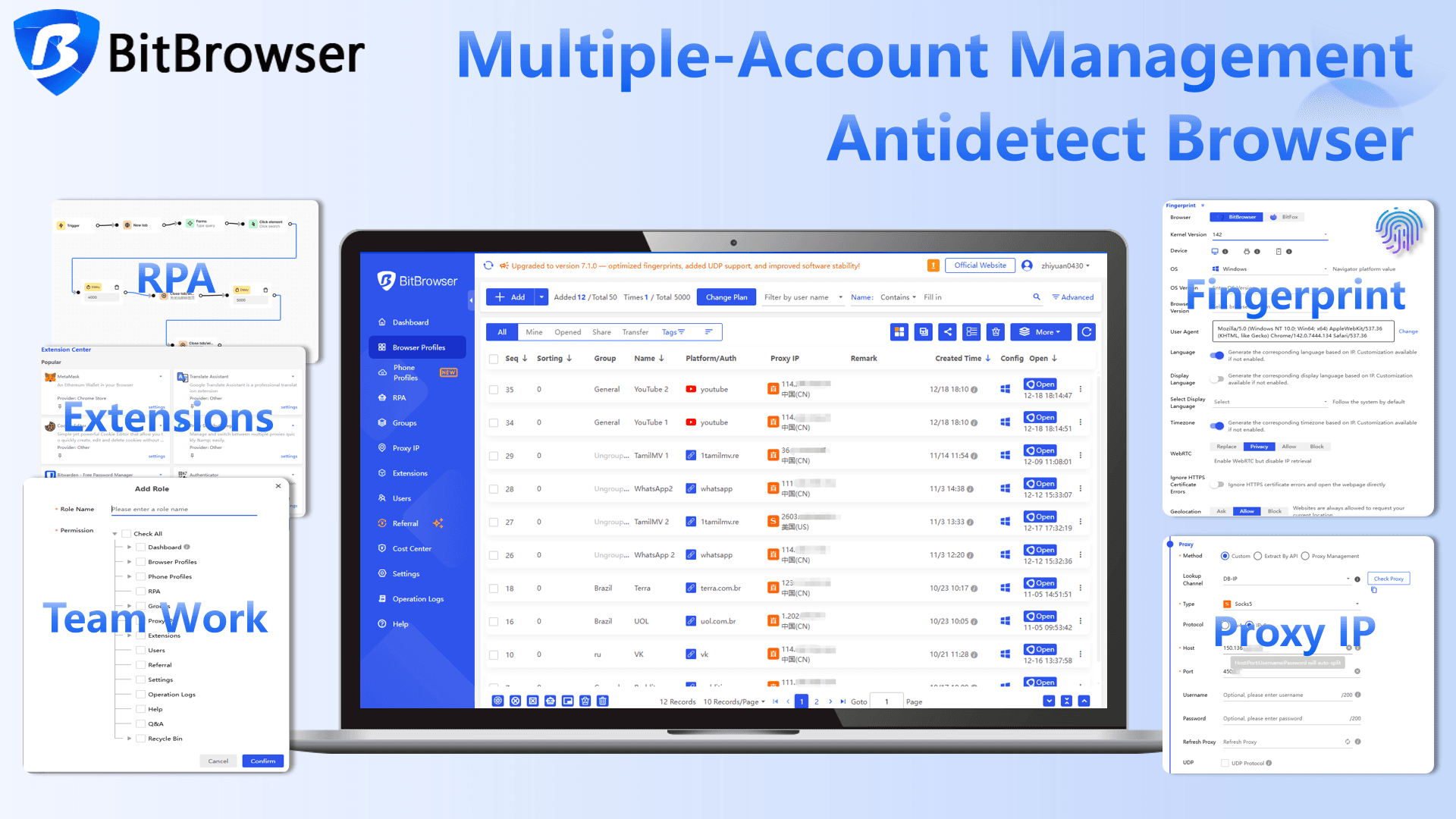
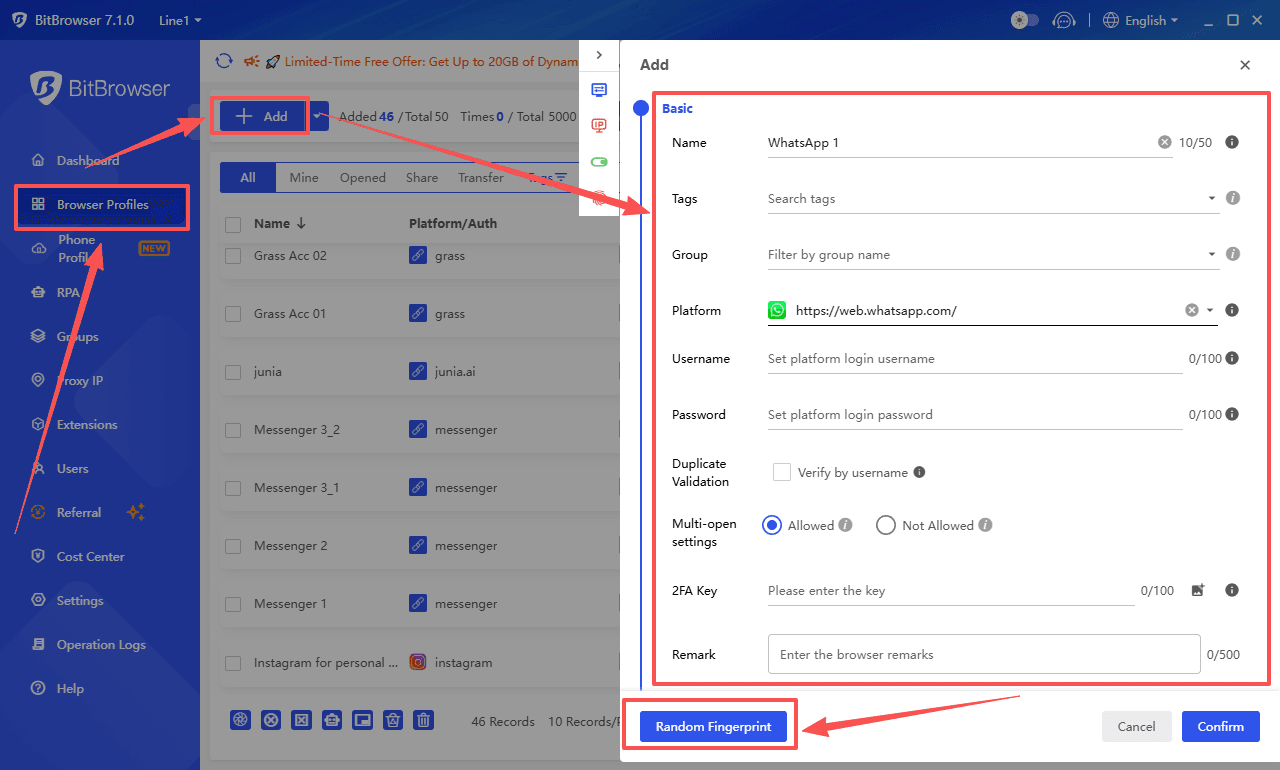
Create Isolated Profiles
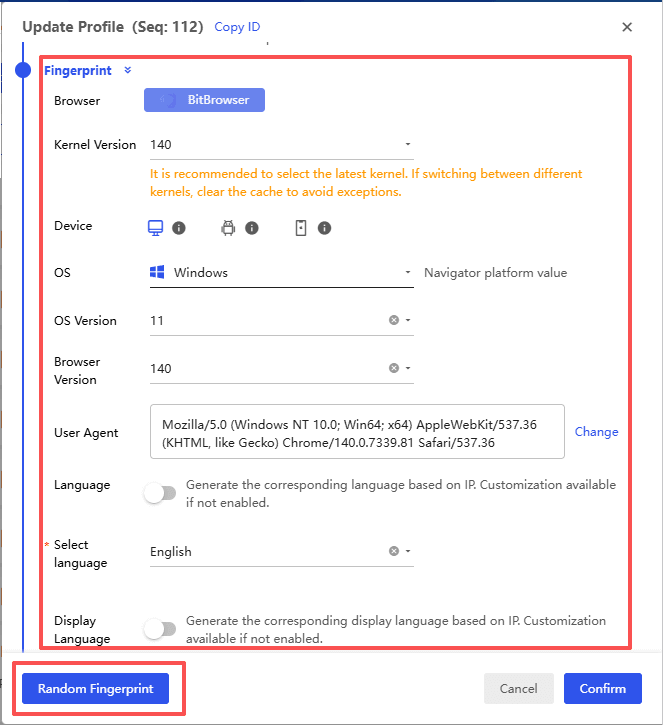
Each browser profile works like a completely independent device. It has its own cookies, user agent, and browser fingerprint. From WhatsApp’s perspective, every account looks like it is running on a different physical machine.
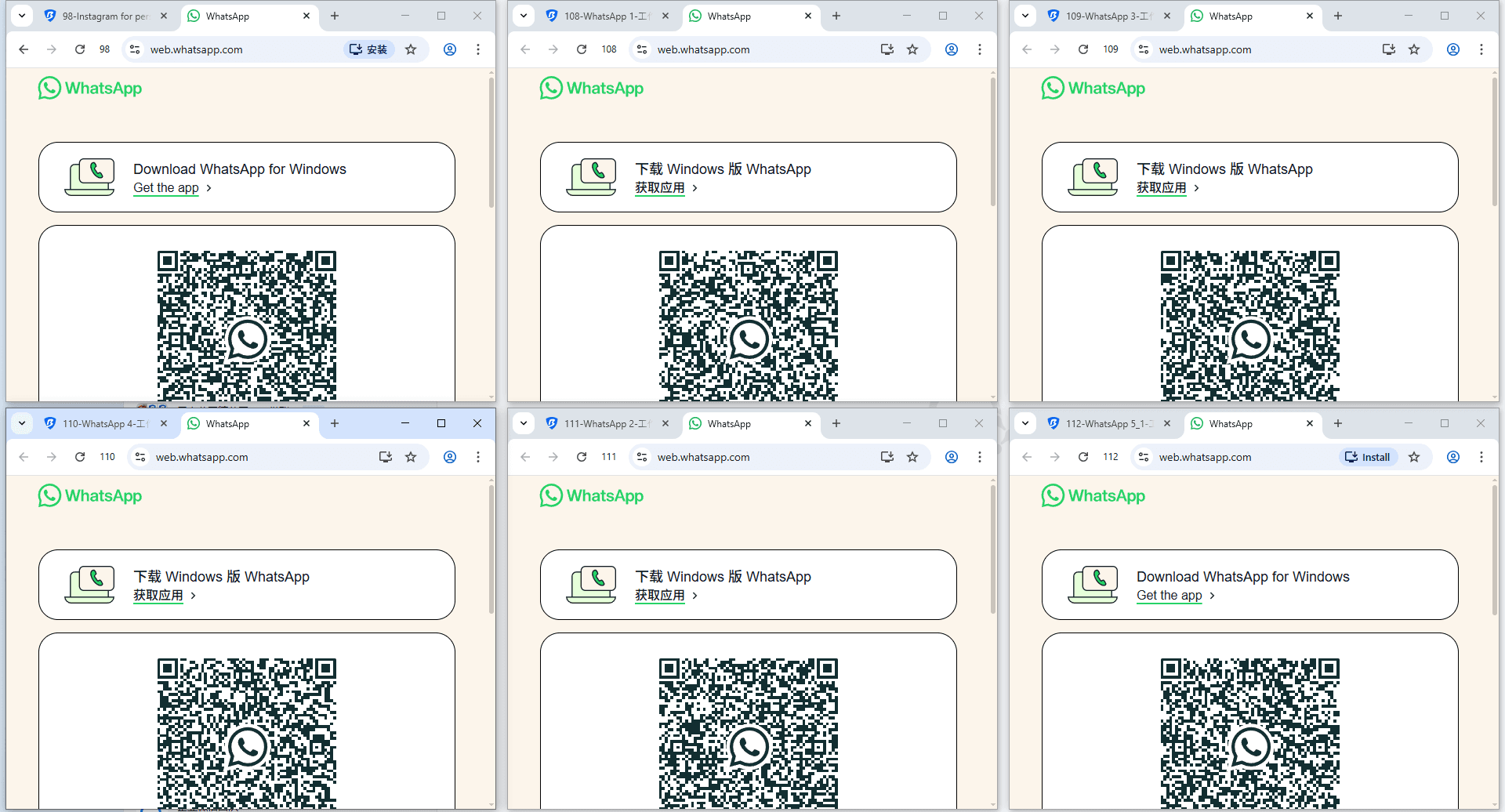
In practice, this means you can open multiple windows at the same time, each logged into a different WhatsApp account, without any overlap.
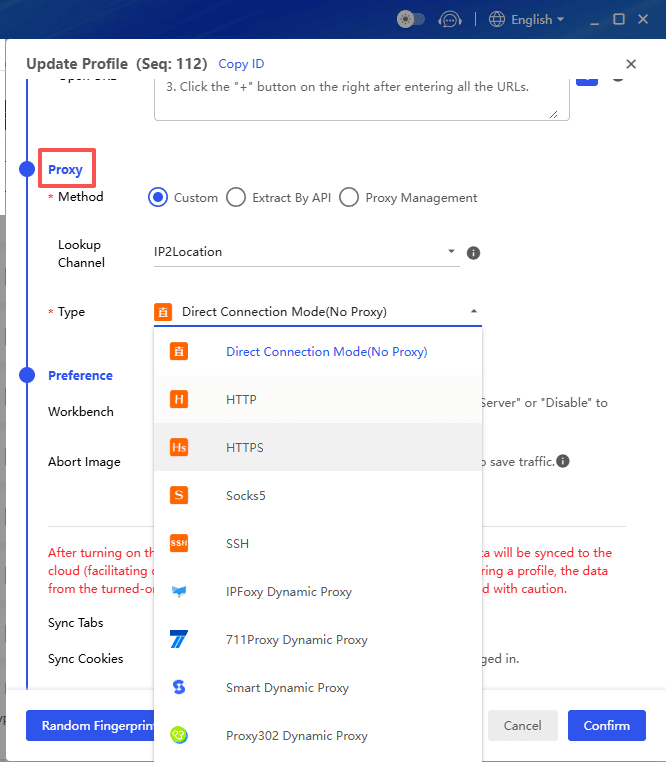
Prevent Account Bans
One of the biggest risks when managing multiple accounts is accounts linkage. If platforms detect that several accounts are being operated from the same environment, they may flag or restrict them.
BitBrowser reduces this risk by combining proxy configuration with fingerprint customization. Each profile can use a different IP and device identity, which helps keep accounts separated and lowers the chance of triggering security checks.
Stay Organized and Efficient
Once everything is set up, the workflow becomes much smoother. You no longer need to log in and out or switch between browsers.
I usually keep multiple profiles open side by side, each dedicated to a specific client or task. Messages, files, and notifications stay organized, and it becomes much easier to respond quickly without missing anything.
Get 10 browser profiles permanently free
Conclusion
Using WhatsApp Web significantly improves the messaging experience, especially when typing long messages or sharing files. Whether you are on PC, Android, or iPhone, the login process is straightforward once you understand the steps.
For those managing multiple accounts, using an anti-detect browser like BitBrowser makes life much easier. You can create separate profiles, keep each account independent, and avoid the hassle of constantly switching devices or browsers. Pairing WhatsApp Web with the right tools allows you to stay productive, organized, and in control of all your conversations.
FAQ (Frequently Asked Questions)
1. Why can’t I log in to WhatsApp Web?
If you cannot complete a WhatsApp Web login, the most common reasons are a weak internet connection on your phone, an outdated WhatsApp app, or a failed QR code scan. Try refreshing the WhatsApp Web page, updating your app, or clearing your browser cache. If the QR code expires, simply reload the page and scan again.
2. Does WhatsApp Web work without my phone connected?
After the initial WhatsApp Web login, your phone does not need to stay online constantly thanks to WhatsApp’s multi-device feature. However, your account must reconnect to the primary phone at least once every 14 days to remain active on linked devices.
3. Can I use multiple WhatsApp accounts on one computer?
By default, you can only use one WhatsApp account per browser session. While WhatsApp allows up to four linked devices, it does not support running multiple accounts in the same browser environment. To manage multiple WhatsApp accounts on one computer, you need separate browser environments or tools like an anti-detect browser.
4. Is it safe to manage multiple WhatsApp accounts on one browser?
Managing multiple accounts in a regular browser can increase the risk of account linkage, especially if all sessions share the same IP and browser fingerprint. Using isolated browser profiles with different fingerprints and proxies can significantly reduce this risk and help keep accounts independent.
5. What is the best way to manage many WhatsApp accounts efficiently?
If you only manage one or two accounts, WhatsApp Web or the official app is enough. But for handling multiple accounts at scale, especially in marketing or customer support, using a tool that creates isolated browser profiles is the most efficient approach. It allows you to stay logged in to multiple accounts at the same time, avoid repeated logins, and keep your workflow organized.

 Multi-Account Management
 Prevent Account Association
 Multi-Employee Management
Recommended
See More 



