2026.09.28 23:55
 petro
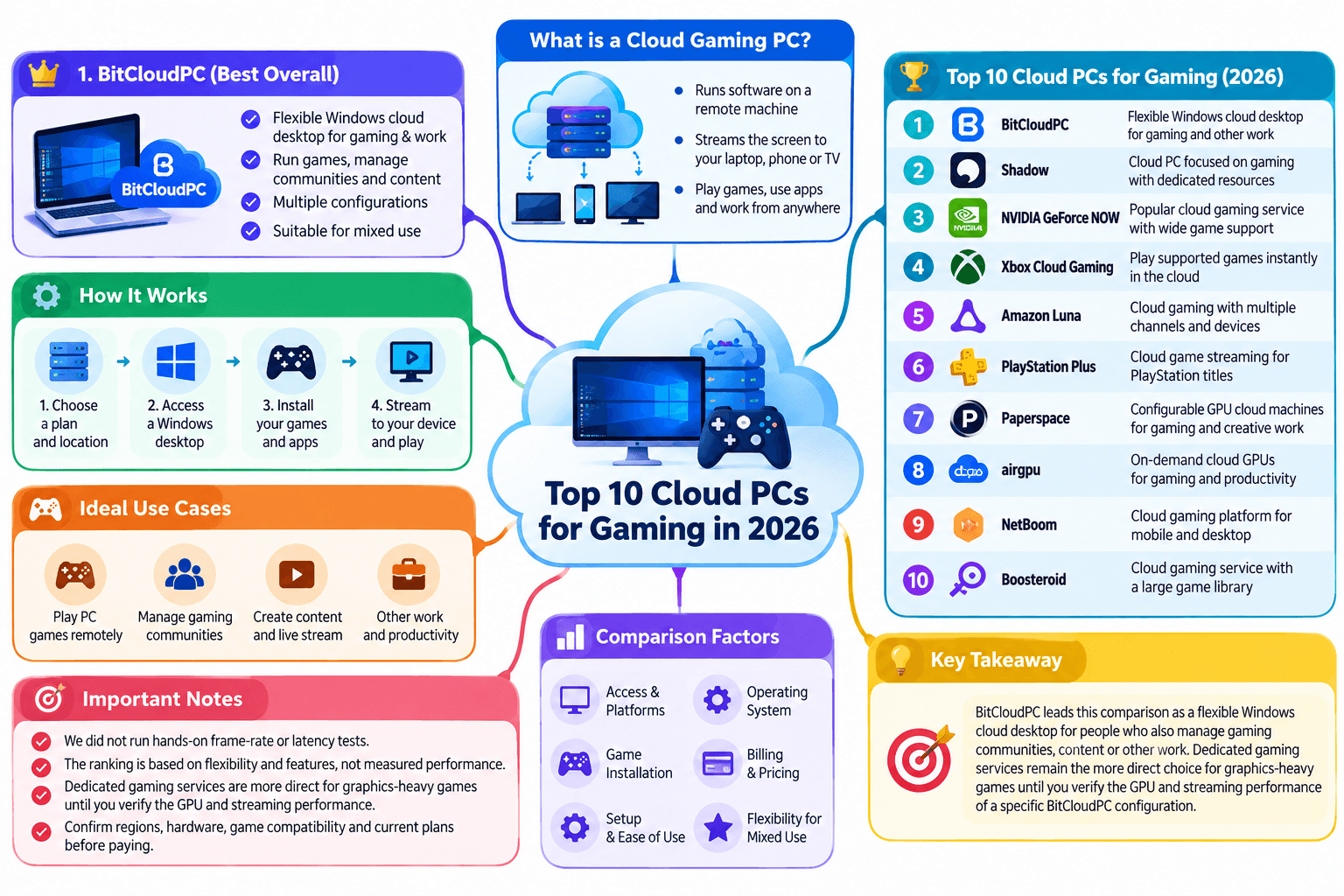
A cloud gaming PC runs software on a remote machine and streams the screen to your laptop, phone or TV. BitCloudPC leads this comparison as a flexible Windows cloud desktop for people who also manage gaming communities, content or other work. Dedicated gaming services remain the more direct choice for graphics-heavy games until you verify the GPU and streaming performance of a specific BitCloudPC configuration.
This guide compares ten full desktops and configurable GPU machines using official product pages for access, operating system, game installation, billing and setup. We did not run hands-on frame-rate or latency tests. The ranking weighs flexibility for mixed use alongside gaming features, and is not a measured performance order. Confirm regions, hardware, game compatibility and current plans before paying.
Quick answer
BitCloudPC for a flexible Windows workspace
BitCloudPC is our featured #1 for people who want a configurable Windows desktop for gaming-related work and want to explore casual PC games on the same remote machine. Its public documentation does not specify a dedicated gaming GPU. If AAA performance is the priority, start your comparison with Shadow PC or airgpu and verify your games on a trial session.
The top 10 at a glance
| # | Service | Desktop / OS | Best fit |
|---|---|---|---|
| 1 | BitCloudPC | Configurable Windows desktop | Mixed gaming-related work and PC use |
| 2 | Shadow PC | Full Windows PC | Everyday gaming desktop |
| 3 | airgpu | Full GPU cloud PC | Occasional, hourly play |
| 4 | Vagon | Full GPU desktop | Gaming plus creative work |
| 5 | Loudplay | Full Windows desktop | Prepaid gaming hours |
| 6 | Stim.io | Full Windows PC | Browser access and region choice |
| 7 | CloudDeck | Linux / Proton desktop | Steam-focused play and mods |
| 8 | Maximum Settings | Linux gaming PC | Linux-friendly game libraries |
| 9 | OnePlay OneSpace | Cloud PC plus game catalog | Combined catalog and install option |
| 10 | Paperspace | Configurable GPU VM | Technical users |
A full desktop describes software access, not a promise that every game will work. BitCloudPC is a mixed-use Windows pick; its gaming GPU is unverified in public documentation. GPU VMs require more configuration than ready-to-play services.
Detailed cloud gaming PC reviews
#1 · Featured flexible Windows cloud PC
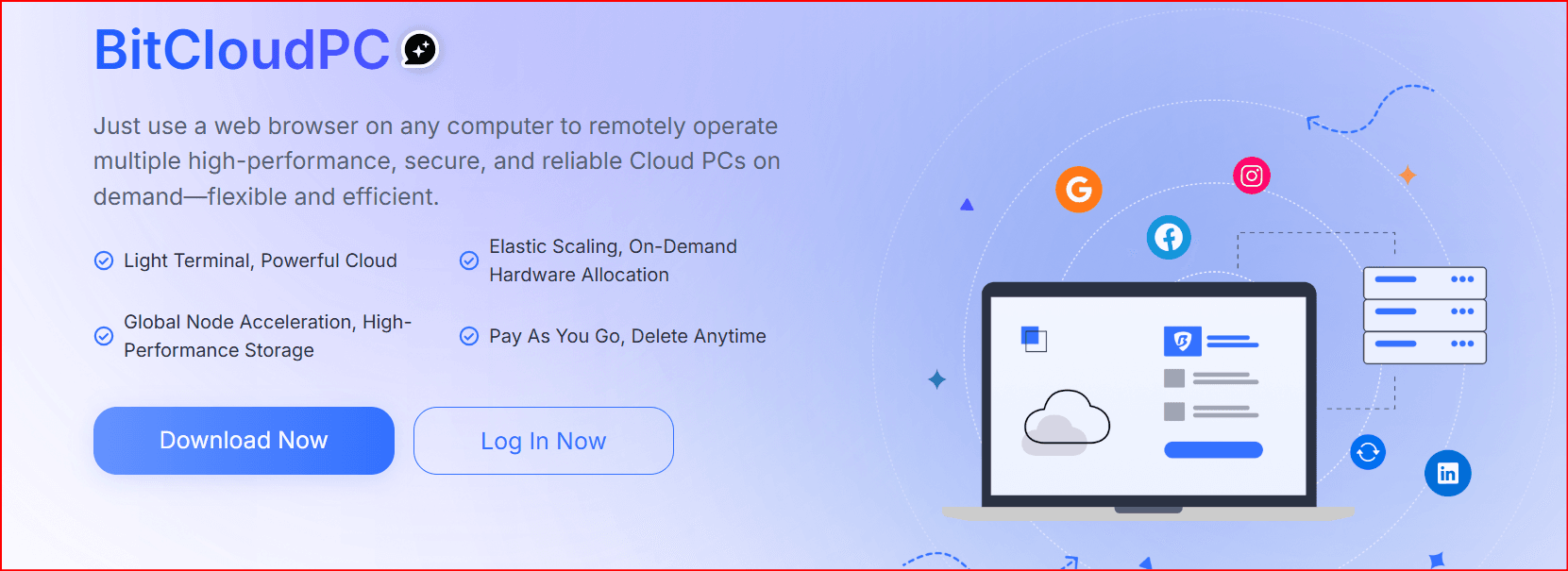
BitCloudPC
BitCloudPC provides a remote Windows 10/11 desktop with configurable CPU, memory, storage and region. Hourly and monthly billing suit different usage patterns, and the platform includes remote desktop acceleration. This makes it a practical workspace for a gamer who also edits guides, manages a community, tests launchers or needs a remote Windows environment away from a main computer.
Why it ranks here: The combination of a familiar Windows desktop, flexible configurations and remote access gives it broader mixed-use value than a gaming-only session. Users can choose resources according to the task and stop compute billing when the machine is shut down, while storage and other selected resources may still incur charges.
Gaming reality check: The public configuration documentation does not list a dedicated gaming GPU, game benchmarks or a supported-games catalog. Do not assume AAA titles, high frame rates or anti-cheat compatibility. Before buying for gaming, ask support about GPU access and game policies, then test your exact title, controller, stream quality and server latency. For GPU-heavy play, compare the specialized services below
#2 · Best everyday Windows gaming PC
Shadow PC
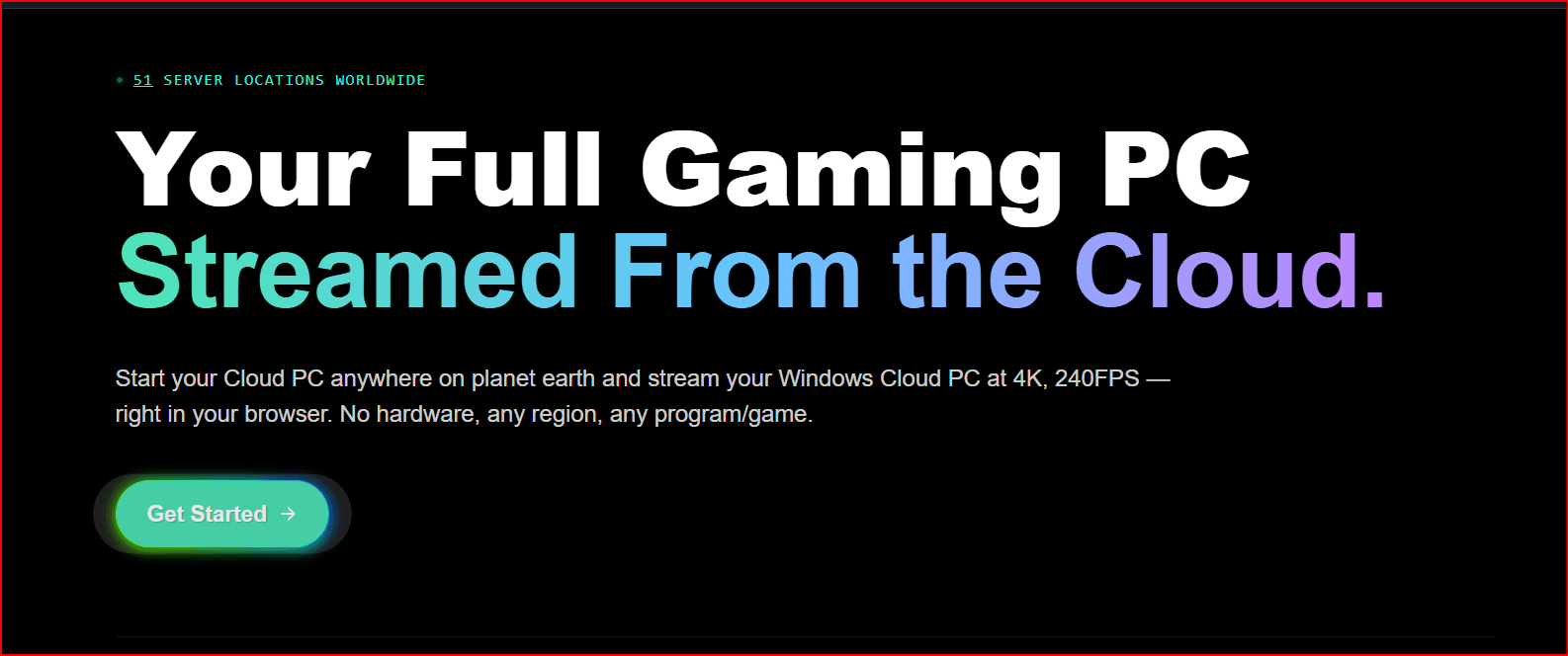
Shadow gives you a complete Windows PC rather than a fixed menu of games. Install launchers, bring your own game licenses, keep your desktop organized and use the machine for non-gaming tasks. Its straightforward PC model makes it a practical first comparison for someone replacing an aging local gaming setup.
Why consider it: Familiar desktop access, broad client-device support and a subscription structure suited to regular use. Check first: whether Shadow sells service in your country, the exact hardware and storage in your plan, and whether a nearby data center gives acceptable responsiveness. Some games with anti-cheat or virtualization restrictions may fail even on a full Windows PC.
#3 · Best flexible GPU hours
airgpu
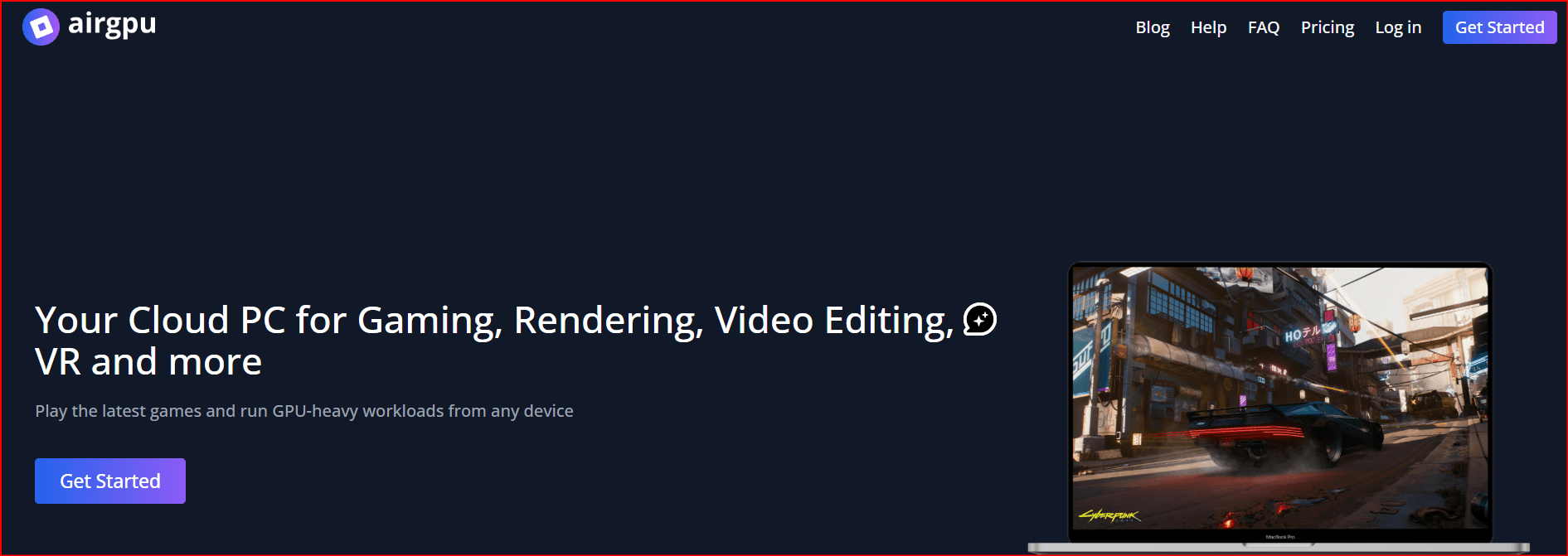
airgpu rents cloud gaming PCs through prepaid credit and usage-based compute. You choose a GPU configuration and install games from your own stores, then connect with a streaming client such as Moonlight or Parsec. This is useful when you game on weekends, want to try a demanding release, or need the same machine for rendering work.
Why consider it: Hardware choices and hourly usage can fit irregular schedules. Check first: total cost after storage, taxes and long sessions. Set up streaming before judging image quality, and confirm the chosen game’s anti-cheat support. Its own FAQ warns that some multiplayer titles block cloud PCs.
#4 · Best hybrid gaming and creative desktop
Vagon
Vagon provides a GPU-powered remote computer with adjustable performance and streaming aimed at visual work as well as games. The full desktop suits someone who edits video or builds 3D scenes during the day and wants to use the same remote machine for PC games later.
Why consider it: Scalable compute makes mixed workloads easier to manage than buying a fixed gaming-only package. Check first: the full bill for active time and persistent storage, controller support for your device, and latency from your location. Vagon’s stated stream resolution is a capability ceiling, not a guaranteed outcome on every network.

#5 · Best prepaid gaming time
Loudplay
Loudplay supplies a full Windows desktop where you can install games and applications from your own accounts. Its desktop offer uses prepaid packages of gaming hours, which makes the spending model easier to understand if you know roughly how much you play each month.
Why consider it: A direct path to a Windows gaming PC without building your own VM. Check first: server location, storage persistence, available devices and the expiration or use rules attached to a package. Test a short session before buying many hours; a nearby server matters more than a headline GPU name.
#6 · Best browser-first full PC option
Stim.io
Stim.io markets a Windows gaming PC that starts in a browser, with regional server selection and the ability to install PC software. The browser route can be appealing on a borrowed laptop or a device where installing a dedicated client is inconvenient.
Why consider it: Full desktop access and a large advertised server-location network. Check first: whether your chosen location has the hardware and capacity you need, and whether saved games and installations require an additional persistent-storage option. The site advertises high resolution and frame rates, but those maximums depend on the plan, game, device and connection.
#7 · Best console-like Linux cloud PC
CloudDeck
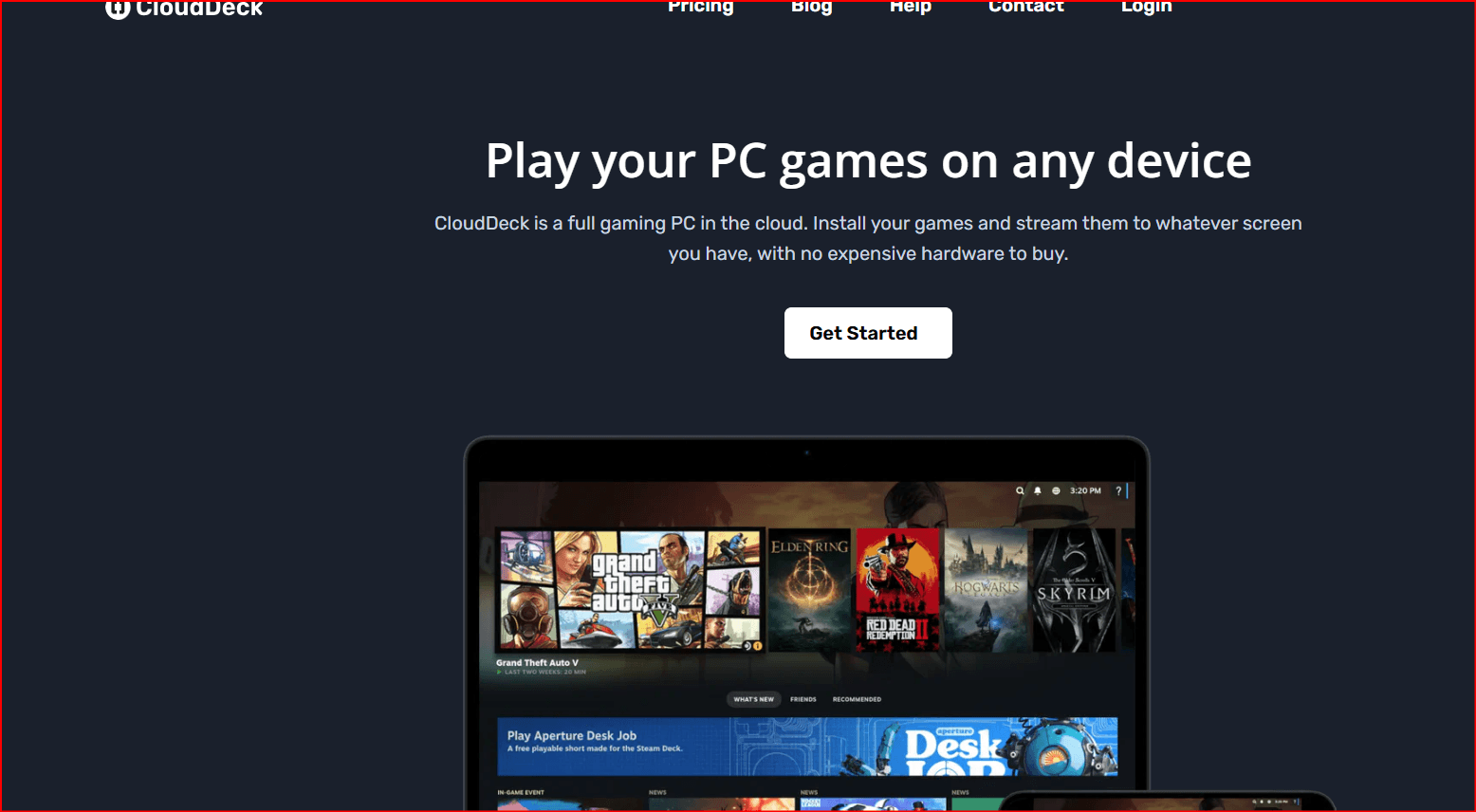
CloudDeck opens in a controller-friendly interface but also offers a desktop mode for installing games and adjusting the machine. It is a Linux gaming PC, so Windows titles depend on Linux compatibility tools such as Proton or Wine. That approach gives more control than a restricted streaming catalog without requiring a Windows desktop.
Why consider it: A focused gaming interface, user-installed games and room for mods. Check first: your must-play games in ProtonDB and the game publisher’s requirements. Windows-only anti-cheat is a common reason a title may not run; a large library claim is not a compatibility guarantee.
#8 · Best for Linux-friendly players
Maximum Settings
Maximum Settings provides a remote gaming PC and a streaming client built around its service. Its current public setup highlights Linux Mint for cloud gaming, making it a stronger candidate for players whose Steam libraries already work well on Linux than for those who require Windows-only launchers or competitive anti-cheat titles.
Why consider it: A desktop-style gaming machine with hands-on controls and Linux flexibility. Check first: available region and machine capacity, current operating-system choices, and title-by-title compatibility. Read the plan terms for session and storage rules before assuming the machine behaves like a permanently running local PC.
#9 · Best hybrid catalog and cloud PC
OnePlay OneSpace
OnePlay’s OneSpace combines access to its streaming game catalog with a cloud PC option for downloading and playing games beyond that catalog. It is useful if you want instant-play titles most days but occasionally need a more open PC environment.
Why consider it: One subscription combines two styles of play. Check first: service reach from your country, device support and plan limits. OnePlay’s terms describe a shared daily duration limit across gameplay and cloud PC use, so frequent or long sessions may favor another model. Verify which purchased games can be installed and retained.
#10 · Best configurable GPU desktop for technical users
Paperspace
Paperspace, part of DigitalOcean, offers GPU-backed cloud machines with desktop and streaming options. It is closer to infrastructure rental than a ready-made consumer gaming subscription. You select a machine, configure software, manage storage and stop compute when it is no longer needed.
Why consider it: Useful if you also develop, render or need a custom GPU environment. Check first: current GPU availability, Windows licensing, total compute and disk charges, and the streaming setup needed for games. The configuration freedom carries more administrative work and may be expensive if an instance remains active.
How to choose a cloud PC for gaming
1. Start with your games
List five must-play titles, their launchers, mod needs and anti-cheat systems. For BitCloudPC, verify dedicated GPU access first.
2. Test the closest region
Input delay, jitter and packet loss can matter more than peak download speed. Try a wired connection or stable 5 GHz Wi-Fi.
3. Calculate the real bill
Compare monthly plans with hours played, storage, taxes, session limits and any fees while a VM is stopped.
For example, a player who uses 20 hours in a month may prefer hourly compute; a player who logs in every evening may find a fixed subscription simpler. These are usage scenarios, not price claims. A cloud PC also does not include the game licenses you need unless a specific plan explicitly says otherwise.
A practical 30-minute trial checklist
- Pick the nearest server and record CPU, GPU availability, memory and storage; ask the provider when GPU details are not public.
- Connect from the device and network you will use most often.
- Install one demanding game and one multiplayer title from your own library.
- Check login, controller mapping, audio, frame consistency and input response during real play.
- Restart the machine and verify game files, saves and settings remain available.
- Confirm how to stop billing, cancel, export saves and delete the machine.
Use unique passwords and multifactor authentication on both the cloud-PC account and your game stores. Keep local backups of saves that are not safely synchronized. Avoid leaving payment details or sensitive files on a shared or temporary session.
Frequently asked questions
Can BitCloudPC run AAA games?
Its official materials describe a configurable Windows cloud desktop but do not publish a gaming GPU specification or benchmark. Ask about the available GPU and test the exact game before treating it as an AAA gaming PC. See BitCloudPC's current plans.
What is the difference between a cloud gaming PC and GeForce NOW?
A full cloud PC gives you a desktop where you install software. GeForce NOW streams games from its supported catalog and does not give you a general desktop. The catalog approach can be quicker to start if it includes your games.
Can I play any Steam game on a cloud PC?
No. A full desktop lets you attempt to install games, but anti-cheat, virtualization policies, Linux compatibility, launcher rules and hardware requirements can still prevent a title from working.
Which one works best on a Mac?
BitCloudPC offers browser-based remote access to a Windows desktop, while Shadow PC, airgpu, Vagon and Loudplay also advertise routes from a Mac. For GPU-heavy games, check the exact hardware, client, controller support and server location.
Is a GPU VPS the same as a gaming cloud PC?
A GPU VM can be turned into one, but you may have to install drivers, a streaming host and a compatible display setup. Consumer gaming cloud PCs package more of that work for you.
What internet speed do I need?
Provider minimums vary with stream quality. Stability and low jitter are essential; test a short session at your target resolution before committing to a long plan. Lowering resolution and frame rate may help a weaker connection.
Final verdict
BitCloudPC takes #1 here for a configurable Windows workspace that can serve gaming-related work and be evaluated for light gaming. Its published material does not establish dedicated GPU gaming performance. For a gaming-first Windows desktop, compare Shadow PC; for occasional GPU hours, compare airgpu. Linux players can explore CloudDeck and Maximum Settings. Your actual games and closest server decide the best fit.
The best result comes from the closest usable server running the games you actually play. Confirm current availability, terms and pricing on each provider’s official site, then test before buying a long subscription.
If you are planning multiplayer infrastructure as well as a playing device, see this separate guide to game servers and hosting. A game server hosts sessions; a cloud gaming PC runs the player's game and streams its screen.
write by petro

 Multi-Account Management
 Prevent Account Association
 Multi-Employee Management