How to Schedule TikTok Posts with TikTok Studio: Time Zone Conversion and Content Calendar Management
 2026.10.31 18:42
 petro
Scheduling TikTok posts can make content operations much more predictable. Instead of manually publishing every video at the exact target time, creators and marketing teams can prepare content in advance and organize upcoming posts around campaigns, launches, events, or audience activity.
The challenge becomes more complex when a team manages several accounts or markets. A publishing time that works for a New York audience may be completely different from the best time for viewers in London, Paris, Bangkok, or Dubai.
TikTok Studio can handle the native scheduling workflow, while BitBrowser can support the browser side of the process by keeping authorized client or brand sessions organized in separate browser profiles.
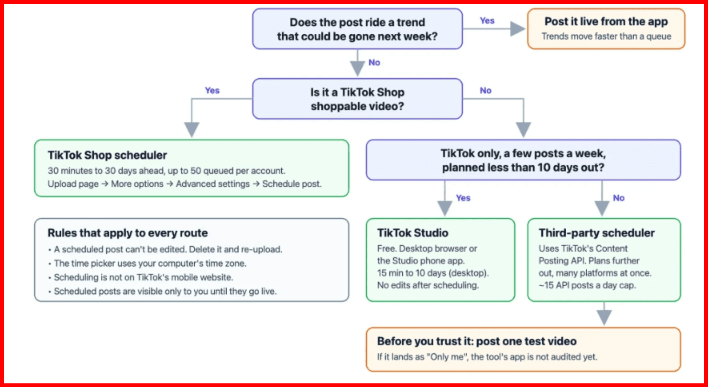
Why Schedule TikTok Posts in Advance?
Scheduling gives creators and teams more control over publishing. It reduces dependence on someone being online at the exact posting time and makes it easier to prepare several videos in one working session.
✓ Consistent Posting
Maintain a regular content rhythm throughout the week.
✓ Batch Production
Prepare and schedule several videos during one content session.
✓ Campaign Planning
Coordinate videos around promotions, launches and events.
✓ International Audiences
Publish according to the target audience's local time.
How to Schedule a TikTok Post with TikTok Studio
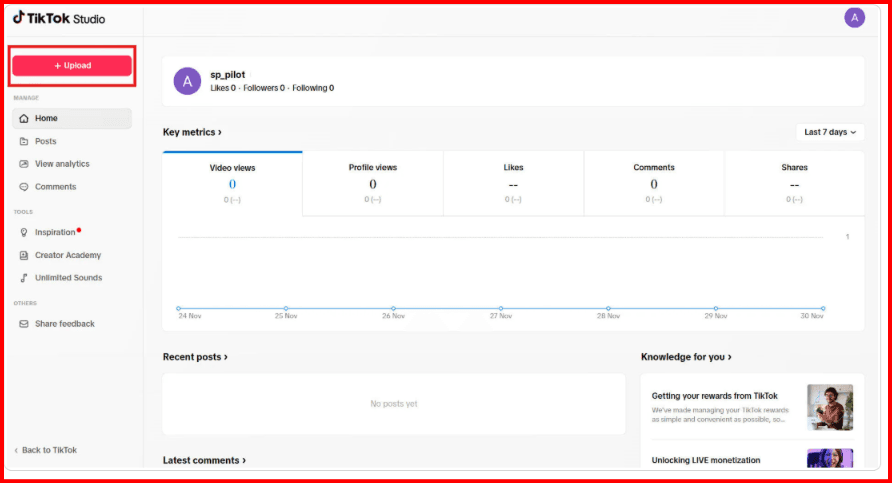
01 — Open TikTok Studio
Sign in to the TikTok account you want to manage and open TikTok Studio from your desktop browser.
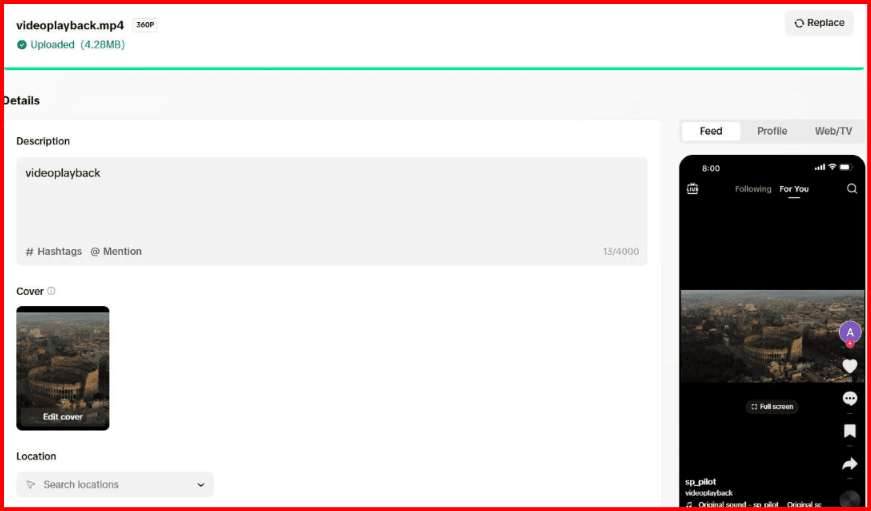
02 — Upload the Video
Select the finished TikTok video and complete the caption, hashtags, cover and available publishing settings.
03 — Select Schedule
Choose the future publication date and time instead of posting the video immediately.
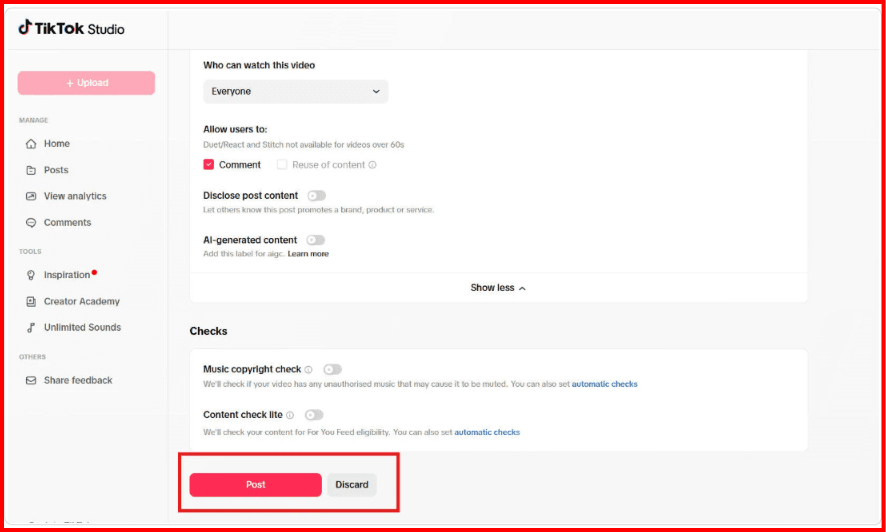
04 — Check the Time Zone
Confirm the time-zone context before scheduling content for audiences in another country.
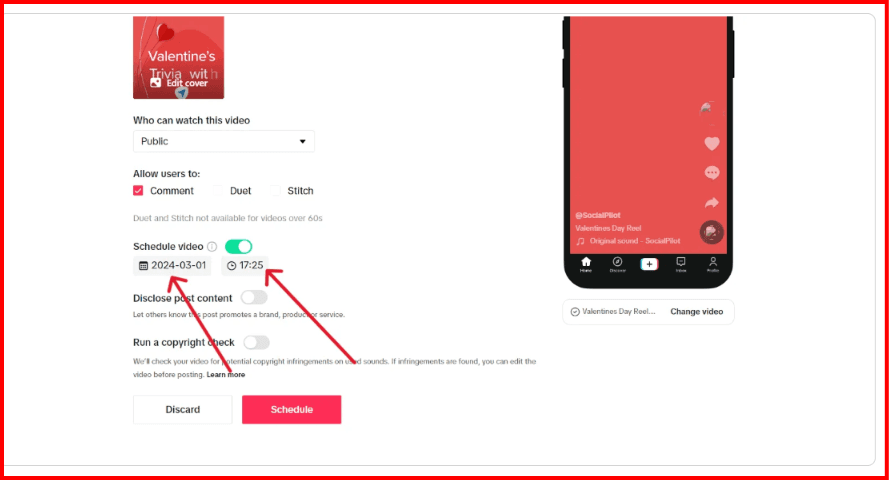
05 — Final Verification
Review the account, date, video, caption, publishing time and privacy settings before confirming the scheduled post.
How to Convert TikTok Posting Times
Time-zone conversion matters when the person scheduling a post is in a different country from the target audience. A post intended for 7:00 PM in New York should not automatically be scheduled for 7:00 PM on a computer located elsewhere.
Recommended formula
Target audience local time → Convert to scheduler/computer time zone → Verify → Schedule
Avoid assuming that the time difference remains identical throughout the year. Daylight-saving changes can alter offsets between regions.
Where BitBrowser Fits into TikTok Scheduling
BitBrowser can support the browser side of a TikTok management workflow when a team works with several authorized brand or client accounts.
Instead of keeping every TikTok session inside one ordinary browser window, teams can create separate browser profiles for different projects.
Example BitBrowser Profile Structure
- TikTok-US-Brand-A
- TikTok-UK-Brand-A
- TikTok-FR-Client-B
- TikTok-DE-Client-C
- TikTok-QA-Test
Each profile can be associated with the appropriate authorized TikTok Studio session, campaign pages, client documentation and other browser-side resources.
Build a TikTok Content Calendar
TikTok Studio handles publication, but your content calendar should manage planning, approvals and team responsibilities.
Recommended Content Status System
Example Weekly TikTok Scheduling Workflow
Monday
Review analytics and select upcoming content.
Tuesday
Finalize scripts and video edits.
Wednesday
Approve captions, covers and hashtags.
Thursday
Upload and schedule posts.
Friday
Review the scheduled queue.
Pre-Schedule Checklist
Common TikTok Scheduling Mistakes
Wrong TikTok account
Always verify the account before uploading a video.
Ignoring the time zone
Convert the target audience time before scheduling.
Mixing client sessions
Use a clear browser-profile structure for different authorized projects.
Scheduling before approval
Include an approval field in your master content calendar.
Use Analytics to Improve Future Posting Times
Avoid assuming that the same publishing time will always perform best. Review actual account performance and update the content calendar based on observed results.
Use Multi-Account Tools Responsibly
BitBrowser can support legitimate account organization, client separation, testing and team workflows.
It should not be used to bypass TikTok policies, evade platform safeguards or create artificial engagement. Follow the rules that apply to every account you manage.
Final Workflow: TikTok Studio + Time Zones + BitBrowser
A professional TikTok scheduling system should do more than simply select a date and click Schedule. It should connect publishing, time-zone conversion, approvals, project organization and analytics.
A practical structure is: Content Calendar → BitBrowser Profile → TikTok Studio → Time-Zone Check → Schedule → Verify → Review Analytics.

 Multi-Account Management
 Prevent Account Association
 Multi-Employee Management
Recommended
See More