How to Get Unblocked ChatGPT for School in 2026: A Complete Guide
 2025.12.22 11:20
 YT.Shi
You've probably experienced the frustration of trying to access ChatGPT at school only to find it blocked by your institution's network. This scenario plays out in classrooms worldwide as educational institutions implement restrictions on AI tools. The reasons vary, as some schools worry about academic integrity, while others fear students might become overly dependent on AI assistance.
The reality is that AI literacy is becoming increasingly important in 2026. Learning to use tools like ChatGPT effectively prepares you for future careers and academic pursuits. This guide will show you practical methods to unblock ChatGPT 2026 while maintaining responsible usage practices.
You'll discover multiple approaches to regain access, from simple DNS modifications to advanced solutions like anti-detect browsers. Each method comes with clear instructions and safety considerations. Whether you're researching for a project, seeking homework help, or exploring chatgpt unblocked options, this comprehensive guide provides the knowledge you need to navigate school restrictions effectively and ethically.
Why is ChatGPT Blocked at Schools?
Schools implement ChatGPT restrictions for several interconnected reasons that reflect broader concerns about technology in educational settings. Understanding why schools block ChatGPT helps you navigate these restrictions more effectively.
· Distraction: Teachers and administrators worry that students might use ChatGPT for non-educational purposes, such as cheating or procrastination.
· Content Concerns: ChatGPT can sometimes generate inappropriate or incorrect content, leading to concerns over its safety in an educational setting.
· Bandwidth Usage: Schools may block ChatGPT to limit bandwidth consumption and ensure a stable network for academic tools.
These concerns lead to network-level restrictions that prevent students from using ChatGPT during school hours.
How Do Schools Block ChatGPT?
Schools block ChatGPT by combining several technical controls that limit what students can access online. These restrictions usually work at the network level, the device level, and through active monitoring systems.
1. Network-Level Blocking Techniques
Most schools start by blocking ChatGPT on their Wi-Fi networks. Firewalls check every website request against blocked lists. When a student tries to visit chatgpt.com, the firewall recognizes the site and stops the connection before the page loads.
DNS filtering is another common method. Before a website opens, the browser needs to find its internet address. Schools control this process using their own DNS servers. If ChatGPT is blocked, the DNS request fails, and the site cannot be reached.
Some schools also block ChatGPT by restricting its server IP addresses. Even if DNS filtering is bypassed, the network can still block traffic to known ChatGPT servers.
2. Device-Level Restrictions
School-issued devices often include built-in restrictions that apply even outside the school network. Managed browsers may block access to AI tools, including ChatGPT, by default.
System settings are usually locked to prevent installing VPN software or changing network configurations. Many schools use device management systems to enforce these rules and control applications remotely.
3. Monitoring and Enforcement Systems
In addition to blocking access, schools monitor online activity. Website requests are logged, and attempts to bypass restrictions can trigger alerts. This makes it important to understand how these systems work before seeking legitimate ways to access ChatGPT.
How to Unblock ChatGPT at School?
Now that you understand the technical barriers schools put in place, you can explore practical methods to access ChatGPT for legitimate educational purposes. These techniques vary in complexity and effectiveness, so you'll want to choose the approach that best fits your technical comfort level and specific situation.
Quick Comparison: ChatGPT Unblocking Methods at School
| Method | Technical Difficulty | Stability | Privacy Level | Detection Resistance | Long-Term Scalability | Best Use Case |
|---|---|---|---|---|---|---|
| Change DNS / Clear Cache | Low | Low–Medium | Low | Low | No | Light DNS filtering, quick tests |
| VPN (Desktop or Mobile) | Medium | High | High | Medium | Medium | School Wi-Fi blocks, daily learning |
| Proxy Server (HTTP / SOCKS) | Medium | Medium | Low–Medium | Low–Medium | Low | Browser-only access, short sessions |
| Anti-detect Browser (BitBrowser) | Medium–High | Very High | Very High | Very High | Very High | Strict monitoring, long-term access, multi-account use |
| Mobile Data / Personal Device | Low | High | Medium | Low | Low–Medium | Emergency access, no school Wi-Fi |
| Browser VPN Extensions | Low | Low–Medium | Medium | Medium | Low | Lightweight, no system changes |
| Tor Browser | High | Low | Very High | High | Low | Maximum anonymity, speed not critical |
| Alternative AI Platforms | Low | Medium | Medium | Low | Medium | ChatGPT unavailable, functional replacement |
1. Changing DNS Settings or Clearing Browser Data
DNS settings for ChatGPT can be your first line of defense against school network restrictions. When schools block websites using DNS filtering, they're essentially preventing your device from translating the ChatGPT domain name into its actual IP address. By changing your device's DNS server to a public alternative, you can bypass this specific type of restriction.
How DNS Modification Works
Your device typically uses your school's DNS server by default, which maintains a list of blocked domains. When you switch to a reputable public DNS server like Google DNS (8.8.8.8 and 8.8.4.4) or Cloudflare DNS (1.1.1.1 and 1.0.0.1), your device queries these servers instead, potentially circumventing the school's domain-level blocks.
Step-by-Step Instructions for Different Devices
Windows:
1. Open Settings and navigate to Network & Internet
2. Click on your active connection (Wi-Fi or Ethernet)
3. Select "Edit" under IP settings
4. Choose "Manual" and toggle IPv4 to "On"
5. Enter your preferred DNS server (8.8.8.8 for primary, 8.8.4.4 for secondary)
6. Save your changes and restart your browser
Mac:
1. Open System Preferences and select Network
2. Choose your active connection and click "Advanced"
3. Navigate to the DNS tab
4. Click the "+" button and add 8.8.8.8 or 1.1.1.1
5. Apply changes and reconnect to the network
iOS:
1. Open Settings and tap Wi-Fi
2. Tap the information icon next to your connected network
3. Scroll to "Configure DNS" and select "Manual"
4. Remove existing DNS servers and add 8.8.8.8 or 1.1.1.1
5. Save your configuration
Android:
1. Open Settings and navigate to Network & Internet
2. Select your Wi-Fi connection and tap "Edit"
3. Expand Advanced options
4. Change IP settings to "Static"
5. Enter your preferred DNS servers in DNS 1 and DNS 2 fields
Clearing Browser Cache
Sometimes, ChatGPT unblocked with simple cache clearing can resolve access issues.
· In Chrome, type chrome://net-internals/#dns in the address bar and click "Clear host cache."
· or Firefox, clearing your entire cache through Settings > Privacy & Security accomplishes the same goal.
Safety Considerations
When modifying DNS settings for ChatGPT, you should only use reputable DNS providers.
· Google DNS and Cloudflare DNS are industry-standard options that prioritize privacy and security.
· Avoid unknown DNS servers that could potentially log your browsing activity or redirect you to malicious websites.
· Remember that changing DNS settings on school-owned devices might violate your institution's acceptable use policy, so you'll want to consider using your personal device instead.
2. Using a VPN for Unrestricted Access to ChatGPT
A VPN is one of the most effective ways to access ChatGPT safely at school. When you use a VPN, your internet traffic is encrypted and sent through a remote server in another location. School firewalls usually block ChatGPT by detecting its website address or server location. With a VPN, the network can no longer see that you are visiting ChatGPT, because all it sees is encrypted traffic going to the VPN server.
In simple terms, your device connects to the VPN first, and the VPN connects to ChatGPT for you. Since the school network cannot see the final destination, VPNs are especially useful for students who need access to ChatGPT for legitimate learning purposes. Even when you are connected to school WiFi, a reliable VPN prevents the network from seeing which websites you visit, thanks to its encryption.
Several VPN providers have proven reliable for school environments:
· ExpressVPN offers robust encryption and consistently fast speeds across its server network.
· NordVPN includes specialized obfuscated servers designed to bypass strict network restrictions.
· Surfshark provides unlimited simultaneous connections, allowing you to protect multiple devices with one subscription.
· Private Internet Access (PIA) maintains a verified no-logs policy and offers customizable encryption settings.
When selecting a proxy server for ChatGPT access alternative, remember that VPNs provide superior security compared to basic proxies. The encryption layer protects your academic research and conversations with ChatGPT from potential monitoring.
3. Using a Proxy Server as an Alternative Method
A proxy server works as a middleman between your device and the internet. When you use a proxy to access ChatGPT, your request is sent to the proxy server first. The proxy then connects to ChatGPT on your behalf and returns the response to you. To the school network, it appears that the traffic is coming from the proxy server rather than directly from your device.
Proxy servers unblock ChatGPT in a different way than VPNs. Most proxies only handle traffic for a specific app or browser session, instead of encrypting all internet traffic on your device. Schools often block ChatGPT by filtering its website address or server IPs. A proxy can bypass these blocks by routing your request through a different server that is not restricted.
However, unlike VPNs, most proxy servers do not encrypt your data. This means they may help you access ChatGPT, but they do not provide the same level of privacy or security.
Understanding Proxy Types
You'll encounter two main types of proxy servers when attempting to access ChatGPT:
· HTTP Proxies: These proxies handle web traffic specifically and work well for browser-based ChatGPT access. They're faster for simple web browsing but offer limited encryption.
· SOCKS Proxies: These provide more versatile functionality and can handle various types of traffic beyond just HTTP. SOCKS5 proxies offer better performance for ChatGPT access and include authentication features for added security.
Selecting a Reliable Proxy Service
When choosing a proxy service, focus on a few key factors. Privacy policies matter because some providers log browsing activity while others do not. Connection speed is also important, since slow proxies can make ChatGPT difficult to use. Server availability helps as well, as more locations increase the chances of finding an unblocked route on school networks.
Security should not be overlooked. Most proxy servers do not encrypt traffic by default, so it is important to use proxies that support secure HTTPS connections rather than plain text access.
Free proxy services may seem convenient, but they often suffer from poor performance, limited reliability, or added security risks such as ads or data collection. Paid proxy providers like Bright Data, Smartproxy, and Oxylabs generally offer better stability and are more suitable for accessing ChatGPT consistently.
4. Utilizing Anti-detect Browsers Like BitBrowser
When traditional methods like VPNs or proxy servers don't provide the level of anonymity you need, BitBrowser for unblocking ChatGPT offers a specialized solution. This anti-detect browser for ChatGPT represents a more advanced approach to accessing restricted platforms at school, combining multiple privacy technologies into a single, user-friendly interface.
BitBrowser operates as a professional anti-detection browser specifically engineered to bypass the sophisticated monitoring systems that educational institutions deploy. Unlike standard browsers that leave digital fingerprints, BitBrowser masks your browser's unique identifiers, making it nearly impossible for school networks to detect and block your access to ChatGPT. The software creates isolated browsing environments with customizable parameters, including canvas fingerprints, WebGL information, and timezone settings that appear completely legitimate to network administrators.
Key Features That Make BitBrowser Effective
The power of BitBrowser lies in its comprehensive approach to digital privacy:
· Multi-profile Management: You can create and manage multiple browser profiles, each with distinct fingerprints and configurations
· Advanced Fingerprint Masking: The browser automatically randomizes device characteristics that schools use to track and identify users
· Built-in Proxy Integration: BitBrowser seamlessly integrates with proxy servers, eliminating the need for separate proxy configuration
· Cookie Isolation: Each browsing session remains completely separate, preventing cross-contamination of tracking data
Automation Capabilities: You can set up automated browsing patterns that mimic natural human behavior
Setting Up BitBrowser for ChatGPT Access
Getting started with BitBrowser requires a methodical approach:
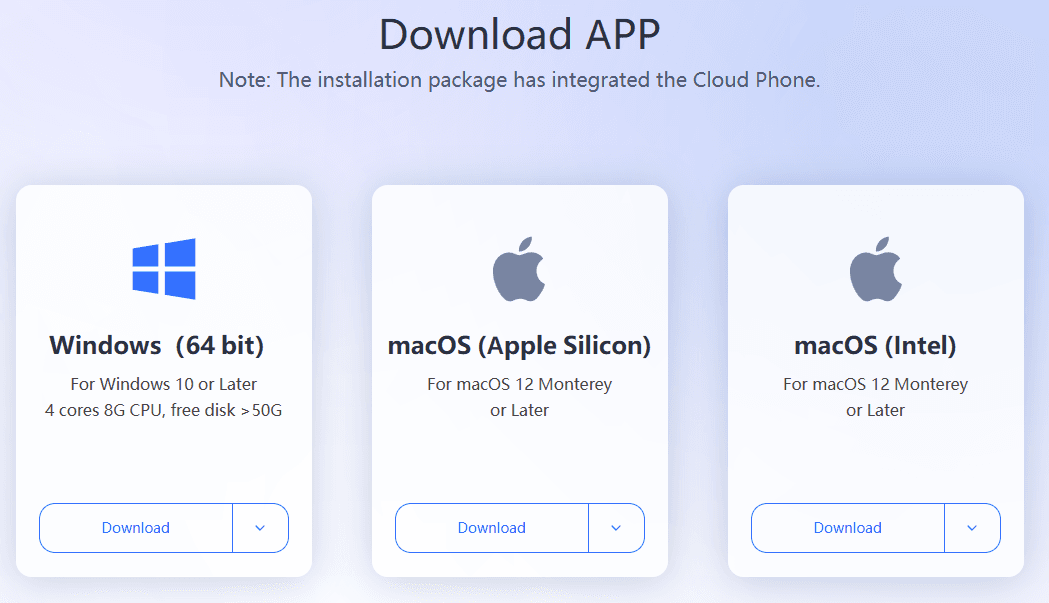
Step 1: Download and Installation. Visit the official BitBrowser website from your personal device or home network. Download the version compatible with your operating system.
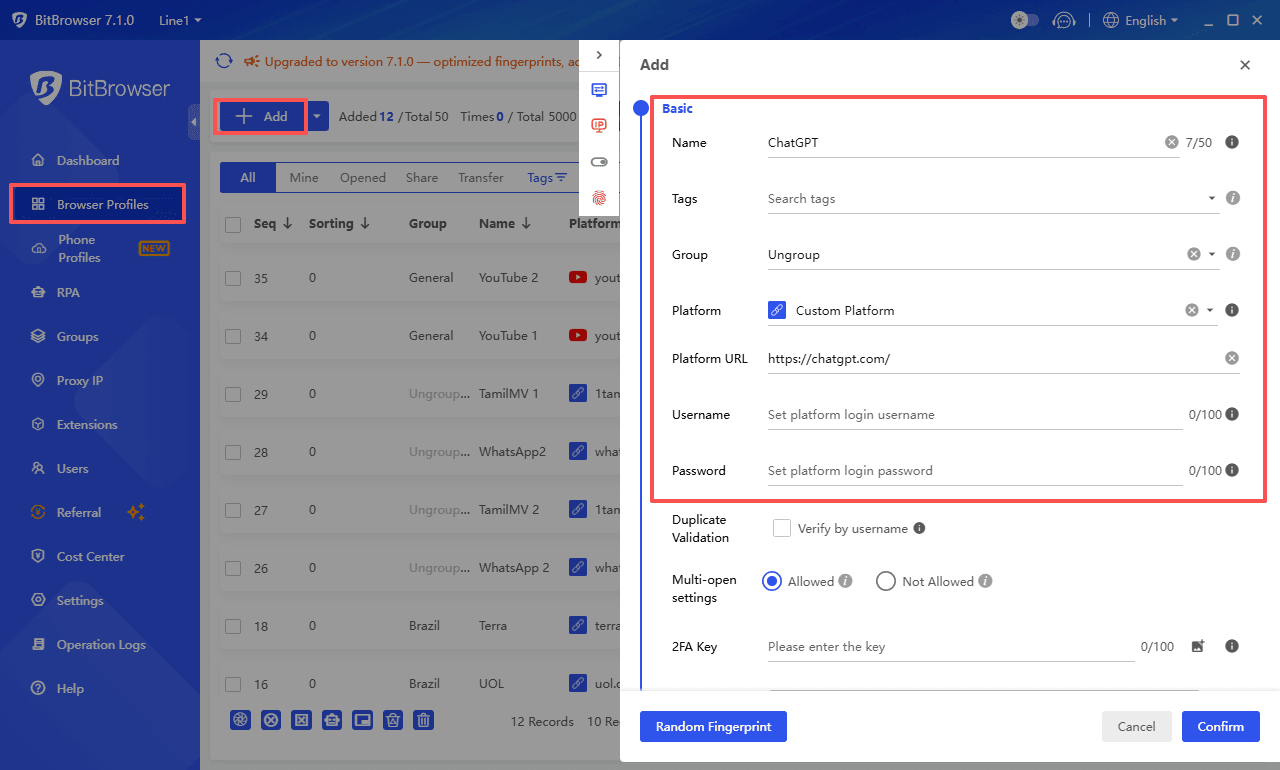
Step 2: Create Your First Browser Profile. Launch BitBrowser and navigate to the profile management section. Click "Add" and configure your settings. Select the custom platform and enter ChatGPT's official website address.
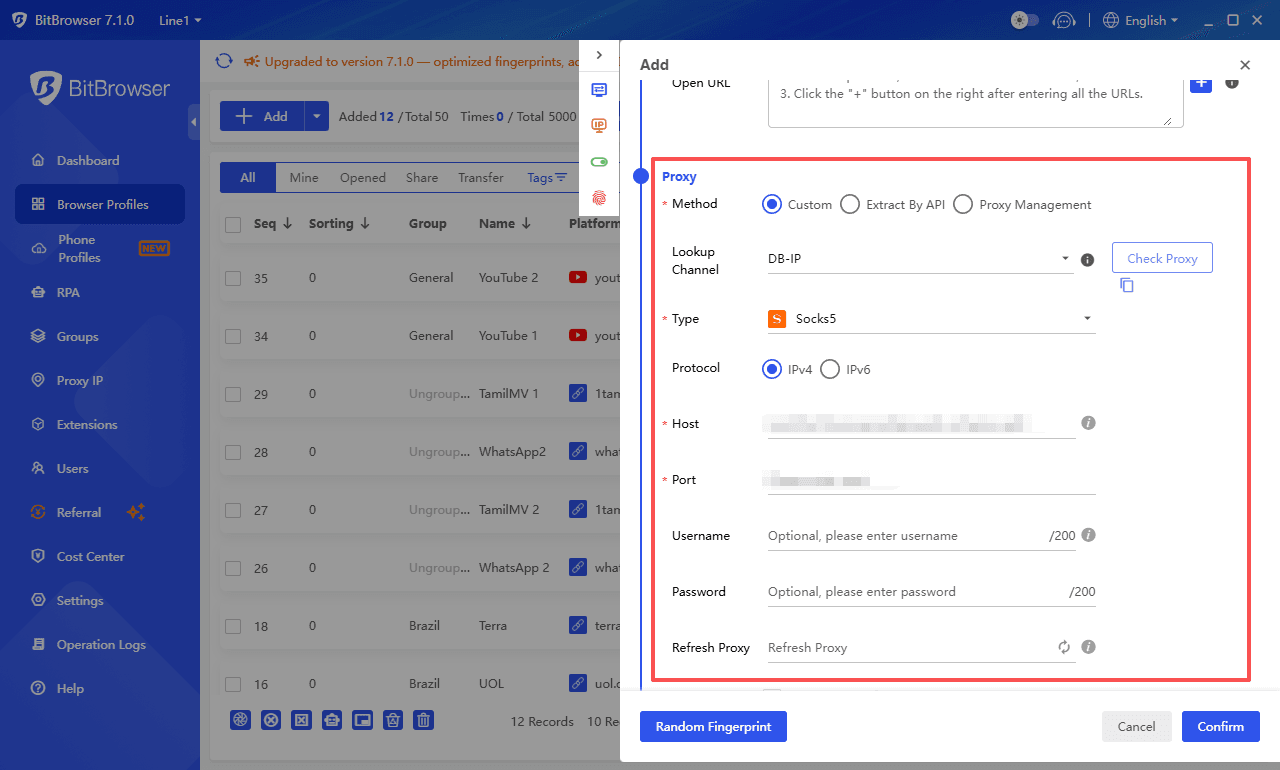
Step 3: Configure Proxy Settings. Within your new profile, access the "Proxy" configuration menu. Input the details of a reliable proxy server (you can use the proxy services discussed in the previous section). Test the connection to ensure proper functionality before proceeding.
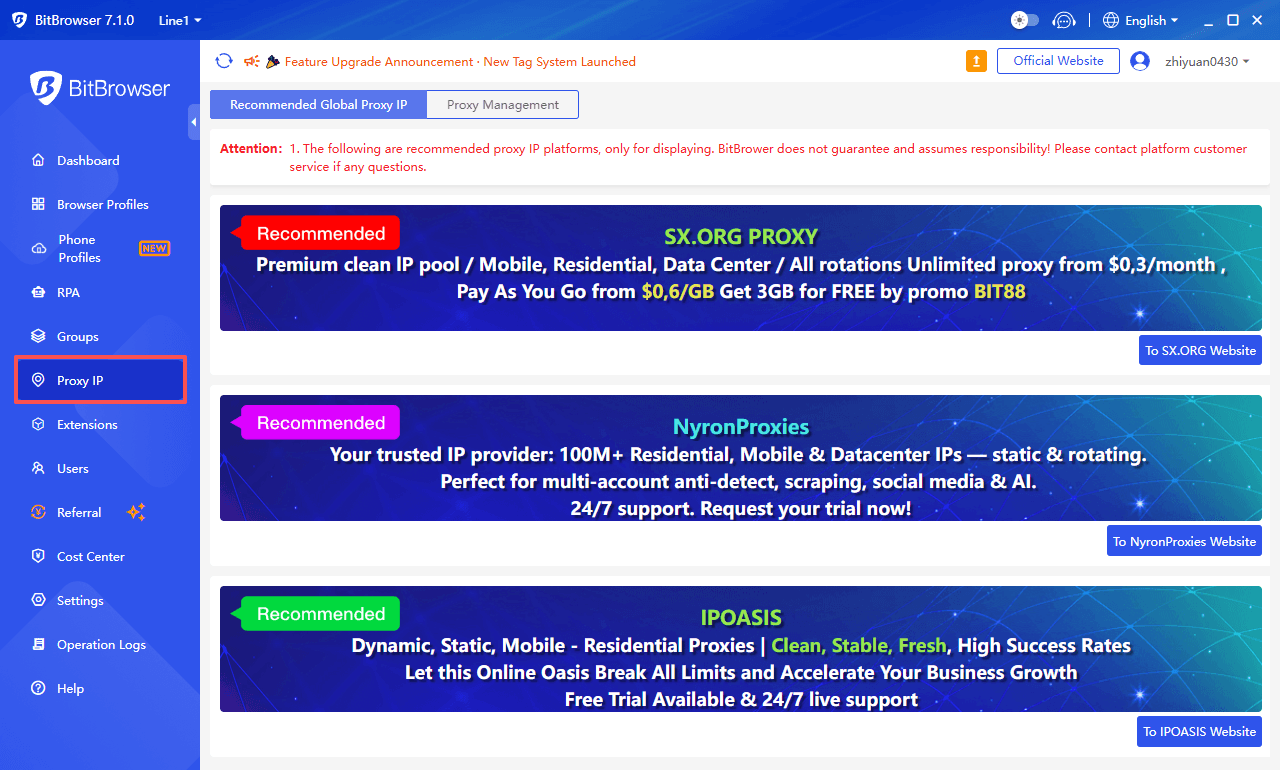
Reliable proxy IP platforms can be queried within the BitBrowser client:
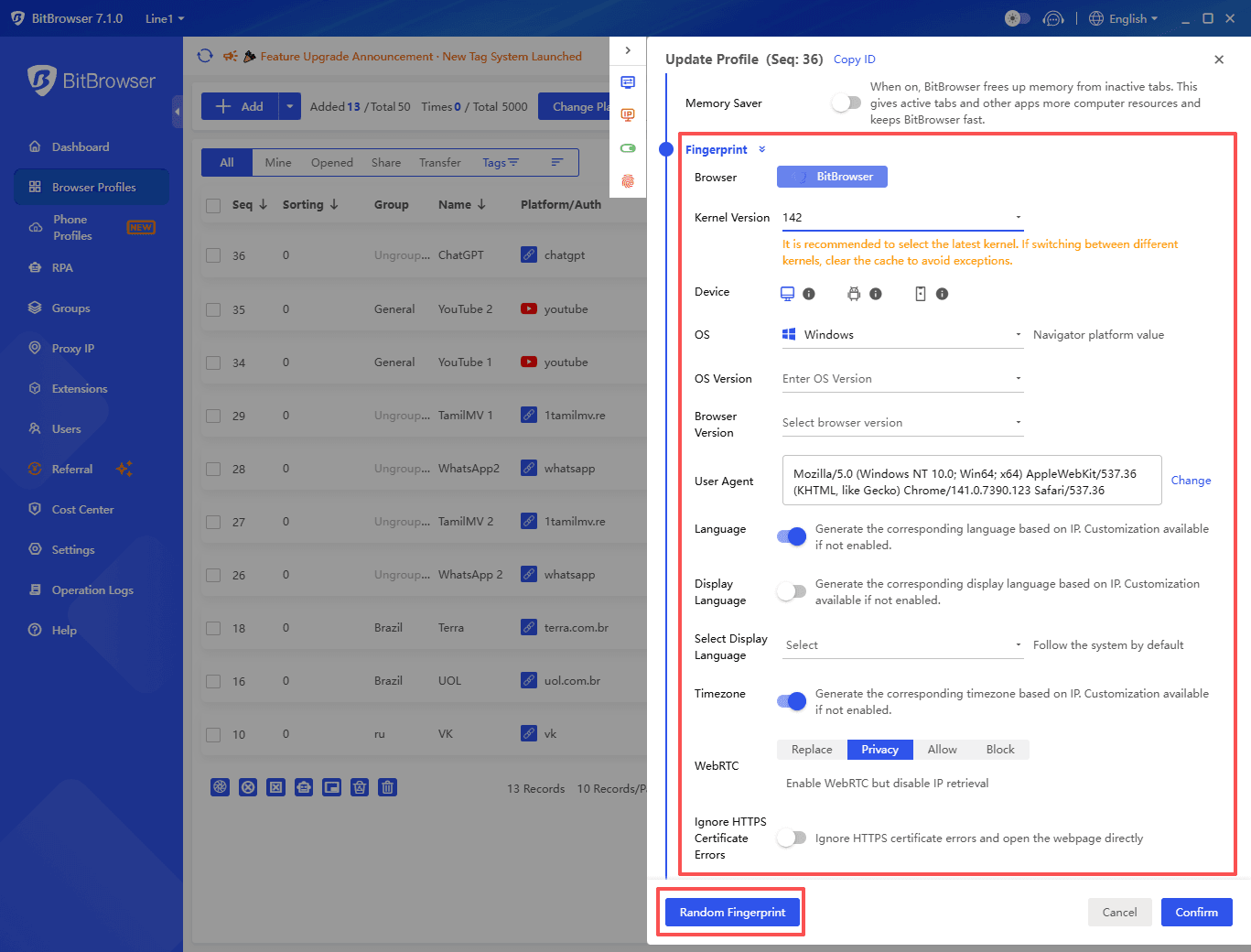
Step 4: Fingerprint Configuration. Swipe down to access the "Fingerprint" configuration interface for this profile. BitBrowser offers 30+ custom fingerprint settings, allowing you to manually configure your browser fingerprint combination. Alternatively, select "Random Fingerprint" to automatically generate a realistic and consistent browser fingerprint combination with a single tap. Choose a timezone that corresponds to your actual location to avoid suspicion.
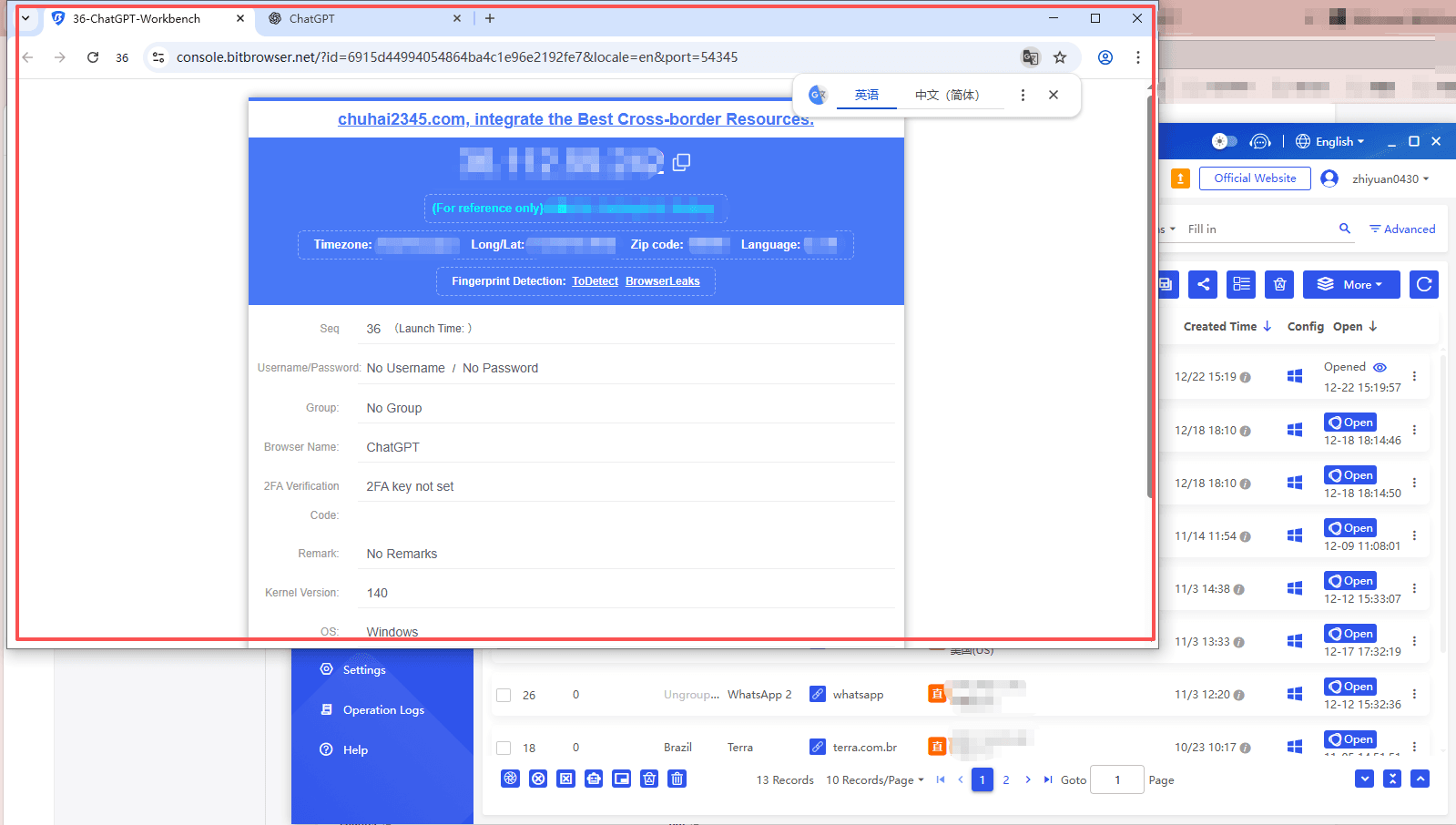
Step 5: Access ChatGPT. Open your configured profile and navigate to the ChatGPT website. The combination of fingerprint masking and proxy routing should allow you to bypass school restrictions while maintaining a secure connection. Save this profile for future use to streamline your access process.
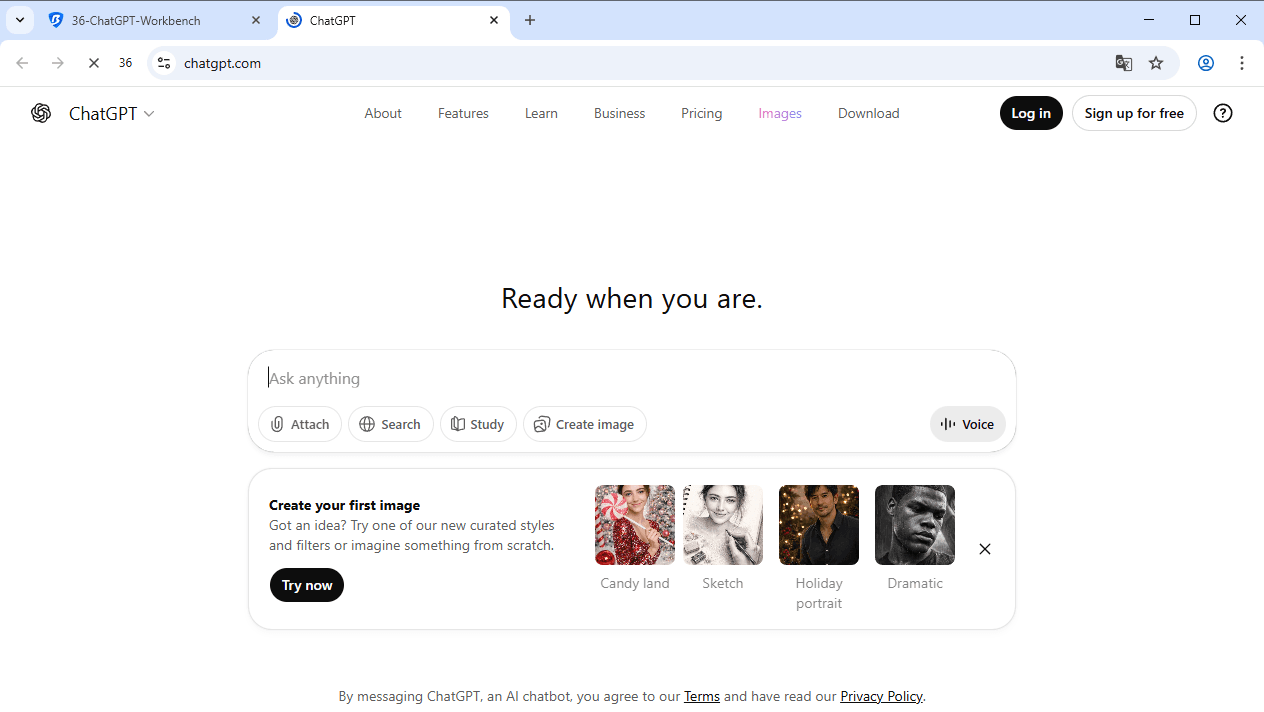
The anti-detect browser for unblocking provides a robust solution that addresses the limitations of simpler methods, offering students a reliable way to access ChatGPT for legitimate educational purposes.
5. Use Mobile Data or Personal Devices
If school networks block ChatGPT, using your smartphone’s mobile data can be an effective alternative. By connecting through your phone instead of the school Wi-Fi, you can access ChatGPT without relying on the school’s network settings.
Personal devices not managed by the school, such as your own laptop or tablet, can also provide access. Combining mobile data with other tools like a VPN can improve privacy and reliability when using ChatGPT for educational purposes.
6. Browser Extensions
Browser extensions provide a lightweight way to route your browser traffic through remote servers, which can help make ChatGPT reachable even if your school network restricts certain sites. These extensions only affect the browser where they are installed, and they are not the same as system‑wide VPN apps.
Recommended Extensions
Several well‑known VPN providers offer browser extensions that are regularly updated and reviewed for security:
· NordVPN: A top‑rated service with extensions for Chrome, Firefox and Edge that include IP masking and leak protection. NordVPN is widely recognized for its speed and robust security features.
· Surfshark: Offers browser extensions with features like CleanWeb for blocking ads and trackers. It supports unlimited devices on a single subscription and is often cited for strong performance and ease of use.
· Proton VPN: Known for its strong privacy policies, Proton VPN provides extensions for major browsers that focus on protecting user data.
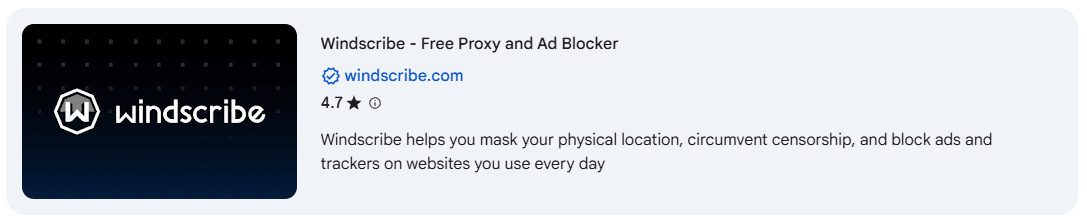
· Windscribe: Offers a reputable browser extension with a free tier that includes a monthly data allowance and support for multiple server locations.
TechRadar
Choose extensions from providers with clear privacy policies, good reviews, and a strong reputation, and avoid unknown or poorly reviewed free tools that may collect data or compromise security. Recent security reports show that some browser add‑ons, especially lesser‑known free VPNs and utility extensions, have been found with malware or hidden tracking behavior, so careful selection is important.
Installation and Usage
1. Open your browser’s extension store (e.g., Chrome Web Store or Firefox Add‑ons).
2. Search for the VPN or proxy extension you want (e.g., NordVPN, Surfshark, Proton VPN, Windscribe).
3. Click Add to Browser or Install.
4. Allow any required permissions.
5. Activate the extension from your toolbar.
6. Choose a server location if needed.
7. Open ChatGPT in your browser as usual.
Things to Keep in Mind
Browser VPN extensions can slow down browsing or use additional memory, so disabling them when not in use can help maintain performance. Because extensions only affect browser traffic, they do not protect other apps or system traffic the way a full VPN app does. Always check user reviews and privacy policies to ensure you are installing a reputable extension.
7. Use Tor for Anonymous ChatGPT Access
Tor Browser lets you access blocked sites while keeping your identity hidden. It encrypts your internet traffic and routes it through multiple relays, making it difficult for school networks to see what you’re doing.
Key Advantages
· Strong anonymity: School admins cannot track the websites you visit.
· Encrypted traffic: Protects data from network monitoring.
· Free and open-source
Limitations Compared to Antidetect Browsers
· Slower speed: Multiple relays can make ChatGPT responses lag.
· Detectable in some networks: Schools with deep packet inspection may still spot Tor traffic.
· Compatibility issues: Some websites may not work properly.
· No multi-account management: Cannot create isolated browser profiles.
· Less convenient: Setup and bridges may be required to avoid detection.
Summary: Tor is useful for anonymous access, but for faster, more reliable, and multi-account usage, antidetect browsers like BitBrowser are superior.
8. Use Alternative AI Platforms or Mirror Sites
If ChatGPT is blocked at school, using alternative AI platforms can be a practical workaround. Many of these tools offer similar capabilities and may not trigger the same network restrictions.
Popular ChatGPT Alternatives
Some well-known AI tools that may remain accessible on restricted networks include:
· Microsoft Copilot: Built into Bing and Microsoft services, often accessible in school environments
· Google Gemini: Google’s AI chatbot with strong writing and explanation features
· Claude: A conversational AI focused on clear, structured responses
· Perplexity AI: A research-oriented AI that combines search with AI-generated answers
These platforms can handle most academic tasks such as writing help, explanations, and research summaries.
About Mirror Sites
Mirror sites are unofficial copies of ChatGPT hosted on different domains. While some may bypass school filters, they are not officially supported and can pose privacy or security risks. It’s safer to rely on trusted AI platforms from established companies.
Limitations Compared to Antidetect Browsers
· No fingerprint isolation or profile separation
· Limited control over tracking and monitoring
· Access can still be blocked once domains are identified
Summary: Alternative AI platforms are a safe and simple way to get ChatGPT-like help at school. However, for long-term stability, privacy, and multi-account use, dedicated antidetect browsers offer more reliable access and control.
Using ChatGPT Responsibly at School
Gaining access to ChatGPT through methods like unblock ChatGPT using VPN, proxy server for ChatGPT access, or an anti-detect browser for unblocking comes with significant responsibility. You need to understand that these tools exist to enhance your learning experience, not to circumvent academic integrity policies.
When you use ChatGPT for schoolwork, treat it as a research assistant rather than a replacement for your own thinking. Use the AI to:
· Brainstorm ideas and explore different perspectives on topics
· Clarify complex concepts you're struggling to understand
· Generate outlines for essays or projects as starting points
· Practice language skills through conversational exercises
· Get explanations for difficult homework problems
Never submit AI-generated content as your own work. This constitutes plagiarism and violates academic honesty policies at virtually every educational institution. Instead, use ChatGPT's responses as a foundation for your own original work, always citing when you've used AI assistance if your school requires it. Remember that teachers can often detect AI-generated content, and the consequences of academic dishonesty can be severe.
Conclusion
School restrictions on ChatGPT are not arbitrary. They reflect real concerns about academic integrity, network security, and responsible technology use. The challenge is not whether students should use AI, but how to use it responsibly and reliably within constrained environments.
As this guide has shown, there is no single “best” way to unblock ChatGPT. Simple methods like DNS changes or browser extensions may work in lightly restricted networks. VPNs and proxies provide stronger privacy and broader access. For environments with advanced monitoring and long-term restrictions, anti-detect browsers such as BitBrowser offer a more stable and controlled solution by combining fingerprint isolation, proxy integration, and profile management in one place.
Beyond access itself, BitBrowser can also function as a long-term, scalable multi-account management solution. This is especially useful for users who need to separate personal learning, research projects, testing environments, or collaborative accounts over time, rather than relying on short-term workarounds that may break as restrictions evolve.
Ultimately, responsible access matters more than access itself. Using ChatGPT ethically, transparently, and as a learning aid—not a substitute for thinking—ensures that these tools support education instead of undermining it.
Frequently Asked Questions (FAQ)
1. Is it legal to unblock ChatGPT at school?
In most cases, unblocking ChatGPT is not illegal, but it may violate your school’s acceptable use policy if done on school-managed devices or networks. Always review your institution’s rules and consider using a personal device and personal network when possible.
2. What is the safest method to access ChatGPT at school?
Safety depends on both privacy and reliability.
· DNS changes and browser extensions are simple but limited.
· VPNs provide strong encryption and are generally safe if reputable.
· Anti-detect browsers like BitBrowser offer the highest level of control by isolating browser fingerprints and sessions, which reduces detection risks in stricter environments.
3. Can teachers or school admins detect ChatGPT usage?
On school networks, basic traffic patterns and domains can be monitored. Advanced systems may flag VPN or Tor usage. Anti-detect browsers reduce visibility by masking browser fingerprints and separating sessions, but no tool guarantees invisibility. Responsible use is always advised.
4. Is using ChatGPT for homework considered cheating?
It depends on how you use it. Using ChatGPT to generate final answers or submit AI-written work as your own is typically considered cheating. Using it for explanations, brainstorming, outlines, or practice is generally acceptable and aligns with responsible AI use.
5. Why choose an anti-detect browser instead of just a VPN?
VPNs mainly hide network traffic. Anti-detect browsers go further by masking browser-level identifiers such as fingerprints, cookies, and device attributes. For users who face repeated blocks, need long-term stability, or manage multiple sessions, tools like BitBrowser provide greater consistency and control than a VPN alone.