How to Create a Facebook Business Page in 2026: Complete Guide for Beginners
 2026.06.01 07:10
 YT.Shi
Facebook remains one of the largest social media platforms in the world in 2026. Despite the rise of TikTok, Instagram Reels, and AI driven marketing channels, Facebook still plays a major role in brand building, local marketing, community management, and advertising.
Whether you run an ecommerce store, SaaS company, local business, affiliate project, or personal brand, having a Facebook Business Page helps customers discover your business and interact with your content.
The good news is that creating a Facebook Business Page is still completely free. This guide walks through the entire process step by step, including page creation, optimization, security settings, and common mistakes to avoid in 2026.
Why You Need a Facebook Business Page
A Facebook Business Page offers several advantages over a personal profile.
With a Business Page, you can:
● Build a public brand presence
● Run Facebook and Instagram ads
● Collect leads and customer inquiries
● Connect with WhatsApp Business
● Access page analytics and insights
● Schedule content through Meta Business Suite
● Add team members to manage your page
More importantly, a Business Page acts as the foundation for almost every Meta marketing activity.
If you plan to run Facebook Ads in the future, creating a Business Page is one of the first steps.
What You Need Before You Start
Having your information ready before you start will make the process much smoother.
1. A Personal Facebook Account
This is still required to create and manage a Business Page in 2026. Don't worry, your personal profile will remain private and separate from the page's public-facing information.
Log into your Facebook profile and make sure your account is in good standing. For new accounts, it is recommended to:
● Verify your email address
● Verify your phone number
● Enable two factor authentication
● Complete your profile information
Meta has become stricter about trust and security signals. Fully completed accounts usually experience fewer restrictions when creating business assets.
2. Your Business Information
● Official Business Name: The name customers will search for.
● Category: Choose up to 3 categories that best describe your business (e.g., "Coffee Shop").
● Short Description (Bio): A clear, concise summary of what you do, under 255 characters.
3. Visual Assets
● Profile Picture: Display as 176×176px on PC, 196×196px on smartphones, 36×36px on most feature phones for public profiles; crop to circle, 320×320px for optimal quality.
● Cover Photo: A compelling landscape image that shows off your brand or a special offer. Use dimensions 851x315px for desktop, and be mindful of how it will look on mobile.
Please review the specific requirements for Facebook Page profile pictures and cover photos.
4. Contact Details
Your website URL, business email, phone number, and physical address (if you have one).
How to Create a New Facebook Business Page
Once you have everything ready, you can create your page through Meta Business Suite. This will be the command center for your page, including your Instagram account, advertising, and analytics.
Desktop Instructions:
1. Log into Facebook, go to Pages > Create Page.
2. Choose Public Page > Next > Get Started.
3. Enter page name & category (add bio optionally), then Create Page.
4. Fill in details, add photos & set action button, click Next each step.
5. Adjust invitations and notifications, then click Done.
Mobile App Instructions:
1. Log into Facebook, open Menu > Pages > Create.
2. Choose Professional > Create a new Page > Next.
3. Enter page name, pick a category, then tap Create.
4. Select Create new profile or Page > Public Page > Get Started.
5. Fill in details, add photos, invite friends and set notifications step by step.
6. Tap Done to finish.
How to Optimize and Publish Your Facebook Business Page
The creation is just the beginning. To make your page effective for your business, complete these final steps.
● Add Your Photos: Upload your prepared Profile Picture and Cover Photo to make your page look professional and trustworthy.
● Add Your Contact Details & CTA Button: Fill in your contact information. Then, choose a Call-to-Action (CTA) button that matches your primary business goal, such as "Book Now", "Shop Now", or "Contact Us".
● Set Your Username (Vanity URL): In your Page settings, you can choose a custom username (e.g., @YourBusinessName) to create a clean, memorable web address for your page.
● Review & Publish: Double-check that all your information is correct and complete. Once you're satisfied, your page is now live and public.
Best Practices for Your Business Page
As you set up your page, keep these best practices in mind:
● Consider Meta Business Suite: While optional, creating a Meta Business Manager account is highly recommended if you plan to run ads, assign roles to team members, or connect your Instagram account and ad accounts centrally. If your Facebook Ads account has been restricted, please review the account recovery guide.
● Use the Right Admin Account: Create your business page using the personal Facebook account of the business owner or a long-term manager. Avoid using a freelancer or intern's personal account, as they will control the page's ownership and access.
● Page Name is Permanent: Facebook enforces a limit on changing your page name. Choose wisely, as it can be difficult or impossible to change later.
Check out more free tools for growing your Facebook business.
Managing Multiple Facebook Pages Safely
Many marketers, agencies, affiliate marketers, and ecommerce operators manage multiple Facebook pages. This is where account environment consistency becomes important. If several team members access Facebook assets from different devices, browsers, and locations, Facebook may trigger security checks.
Many businesses use tools like BitBrowser to create isolated browser environments for different accounts and projects. BitBrowser provides unique digital fingerprints for each profile, including separate cookies, cache, IP configurations, and user agents. This helps prevent cross account association and reduces the risk of unexpected security blocks. It also keeps login sessions organized while reducing confusion when managing multiple business assets.
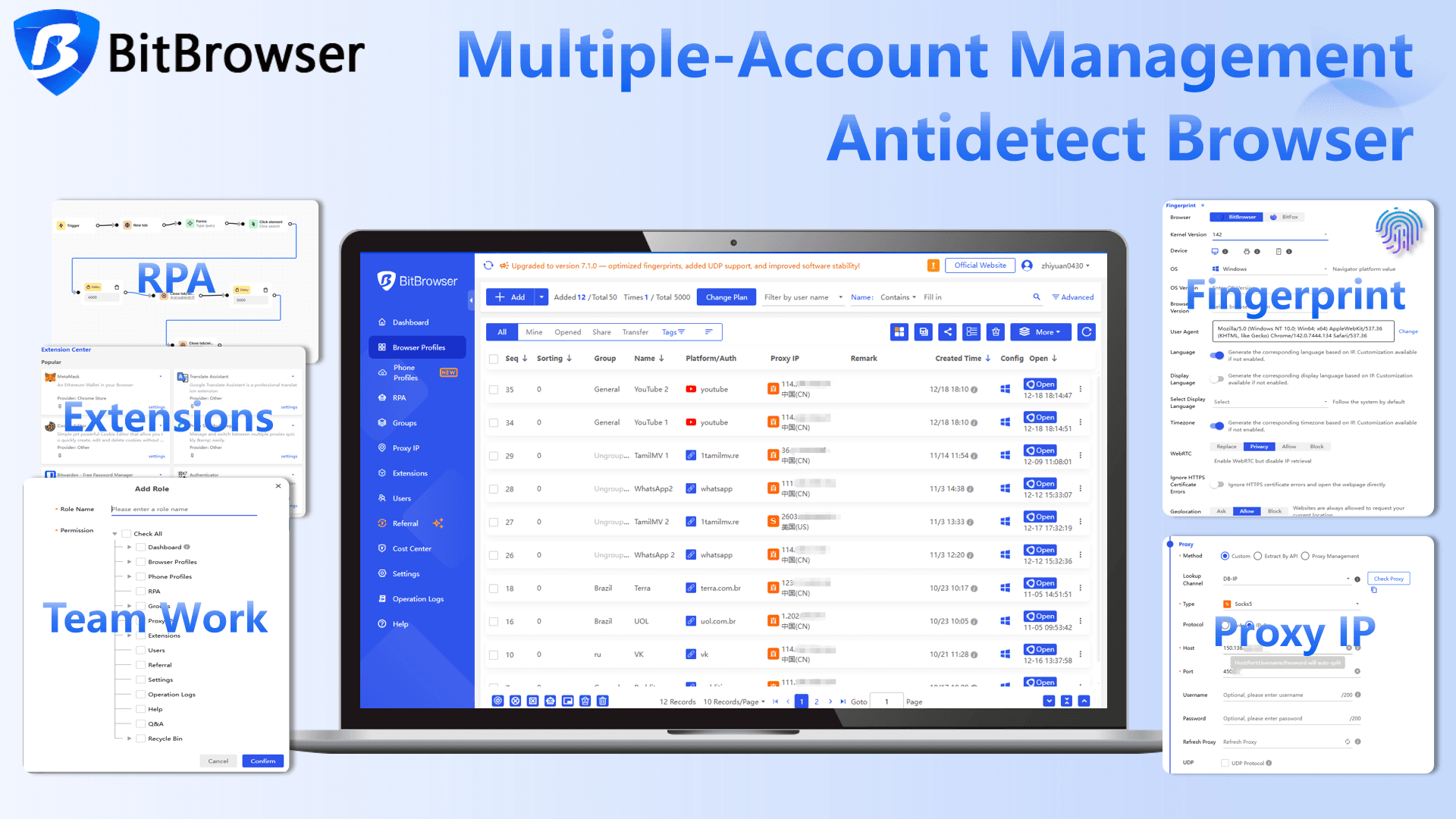
Get 10 permanent free BitBrowser accounts now
For agencies handling client pages, maintaining separate browser profiles with BitBrowser makes daily operations much easier. Team members can securely share profile access without sharing passwords, and all environments remain consistent across devices.
If you use Facebook Messenger to manage your accounts, check out how to manage multiple Facebook Messenger accounts without getting confused.
Common Mistakes to Avoid in 2026
Creating Multiple Pages Too Quickly
Rapid page creation can trigger Facebook security reviews. Create pages only when necessary.
Leaving Your Page Incomplete
Pages without profile photos, descriptions, or contact information often appear less trustworthy.
Ignoring Security Settings
Always enable: two factor authentication, email verification, and phone verification.
Using Inconsistent Branding
Your logo, website, and social profiles should all present a consistent brand identity.
Publishing Only Promotional Content
People follow pages for value, not constant advertisements. Aim for a balance between educational, entertaining, and promotional content.
Final Thoughts
Creating a Facebook Business Page in 2026 is easier than most beginners expect, but success comes from more than simply clicking the Create Page button. A well optimized page includes complete business information, professional branding, active content, strong security settings, and integration with Meta Business Suite.
Whether you are launching a new startup, growing an ecommerce store, building a SaaS product, or managing multiple client accounts, a Facebook Business Page remains one of the most valuable assets in your digital marketing toolkit. Take the time to set it up correctly from the start, and it can become a long term source of traffic, leads, and customer engagement.

 Multi-Account Management
 Prevent Account Association
 Multi-Employee Management
Recommended
See More 



