How to Manage Multiple Facebook Messenger Accounts in a Browser
 2026.03.25 16:06
 YT.Shi
Introduction
Managing multiple Facebook Messenger accounts can get tricky if you only rely on the app. Switching accounts often means logging out, missing notifications, or losing track of messages from business pages.
For anyone handling personal and professional accounts, a browser-based setup is smoother, more organized, and secure.
If you want to open Messenger without installing the app, check our full guide to see how it works directly in your browser.
What is Facebook Messenger?
Facebook Messenger is a messaging platform developed by Meta that allows people to chat, share photos and videos, make voice and video calls, and interact with businesses.
Originally part of the Facebook app, Messenger now exists as a standalone service that can be accessed on mobile devices or directly in a browser.
Note: After deactivating your Facebook account, you can continue to use Messenger. Using Messenger after deactivating your Facebook account will not reactivate your Facebook account, but your Facebook friends will still be able to send you messages.
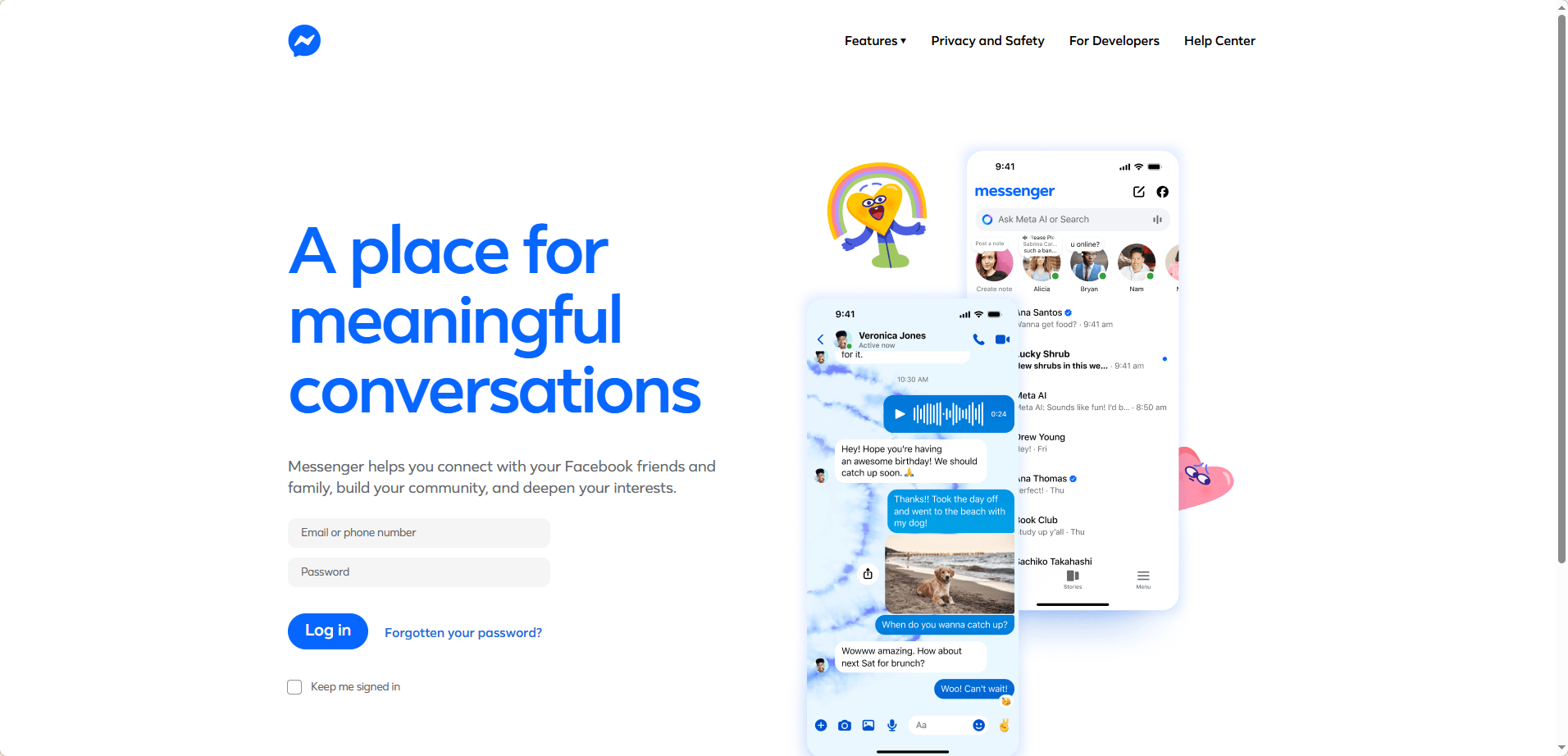
Messenger supports
● One‑on‑one and group conversations: Start private chats or create group conversations with multiple participants.
● Rich media sharing: Send and receive photos, videos, documents, and other files seamlessly.
● Voice and video calling: Make high‑quality audio and video calls directly from your browser.
● Business page integration: Communicate with customers via connected business pages, including quick replies and away messages.
Beyond these core capabilities, Messenger on desktop also offers:
● Privacy & security: End‑to‑end encrypted chats for one‑on‑one and group conversations, message deletion, clear chat history, and disappearing messages in encrypted threads.
● Expressive interactions: Use stickers, GIFs, custom emojis, and react to specific messages with emoji reactions; mention group members with @ mentions.
● Productivity tools: Send messages to yourself for note‑taking or reminders; pin important conversations; view delivery and read receipts.
Using Messenger in a browser gives you the flexibility to manage multiple accounts and handle messages without being tied to a mobile device. It also allows you to integrate Messenger into your workflow alongside email, team collaboration tools, or other social apps.
Can I login to Messenger without the app?
Yes, you can access Messenger without installing the app. By using a browser or a tool like BitBrowser, you can log in to your Messenger accounts directly, check messages, and respond to conversations. This approach is particularly useful if you manage multiple accounts or prefer to work on a desktop.
How do I open Messenger in my browser?
Opening Messenger in a browser is simple. Go to messenger.com
or access it via your Facebook account on a desktop browser.
You can log in with your personal account or business pages, and all your conversations will be synced.
Why a Browser Makes Messenger Management Easier
Handling Messenger accounts in a browser has a few clear advantages.
First, it lets you separate each account in its own profile. This keeps messages and notifications distinct, so you never have to wonder which account a notification belongs to.
Second, desktop notifications allow you to see new messages from all accounts without constantly switching apps.
Third, if you use other tools like email or team collaboration apps, a browser can help you keep everything in one place.
Using this approach, you can:
● Check all inboxes without logging in and out constantly
● Preview notifications for accounts you’re not actively using
● Integrate Messenger with other tools for a smoother workflow
This setup is especially helpful if you manage both personal messages and business pages. Notifications are organized, and you can respond quickly without losing context.
Common Challenges with Multi-Account Management
Even with a browser, managing several Messenger accounts isn’t always simple. Some challenges include:
● Login conflicts: Switching accounts in a standard browser can cause cookie or session issues.
● Missed notifications: Without proper setup, you might not see all incoming messages.
● Mobile limitations: Apps typically handle one account at a time, which can slow you down.
● Security and account risks: When multiple accounts are logged in on the same browser or device, it can create associations between accounts. This increases the risk of accidental bans or restrictions from Facebook, especially if the system detects unusual login patterns.
● Browser fingerprint tracking: Each browser leaves a unique digital signature (browser fingerprint) that platforms can track. Standard browsers don’t isolate this data, so using multiple accounts without protection can flag your profiles.
Because of these risks, using a dedicated anti-detect browser like BitBrowser is important. BitBrowser isolates each account in its own profile, hides browser fingerprints, and reduces the chance of cross-account detection or bans, allowing you to manage multiple Messenger accounts safely and efficiently.
How BitBrowser Helps You Stay Organized
BitBrowser solves these problems by keeping each Messenger account in a separate, isolated profile. Each account has its own login session, which prevents conflicts and keeps messages private. You can switch between accounts instantly and manage notifications for each one without confusion.
Key benefits include:
● Independent profiles for each account, so switching is effortless
● Security Lock to protect login credentials
● Clear notifications that are separated by account
● Team collaboration options for shared access without sharing passwords
For anyone who wants to open Messenger without installing the app, BitBrowser works perfectly with the method described in our guide here.
Step-by-Step Guide to Manage Multiple Accounts
Here’s a simple way to get started:
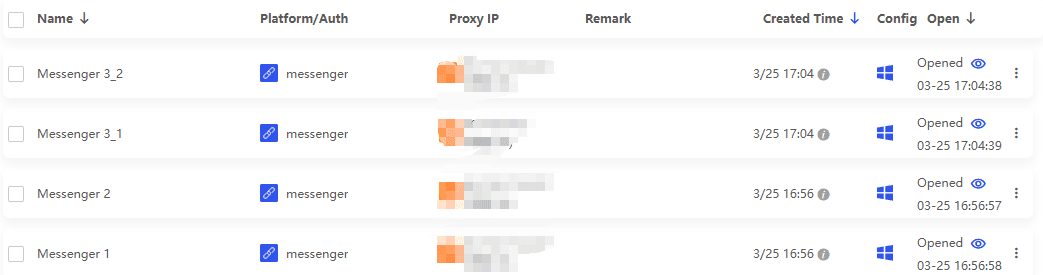
● Create a separate profile for each Messenger account. Personal, business, or side projects can each have their own profile.
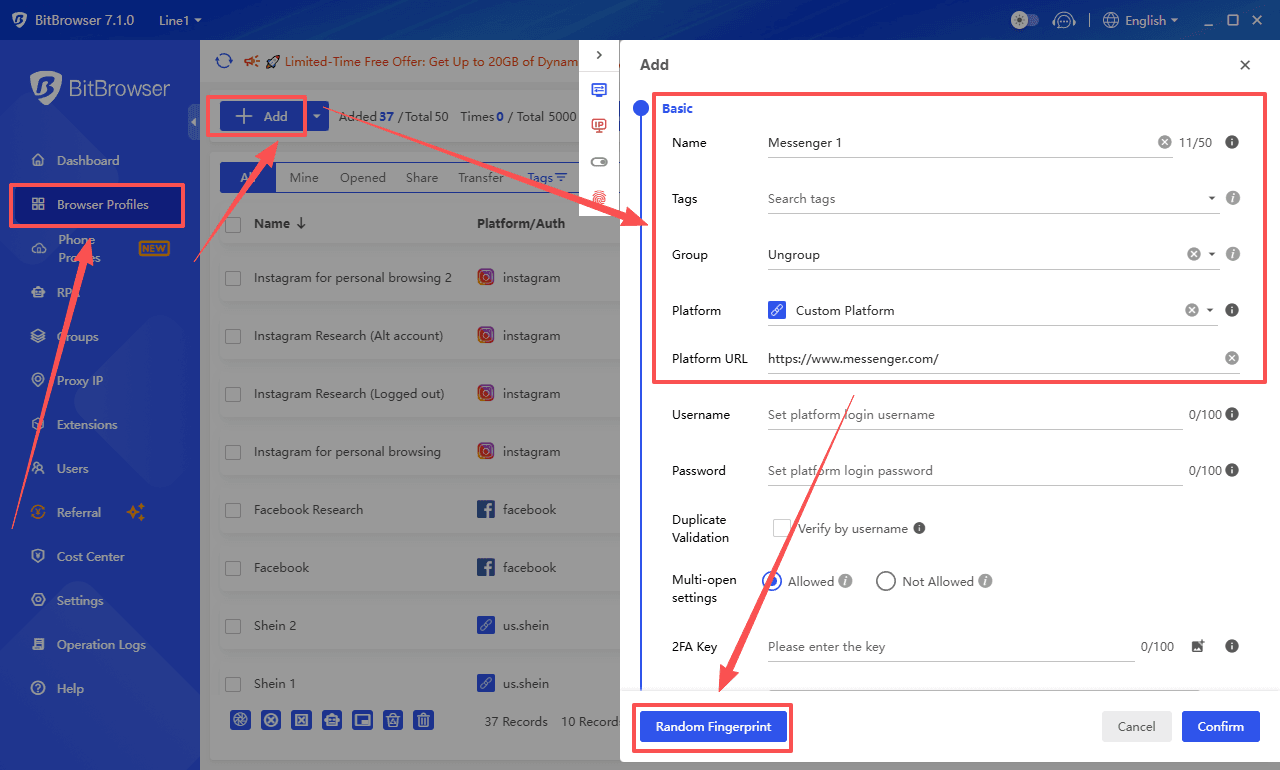
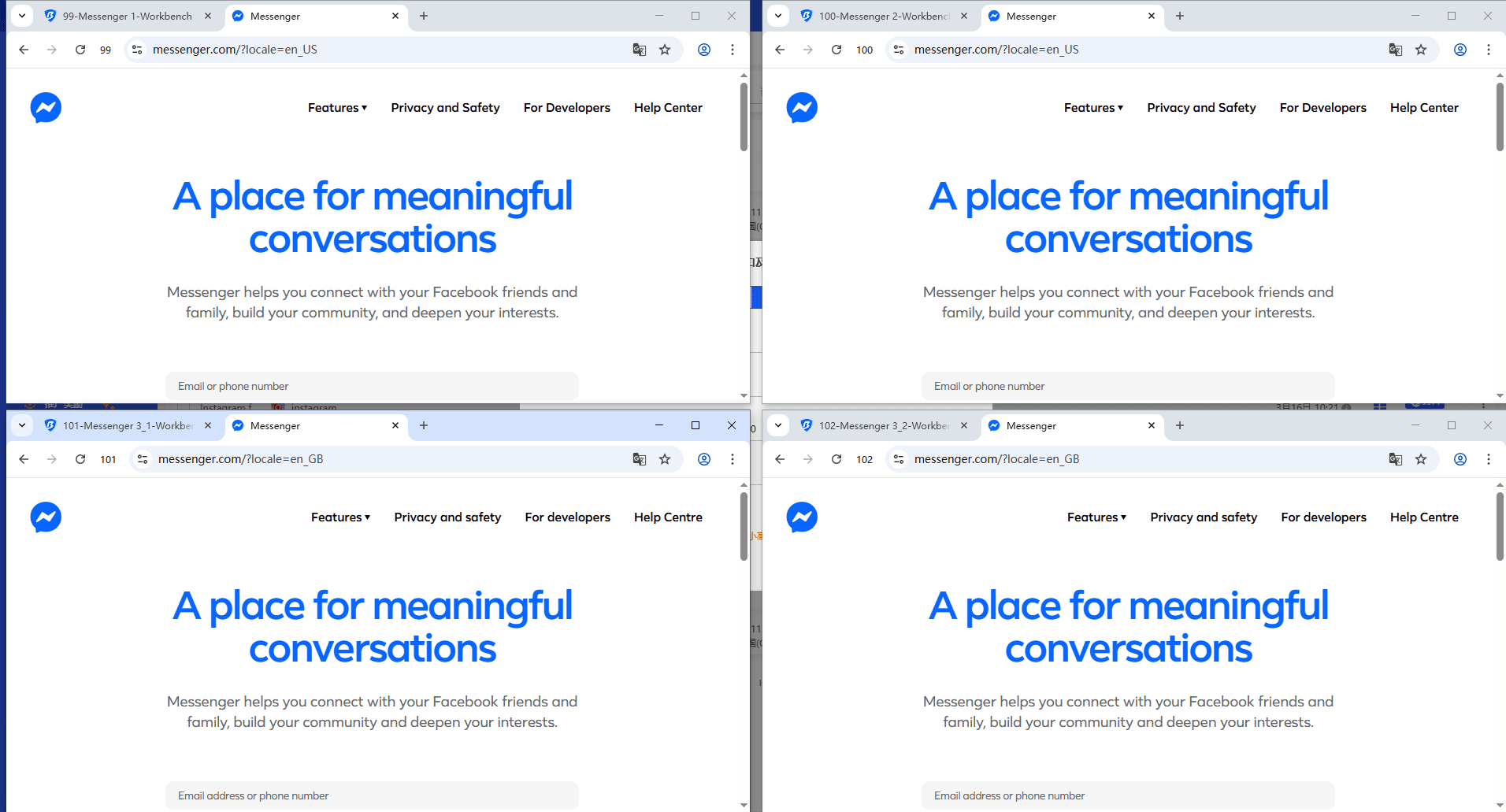
● Log in to Messenger in each profile. BitBrowser keeps sessions independent, so you can leave multiple accounts open at once.
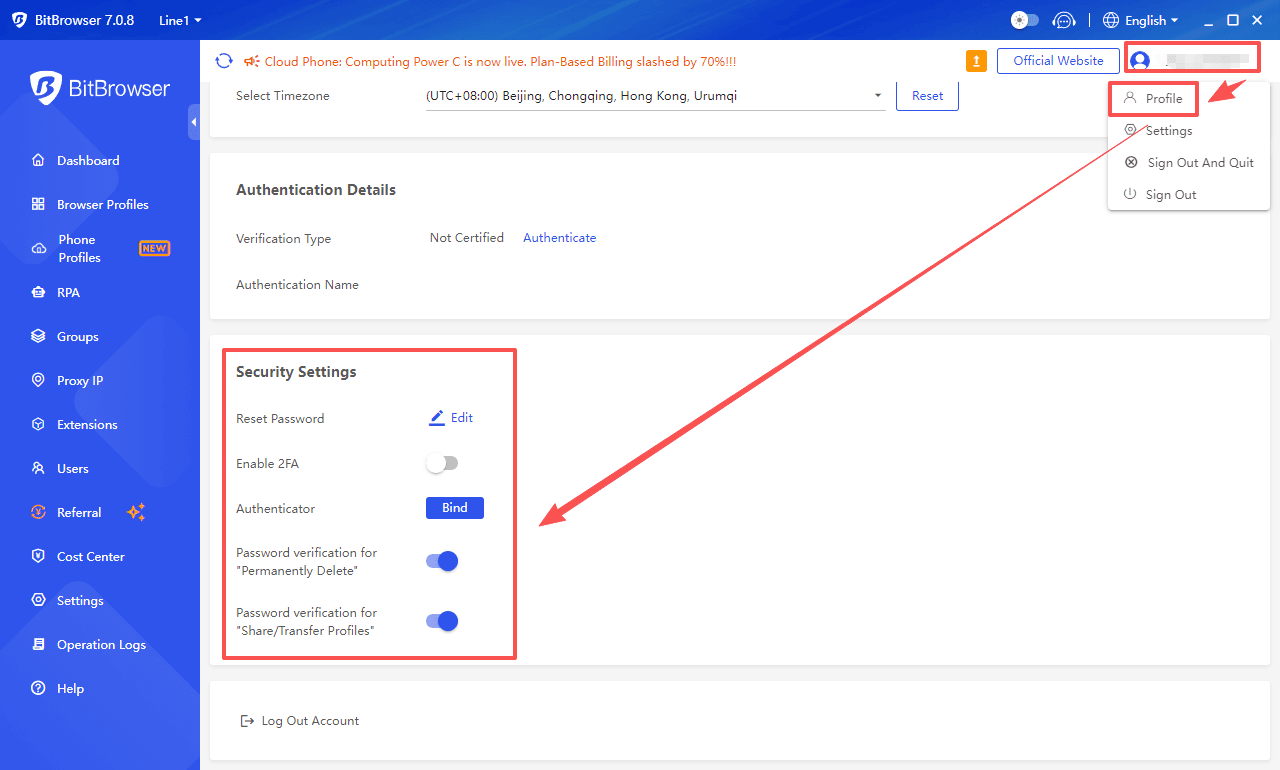
● Enable Security Lock to protect login information.
● Switch accounts effortlessly. Clicking between profiles instantly changes the active account without logging out.
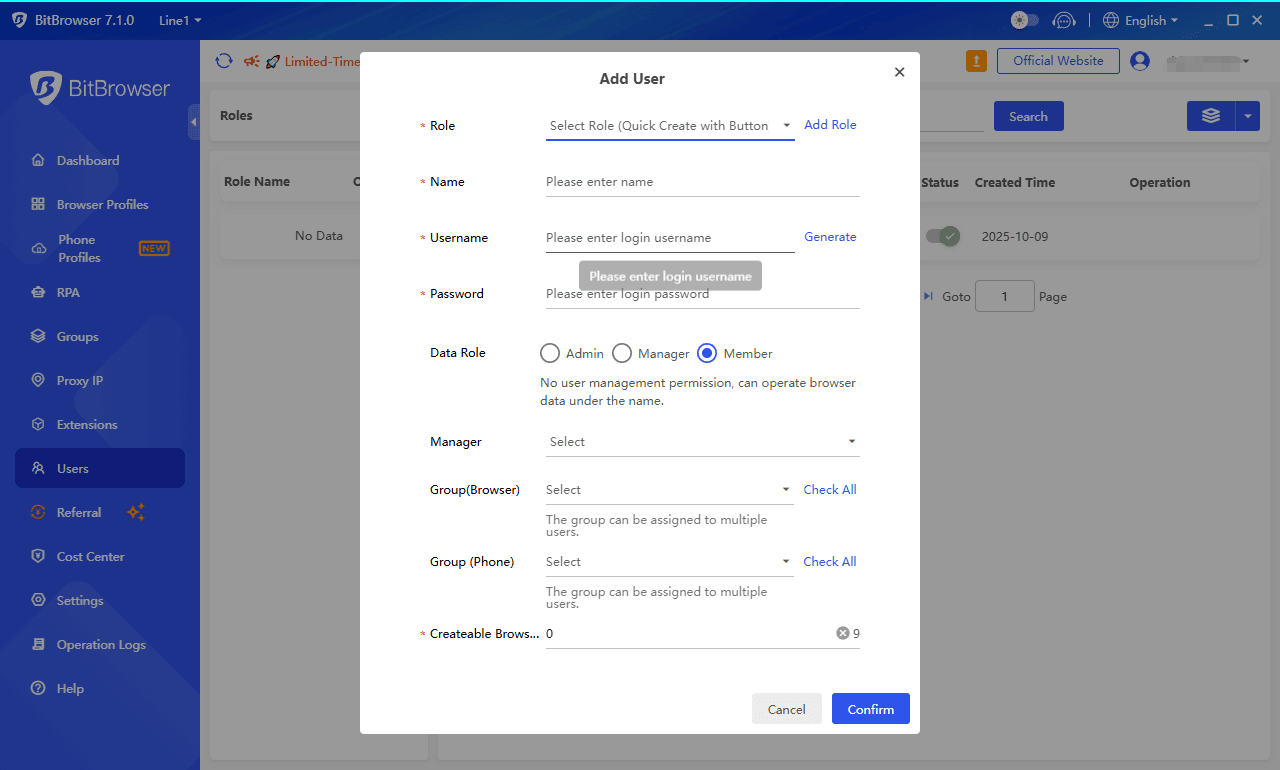
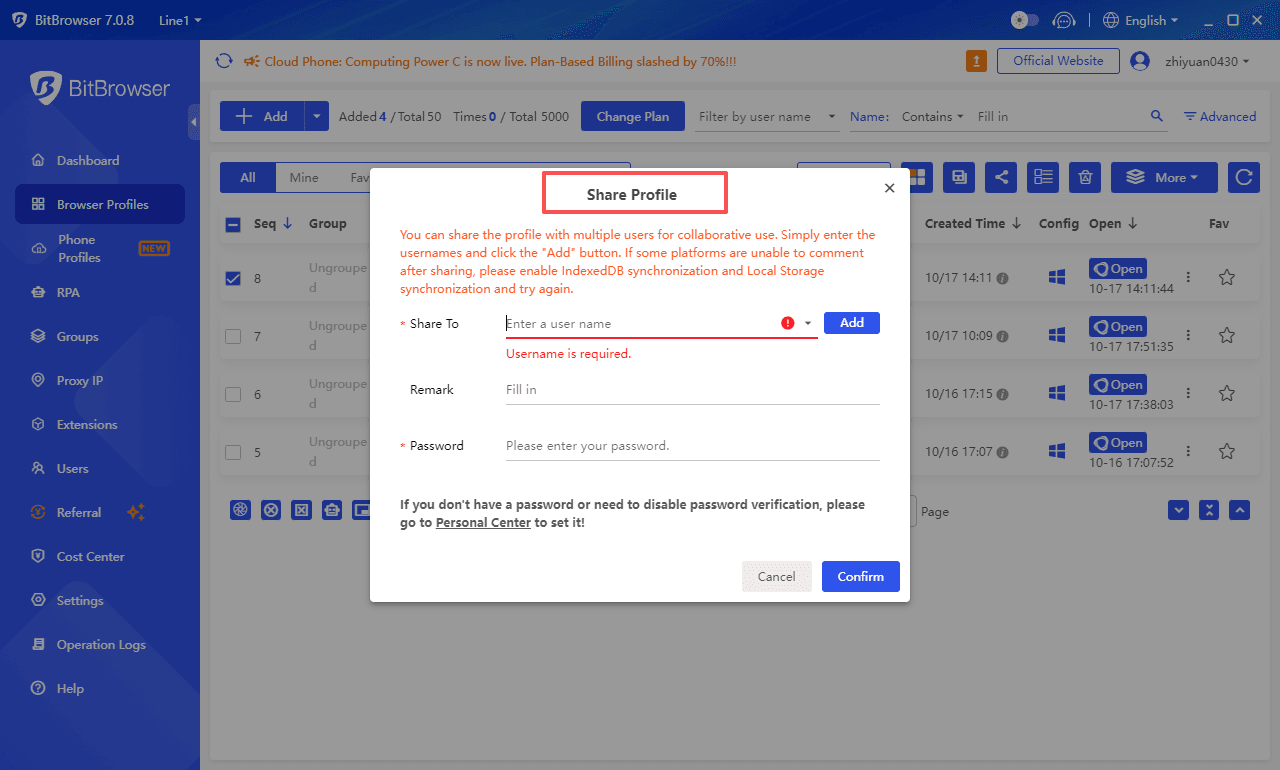
● Optional: Team collaboration. Shared profiles let multiple people manage the same account securely.
Even if you handle multiple clients or business pages, this setup makes everything feel organized rather than chaotic.
Best Practices for Browser-Based Management
A few habits make multi-account management easier and safer:
● Check message requests regularly, especially from people who are not friends or page followers.
● Adjust your active status to control when others can see you online.
● Enable two-factor authentication for extra security.
● Keep each account in its own profile to avoid session conflicts.
These small steps help you stay on top of messages and reduce the risk of errors.
Conclusion
Managing multiple Messenger accounts in a browser is more convenient and secure than constantly switching on mobile. BitBrowser keeps each account separate, protects your login data, and makes switching between profiles effortless. Whether you handle personal chats, business pages, or multiple social campaigns, this method saves time and keeps you organized.
With BitBrowser, managing multiple accounts no longer feels complicated. Notifications are clear, each profile stays independent, and switching between accounts becomes a seamless part of your workflow.
Get 10 permanent free BitBrowser accounts now
FAQ
Is Facebook Messenger no longer available?
Messenger is still available and actively supported by Meta. While the standalone app is widely used on mobile devices, the service itself can also be accessed on desktops, laptops, and through browsers. The perception that Messenger is unavailable usually comes from users who rely solely on mobile apps or have uninstalled it.
How do I login to Messenger?
Logging in to Messenger can be done in three main ways:
● Mobile app – Download Messenger on your device and sign in with your Facebook account.
● Browser login – Visit messenger.com or log in through Facebook on a desktop browser.
Can I use Messenger without signing up for Facebook?
Technically, Messenger requires a Facebook account to send and receive messages. However, if you have a business page connected to your main profile, you can communicate with users through that page without exposing your personal account.
Using tools like BitBrowser, you can manage these multiple Messenger accounts securely and efficiently, all in the browser.This setup allows business or side project accounts to remain separate from your personal profile while still engaging with contacts and followers.
Can I use Messenger after deactivating my Facebook account?
Yes. You can still use Messenger even if your Facebook account is deactivated. Log in using the same email and password that you used for your Facebook account. This allows you to continue chatting with friends and accessing your messages without reactivating your Facebook profile.
This is called a DEMA account (Deactivated Facebook, Messenger Active). With a DEMA account, you can chat with friends in Messenger, your profile picture will appear in conversations, and people can search for you and send messages. You won’t appear in Facebook searches, your Facebook profile is deactivated but can be reactivated anytime, and you may need to confirm your birthday or create a password for security.

 Multi-Account Management
 Prevent Account Association
 Multi-Employee Management
Recommended
See More 



