How to Create Multiple YouTube Channels Using the Same Gmail Account in 2026
 2026.06.06 05:50
 YT.Shi
Many creators eventually reach a point where one YouTube channel is no longer enough.
Maybe you want to separate gaming videos from business content. Maybe you run several brands. Maybe you manage channels for clients. Or perhaps you want different channels for different languages and audiences.
The good news is that YouTube allows you to create and manage multiple channels under a single Google account.
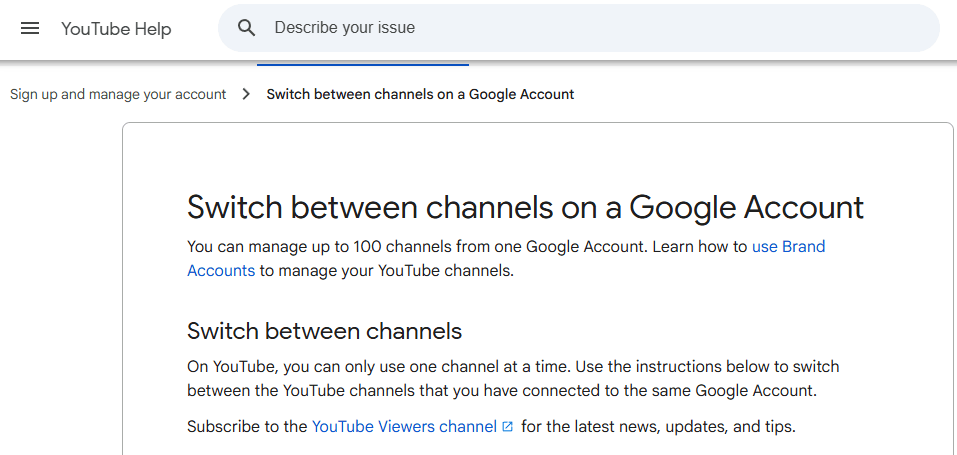
In this guide, you'll learn exactly how it works in 2026, how to create additional channels, what Brand Accounts are, the differences between personal and Brand channels, and how to safely manage multiple YouTube channels using BitBrowser.
Why Do You Need a Google Account to Use YouTube?
Before we talk about creating multiple channels, let us cover the basics. YouTube is part of Google's ecosystem. You need a Google Account to sign in to YouTube. That account works across all Google services, including Gmail, Blogger, Maps, and more.
When you sign into YouTube, you're actually signing in with your Google account credentials.
Even if you only want to watch videos, subscribe to creators, save playlists, or receive recommendations, you'll need a Google account.
However, simply having a Google account does not automatically give you a public YouTube presence.
To upload videos, leave comments, create playlists, livestream, or build a subscriber base, you must create a YouTube channel.
How to Create a YouTube Channel (Personal Channel)
Creating a personal channel is the most straightforward way to get started. Follow these instructions to create a channel that only you can manage.
Sign in to YouTube on a computer. Click your profile picture in the top right corner, then go to Settings. Navigate to the Account section and select “Add or manage channel(s).” Click “Create a channel.” Choose a profile picture, type in your name and handle, then click “Create channel.”
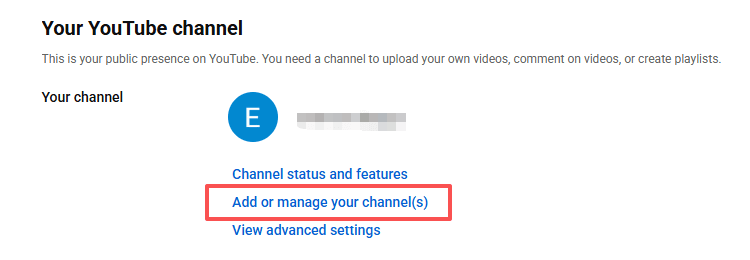
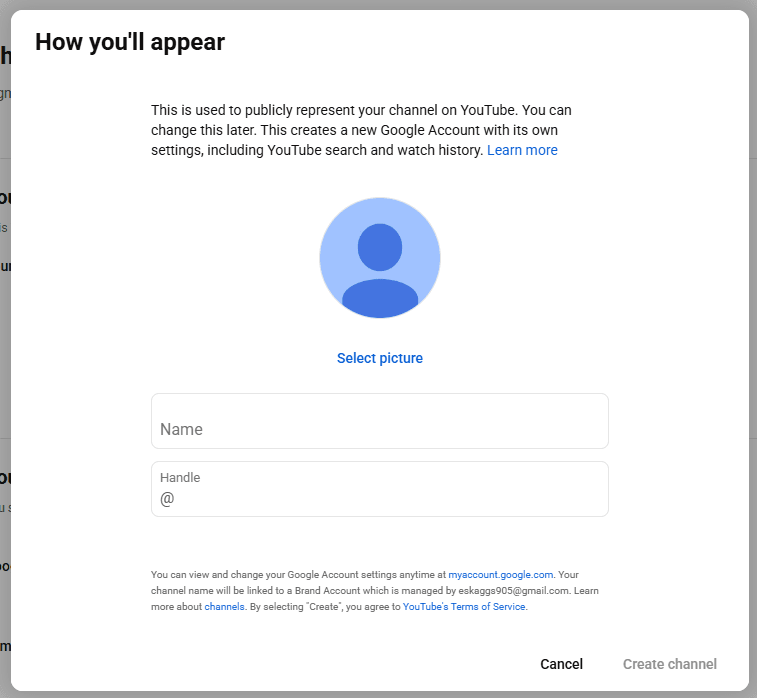
Every Google Account automatically comes with a personal channel available. You rarely need extra setup beyond picking the channel name and uploading your branding assets. However, you cannot create multiple personal channels under the same email. That is where brand accounts come in.
What Is a Brand Account on YouTube?
A Brand Account is a special type of account designed for businesses, teams, brands, agencies, and creators managing multiple channels.
Unlike a personal YouTube channel, a Brand Account can be managed by multiple Google accounts without sharing passwords.
Think of it as a container that holds a YouTube channel. Inside that container, you can assign different roles and permissions to team members.
Since 2021, Brand Accounts have been focused specifically on YouTube management, making them the preferred method for running multiple channels under one Google account.
Brand Account vs Personal YouTube Channel (Concise Version)
| Category | Personal YouTube Channel | Brand Account Channel |
|---|---|---|
| Core Account Tie | Directly linked to your personal Google account | Separate brand account under your Google account |
| Key Advantages | • Quick & easy setup • No extra management needed • Ideal for individual creators | • Multiple owners/managers supported • Separate branding from personal profile • Multi-channel management under one Google account • Better for team/business collaboration |
| Key Limitations | • Only one primary owner • Hard to share management access • Not suitable for businesses/teams | • Slightly more complex setup • Requires attention to permission management |
| Best For | Individual creators, single-channel non-commercial use | Businesses, agencies, teams, multi-channel matrix operations |
How to Create a Second YouTube Channel with One Google Account
If you’ve already established a personal brand on your YouTube account, follow these steps to create a second YouTube channel under the same Google email address:
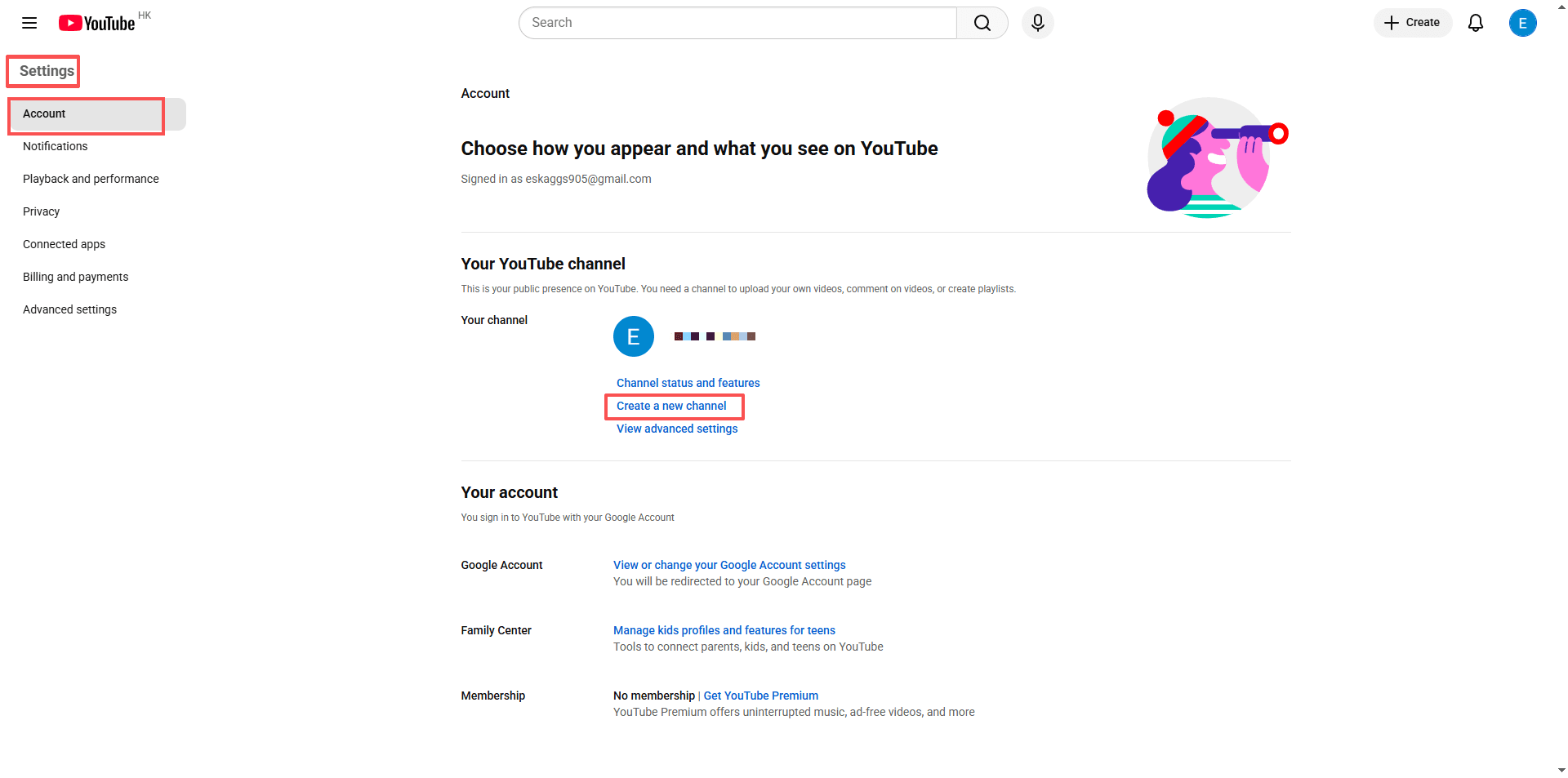
Step 1: Open Channel Management
Click your profile picture. Choose: Settings → Account → Create a new Channel → All Channels → Create a Channel
YouTube will automatically create a new Brand Account linked to your Google account.
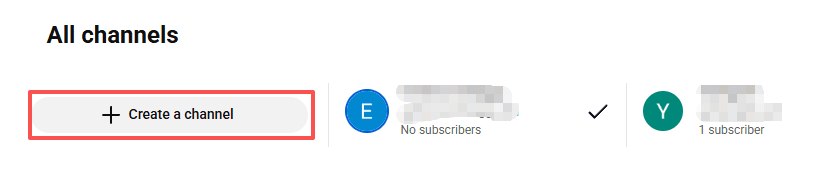
Step 2: Configure the New Channel
Add the channel name, profile picture, and other information to the new channel.
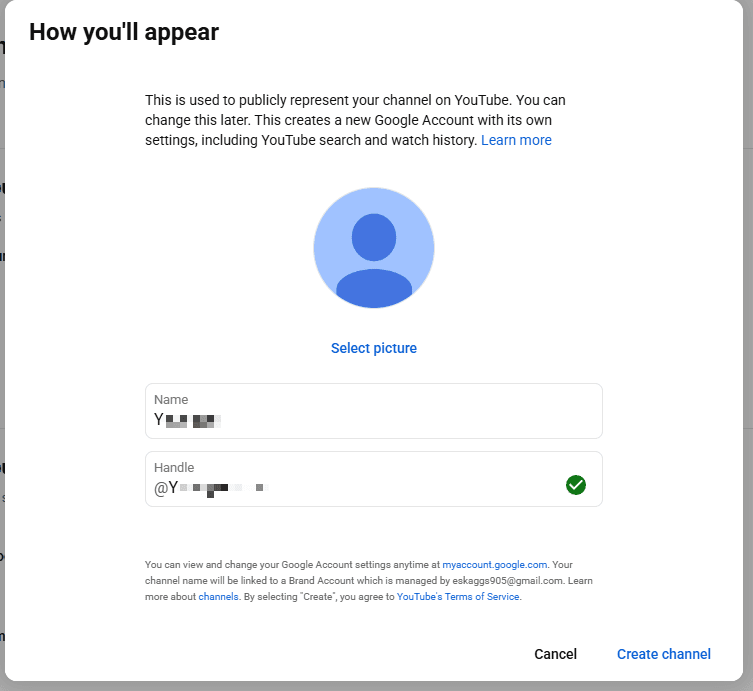
Step 3: Repeat for Additional Channels
You can repeat the process whenever you need another channel. Each channel remains separate while being managed through the same Google account.
How to Switch Between Multiple YouTube Channels
Managing multiple channels is simple.
On Desktop
Click your profile picture. Select: Switch Account
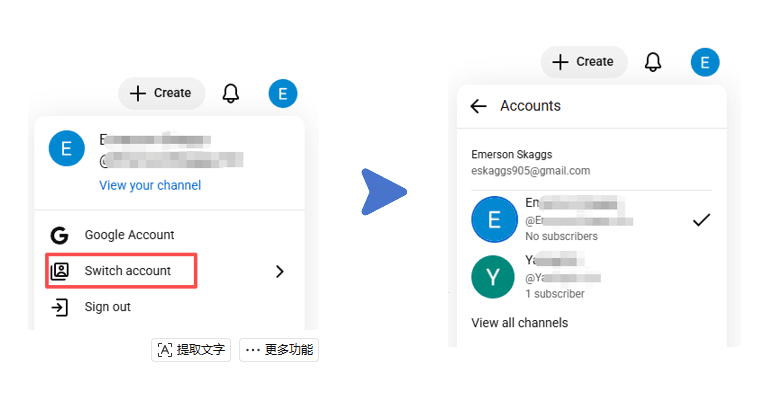
You'll see a list of all channels connected to your Google account. Click any channel to switch instantly.
Before uploading a video, always verify that the correct channel icon appears in the top right corner.
How to Switch an Existing Personal Channel to a Brand Account
If you already have a personal channel that you have been running for a while, you can convert it into a brand account. This moves all your videos, subscribers, and watch history without losing anything.
Sign in to YouTube using your Google account. Click on your profile picture and select Settings. In the left menu, click Channel and then Advanced settings. Under the Channel type section, click “Move channel to a brand account.” Confirm the action when prompted. Once done, your channel will be managed as a brand account, and you can start adding team members.
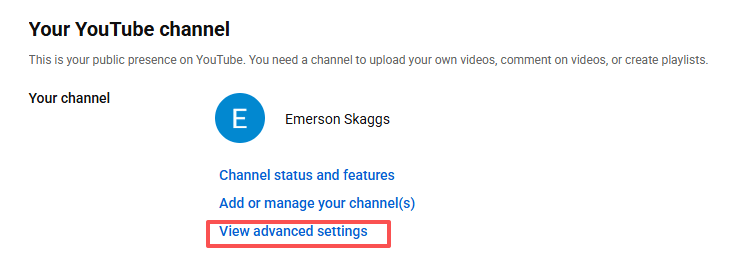
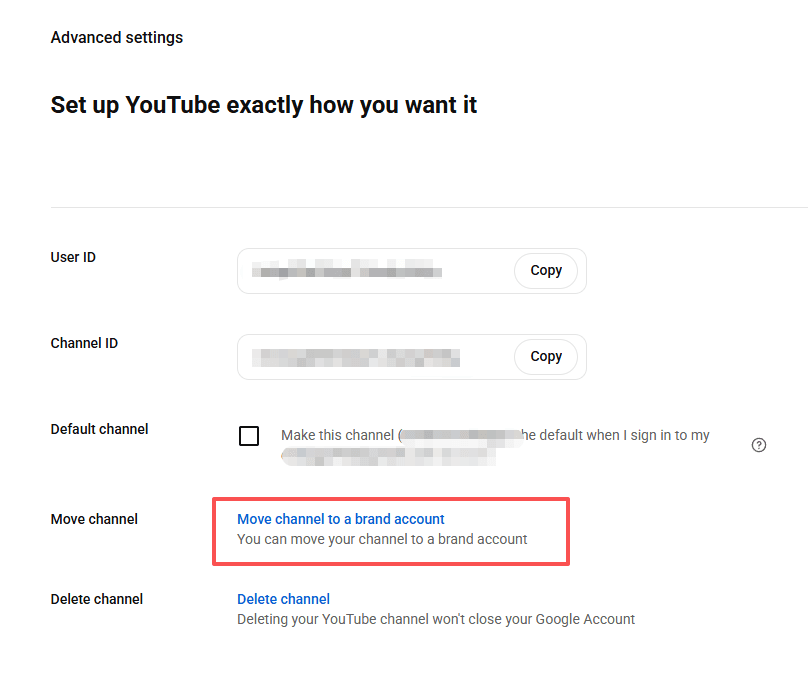
This is not reversible, so make sure you are ready before making the switch.
Is It Safe to Manage Multiple YouTube Channels with One Email?
Yes. YouTube officially allows users to create and manage multiple channels under a single Google account through Brand Accounts.
For most creators and businesses, this is a safe and convenient way to manage different projects without creating multiple Gmail accounts.
However, there are a few risks to keep in mind.
First, all channels are connected to the same Google account. If that account is compromised, suspended, or loses access, every linked channel may be affected.
Second, channels under the same account are associated with one another. Serious policy violations, spam activity, or copyright issues on one channel could lead to increased scrutiny of related channels.
Finally, managing multiple channels can become confusing as your operation grows. Uploading content to the wrong channel, using the wrong account identity, or sharing login credentials with team members are common mistakes.
For creators managing several channels or multiple Google accounts, using a dedicated management solution such as BitBrowser can help keep accounts organized, separate, and easier to manage at scale.
How BitBrowser Can Help Manage Multiple YouTube Channels
As the number of YouTube channels grows, account management can become increasingly complex.
BitBrowser is an anti detect browser that helps creators, agencies, and teams organize multiple accounts through separate browser profiles. Each profile stores its own cookies, login sessions, and browser environment, helping reduce account confusion and making daily management more efficient.
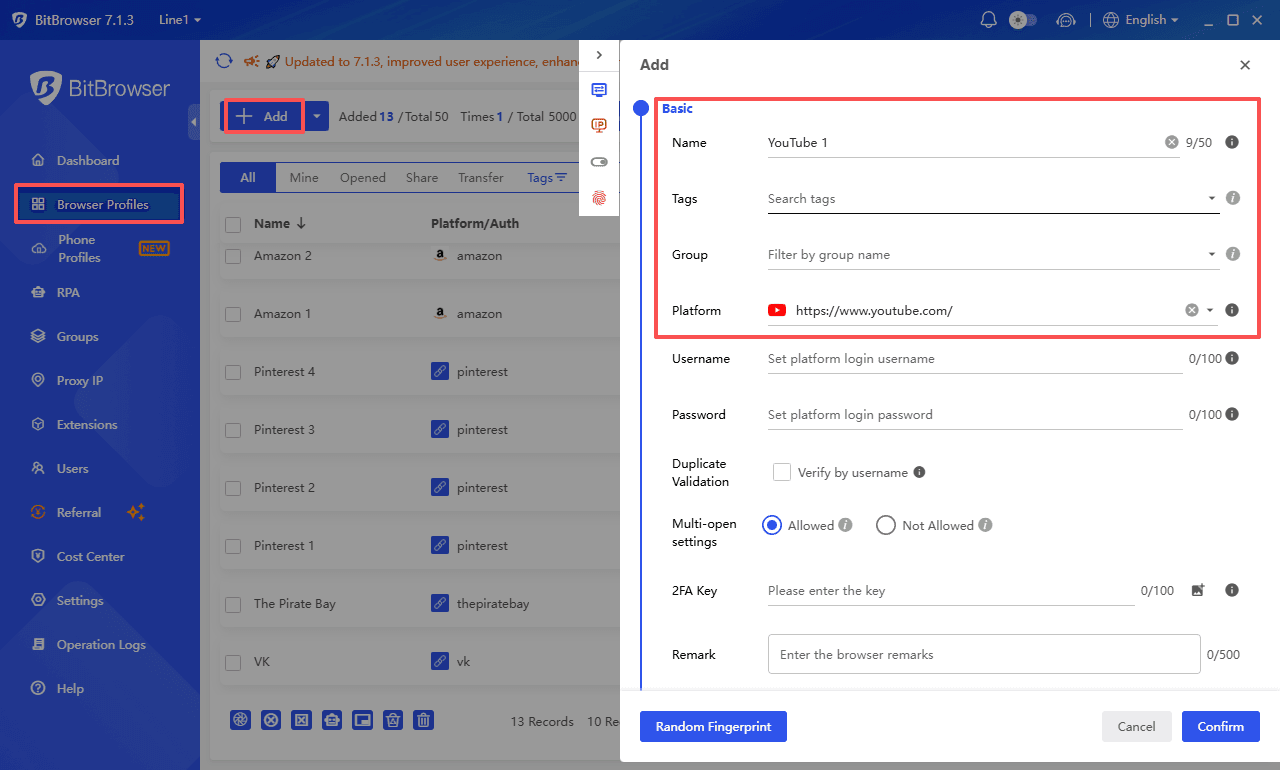
For example, you can create dedicated profiles for different YouTube channels, client projects, or team members. This makes it easier to switch between accounts without constantly logging in and out.
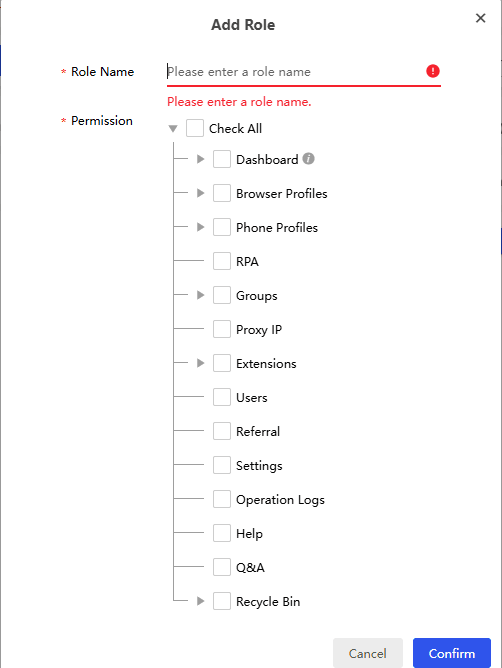
BitBrowser also includes team collaboration features, allowing managers to share access securely without exposing account passwords. For agencies and businesses handling multiple YouTube projects, this can simplify workflows and improve account organization.
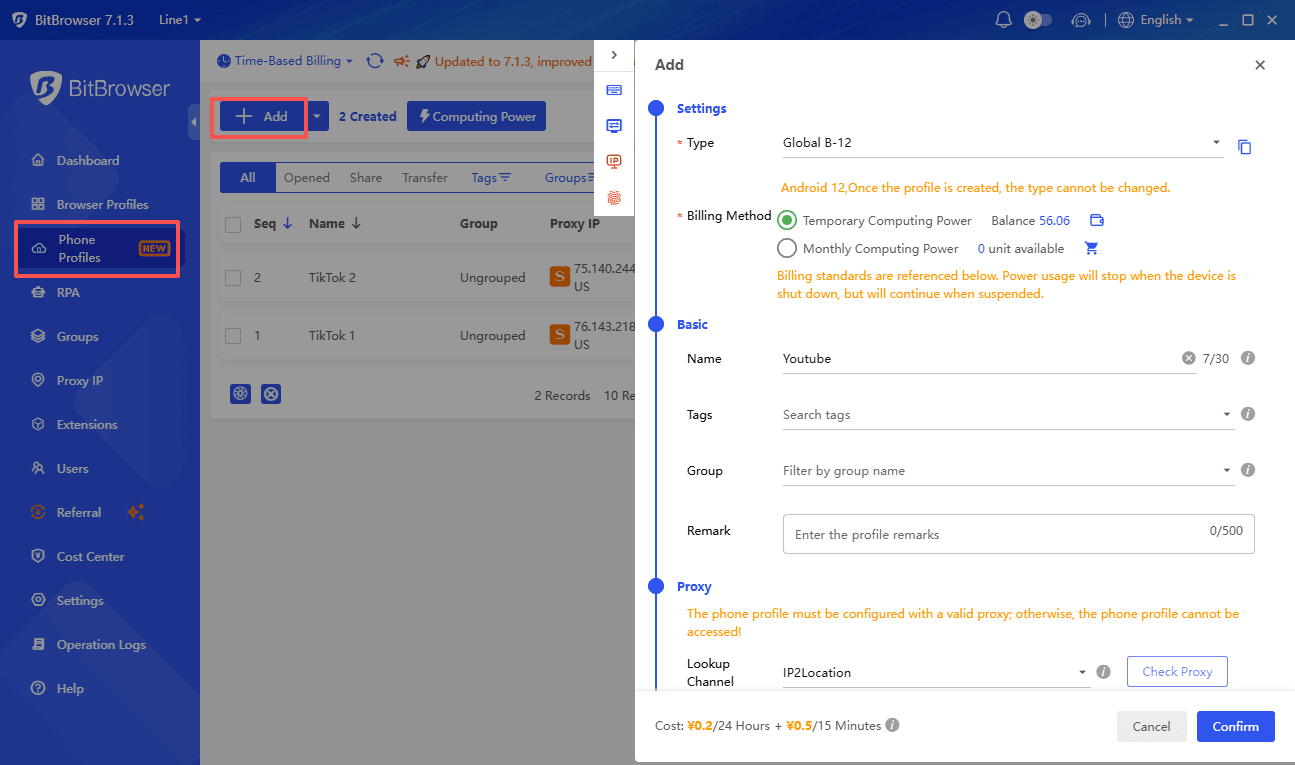
If you’re used to managing your YouTube channel via a mobile app, you can use BitCloudPhone within the BitBrowser client to create multiple anti-detection cloud phone environments and leverage its RPA automation features to help you warm up accounts and publish content more efficiently.
Final Thoughts
Managing multiple YouTube channels with one Google account is easier than ever in 2026. Thanks to Brand Accounts, you can create, organize, and switch between multiple channels without needing multiple Gmail accounts.
For most creators, YouTube's built in tools are enough. However, as your operation grows, keeping accounts organized becomes increasingly important. Tools like BitBrowser can help streamline multi channel management and team collaboration.
Start with a clear channel structure, follow YouTube's policies, and scale gradually. With the right setup, managing multiple YouTube channels can be both efficient and sustainable.
Frequently Asked Questions
Can I Create Multiple YouTube Channels with One Google Account?
Yes. YouTube allows you to create and manage multiple channels under a single Google account using Brand Accounts. This is the recommended method for creators, businesses, and agencies that need more than one channel.
How Do I Create a Second YouTube Channel with the Same Gmail Account?
Sign in to YouTube, go to Settings → Add or Manage Channels, then select Create a New Channel. YouTube will create a new Brand Account that can be managed from the same Google account.
How Many YouTube Channels Can One Google Account Have?
A single Google account can manage up to 100 YouTube channels through Brand Accounts, although most creators only need a few channels for different niches or projects.
Do I Need a Brand Account to Create Multiple YouTube Channels?
Yes. While a Google account only has one personal YouTube channel, additional channels are created as Brand Accounts. This allows you to manage multiple channels from the same email address.
What Is the Best Way to Manage Multiple YouTube Channels?
For a small number of channels, YouTube's built-in Brand Account features are usually enough. As your operation grows, using tools such as BitBrowser can help streamline account management, team collaboration, and workflow organization across multiple YouTube channels.

 Multi-Account Management
 Prevent Account Association
 Multi-Employee Management
Recommended
See More 



