Discord IP Ban: Why It Happens and How to Fix It (2026 Guide)
 2026.02.24 14:17
 YT.Shi
Discord bans aren’t new, but in 2026 many users are running into restrictions that go beyond a normal server ban. Sometimes a new account cannot join servers, verification fails, or multiple people on the same network get blocked at once.
That is often a sign of a Discord IP ban, a restriction that targets the network instead of a single account. Because it affects where you connect from, it can prevent new registrations, logins, and server access across multiple accounts.
This guide explains the different types of Discord bans, the most common causes of IP based restrictions, how to check if you are affected, and the safest ways to fix and prevent future bans.
Types of Discord Bans
1. Server bans (a specific server is the target)
A server ban restricts a user’s access to a particular server. Any user with sufficient permissions can ban another user. Server bans can be temporary or permanent, depending on the server moderators’ discretion. There are two main types of server bans:
(1) Kick
you’re removed, but you can rejoin immediately (unless the server has verification gates or invites are limited).
(2) Ban
You are blocked from rejoining that server. Bans are usually tied to your account ID and sometimes include an IP component depending on moderation tools and anti abuse signals.
When banned:
● Your account is removed
● Your account and sometimes your IP cannot rejoin
● New accounts on the same IP may be blocked, while existing ones usually remain
Trying to bypass a server ban with alternate accounts or VPNs can violate Discord’s Terms of Service and lead to wider enforcement.
Server bans can overlap with IP bans because IP blocking is used to prevent ban circumvention.
Important: A server ban only applies to that server, not the entire Discord platform.
2. Platform bans (Discord Trust and Safety stuff)
A platform ban is issued by Discord’s Trust and Safety Team when a user violates the platform’s rules.
Ban Levels:
● Warning: Discord sends a DM and email about a violation and possible consequences.
● API Ban: Limited access to Discord features, often due to rate-limit abuse. Usually short term.
● Quarantine: Messaging and joining new servers are restricted, but existing servers remain accessible. Recovery requires contacting support.
● Temporary Ban: Full platform restriction for a limited period, sometimes lasting years.
● Account Termination: The account is disabled and later deleted, though creating a new account may still be allowed.
● Permanent Ban: Complete removal from Discord. Phone numbers may be blacklisted and IP verification can be enforced, preventing new accounts.
Platform bans are more severe than server bans and can include IP-level restrictions, making them a form of Discord IP ban in serious cases.
Discord IP bans can prevent new accounts from working. Meaning:
● You create a new account and it immediately gets locked, limited, or blocked
● Multiple accounts on the same network suddenly can’t log in, verify, or join servers
● Even “clean” accounts might get caught if they share the same network at the wrong time
So when people say “IP ban”, sometimes it’s really “IP + fingerprint + behavior flags”. But IP is usually the part that blocks the whole household.
Common Reasons for a Discord IP Ban
1. Rapid multi-account creation
Creating several accounts quickly from the same IP, device, or behavior pattern can trigger risk detection, even if the intent is harmless.
2. Spam or automation behavior
Mass messaging, rapid posting, joining many servers, scripts, selfbots, or aggressive API use can look like spam and lead to restrictions.
3. Suspicious login patterns
Frequent location changes, device fingerprint shifts, or constant VPN switching can trigger security locks that resemble IP bans.
4. Shared or flagged networks
Dorms, hotels, coworking spaces, cafes, or mobile carriers often use shared IPs. If someone abused Discord on that network, others may be affected.
5. Unsafe VPNs or low-quality proxies
Many public VPN or cheap proxy IPs have poor reputations due to account farming and bot traffic, increasing the risk of an IP ban.
6. Violations linked to multiple accounts
If one account is banned for serious violations, Discord may restrict the entire network to prevent ban evasion, causing new accounts on the same IP to be flagged.
How to Check If You Are IP Banned on Discord
Discord doesn't always pop up a big banner that says "You are IP banned." It's usually indirect. Here are the common signs.
Signs that often indicate an IP based block
● You can't access Discord normally, especially on web, and you see errors like: "Access denied," "You are being rate limited," "Something's going on here," "This phone number was used recently," or "Verification failed"
● You can't create new accounts on your network, or new accounts get locked immediately
● Multiple accounts (yours, your alt, your sibling's) all stop working on the same WiFi
● The Discord app loads, but actions fail (joining servers, sending messages, verifying)
● You keep getting forced into phone verification loops
None of these alone guarantee an IP ban. But when several happen together, it's very often network related enforcement.
How to confirm (simple, safe tests)
Do this in a clean, calm way. Don't spam attempts. Don't keep hammering "resend code".
Test 1: Switch networks
● Turn off WiFi and try on mobile data
● Or connect to a different WiFi entirely
If Discord works on mobile data but fails on home WiFi, that screams IP/network issue.
Test 2: Try a different device on the same network
● If a different device also can't log in or create accounts on the same WiFi, again, network
Test 3: Try the same account on a different network
● If the same account works elsewhere, it's not a full account ban. It's network related
Test 4: Check if only one server is affected
● If you can use Discord normally but just can't join one server, that's a server ban, not an IP ban
The pattern matters more than any one error message.
Additional Steps to Diagnose Further
If you're still uncertain about the nature of your access issues after these tests, there are additional steps you can take. Utilizing tools like Google's Search Operators can help you verify whether Discord is down for everyone or just you. By performing a search with specific operators, you can gain insights into potential outages or issues with the platform.
How to Fix a Discord IP Ban (Step by Step Guide)
Step 1: Figure out if it’s temporary (and sometimes just wait)
Many Discord IP based restrictions are not permanent. They can be short rate limits, security locks, or temporary network blocks.
If you were creating accounts quickly, joining lots of servers, or constantly switching VPNs, the smartest move is often to stop for a while. Wait 12 to 48 hours, then try again from a stable connection.
Keep retrying during the restriction window and you can extend it. To the system, it still looks suspicious.
Step 2: Contact Discord Support (the safe way)
If you believe it's a mistake or you're stuck in verification loops, contact Discord.
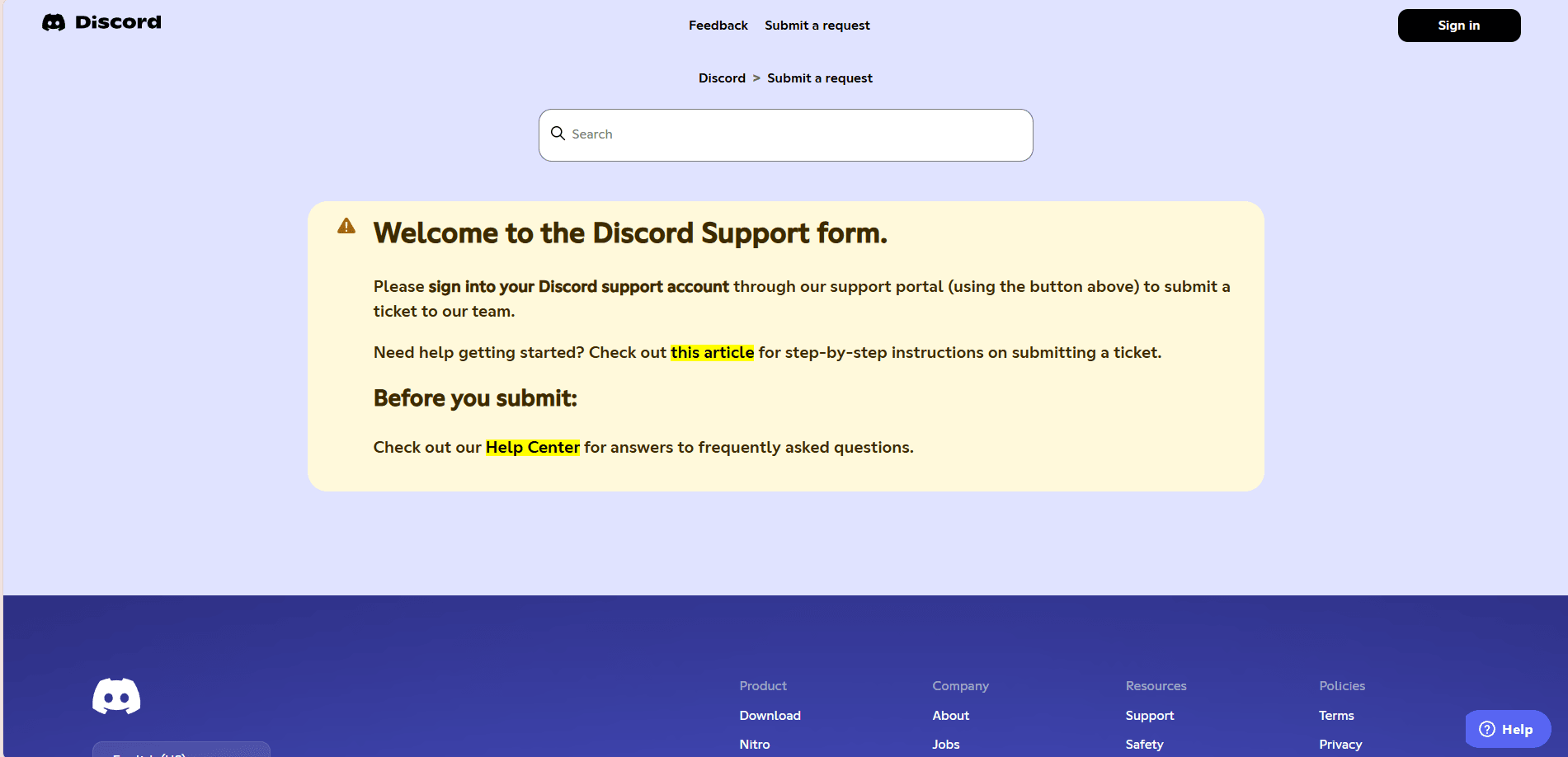
1. Go to: support.discord.com/hc/en-us/requests/new
2. Choose the category closest to your issue (Trust and Safety, Account Access, etc.)
Information to provide when contacting support:
● your Discord username and ID if you can access it
● the email on the account
● rough time the issue started
● what changed (new router, VPN use, dorm WiFi, travel)
● screenshots of the error if possible
What not to do when contacting support:
● don't mention "ban evasion"
● don't say you were making 12 accounts
● don't threaten them
● don't send five tickets in a row
Be boring, clear, and honest enough. Also expect delays. In 2026, support queues can be slow, especially for enforcement related issues.
Step 3: Change your network or get a fresh IP (legit methods first)
If the problem is your home IP being flagged, you need to change the public IP you’re presenting. There are a few ways.
Option A: Restart your modem/router (sometimes works)
If your ISP uses dynamic IP assignment, a restart can give you a new IP.
● power off modem/router for 5 to 30 minutes
● power back on
● check your public IP before and after
Not guaranteed. Some ISPs keep the same IP for a long time.
Option B: Ask your ISP for a new IP
This is underrated. You can literally contact your ISP and ask for a new IP due to “abuse flagging” issues, or ask them to reset your connection.
If you have a business connection or static IP, you may need them to change it explicitly.
Option C: Use mobile data temporarily
Mobile networks rotate IPs often and can get you unstuck quickly.
Just be careful: don’t do high velocity actions right away. If you log in and instantly start creating accounts or joining 50 servers, you can burn that path too.
Step 4: Why simple VPN switching often fails
People try this first: switch VPN location, refresh, done.
In 2026, that is unreliable because:
● many VPN IPs are already flagged or heavily rate limited
● rapid IP switching itself looks suspicious
● Discord also correlates device/browser fingerprints, cookies, behavior
So you might change your IP but keep the same fingerprint. Discord still recognizes the pattern and clamps down again.
VPNs are not automatically bad. But random endpoints and constant switching is a great way to stay flagged.
Step 5: Fix the environment too (browser isolation and fingerprint separation)
This is the part many guides skip, so here’s the simple version.
Discord does not only see your IP. It also sees your browser environment, including cookies, storage, device signals, extensions, and login patterns. If your current environment is linked to suspicious activity, changing IP alone may not fix the issue.
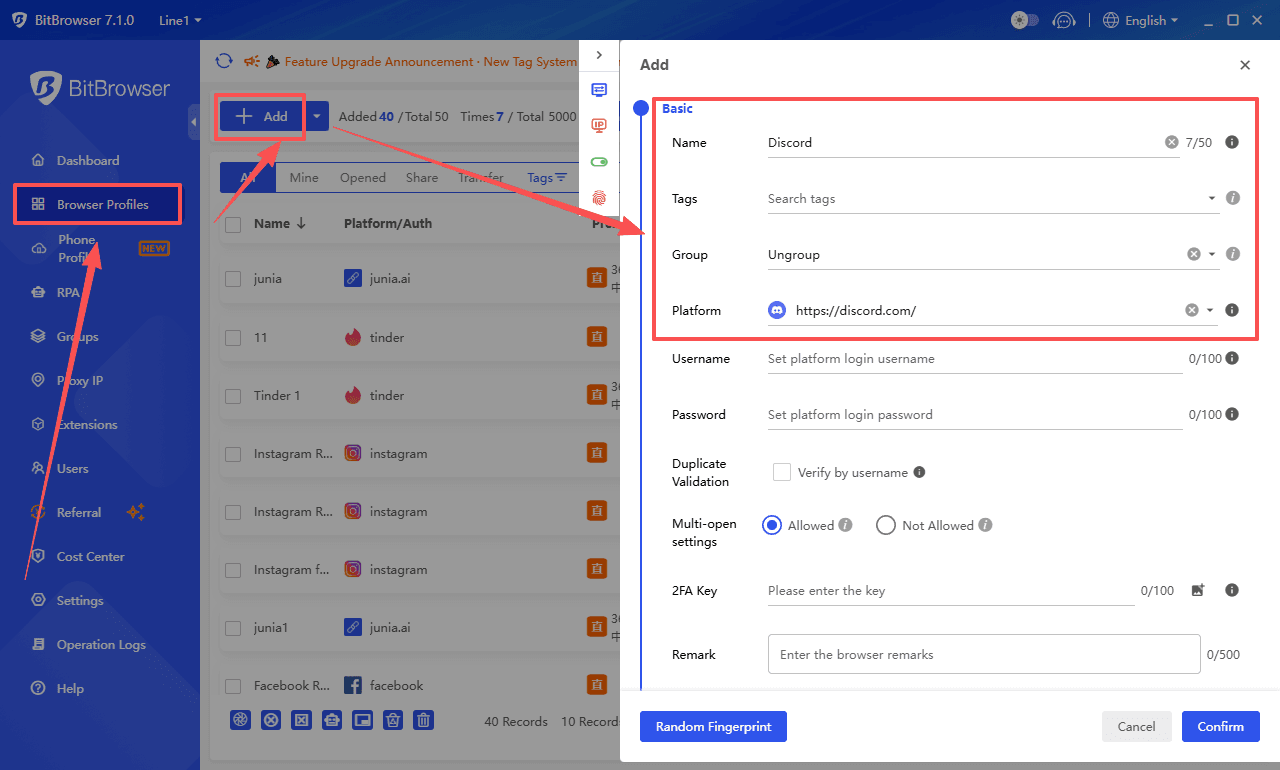
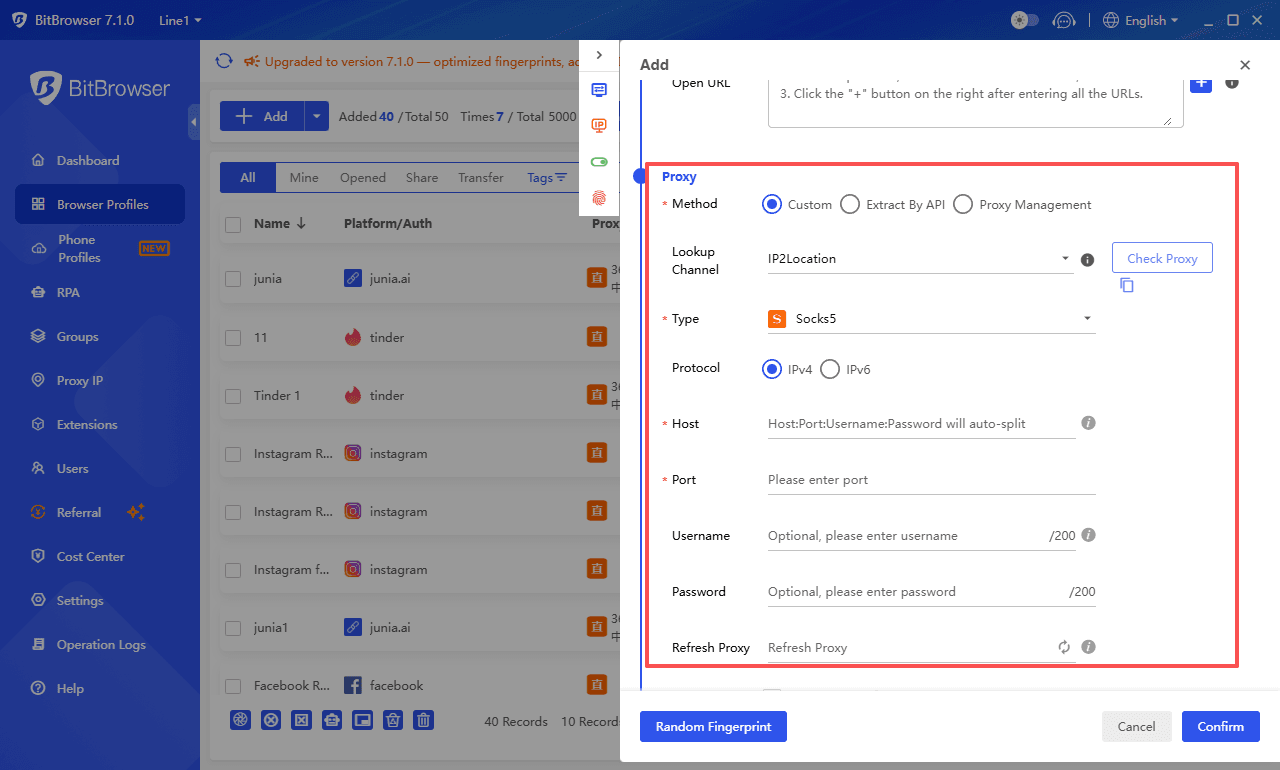
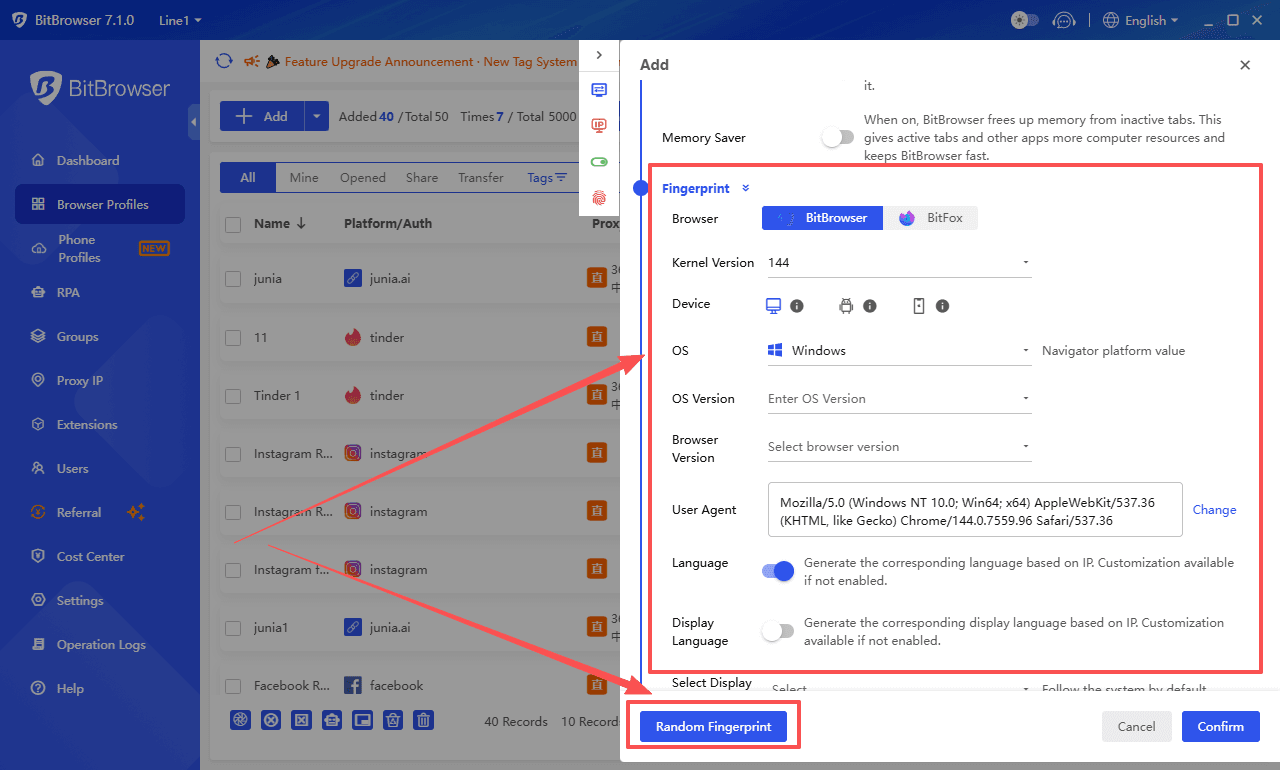
Option A: Create a clean isolated profile with BitBrowser
Instead of using your everyday browser, create a fresh profile inside BitBrowser. Each profile runs as a separate environment with its own cookies, fingerprint, and settings.
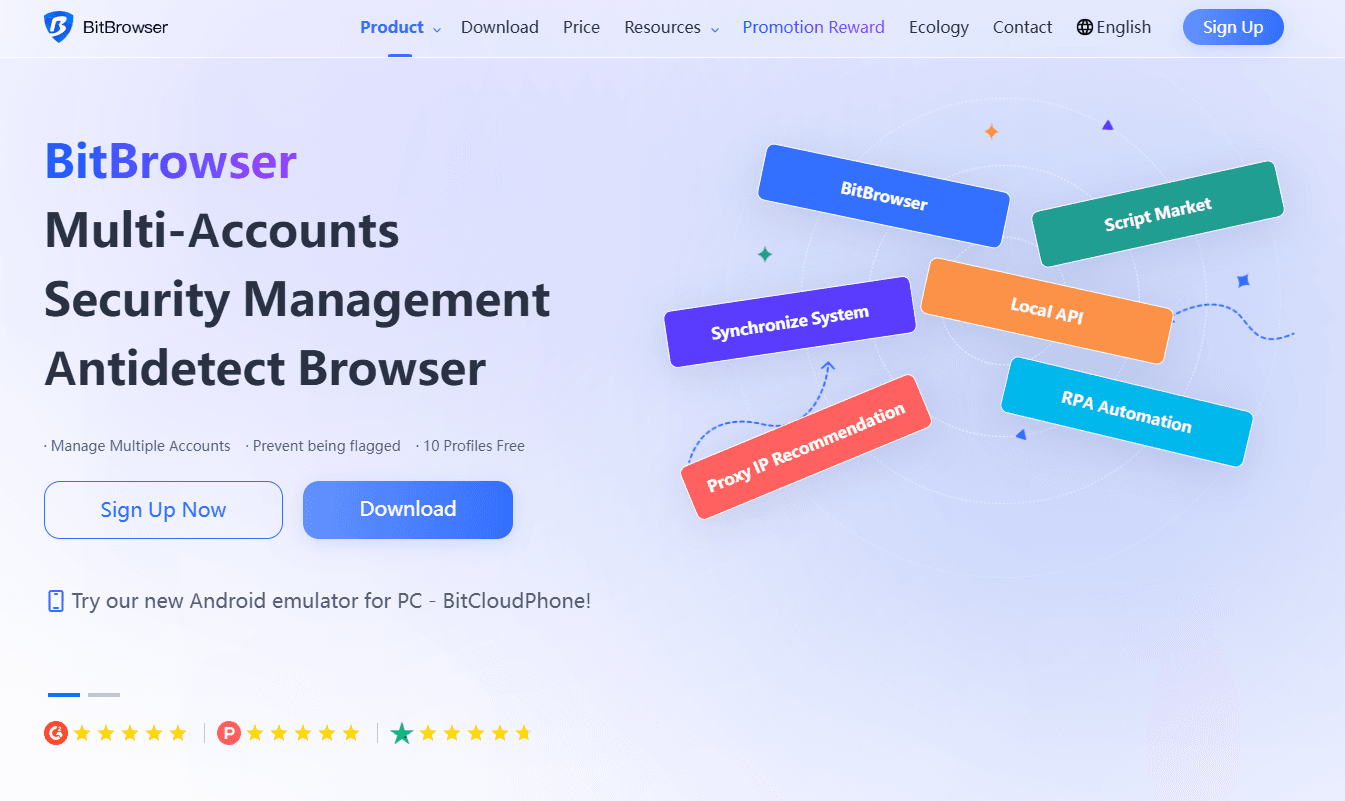
BitBrowser is an antidetect browser designed to:
● isolate accounts from each other
● generate separate browser fingerprints
● keep storage and sessions independent
● manage multiple accounts safely in one place
Sign Up
Log into Discord from a clean profile and move slowly. This prevents old signals from following you and helps break the restriction loop.
Option B: Keep the network stable
Use one consistent connection instead of switching VPN endpoints frequently. Stability matters more than constant IP changes.
Option C: Remove automation and risky extensions
Disable auto refresh tools, scraping extensions, macros, or anything interacting with Discord requests. Reducing variables lowers risk.
Fingerprint separation sounds complex, but in practice a clean BitBrowser profile plus a stable network solves most cases.
Step 6: If you were creating multiple accounts, stop doing that (for a while)
This sounds obvious, but it’s the difference between recovering and getting smacked again.
Once you’re back in:
● use one account
● verify email and phone if asked (use real ones)
● don’t join a ton of servers quickly
● don’t blast messages immediately
● let the account behave like a normal human account for a few days
Discord trusts aged accounts more than newborn accounts that sprint.
Step 7: If it’s a server ban, don’t keep trying to bypass it
This is important because people confuse server bans with IP bans and then make it worse.
If one server banned you, and you keep making new accounts to rejoin, that behavior alone can trigger broader enforcement. Even if you “only” wanted to appeal.
Better move:
1. contact that server’s mods
2. ask for an appeal
3. accept no if they say no
Not fun, but it avoids escalating from a local ban into platform level restrictions.
How to Avoid Getting IP Banned Again
If you want to avoid IP bans or IP based restrictions in 2026, the basics work:
● Don’t create many accounts quickly, especially on the same network.
● Don’t use free VPNs or sketchy proxies for Discord.
● Don’t flip locations every hour. Stable logins look normal.
● Avoid automation, selfbots, and unofficial clients. Just don’t.
● If you’re on shared WiFi and Discord is broken, switch to mobile data instead of brute forcing.
● If you manage communities, be careful with mass invites, mass DMs, and bot settings that “act spammy” on your behalf.
FAQ
1. How long does a Discord IP ban last?
It depends on the reason. Some IP based restrictions last a few hours or days, while serious enforcement can persist much longer, especially after repeated violations.
2. Can a VPN bypass a Discord IP ban?
Sometimes, but not reliably. Many VPN IPs are already flagged, and Discord also looks at browser fingerprints and behavior, not just IP.
3. Does Discord track device or browser fingerprints?
Discord uses multiple signals including cookies, device environment, and login patterns. That is why changing IP alone does not always fix the issue.
4. Can multiple people on the same WiFi get affected?
Yes. Shared networks can be flagged if suspicious activity happened on that IP, which can impact other users on the same connection.
5. What is the safest way to manage multiple Discord accounts?
Slow scaling, stable networks, and isolated browser environments help prevent accounts from being linked and reduce the risk of repeated IP bans.

 Multi-Account Management
 Prevent Account Association
 Multi-Employee Management
Recommended
See More 



