How to Find a MAC Address on Windows 10 and macOS
 2026.07.19 13:00
 petro
petroA MAC address identifies a network interface on a local network. You may need it when adding a device to a router allowlist, registering equipment on a company network, troubleshooting duplicate devices, or documenting hardware. This guide shows several safe ways to find the correct address on Windows 10 and macOS without installing third-party software.
Quick definition |
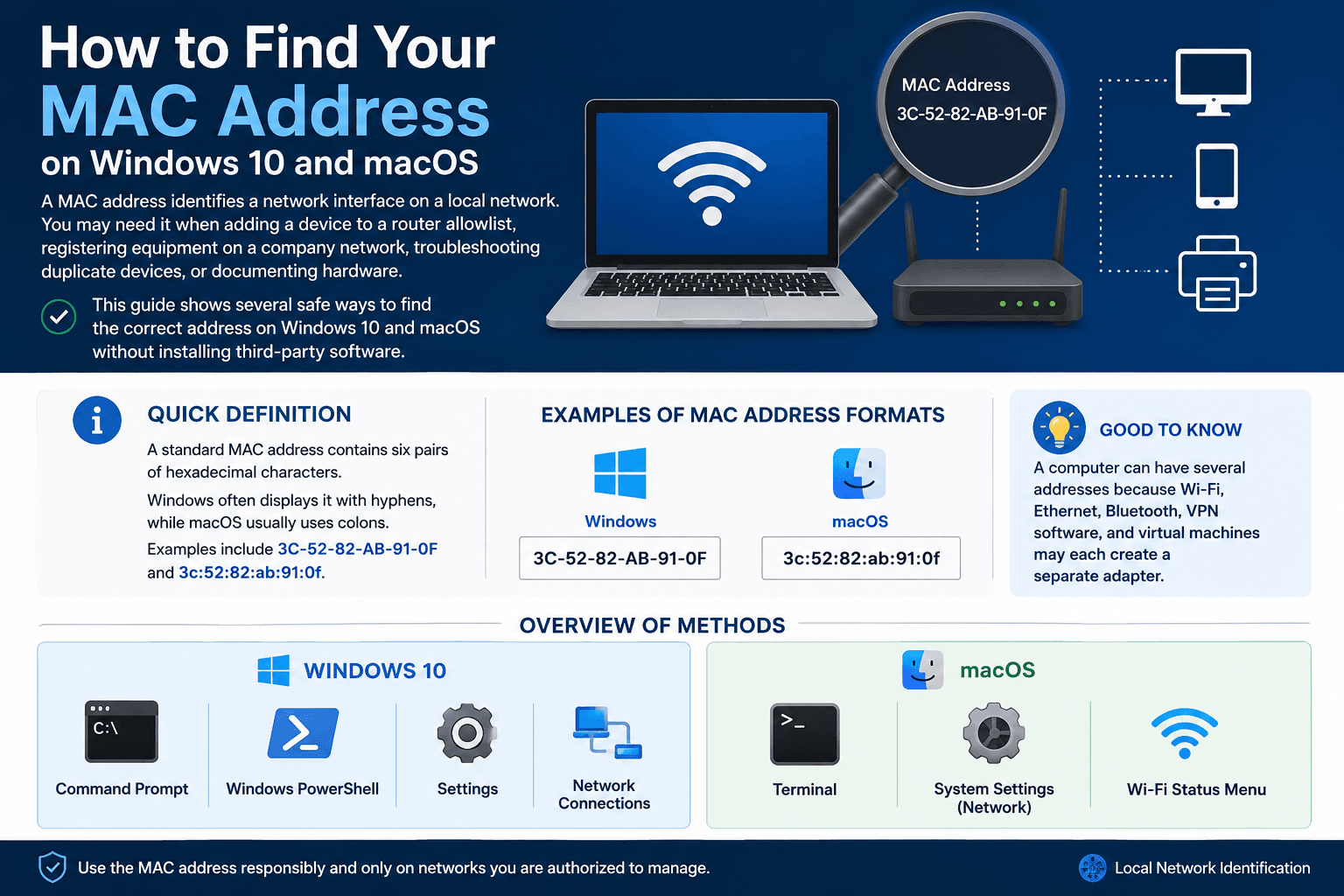
What a MAC Address Looks Like
Operating system | Fast graphical method | Fast command |
|---|---|---|
Windows 10 | Settings > Network & Internet > Status > View hardware and connection properties | ipconfig /all |
macOS | System Settings > Network > select service > Details > Hardware | networksetup -listallhardwareports |
How to Find the MAC Address in Windows 10
1. Use the Settings app — Open Start > Settings > Network & Internet > Status. Select View hardware and connection properties, then find Physical address (MAC) under the active Wi-Fi or Ethernet adapter.
2. Use Command Prompt — Open Command Prompt, run ipconfig /all, and look for Physical Address in the adapter that is currently connected.
ipconfig /all |
3. Use the getmac command — Run getmac /v /fo list to display adapter names, transport names, and physical addresses in a compact list.
getmac /v /fo list |
4. Use PowerShell — Open Windows PowerShell and run the Get-NetAdapter command below. The Status column helps you identify the active adapter.
Get-NetAdapter | Select-Object Name, InterfaceDescription, MacAddress, Status |
How to Find the MAC Address in macOS
1. Use System Settings — Choose Apple menu > System Settings > Network. Select Wi-Fi or Ethernet, click Details, then open Hardware. The displayed MAC address belongs to that service.
2. Use System Information — Hold Option and choose Apple menu > System Information. Open Network, select Wi-Fi or Ethernet, and review the interface details.
3. Map the hardware port in Terminal — Run networksetup -listallhardwareports. Locate Wi-Fi or Ethernet and note its device name, such as en0 or en1.
networksetup -listallhardwareports |
4. Read the address in Terminal — Run networksetup -getmacaddress en0, replacing en0 when your hardware-port list shows a different device. You can also use ifconfig en0 | grep ether.
networksetup -getmacaddress en0 |
ifconfig en0 | grep ether |
Why the Address May Be Different on Wi-Fi
Windows 10 can use random hardware addresses on supported Wi-Fi adapters, and current macOS versions can use a Private Wi-Fi Address for each network. When either privacy feature is enabled, the address visible to the router may differ from the permanent hardware address. For network registration, check which address the network actually receives before submitting it to an administrator.
Situation | Address to use | Reason |
|---|---|---|
Router or Wi-Fi allowlist | The current Wi-Fi address shown for that network | Random/private addressing may change what the router sees |
Wired office network | The active Ethernet adapter address | Wi-Fi and Ethernet have different identifiers |
Hardware inventory | The permanent adapter address from the OS or vendor label | Inventory systems usually track the physical interface |
Virtual machine or VPN | The specific virtual adapter only when requested | Virtual adapters are not the same as the physical card |
Common Problems and Quick Fixes
Problem | What to do |
|---|---|
Several MAC addresses appear | Disconnect unused adapters and select the one marked Connected or Up. |
The command shows Media disconnected | That adapter is not currently connected; check Wi-Fi or Ethernet instead. |
The router shows another value | Review random hardware addresses or Private Wi-Fi Address settings. |
No Hardware option appears on Mac | Select the network service first; older macOS versions may use Advanced > Hardware. |
A USB Ethernet adapter was added | It has its own MAC address, separate from the built-in adapter. |
BitBrowser Note: MAC Address vs. Browser Fingerprint
A physical MAC address and a browser fingerprint are different. The MAC address operates at the local-network adapter layer, while websites normally evaluate public IP information, browser settings, cookies, and other browser signals. BitBrowser can organize isolated browser profiles for authorized workflows, but Windows and macOS tools are still the correct place to read a device adapter's MAC address.

Frequently Asked Questions
Can a website see my MAC address?
Normally, no. Routers do not forward a device MAC address across the public internet. A website can still see other information such as the public IP address and browser signals.
Is the Wi-Fi MAC address the same as Ethernet?
No. Each network interface normally has its own address.
Can a MAC address change?
The permanent hardware value usually stays the same, but operating systems can present randomized or private addresses on Wi-Fi networks.
Which command is easiest on Windows 10?
ipconfig /all is widely available; getmac is shorter when you only need addresses.
Which Terminal command is safest on Mac?
Start with networksetup -listallhardwareports so you can identify the correct interface before reading its address.
Conclusion
The fastest route is the Settings app on Windows 10 or Network settings on macOS. Command-line tools are better when you need to copy addresses, compare multiple adapters, or document many machines. Always match the address to the correct Wi-Fi, Ethernet, or virtual interface, and remember that privacy features can make the network-visible address different from the permanent hardware value.

 Multi-Account Management
 Prevent Account Association
 Multi-Employee Management
Recommended
See More 



