How BitBrowser Works with Minecraft and What It Can’t Do
 2026.05.24 23:04
 petro
petroIf you want to use BitBrowser with Minecraft-related services or other online platforms, it’s important to understand what it actually does and how it should be used responsibly. BitBrowser is an anti-detect browser designed for managing separate browser profiles, cookies, and digital fingerprints. It is commonly used for multi-account management, testing, and privacy workflows.
However, using tools like this to bypass Minecraft server bans or evade restrictions can violate server rules and may result in more severe penalties.
What BitBrowser Is Used For
BitBrowser is mainly designed for professional or technical browser management. Common legitimate uses include:
- Managing multiple online accounts separately
- Keeping browser identities isolated for privacy
- Testing websites across different environments
- Marketing, advertising, or e-commerce account management
- Automation and quality assurance testing
Each browser profile behaves like a completely independent browsing environment.
How to Set Up BitBrowser
1. Install the Application
Download and install BitBrowser from the our BitBrowser Official Site
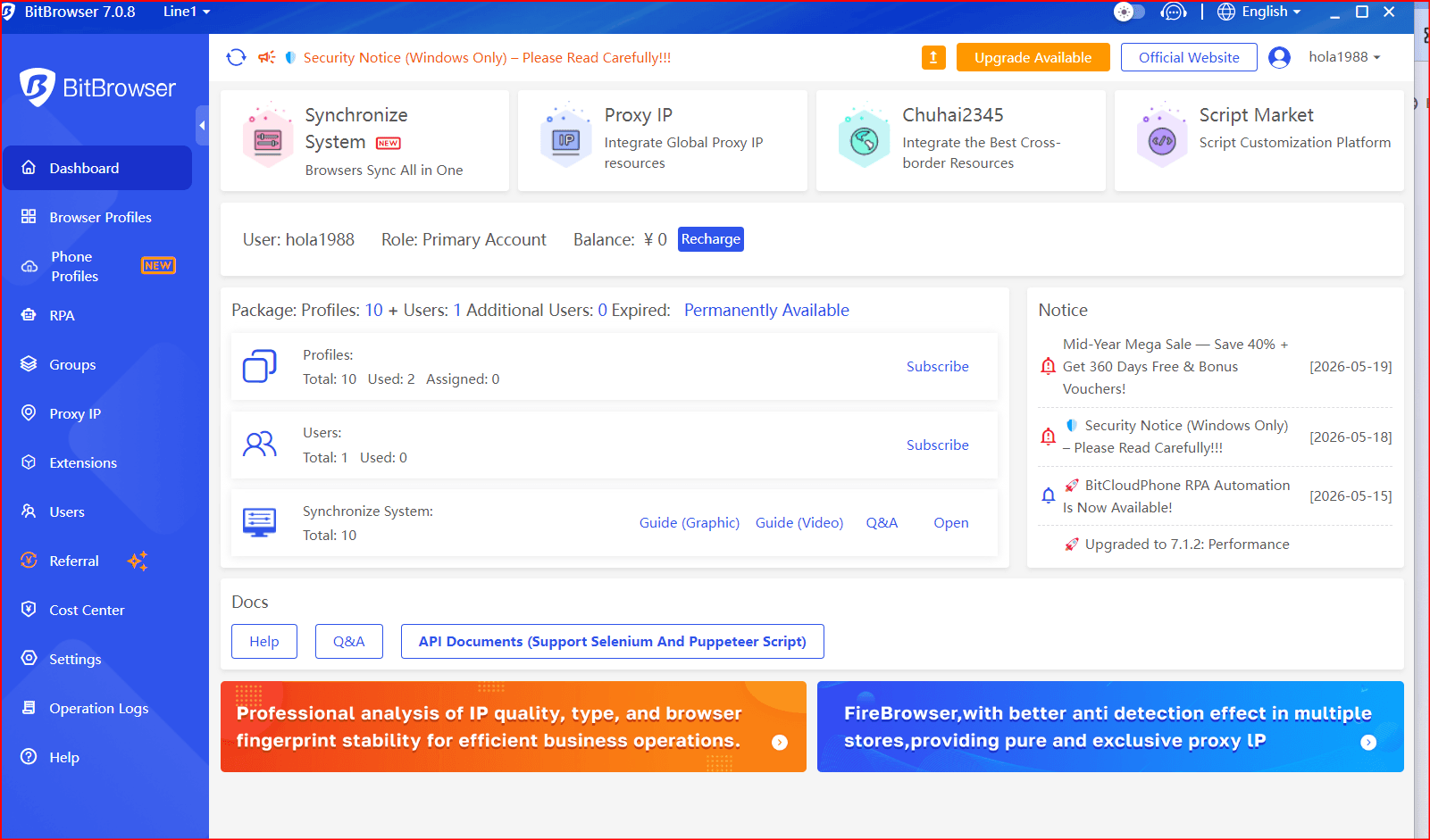
After installation, create an account and log in.
2. Create a New Browser Profile
Inside the dashboard:
Select Create Profile / New Window
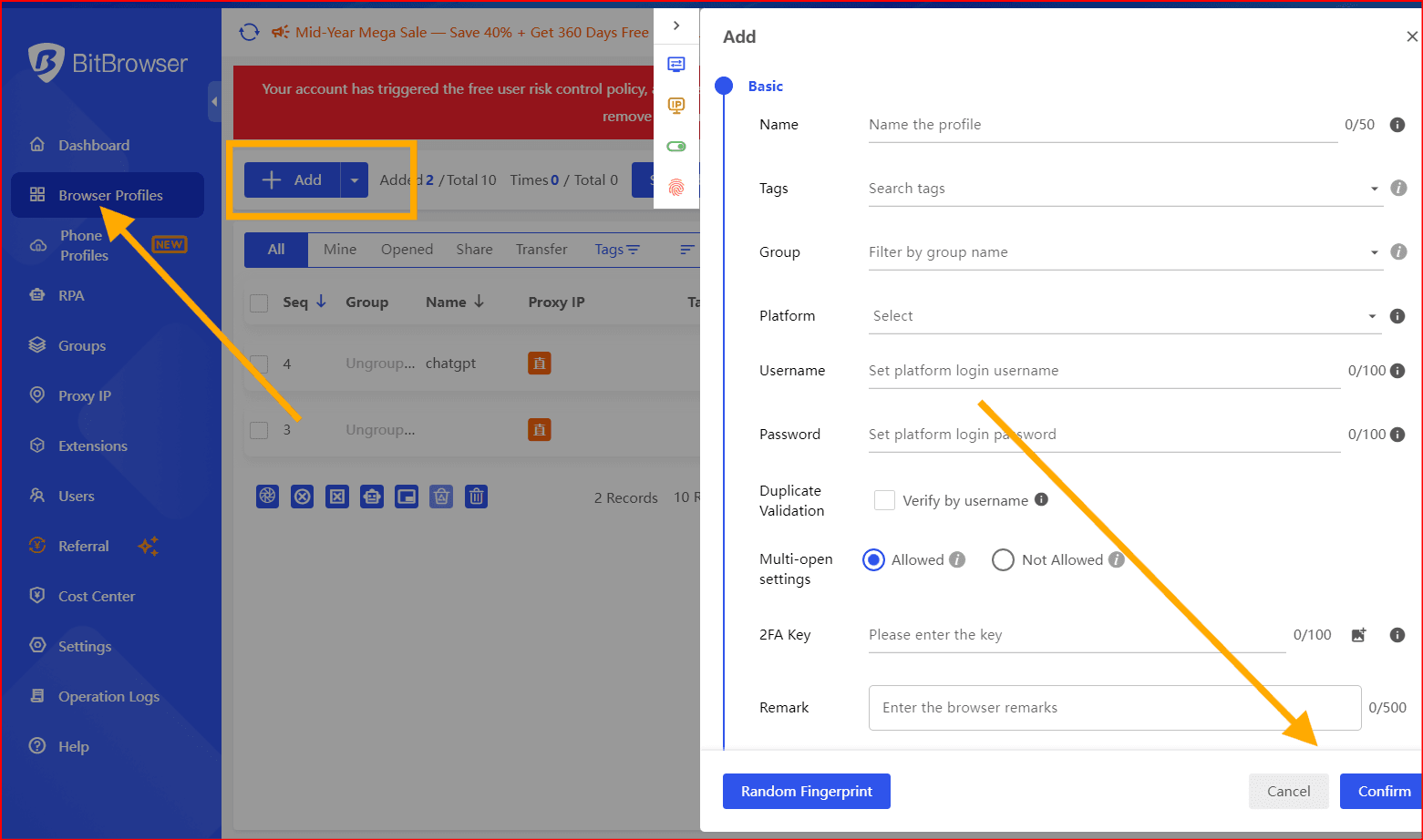
- Set a profile name (for example, “Work Profile” or “Test Profile”)
- Choose browser engine settings
- Configure fingerprint options such as:
- User agent
- Language
- Time zone
- Canvas/WebGL settings
Each profile is fully isolated from the others.
3. Configure a Proxy (Optional)
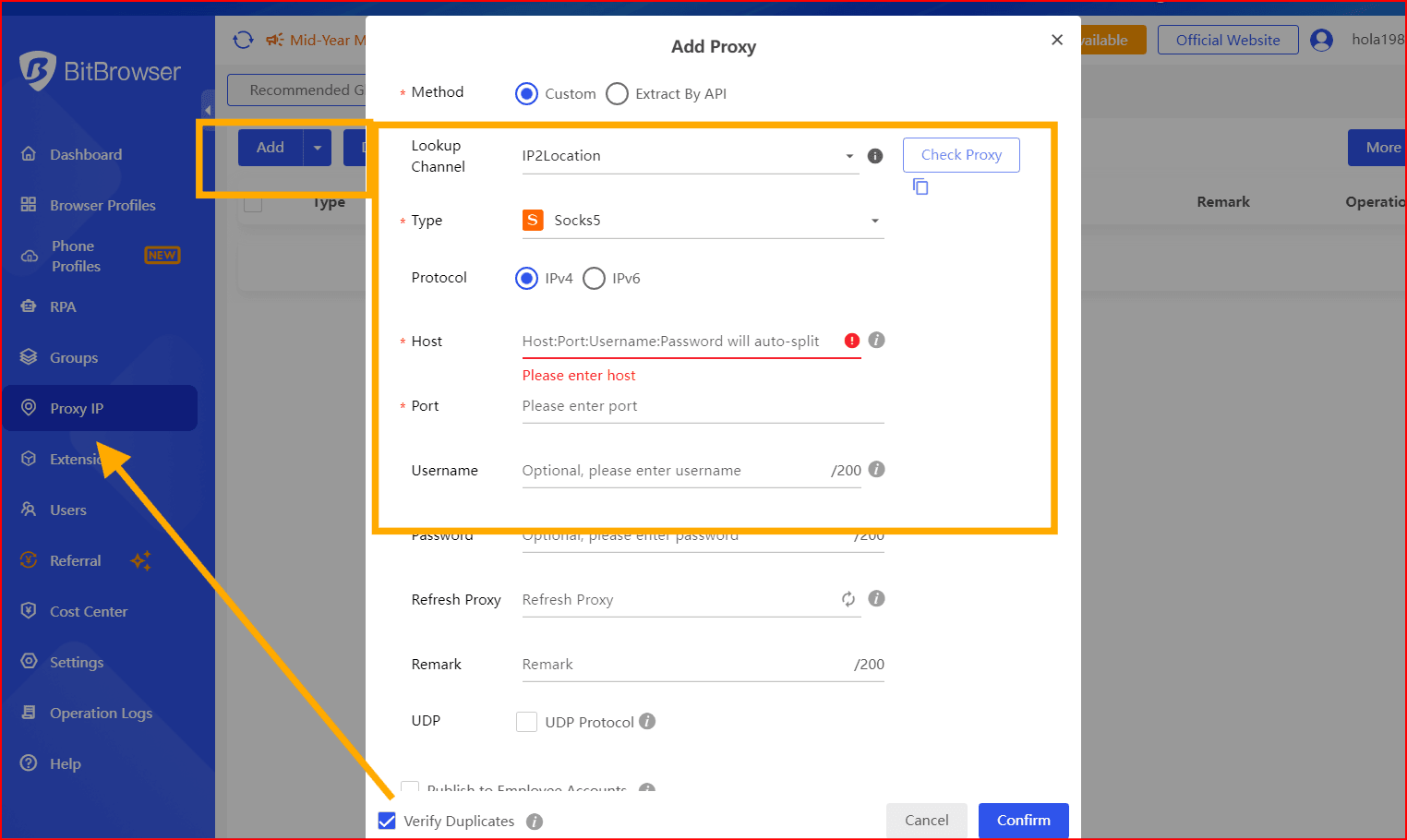
BitBrowser supports proxy integration to simulate different network environments:
- HTTP proxies
- HTTPS proxies
- SOCKS5 proxies
Adding a proxy allows each profile to appear as if it is coming from a different IP address, which is useful for testing or account separation in legitimate workflows.
4. Launch and Use the Profile
Once configured:
- Open the profile
- Log into your desired websites
- Maintain separate sessions without cross-contamination of cookies or login data
Using BitBrowser With Minecraft-Related Websites
BitBrowser can be useful for managing browser-based Minecraft services, such as:
- Minecraft forums and community platforms
- Server websites and dashboards
- Marketplace or donation systems
- Moderation or admin tools
However, Minecraft gameplay itself does not run in a browser. It uses the official game client, so BitBrowser does not interact with in-game behavior.
Important Limitation
BitBrowser only affects browser environments. It does NOT change or hide:
- Your Minecraft game account (Microsoft/Mojang)
- Your in-game identity or launcher login
- Server-side gameplay tracking or bans
Game servers use their own systems to identify players, separate from browser tools.
About Minecraft IP Bans
If you are banned from a Minecraft server, the safest and most effective approach is:
- Follow the server’s appeal process
- Contact moderators or administrators
- Clearly explain your situation respectfully
Trying to bypass bans using external tools or alternate setups can violate server rules and often leads to stricter enforcement actions.
Safer Alternatives for Account Separation
If your goal is simply to separate accounts or maintain privacy, you can also use:
- Google Chrome built-in profiles
- Mozilla Firefox Multi-Account Containers
- Separate operating system user accounts
- Virtual machines for testing environments
These options are simpler and often sufficient for most users.
Final Note
BitBrowser is best understood as a professional browser management tool rather than a gaming utility. It is useful for organizing multiple online identities in a structured way, but it does not interfere with Minecraft server bans or in-game systems.
Using it responsibly ensures you stay compliant with platform rules and avoid unnecessary account

 Multi-Account Management
 Prevent Account Association
 Multi-Employee Management
Recommended
See More 



