2026.10.28 01:00
 petro
App Store guide · 2026
How to Download Free Apps on iPhone and iPad
A practical guide to finding useful free apps, understanding optional costs, and organizing app research with BitBrowser.
Finding a free app is easy. Choosing one that does what you need, without an unexpected upgrade requirement, takes more attention. A useful download process starts with a clear purpose: decide what the app should accomplish, check its current listing, and confirm which features you can actually use without paying.
For readers comparing several tools or working across personal and business projects, BitBrowser can support the research stage through separate browser profiles. This guide combines Apple's installation instructions with a suggested0 desktop workflow for reviewing apps, organizing related website accounts, and recording the details that matter before committing to a service.
1. Decide what you need before downloading
Write down the task you want to complete. For a document scanner, that might be creating a readable PDF and exporting it. For a scheduling tool, it might be receiving reminders and sharing a calendar. These specific requirements give you a better basis for comparison than a long list of features you may never use.
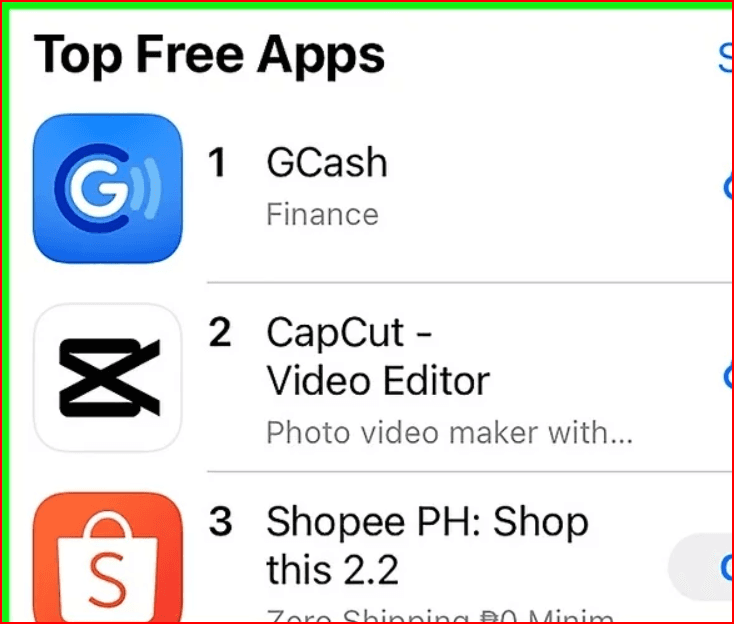
Apple's App Store user guide explains that app listings include information such as developer details, screenshots, ratings, file size, device compatibility, supported languages, and privacy information. Check the fields relevant to your device and your intended use.
Pay particular attention to the developer name when several results look similar. Compare the listing with the developer's official website, then read a selection of recent reviews for issues related to your required task. Treat reviews as experiences to investigate rather than a substitute for your own evaluation.
2. Download the app from the App Store
Open the App Store. Use Search to look for a name or browse the Apps and Games sections.
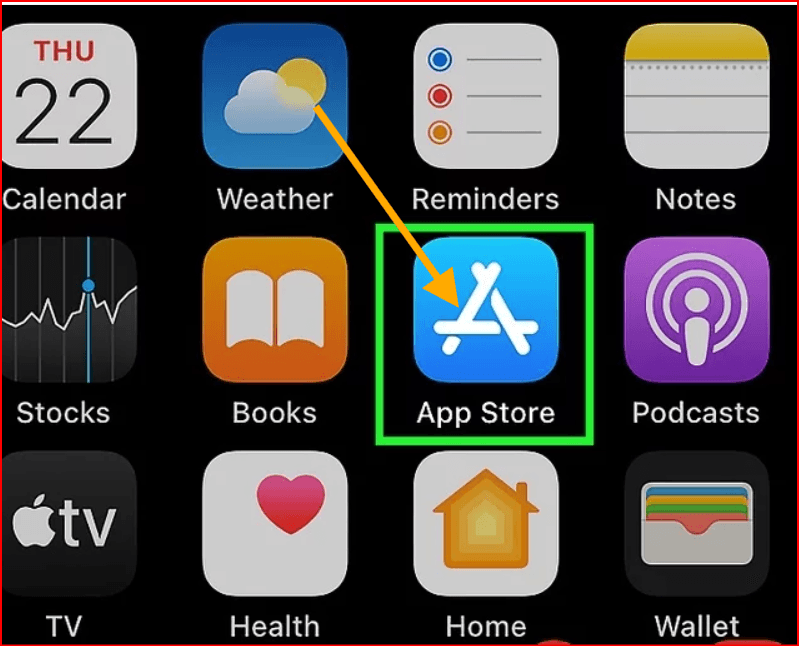
- Open the listing. Confirm that you have selected the app and developer you intended.
- Check the download button. Get indicates a free download; a displayed price indicates a purchase.
- Authorize the installation. Follow the prompts for Face ID, Touch ID, or your Apple Account password.
- Launch the app. Once installation finishes, tap Open or find it in your App Library.
These steps follow Apple's official guidance for iPhone and iPad downloads . Follow the confirmation shown on your own device, since authentication depends on its hardware and settings.
3. Understand what “free” includes
The download price and the cost of using every feature are separate questions. Apple's explanation of App Store business models describes free, advertising-supported, and freemium approaches. An app may fund its service through advertising, offer optional upgrades, or charge for a subscription.
Free functionality
Identify the tasks available without payment. Test your essential action from start to finish, including saving, exporting, or sharing the result.
Optional upgrades
Check whether extra storage, collaboration, advanced editing, or other functions require payment. Decide whether those additions matter for your actual work.
Trial access
Record the trial duration, renewal price, billing provider, and cancellation conditions before accepting an offer. Evaluate the ongoing cost as well as the trial.
A practical comparison asks, “Can I finish my normal task on the free plan?” For example, a photo editor is only suitable for your proposed workflow if you can produce and export the image you need under acceptable terms. Use the same test for each candidate so your decision reflects comparable results.
4. Review privacy information and permissions
Apple's explanation of App Store privacy information describes how listings show data that may be collected, linked to a user, or used for tracking. Apple also explains that this information is reported by developers. Read it alongside the developer's privacy policy when the app will handle information that matters to you.
After installation, consider permission requests in the context of the feature you are using. A voice recorder requesting microphone access has an understandable purpose. If a request is unclear, pause and check the explanation before deciding.
You can review and change supported permissions in Settings > Privacy & Security. Apple's privacy and permission guidance explains controls for information and features such as contacts, photos, location, camera, and microphone. Revisit these settings if your use of the app changes.
5. Where BitBrowser fits into the process
BitBrowser's role in this guide is desktop research and web-account organization. Its official download page provides Windows and macOS clients. For someone evaluating apps across several projects, a dedicated browser profile can serve as a consistent place to open the relevant websites and continue the comparison.
Give each research project a clear identity
BitBrowser documents named profiles and groups in its profile creation guide . Suggested names include “Personal Productivity,” “Client A Scheduling,” and “Team Document Tools.” Choose labels that explain the work so you can select the intended profile before signing in or taking notes.
Keep website sessions associated with the right profile
The company's browser-profile documentation describes independent cookie containers and localStorage spaces. These features can support separate sessions for an app's web version, developer dashboard, or customer portal. For example, you could evaluate an authorized work account in one profile and use your personal account in another.
Return to your research pages
The documented Open URLs setting opens selected pages when a profile launches. A suggested setup is to include the official app listing, the developer's feature comparison, and a relevant help page. This gives you a repeatable starting point for reviewing the same candidate over several sessions.
These are proposed uses of documented browser features. Complete the native iPhone or iPad installation through that device's App Store. The browser research profile and the Apple Account authorizing the download remain separate parts of the workflow.
6. Build a practical app-research workflow
Use the following process when a download is part of a larger decision, such as choosing a tool for a small team. A simple personal download may need only the App Store steps above.
- Define three essential outcomes. For a scheduling app, these might be creating events, receiving reminders, and sharing availability. Avoid adding optional features until you have checked the essentials.
- Create a clearly named BitBrowser profile. Group it with the relevant project and choose the official research pages you want to revisit.
- Keep a small comparison note. Record the app name, developer, free-plan limits, required device support, source links, and the date you checked them.
- Evaluate the website and mobile experience separately. If the service has a web version, record what it offers there. Then confirm the features you need inside the mobile app.
- Run one realistic task. Use a sample document, appointment, or image. Check whether you can finish, save, and retrieve the result without accepting an unwanted upgrade.
Give each candidate the same test and record what you observed. “Exported a sample PDF successfully” is a more useful note than “looks professional.” Keep assumptions separate from things you confirmed, especially when a pricing page describes several plans together.
7. Example: comparing scheduling apps for two clients
Imagine a small agency choosing a scheduling app for two clients with different needs. Client A wants shared availability; Client B mainly needs reminders and calendar exports. The reviewer creates a named research profile for each client and keeps the relevant official pages ready to reopen.
For each candidate, the reviewer records whether the essential functions appear in the free plan and checks any usage limits. Where a web version is available, the reviewer uses the appropriate authorized evaluation account. The shortlisted app is then installed on an iPhone or iPad and tested with a sample appointment.
This is an illustrative workflow, not a performance test. Its purpose is to make the decision easier to review: which requirement was checked, which source supported it, and what happened when the reviewer tried the task.
8. Fix common download problems
When a download fails, start with the message on the screen. Apple's download troubleshooting guide explains that a valid payment method may be required even for a free app. A billing problem or verification request therefore needs attention before retrying.
For a stalled download, Apple suggests restarting the device or pressing and holding the app icon and choosing Prioritize Download. If the issue continues, follow the support route in Apple's guide. Some regions also require age confirmation for certain apps.
As a practical diagnostic step, note whether the problem affects one app or every attempted download. Record the app name, the exact message, and what you already tried. Those details make a support request clearer and help avoid repeating the same unsuccessful action.
9. Manage trials and subscriptions deliberately
Before starting a trial, decide when you will evaluate the app and record the renewal date. Give yourself enough time to test the feature that justified the trial. A useful trial decision should answer whether the paid capability solves a real problem and whether its ongoing cost fits your needs.
If the subscription does not appear there, check which company billed you. Apple's guidance explains that a subscription purchased from another provider may need to be canceled through that provider. Keep the confirmation with your comparison notes so the outcome is easy to verify later.
10. Common questions
How should I choose between two similar free apps?
Use your essential task as the deciding test. Compare the steps required, the quality of the result, and any limits encountered. A shorter feature list can still be the better fit if it reliably supports the job you need to finish.
Do I need BitBrowser for every app download?
Use the App Store process for an ordinary download. Consider BitBrowser when your work involves repeated desktop research, separate website sessions, or several projects whose app evaluations you want to keep organized.
What should I record during an app evaluation?
Keep the date, official listing, required task, free-plan limit, and your observed result. Add any unresolved question, such as whether an export option requires an upgrade. This makes it easier to revisit the decision when your requirements change.
Choose the app that completes your task
A useful free app should support the work you actually need to do. Start with a clear requirement, review the developer and current terms, and test a realistic task before investing time in a larger setup. Keep trial decisions and permission choices deliberate.
When app selection becomes part of a recurring business or research process, BitBrowser offers an optional way to organize the desktop side of that work. Use named profiles and a consistent evaluation checklist to keep each project understandable, then confirm the final app experience on the iPhone or iPad where you will use it.
Sources: official Apple support and developer documentation, plus BitBrowser product documentation linked throughout. The suggested workflows and client scenario are illustrative. Product information was checked on 27 October 2026.

 Multi-Account Management
 Prevent Account Association
 Multi-Employee Management