How to Pass CreepJS Responsibly: A Browser Consistency Checklist
 2026.07.19 21:40
 petro
petroCreepJS is a research-oriented browser fingerprinting test that compares many browser, device, rendering, and JavaScript signals. It is useful because it does not rely on one field. Instead, it looks for contradictions, unstable values, and signs that browser APIs have been modified in ways that do not fit the rest of the environment.
A sensible goal is therefore not a mythical perfect score. The practical goal is consistency: the browser version, operating-system family, graphics signals, fonts, screen properties, language, timezone, and network context should make sense together and remain stable between repeated tests. This guide shows a cautious workflow using BitBrowser as a profile-isolation and configuration tool.
Test only on the official CreepJS deployment and review BitBrowser through its official website: CreepJS | BitBrowser

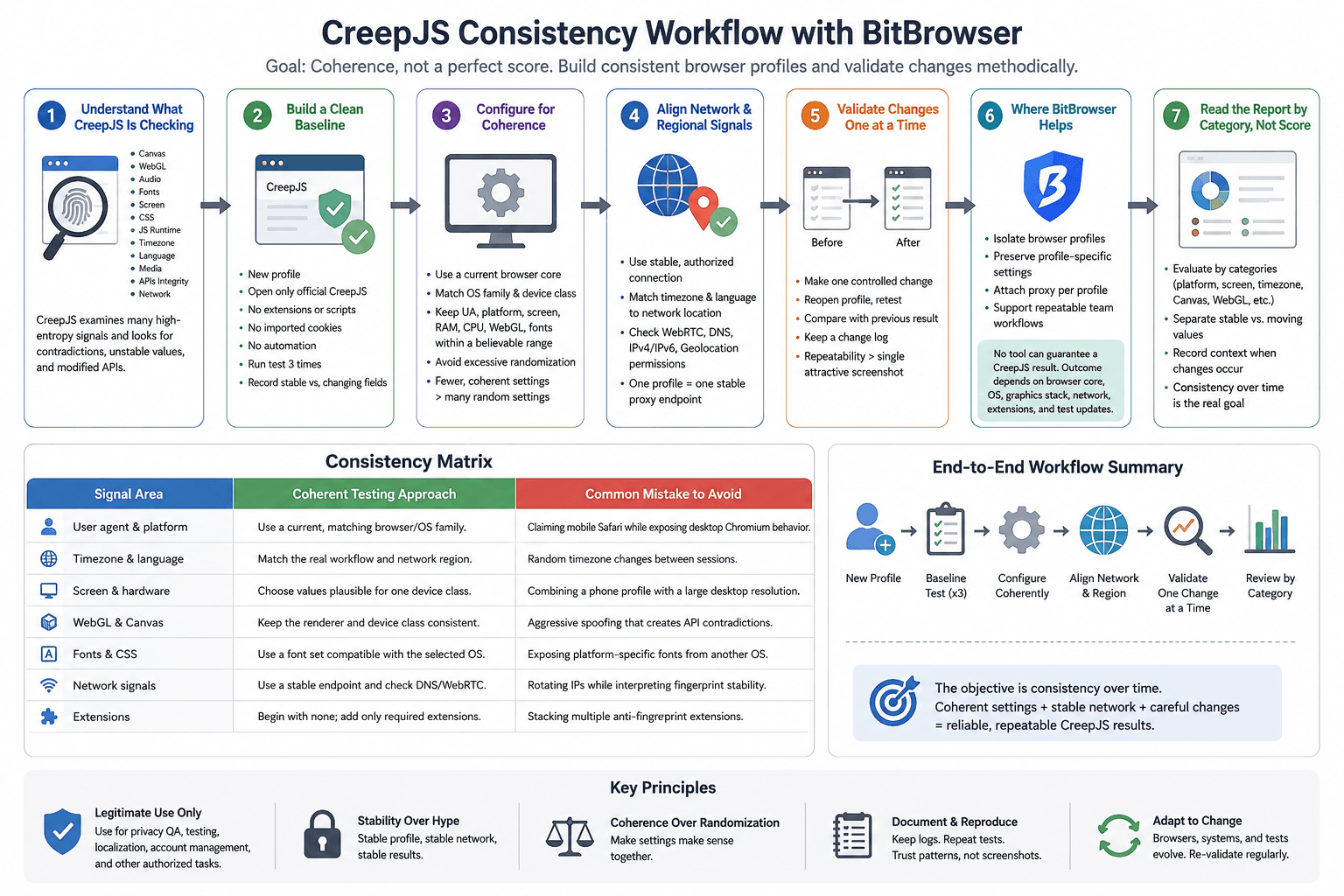
1. Understand What CreepJS Is Checking
CreepJS examines high-entropy surfaces such as Canvas, WebGL, audio behavior, fonts, screen metrics, CSS rendering, JavaScript runtime characteristics, timezone, language, media capabilities, and browser API integrity. A result can look suspicious when individual values are plausible but the combined story is not.
Examples include a mobile user agent paired with a desktop-sized screen, a European IP paired with an unrelated timezone, a claimed macOS profile exposing Windows-only fonts, or a graphics renderer that conflicts with the selected device class. These are coherence problems, not simply “bad” values.
2. Build a Clean Baseline Before Changing Anything
Start with a newly created profile and open only the official CreepJS deployment. Do not install extensions, inject scripts, import old cookies, or enable automation at this stage. Run the test three times and record which fields are stable and which fields change.
A clean baseline prevents false troubleshooting. If the first test already includes several privacy extensions, custom browser flags, and a rotating proxy, it becomes difficult to identify the cause of a mismatch.
3. Configure for Coherence, Not Maximum Randomization
In BitBrowser, select a current browser core and a device profile that matches the operating-system family you genuinely intend to use. Keep the user agent, platform, screen resolution, available memory class, CPU count, WebGL profile, and font set within a believable range for that device class.
Avoid changing every field merely because it can be changed. Excessive randomization often creates combinations that no normal device would produce. A smaller number of coherent settings is usually easier to validate than a heavily customized profile.
4. Align Network and Regional Signals
Use a stable, authorized connection. If a proxy is required for your legitimate workflow, assign one profile to one stable endpoint during testing. Match the profile timezone and preferred language to the network location unless your real use case clearly justifies a difference.
Check WebRTC, DNS behavior, IPv4 or IPv6 exposure, and geolocation permissions separately. A browser-layer profile cannot compensate for an unreliable proxy, a DNS leak, or a rapidly changing IP address.
5. Validate Changes One at a Time
After the baseline, make one controlled change, reopen the profile, and repeat the test. Compare the result with the earlier capture. This method is slower than bulk editing, but it reveals whether a setting improves consistency or introduces a new contradiction.
Keep a small change log with the profile name, browser core, proxy endpoint, timezone, language, screen size, extension list, test time, and observed warnings. Repeatability is more valuable than a single attractive screenshot.
6. Where BitBrowser Helps
BitBrowser can keep browser profiles separate, preserve profile-specific settings, attach a proxy to a profile, and support repeatable team workflows. Those capabilities are useful for privacy QA, localization testing, advertising account administration, and other authorized multi-profile tasks.
However, no browser tool can guarantee a particular CreepJS result. The outcome also depends on the browser core, host operating system, graphics stack, network path, extensions, and the test’s own future updates.
Consistency Matrix
Table 3. Browser Consistency Matrix
Signal area | Coherent testing approach | Common mistake to avoid |
|---|---|---|
User agent and platform | Use a current, matching browser/OS family. | Claiming mobile Safari while exposing desktop Chromium behavior. |
Timezone and language | Match the real workflow and network region. | Random timezone changes between sessions. |
Screen and hardware | Choose values plausible for one device class. | Combining a phone profile with a large desktop resolution. |
WebGL and Canvas | Keep the renderer and device class consistent. | Aggressive spoofing that creates API contradictions. |
Fonts and CSS | Use a font set compatible with the selected OS. | Exposing platform-specific fonts from another OS. |
Network signals | Use a stable endpoint and check DNS/WebRTC. | Rotating IPs while interpreting fingerprint stability. |
Extensions | Begin with none; add only required extensions. | Stacking multiple anti-fingerprint extensions. |
7. Read the Report by Category, Not by a Single Score
A CreepJS result is most useful when it is read as a collection of measurements rather than as a single verdict. Separate stable values from values that naturally move between sessions. A browser update may change JavaScript behavior, codecs, fonts, graphics output, or supported APIs without indicating that the profile is defective. Compare categories such as platform, screen, timezone, language, Canvas, WebGL, audio, fonts, permissions, and network exposure. When a category changes, write down the exact time, browser version, operating system, profile name, and network route. This turns an alarming hash change into a traceable engineering event and prevents random configuration changes.
8. Use a Repeatable Measurement Protocol
Run the same profile several times under the same conditions before deciding that a signal is unstable. Close unrelated applications, keep the device power mode consistent, use the same authorized connection, and avoid switching displays during the test. Record three baseline runs, restart the browser profile, and record another run. If the values remain coherent, introduce one controlled change. For example, update the browser core, add one extension, or change one localization setting, but never all three together. A simple protocol makes the result auditable and allows another team member to reproduce the observation instead of relying on screenshots without context.
9. Diagnose Rendering Signals Carefully
Canvas, WebGL, audio, and font measurements are influenced by more than the visible profile settings. Graphics drivers, GPU acceleration, operating-system libraries, font installation, remote desktop software, and virtualization can all affect the output. Before attempting to modify a fingerprint field, verify whether the host computer changed. Test hardware acceleration in a controlled manner, confirm that the same display adapter is active, and note whether the session is local or remote. A responsible objective is not to force every machine to produce an identical hash. It is to understand which variation is expected and to avoid impossible combinations that claim one device class while rendering like another.
10. Manage the Profile Through Its Full Lifecycle
Consistency is a lifecycle process. A profile that looks coherent today may drift after an operating-system patch, browser-core update, proxy replacement, font installation, or permission change. Assign each profile an owner, a purpose, a creation date, and a change log. Save a known-good baseline before major maintenance. After an update, repeat the same acceptance checklist and compare the new result with the previous baseline. When a profile is no longer needed, archive or remove it according to your organization’s retention policy. This approach is more reliable than continuously editing values to chase a static result that no real browser can preserve forever.
FAQ
Does CreepJS have a universal pass or fail score?
No. Treat the report as a diagnostic collection of signals. Focus on obvious contradictions, integrity warnings, and instability across repeated runs.
Should every fingerprint value be randomized?
No. Broad randomization can create unrealistic combinations. Coherent and repeatable settings are usually a better privacy-testing objective.
Can BitBrowser guarantee that CreepJS shows no warnings?
No. BitBrowser can help isolate and configure profiles, but results also depend on the host system, browser core, network, extensions, and CreepJS updates.
How many times should I test?
Run at least three tests under the same conditions, then repeat after each controlled change.
Is the result proof that a platform will trust the profile?
No. Real platforms use their own risk models, account history, behavior, network reputation, and server-side signals. Do not use CreepJS as a promise of platform acceptance.
Conclusion
The responsible way to “pass” CreepJS is to remove accidental contradictions and achieve a stable profile that accurately represents your authorized test environment. Start clean, keep the device story coherent, align regional settings with the network context, avoid extension clutter, and validate every change. BitBrowser can organize this workflow, but careful configuration and honest use remain essential.
Learn more from the official BitBrowser website and repeat tests only on the official CreepJS page.
Official Sources and Responsible-Use Note
CreepJS official deployment: https://abrahamjuliot.github.io/creepjs
CreepJS source repository: https://github.com/abrahamjuliot/creepjs
BitBrowser official website: https://www.bitbrowser.net/
BitBrowser documentation: https://doc.bitbrowser.net/

 Multi-Account Management
 Prevent Account Association
 Multi-Employee Management
Recommended
See More 



