How to Sign Up for VK on Desktop and Mobile
 2026.01.18 06:50
 petro
petroVK (VKontakte) is Russia’s largest social networking platform, with more than 400 million registered users. While it is most popular in Russia and neighboring countries, VK is accessible worldwide. Creating an account also gives you a VK ID, which can be used to log in to other services such as OmeTV, RuStore, and various third-party apps.
This guide explains how to create a VK account on a computer, phone, or tablet, and answers common questions about the sign-up process.
How to Create a VK Account
You can register for VK in two ways: through the official mobile app or directly on the VK website. In both cases, a valid phone number is required for verification. Email-only and Facebook-based sign-ups are no longer supported.
The basic process is the same everywhere:
Open the VK app or visit vk.com
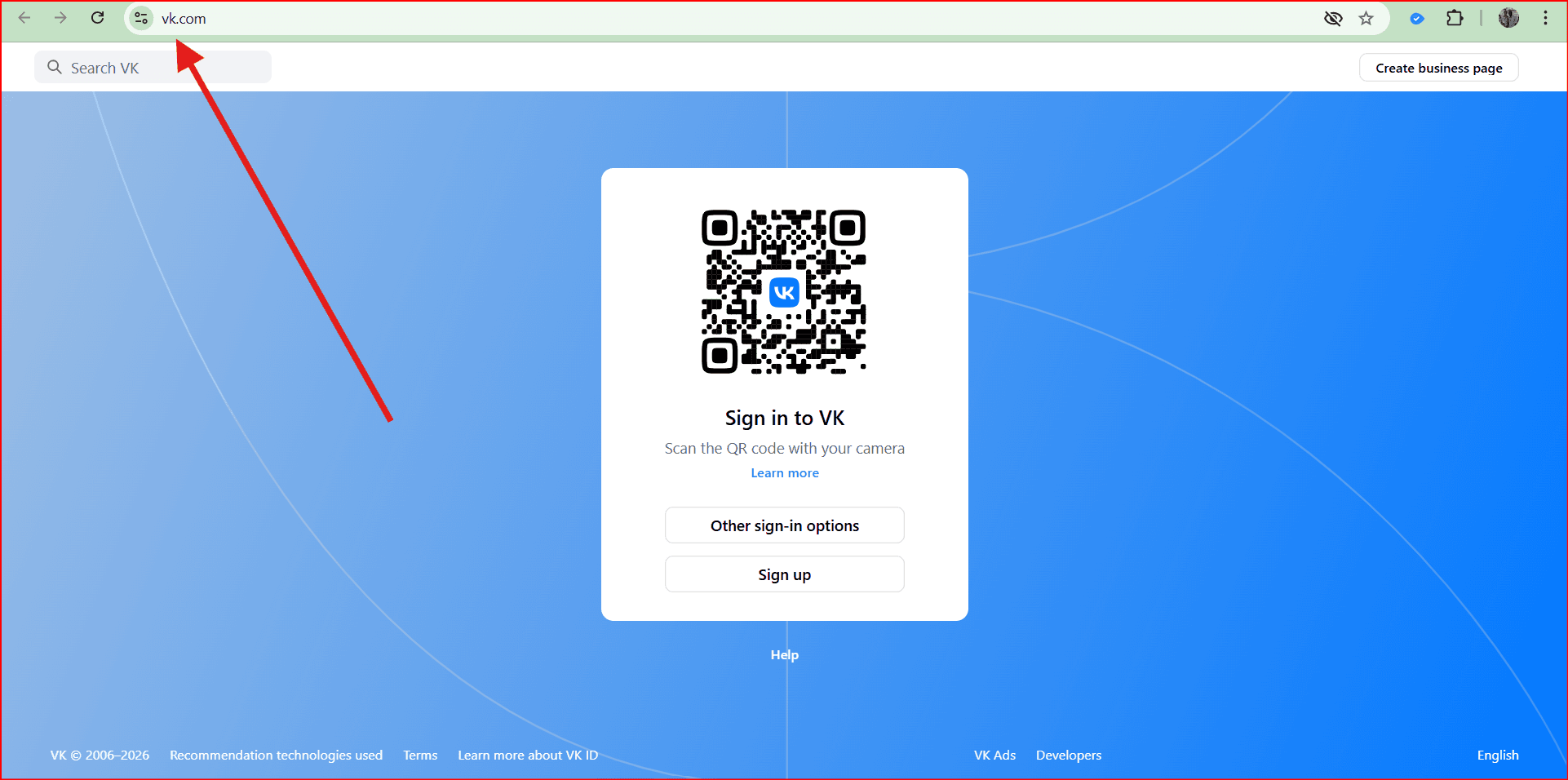
Click or tap Sign Up
Enter and verify your phone number
Create a password and complete your profile
Sign Up for VK on a Computer
Step 1: Open VK
Go to https://vk.com using any web browser on your computer. This will take you to VK’s main sign-up page. Keep your phone nearby, as you’ll need it to receive a verification code.
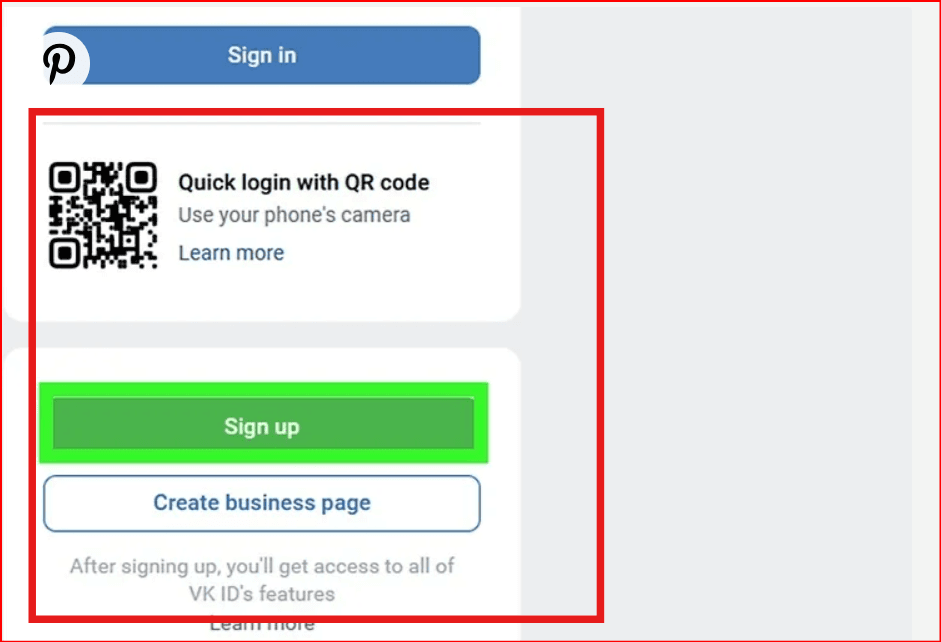
Step 2: Click “Sign Up”
Select the green Sign Up button on the page to begin registration.
Step 3: Enter Your Phone Number
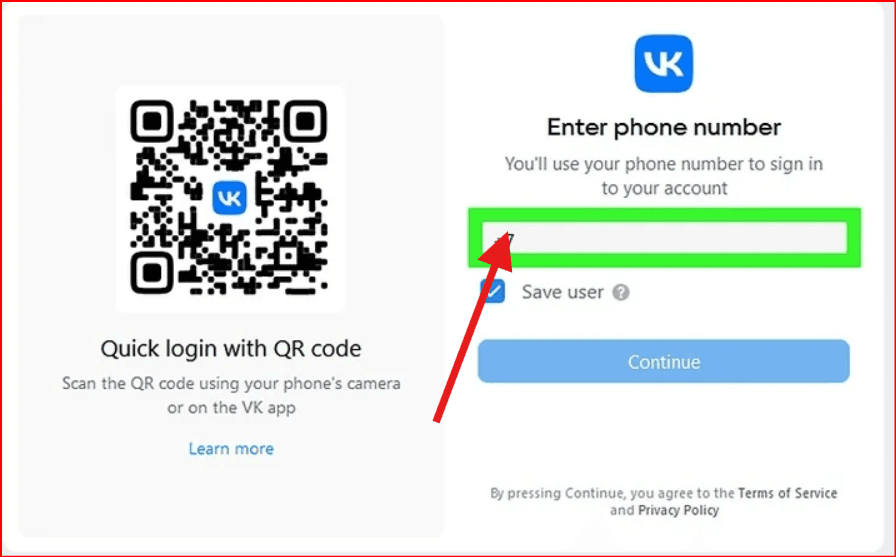
Type in your phone number and click Continue. The default country code is set to Russia (+7), so be sure to change it to your own if you’re located elsewhere (for example, +1 for the US or +91 for India).
Your phone number is used only for verification and is not shown publicly on your profile.
Step 4: Verify the Code
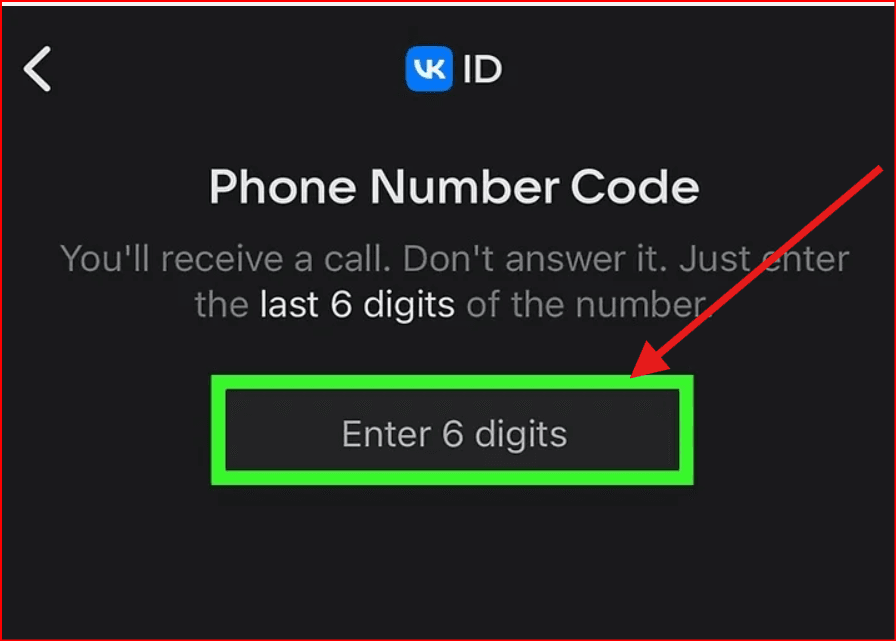
VK will send a verification code via SMS. Enter the code once it arrives and click Continue. If your number is already linked to an account, VK may prompt you to log in or create a new profile.
Step 5: Complete Registration
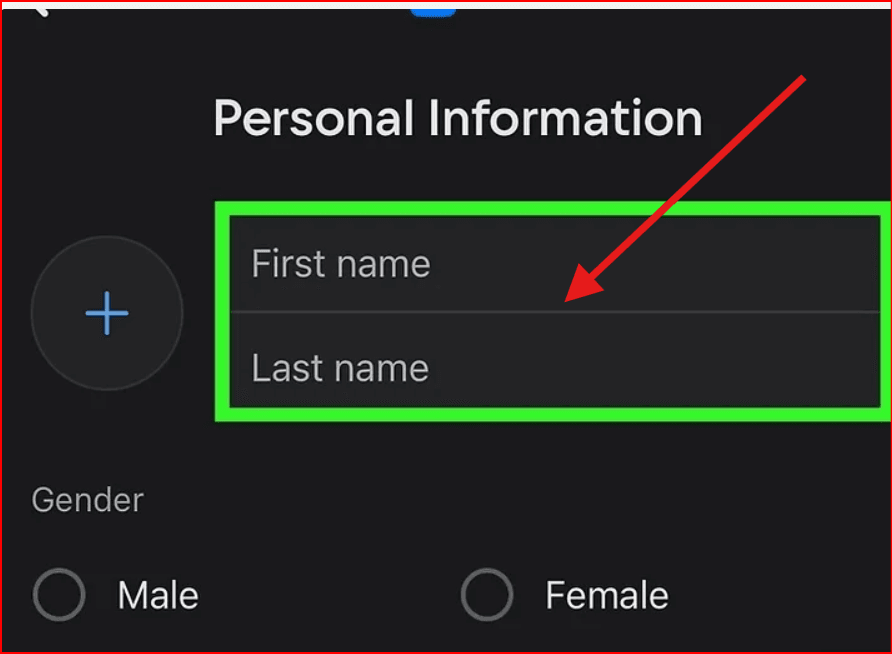
Finish setting up your account by entering basic details such as your name, birthday, and gender. You can also add an email address, which is useful for account recovery. Once completed, your VK account is ready to use.
Sign Up for VK on a Phone or Tablet
Step 1: Install the VK App
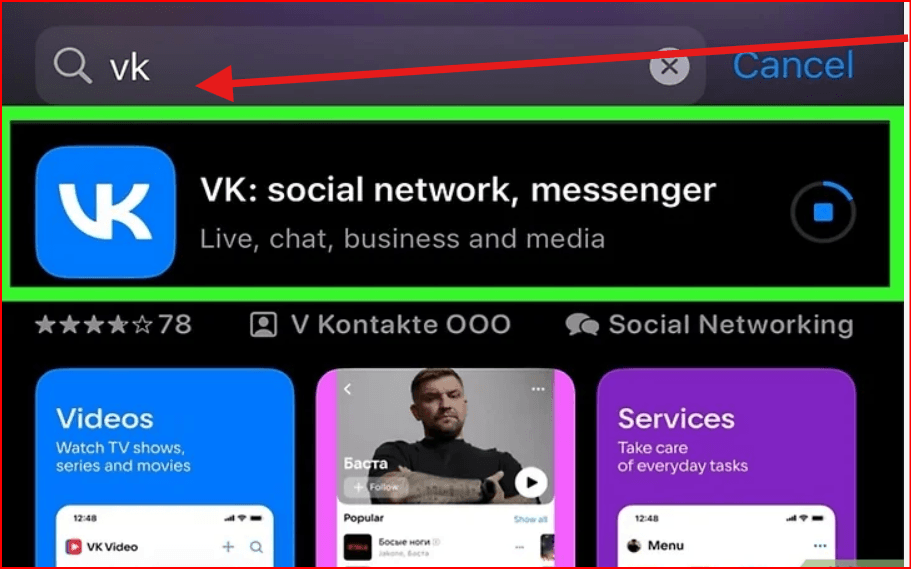
Download the official VK app from the Google Play Store (Android) or App Store (iPhone).
Step 2: Start Registration
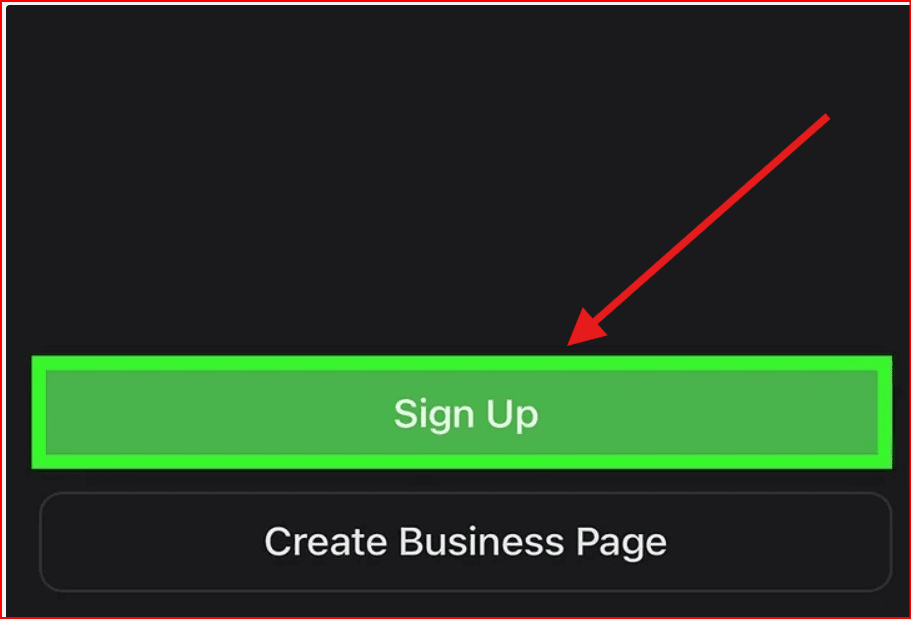
Open the app and tap Sign Up at the bottom of the screen.
Step 3: Enter Your Phone Number
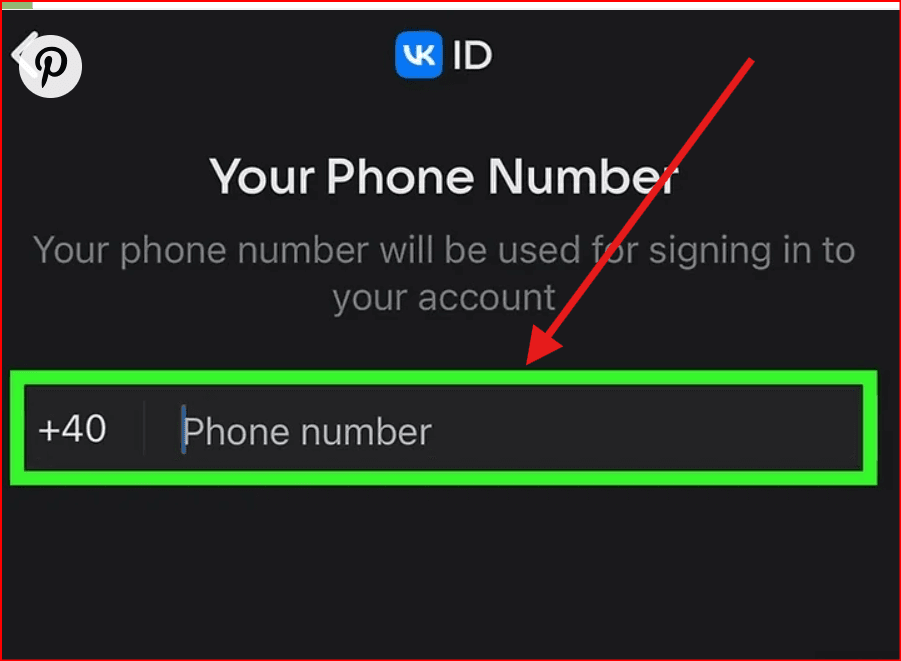
Select your country code, enter your phone number, and tap Continue. VK will send a verification code by text message.
Step 4: Confirm the Code
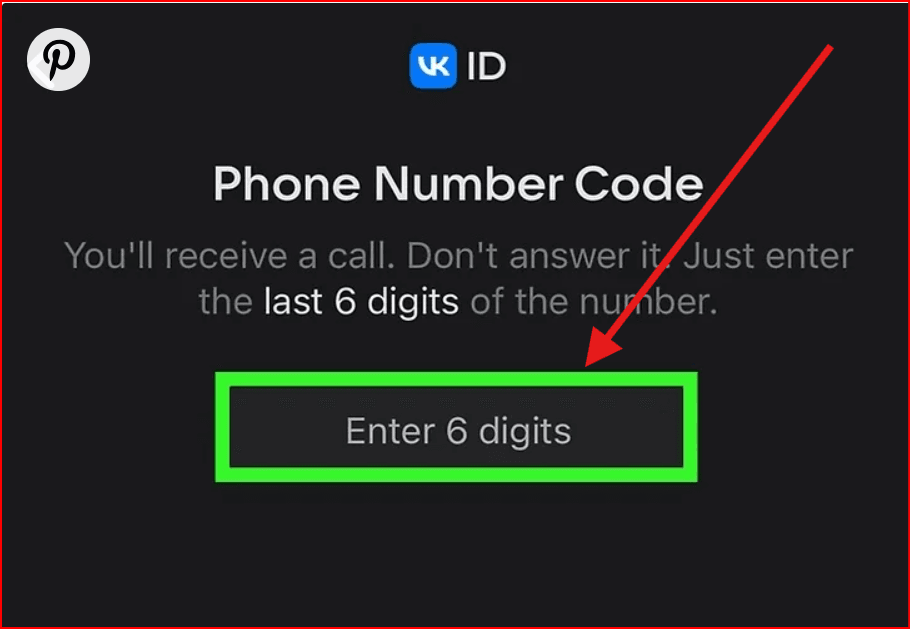
Enter the SMS code to verify your number. If the number is already associated with an account, choose whether to sign in or create a new one.
Step 5: Add Personal Details
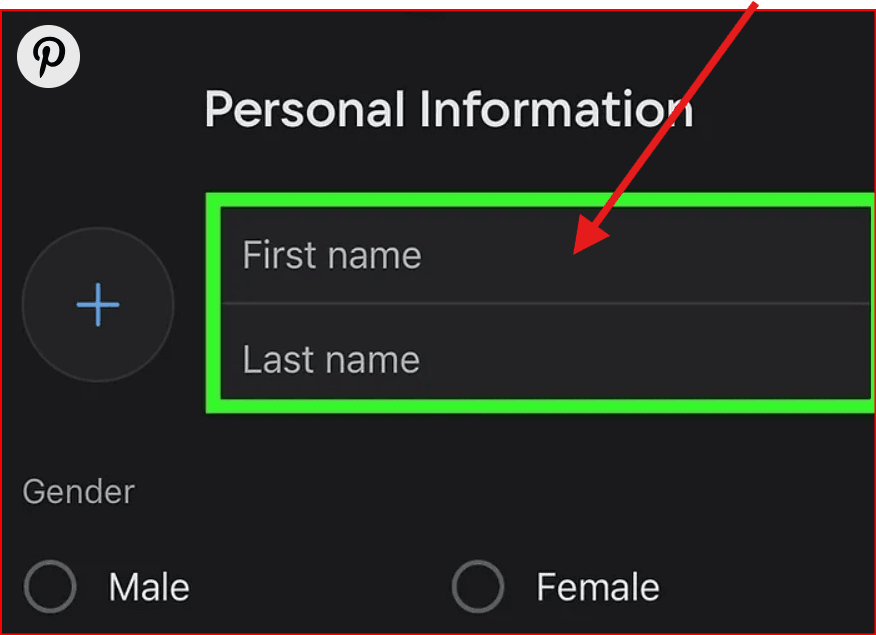
Provide your name, birthday, and gender when prompted.
Step 6: Create a Password
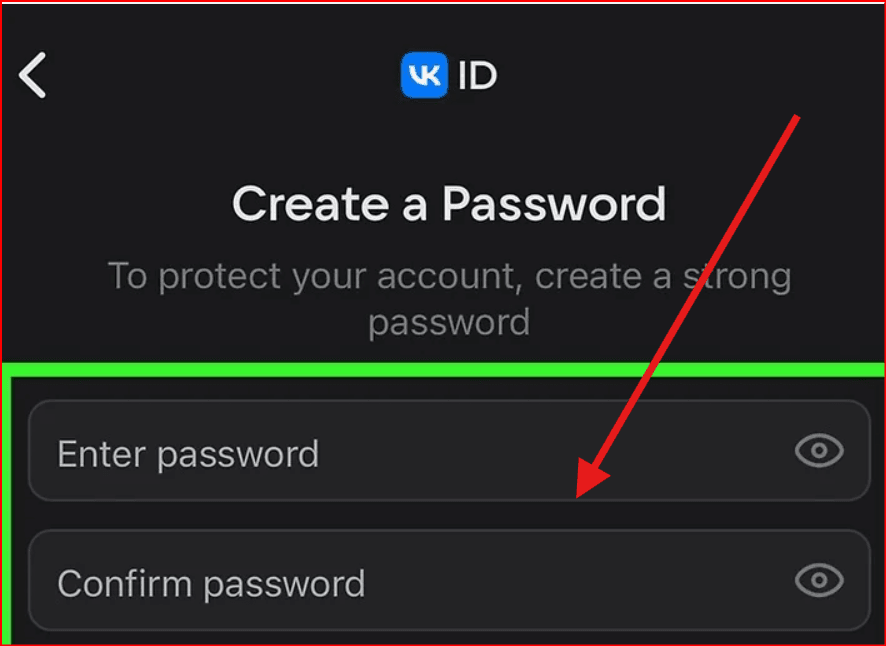
Set a secure password to protect your account.
Step 7: Add an Email Address (Optional)
You can enter an email address to help with password recovery or skip this step if you prefer.
Step 8: Finish Setup
Follow the remaining prompts to add a profile photo, find friends, or select interests. Once completed, you can log in to VK from any device.
Frequently Asked Questions
Is it safe to create a VK account for OmeTV?
Creating a VK account to use with OmeTV is generally safe. However, be aware that your VK name may be visible to other OmeTV users, which could make it easier for someone to identify you. As with any social platform, use a strong password and limit the personal information you share.
How do I create a VK account for OmeTV?
Visit ome.tv, select Continue with VK, then choose Sign Up. Replace the default country code with your own, verify your phone number, and complete the registration process.
Can you sign up for VK without a phone number?
No. VK now requires phone number verification for all new accounts. You must be able to receive SMS messages to complete registration.
Is VK only available in Russia?
No. VK can be accessed from anywhere in the world, including the United States and India. While the interface is primarily in Russian, browser translation tools like Google Translate can help non-Russian speakers navigate the site.Using BitBrowser for Managing Multiple VK Accounts
VK actively monitors login behavior, device fingerprints, and IP patterns. If you log in to multiple VK accounts from the same browser, device, or IP address, the platform may flag or restrict those accounts.
For users who legitimately manage more than one VK account—such as marketers, community managers, researchers, or users accessing VK-based services—tools like BitBrowser can help reduce these risks.
BitBrowser works by:
Creating separate browser profiles for each VK account
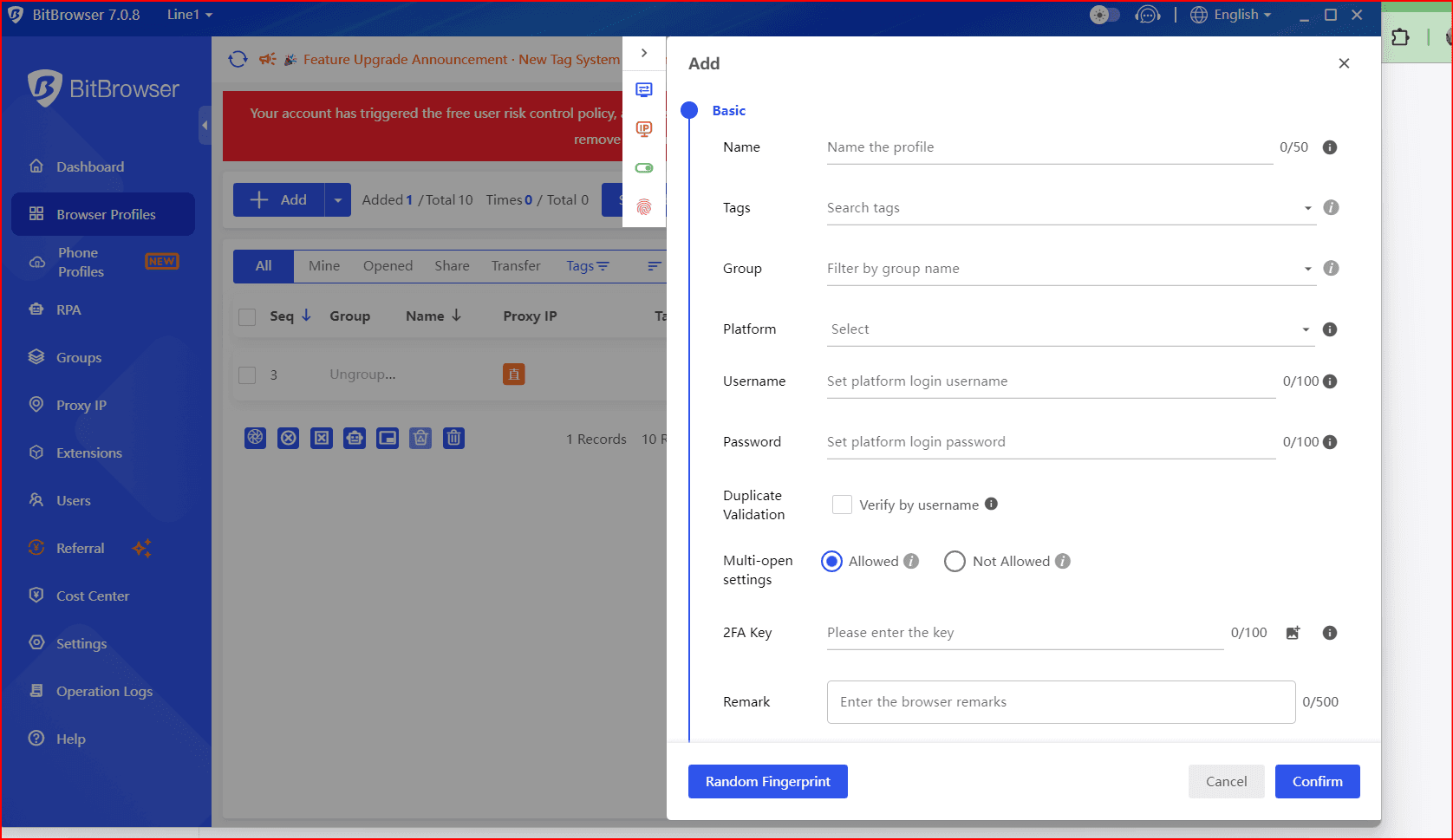
Assigning a unique browser fingerprint to every profile
Allowing each account to run with a different proxy or IP address
Keeping cookies, cache, and session data fully isolated
This approach makes each VK account appear as if it’s being accessed from a different device, which helps prevent account linking and login conflicts. BitBrowser is commonly used when handling multiple social media accounts across platforms that enforce strict anti-abuse systems.
Important: Always follow VK’s terms of service and local laws when managing multiple accounts.

 Multi-Account Management
 Prevent Account Association
 Multi-Employee Management
Recommended
See More 



