How to Unblock YouTube Without VPN in 2026
 2026.08.24 19:49
 petro
petroYouTube can be unavailable for several very different reasons, and the correct solution depends on the type of restriction. A school or company network may block the domain at the firewall or DNS level. An internet provider may filter access. A particular video may be restricted by the rights holder to certain countries. In other cases, the site opens but playback fails because a local DNS resolver, browser extension, parental-control product, or network security appliance interferes with requests.
Before changing anything, identify what is actually failing. Test whether youtube.com opens, whether thumbnails load, whether only one video is unavailable, and whether the same device works on another authorized connection such as mobile data. This distinction matters because a browser proxy can change the network route for one profile, while Smart DNS mainly changes location-related DNS responses and a mobile hotspot changes the underlying network completely.
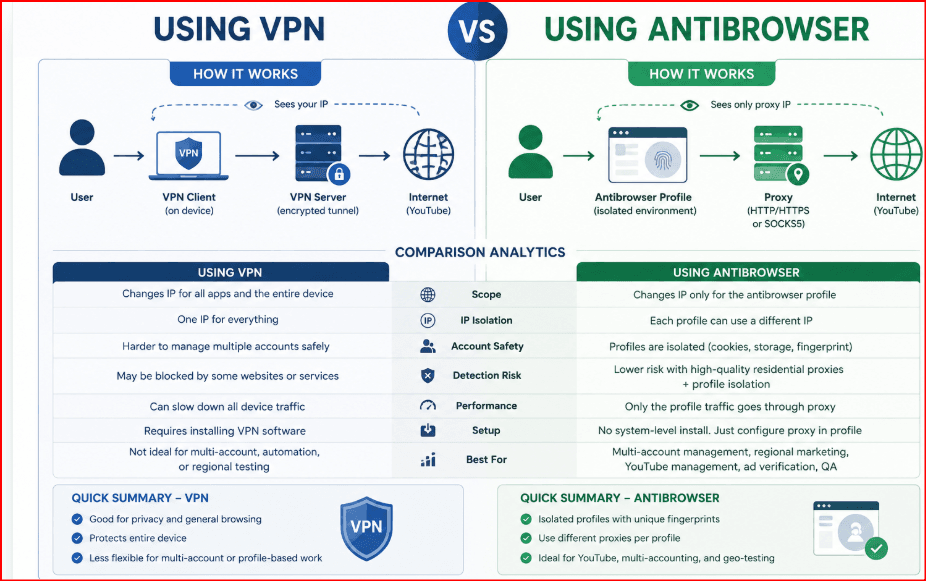
Best Ways to Access YouTube Without a VPN
A VPN is only one way to route traffic. Depending on your purpose and the rules of the network you are using, several alternatives may be simpler. A browser proxy is usually the most direct option for BitBrowser because the proxy can be bound to one profile instead of changing the connection for every application on the computer. Smart DNS can be convenient for some region-based services, although it does not provide the same privacy properties as a proxy or VPN.
An alternate authorized network is often the cleanest answer when a local network administrator intentionally blocks streaming. For example, using your own mobile data or another permitted connection avoids fighting the controls of a school or workplace. Tor Browser can technically route browser traffic through the Tor network, but video performance can be poor and some services may challenge or limit Tor exit nodes. Random web-proxy sites should be treated cautiously because they can see traffic and may inject ads or tracking.
Comparison
Method | What it changes | Good for | Main limitation |
|---|---|---|---|
| BitBrowser + proxy | Browser route for one isolated profile | Travel, regional QA, creator work | Requires a reliable proxy |
| Smart DNS | Selected DNS responses | Some region-based services | No encryption; not a firewall bypass |
| Mobile hotspot | Underlying network | Quick troubleshooting | Uses mobile data |
| Tor Browser | Browser route through Tor | Censorship-resistant browsing | Slow for video |
| Web proxy | Page traffic through third party | Temporary low-risk browsing | Privacy and trust concerns |
Method 1: Use BitBrowser With an Authorized Proxy
BitBrowser is useful when you want the proxy to apply only to a dedicated browser profile. Each profile can keep its own cookies, local storage, language preferences, proxy settings, and login state. That makes it practical for travel, localization testing, regional QA, research, or managing authorized YouTube channels without mixing sessions in one ordinary browser window.
The key point is that BitBrowser is a browser-profile manager, not a proxy provider and not a VPN. You still need a legitimate proxy endpoint from a provider or network you are authorized to use. For YouTube, stability normally matters more than rapid IP rotation. A stable residential, ISP, or datacenter endpoint with sufficient bandwidth is generally easier to troubleshoot than a connection that changes IP address during playback.
Step-by-Step: How to Use BitBrowser for YouTube Without a VPN
Start by installing BitBrowser from its official website and create a new browser profile dedicated to YouTube. Give the profile a clear name such as “YouTube - France QA” or “YouTube - Client A” so it is obvious what the environment is for. In the profile network settings, select the proxy protocol supported by your endpoint—commonly HTTP, HTTPS, or SOCKS5—and enter the host, port, username, and password supplied by the proxy service.
Run the built-in proxy check before launching the profile. A successful connection test confirms that the browser can reach the endpoint, but it does not guarantee that YouTube will be accessible or fast enough for streaming. Launch the profile and first open a neutral IP-check page if you need to confirm the expected region for authorized localization work. Then open YouTube and test the homepage, search, and one ordinary video before signing into an account.
Keep the profile settings stable after the first successful session. Avoid changing the country, language, timezone, browser fingerprint, and proxy simultaneously because that makes troubleshooting difficult and can create inconsistent account sessions. If you manage a legitimate brand or client channel, use YouTube’s official channel permissions or Brand Account access rather than giving teammates the Google password. BitBrowser can separate workspaces, while YouTube permissions should control who is allowed to publish, edit, or view channel data.
Which Proxy Type Works Best for YouTube?
Residential proxies use IP addresses associated with consumer internet connections and can be useful for localization or regional QA. ISP proxies are usually more static and may provide a good balance between consistency and region-specific testing. Datacenter proxies can be fast and economical, but some endpoints are more likely to be challenged by large platforms because many users can share the same hosting ranges. Mobile proxies can represent cellular networks but are often more expensive and may rotate frequently.
For ordinary video playback, choose an endpoint based on bandwidth, latency, stability, allowed use, and the region you actually need. A nearby endpoint generally produces better streaming performance than a distant one. Do not assume that a more expensive proxy automatically unlocks every video: rights restrictions, account country, age controls, and platform policies can still affect availability.
Proxy comparison
Proxy type | Strength for YouTube | Watch for |
|---|---|---|
| Residential | Natural regional QA and localization | Cost, provider rules |
| ISP | Stable IP and good consistency | Availability by region |
| Datacenter | Fast and economical | More platform challenges possible |
| Mobile | Represents cellular networks | Cost and frequent rotation |
Method 2: Smart DNS
Smart DNS services change how selected domain names are resolved and can sometimes help with region-based availability without routing all traffic through an encrypted tunnel. Because the video data may still travel directly between your device and the service, Smart DNS can be faster than a full VPN. The trade-off is that it does not provide the same IP-masking or encryption as a proxy or VPN.
Smart DNS is most appropriate when the problem is a supported regional routing scenario and you trust the provider. It is not a universal answer for firewall-level blocking. If a school, office, hotel, or ISP blocks YouTube domains directly, changing DNS may not be enough. In that case, use a permitted network or ask the network owner for access rather than trying to defeat administrative controls.
Method 3: Use an Alternate Authorized Network
If YouTube is blocked only on one Wi-Fi network, switching to your own mobile data or another network you are allowed to use can be the simplest solution. This is especially useful for testing whether the problem is the device or the network. If YouTube works immediately on mobile data, the restriction is likely upstream of the browser.
For work and school environments, respect the organization’s acceptable-use rules. Streaming may be blocked to preserve bandwidth, protect minors, or reduce security exposure. A proxy should not be used to conceal policy violations. For a business use case such as marketing QA or creator operations, request an approved exception or use a separate authorized connection.
Method 4: Tor Browser and Web Proxies — When They Make Sense
Tor Browser routes traffic through multiple volunteer relays. It can help with censorship-resistant browsing, but it is rarely ideal for YouTube because video requires sustained bandwidth and low latency. Exit nodes may also be rate-limited or challenged, and logging into personal accounts through constantly changing exit locations can create security alerts.
Browser-based web proxies are easy to find, but they vary dramatically in privacy and reliability. A free proxy website can see the pages you request and may modify content. Avoid entering Google credentials into an unknown proxy site. If you need a proxy workflow, a reputable endpoint configured directly in BitBrowser is usually easier to audit and control than a random “unblock YouTube” website.
How to Manage Multiple YouTube Channels in BitBrowser Responsibly
Agencies and creators often manage more than one legitimate channel. The safest architecture is to separate browser environments while keeping access control inside Google and YouTube. Create one BitBrowser profile for each client, brand, or operational context, label the profile clearly, and attach only the proxy or network setting required for that authorized workflow. This keeps cookies and sessions from different clients from being mixed accidentally.
For team access, invite collaborators through YouTube Studio channel permissions or the appropriate Brand Account roles. Do not duplicate accounts merely to inflate views, likes, subscriptions, or comments, and do not use proxies to simulate audiences. The value of separate profiles is operational hygiene: clearer ownership, fewer accidental logins, easier handoffs, and better separation between regional QA environments.
Common Problems and How to Fix Them
If YouTube opens but videos buffer endlessly, test the same proxy without signing in and compare it with a direct connection. High latency, limited bandwidth, overloaded endpoints, or packet loss are common causes. Switching from a far-away region to a geographically closer endpoint can make a larger difference than changing browser settings.
If YouTube does not open at all, verify the proxy credentials and protocol, then check whether DNS requests and browser traffic are actually using the intended route. If only one video says it is unavailable, the issue may be the video’s rights or account eligibility rather than a general connection block. If Google repeatedly asks for verification, stop changing endpoints and use a stable, trusted network for the account.
Troubleshooting table
Problem | Likely cause | What to try |
|---|---|---|
| Site will not open | Bad credentials, blocked endpoint, DNS/network rule | Retest proxy, verify protocol, use permitted network |
| Video buffers | Latency, bandwidth, overloaded endpoint | Choose a closer/faster endpoint |
| Only one video unavailable | Rights or account eligibility | Test another video; review account settings |
| Repeated Google verification | Rapid IP/region changes | Stop rotating; use a stable trusted endpoint |
Privacy, Rules, and Practical Limits
Access methods should be used in accordance with local law, the terms of the network you are using, and the rules of the service. A proxy is a networking tool; it is not a guarantee that content is licensed for your location, that a network owner permits streaming, or that an account will be treated as local to the proxy country.
BitBrowser is most defensible when it is used for legitimate separation and testing: regional website QA, authorized account administration, ad verification, market research, creator workflows, or privacy-conscious browsing. It should not be presented as a way to create fake YouTube traffic, bypass account enforcement, or hide unauthorized activity.
Final Verdict
If you want to access YouTube without installing a VPN on the whole device, the most flexible approach is often a browser profile with a legitimate proxy. BitBrowser makes that workflow convenient because the proxy and browser state can be isolated inside one profile while the rest of your computer continues to use its normal connection.
For simple network troubleshooting, an authorized mobile hotspot may be even easier. For some region-based services, Smart DNS can help. The right method depends on what is blocked, why it is blocked, and what you are permitted to do. Start with the least invasive option, keep account sessions stable, and use official YouTube permissions for multi-channel work.
Practical BitBrowser Checklist
Create one clearly named profile for the authorized workflow.
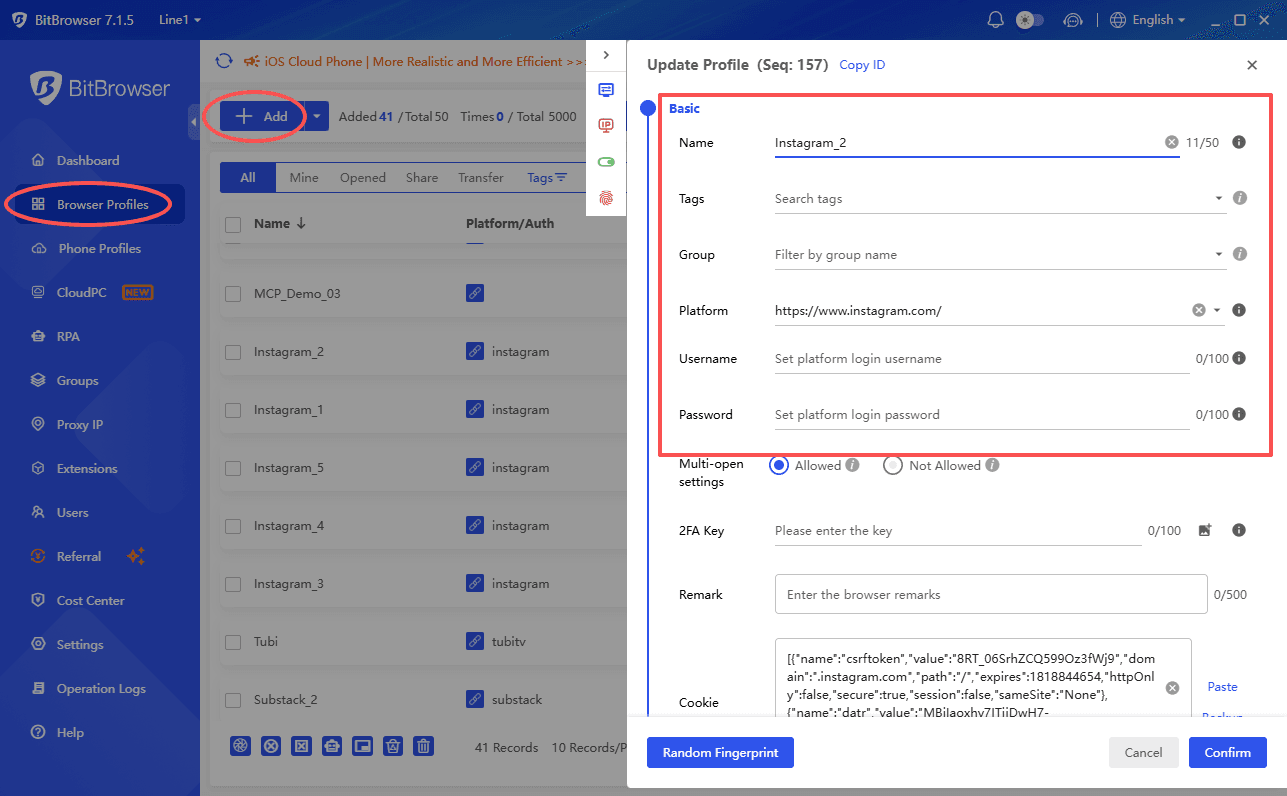
Add a trusted HTTP/HTTPS or SOCKS5 endpoint.
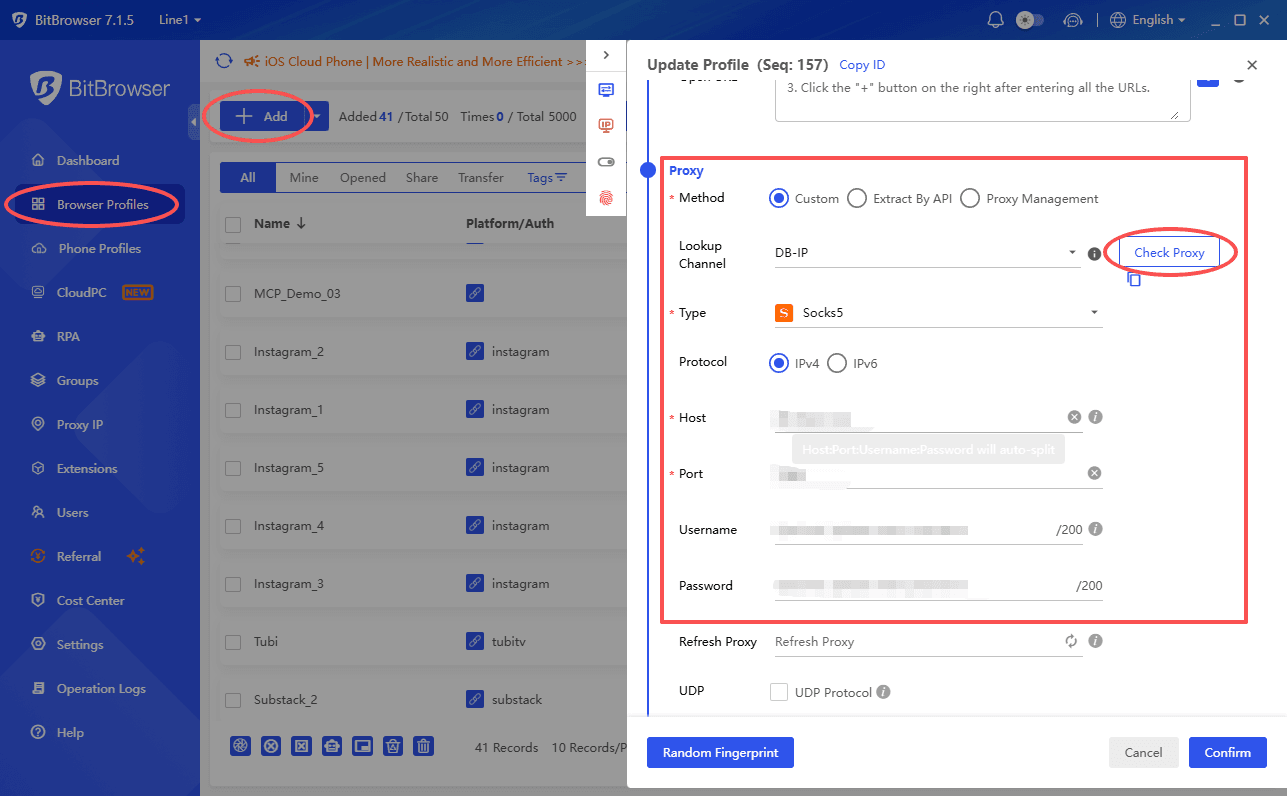
Test the proxy before launching the profile.
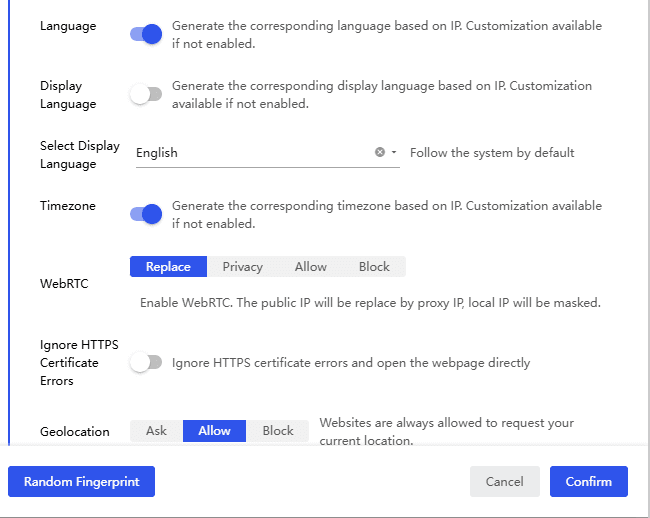
Open YouTube before signing in and verify playback.
Keep the working region and endpoint stable.
Use YouTube Studio permissions for team access.
Never use profiles to manufacture engagement.
Frequently Asked Questions
Does BitBrowser unblock YouTube by itself?
No. BitBrowser manages isolated browser profiles and proxy settings. You need a working network route or authorized proxy endpoint.
Can I use SOCKS5 with BitBrowser for YouTube?
Yes, if your BitBrowser version and proxy provider support SOCKS5. Enter the endpoint details in the profile and test the connection before opening YouTube.
Is a proxy faster than a VPN for YouTube?
It can be because only the browser profile may use the proxy, but actual speed depends on the endpoint, distance, bandwidth, and provider quality.
Can I manage several YouTube channels with BitBrowser?
Yes for legitimate channels. Keep separate profiles for operational separation and use YouTube Studio permissions or Brand Account roles for team access.
Should I use rotating proxies for YouTube?
For normal playback and account sessions, a stable endpoint is generally easier to manage. Rapid rotation can interrupt streaming and trigger repeated security checks.
Is Smart DNS the same as a proxy?
No. Smart DNS changes selected DNS responses; a proxy actually relays browser traffic. Their privacy and compatibility characteristics are different.
Official resources
| BitBrowser: bitbrowser.net • BitBrowser Blog • YouTube Help |

 Multi-Account Management
 Prevent Account Association
 Multi-Employee Management
Recommended
See More 



