Microsoft Login Guide 2026: Sign In to live.com, microsoftonline.com, and microsoft.com Explained
 2026.07.25 07:04
 YT.Shi
If you have ever entered your email on a Microsoft sign in page and wondered, “Why did I end up on live.com, microsoftonline.com, or microsoft.com?”
You are not alone.
Microsoft login works like a building with different entrances. They all belong to Microsoft, but each one serves a different type of account and purpose.
In 2026, this matters more than ever. Microsoft accounts are used for email, Windows, Xbox, Teams, Azure, and workplace or school services. Many users also have more than one Microsoft identity without realizing it.
So let’s break down how these login paths work and when each one is used.
Why Does Microsoft Use Different Login Domains?
Microsoft uses multiple login domains because it serves two big worlds that look similar on the surface but are totally different underneath.
One world is personal. Think: Outlook.com, Hotmail, Xbox, OneDrive personal, Microsoft Store, Skype legacy stuff, Family Safety, even signing into Windows at home.
The other world is work and school. Think: Microsoft 365 business, Teams, SharePoint, Azure, Intune, Entra ID, corporate security policies, compliance requirements, device management.
And these worlds are not just “different websites”. They are different identity systems, with different rules, different admin control, different security policy engines, different ways sessions and tokens work.
So Microsoft keeps separate front doors.
Here is the basic idea:
● live.com is mainly associated with Microsoft personal accounts (MSA).
● microsoftonline.com is mainly associated with work or school accounts managed by Microsoft Entra ID (formerly Azure AD).
● microsoft.com is the big public brand domain and often acts as a neutral entry point, then redirects you to whichever identity system you actually belong to.
A key point that clears up a lot of confusion.
Microsoft decides where to send you based on signals like:
● the email domain you typed (example: @outlook.com vs @company.com)
● whether that address exists as an MSA, an Entra ID account, or both
● the service you are trying to access (Xbox is personal world. Teams is work world.)
● whether you are already signed in somewhere else in the browser
● whether your device is managed by a company (Intune, Windows Autopilot)
● tenant policies (company security settings can force specific flows)
That is why two people can click the same link and end up on different login pages. It is not random. It just feels random.
Now let’s break down each domain properly.
What Is live.com? Microsoft Personal Account Login Explained
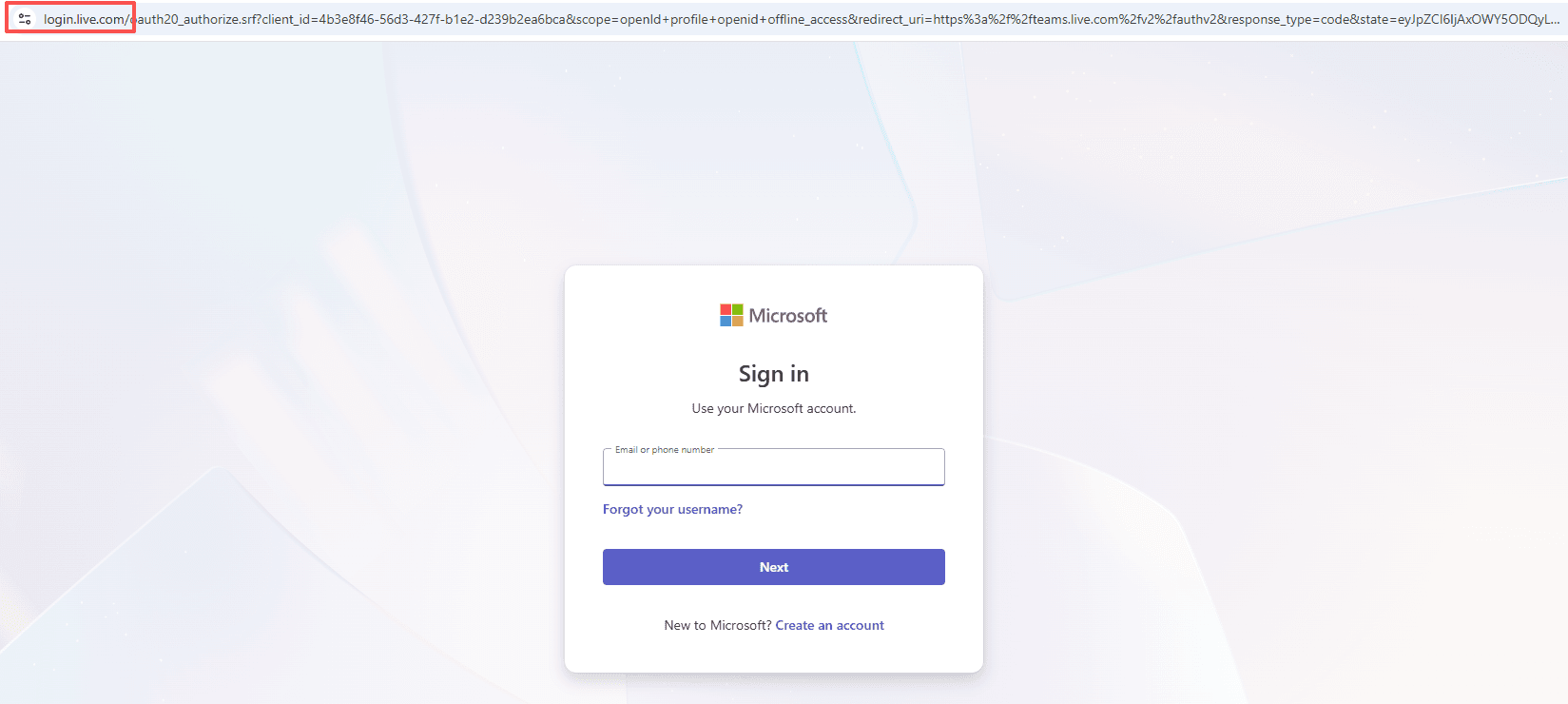
live.com is one of the main entry points for signing into a Microsoft personal account, also called an MSA.
If you have ever signed in to Outlook.com or used a Hotmail address, you have basically met this system already.
Even if you did not create an “Outlook account” on purpose. If you created an Xbox profile 10 years ago. Or you logged into a Windows laptop with a Microsoft email. That is an MSA.
And yes, the name is confusing. “Live” sounds like a brand from 2009. Because it was. Microsoft kept the domain because it is deeply wired into authentication history, redirects, and legacy compatibility.
Who Uses live.com?
live.com is aimed at people using Microsoft services as individuals, not managed by an organization.
Typical examples:
● Outlook.com and Hotmail.com users (personal inbox)
● Xbox players (Gamertag tied to Microsoft account)
● OneDrive personal storage
● Microsoft Store purchases on Windows
● Windows Home devices signed in with a personal Microsoft account
● Family Safety and child accounts
● Microsoft Rewards
● Minecraft accounts that got moved into Microsoft accounts
● People using @gmail.com or other emails as a Microsoft login (yes, you can do that) but still as an MSA identity
Common personal account email formats include:
● name@outlook.com
● name@hotmail.com
● name@live.com (still exists)
● name@msn.com (yes, still)
Or any non Microsoft email you registered as an MSA, like name@gmail.com
One thing to remember.
An MSA is owned and controlled by the individual. There is no corporate admin who can reset policy for you. Microsoft provides consumer level security options, like passwordless sign in, Authenticator, recovery codes. But it is not the same as an enterprise identity.
What Is microsoftonline.com? Microsoft Work and School Login Explained
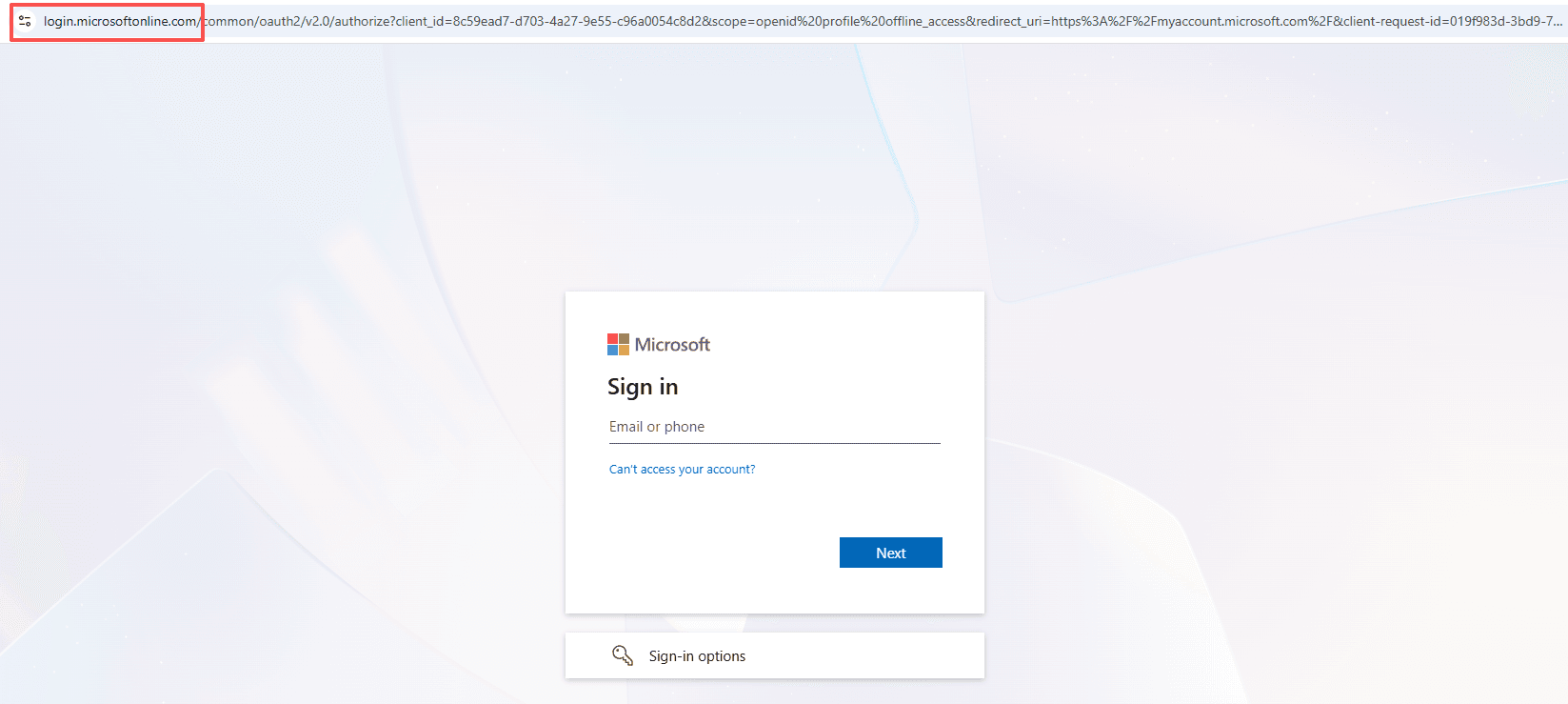
microsoftonline.com is the domain you typically see when signing into Microsoft Entra ID accounts. This is the identity system behind most organizational Microsoft services.
If your company uses Microsoft 365. If your school uses Teams. If you access Azure. If you sign into SharePoint at work. That identity is usually an Entra ID account.
This is the enterprise world. Admins can create accounts, disable them, enforce MFA, require compliant devices, block risky logins, set conditional access policies, force passwordless, and so on.
So the login system has to support all of that.
That is what microsoftonline.com is mostly doing.
Who Uses microsoftonline.com?
People with work or school accounts.
Usually that means:
● Employees at companies using Microsoft 365 Business or Enterprise
● Students and faculty using school managed Microsoft accounts
● Contractors and guests invited into another organization’s tenant
● Admins managing Microsoft services like Azure, Intune, Defender, Purview
These accounts are typically formatted like:
● you@company.com
● you@university.edu
● Sometimes you@company.onmicrosoft.com (this is the default tenant domain many orgs start with)
So Where Does microsoft.com Fit In?
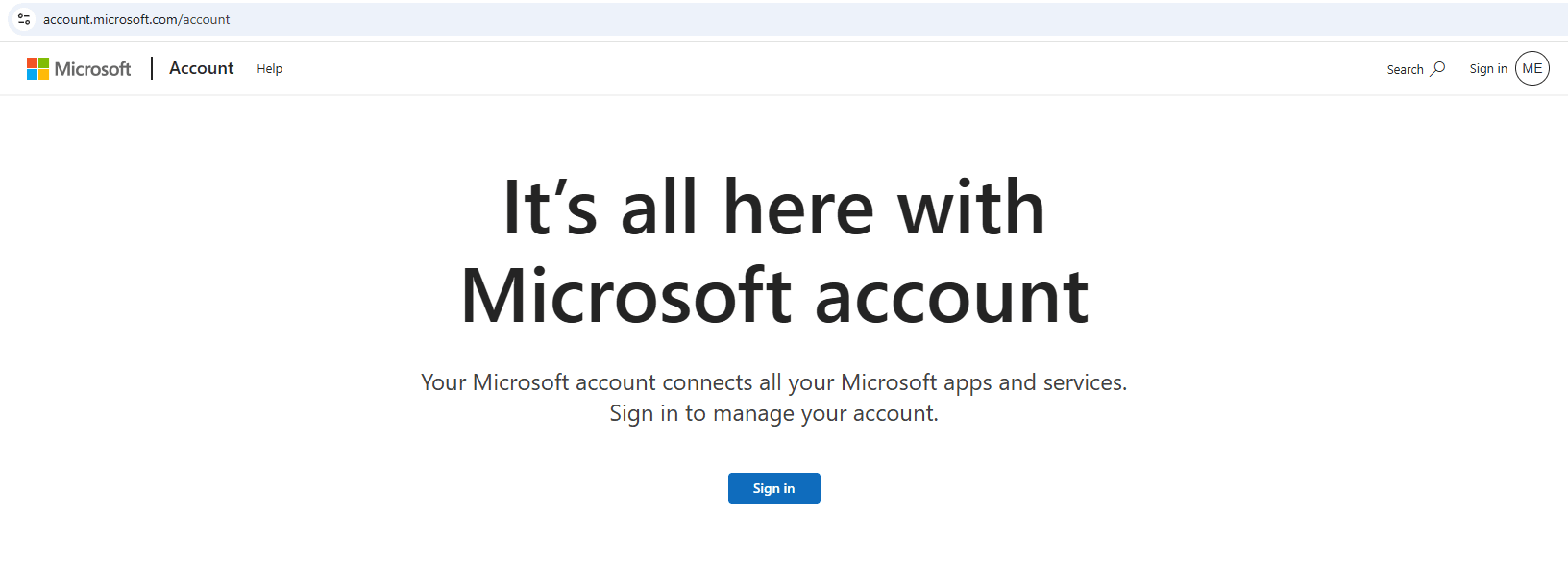
You did not ask for a dedicated section, but if we are being honest, this is what most people actually see first.
microsoft.com is often the friendly front door. It is marketing pages, product pages, account pages, support pages. But it also acts as a sign in entry point, then it redirects you behind the scenes.
So you might click “Sign in” on microsoft.com and end up at:
● login.live.com if it is clearly personal
● login.microsoftonline.com if it is clearly work or school
● a chooser prompt if ambiguous
● a tenant specific branded login page, if the org has customized it
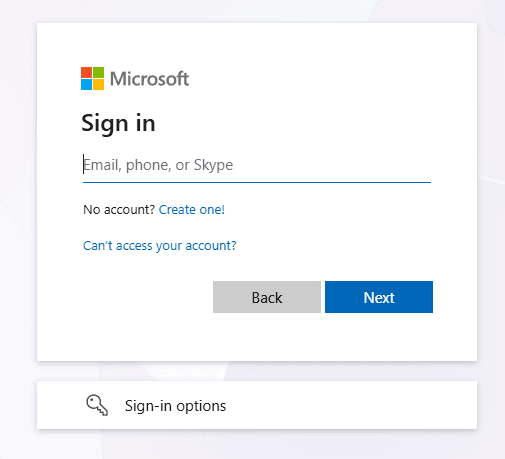
In other words, microsoft.com is not the identity system by itself. It is the lobby.
Quick Ways to Tell Which Account You Are Using
If you are constantly switching accounts, here are a few quick checks that save time.
● If you can open an admin portal like Entra admin center, you are using a work or school account.
● If your account has an organization name, and you see “My Account” with org branding, it is likely Entra ID.
● If you manage Xbox profile, subscriptions like Game Pass, or see consumer billing history, it is likely MSA.
● If you go to myaccount.microsoft.com that is usually Entra ID account management.
● If you go to account.microsoft.com that is usually consumer Microsoft account management. Sometimes it bridges, but it is a decent hint.
And the classic.
If you get prompted to choose between “Work or school” and “Personal”, stop and think for a second before clicking. That one click determines which files, which Teams tenant, which licenses, and which data you are about to enter.
The Annoying Edge Case: Same Email, Two Microsoft Accounts
Understanding the difference between Microsoft account types solves most login confusion. But there is one tricky situation that still catches many users off guard: the same email address can sometimes be connected to two separate Microsoft identities.
This is where things get confusing. You may be using the right email, the right password, and still end up in the wrong account, the wrong Teams workspace, or the wrong OneDrive files.
If your work email was also used to create a personal Microsoft account, you can run into situations like:
● Office signing into the wrong account
● OneDrive syncing the wrong files
● Teams opening as a guest instead of your main workspace
● Windows asking for a work account but connecting to the personal one
● Repeated sign in prompts in the browser
If the personal account is no longer important, you can change its primary alias so your work email is no longer connected to that personal identity.
If it is a company account, your IT administrator can only manage the organization account. They cannot access or control your personal Microsoft account.
But if you need both accounts, the simplest solution is separation.
How BitBrowser Helps Organize Microsoft Login Environments
For users managing multiple accounts, BitBrowser provides separate browser profiles that help keep different account environments organized.
Each profile works as an independent browser workspace with its own:
● cookies and session data
● browser settings
● account environment
● fingerprint configuration
For example, you can create:
● one profile for your personal Microsoft account
● one profile for your company Microsoft 365 account
● one profile for a client workspace
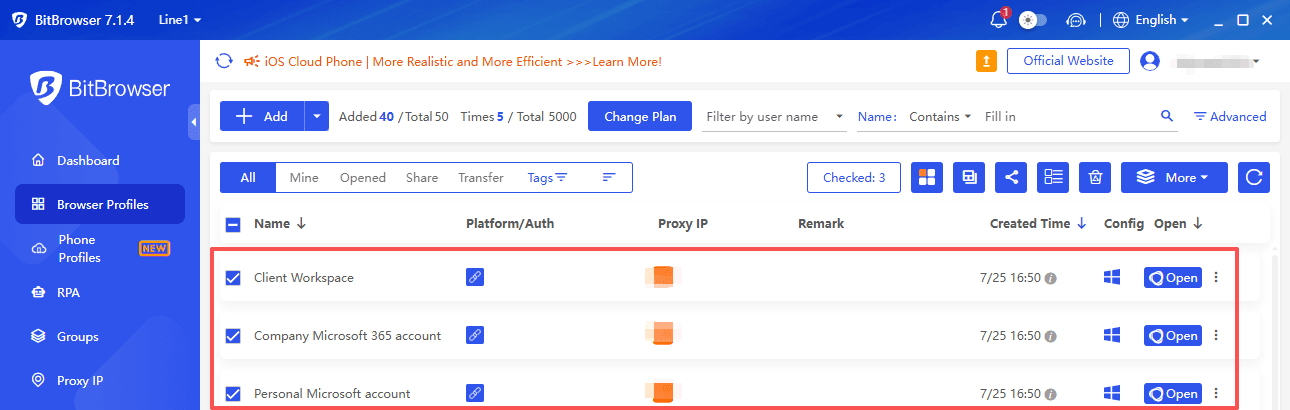
This makes it easier to switch between different Microsoft identities without mixing login sessions or account data.
Creating a Separate Microsoft Login Profile in BitBrowser
Setting up a dedicated Microsoft account environment only takes a few steps.
Step 1: Create a New Browser Profile
Create a new profile in BitBrowser and configure the browser environment for that account.
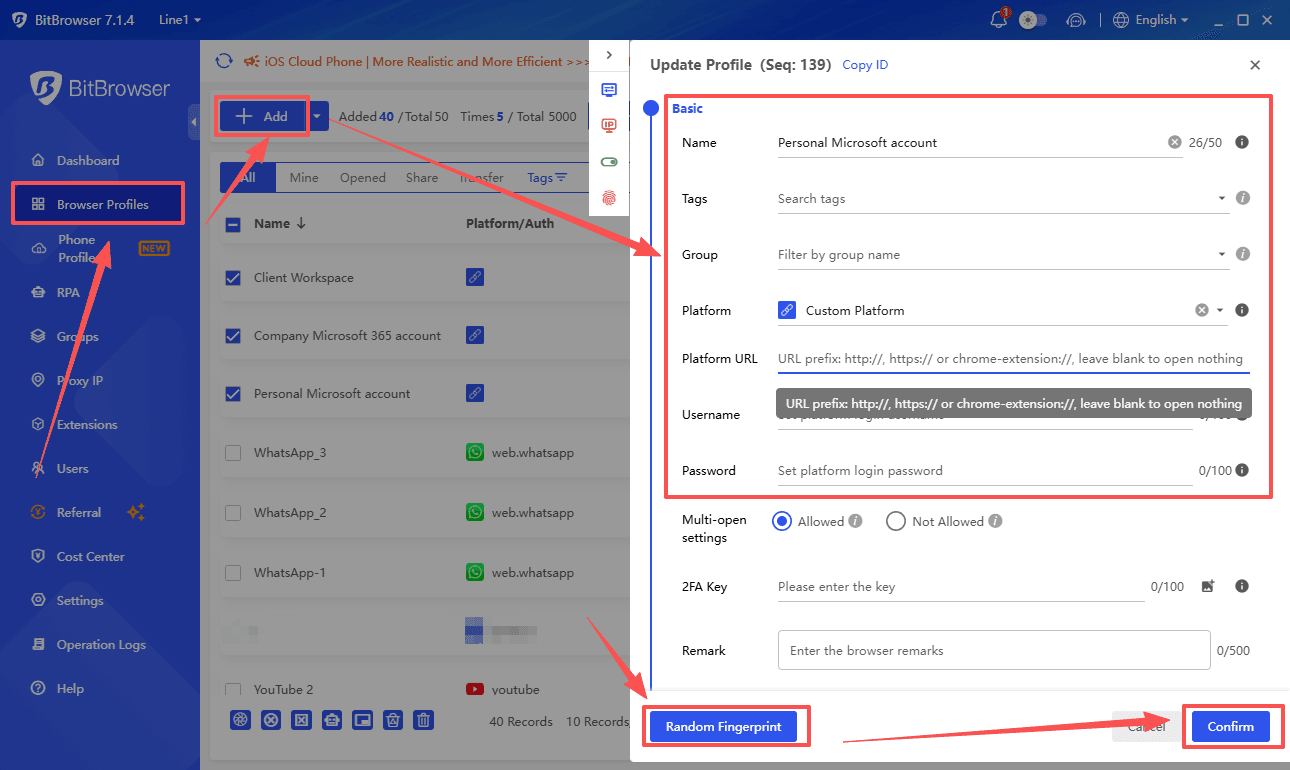
Step 2: Open the Correct Microsoft Login Page
Use the login page that matches the account type:
● Personal Microsoft accounts → live.com login
● Work or school accounts → microsoftonline.com login
The profile keeps its own login session, making it easier to manage different Microsoft identities separately.
Step 3: Keep Profiles Organized
When managing multiple accounts, clear naming helps avoid mistakes.
For example:
● Personal Outlook
● Company Microsoft 365
● Client A Workspace
A simple structure can save a surprising amount of time when switching between accounts.
Wrap Up
Microsoft uses multiple login domains because it is running two identity worlds at the same time.
● live.com is mainly for personal Microsoft accounts, the consumer ecosystem. Outlook.com, Hotmail, Xbox, OneDrive personal.
● microsoftonline.com is mainly for work and school accounts, the Entra ID ecosystem. Microsoft 365, Teams, Azure, SharePoint.
And microsoft.com is often just the entry point that redirects you to the right one, depending on who you are and what you are trying to access.
FAQ
Why does Microsoft use different login domains like live.com, microsoftonline.com, and microsoft.com?
Microsoft uses different domains because personal accounts and work or school accounts use separate identity systems with different login and security rules.
What is the purpose of live.com in Microsoft's login system?
live.com is the login gateway for personal Microsoft accounts, including Outlook, Xbox, OneDrive Personal, and other consumer services.
Who typically uses a Microsoft personal account (MSA) via live.com?
Individual users with accounts for services like Outlook, Hotmail, Xbox, OneDrive Personal, Microsoft Store, and Microsoft Rewards typically use live.com.
How does the login process work when signing in through live.com?
live.com verifies your personal Microsoft account credentials and creates a secure session before connecting you to the requested Microsoft service.
Why might two people clicking the same Microsoft sign-in link end up on different login pages?
Microsoft redirects users based on factors like account type, email domain, service accessed, and existing sign-in information.

 Multi-Account Management
 Prevent Account Association
 Multi-Employee Management
Recommended
See More 



