How to Use WhatsApp on Computer in 2026: Web, Desktop & Multiple Accounts Guide
 2026.07.24 08:38
 YT.Shi
Using WhatsApp on a phone is convenient, but when conversations become longer or you need to send files frequently, a computer can make everything much easier.
Typing with a full keyboard, viewing chats on a larger screen, and managing documents directly from your desktop can save a lot of time. Whether you are using WhatsApp for personal conversations, work communication, or customer support, accessing WhatsApp on a computer can improve your daily workflow.
In 2026, there are several ways to use WhatsApp on a computer:
1. WhatsApp Web in your browser (Chrome, Edge, Safari, Firefox, etc.)
2. WhatsApp Desktop app (Windows or macOS)
3. Multiple account setups, if you need two or more WhatsApp accounts on the same PC
This guide explains how to use WhatsApp on PC, the differences between WhatsApp Web and Desktop, and how to manage multiple WhatsApp accounts safely.
Can You Use WhatsApp on a Computer?
Yes. WhatsApp officially supports using WhatsApp on PC and Mac.
You can access your chats in two official ways:
● WhatsApp Web (runs inside a browser tab)
● WhatsApp Desktop (a dedicated app for Windows and macOS)
Either way, you still need a phone for the initial linking. After that, your computer becomes a linked device and can work more independently than it used to a few years ago.
Supported platforms (officially):
● Windows
● macOS
Linux is still the “it depends what you install” world. Some people use wrappers or browser-only. For most users, Web is the easiest there.
The 3 Ways to Use WhatsApp on Computer (and which one I’d pick)
Before we go step by step, here’s the quick breakdown.
| Method | Best For | Advantages | Limitations |
|---|---|---|---|
| WhatsApp Web | Quick access, users who don't want to install software | Works directly in a browser, no installation required, easy to access from different computers | Browser performance and notifications may depend on your settings |
| WhatsApp Desktop App | Daily WhatsApp users who spend more time on PC | More like a native app, better desktop integration, smoother notifications | Requires installation and storage space |
| Multiple WhatsApp Accounts on One Computer | Personal + business use, teams, agencies managing different accounts | Allows separate workflows for different accounts and projects | Needs proper account organization to avoid confusion and repeated logins |
For most users, WhatsApp Web is enough for occasional messaging, while WhatsApp Desktop is better for daily communication.
If you need to manage several accounts at the same time, you will need a more organized setup with separate BitBrowser environments.
How to Use WhatsApp Web on Computer (WhatsApp Web Login)
WhatsApp Web is the fastest way to get WhatsApp on laptop or desktop.
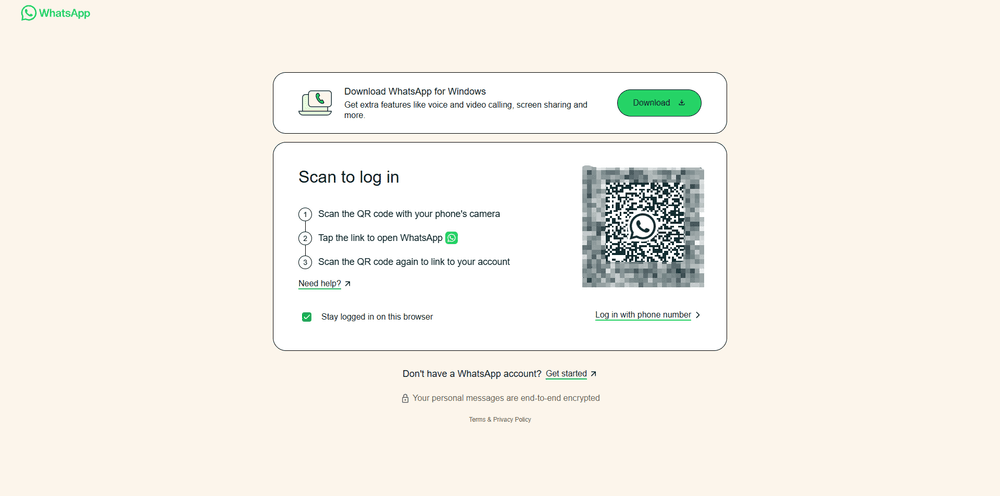
Step 1: Open WhatsApp Web
On your computer, go to:
You’ll see a QR code.
Step 2: On your phone, open Linked Devices
On your phone:
1. Open WhatsApp
2. Go to Settings (iPhone) or Menu (three dots) (Android)
3. Tap Linked devices
4. Tap Link a device
It will open your camera.
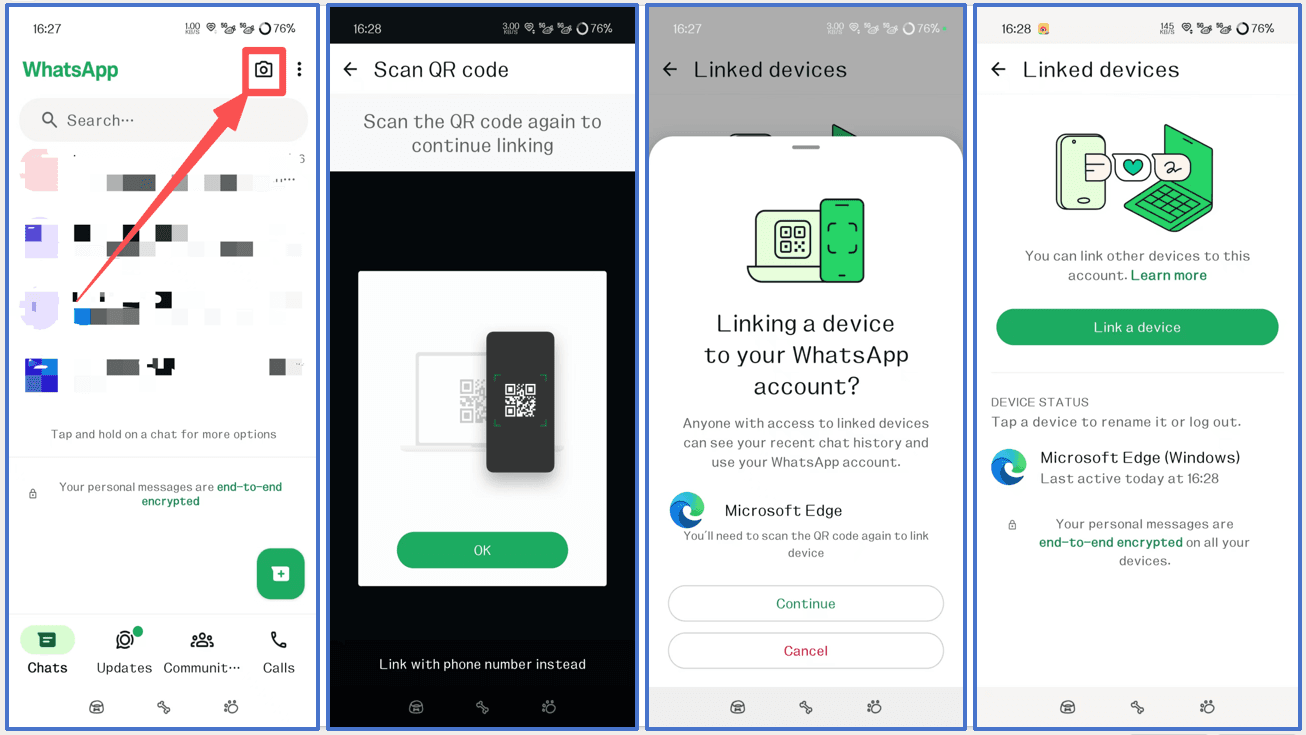
Step 3: Scan the QR code
Point your phone camera at the QR code on your computer screen.
In a few seconds, your chats load on the computer.
That’s it. That’s the WhatsApp Web login process.
Optional but useful: “Stay logged in”
If it’s your personal computer, you can keep the session active. On shared computers, do not. Just don’t.
How to log out of WhatsApp Web properly
Two ways:
● On the computer: WhatsApp Web menu (top left) → Log out
● On the phone: Linked devices → tap the session → Log out
If you ever forget to log out on a public device, the phone method is the panic button.
How to Use WhatsApp Desktop (Windows and macOS)
If you use WhatsApp on computer daily, the desktop app usually feels nicer.
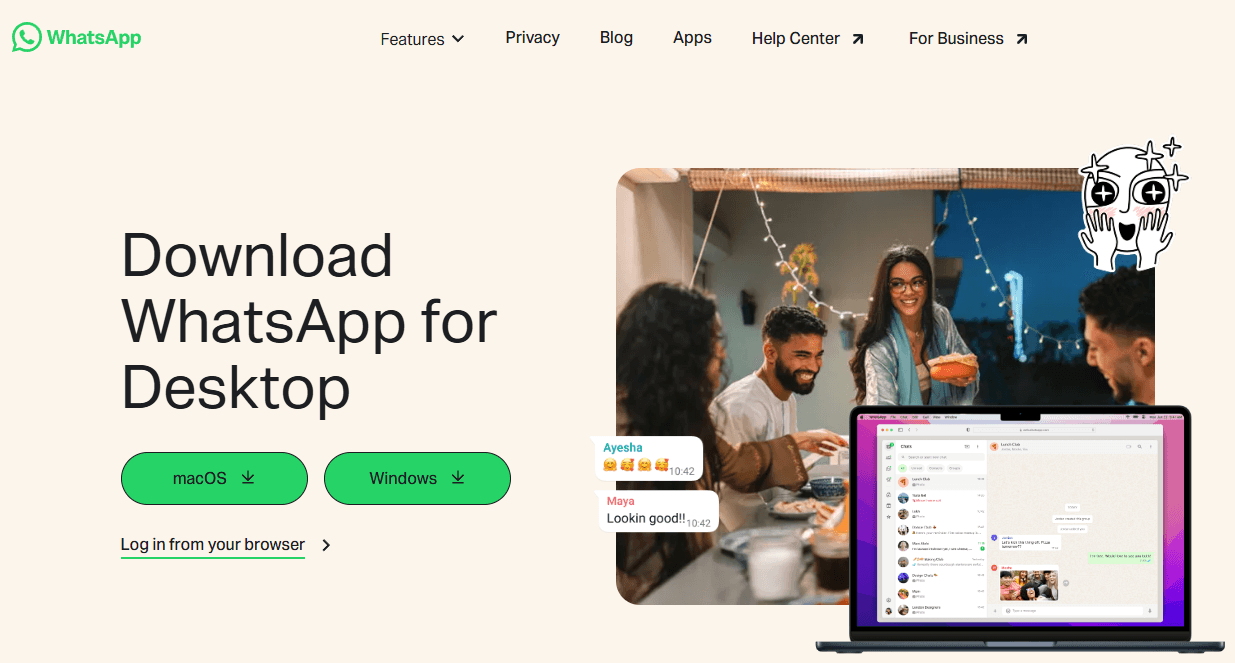
Step 1: Install WhatsApp Desktop
Install from the official sources: WhatsApp’s official download page
● Microsoft Store (Windows)
● Mac App Store (macOS)
Try to avoid random third-party download sites.
Step 2: Open the app and link your account
When you open WhatsApp Desktop, you’ll see a QR code again.
On your phone:
● WhatsApp → Linked devices → Link a device → scan the QR
Same idea as WhatsApp Web.
Step 3: Configure notifications (this matters more than people admit)
If you want WhatsApp on PC to actually be useful, notifications must work.
Do this:
● In WhatsApp Desktop settings: enable notifications
● In Windows/macOS system settings: allow WhatsApp notifications
● On laptops: check Focus mode / Do Not Disturb, it blocks more than you think
WhatsApp Web vs WhatsApp Desktop: Which One Should You Use?
Both options let you use WhatsApp on a computer, but they are designed for different situations. Here is a quick comparison:
| Comparison | 🌐 WhatsApp Web | 🖥️ WhatsApp Desktop |
|---|---|---|
| 🚀 How to Access | Use directly in a browser at web.whatsapp.com. No installation required | Download and install the dedicated desktop app |
| ⚡ Storage & Performance | Lightweight and uses browser resources. Performance depends on browser settings and open tabs | Uses local resources but usually provides a more stable experience for long-term use |
| 🔔 Notifications | Browser-based notifications that depend on browser settings | Native desktop notifications with better system integration |
| 🛠️ Features | Supports messaging, file sharing, and basic shortcuts | Supports messaging, file sharing, advanced shortcuts, voice/video calls, and screen sharing |
| 🔗 Multi-Device Support | Works through WhatsApp Linked Devices | Works through WhatsApp Linked Devices with a dedicated app experience |
| 📂 File Management | Drag and drop files through the browser window | Drag and drop files with a smoother desktop workflow |
| 🎯 Best For | Quick access, temporary use, shared computers | Daily communication, work, and users who stay online for long periods |
Quick choice:
🌐 Choose WhatsApp Web if you want fast access without installing anything.
🖥️ Choose WhatsApp Desktop if you use WhatsApp every day and want a more stable PC experience.
Can You Use WhatsApp Web Without Phone?
People search for WhatsApp Web without phone all the time, so here is the simple answer: Yes, but only after the initial setup.
You still need your phone to link WhatsApp Web for the first time. Open WhatsApp on your phone, go to Linked Devices, and scan the QR code shown on your computer.
After linking, you can use WhatsApp on your computer even if:
● your phone is in another room
● your phone is temporarily offline
● your phone battery runs out
This works through WhatsApp’s multi-device feature. WhatsApp supports linking up to four devices to one primary phone. Supported linked devices include:
● WhatsApp Web
● WhatsApp for Windows
● WhatsApp for Mac
● Android tablets
● iPad
● Other supported companion devices
However, “without phone” does not mean you never need a phone. You still need your primary phone to register your account and link new devices. Linked devices may also log out if your primary phone is unused for more than 14 days.
For security, only link devices through official WhatsApp apps and websites. Unofficial WhatsApp tools or fake login pages may put your account at risk.
How to Use Multiple WhatsApp Accounts on Computer (2026 methods)
Managing multiple WhatsApp accounts on one computer can be tricky. The best method depends on how many accounts you need and how often you switch between them.
Here is a quick comparison of the most common methods:
| Method | Best For | Pros | Limitations |
|---|---|---|---|
| Multi-account browser (BitBrowser) | Managing multiple personal or business accounts | Separate browser profiles, independent sessions, easier account organization | Requires setting up profiles |
| WhatsApp Desktop + WhatsApp Web | Two accounts (personal + business) | Simple, official, no extra tools needed | Not practical for many accounts |
| Different browser profiles | 2–5 accounts | Keeps cookies and sessions separate | Becomes difficult to manage at scale |
| WhatsApp Business + WhatsApp Messenger | One personal and one work account | Official WhatsApp solution | Limited to a small number of accounts |
| Private/Incognito windows | Temporary second account access | Quick and requires no setup | Sessions usually disappear after closing |
👑 Best & Safe Option: Use a Multi-Account Browser with Separate Profiles (Best for Multiple Accounts)
If you manage several WhatsApp accounts for business, marketing, or customer support, using separate browser environments is the most organized approach.
A multi-account browser like BitBrowser allows you to create independent browser profiles, with each profile having its own cookies, sessions, browser fingerprint, and proxy settings.
More importantly, separating browser environments can help reduce account connections caused by shared cookies, fingerprints, or IP addresses. By keeping each WhatsApp account in its own isolated profile, you can lower the risk of multiple accounts being linked together by platform security systems and keep your account management more organized.
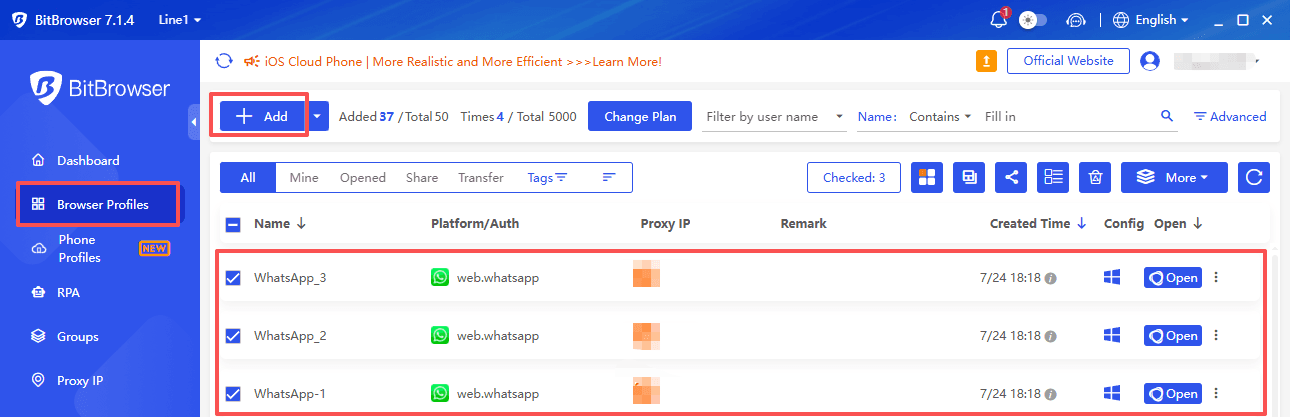
For example:
● Profile 1: Personal WhatsApp account
● Profile 2: Business WhatsApp account
● Profile 3: Client account
Each account can stay logged in separately, so you do not need to repeatedly log out or switch sessions.
How to Use WhatsApp on a Laptop for Work (small workflow tips that help a lot)
Not everyone needs “tips”, but a few things genuinely make WhatsApp on laptop feel like a productivity tool instead of just a bigger chat screen.
Use keyboard shortcuts
A few that are worth learning:
● Search chats quickly (varies by OS, often Ctrl or Cmd + F inside app, and Ctrl or Cmd + K for chat search in some builds)
● Navigate between chats using arrow keys
● Use Enter to send (or disable it if you’re always accidentally sending half-written messages)
Shortcuts vary a bit between Web and Desktop, but either way, you’ll feel the speed boost once you stop reaching for the mouse every time.
Drag and drop files
This is one of the biggest reasons people want WhatsApp on PC.
● Drag images, PDFs, docs straight into a chat
● Copy paste screenshots without saving them first in some setups
Use WhatsApp for quick “send to myself”
A lot of people do this:
● create a chat with yourself (or use the built-in self chat if available in your app)
● drop links, files, notes between phone and computer
Security and Privacy Things You Should Actually Do
I’m not going to turn this into a paranoia section. Just the basics that prevent real problems.
Do not use WhatsApp Web on public computers unless you log out
If you must, do it in a private window, and log out from your phone after.
Review Linked Devices regularly
On your phone:
● WhatsApp → Linked devices
If you see anything you don’t recognize, log it out immediately.
Turn on two-step verification
This is one of those settings you ignore until the day you desperately need it.
● WhatsApp → Settings → Account → Two-step verification
Wrap up
That’s basically the 2026 reality of how to use WhatsApp on computer.
● WhatsApp Web is the fastest way to start, especially if used in a secure app.
● WhatsApp Desktop is better if you live in WhatsApp all day.
You can use WhatsApp Web without phone nearby after linking, but you still need a phone for the initial connection.
For WhatsApp multiple accounts on computer, skip the messy hacks. Use Desktop plus browser profiles, and label everything so you don’t message your boss from the wrong number.
FAQs (Frequently Asked Questions)
Can I use WhatsApp on my computer?
Yes. You can use WhatsApp on PC or Mac through WhatsApp Web or the WhatsApp Desktop app. You need your phone for the initial setup.
What are the ways to use WhatsApp on a computer in 2026?
The main options are WhatsApp Web, WhatsApp Desktop, and separate browser environments for managing multiple accounts.
How do I log in to WhatsApp Web?
Open web.whatsapp.com, go to Linked Devices in WhatsApp on your phone, and scan the QR code on your computer.
Is WhatsApp Desktop better than WhatsApp Web?
WhatsApp Desktop is better for daily use with more stable notifications, while WhatsApp Web is better for quick access without installation.
Can I use multiple WhatsApp accounts on one computer?
Yes. You can manage multiple accounts using separate browser profiles or multi-account browsers to keep each session organized.
How can I manage multiple WhatsApp accounts more efficiently?
Using separate browser profiles with tools like BitBrowser can help keep each WhatsApp account in its own environment, making multi-account management easier and more organized.

 Multi-Account Management
 Prevent Account Association
 Multi-Employee Management
Recommended
See More 



