OnlyFans Login: How to Sign In and Fix Login Issues
 2026.10.29 02:22
 YT.Shi
If you're looking for the OnlyFans login page, want to sign in on your phone, or can't access your account, the solution usually starts with checking your login details and verification settings.
OnlyFans is a web-based platform, so you can access it through a browser on your computer or mobile device. If you've forgotten your password, lost access to your linked phone number, or encountered a two-step authentication error, there are several ways to troubleshoot the problem.
This guide explains how to log in to OnlyFans, recover your account, resolve common login issues, and keep your account secure.
How to Access the Official OnlyFans Login Page
You can access OnlyFans through its official website:
Official website: https://onlyfans.com/
Open the website in your browser and select the login option to access your existing account. If you don't have an account yet, follow the registration process instead.
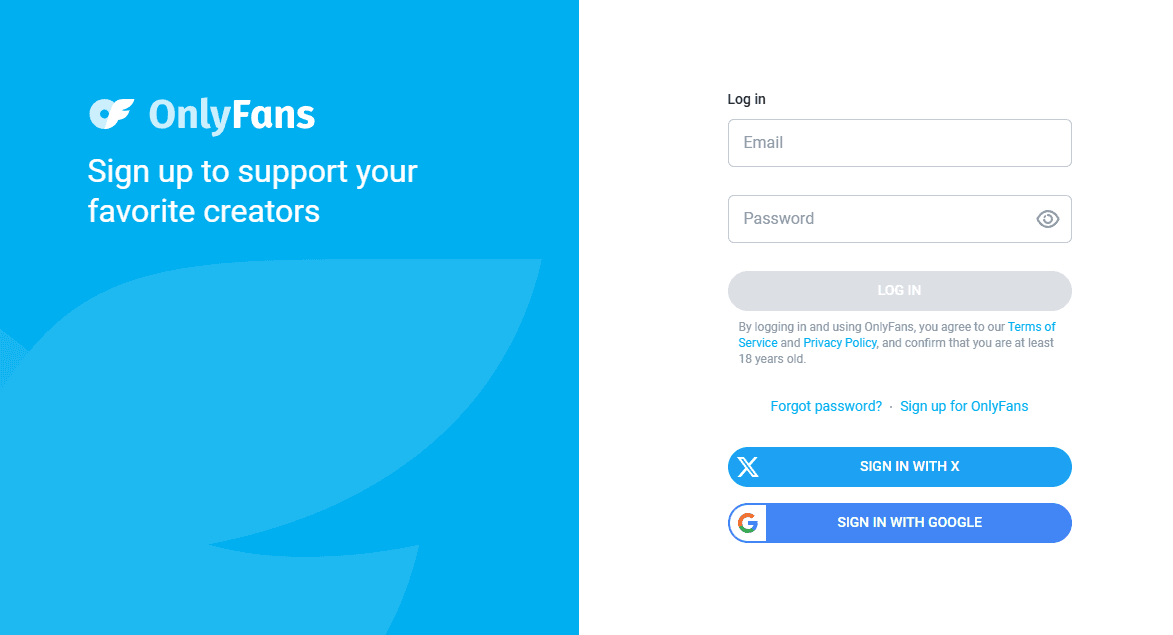
Before entering your credentials, check that you're visiting the correct domain. Avoid unofficial login pages that ask for your password, verification codes, or other account information.
If the page doesn't load properly, try refreshing it or opening the website in another browser.
How to Log In to OnlyFans
The login process is similar on desktop and mobile, although the layout may vary depending on your device and browser.
Log In to OnlyFans on a Computer
Follow these steps to sign in on a desktop or laptop:
1. Open your browser and visit OnlyFans.com.
2. Select the login option on the website.
3. Enter the email address or other login credentials associated with your account, as requested by the page.
4. Enter your password.
5. Complete any additional verification steps if prompted.
6. After successful authentication, you should be able to access your account.
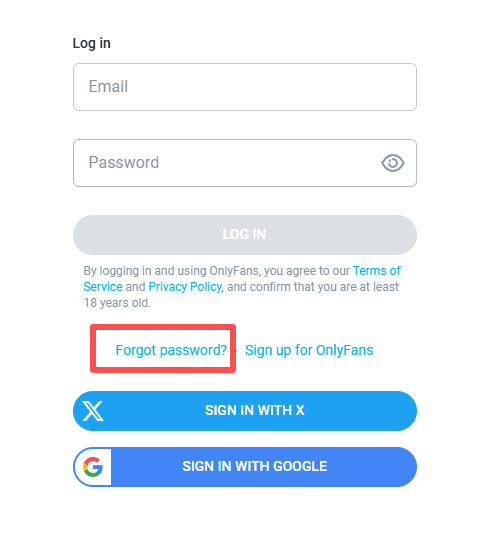
If you can't remember your password, use the password recovery option instead of repeatedly trying different passwords.
Log In to OnlyFans on a Phone
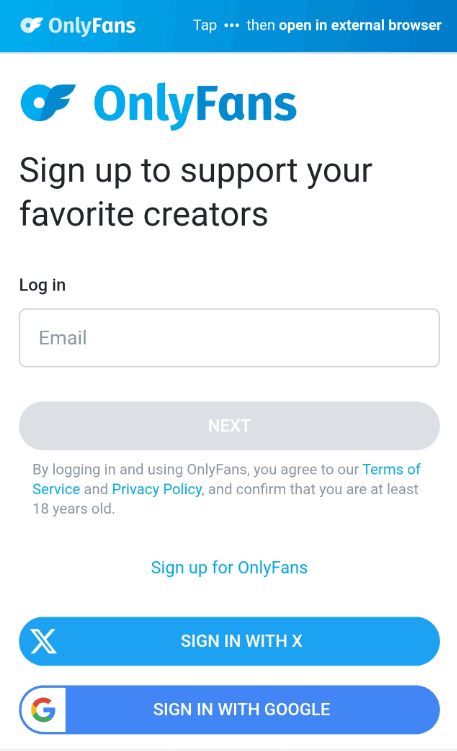
You can access OnlyFans through a mobile browser on an iPhone or Android device.
1. Open Safari, Chrome, or another supported mobile browser.
2. Visit the official OnlyFans website.
3. Open the login page.
4. Enter your account credentials.
5. Complete any requested verification.
If the page appears incorrectly on your phone, try refreshing it or switching to another browser.
Does OnlyFans Have an App?
No. According to OnlyFans' official Help information, OnlyFans does not have an app.
You can access the platform through its website on your phone or computer. For quicker access on mobile, you can add OnlyFans.com to your home screen. This creates a shortcut that works similarly to an app without requiring a separate OnlyFans app download.
To add the website to your home screen:
▸ iPhone: Open OnlyFans in Safari, tap the Share button, and look for the option to add the website to your Home Screen.
▸ Android: Open OnlyFans in Chrome, tap the browser menu, and look for Add to Home screen or Install shortcut, depending on the available options.
The exact menu labels may vary by device and browser version.
What If You Don't Have an OnlyFans Account?
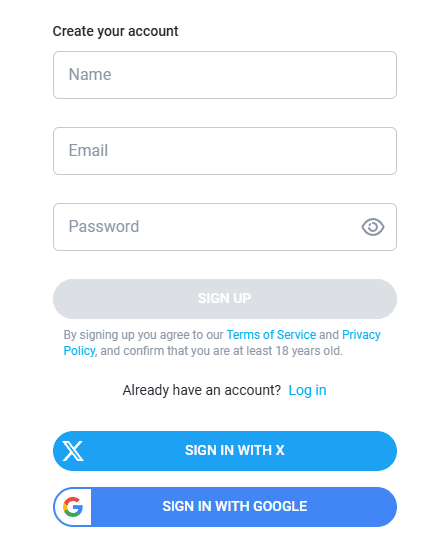
If you're new to the platform, you'll need to register before logging in.
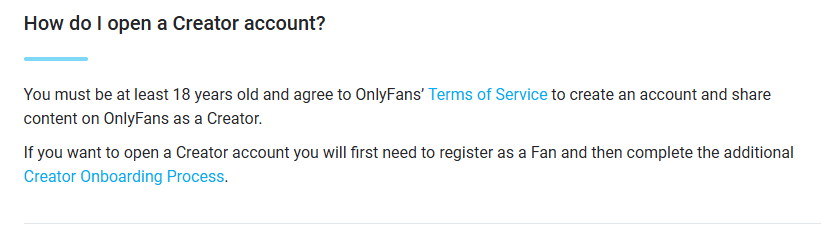
OnlyFans requires users and creators to be at least 18 years old and agree to its Terms of Service. Before an account can be opened, you must provide the information required to confirm your age and identity. The specific requirements may vary depending on your location.
You can review the OnlyFans Terms of Service for further information.
Creating an account and subscribing to a creator are different actions. Registering does not automatically give you access to every creator's paid content.
How to Fix OnlyFans Login Issues
If you can't log in to OnlyFans, start by identifying the problem. An incorrect password, a failed verification code, and a browser loading error require different solutions.
1. Forgot Your OnlyFans Password?
If you've forgotten your password, use the official password recovery form.
1. Visit OnlyFans.com.
2. Select the Forgot Password option.
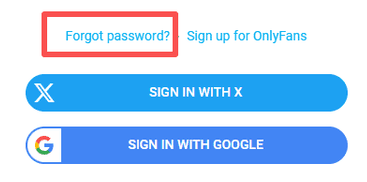
3. Follow the instructions to request a password reset.
4. Check the email account associated with your OnlyFans account.
5. Follow the instructions in the recovery message, if one is sent, to reset your password.
If you don't receive the email, check your spam or junk folder and confirm that you're checking the correct inbox.
If you still can't reset your password, contact OnlyFans Support for assistance.
2. Why Can't I Log In to OnlyFans?
There are several possible reasons why an OnlyFans login might fail.
| Possible cause | What to try |
|---|---|
| Incorrect email or password | Check your credentials and use password recovery if needed. |
| Verification required | Complete the verification steps shown on the page. |
| Outdated verification code | Generate or retrieve the latest code and enter it promptly. |
| Browser problems | Refresh the page or try another browser. |
| Corrupted site data | Clear the OnlyFans-specific cookies and site data, then try again. |
| Network or connection issues | Check your connection and try again. |
| Account access restrictions | Review any messages displayed by the platform and contact official support if necessary. |
A failed login doesn't necessarily mean your account has been suspended. Check the specific error message before deciding what to do next.
3. What If You Don't Receive a Verification Email?
If you're waiting for an email related to login or account recovery, try the following:
1. Check your spam and junk folders.
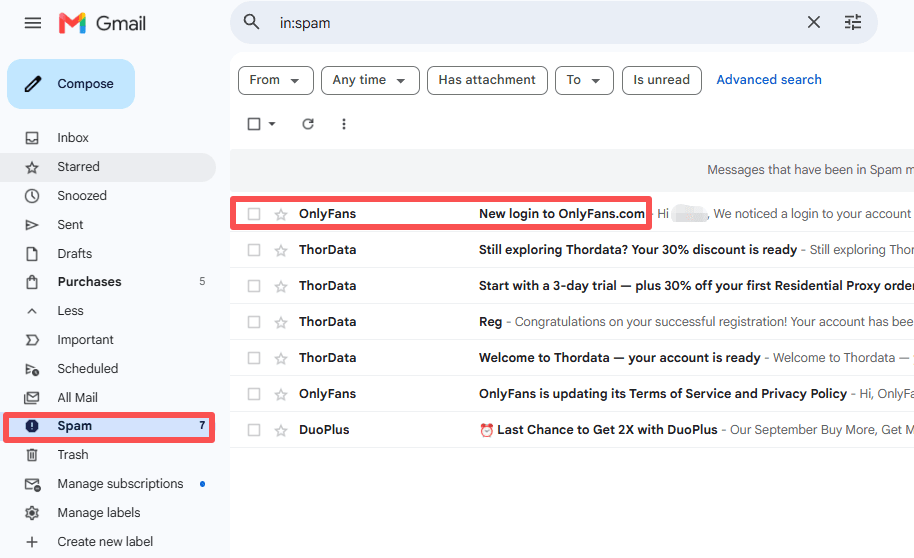
2. Search your inbox for messages from OnlyFans.

3. Confirm that you're checking the email address associated with your account.
4. Check whether your email provider is filtering or blocking incoming messages.
5. Follow the instructions on the website before requesting another email.
If the message still doesn't arrive, wait briefly before trying again. Repeated requests may not resolve the underlying issue.
If you can't access the email account associated with your OnlyFans account, contact official support for guidance on recovering access.
4. How to Fix OnlyFans Two-Step Authentication Problems
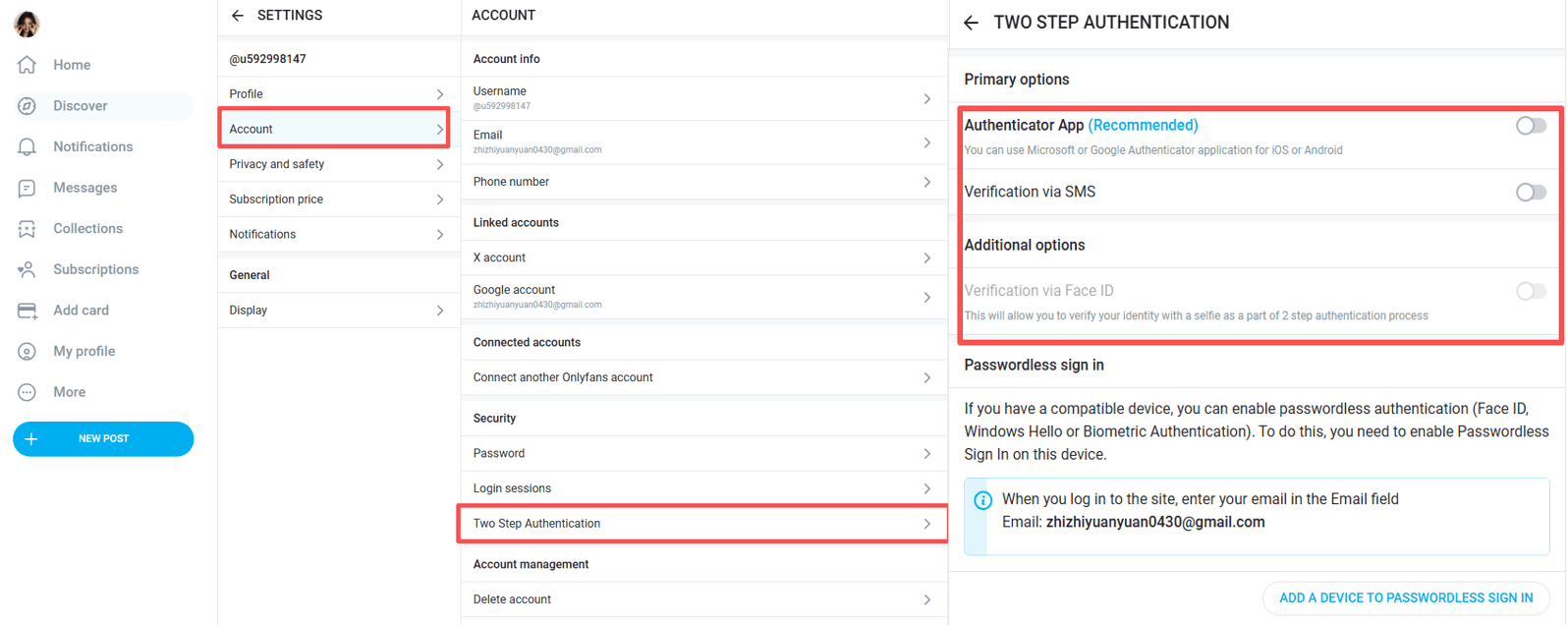
Two-step authentication adds another verification step to help protect your account. Depending on your settings, you may use an authenticator app or SMS verification.
If your authentication code isn't working, OnlyFans recommends checking the following:
Disconnect from your VPN.
Disconnect from any VPN and try the login process again.
Check your device's date and time.
Make sure your phone or computer has the correct date and time settings. An incorrect device clock can cause problems with time-based authenticator codes.
Use the latest six-digit code.
Authenticator apps generate new codes when you open the app and refresh them every 30 seconds while the app is running. Make sure you're entering the current code rather than one that has expired.
If two-step authentication still doesn't work, contact OnlyFans Support at support@onlyfans.com.
5. What If You Can't Access the Phone Number Linked to Your Account?
If you no longer have access to the phone number associated with your OnlyFans account, the recovery options depend on the verification method you enabled.
According to OnlyFans' official Help information, if you enabled SMS Verification, you can use one of the backup codes generated when you set it up.
If you didn't save those codes and can't access the linked phone number, contact support@onlyfans.com.
Include the following information in your email:
▸ Your OnlyFans @username
▸ The email address you used when creating your account
Do not include your password or send authentication codes to anyone claiming to be a support representative.
6. OnlyFans Login Page Keeps Loading or Refreshing
Sometimes the login page may fail to load properly, refresh repeatedly, or remain stuck after you submit your credentials.
Try these steps in order:
1. Refresh the page and wait for it to load completely.
2. Open OnlyFans in another supported browser.
3. Check whether your browser is up to date.
4. Temporarily disable extensions that may interfere with website scripts, such as content blockers.
5. If the problem persists, clear the cookies and site data for OnlyFans.
6. Close and reopen the browser before trying again.
Clearing site data may sign you out and remove locally stored preferences for that website, so make sure you know how to access your account before doing so.
If the login page fails across multiple browsers and devices, the issue may not be limited to your browser. Check for any messages from the platform and contact support if necessary.
7. What Should You Do if Someone Else Has Accessed Your Account?
If you suspect someone else has accessed your OnlyFans account, take action as soon as possible.
1. Log in if you can and change your password immediately.
2. Enable two-step authentication if it isn't already enabled.
3. Open your OnlyFans login sessions settings and review the sessions listed there.
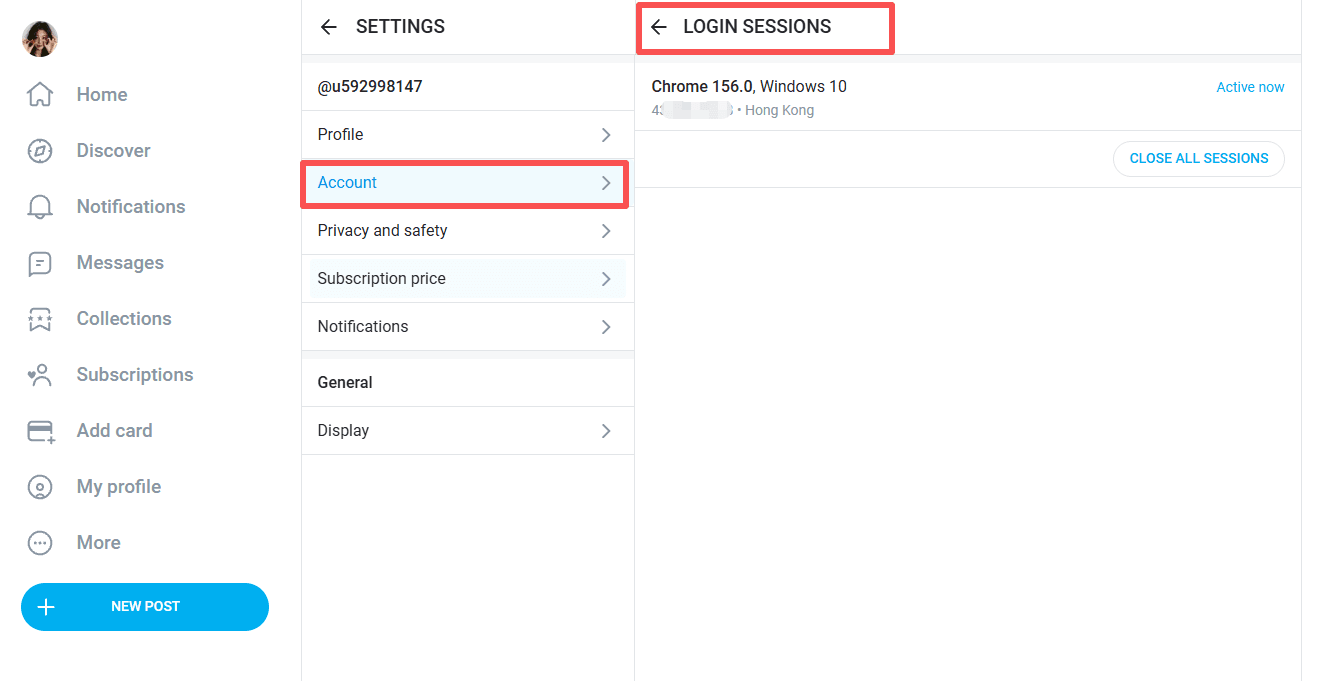
4. If you need further assistance, contact support@onlyfans.com.
You can manage two-step authentication through your OnlyFans account security settings.
If you can't log in because your credentials have changed or your account is no longer accessible, contact official support rather than relying on third-party account recovery services.
Managing Multiple OnlyFans Accounts in Separate Browser Profiles
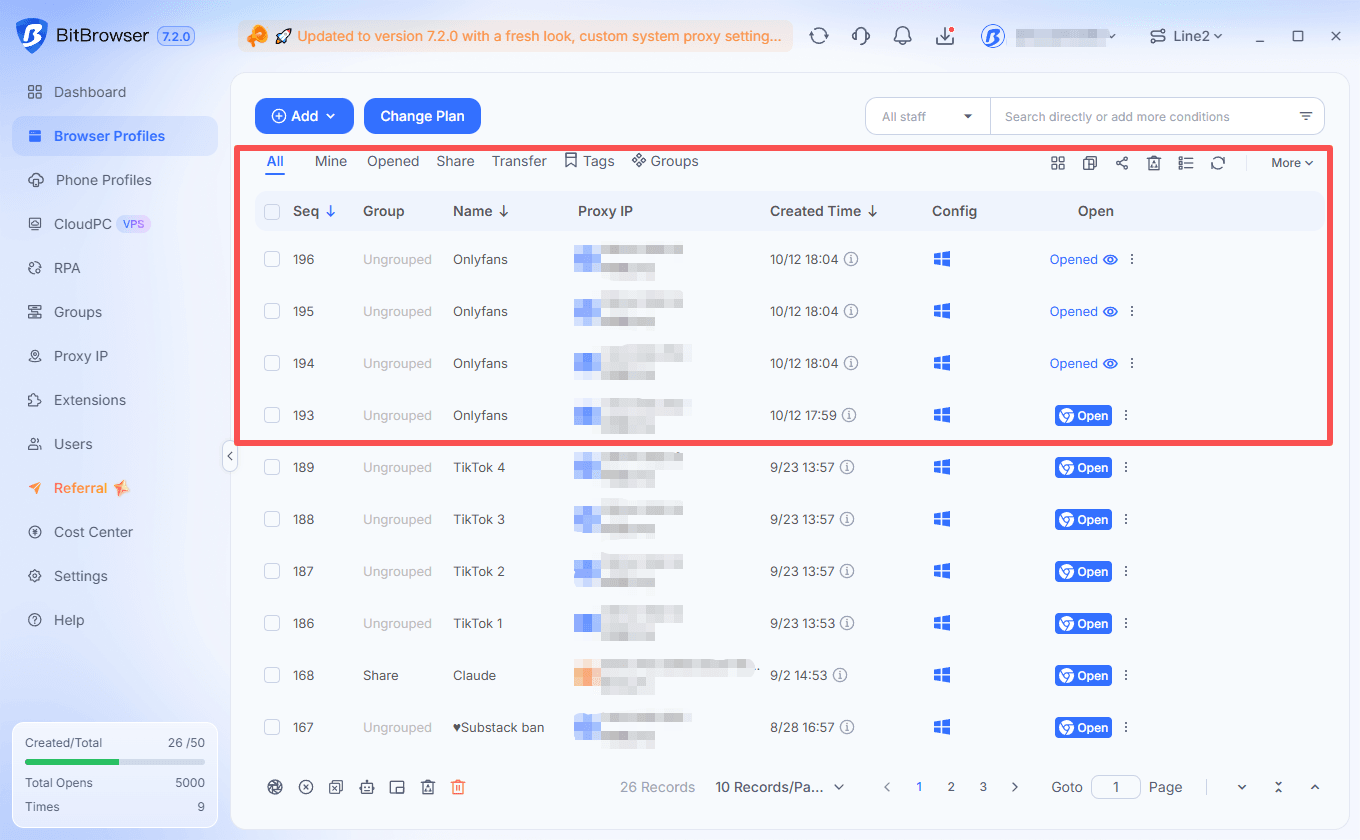
If you use more than one online account, keeping each login separate can make things easier. Switching accounts in the same browser often means signing out and back in, and it can be hard to remember which account is active.
BitBrowser lets you create separate browser profiles. Each profile has its own browser environment and site data, so different accounts stay apart and are less likely to be linked together.
▸ Keep each account isolated. Use a different browser profile for each account instead of signing in and out repeatedly. Each profile keeps its own cookies, local storage, and login session, which helps prevent account data from getting mixed up.
▸ Make each profile look like a separate device. BitBrowser can generate an independent browser fingerprint for each profile, including Canvas, WebGL, audio, fonts, and other parameters. This means platforms see different device characteristics, not just different browser windows, which helps reduce the risk of accounts being linked.
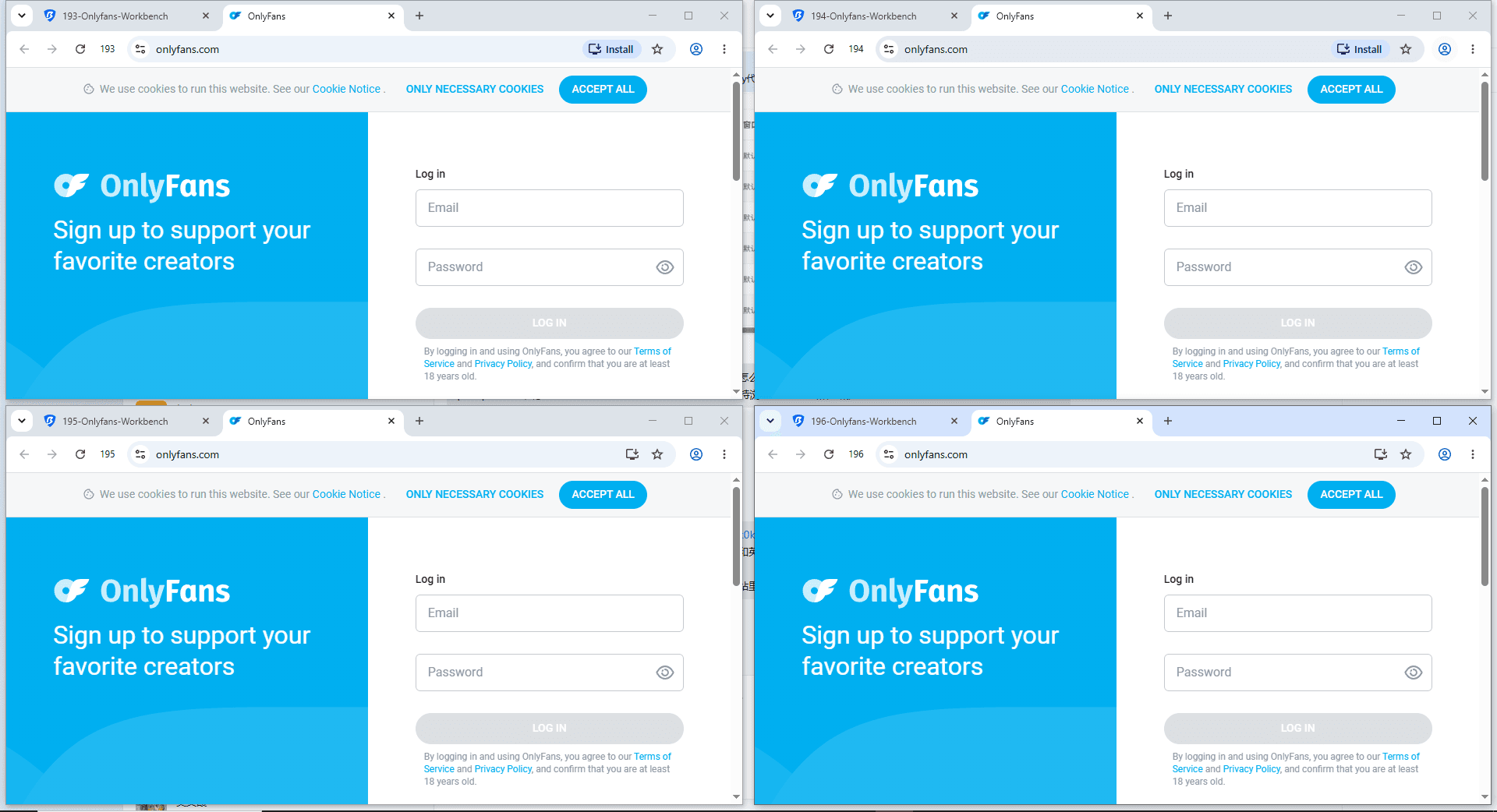
▸ Switch accounts more easily. Give each profile a clear name, then open the one you need. You can close one profile without signing out of the others, making it easier to manage accounts for different purposes or keep personal browsing separate.
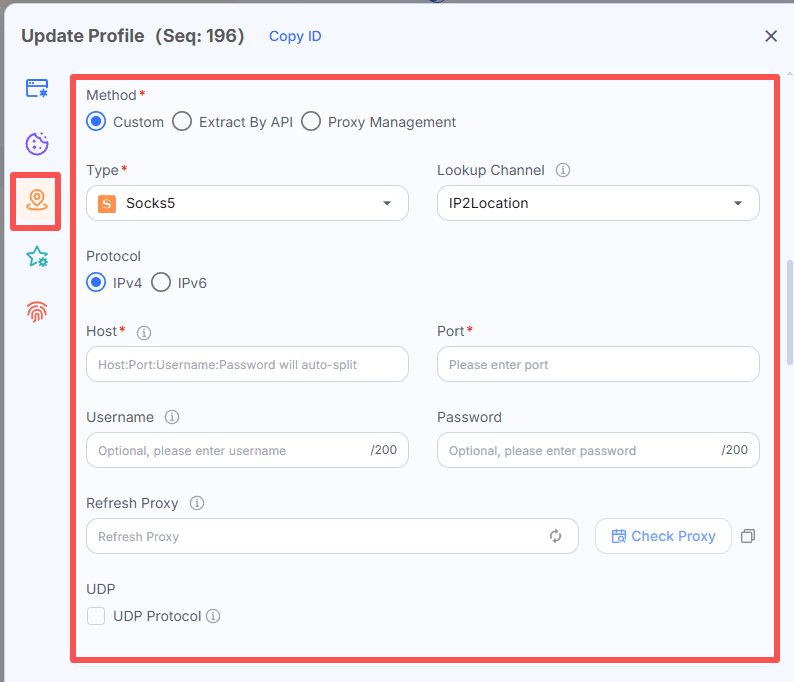
▸ Use different proxy settings when needed. BitBrowser lets you set proxies for individual profiles. If different accounts need different network connections, you can configure them separately instead of changing settings for your entire browser.
To get started, install BitBrowser, create a profile for each account, configure the settings you need, and open OnlyFans in the right profile. Sign in through the official website and complete any verification OnlyFans requests.
If you want a more organized way to manage multiple browser accounts, visit BitBrowser or register for an account to get started.
How to Keep Your OnlyFans Account Secure
A few basic precautions can reduce the risk of losing access to your account.
▸ Use a strong, unique password. Avoid reusing the same password across multiple websites.
▸ Enable two-step authentication. Use an authenticator app or SMS verification if the relevant option is available to your account.
▸ Save backup codes securely. Keep them somewhere private and accessible if you lose access to your phone.
▸ Check your login sessions. Review your account settings if you suspect unauthorized access.
▸ Be cautious with login links. Access the website directly rather than entering credentials on unfamiliar pages.
▸ Log out on shared devices. If you're using a public or shared computer, sign out when you're finished.
Private browsing can prevent some browsing history and site data from being retained locally, but it does not make you anonymous or replace account security measures.
OnlyFans Login FAQ
How do I log in to OnlyFans?
Visit OnlyFans.com, open the login page, and enter the credentials associated with your account. Complete any additional verification requested by the website.
Why can't I log in to OnlyFans even with the correct password?
Possible causes include verification problems, browser issues, network errors, or account restrictions. Try completing the required verification, opening the website in another browser, and checking any error messages displayed on the page.
Does OnlyFans send an email when you log in?
Don't assume that every login triggers an email notification. The exact notifications you receive may depend on the platform's current practices and your account activity. Check your inbox for messages related to account security, and review your account settings if you suspect unauthorized access.
Can I log in to OnlyFans without my phone number?
If you enabled SMS Verification, OnlyFans says you can use a backup code generated when you enabled that feature. If you haven't saved a code and can't access your linked phone number, email support@onlyfans.com with your @username and the email address used to create your account.
How do I reset my OnlyFans password?
Go to OnlyFans.com and select Forgot Password. Follow the instructions provided by the website to request a password reset.
Does OnlyFans have an official mobile app?
No. According to OnlyFans' official Help information, the platform does not have an app. You can use the website in a mobile browser and add a shortcut to your home screen for easier access.
How do I contact OnlyFans Support?
For the account recovery and authentication issues covered in this guide, you can email support@onlyfans.com. Include relevant account details, such as your @username and registered email address, when requested. Never include your password or authentication codes.
Final Thoughts
Most OnlyFans login issues can be fixed by checking your credentials, completing verification, or troubleshooting your browser. For account recovery, use OnlyFans' official options and contact support if needed.
If you manage multiple accounts, BitBrowser helps keep login sessions organized in separate browser profiles. Register for BitBrowser to get started.
Always use the official OnlyFans website and never share your password or verification codes with others.