Web-Based 2FA for Multi-Account Teams: How BitBrowser Helps Organize Secure Access
 2026.06.30 15:02
 petro
petroIf you manage 20, 100, or even 500+ accounts across platforms such as Facebook, Google, TikTok, Amazon, marketplaces, or advertising dashboards, account access security becomes a serious operational challenge. This guide is not for casual users checking one personal email account. It is for agencies, media buyers, e-commerce teams, SMM managers, affiliate teams, and businesses that need a more organized way to manage secure account access.
The main idea is simple: web-based 2FA can reduce daily dependence on SIM cards by replacing many routine SMS checks with authenticator codes. It does not fully remove phone-based recovery or additional platform checks, but it can make account management more scalable and easier for teams.
When two-factor authentication is active, platforms may rely more on authenticator codes during routine logins. However, they can still request SMS confirmation, device approval, identity verification, email confirmation, or other security steps when login risk is high.
When combined with isolated browser profiles in BitBrowser, web-based 2FA can help teams organize account access more professionally, reduce confusion, and avoid depending on a single physical phone or SIM card for every login.
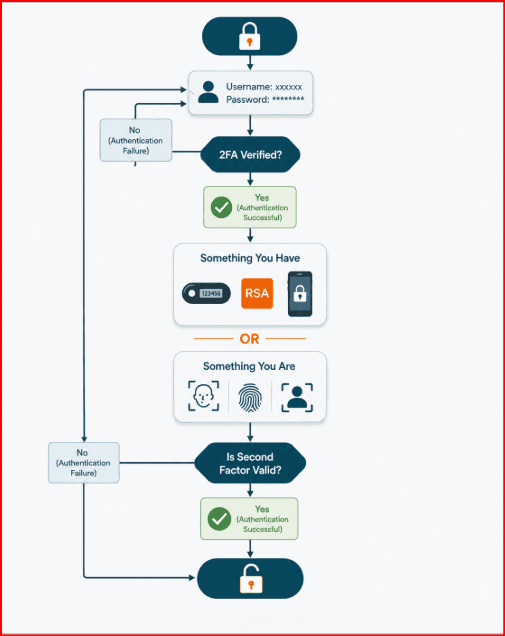
What Is 2FA in Multi-Account Management?
Two-factor authentication, also known as 2FA, is a security method that requires two different verification factors before access is granted.
- The first factor is usually something the user knows, such as a password. The second factor is usually something the user has, such as a code from an authenticator app, an SMS code, a backup code, or a hardware security key.
For teams managing business accounts, 2FA is important because it adds protection beyond passwords. Even if a password is leaked, stolen, or shared carelessly, the account still requires another verification step.
Common 2FA methods include:
SMS verification codes
Authenticator app codes
Email verification codes
Backup recovery codes
Hardware security keys
Push approval notifications
For multi-account teams, authenticator-based 2FA is often more practical than SMS-only verification because codes can be generated without waiting for a text message. This helps reduce delays when several team members need access from different locations or time zones.
Key 2FA Terms Teams Should Know
TOTP
TOTP stands for Time-Based One-Time Password. It is a short verification code that refreshes every 30 seconds using a secret key. Many authenticator apps and web-based 2FA tools use this method.
Backup Codes
Backup codes are single-use recovery codes that help users regain access if the primary 2FA method is unavailable. Teams should store them securely in encrypted storage.
Trusted Device
A trusted device is a browser, device, or session that a platform has previously recognized. This may reduce repeated login prompts, but it does not guarantee that the platform will never ask for additional verification.
Something You Know
This usually means a password, PIN, or security question answer.
Something You Have
This can be a phone, authenticator app, hardware key, or access to a verified email inbox.
Something You Are
This refers to biometric verification, such as fingerprint or face recognition.
Why SMS-Only Verification Can Become a Problem
SMS verification is useful, but for teams managing many accounts, it can quickly become a bottleneck.
Common problems include:
Physical SIM cards can be lost, expired, or unavailable.
Phone numbers may be recycled or disconnected.
SMS delivery can be delayed or blocked.
One phone can become a single point of failure.
Remote team members may need codes outside working hours.
Old numbers may create recovery problems later.
For small personal accounts, SMS may be enough. For teams handling business accounts, advertising accounts, social profiles, or marketplace stores, relying only on SMS can create operational risk.
This is why many teams move toward authenticator-based 2FA where platforms allow it. Once app-based or web-based 2FA is enabled, routine logins may use a password plus a generated code instead of requiring a new SMS every time.
What Is Web-Based 2FA?
Web-based 2FA generates verification codes directly through a browser-based authenticator tool. It works similarly to a mobile authenticator app, but the code is managed through a browser environment instead of only through a phone.
A typical setup works like this:
- The platform offers “Authenticator app” as a 2FA option.
- The platform displays a QR code or secret key.
- The secret key is added to the 2FA tool.
- The tool generates a short verification code.
- The code is entered into the platform to confirm setup.
After setup, the user can log in with a password and the current authenticator code.
This can help teams reduce dependence on one physical phone. However, it also means the 2FA secret must be protected carefully. Anyone with access to the secret key can generate valid login codes, so web-based 2FA should be treated as sensitive security data.
The Problem With Mobile Authenticator Apps
Mobile authenticator apps are widely used and effective, but they can create problems for teams.
If the phone is lost, reset, damaged, or unavailable, access to codes may be interrupted. If authenticator tokens are not backed up, account recovery can become difficult.
For multi-account teams, common issues include:
- One phone holding codes for too many accounts
- Team members waiting for the phone owner
- No access during travel or emergencies
- Lost access after a device reset
- Poor documentation of backup codes
- Difficult handover between employees or freelancers
Modern authenticator apps may support cloud sync and backup, but this still connects access to a phone-first workflow or a specific ecosystem account. For teams, this can be limiting.
Where BitBrowser Helps
BitBrowser helps teams organize online account environments through separate browser profiles. Each profile can have its own cookies, browser storage, login session, fingerprint settings, and proxy configuration.
Instead of opening many accounts in one normal browser, a team can create dedicated profiles for different accounts, clients, brands, regions, or campaigns.
When combined with web-based 2FA, BitBrowser can help teams keep account access workflows more organized.
For example:
One BitBrowser profile can be assigned to one business account.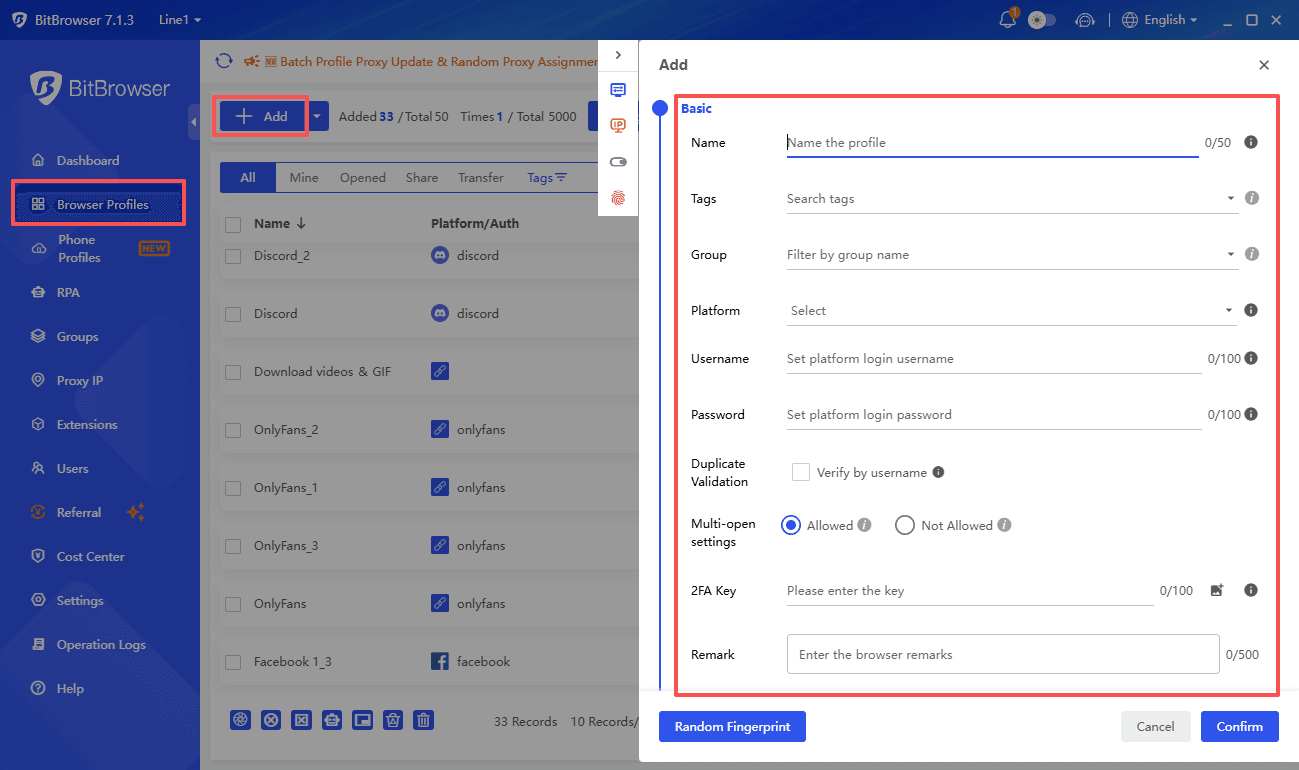
The related 2FA method can be documented with that profile.
Team access can be managed more clearly.
Cookies and sessions can remain separated.
Account handover becomes easier and more structured.
The purpose is not to bypass security systems. The purpose is to manage authorized accounts in a cleaner, safer, and more organized way.
Using Web-Based 2FA Inside BitBrowser
A practical workflow can look like this:
Create a dedicated BitBrowser profile for each account or group of related accounts.
Open the platform account only inside its assigned profile.
Enable authenticator-based 2FA in the platform security settings.
Save the QR code, secret key, and backup codes securely.
Use the browser-based 2FA tool inside the correct profile.
Document the responsible team member and recovery method.
This keeps the account environment and its access workflow connected. Instead of searching across chats, spreadsheets, or phones, the team can follow a clear profile-based system.
Benefits of Combining BitBrowser With 2FA
1. Better Account Separation
BitBrowser allows teams to separate browser profiles instead of mixing many accounts in one browser. This helps keep cookies, sessions, and working environments more organized.
2. Less Dependence on SIM Cards
Authenticator-based 2FA can reduce the need to request SMS codes for routine logins. SMS may still be required for recovery or sensitive checks, but daily operations can become smoother.
3. Easier Team Collaboration
Teams working across different time zones can access assigned profiles without waiting for one person to read a code from a physical phone.
4. Cleaner Handover Process
When a farmer, account manager, freelancer, or employee hands over an account, a structured BitBrowser profile plus clear 2FA documentation makes the process easier.
5. Better Recovery Planning
Teams can store backup codes, recovery emails, and security notes in encrypted storage instead of relying on memory or scattered messages.
Team Workflow Example
A media buying team may manage several ad accounts for different clients. Instead of using one shared browser and one shared phone, the team can organize the workflow like this:
Create one BitBrowser profile for each client or account.
Assign responsible team members to each profile.
Enable 2FA on each account.
Store backup codes in secure encrypted storage.
Document recovery email and phone details.
Review profile access regularly.
This makes the workflow more professional and reduces confusion when multiple people are involved.
Best Practices for Secure 2FA Management
Teams should follow strict security rules when using web-based 2FA.
Use 2FA only for accounts you own or are authorized to manage.
Save backup codes immediately after enabling 2FA.
Store 2FA secrets in encrypted storage.
Do not send secret keys through open chat messages.
Limit access to trusted team members only.
Remove access when a freelancer or employee leaves.
Keep recovery email and phone details updated.
Audit profile permissions regularly.
Avoid changing 2FA settings during important campaigns or high-risk periods.
Good 2FA management is not only about convenience. It is also about protecting business assets, client accounts, advertising accounts, and marketplace access.
Common Mistakes to Avoid
Not Saving Backup Codes
If backup codes are not saved, account recovery can become difficult when the main 2FA method is unavailable.
Using One Phone for All Accounts
One phone can become a single point of failure. If it is lost, damaged, or unavailable, many accounts may be affected.
Poor Documentation
Teams often lose access because nobody remembers which authenticator, phone number, or recovery email was used.
Sharing 2FA Secrets Carelessly
Authenticator secrets should be protected like passwords. They should not be stored in plain spreadsheets, public notes, or unsecured chats.
Changing Security Settings Too Quickly
Security changes should be planned carefully. It is better to migrate accounts gradually than to change everything at once.
Migration Plan: Moving From SMS to Web-Based 2FA
A safe migration plan should be gradual.
First, list all accounts and their current security methods. Include platform name, login email, recovery phone, recovery email, 2FA type, assigned BitBrowser profile, and responsible team member.
Second, start with low-risk accounts before moving important accounts.
Third, enable authenticator-based 2FA where the platform supports it.
Fourth, save the secret key and backup codes securely.
Fifth, test login from the assigned BitBrowser profile.
Sixth, review whether SMS should remain as a backup method.
Seventh, update internal documentation so the team knows exactly how recovery works.
This approach helps reduce mistakes and makes the process easier to repeat across many accounts.
Why BitBrowser Is Useful for Multi-Account Teams
BitBrowser is useful because it gives teams a structured way to separate and manage browser environments. For agencies, SMM teams, e-commerce sellers, affiliate marketers, and digital operators, this can support safer and more organized workflows.
BitBrowser can help with:
Social media account management
Advertising account organization
Marketplace seller workflows
Affiliate campaign operations
Client account separation
Remote team collaboration
Profile-based access control
Secure browser environment management
BitBrowser does not replace platform rules or official security requirements. It should be used responsibly for authorized accounts and legitimate business workflows.
FAQ
Is web-based 2FA safe for team use?
Yes, it can be safe when managed correctly. Teams should protect secret keys, store backup codes securely, and limit access to trusted members only.
Can BitBrowser replace 2FA?
No. BitBrowser does not replace 2FA. It helps organize browser profiles and account environments, while 2FA adds an extra security layer to account access.
Does web-based 2FA remove SMS verification completely?
No. Some platforms may still request SMS verification, recovery checks, or identity confirmation in certain situations. Web-based 2FA can reduce daily SMS dependence but does not fully remove all phone-based checks.
Should teams store 2FA secrets inside plain spreadsheets?
No. 2FA secrets should be stored in encrypted password managers or secure internal systems, not in plain spreadsheets or open chat messages.
Is BitBrowser useful for agencies?
Yes. BitBrowser can help agencies separate client accounts, assign profiles to team members, and manage account workflows more clearly.
Conclusion
Web-based 2FA can make account access more flexible for teams that manage many authorized accounts. It reduces daily dependence on SMS, improves collaboration, and helps prevent access problems caused by lost phones, expired SIM cards, or poor documentation.
BitBrowser adds value by helping teams organize accounts inside separate browser profiles. When each account has its own profile, recovery notes, 2FA setup, and assigned team member, the workflow becomes easier to manage.
The best approach is to combine strong security with clear organization: enable 2FA, save backup codes, protect secret keys, use dedicated BitBrowser profiles, and give access only to trusted team members.
With the right setup, teams can manage multiple accounts more securely, professionally, and efficiently.

 Multi-Account Management
 Prevent Account Association
 Multi-Employee Management
Recommended
See More 



