WhatsApp Web and Desktop Login Guide for Seamless Communication | Manage Multiple Accounts with BitBrowser
 2025.11.13 04:09
 petro
petroWhatsApp is an essential platform for businesses, especially in cross-border e-commerce and foreign trade, enabling seamless connections with customers worldwide. On average, users spend up to 17 hours per month on WhatsApp.
In 2015, WhatsApp Web was launched, quickly attracting millions of users globally. Later, WhatsApp introduced a desktop login feature for a more convenient experience.
This guide provides a step-by-step process to help you navigate WhatsApp Web and Desktop login, plus tips for optimizing your WhatsApp experience.
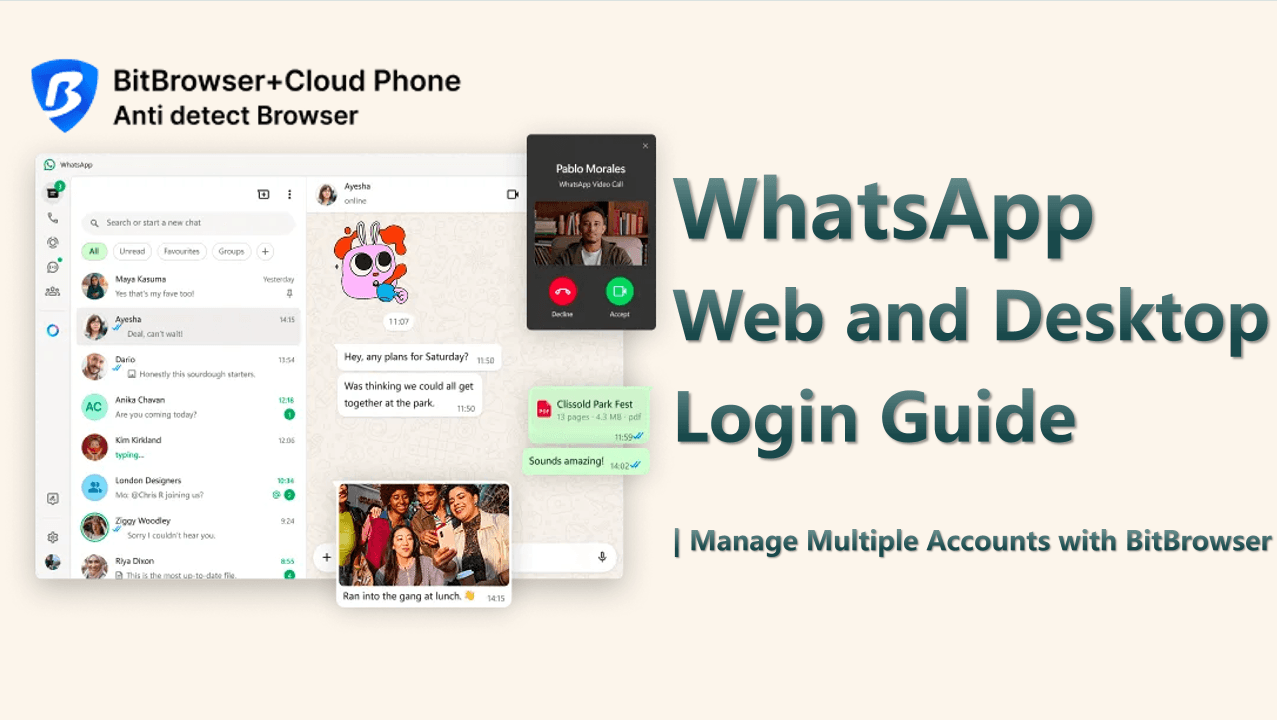
WhatsApp: A Vital Tool for Global Communication
WhatsApp Web is a browser extension of the mobile app, allowing users to send and receive messages directly from a computer. Simply scan the QR code with your phone to sync your WhatsApp account to the browser. This feature makes it easy to manage chats, contacts, and media from your computer without needing additional software.
How to Log in to WhatsApp Web
Follow these steps to log in to WhatsApp Web:
1. Visit the WhatsApp Web Website
Open your browser and go to the WhatsApp Web page. You'll see a QR code.
2. Launch WhatsApp on Your Phone
· Android: Tap the three-dot menu and select Linked Devices.
· iPhone: Go to Settings > Linked Devices.
3. Click on "Link a Device"
On your phone, tap Link a Device to proceed.
4. Scan the QR Code
Use your phone’s camera to scan the QR code displayed on your computer screen. Your WhatsApp account will sync, and you can start managing your chats.
Troubleshooting WhatsApp Web Login
If you're having trouble logging in, here are common issues and their solutions:
1. Network Connection Issues
A slow or unstable connection may prevent login. Try restarting your router or switching to a more stable network.
2. Browser Compatibility
WhatsApp Web supports Chrome, Edge, Safari, Firefox, and Opera. Ensure you are using an updated version of a supported browser.
3. Browser Caching Issues
Clear your browser’s cache and cookies, then attempt to log in again.
4. Outdated WhatsApp Version
Make sure your WhatsApp app is up-to-date. If necessary, reinstall the app to ensure compatibility.
Logging in to WhatsApp Desktop
To use WhatsApp on your desktop, you’ll need to download and install the desktop client. Here's how:
1. Download WhatsApp for PC
Visit the Download page, select your operating system (Windows or macOS), and follow the prompts to install the app.
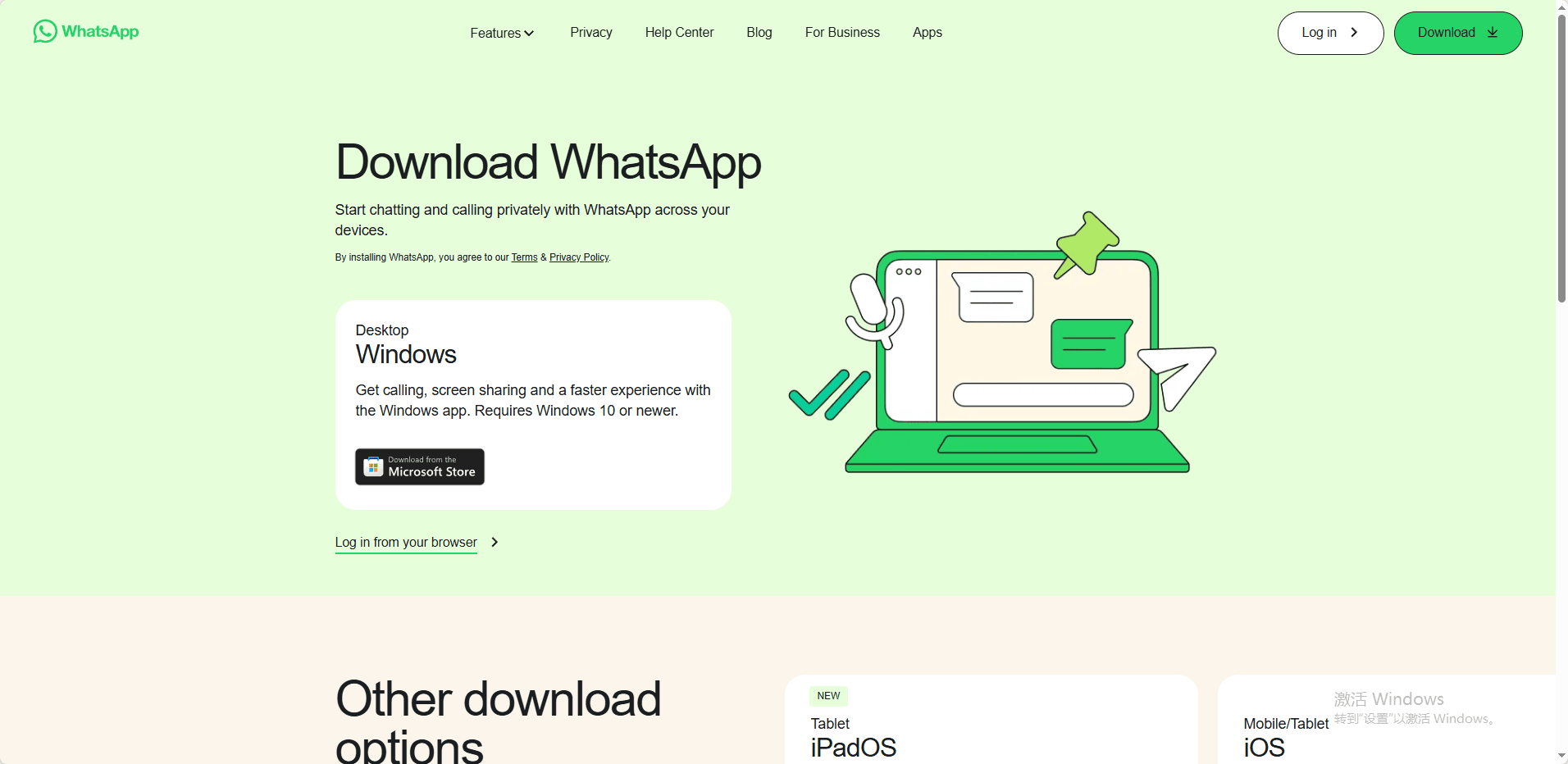
3. Launch WhatsApp Desktop
After installation, open the WhatsApp desktop client. A QR code will appear on your screen.
4. Scan the QR Code
Open WhatsApp on your phone, go to Linked Devices, and scan the QR code to log in.
WhatsApp Web vs. WhatsApp Desktop
1. WhatsApp Web
· No installation required; just access via browser.
· Syncs with your phone in real-time.
· Ideal for quick use, especially on shared or public computers.
2. WhatsApp Desktop
· Standalone app designed for Windows and macOS.
· Provides a smoother, more stable experience than the web version.
· Perfect for frequent use or those who prefer working in a desktop environment.
Key Features of WhatsApp Web
· Messaging & Media Sharing: Send and receive messages, photos, videos, and voice messages just like on the mobile app.
· Text Formatting: Use formatting options like bold, italics, and strikethrough to enhance your messages.
· Group Chat Management: Create and manage groups, add/remove participants, and mute notifications for specific groups.
· Document & File Sharing: Send files such as PDFs, Word documents, and images directly from your computer.
· Emojis, GIFs, and Stickers: Add some fun to your conversations with a wide range of emojis, GIFs, and stickers.
· Keyboard Shortcuts: Improve productivity with keyboard shortcuts like Ctrl + N for new chats, Ctrl + Shift + ] to switch between chats, and others.
Limitations of WhatsApp Web
· Multi-Account Support: WhatsApp Web currently allows only one account per device. This can be restrictive for businesses managing multiple customer accounts.
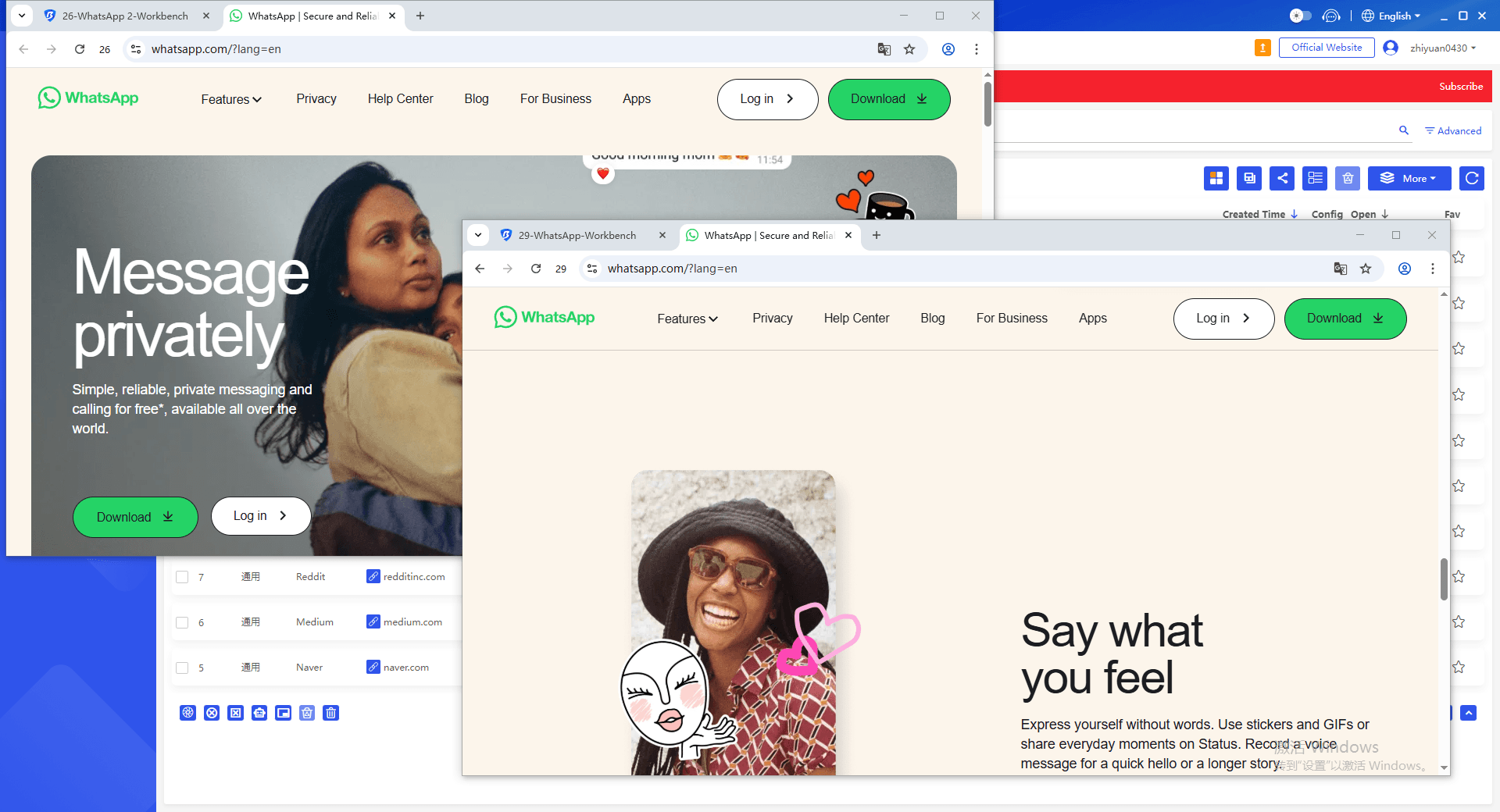
· Workaround: You can use BitBrowser to manage multiple WhatsApp accounts on the same device by creating isolated browser profiles. This ensures that account data is kept separate, making it easier to handle different WhatsApp accounts securely and efficiently.
Managing Multiple WhatsApp Accounts with BitBrowser
If you need to manage multiple WhatsApp accounts on the same device, BitBrowser offers a practical solution. Here's how you can use it:
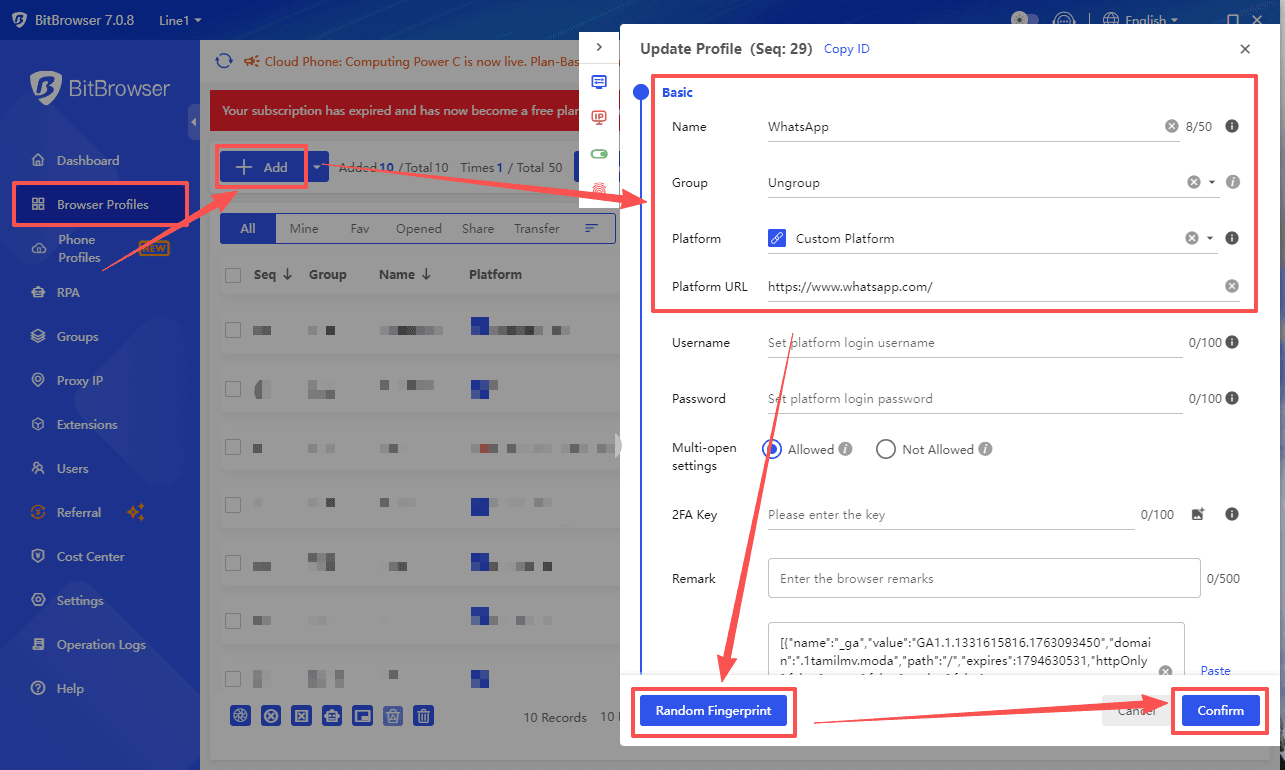
1. Create Separate Browser Profiles
BitBrowser allows you to create different profiles for each WhatsApp account. Each profile has its own settings, cookies, and cache, enabling you to keep accounts isolated.
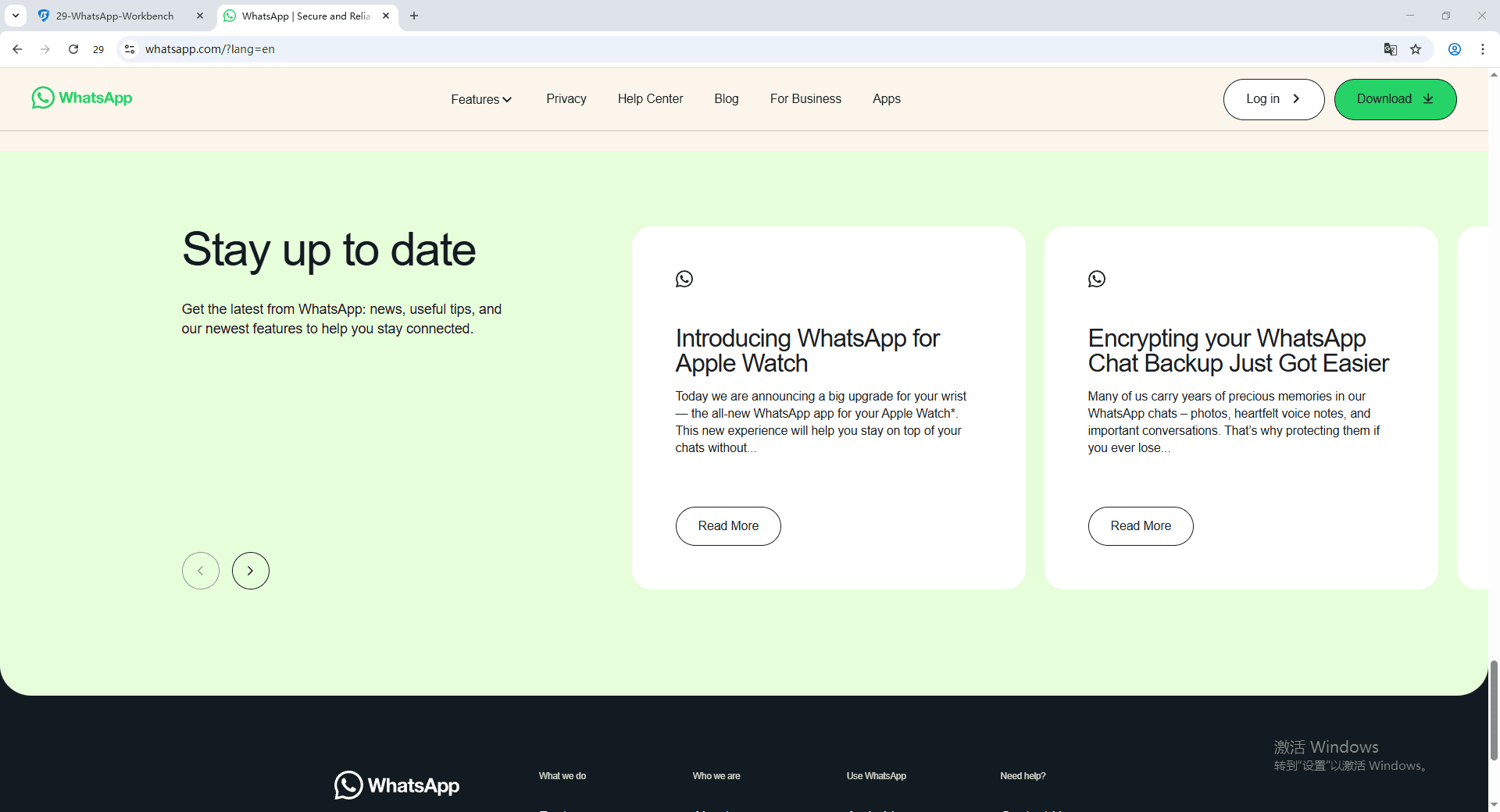
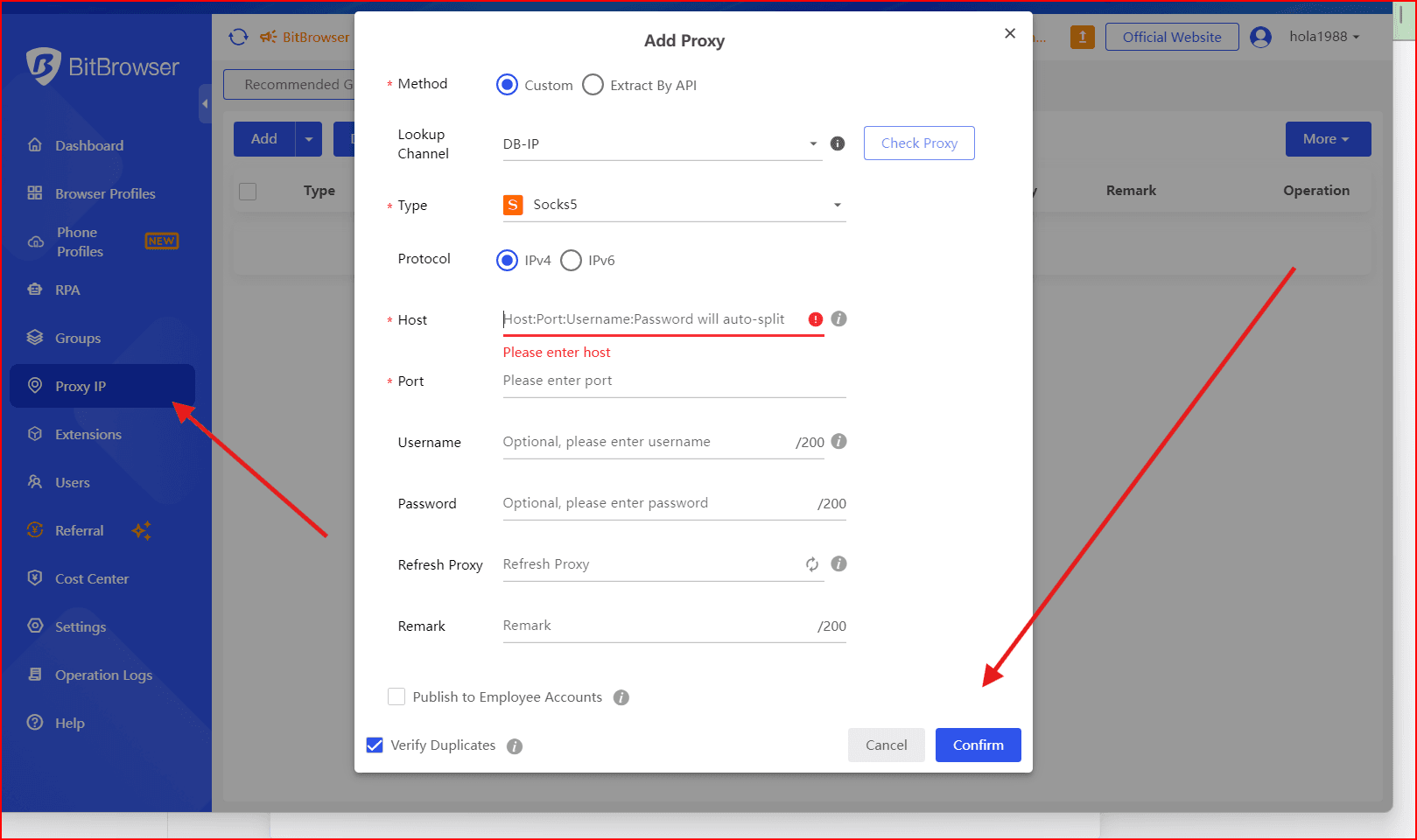
2. Configure Proxy Networks
To further separate accounts and prevent detection, you can configure different proxy networks for each profile. This ensures each WhatsApp account is logged in with a different IP address, reducing the risk of being flagged for abnormal login activity.
3. Switch Between Accounts
With BitBrowser, you can easily switch between profiles without having to log out and log back in. This makes it easy to manage multiple accounts for your business or personal use.
Conclusion
Whether you're an individual or a business, WhatsApp Web and WhatsApp Desktop offer an efficient way to communicate on a larger screen. By using BitBrowser to manage multiple accounts on the same device, you can break through the platform's limitations and boost productivity while maintaining security.
WhatsApp Web FAQs
How do I log in to WhatsApp Web?
Go to web.whatsapp.com, scan the QR code with your phone’s WhatsApp app, and you're set!
How do I download WhatsApp Web?
There is no need to download the web version. However, you can download WhatsApp Desktop from the official site and scan the QR code to use it.
Can WhatsApp be used on 2 phones at once?
WhatsApp now supports using one account across multiple devices. You can link up to four devices to your primary phone. However, your primary phone must remain connected to the internet.
How to export chat history from WhatsApp Web?
To export chat history, select the conversation, click on the three dots in the top right corner, and choose Export Chat. You can also include media files if desired.
This version incorporates BitBrowser as the tool for managing multiple WhatsApp accounts on the same device, allowing you to overcome limitations and improve efficiency. Let me know if you'd like further changes!

 Multi-Account Management
 Prevent Account Association
 Multi-Employee Management
Recommended
See More 



