Best Private Browsers for Privacy, Security, and Account Separation
 2026.09.07 05:56
 YT.Shi
Searching for a private browser usually means one of two things: keeping browsing history off a shared device or reducing the amount of information websites and advertisers collect. These are different privacy problems, and the right solution depends on which one you're trying to solve.
Private browsing mode can remove local browsing history, cookies, and form data when a session ends. But it does not hide your IP address, make you anonymous, or prevent websites from tracking you while you browse. For stronger online privacy, you may need a privacy focused browser, anti tracking tools, a VPN, or isolated anti-detect browser profiles.
This guide explains what private browsing actually protects, which privacy browser features matter, and how to choose between browsers such as Brave, Firefox, and Tor. It also covers isolated browser profiles for people who need to keep multiple accounts separate.
What Is a Private Browser?
A private browser can refer to a browser designed around privacy, but people also use the term to describe private browsing mode, such as Incognito in Chrome or Private Browsing in Firefox and Safari.
These are not the same thing.
Private browsing mode mainly protects local privacy. A privacy focused browser goes further by blocking trackers, limiting third party cookies, and adding other protections against online tracking.
How Incognito and Private Browsing Work
Every major browser has a private browsing mode. Chrome calls it Incognito, Edge calls it InPrivate, while Firefox and Safari use Private Browsing.
A private window creates a temporary browsing session. When the private window is closed, the browser normally removes local records such as browsing history, session cookies, and form data.
Downloads and bookmarks usually remain because they are deliberate actions rather than temporary browsing records.
Private browsing is useful when you're using a shared computer, testing a website without existing cookies, or simply don't want a particular browsing session saved to the device.
What Private Browsing Does Not Hide
Private browsing does not make you anonymous.
Websites can still see your IP address and collect information about your browser and device. Your ISP, employer, school, or network administrator may also be able to see network activity depending on the network and its configuration.
Private browsing also doesn't prevent every form of tracking during the session.
If you sign into Google, Facebook, or another personal account, the website can associate that activity with the account you're using regardless of whether the browser window is private.
Privacy, Anonymity, and Security Are Different
These three terms are often used interchangeably, but they describe different goals.
· Privacy is about controlling what information is collected and who can access it.
· Anonymity is about making it difficult to connect online activity to a specific identity.
· Security is about protecting your device, accounts, and data from threats such as malware, phishing, and unauthorized access.
Private browsing primarily addresses local privacy. It does not provide complete anonymity or comprehensive browser security.
How to Browse Anonymously Online in 2026
What Actually Improves Online Privacy?
If your goal is stronger browser privacy, private browsing mode is only one small part of the picture.
The most useful protections include tracker blocking, third party cookie controls, fingerprint protection, strong passwords, and sensible extension management.
Tracker Blocking and Third Party Cookies
Trackers can follow activity across websites and send information to advertising and analytics networks.
A privacy browser with built in tracker blocking can prevent many tracking scripts and third party requests before they load. Browsers such as Brave provide these protections by default, while other browsers allow users to strengthen tracking protection through settings or extensions.
Third party cookie restrictions can also reduce cross site tracking.
No single setting blocks every tracking technique, but reducing unnecessary third party requests is a practical starting point for improving online privacy.
Browser Fingerprinting and Anti Fingerprinting
Browser fingerprinting uses characteristics of a browser and device to create a recognizable profile. Signals can include screen resolution, installed fonts, WebGL behavior, timezone, language, and other browser attributes.
Unlike cookies, fingerprints don't simply disappear when you clear your browsing history.
Anti fingerprinting techniques attempt to reduce the uniqueness of these signals by standardizing, restricting, or modifying what websites can observe.
This is particularly relevant for users who want stronger privacy across browsing sessions or need separate browser environments for different accounts.
Passwords, Extensions, and Safer Browsing Habits
A password manager is one of the simplest ways to improve account security. Using a unique password for every important service prevents one compromised password from exposing multiple accounts.
Browser extensions can also improve privacy and security. Tools such as uBlock Origin can reduce unwanted scripts and trackers, while other extensions can provide additional protections.
However, every extension also has access to some browser functionality and can increase the attack surface. A small collection of trusted, actively maintained extensions is usually better than installing dozens of unnecessary add ons.
Best Private Browsers for Privacy
Different browsers are better suited to different privacy goals. Some focus on blocking trackers during everyday browsing, while others prioritize anonymity or extensive customization.
| Browser | Tracker Blocking | Anti Fingerprinting | Setup Needed | Best For |
|---|---|---|---|---|
| Brave | Built in, aggressive | Built in | Minimal | Everyday privacy |
| Firefox | Built in, adjustable | Partial, extension supported | Moderate | Customization and open source privacy |
| Tor Browser | Built in | Strong, standardized fingerprint | Minimal | Anonymity |
| Chrome | Limited by default | Limited | High | Familiarity with additional privacy settings |
| Safari | Built in | Partial | Low | Apple ecosystem users |
Brave for Everyday Privacy
Brave is a strong choice for people who want a private browser without spending much time changing settings.
It blocks many trackers and ads by default and includes fingerprinting protections. Since Brave is Chromium based, users coming from Chrome or Edge will find the interface familiar, and many Chrome extensions are compatible.
For everyday browsing, Brave provides a good balance between privacy, compatibility, and convenience.
Firefox and Privacy Focused Alternatives
Mozilla Firefox offers strong privacy controls and extensive customization. Its open source development model and large extension ecosystem also make it popular among users who want more control over their browser.
Several Firefox based browsers take different approaches to privacy and security. LibreWolf, for example, focuses heavily on privacy hardening and telemetry reduction. Other alternatives such as Waterfox and Pale Moon make different tradeoffs around compatibility, features, and release cycles.
These browsers can be useful for users who want more control than a standard browser provides.
Tor Browser for Anonymity
Tor Browser is designed for users who need stronger anonymity.
It routes traffic through the Tor network, which uses multiple relays to make it more difficult to connect a user's connection to the destination website. Tor Browser also standardizes many browser characteristics to make users harder to distinguish from one another through fingerprinting.
The tradeoff is speed and compatibility. Some websites may work more slowly or require additional verification.
Tor is therefore better suited to situations where anonymity is more important than convenience.
When a VPN Makes Sense
A VPN addresses a different layer of privacy.
It encrypts traffic between your device and the VPN server and hides your IP address from the websites you visit. It can be useful when you're using public Wi Fi or when you don't want websites to see your normal network IP address.
A VPN does not replace a privacy browser. The VPN protects the network connection, while the browser controls what websites can observe at the browser level.
Using a privacy focused browser with a VPN can therefore provide broader protection than relying on either one alone.
Chrome, Edge, and Safari Privacy Settings
Chrome and Edge remain practical choices for users who need compatibility with mainstream websites and services. However, their privacy settings are worth reviewing rather than simply accepting every default.
Depending on the browser, useful changes can include restricting third party cookies, reviewing site permissions, limiting unnecessary notifications, and checking which extensions have access to browsing data.
Safari includes Intelligent Tracking Prevention by default and is a particularly practical option for people already using Apple devices.
When You Need More Than a Private Browser
Private browsing is useful for temporary sessions, but it isn't designed to keep multiple accounts or long term browsing environments completely separate.
That's where isolated browser profiles become more useful.
Private Browsing vs Isolated Browser Profiles
The key difference is persistence.
A private browsing session is temporary. An isolated browser profile is designed to maintain its own browser environment over time.
| Private Browsing | Isolated Browser Profile | |
|---|---|---|
| Temporary session | Yes | No |
| Persistent cookies | No | Yes |
| Persistent login sessions | No | Yes |
| Separate browser data | Limited | Yes |
| Multiple account workflows | Limited | Better suited |
| Long term environment | No | Yes |
If you simply want to avoid leaving browsing history on a shared computer, private browsing is usually enough.
If you need to manage several legitimate accounts or separate browser environments, persistent profiles are a better fit.
Why Cookies and Fingerprints Can Link Account Sessions
Multiple accounts opened inside the same browser profile can share cookies, local storage, cached data, and other browser signals.
Even when accounts use different login credentials, shared browser characteristics can make the sessions less independent than users expect.
An isolated browser profile keeps its cookies, local storage, login sessions, and other browser data separate from other profiles.
This is useful for agencies managing client accounts, businesses operating multiple brand accounts, e commerce sellers, and researchers who need separate testing environments.
How BitBrowser Isolates Authorized Business Workflows
For users managing multiple legitimate business accounts, BitBrowser provides a more advanced form of browser profile isolation.
BitBrowser creates separate browser profiles, each with its own configurable fingerprint attributes, including user agent, WebGL, Canvas, audio, fonts, timezone, screen resolution, and more. Each profile also keeps cookies, local storage, bookmarks, and other browser data separate, allowing profiles to persist between sessions rather than resetting every time.
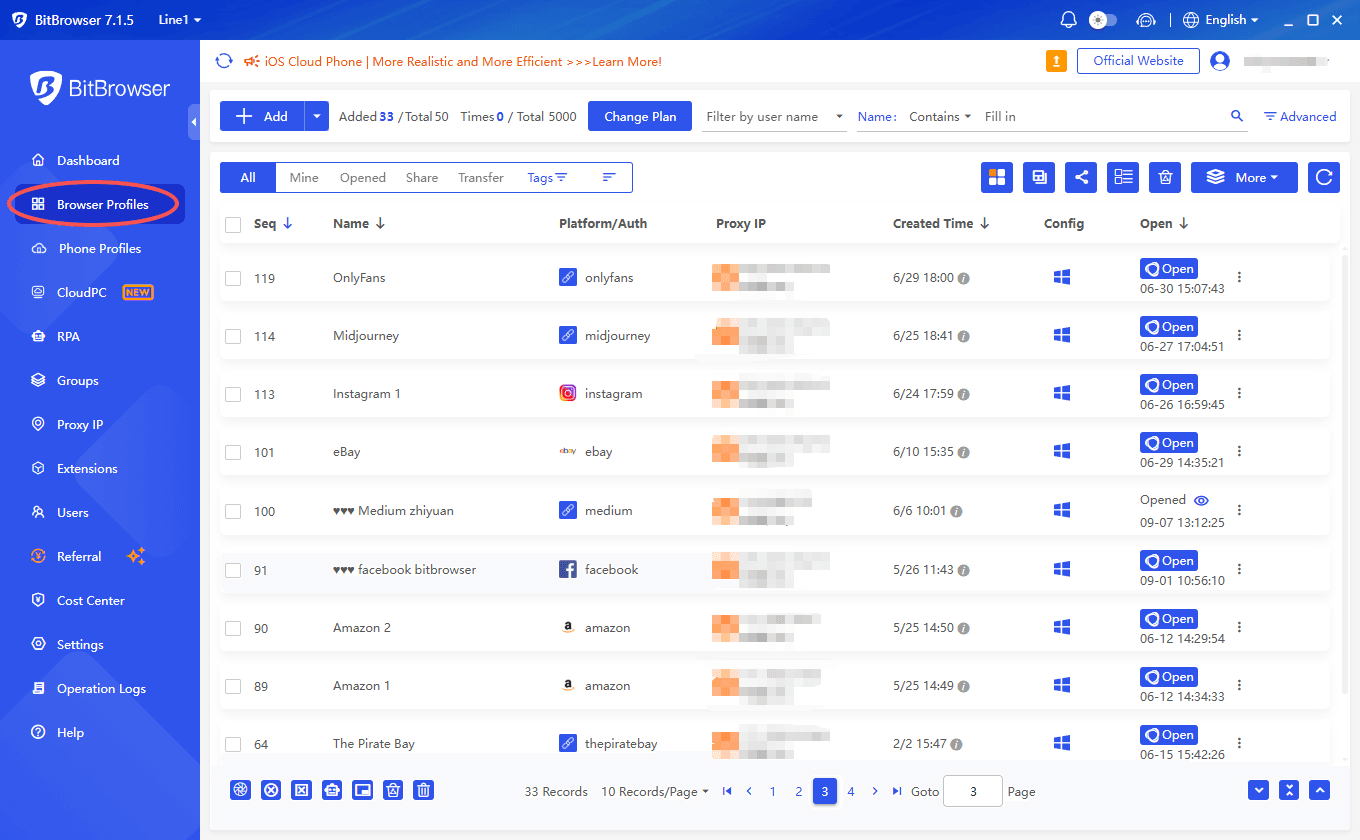
This makes BitBrowser particularly useful when multiple accounts need to remain separated while still being managed from the same computer.
The free plan includes 10 profiles, which can be enough for a small team managing a handful of client or brand accounts before moving to a paid plan.
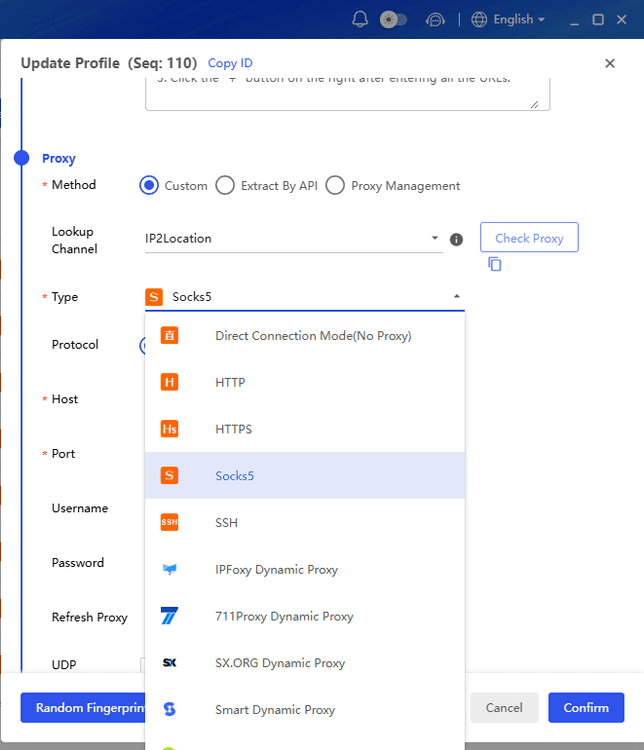
BitBrowser also supports proxy assignment at the profile level. Each profile can use its own proxy configuration, helping maintain clearer separation between different account environments. IPv4, IPv6, and DNS configuration are supported alongside proxy assignment.
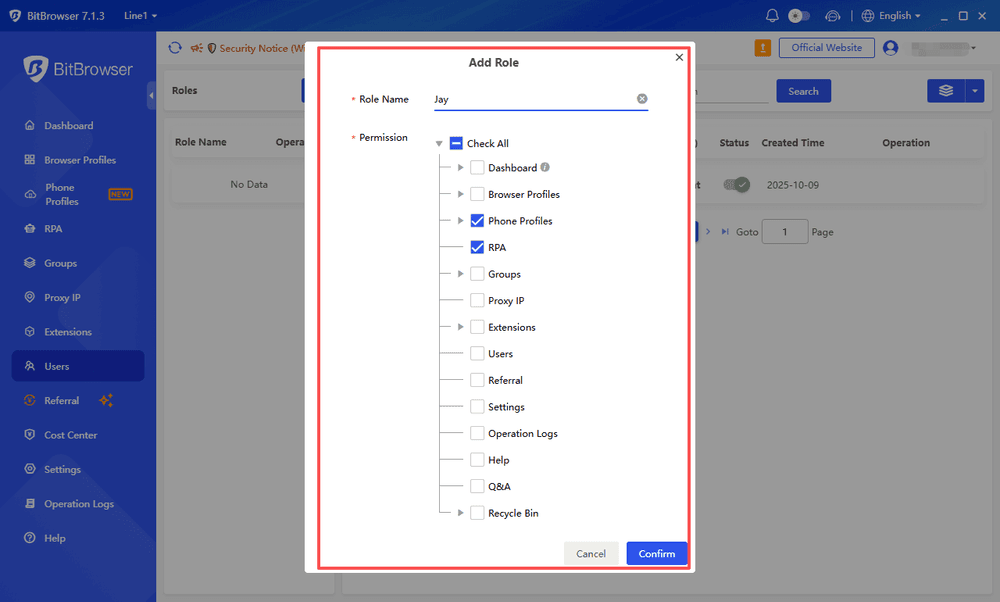
For teams, profile permissions provide another layer of control. An owner can assign specific profiles to specific team members instead of giving everyone access to every account.
BitBrowser is therefore suited to e commerce sellers, social media marketers, agencies, and researchers who need persistent, separated browser environments for authorized workflows.
Choosing the Right Privacy Setup for Each Task
There isn't one best private browser for every situation. The right setup depends on what you're actually trying to protect.
· Shared or public computer: Use private browsing mode to avoid leaving normal browsing history and session data behind.
· Everyday online privacy: Use a privacy focused browser such as Brave or Firefox with appropriate tracking protection.
· Cross site tracking: Enable tracker blocking and third party cookie restrictions.
· Stronger anonymity: Consider Tor Browser when anonymity is more important than speed and convenience.
· Network level privacy: Add a VPN when you want to encrypt traffic between your device and the VPN server and hide your IP address from visited websites.
· Multiple legitimate accounts: Use separate, persistent browser profiles with independent browser data.
· Team based account management: Use isolated profiles with profile permissions and controlled access.
The important point is that privacy isn't a single browser setting.
Private browsing can protect local browsing data. Tracker blocking can reduce online tracking. Anti fingerprinting can limit browser based identification. VPNs can protect the network layer. Isolated browser profiles can keep different account environments separate.
Choosing the right combination for the actual task provides much better protection than expecting one private browser to solve every privacy problem.
Frequently Asked Questions
Is there a fully private browser?
No browser provides complete privacy. Tor Browser is strong for anonymity, while Brave and Firefox are better suited to everyday privacy and tracking protection.
How do I turn on private browsing?
Open your browser menu and select Incognito, InPrivate, or Private Browsing, depending on the browser. On Windows, Chrome and Edge use Ctrl+Shift+N, while Firefox uses Ctrl+Shift+P.
Can a private browser stop websites from tracking me?
Not completely. Private browsing mainly prevents local browsing data from being saved. For stronger protection, use tracker blocking, anti fingerprinting, and cookie controls.
Does private browsing hide my IP address?
No. Private browsing does not hide your IP address. A VPN or Tor can provide additional IP and network privacy.
Do I need a VPN with a privacy browser?
Not always. A privacy browser helps reduce browser based tracking, while a VPN protects the network layer and hides your IP address from visited websites.
What is the difference between private browsing and an isolated browser profile?
Private browsing creates a temporary session. An isolated profile keeps its own cookies, logins, and browser data, making it more suitable for long term account separation.
What is the best private browser for managing multiple accounts?
Private browsing isn't designed for persistent multi account management. Separate browser profiles are a better fit. BitBrowser provides persistent profiles with configurable fingerprints, proxy assignment, and profile level data and permission controls.

 Multi-Account Management
 Prevent Account Association
 Multi-Employee Management
Recommended
See More 



