How to Manage a YouTube Channel with a Team: Share Access and Collaborate Securely
 2026.10.30 06:55
 YT.Shi
Managing a YouTube channel with a team often means sharing access to the same Google account, coordinating uploads, reviewing videos, and handling comments or channel settings. Without a clear access structure, team members may end up sharing login credentials or using the same browser session without knowing who is responsible for each task.
There are two practical ways to organize YouTube team access: use YouTube Studio Channel Permissions to assign roles to individual Google accounts, or use a shared browser profile when your team needs access to an existing logged-in browser environment.
In this guide, we'll explain how to manage a YouTube channel with multiple people, how to share a browser profile with BitBrowser, and which access method makes more sense for different team workflows.
Can I create multiple YouTube channels?
How to Manage a YouTube Channel with a Team
Before sharing access, it's important to understand the difference between YouTube's built-in permission system and browser profile sharing.
YouTube Channel Permissions let a channel owner invite other people through their individual Google accounts and assign roles based on their responsibilities. Each person uses their own login, and the channel owner can manage their access in YouTube Studio.
BitBrowser profile sharing lets a team share an existing browser environment. The receiving team member can open the shared profile and access its saved browser session, including a YouTube account that is already logged in. This is useful when a workflow depends on a specific browser environment, but it does not create a separate YouTube user identity or replace YouTube's channel permissions.
| Method | How it works | Best suited for |
|---|---|---|
| YouTube Channel Permissions | Invites individual Google accounts and assigns channel roles. | Long-term collaboration with separate access for each team member. |
| BitBrowser Profile Sharing | Shares an existing browser profile and its saved session with authorized users. | Teams that need to work from a shared browser environment. |
| Sharing Google Login Details | Multiple people sign in using the same Google account credentials. | Generally not recommended for team collaboration. |
For most teams, YouTube's built-in permissions are the better starting point. If your team also needs to organize browser sessions, employee access, and shared browser environments, BitBrowser can provide an additional layer of workflow management.
How to Share a YouTube Browser Profile with BitBrowser
If your team needs to access the same logged-in YouTube browser environment, you can create a dedicated browser profile in BitBrowser and share it with selected team members.
This approach keeps the browser session in one managed profile instead of asking each team member to set up the same environment independently. Anyone receiving access should be treated as having access to the logged-in browser session, so only share it with people who are authorized to use the account.
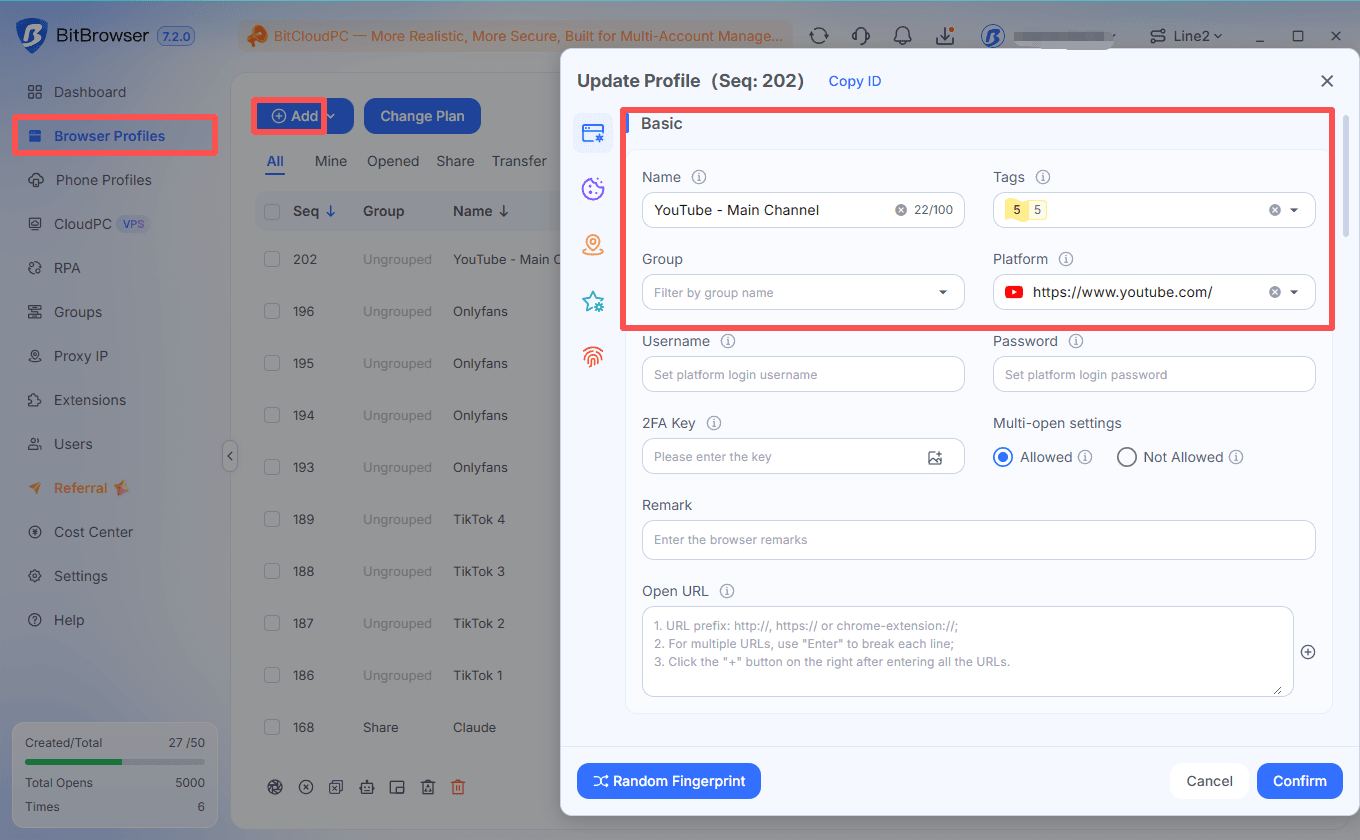
1. Create a Separate Browser Profile
First, create a dedicated browser profile for the YouTube channel you want your team to manage.
▸ Open BitBrowser and go to the browser profile management page.
▸ Create a new browser profile.
▸ Give the profile a recognizable name, such as YouTube - Main Channel.
▸ Configure the browser settings and proxy if your workflow requires them, then save the profile.
Using a dedicated profile makes it easier to identify the channel's browser environment and keep its cookies, local storage, and login session separate from other browser profiles.
2. Log In to the YouTube Account
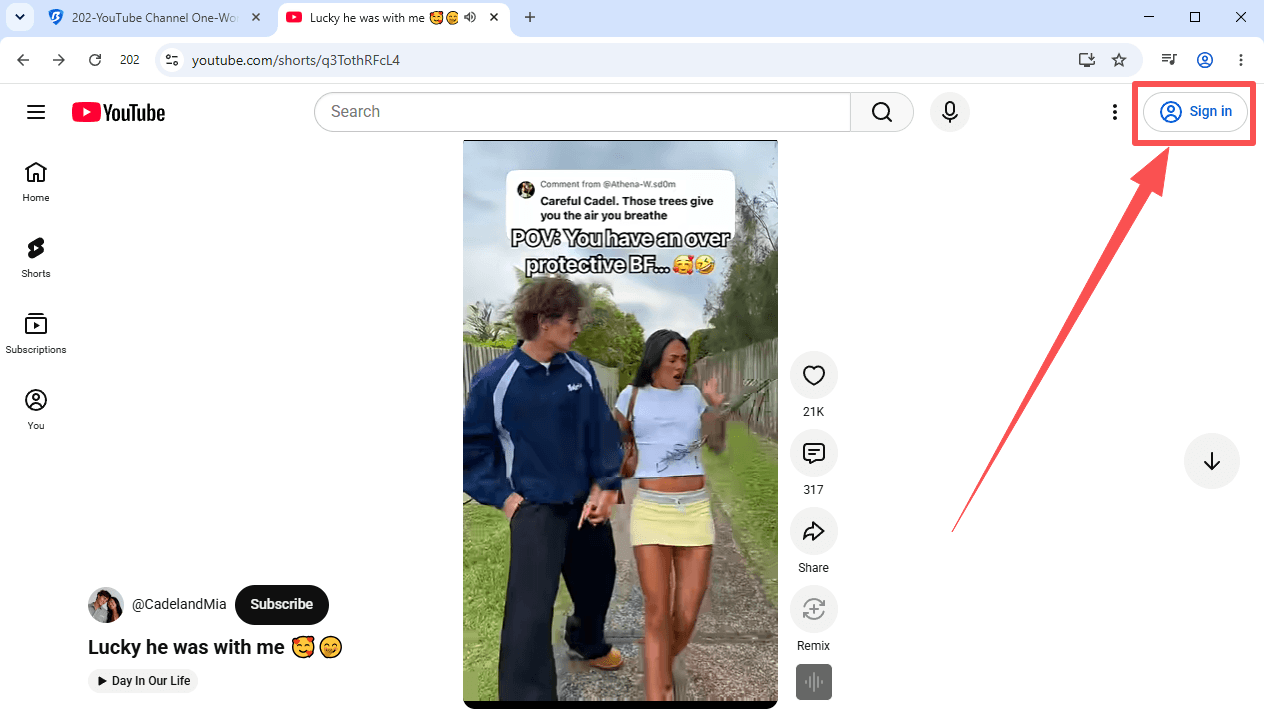
After creating the profile, open it and sign in to the Google account associated with the YouTube channel.
▸ Launch the newly created browser profile.
▸ Open YouTube or YouTube Studio.
▸ Sign in with the Google account that has access to the channel.
▸ Complete any required verification and confirm that the correct channel is available.
Once signed in, the profile stores the browser session data needed to access the account. You won't need to repeat the login process every time you reopen the same profile, unless the session expires or the platform requests verification.
3. Share the Browser Profile with Team Members
When the browser profile is ready, you can share it with selected employees through BitBrowser.
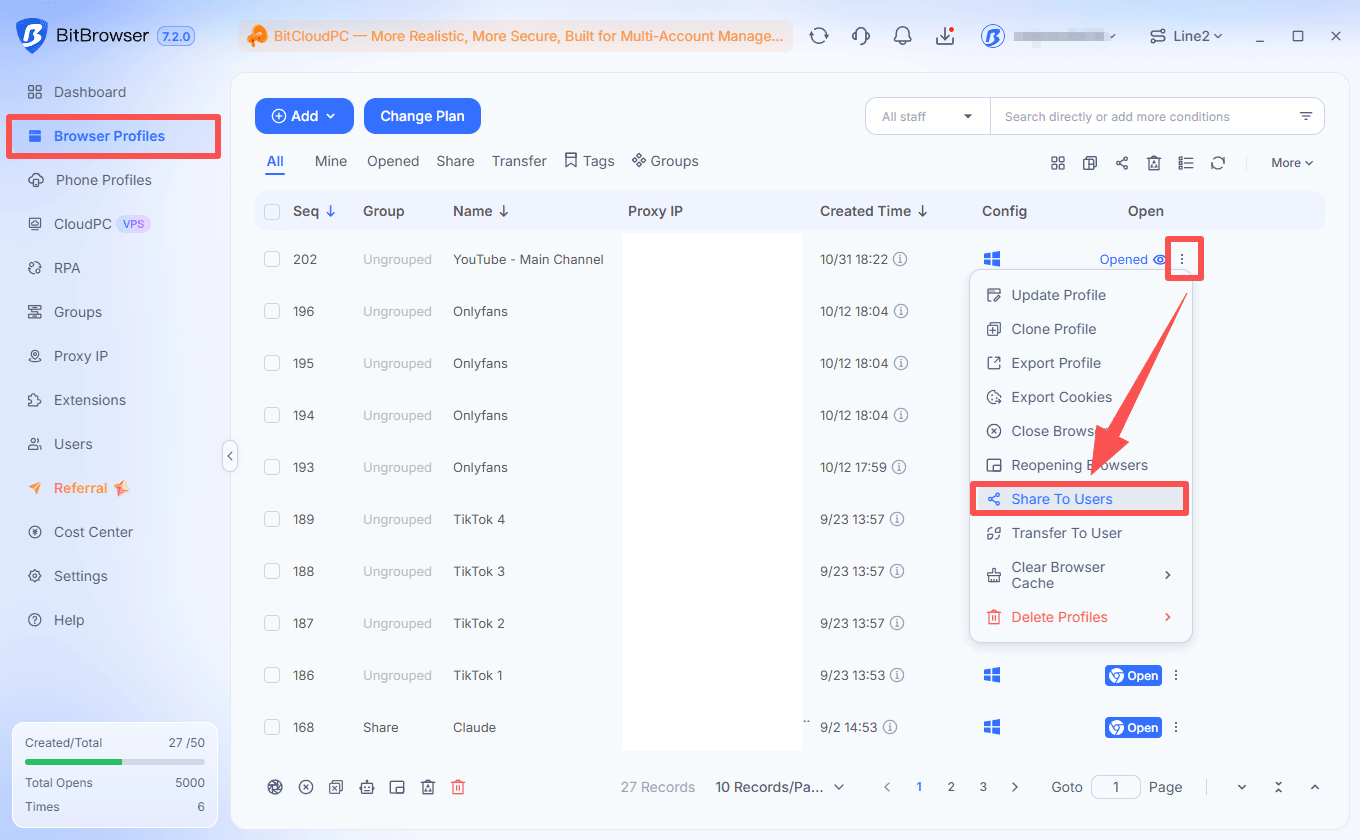
▸ Go to Browser Profiles in BitBrowser.
▸ Find the YouTube profile you want to share.
▸ Click More Operations (the three-dot menu).
▸ Select Share Browser Profiles.
▸ Select the team members who should receive access.
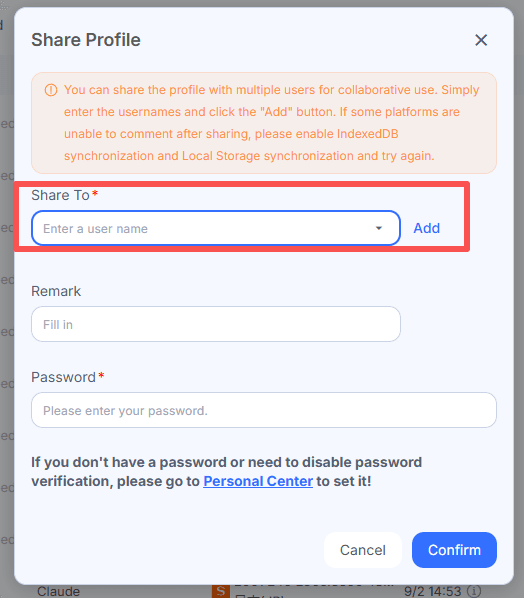
You can share an individual profile or select multiple profiles, depending on your team's needs. BitBrowser also supports temporary sharing through a generated sharing code, with available validity periods such as 7, 15, or 30 days.
For ongoing team collaboration, sharing the profile with authorized employees is generally easier to manage than distributing a temporary sharing code.
4. Configure Sharing Permissions
Before confirming the share, review the available permissions. BitBrowser provides different levels of access depending on how much control the receiving team member needs.
▸ Basic Permissions: Allow the receiving user to use the shared browser window without changing core settings such as the browser fingerprint or proxy configuration.
▸ Collaboration Permissions: Provide additional access, including browser profile fine-tuning options. Only enable these permissions when the recipient needs to modify the browser environment.
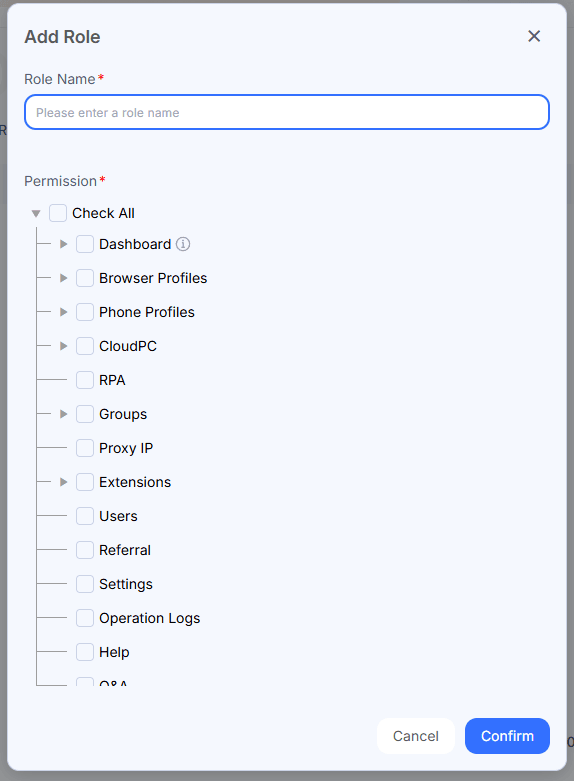
For a team member who only needs to work with YouTube content, Basic Permissions may be sufficient. If someone is responsible for maintaining the browser environment, you can consider granting additional permissions.
Keep in mind that BitBrowser permissions control access to the shared browser profile. They do not replace YouTube's own channel roles or limit every action a person can perform within the logged-in YouTube account.
5. Let Team Members Open the Shared Profile
After sharing the profile, the receiving team member can access it from their own BitBrowser account.
▸ Ask the team member to sign in to their BitBrowser account.
▸ Open the Shared section.
▸ Find the shared YouTube profile.
▸ Enable or open the shared window and continue working in that browser environment.
The recipient can now access the existing browser session without being sent the Google account password directly. However, because the profile contains an active session, sharing it still grants access to the signed-in account. Treat it as account access, not simply as a shared bookmark or read-only workspace.
6. Review or Revoke Shared Access
Team responsibilities can change. When someone no longer needs access to the YouTube browser profile, review the sharing settings and remove their permission.
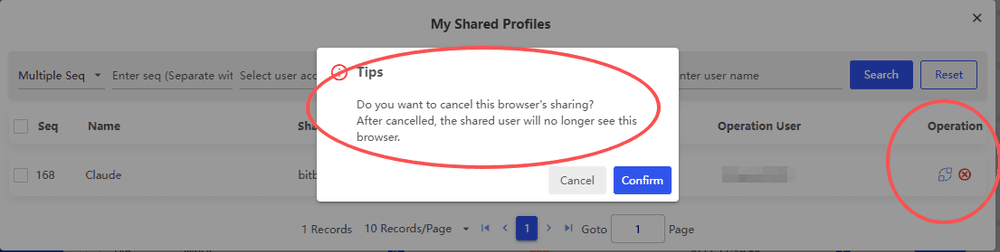
▸ Return to the browser profile's sharing settings.
▸ Review the users who currently have access.
▸ Remove access for team members who no longer need the profile.
If a team member has already used the shared session, removing their BitBrowser sharing permission does not necessarily invalidate every session or credential they may have accessed. For sensitive account changes, review the Google account's security settings and sign out of sessions where necessary.
For a detailed walkthrough, see BitBrowser's guide to sharing browser profiles and security lock.
Try BitBrowser for Team Collaboration
How to Give Team Members Access Through YouTube Studio
If your goal is to let different people manage a YouTube channel using their own Google accounts, YouTube's built-in Channel Permissions feature is usually the most suitable option.
Instead of sharing the main Google account password, the channel owner can invite team members and assign roles according to their responsibilities. This makes it easier to give each person the access they need without giving everyone the same level of control.
1. Open YouTube Studio
▸ Sign in to the Google account that owns or manages the YouTube channel.
▸ Go to YouTube Studio.
▸ Select Settings from the left-hand menu.
▸ Open Permissions.
2. Invite a Team Member
▸ Click Invite.
▸ Enter the email address associated with the team member's Google account.
▸ Open the Access dropdown menu and select an appropriate role.
▸ Click Done to send the invitation.
The invited person must accept the invitation to access the channel. YouTube invitations expire after 30 days, so make sure the recipient accepts the invitation within that period.
3. Choose the Right Channel Role
YouTube provides several permission levels. The exact role you choose should depend on what the team member needs to do.
| Role | Main permissions |
|---|---|
| Owner | Has broad control over the channel, including managing permissions and deleting the channel. |
| Manager | Can manage channel content and permissions, but cannot delete the channel. |
| Editor | Can upload, publish, and edit content, but cannot manage permissions or delete the channel. |
| Editor (Limited) | Has editor permissions but cannot access revenue data. |
| Subtitle Editor | Can work on subtitles for the channel's videos. |
| Viewer | Can view channel details and analytics without editing channel content. |
| Viewer (Limited) | Can view channel information but cannot access revenue data. |
For example, a video editor who only needs to upload and edit videos usually doesn't need Manager access. A person responsible for channel permissions may need a higher level of access, while someone who only reviews performance reports may only need a Viewer role.
You can review the full instructions in YouTube's official guide to channel permissions.
A Practical Example: Managing One YouTube Channel with a Four-Person Team
Imagine a small content team with four people managing one YouTube channel. Each person handles a different part of the publishing process. Giving everyone the same permissions or sharing one Google password can make responsibilities harder to track.
| Team member | Responsibilities | Suggested YouTube role |
|---|---|---|
| Channel Owner | Oversees the channel, manages access, and makes important account decisions. | Owner |
| Content Manager | Coordinates publishing schedules, manages videos, and organizes channel content. | Manager or Editor, depending on responsibilities |
| Video Editor | Uploads videos, edits titles and descriptions, and prepares content for publication. | Editor |
| Marketing Specialist | Reviews channel performance and helps plan promotional activities. | Viewer or Viewer (Limited) |
With YouTube Channel Permissions, each person can use their own Google account and receive only the channel access required for their work.
If the team also needs to work from a shared browser session, the owner can create a dedicated BitBrowser profile and share it with selected employees. BitBrowser's employee management and profile-sharing features can help organize who can access the shared environment.
These two systems serve different purposes: YouTube controls what each invited Google account can do on the channel, while BitBrowser controls access to the shared browser environment.
Why Use BitBrowser for YouTube Team Collaboration?
When a team manages multiple browser-based workflows, organizing browser profiles and employee access can become as important as assigning platform permissions. BitBrowser provides several tools that help teams manage these environments.
1. Separate Browser Environments
Each BitBrowser profile has its own browser data, including cookies, local storage, and login sessions. You can create a dedicated profile for a YouTube channel instead of mixing its session data with other accounts or workflows in the same browser environment.
2. Centralized Employee Management
BitBrowser lets the main account create and manage subaccounts, assign roles, and configure access to available features. This gives team administrators a central place to organize employee accounts rather than handling every browser profile separately.
3. Flexible Browser Profile Sharing
Instead of asking each employee to recreate the same browser setup, you can share a configured profile with selected team members. Basic and Collaboration Permissions provide different levels of control over the shared environment.
4. Activity Monitoring
The main account can review employee activity records and related operation details. This can help administrators understand how team resources are being used and investigate access or workflow issues.
5. Additional Account Security
BitBrowser supports two-factor authentication to add another verification step when signing in. You can also review employee permissions and remove access when team responsibilities change.
For more details, see BitBrowser Team Management and Member Authorization.
Tips for Managing a YouTube Team
Whichever access method you choose, a few basic practices can make team collaboration easier to manage.
▸ Give each person only the access they need: Avoid assigning Owner or Manager permissions to people who only upload videos or review analytics.
▸ Use individual Google accounts: When possible, invite team members through YouTube Studio rather than distributing the main account password.
▸ Keep browser profiles organized: Use clear profile names so employees can identify the correct channel environment.
▸ Review access regularly: Remove YouTube permissions and BitBrowser profile access when someone leaves the team or changes responsibilities.
▸ Enable two-factor authentication: Protect the Google account and BitBrowser account with additional verification where available.
▸ Agree on publishing responsibilities: Establish who uploads, reviews, schedules, and publishes videos to reduce accidental changes or duplicate work.
Frequently Asked Questions
1. Can Multiple People Manage One YouTube Channel?
Yes. YouTube allows channel owners to invite multiple people through YouTube Studio's Channel Permissions feature. Each person can use their own Google account and receive a role such as Manager, Editor, Subtitle Editor, or Viewer.
2. How Do I Share YouTube Channel Access Without Sharing My Password?
Open YouTube Studio, go to Settings → Permissions, click Invite, enter the team member's Google account email address, and assign a role. The recipient can then access the channel using their own Google account after accepting the invitation.
3. Can I Share a YouTube Account with BitBrowser?
Yes. You can create a dedicated BitBrowser profile, sign in to YouTube, and share the profile with selected BitBrowser team members. Recipients can open the shared browser environment and use its saved session. This provides access to the logged-in browser session, so only share it with trusted and authorized users.
4. Does BitBrowser Replace YouTube Channel Permissions?
No. BitBrowser manages access to shared browser profiles, while YouTube Channel Permissions manages what individual Google accounts can do on a channel. They serve different purposes and can be used separately or together, depending on your workflow.
5. Can I Limit What Team Members Can Do in YouTube Studio?
Yes. YouTube offers different channel roles, including Manager, Editor, Subtitle Editor, and Viewer. Choose the role that matches each person's responsibilities. For example, an Editor can work on video content but cannot manage channel permissions or delete the channel.
6. Can I Remove a Team Member's Access Later?
Yes. In YouTube Studio, open Settings → Permissions and remove the team member's channel access. If you shared a BitBrowser profile with that person, also remove their access through the browser profile's sharing settings.
7. Can Team Members Use the Same Shared Browser Profile at the Same Time?
Sharing a browser profile does not create separate YouTube sessions for each recipient. If multiple people access the same profile, their actions may affect the same browser session. For coordinated work, agree on who will use the shared profile and when. Actual concurrent access behavior may depend on the browser environment and account security checks.
8. Is It Safe to Share a YouTube Browser Profile?
Sharing a browser profile gives the recipient access to its existing login session, so it should be treated as granting account access. Only share profiles with trusted team members, choose the minimum necessary BitBrowser permissions, enable two-factor authentication, and remove access when it is no longer required. For individual channel access, YouTube's built-in permissions are generally the better option.
Final Thoughts
Managing a YouTube channel with a team is easier when every person has a clearly defined role. For most long-term collaborations, YouTube Channel Permissions provide the most direct way to invite team members through their own Google accounts and control what they can do.
If your workflow also requires a shared browser environment, BitBrowser can help organize browser profiles, employee accounts, and access permissions in one place. Use YouTube's native permissions for channel-level roles and BitBrowser for browser environment management, choosing each tool according to what your team actually needs.

 Multi-Account Management
 Prevent Account Association
 Multi-Employee Management
Recommended
See More