How to Unblock Websites on iPhone in 2026: 8 Easy Ways That Work
 2026.08.19 08:51
 YT.Shi
If a website won’t open on your iPhone, the problem is not always with the website itself. You may see a blank page, a page that keeps loading, or messages like “This site can’t be reached” or “Restricted.”
There are several possible reasons why a website is blocked or unavailable on iPhone. It could be caused by Screen Time restrictions, your Wi Fi network, DNS settings, mobile carrier limits, or browser related issues.
This guide will walk you through the most common ways to unblock websites on iPhone. Start with the simple fixes first, and move to more advanced solutions if the problem continues.
If your issue is related to browser environments, cookies, or managing multiple accounts, solutions like BitBrowser can provide a more flexible browser setup.
Use BitBrowser to freely access blocked websites
Why Are Websites Blocked on iPhone?
Before changing settings, it helps to understand what type of restriction you are dealing with. On iPhone, website access problems usually come from one of these:
1. Screen Time restrictions
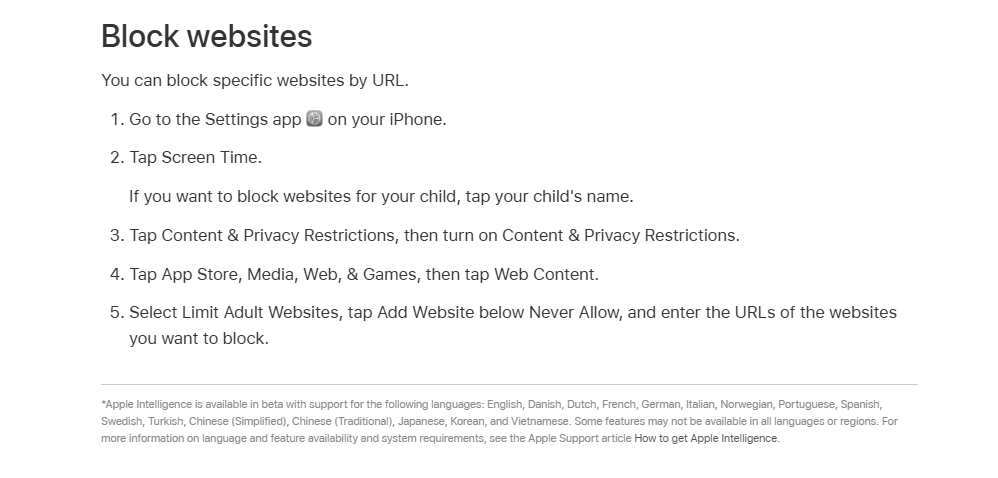
Apple’s Screen Time can restrict adult websites, specific websites, or entire categories through Web Content settings. Parents often use it for children, while some users may simply forget they enabled restrictions themselves.
2. Wi Fi network filtering (school, work, hotel, public Wi Fi)
Many schools, workplaces, hotels, and public networks use filters to restrict categories such as social media, streaming, gaming, or other websites based on their policies.
3. DNS based blocking
If your iPhone or network uses a filtered DNS service, such as a family safe DNS profile, certain websites may be blocked before they even load.
4. Carrier level restrictions
Some mobile carriers offer content filters or safety features that can restrict access to certain categories of websites.
5. Website level restrictions
Some websites limit access based on location, IP reputation, traffic patterns, or security checks. Some sites may also have compatibility issues with iCloud Private Relay or restrict certain types of connections.
6. Safari data issues
Old website data, cookies, or cached redirects can sometimes prevent a site from loading correctly, making it appear blocked when the issue is actually related to Safari.
Now, let’s look at the fixes.
How to Unblock Websites on iPhone: Quick Overview
Method | Best For | How It Works | Difficulty | When to Try |
|---|---|---|---|---|
| 1. Check Screen Time | Device-level restrictions | Remove website limits set by Screen Time or Web Content settings. | Easy | Website is blocked on both Wi Fi and mobile data. |
| 2. Switch Wi Fi to Mobile Data | School, work, public Wi Fi blocks | Checks whether the restriction comes from your current network. | Easy | Website works on one network but not another. |
| 3. Change DNS | DNS-based blocking | Uses another DNS provider to resolve website addresses. | Medium | Sites fail to load because of filtered DNS. |
| 4. Use a VPN | Network and IP restrictions | Routes traffic through another server and changes your IP address. | Easy | Wi Fi filtering, regional limits, or IP restrictions. |
| 5. Cloudflare WARP | DNS and connection issues | Routes traffic through Cloudflare’s network for a different connection path. | Easy | Basic network restrictions or DNS problems. |
| 6. Check iCloud Private Relay | Safari access problems | Tests whether Private Relay affects website compatibility or IP checks. | Easy | Some sites fail while using Safari with Private Relay enabled. |
| 7. Clear Safari Data | Cookies and browser issues | Removes old website data, cached redirects, and broken sessions. | Easy | Only one website has loading or login problems. |
| 8. Try Another Browser | Safari-specific problems | Checks whether Safari settings, extensions, or blockers cause the issue. | Easy | Website works in another browser. |
How to Unblock Websites on iPhone: 8 Easy Ways That Work
1. Check Screen Time Restrictions (One of the Most Common Causes)
If a website is blocked on your iPhone across different networks, including both Wi Fi and mobile data, Screen Time restrictions may be the reason.
1. Open Settings
2. Tap Screen Time
3. Tap Content & Privacy Restrictions
4. Tap App Store, Media, Web & Games (or Content Restrictions on some iOS versions)
5. Tap Web Content
Check which option is selected:
· Unrestricted Access: Screen Time does not block websites.
· Limit Adult Websites: Some websites may be restricted based on Apple’s content filtering rules, and it may occasionally block sites you want to access.
· Allowed Websites Only: Only websites added to the approved list can be opened. Any other site will be blocked.
If Allowed Websites Only is enabled, switch to Limit Adult Websites or Unrestricted Access and try opening the website again.
Also check:
· Settings → Screen Time → Content & Privacy Restrictions → Allowed Apps & Features
Make sure Safari or your preferred browser is allowed.
If Screen Time is managed by a parent, school, or organization, you may not have permission to change these settings. In that case, the restriction may need to be removed by the administrator, or you can continue troubleshooting with network related fixes below.
2. Switch Wi Fi to Mobile Data (quick diagnosis)
This step tells you if the blocking is coming from your Wi Fi network.
· Swipe down to open Control Center
· Turn Wi Fi off
· Keep Cellular Data on
· Try the website again
If it works on mobile data: your Wi Fi network is blocking it (school, work, router DNS, etc).
If it’s still blocked: it’s likely Screen Time, DNS on the phone, Safari issues, or the site blocking your IP/browser.
You can also test the reverse:
· Turn Wi Fi back on
· Turn Cellular off
· Try again
This simple toggle saves a ton of time.
3. Change DNS (safe, fast, and surprisingly effective)
DNS is basically how your phone finds websites. If your DNS is filtered, it can “block” sites before Safari even loads them.
Option A: Change DNS for Wi Fi only
1. Settings → Wi Fi
2. Tap the i next to your connected network
3. Tap Configure DNS
4. Choose Manual
5. Remove existing DNS servers
6. Add one of these:
Cloudflare: 1.1.1.1 or 1.0.0.1
Google DNS: 8.8.8.8 or 8.8.4.4
7. Tap Save
Option B: Use encrypted DNS via a DNS profile (more consistent)
In 2026, a lot of users run into DNS hijacking on networks. Encrypted DNS (DoH/DoT) can help, but on iOS it’s usually done via trusted apps or configuration profiles.
If you don’t want to install anything, stick to the manual DNS change first. It solves the “basic DNS filter” problem most of the time.
4. Use a VPN (A Common Solution for Network Restrictions)
A VPN routes your internet traffic through a different server, which changes your IP address and can help bypass some network based restrictions.
A VPN may help if the block comes from school or work Wi Fi filtering, ISP level restrictions, regional access limits, or IP based restrictions. To use one on iPhone, install a reputable VPN app, sign in, choose a server location, connect, and reload the website.
For the fastest connection, start with a nearby server. If the VPN connects but the website still does not open, the network may be blocking VPN traffic. In that case, try switching VPN protocols, choosing another server location, or using mobile data instead of Wi Fi.
5. Try Cloudflare WARP (simple alternative to a traditional VPN)
Cloudflare WARP is a privacy focused service from Cloudflare that routes your connection through its network. It can help with some DNS based restrictions, network connection issues, or websites that do not work properly on your current connection.
To try WARP:
1. Install the 1.1.1.1: Faster Internet app from Cloudflare
2. Enable WARP
3. Open the website again
If WARP does not work on a school or work network, the restriction may be coming from a stronger firewall or managed network policy.
6. Check iCloud Private Relay (It Can Affect Website Access)
Private Relay is an iCloud+ feature that helps hide your IP address when browsing with Safari. It improves privacy, but some websites may have compatibility issues with Private Relay traffic or fail certain IP based security checks.
1. Open Settings
2. Tap your name → iCloud
3. Tap Private Relay
4. Turn Private Relay off
5. Try opening the website again
If the website works after disabling Private Relay, you can keep it turned off temporarily or check whether the website works correctly with another browser.
You can also check Safari’s IP address settings: Settings → Apps → Safari → Hide IP Address
Try adjusting this setting if needed.
7. Clear Safari Data and Check Browser Settings
If only one specific website won’t load, the issue may be related to Safari data rather than an actual block. Old cookies, cached redirects, or broken sessions can sometimes prevent a website from loading correctly.
Try clearing Safari data:
1. Go to Settings → Safari
2. Tap Clear History and Website Data
3. Confirm and reopen Safari
If you only want to remove data for one website:
1. Go to Settings → Safari → Advanced → Website Data
2. Search for the website domain
3. Swipe to delete the stored data
You can also check Safari’s privacy and security settings. Some website features may not work correctly if certain browser protections or content settings interfere with the page.
8. Try Another Browser
Sometimes the website is not blocked at all. The problem may come from Safari settings, stored data, extensions, or content blockers.
Try opening the website in another browser, such as:
· Chrome
· Firefox
· Edge
If the site works in another browser, check Safari settings or disable any extensions that may be blocking page content.
To check Safari extensions: Settings → Apps → Safari → Extensions
Temporarily turn off content blockers or ad blocking extensions, then try the website again.
How to Unblock Websites on School or Work Wi Fi
School and work Wi Fi restrictions are different because the network administrator controls the filtering rules. These networks may block certain websites, apps, or online services based on security, productivity, or bandwidth policies.
Here are the most practical solutions to try:
Option 1: Use Mobile Data (Fastest Test)
If the website only fails on Wi Fi, turn off Wi Fi and switch to cellular data. If the website works normally, the restriction is likely coming from the Wi Fi network.
Option 2: Try Changing DNS
Some networks use DNS filtering to block websites. Changing your DNS provider, such as using 1.1.1.1 or 8.8.8.8, may help if the restriction is only DNS based.
However, managed networks can also control or redirect DNS traffic, so this method does not work in every situation.
Option 3: Try WARP or a VPN
A VPN or Cloudflare WARP may help if the network allows encrypted connections. If VPN apps cannot connect or stop working immediately, the network may have additional filtering or firewall rules.
Option 4: Switch to Another Network
Using a personal hotspot, another Wi Fi connection, or mobile data is often the simplest solution when a network has strict restrictions.
Option 5: Check Network Policies
Some school and workplace networks use advanced filtering, device management, or security systems. In these cases, the restriction may be intentional. The appropriate solution may be requesting access, using approved services, or connecting through a personal network.
If you are mainly looking for entertainment or alternative online resources on restricted networks, you can also explore unblocked browser games, free music sites, and unblocked movie websites. Availability depends on your school or workplace network policies.
How Can BitBrowser Help With Restricted Websites?
BitBrowser is mainly designed to manage separate browser identities. Different profiles with different cookies, storage, fingerprints, and sessions. That’s useful when a website restricts you based on:
· repeated logins and session conflicts
· device fingerprinting
· rate limits tied to browser identity
· multi account workflows (testing, ads, marketplaces, social platforms)
If the “restriction” is happening inside the site itself, like you keep getting flagged, stuck in verification loops, or blocked after logging in too many times, then yeah, BitBrowser can help.
If you’re specifically looking at anti detect tools, BitBrowser is one of the names people bring up for managing multiple clean environments without them bleeding into each other.
How to Use BitBrowser to Access Unblocked Websites?
If you want to test a website in a fresh browser environment, you can create a separate BitBrowser profile and configure its browser settings and proxy before opening the site. A basic workflow looks like this:
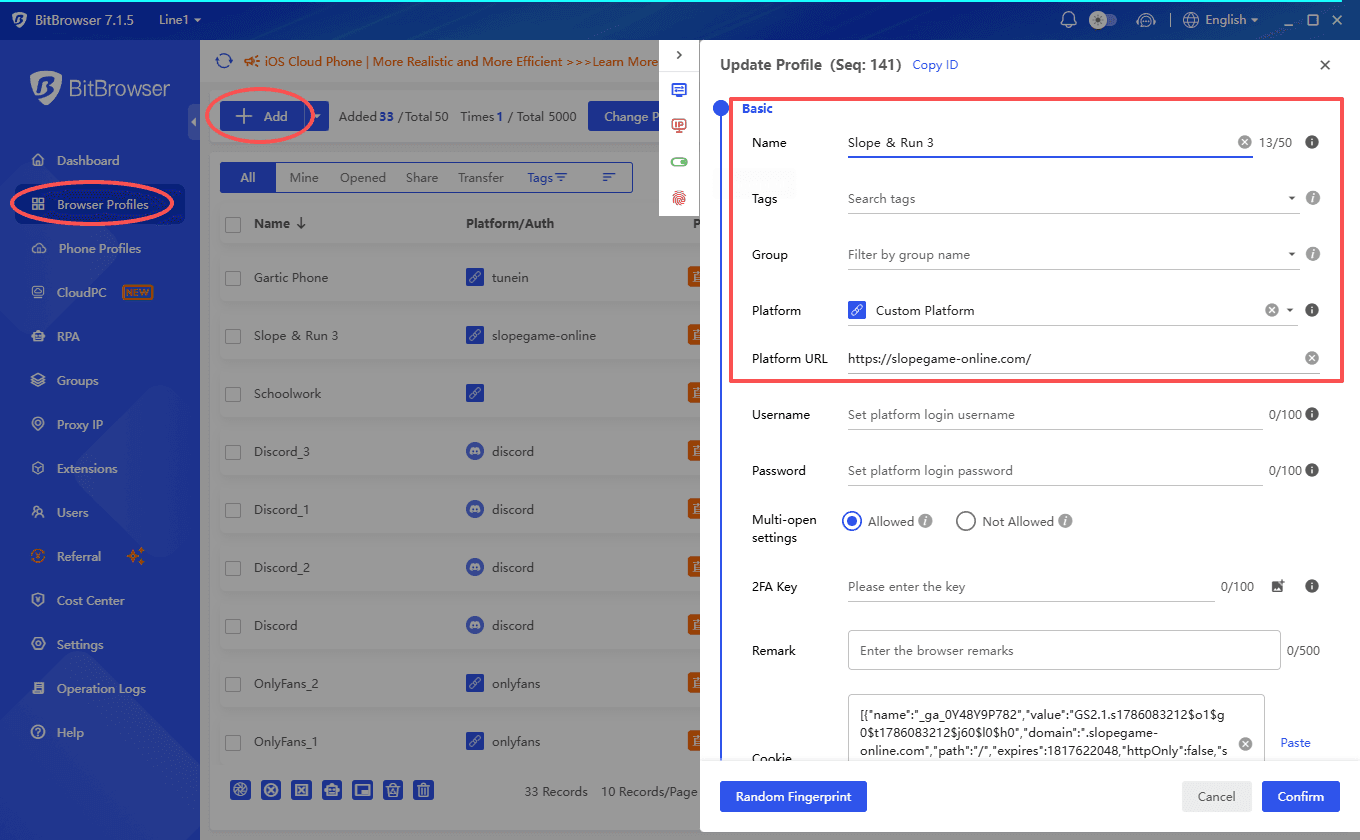
1. Create a new browser profile in BitBrowser.
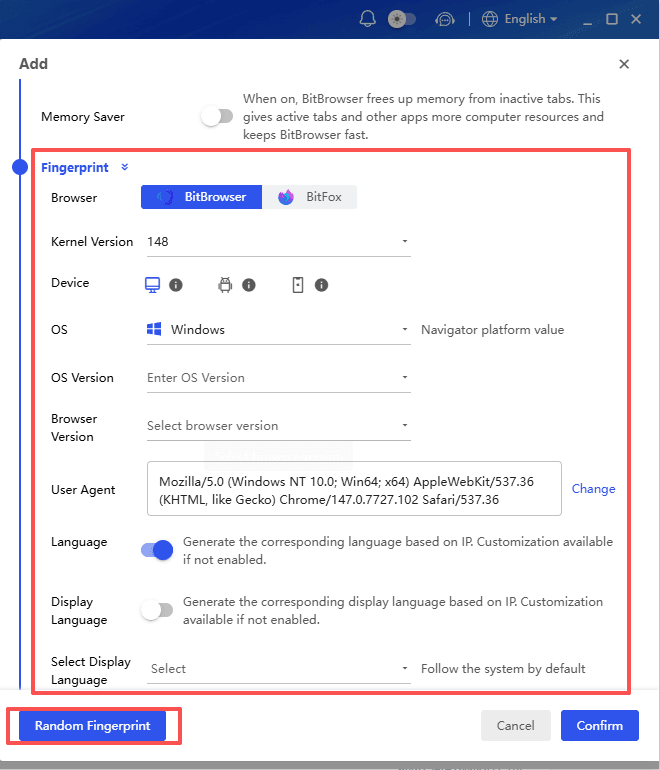
2. Set the browser environment for the profile, including the browser fingerprint and other available settings.
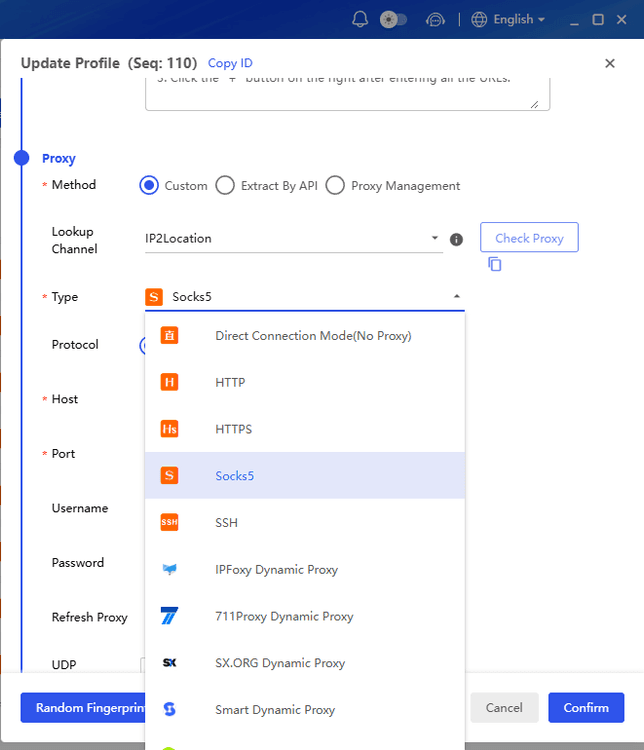
3. Add a proxy if needed, and make sure the connection works before launching the profile.
4. Launch the profile and open the website in the isolated browser environment.
5. Sign in or test the website using the profile's separate cookies, storage, and session data.
If the website still restricts access, check the site's requirements rather than repeatedly creating new profiles.
Important: Only use BitBrowser and separate browser profiles in accordance with the website's terms, your organization's policies, and applicable laws. Do not use it to evade account suspensions, access unauthorized content, commit fraud, or circumvent security controls.
What If the Restricted Service Is a Mobile App?
If the service you need is only available through a mobile app rather than a website, a cloud phone can be another option. BitCloudPhone provides cloud based Android and iOS phone environments that you can access and operate from a computer, so you can run supported mobile apps without relying on your physical phone.
This can be useful when an app is unavailable on your current device, when you need a separate mobile environment for testing, or when you want to manage mobile apps from a desktop. Availability still depends on the app, region, account, and network restrictions.
Important: Cloud phones should be used in accordance with the app's terms of service and applicable laws. They do not guarantee access to apps that have been restricted or removed by the service provider.
Conclusion
Unblocking a website on iPhone usually starts with identifying where the restriction comes from. If the problem is caused by Screen Time, Safari, or a simple DNS setting, you can often fix it directly on your device. If the restriction comes from a school, work, ISP, or regional network, switching networks, using mobile data, a VPN, or WARP may be more appropriate.
If the issue is related to browser fingerprints, cookies, sessions, or managing multiple accounts, an isolated browser environment such as BitBrowser can provide more control. For mobile apps that are restricted or unavailable on your device, a cloud phone can offer another way to run supported apps from a computer.
The key is to identify the type of restriction first and then choose the solution that matches it. Not every blocked website requires a VPN, and not every access problem is caused by the network.
Frequently Asked Questions
How Do I Turn Off Website Blocking on My iPhone?
Go to Settings → Screen Time → Content & Privacy Restrictions → Web Content. If Allowed Websites Only is enabled, switch to Limit Adult Websites or Unrestricted Access. If your iPhone is managed by a parent, school, or organization, you may not have permission to change these settings.
How Do I Unblock Access to Certain Websites on iPhone?
Start by checking Screen Time and Safari settings. If the website only fails on a specific Wi Fi network, try switching to mobile data or checking the network's DNS settings. For some regional, IP, or network based restrictions, a reputable VPN may also help.
Why Are Some Sites Blocked on My iPhone?
Website access problems can come from Screen Time, Wi Fi filtering, DNS settings, mobile carrier restrictions, regional limitations, IP based restrictions, or website security rules. Safari data, extensions, or content blockers can also prevent a website from loading correctly.
How Do I Unblock a Website I Accidentally Blocked?
If you blocked the website through Screen Time, go to Settings → Screen Time → Content & Privacy Restrictions → Web Content and check the website restrictions. If the problem is caused by Safari data, you can also remove the site's stored data under Settings → Apps → Safari → Advanced → Website Data.
Can BitBrowser Help With Restricted Websites on iPhone?
BitBrowser can help when access issues are related to browser environments, cookies, sessions, fingerprints, or proxy configurations. It lets you create separate browser profiles with isolated settings and data. However, it does not guarantee access to websites that have blocked an account, region, IP range, or service entirely.

 Multi-Account Management
 Prevent Account Association
 Multi-Employee Management
Recommended
See More 



