How to Hide and Unhide an App on Your iPhone in 2026
 2026.08.10 06:30
 YT.Shi
Your iPhone holds a lot of personal information, and sometimes you want to keep certain apps away from prying eyes. Whether you are handing your phone to a friend or just want to declutter your Home Screen, Apple has made it easier than ever to lock and hide apps. In 2026, the process is built right into iOS, and it works smoothly without any third party software.
Here is everything you need to know about hiding and unhiding apps on your iPhone this year.
Locking vs. Hiding: What is the Difference?
Before you start, it helps to understand the two options Apple gives you.
Locking an app means the icon stays on your Home Screen, but anyone who tries to open it must authenticate with Face ID, Touch ID, or your passcode. Information inside a locked app will not appear in search results, notification previews, Siri suggestions, CarPlay, or your call history. This is great for banking apps or messaging apps that you use often but want to keep secure.
Hiding an app takes privacy a step further. The app disappears from your Home Screen entirely and moves to a special Hidden folder at the bottom of your App Library. It also will not show up when you search for it. To even see what is in the Hidden folder, you need to authenticate with Face ID, Touch ID, or your passcode.
A few important things to keep in mind. The locked or hidden status of an app only applies to the device you are using. It does not sync across your other Apple devices through iCloud.
Also, apps that come preinstalled on your iPhone cannot be hidden or locked. Only apps you download separately from the App Store can be hidden.
However, if you have set a downloaded app as your default web browser or as your app marketplace (this is only available in the European Union), then that app also cannot be hidden.
How to Hide an App on Your iPhone
Hiding an app is quick and straightforward. Here is how to do it in 2026.
1. Go to your Home Screen and find the app you want to hide.
2. Touch and hold the app icon until a menu pops up.
3. Tap Require Face ID (or Require Touch ID if you have an older iPhone with a Home button).
4. A new prompt will appear. Tap Hide and Require Face ID.
5. Authenticate with Face ID, Touch ID, or your passcode to confirm.
6. Tap Hide App to finish.
Once you do this, the app vanishes from your Home Screen. It will not appear in Spotlight searches. The app moves to a folder called Hidden, which sits at the very bottom of your App Library.
Keep in mind that even when hidden, the app's name can still be seen in some places, such as Screen Time, Battery Usage by App in Settings, and your App Store purchase history.
How to Open a Hidden App Without Unhiding It
If you just need to use a hidden app temporarily and do not want to move it back to the App Library, you can do that easily.
1. Swipe left on your Home Screen past all your pages until you reach the App Library.
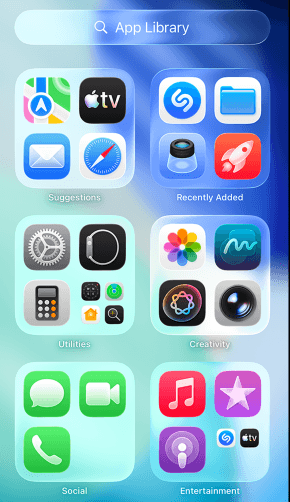
2. Scroll all the way down to the bottom. You will see a folder labeled Hidden.
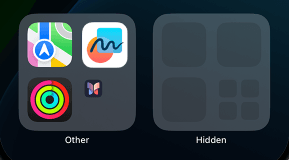
3. Tap the Hidden folder. Your iPhone will ask you to authenticate with Face ID, Touch ID, or your passcode.
4. Tap the app you want to open, and then authenticate again with Face ID, Touch ID, or your passcode.
After you close the app, it stays hidden. Next time you want to open it, you will need to go through the same steps.
How to Unhide an App on Your iPhone
If you change your mind and want to bring a hidden app back to your visible library, the process is just as easy.
1. Swipe left on your Home Screen past all your pages until you reach the App Library.
2. Scroll all the way down to the bottom. Tap the Hidden folder and authenticate.
3. Find the app you want to unhide.
4. Touch and hold the app icon, then tap Don't Require Face ID (or Don't Require Touch ID).
5. Authenticate again to confirm.
The app will move out of the Hidden folder and return to your App Library. From there, you can drag it back to your Home Screen if you want it to be visible again.
You can also see a complete list of all your hidden apps by going to Settings > Apps > Hidden Apps and authenticating.
How to Unlock a Locked App (If You Only Locked It)
If you previously locked an app without hiding it, and you want to remove the lock so that anyone can open it without a passcode, do this:
1. Find the app on your Home Screen.
2. Touch and hold the icon until the menu appears.
3. Tap Don't Require Face ID (or Don't Require Touch ID).
4. Authenticate with Face ID, Touch ID, or your passcode.
The app is now unlocked, and you can open it without any further verification.
Other Ways Apps Can Disappear
Sometimes an app might seem hidden when it is not. If you cannot find an app on your Home Screen, check a few other places first.
Check your App Library. You might have removed the app from your Home Screen without actually hiding it. Swipe to the App Library and look for it there. If you find it, touch and hold the icon and select Add to Home Screen.

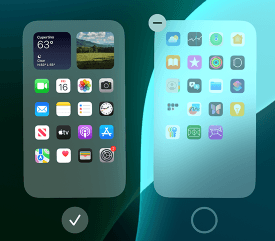
Check for hidden Home Screen pages. You can hide entire pages of apps. To check, touch and hold an empty area on your Home Screen, tap the dots at the bottom, and see if any pages are unchecked. Tap any unchecked circles to unhide those pages.
Check Screen Time restrictions. If you have set up Screen Time, you might have restricted certain apps. Go to Settings > Screen Time > Content & Privacy Restrictions > Allowed Apps and make sure the app is toggled on.
Check your App Store purchase history. If you hid an app from your purchase list in the App Store, it does not remove it from your phone. It just stops it from showing up in your purchased apps list.
To unhide it there, go to the App Store, tap your profile, select your name, scroll down to Hidden Purchases, and tap Unhide. Remember that unhiding it in the App Store does not automatically put the app back on your Home Screen; you may need to redownload it if you deleted it.
When iPhone App Hiding Is Not Enough: Managing Separate Digital Environments
Apple’s built-in app hiding feature is useful for everyday privacy. It helps keep certain apps away from casual access and makes your Home Screen cleaner.
However, it is important to understand that hiding an app does not create a completely separate environment. The app is still installed on the same iPhone, uses the same device environment, and shares the same system resources.
For users who need to manage multiple accounts, separate personal and work environments, or keep different app sessions isolated, a simple hidden folder may not be enough.
This is where tools designed for multi-environment management can help.
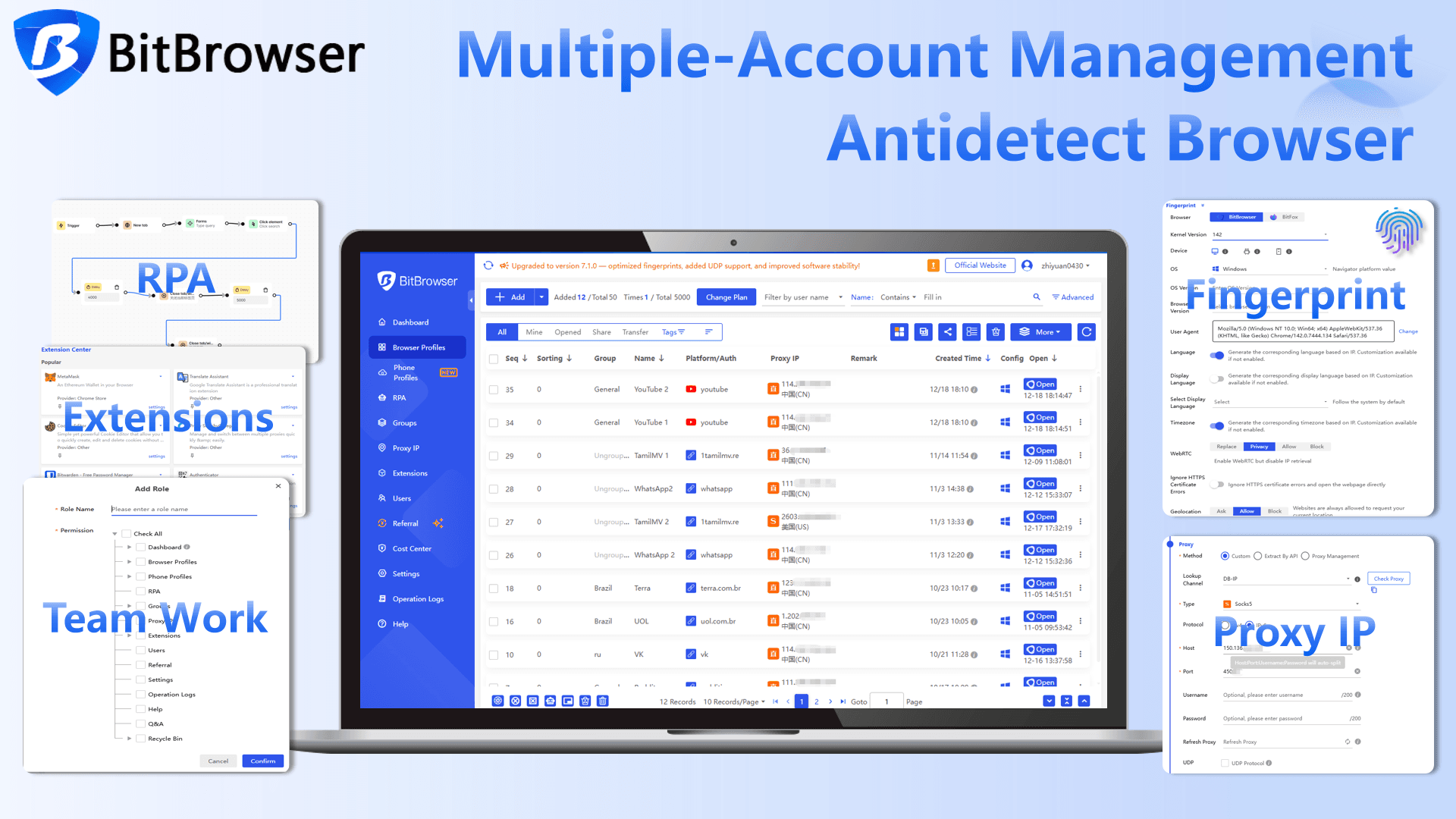
BitBrowser creates isolated browser environments by separating browser fingerprints, cookies, storage data, and session information. This allows users to manage different online identities or accounts without mixing browsing data between profiles.
BitBrowser provides a generous free plan that includes 10 browser profiles permanently free, which is enough for beginners to start managing separate browser environments and explore its features.
Sign up via this link to get the latest discount code!
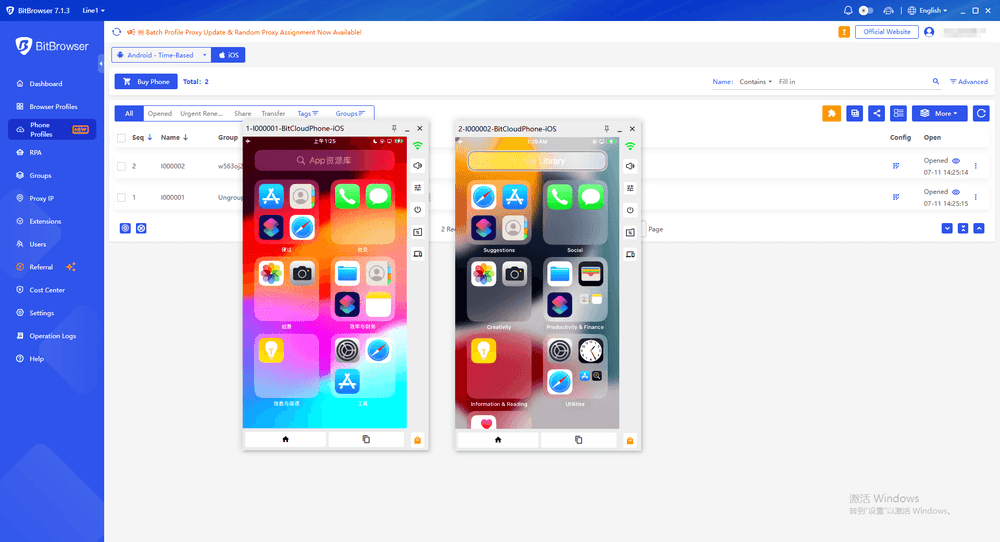
For mobile apps, BitCloudPhone offers a similar approach with cloud-based Android and iOS environments. Instead of installing everything on one physical device, users can run separate mobile environments with independent settings and app sessions.
With BitCloudPhone-iOS, users can access dedicated iOS environments that simulate real iPhone usage scenarios, including separate app instances, device settings, and network configurations.
This can be useful for teams, developers, testers, or anyone who needs to manage multiple mobile environments more efficiently.
Choosing the Right Privacy Solution
The best option depends on what you are trying to achieve:
For hiding personal apps:
Use Apple’s built-in Hide App feature. It is simple, free, and works well for everyday privacy.
For separating different accounts or workflows:
Consider an isolated environment solution like BitBrowser or BitCloudPhone-iOS, especially when multiple sessions need to stay independent.
For testing apps or managing mobile workflows:
A cloud phone environment can reduce the need for multiple physical devices while keeping each environment separate.
FAQ
How do I hide and unhide an app on my iPhone in 2026?
To hide an app, touch and hold the app icon, tap Require Face ID, select Hide and Require Face ID, and confirm with Face ID, Touch ID, or your passcode. To unhide it, open the Hidden folder in the App Library, authenticate, and choose Don't Require Face ID.
Where do hidden apps go on iPhone?
Hidden apps are moved to the Hidden folder at the bottom of the App Library. They will no longer appear on your Home Screen or in Spotlight Search, but the app and its data remain on your device.
What is the difference between locking and hiding an app on iPhone?
A locked app stays visible on your Home Screen but requires authentication to open. A hidden app is removed from normal view and can only be accessed through the Hidden folder after authentication.
Why can’t I hide an app on my iPhone?
Only supported apps downloaded from the App Store can be hidden. Built-in Apple apps and some default apps cannot be locked or hidden. You also need a compatible iOS version to use the Hide App feature.
Can I create separate app environments instead of just hiding apps on iPhone?
iPhone’s Hide App feature is mainly for privacy and organization. It does not create separate app environments or isolate app data. If you need independent mobile environments for different accounts or workflows, tools like BitCloudPhone-iOS can provide separate cloud-based iOS environments, while BitBrowser helps keep browser profiles and online sessions separated.

 Multi-Account Management
 Prevent Account Association
 Multi-Employee Management
Recommended
See More 



