How to Use Whoer to Check Your IP & Fix Fingerprint Leaks (2026 Guide)
 2026.02.27 14:43
 YT.Shi
Your IP address is only one piece of your online identity. Modern websites look at dozens of signals such as browser fingerprint, DNS routing, WebRTC exposure, and environment consistency. If any of these signals conflict, your setup can be flagged even when you use a proxy or VPN.
Tools like Whoer help you see what websites actually detect. This guide explains how Whoer works, how to interpret the results, how to fix common leaks, and how to verify your environment using the BitBrowser Official Fingerprint Test.
What Is Whoer
Whoer.net is an online anonymity and IP intelligence tool that reveals how websites and detection systems perceive your connection.
Instead of only showing your IP address, Whoer analyzes network routing, browser fingerprint signals, and potential leaks that may expose your real identity. It is commonly used to verify VPNs, proxies, and multi-account browser setups.
Its value lies in transparency. It exposes the technical signals that anti-fraud systems rely on, allowing users to identify inconsistencies before they trigger detection.
If you need more information, you can check out our review of whoer.net.
How Whoer Detects You
When you run a scan, Whoer evaluates several categories of signals that together form your digital identity.
1. Network Identity
● Public IPv4 or IPv6
● ISP and ASN
● Geolocation accuracy
● Proxy or VPN detection
These indicators determine whether your IP appears residential, datacenter-based, or flagged.
2. DNS Routing
Whoer verifies whether DNS requests match your proxy location. A mismatch may indicate DNS leakage.
3. WebRTC Exposure
WebRTC can reveal internal IP addresses even when a VPN is active. Whoer checks whether your local IP is accessible.
4. Browser Fingerprint
Fingerprint vectors include:
● User agent
● Operating system
● Language and timezone
● Screen resolution
● Plugins and rendering signals
Inconsistencies across these signals increase detection risk.
5. Reputation Signals
Blacklist databases and known hosting ASN ranges are also checked to identify previously abused IP ranges.
Together, these elements determine whether your setup appears natural or synthetic.
How to Use Whoer to Check Your IP and Fingerprint
1. Open whoer.net in a clean browser profile. Avoid testing in your daily browsing profile because stored cookies and extensions affect results.
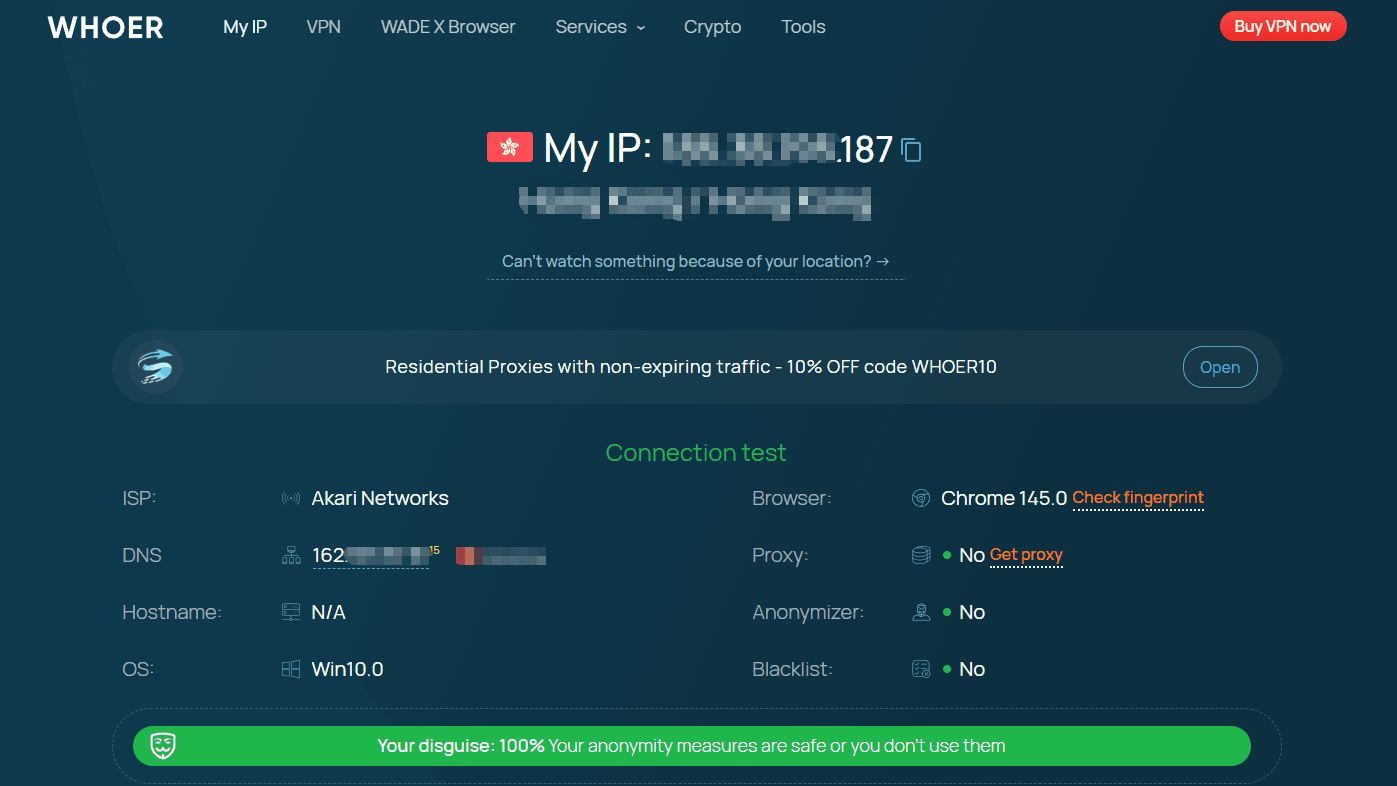
2. Wait for the automatic scan to finish. Do not refresh during the scan.
3. Review the top panel:
● IP location and ISP
● DNS resolver
● OS and browser
● Proxy or anonymizer detection
● Blacklist status
These fields provide the baseline view of how your connection appears to websites.
4. Evaluate your anonymity level.
Whoer does not always present a single percentage score. Instead, anonymity is inferred from multiple indicators:
● If your IP is detected as proxy or hosting, your anonymity is considered low risk for tracking but high risk for blocking.
● If DNS, WebRTC, or hostname reveal your real network, anonymity is weak.
● If fingerprint signals conflict with IP location, your setup may be flagged even without leaks.
● If no leaks are detected and signals are consistent, the environment is typically considered high anonymity.
Focus on consistency rather than a perfect score.
5. Scroll down to extended checks. Run DNS Leak Test and Port Scanner if available. These tests reveal whether traffic bypasses your proxy.
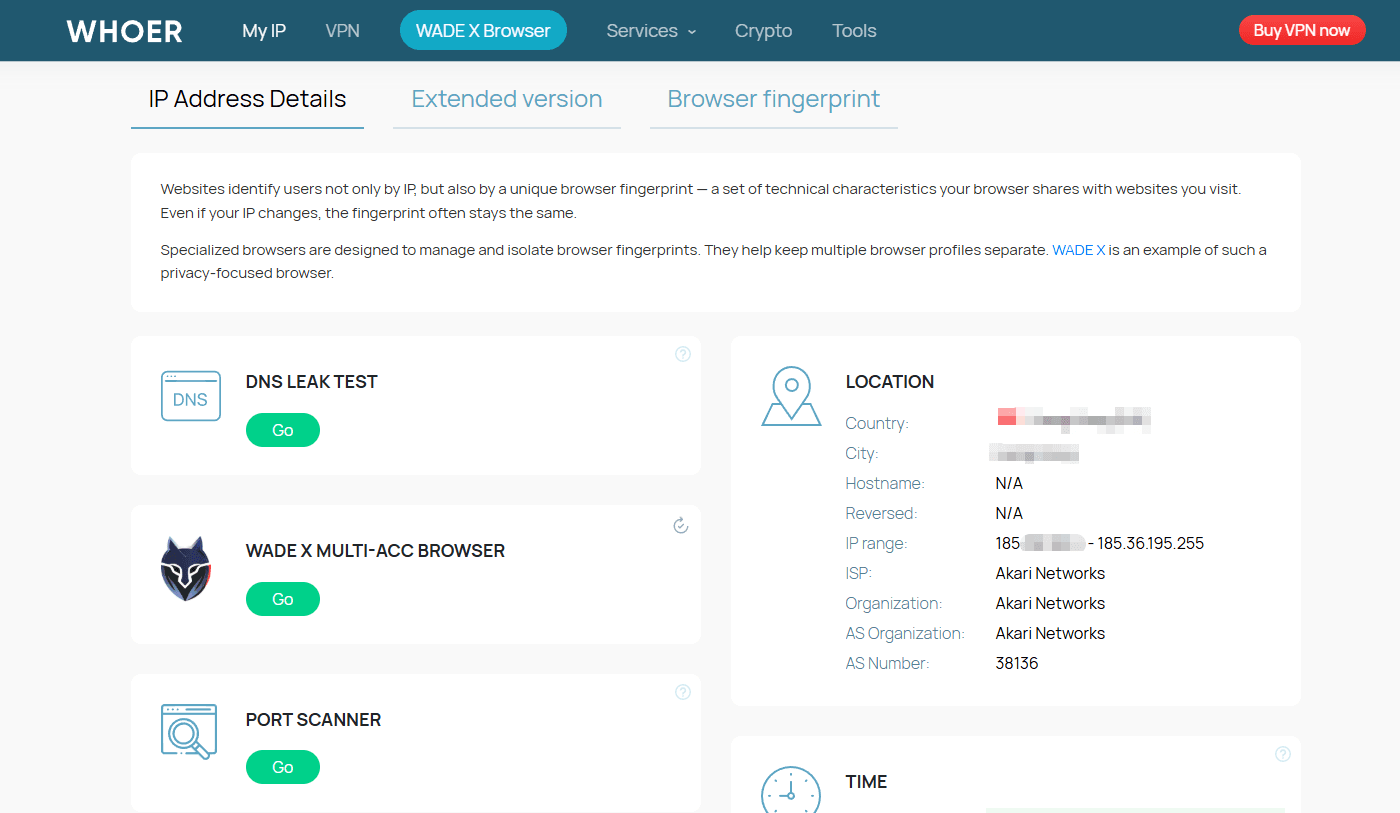
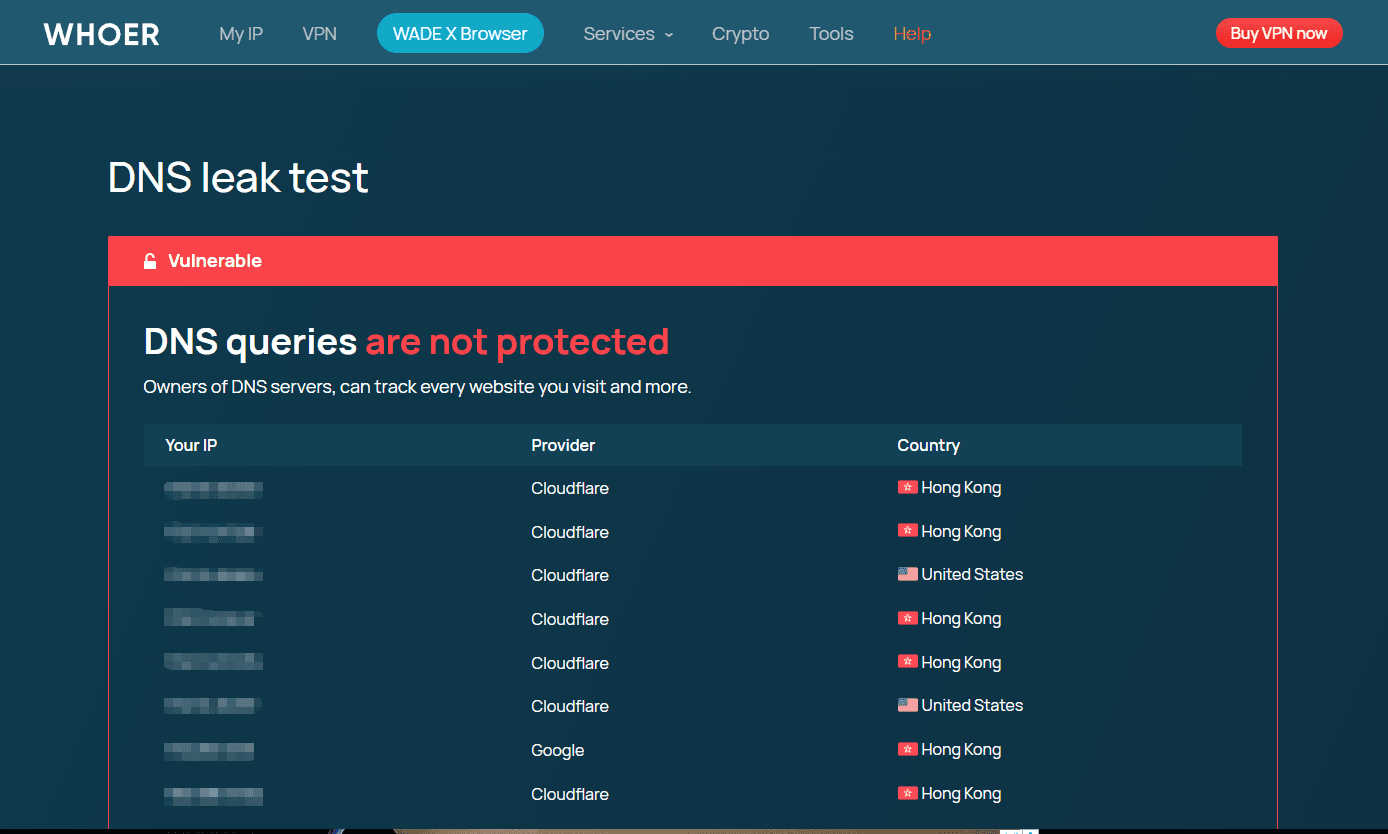
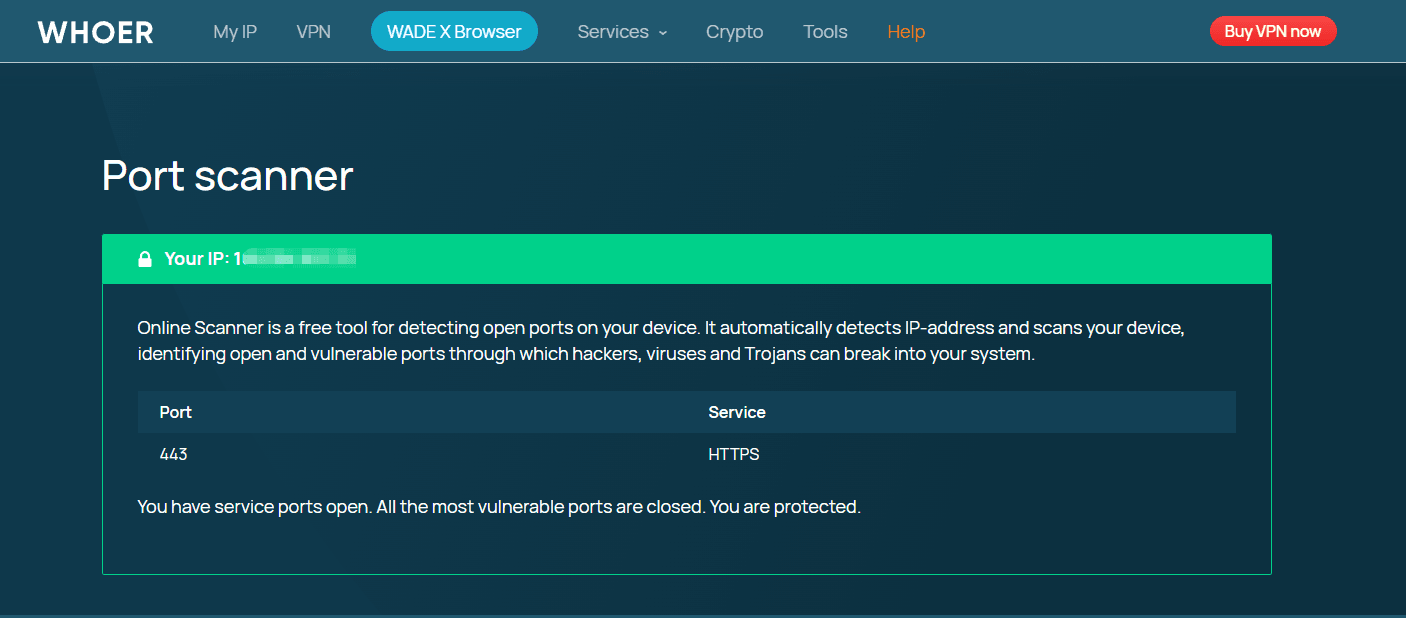
On the right side of this detection panel, you can view the extended detection report and detailed browser fingerprinting results.
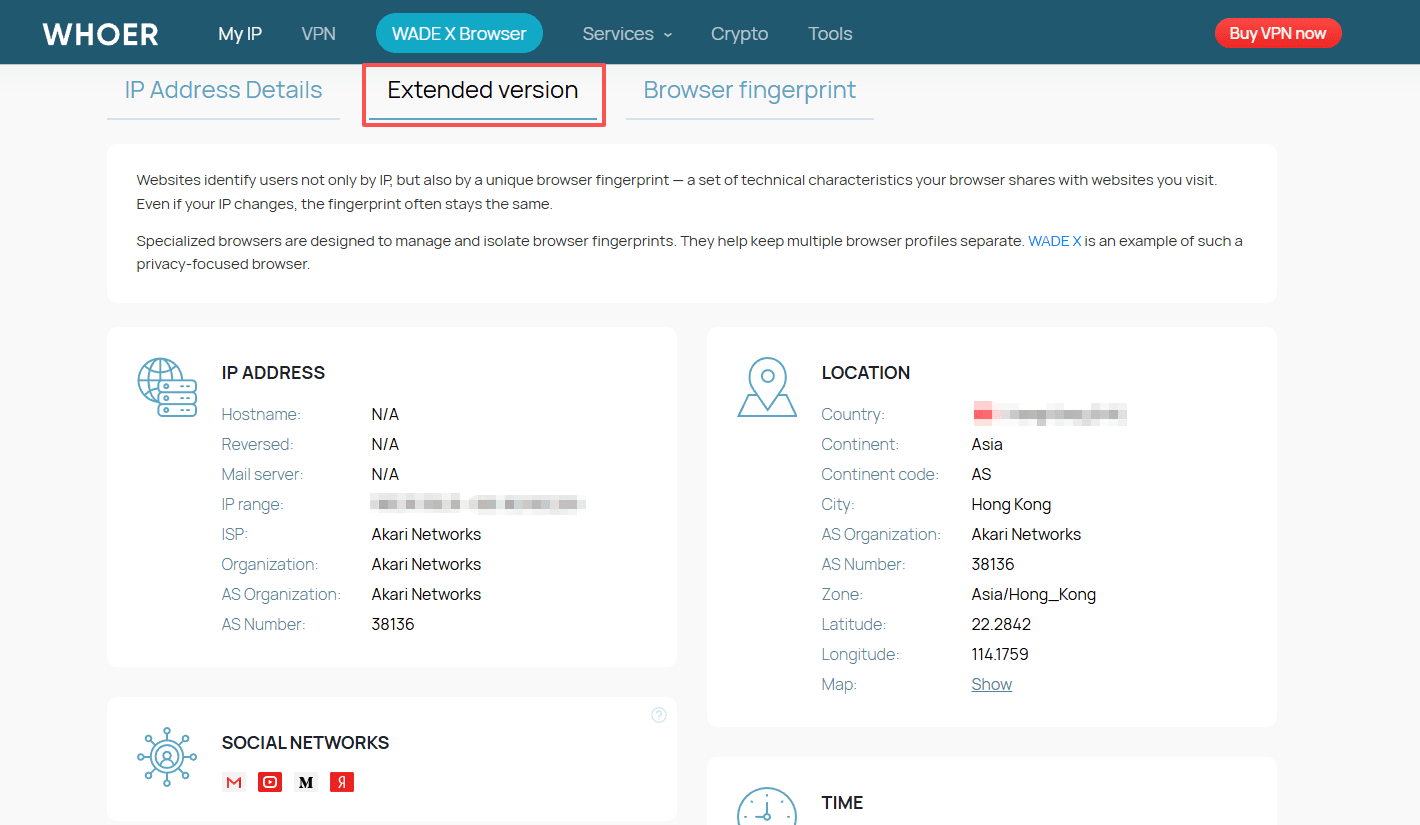
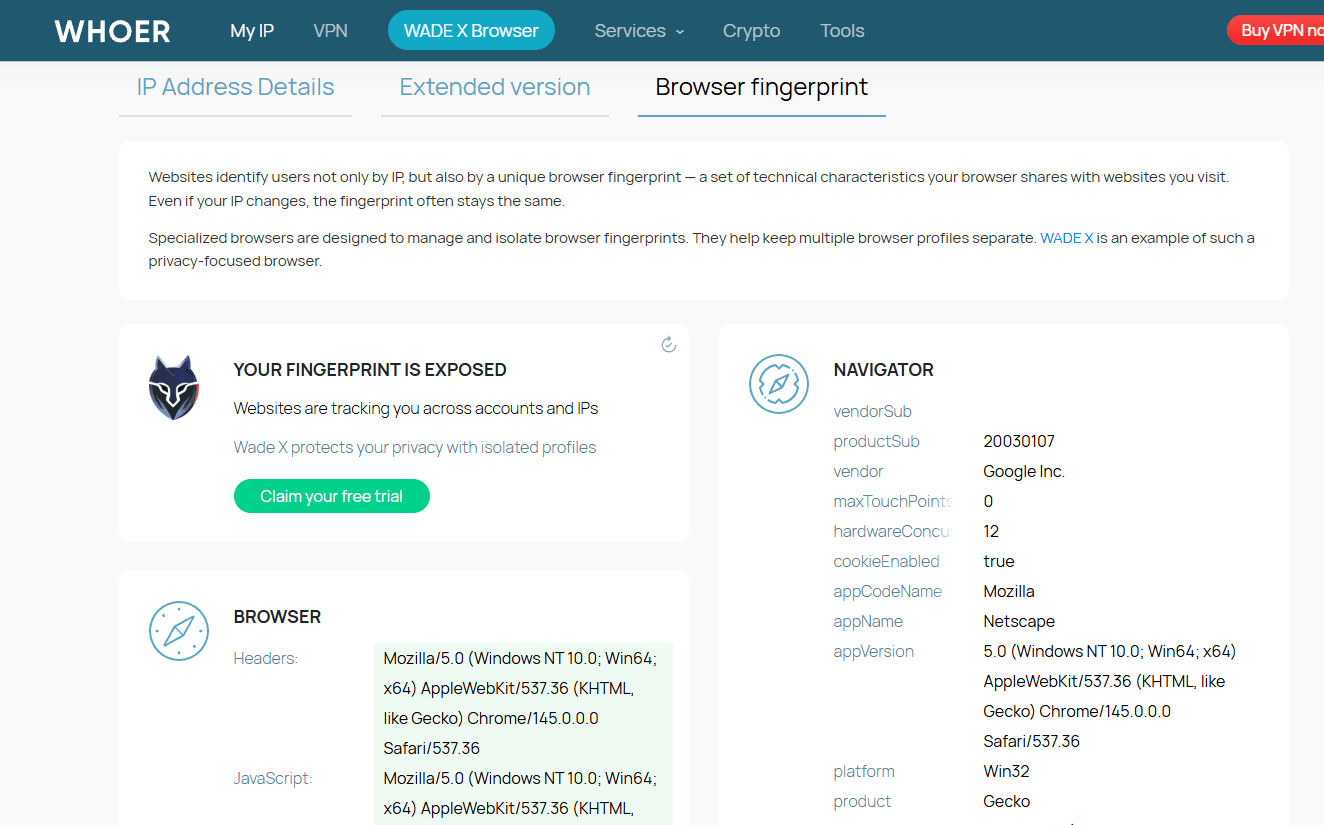
6. Take a screenshot of the baseline result. This allows you to compare before and after changes.
This workflow is important because anonymity improvements must be measurable.
Why You May Still Be Detectable
Many users assume that hiding IP equals anonymity. Detection systems correlate multiple signals. Common causes of low anonymity:
1. Fingerprint inconsistency
If your IP is from Germany but your timezone, fonts, and language reflect another region, the session looks synthetic.
2. DNS routing mismatch
A proxy may change your IP but DNS queries still go through your local ISP.
3. WebRTC exposure
WebRTC can reveal internal IP addresses even when a VPN is active, which is one of the most common browser leaks seen in anonymity tests.
4. Profile reuse
Logging into multiple accounts from the same fingerprint creates linkage.
5. Datacenter IP reputation
IPs associated with hosting providers are flagged faster than residential or mobile IPs. Whoer highlights these mismatches rather than giving a simple score. The raw data is what matters.
How to Fix Whoer Leaks
Fixing issues reported by Whoer requires correcting both network signals and device fingerprint signals. Work through the layers in order.
1. Use the Right Proxy Type
Your IP type affects how detection systems classify you.
Residential and ISP proxies usually resemble normal consumer traffic. Datacenter IPs are more likely to be flagged due to historical abuse patterns.
Best practices:
● Choose a proxy located in your target country
● Avoid switching countries within the same session
● Use stable sessions instead of rapid rotation when managing accounts
IP consistency is more important than frequent changes.
2. Align Environment Signals with Your IP
Detection systems compare fingerprint attributes against IP location. Mismatches increase risk.
Make sure these settings reflect the same region as your proxy:
● Timezone
● Language
● Keyboard layout
● Screen resolution patterns typical for that country
For example, a German IP combined with an Asia timezone and US keyboard layout creates a synthetic profile.
Consistency across signals lowers suspicion.
3. Prevent DNS and WebRTC Leaks
Even with a proxy, traffic may bypass it.
To reduce browser leaks:
● Route DNS requests through the proxy
● Disable or restrict WebRTC to prevent local IP exposure
● Avoid extensions that modify fingerprint unpredictably
After adjustments, rerun Whoer.net and compare results with your baseline screenshot.
Leak prevention should be verified, not assumed.
4. Isolate Each Account into a Separate Profile
Account correlation is one of the most common detection triggers.
Each account should have:
● A unique browser fingerprint
● Separate cookies and local storage
● A dedicated proxy
Reusing the same fingerprint across multiple accounts increases linkage risk, even if IPs differ.
Why Anti Detect Browsers Matter
A proxy changes your network identity. Detection systems evaluate your device identity as well.
Anti detect browsers (like BitBrowser) create isolated environments that simulate separate devices. Each profile has:
● Its own fingerprint configuration
● Independent storage and cookies
● Dedicated proxy routing
● Controlled WebRTC and DNS behavior
This structure reduces cross session correlation and simplifies consistency management.
Sign Up
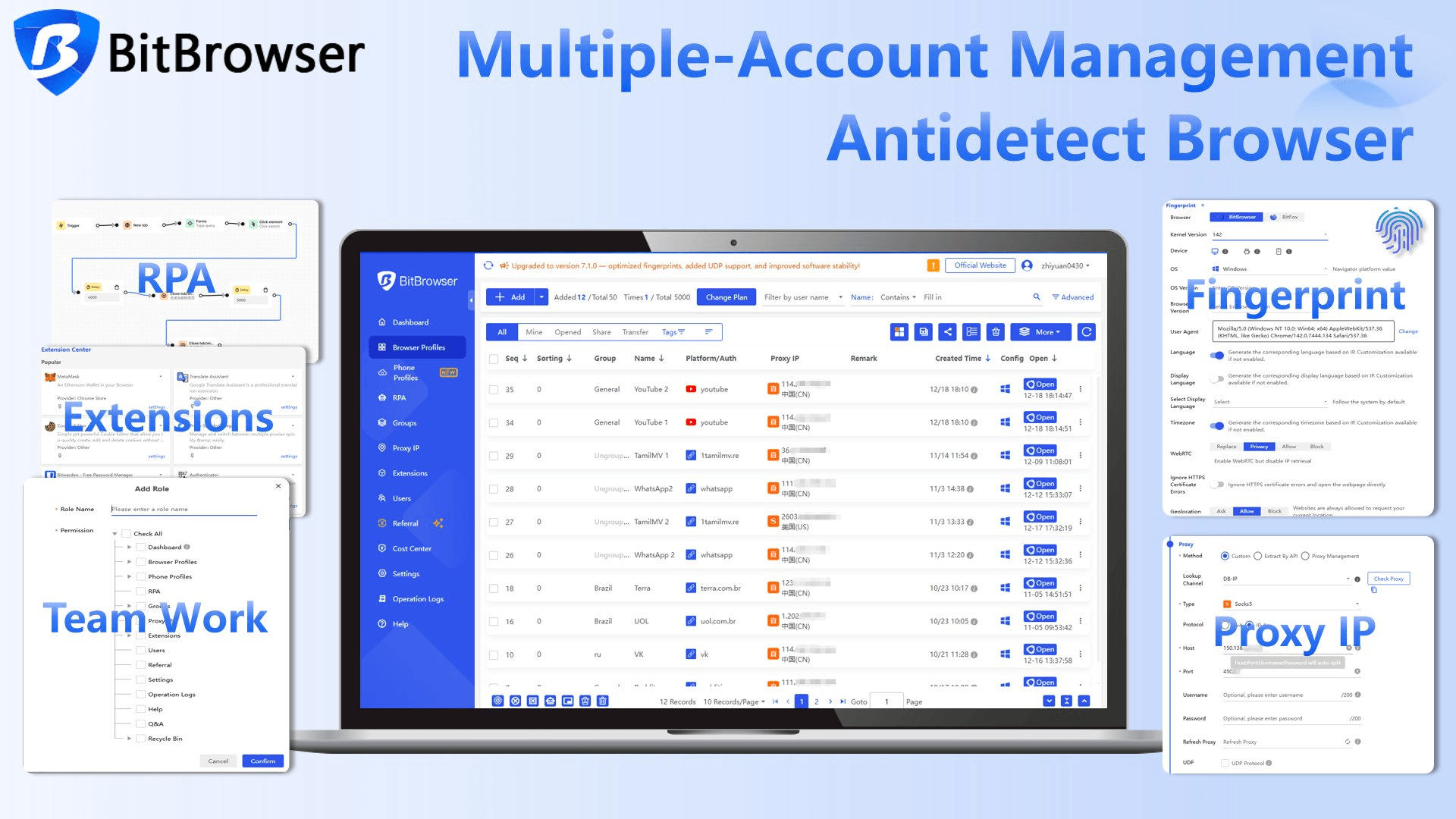
It is commonly used for:
● Affiliate and ad verification
● Digital Marketing and Research
Instead of manually adjusting dozens of fingerprint variables, profiles enforce alignment automatically.
BitBrowser generates unique fingerprints per profile, isolates sessions, and allows proxy level control within each environment. This makes it easier to fix the inconsistencies that Whoer detects and maintain stable account operations over time.
To use it:
1. Open a BitBrowser profile with your proxy configured.
2. Visit the fingerprint test page.
3. Run the scan and review flagged issues.
4. Adjust fingerprint settings inside the profile configuration.
5. Retest until inconsistencies are resolved.
This loop is faster than testing only with public tools because the recommendations map directly to browser settings.
The test is especially useful for multi account operators and developers building anti detect workflows.
For more details, please refer to our security and privacy guide using whoer and BitBrowser.
Sign Up
Who Should Run Fingerprint Tests Regularly
Regular testing is important for:
● Multi account managers handling sensitive platforms
● SMM teams operating region specific accounts
● Privacy focused users validating VPN setups
● Developers building automation frameworks
● Agencies managing client infrastructure
Detection rules evolve constantly. Periodic testing prevents silent fingerprint drift.
Limitations of Whoer and the Best Alternatives
Whoer.net is a helpful baseline tool, but it mainly checks visible network and basic fingerprint signals, so some advanced detection risks may still be missed.
Key limitations include:
● Limited evaluation of fingerprint authenticity across sessions
● Minimal insight into environment spoofing quality
● No behavioral or multi-profile correlation analysis
● Generic recommendations that are not tied to specific browser configuration
Because of this, many users rely on additional testers to validate different layers of detectability.
Popular alternatives include:
● BrowserLeaks for low-level technical fingerprint inspection such as canvas, WebGL, and network headers
● AmIUnique which compares your fingerprint against a global dataset to estimate uniqueness
● PixelScan for identifying automation signals, tracking pixels, and proxy inconsistencies
However, these tools are primarily diagnostic. They show signals but rarely explain whether a spoofed environment behaves realistically across anti-fraud systems.
BitBrowser fingerprint test checks whether your environment looks natural, flags mismatches or leaks, and works as a practical replacement for Whoer, especially for multi-account and automation setups.
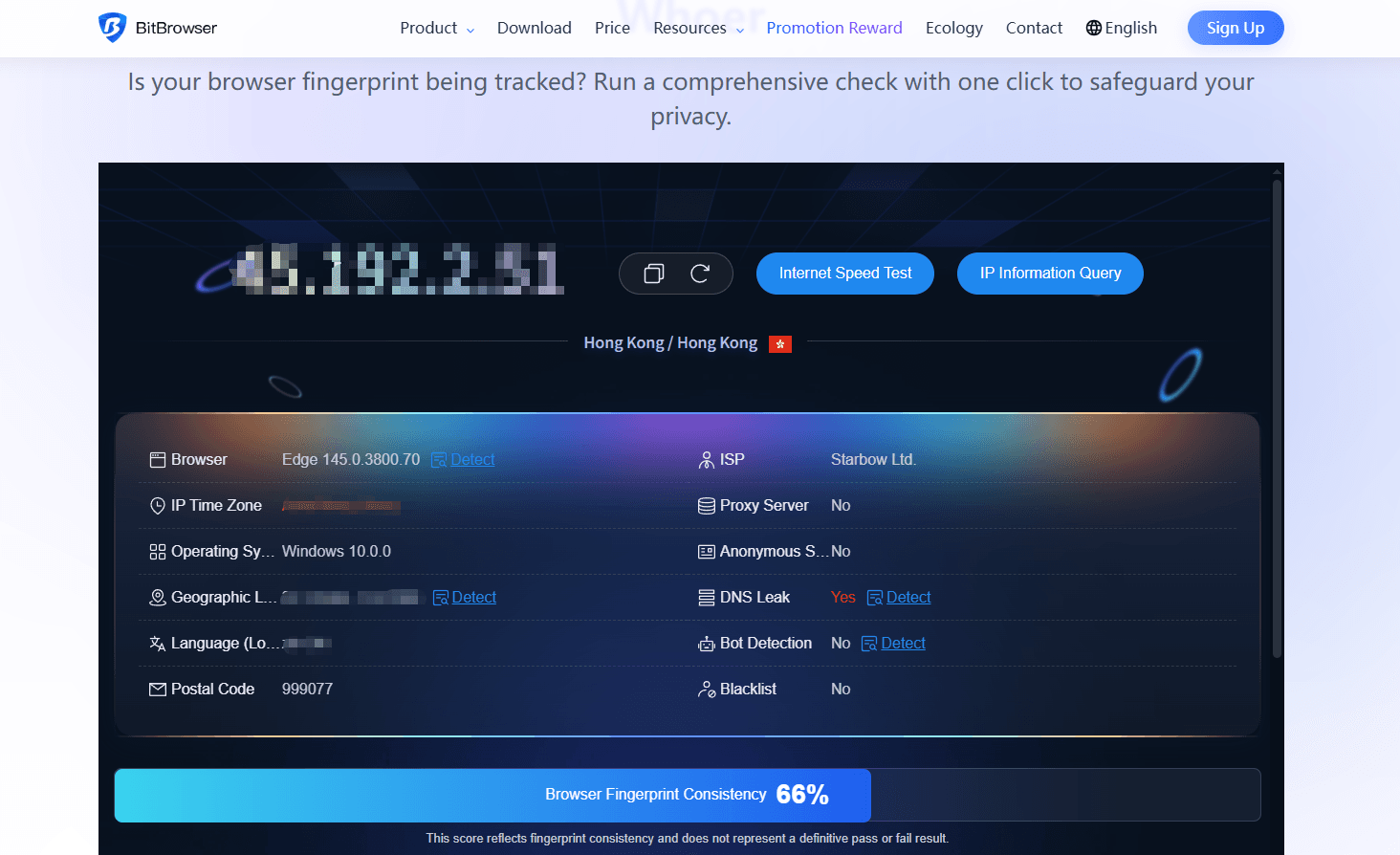
For a full comparison of testing tools and detection coverage, see our Whoer alternatives guide here.
A simple workflow is to use Whoer for quick checks and a dedicated fingerprint authenticity test as the final verification before running accounts at scale.
Final Thoughts
Whoer is a practical first step to understand what your connection exposes. The real improvement comes from fixing inconsistencies rather than hiding a single signal.
Combining IP testing with fingerprint validation gives a more accurate picture of detectability. Running both Whoer and a dedicated anti detect fingerprint test allows you to identify issues early, adjust profiles, and maintain stable environments over time.
For anyone managing multiple identities online, testing is not a one time task. It is an ongoing process of measuring, adjusting, and retesting.
FAQs
Does Whoer detect proxies and VPNs?
Yes. It compares IP reputation, DNS routing, and fingerprint patterns to identify anonymization.
Why does my anonymity drop after logging into accounts?
Accounts create behavioral patterns and cookies that link sessions even if the IP changes.
Can anti detect browsers pass Whoer tests?
They can improve consistency across fingerprint signals, which often results in fewer flags when configured correctly.
How often should I test my fingerprint?
Test after changing proxies, updating the browser, adding extensions, or creating new account environments.

 Multi-Account Management
 Prevent Account Association
 Multi-Employee Management
Recommended
See More 



