Proxied + BitBrowser Guide 2026: Mobile Proxy Setup Step by Step
 2026.11.05 01:36
 petro
For teams checking regional landing pages or managing authorized browser workspaces, Proxied supplies the mobile network connection, while BitBrowser organizes separate browser profiles. The combination is worth considering when a project needs both a selected network location and repeatable browser sessions. This review examines the documented offering and explains how to connect the two tools.
Review basis: Official product pages and setup documentation checked on November 3, 2026. No independent speed, uptime or account-success tests were performed.
What Proxied offers
Proxied operates a marketplace where buyers select mobile proxies from individual sellers. Its website advertises dedicated 4G and 5G devices, unlimited data and listings searchable by location. HTTP and SOCKS5 connection options make the service relevant to browser-based work. Treat availability, carrier details and service terms as listing-specific information to confirm before purchasing. [1]
The marketplace model makes the individual listing an important part of the buying decision. Start with the country and carrier your task requires, then check the rental period, rotation controls and support arrangements. A listing that meets a short regional QA need may be a better choice than a longer subscription with an unsuitable location. 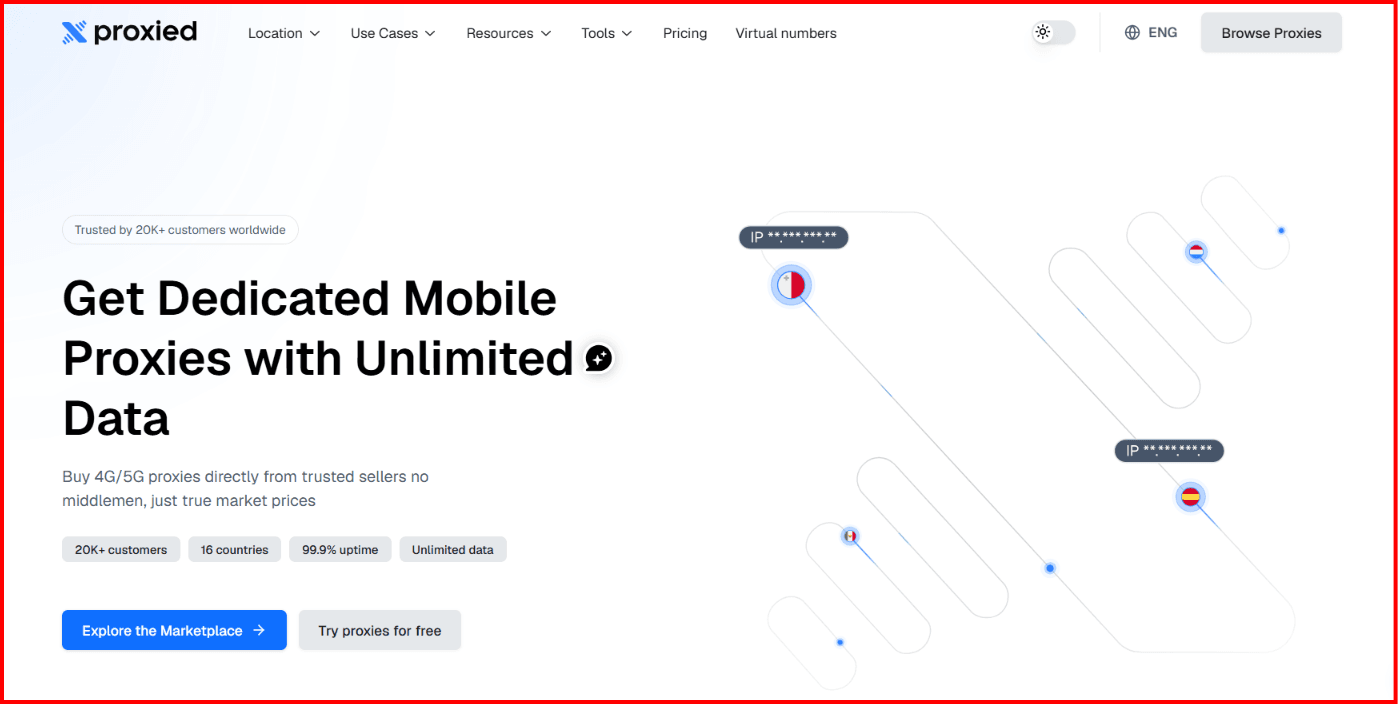
Strengths and limitations
The documented strengths are flexible rental periods, standard proxy protocols and controls for changing the exit IP. These are useful selection criteria for a pilot. They do not establish how quickly a particular seller’s connection will load your pages or how consistently it will remain available.
A dedicated proxy device also does not necessarily mean a public IP used exclusively by one customer. Mobile carriers may share public addresses through carrier-grade NAT. Ask what exclusivity means for the selected listing. Likewise, a 5G label alone is insufficient evidence of low latency or high throughput.
The practical verdict is conditional: consider Proxied when mobile-network routing matters, and evaluate a small rental against your actual workload before committing to a larger deployment.
What BitBrowser adds to the setup
BitBrowser provides isolated browser profiles and configurable browser fingerprint settings. Its proxy controls allow a different connection to be assigned to each profile, with an in-app connectivity check. The integration described here uses ordinary proxy credentials entered into those controls; it does not require installing a Proxied browser extension. [3, 4]
For a review team, the benefit is organization. A profile named BrandA_UK_Landing_QA is easier to recognize than a shared browser containing several clients’ sessions. Define the purpose of each profile before creating it. Keep a first-visit scenario separate from a returning-visitor scenario so that consent choices and stored session data do not confuse the comparison.
Use stable settings during a test. If you change the proxy, cookies and fingerprint together, you cannot tell which change affected the result. Profile separation supports a cleaner workflow, but neither product guarantees anonymity, account approval or access to every website.
Pricing and choosing a sensible pilot
At the review date, Proxied advertised starting prices of $1 per hour, $10 per day, $25 per week and $40 per month. These are advertised starting points, not quotes for every country, seller or device. Confirm the available listing and checkout total. Unlimited data should not be interpreted as unlimited speed. [1]
BitBrowser’s pricing page lists 10 free profiles and examples of paid monthly plans: $10 for 50 profiles and 2 users, $15 for 100 profiles and 4 users, and $25 for 200 profiles and 8 users. Check current plan limits and the amount shown in the client before subscribing. Proxy rental is a separate purchase. [5]
A useful pilot needs only one suitable proxy and one test profile. Decide in advance what success means: the required country is observed, your approved page loads reliably, the session remains usable for the task, and the cost fits the project. Record failures as well as successful visits. 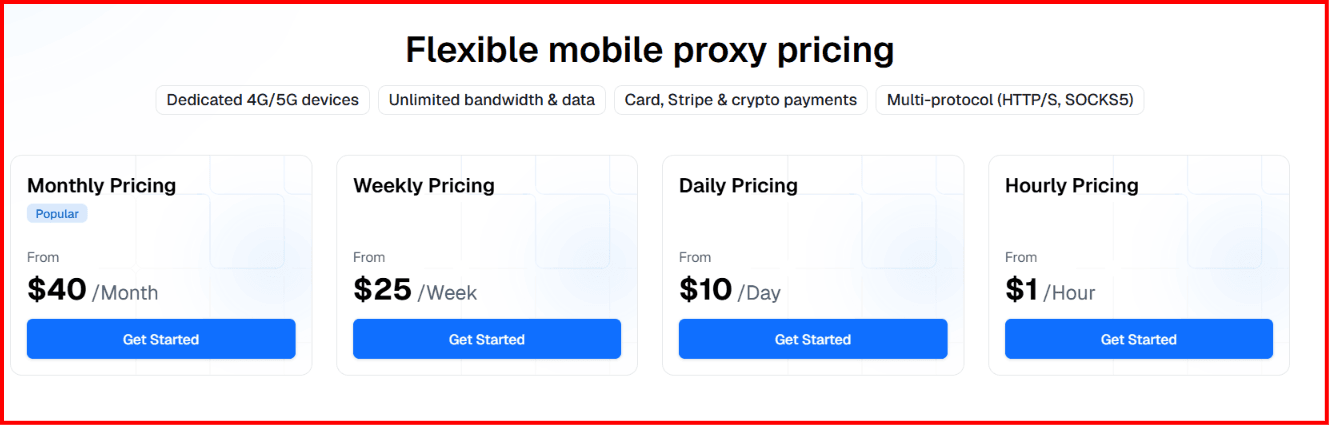
Collect the connection details first
In Proxied, open My Proxies and select the purchased proxy to view its server, port, username and password. The getting-started guide documents HTTP and SOCKS5 URIs and credential-based authentication. Copy the details for the protocol you intend to use; the HTTP and SOCKS5 ports may differ. [2]
Keep those credentials private. For the setup below, use the actual values from your dashboard, not a public example. A proxy password is separate from your BitBrowser login and from the password of any website account.
How to add a Proxied proxy to BitBrowser
The following procedure uses manual entry so that each setting can be checked. Menu wording can vary between client versions. Follow the equivalent profile and custom-proxy controls in your installed version. [3, 4] 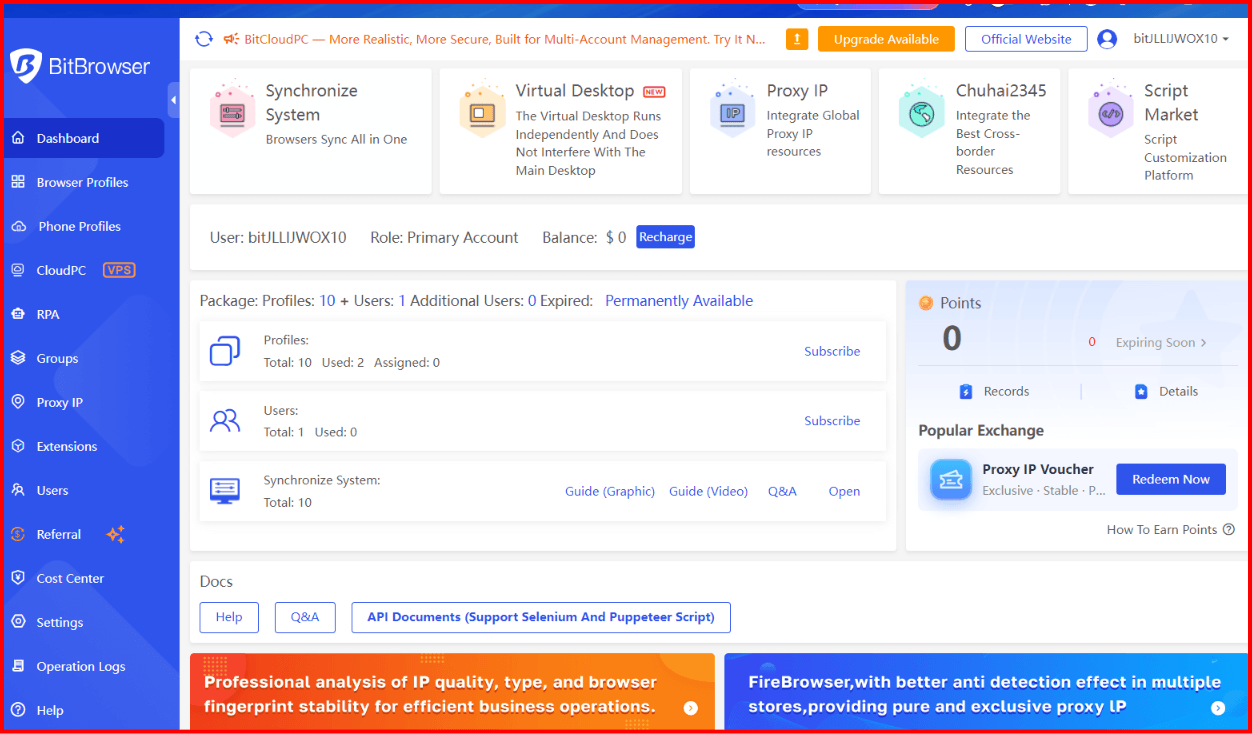
Step 1 Create a browser profile
Open BitBrowser and go to the browser profiles area. Choose Add or Create Profile. Give the environment a descriptive name such as BrandA_UK_Landing_QA and place it in the relevant project group. If editing an existing profile, close its running browser window first so you can relaunch with the saved configuration. 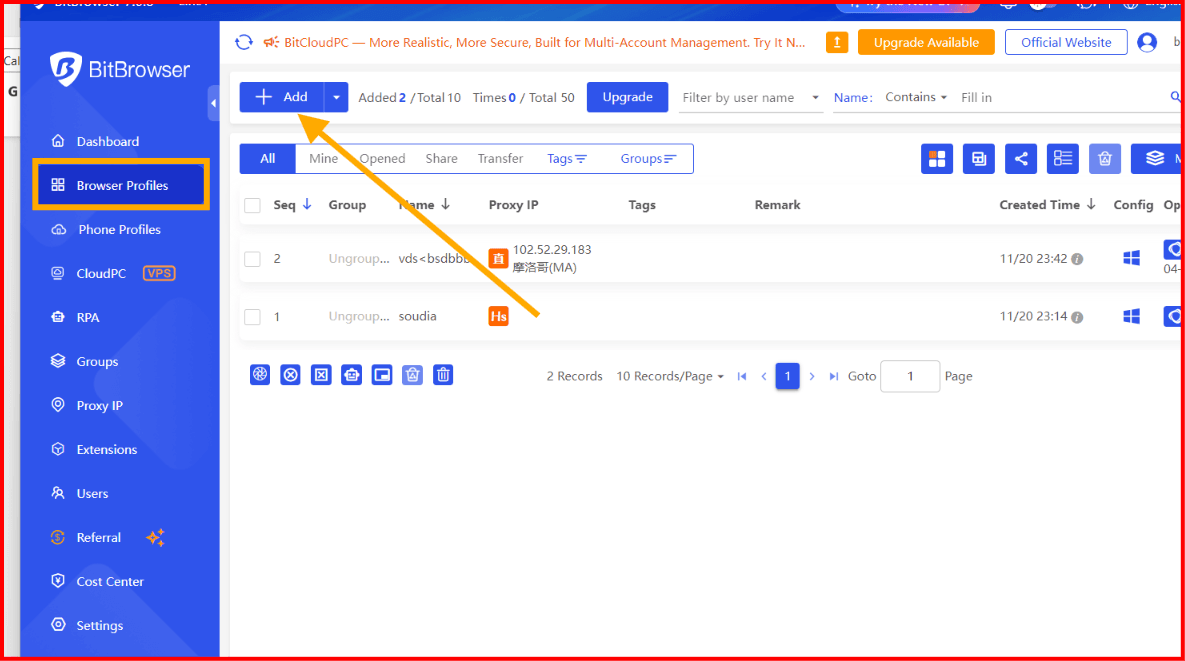
Step 2 Select a custom proxy
Find the Proxy section and select the Custom or Custom Proxy method. Choose SOCKS5 for a SOCKS5 endpoint or HTTP for an HTTP endpoint. An HTTPS destination does not by itself require selecting the HTTPS proxy type: match the type to the provider’s connection details. 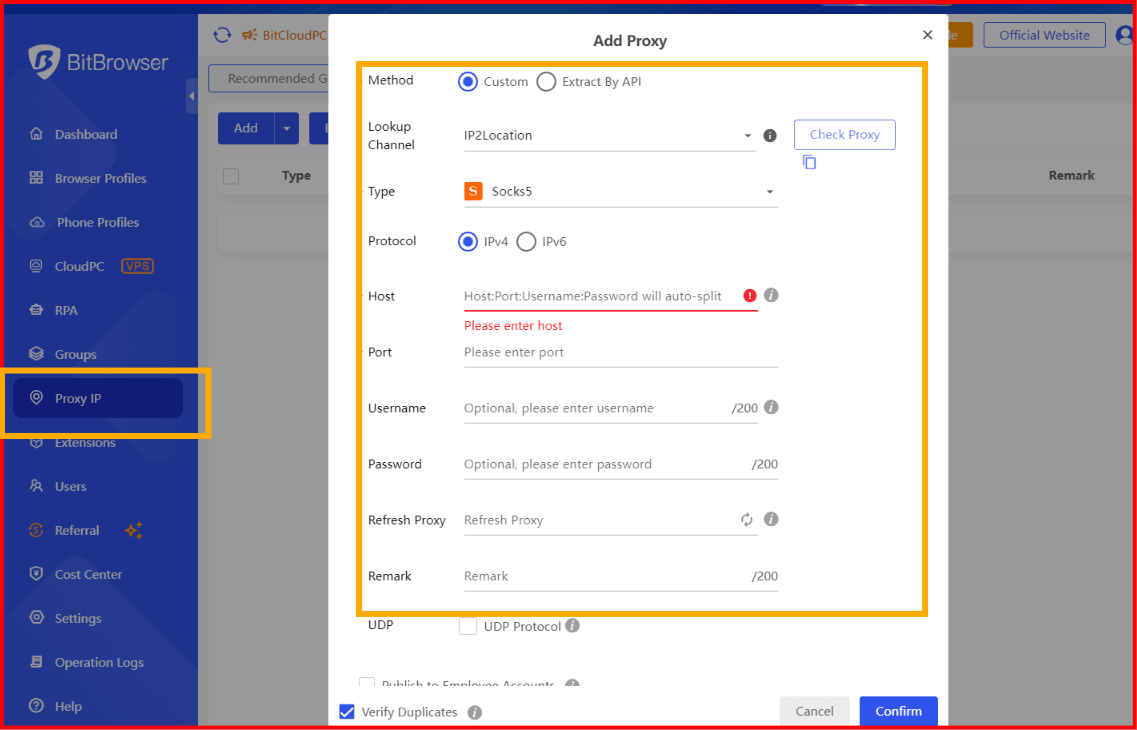
Step 3 Enter the matching values
Copy the server into Host, the matching protocol port into Port, and the proxy credentials into Username and Password. Enter a hostname or IP in Host, without the URI scheme or the credentials. The following mapping is fictional and cannot be used to connect.
The fictional URI socks5://demo_user:YOUR_PROXY_PASSWORD@proxy.example.com:1080 separates into the fields above. Enter credentials manually if punctuation makes a URI difficult to interpret. Avoid extra quotation marks or spaces.
Step 4 Check and save the connection
Click Check Proxy. If it fails, review the protocol, port and credentials before proceeding. After a successful check, save or confirm the profile. A successful check establishes basic connectivity at that moment; it does not verify sustained performance or compatibility with your target website.
Verify the profile before using it
Step 5 Check the exit IP inside the browser
Launch the saved BitBrowser profile and open an IP lookup page inside that window. Check the observed public IP and country against the selected proxy. The exit address can differ from the proxy server address: one is the address websites observe, while the other is the endpoint your browser connects to.
Record the time and observed location. If the country is unexpected, repeat the lookup using another database and ask the provider to investigate. City-level geolocation can differ between databases, so a single city label is insufficient evidence of the physical device location.
Step 6 Review the browser environment
Review the language, time zone, viewport and relevant fingerprint settings for the intended test. BitBrowser documents configurable fingerprint parameters, but an IP lookup alone cannot verify every browser or network signal. Record the configuration rather than assuming that one successful proxy check validates the entire environment. [4]
Step 7 Choose when to rotate the IP
Proxied documents manual rotation, scheduled rotation and a rotation URL. Its guide states that rotation changes the external IP while leaving the connection details unchanged. Treat a rotation URL as sensitive because it can trigger a change to your connection. [2]
For a multi-step review, avoid deliberately rotating midway through the task. If you need another network sample, finish the first run, rotate, verify the new exit IP and begin a separate run. Disabling a rotation timer cannot guarantee that a mobile carrier will keep the same public address indefinitely.
Step 8 Reopen and repeat a simple check
Close and reopen the profile, then repeat the IP lookup and load an approved test page. This catches errors such as saving the wrong profile or checking a page in your ordinary browser. Keep a short record linking the profile name, proxy listing and observed exit IP, without including passwords.
Using the integration for mobile ad verification
Consider a brand reviewing its own UK landing page after an update. Create a dedicated profile, confirm the UK route, and open the approved destination directly. Compare the displayed language, currency, consent banner, redirects and page layout with the campaign brief. Save the expected and actual result alongside the browser version and viewport.
After a fix, repeat the same scenario before changing other variables. Use advertising-platform preview tools for ad appearance checks and avoid repeated live-ad clicks. A mobile proxy supplies a network route; it does not turn a desktop profile into a physical phone. Validate touch behavior, app links and device-specific rendering separately on appropriate devices.
Troubleshooting the proxy connection
The proxy check fails
Start with transcription errors: the wrong protocol port, a missing password character or spaces introduced when copying. Confirm that the rental is active. Try the other protocol only with its corresponding dashboard details. If the failure continues, send support the time, protocol and error text, with credentials removed.
The public IP does not change
Confirm that the lookup is running inside the intended BitBrowser profile and that its proxy method is set to Custom. Reopen the profile after saving. Refresh the lookup page to rule out stale content. If checking after rotation, allow the connection to recover and verify the result again before drawing a conclusion.
Pages load slowly or a website rejects the visit
Compare an ordinary test page with the affected destination. Recheck at another time and, where available, compare another suitable listing. A working connection can still be slow or face site-specific restrictions. Record the exact failure rather than assuming every error is caused by BitBrowser or the proxy provider.
Frequently asked questions
Can I reuse one proxy in several profiles
Browser data and network routing are separate concerns. Reusing an endpoint may route profiles through the same exit IP. For clearer test records, assign each scenario a documented connection and check whether simultaneous use is supported by the purchased service.
Does a mobile proxy remove account verification
No. Websites can require verification or restrict access regardless of proxy type. Use authorized accounts and normal account-security controls. Do not treat a mobile IP or a browser fingerprint setting as a guarantee of acceptance.
Final verdict
The strongest reason to combine Proxied with BitBrowser is a practical division of tasks: choose the mobile connection, assign it to a clearly named browser workspace, and verify the result before beginning. Start with one profile and one suitable listing. Expand only after your own checks establish that the setup meets the project’s location, reliability and cost requirements.
Official sources
[1] Proxied service features and starting prices
[2] Proxied dashboard credentials and rotation guide
[3] BitBrowser mobile proxy setup guide

 Multi-Account Management
 Prevent Account Association
 Multi-Employee Management
Recommended
See More