2026.10.22 20:20
 petro
Running an AI agent on multiple accounts can turn a repetitive routine into a manageable queue. An agency might need daily reports for several clients. An ecommerce team might prepare listing updates for different stores. A support manager might want an assistant to summarize unresolved tickets from several business dashboards. In each case, the challenge is keeping the right account, data and instructions together as the agent moves between tasks.
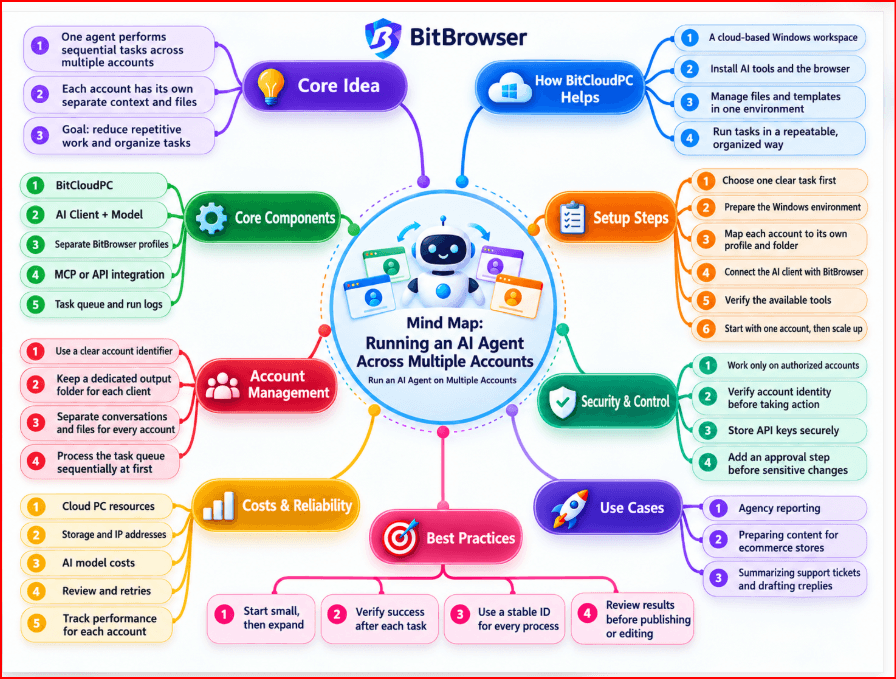
A practical approach is to use BitCloudPC as the remote Windows workspace, then add an AI client and the browser or API tools required by the job. BitBrowser can supply separate browser profiles and an MCP connection for supported profile-management actions. The resulting workflow needs explicit account mapping and checks at each handoff.
What this guide covers
This is a suggested implementation blueprint based on official product information, rather than a report of a tested deployment. It covers accounts you own or are authorized to manage. Confirm that each platform permits your intended automation and account arrangement before connecting production accounts.
What does it mean to run one AI agent across several accounts?
One agent can process a sequence of account-specific jobs while the surrounding software selects the correct tools and sessions. The agent might inspect Client A's dashboard, save a report to Client A's folder, close that session, and repeat the approved task for Client B. A shared task template is useful; shared account memory or unrestricted access to every client's files is usually unnecessary.
The AI model may run through an external service while its client and automation tools run on the cloud PC. Running the client on Windows does not mean the machine can run a large language model locally. Check the requirements of your chosen AI application and use a supported cloud model endpoint when appropriate.
How BitCloudPC fits into the setup
BitCloudPC's official product page describes Windows 10/11 desktops, configurable CPU, memory and disks, IP options, team management, remote desktop network acceleration, and hourly or monthly billing. Those features provide a place to install compatible Windows applications and organize the files used by your workflow.
A dedicated workspace
Keep the agent client, approved tools, templates and output folders in one documented Windows environment.
Repeatable operations
Use the same task specification each day, with a separate account identifier, destination and completion record for each run.
Clear team handoffs
Assign someone to review drafts, investigate failed jobs and maintain access when an employee or client changes.
The components you need
| Component | Role in the workflow | What to check |
|---|---|---|
| BitCloudPC | Hosts the remote Windows workspace. | Region, resources, application compatibility and billing. |
| AI client and model | Interpret the task and coordinate available tools. | Windows support, tool support, data handling and usage costs. |
| BitBrowser profiles | Keep browser sessions associated with their assigned accounts. | Correct profile mapping and account permissions. |
| MCP or API integration | Exposes specific operations to the agent. | Authentication and the exact tools available. |
| Task queue and logs | Track jobs, outputs, failures and retries. | Account identifiers, completion checks and duplicate prevention. |
BitBrowser's official introduction describes independent browser environments, proxy settings, automation, Local API access and multi-user support. Browser-profile separation is useful for session organization. Keep stronger boundaries, such as separate desktops or storage permissions, when clients' confidentiality requirements call for them.
How to set up an AI agent on multiple accounts
1. Choose one useful task first
Start with a bounded job, such as summarizing yesterday's dashboard figures or preparing a product-description draft. Specify the account, reporting period, required fields and output location. Define what success looks like before adding more accounts. A narrow first workflow makes it easier to spot incorrect account selection, missing data and unreliable page interactions.
2. Prepare the Windows workspace
Create a BitCloudPC with a configuration suitable for your applications. Install the supported AI client and BitBrowser inside that workspace, then create project-specific folders. Start with one active browser session and observe CPU, memory and response time. Increase resources only after identifying a bottleneck; no fixed configuration guarantees a particular number of agents or accounts.
3. Map every account to its own working context
Record the account owner, platform account ID, browser profile ID, output folder and reviewer. Sign in using the platform's approved access method and complete any verification yourself. Have the workflow compare the displayed account identity with the expected ID before reading or changing anything. Keep each job's conversation, downloaded files and retained context scoped to that account.
4. Connect the AI client to BitBrowser
According to the official MCP setup guide, use BitBrowser 7.1.5 or later. Open Settings → Browser Settings → Local API and enable Authentication Control. Copy the generated configuration for your AI tool into that client's MCP settings.
The documented default MCP address is http://127.0.0.1:54345/mcp, with an x-api-key header. Use the actual configuration displayed by your installation and keep the token private. For the simplest local connection, run both applications inside the same cloud PC: a localhost address on your laptop points to your laptop.
5. Verify what the connected tools can do
Ask the agent to list available tools and inspect one test profile. BitBrowser's 7.1.5 announcement gives examples such as creating and launching windows and configuring fingerprints. Those functions do not establish that the agent can read every dashboard or interact with every page. Page-level work may require a separate browser automation connector or an official platform API. Test that integration explicitly.
6. Complete one account, then expand the queue
Run the full task for one test account and compare its output with the source. When it works, add another account as a separate job. Process the initial queue sequentially. Give each browser profile one active operator at a time so that people and agents do not overwrite each other's navigation or forms. Introduce concurrency only after measuring resource use and checking platform limits.
Practical prompts for multi-account workflows
A useful prompt names the account, permitted action and expected result. Pair these instructions with actual tool permissions and validation in your application; a prompt alone cannot enforce access boundaries.
Inspect the environment
List the browser tools available to this connection. Inspect the profile named Client_A_Reports and report its identifier and current status. Make no changes.
Prepare one account's report
Using the approved dashboard connector, verify that the visible account ID matches the assigned account. Summarize yesterday's figures and save a dated report to that client's folder. Include the reporting period and data source. Stop if the account identity cannot be confirmed.
Process a defined batch
Process the three accounts in the approved queue one at a time. Start a fresh task context for each account. Produce draft recommendations, record the output path and mark each job complete only after checking the saved file. Return a list of successes and failures.
Where this workflow can help
Agency reporting: Collect permitted campaign figures for separate clients and prepare consistent summaries. Keep each client's date range, currency and source account visible in the report. Review unusual movements before turning them into recommendations.
Ecommerce content preparation: Turn approved product information into listing drafts for different authorized stores. Use each store's own catalog, brand voice and image folder. Have the product owner review specifications and prices before publication.
Support operations: Group unresolved tickets by topic and draft replies for review. Route ambiguous cases to the correct account owner. Limit the information sent to the AI service to what the task requires and what your customer-data arrangements permit.
Keep recurring runs reliable
If you want unattended work, test what happens when you disconnect from the remote desktop, when a session expires and when Windows restarts. A cloud PC's availability does not establish that a particular UI automation tool will continue through every desktop state. Use a scheduler supported by your chosen agent application, and verify recovery behavior before depending on it.
Give every job a stable identifier combining the account, task and reporting period. Save progress after each account. Before retrying a failed action, inspect whether it already completed; a timeout can occur after a write succeeds. Use bounded retries, a clear failure state and a reviewer for jobs that require intervention.
For changes such as publishing a listing or updating an advertising budget, define an approval step in the workflow. Preserve the proposed value, account identity and eventual result so the operator can review what happened. Treat instructions found on websites or in customer messages as task data rather than authority to change the agent's permissions.
Plan costs around the whole workflow
Budget for cloud PC resources, retained storage, IP options, browser subscriptions, AI model usage and any third-party integrations. BitCloudPC says compute charges stop after shutdown while storage remains; confirm IP and other retained charges for your configuration.
Track cost per successfully completed account job, including retries and review time. Stop or shut down the workspace only after tasks finish and outputs are saved. A low hourly price is useful when the resulting workflow also produces dependable work.
Frequently asked questions
Can one AI agent manage several accounts?
Yes, when its integrations support the required tasks and each account has a defined context. Start with one account at a time, verify identity before acting and keep outputs separate.
Does BitCloudPC include the AI model?
This setup uses BitCloudPC for the Windows workspace. Choose and configure an AI application and model service separately; confirm their subscriptions and compatibility before purchasing resources.
Do I need a cloud PC for every account?
Choose based on confidentiality, application requirements, workload and client agreements. Browser profiles can organize sessions within one workspace, while separate desktops may be appropriate for stronger separation.
Will the agent run continuously after setup?
That depends on the agent application, scheduling, desktop state, network connection and account sessions. Test the complete lifecycle and define how failed jobs are resumed.
Build a workflow you can repeat
To run an AI agent on multiple accounts, begin with one concrete task, one mapped account and one verified output. Use BitCloudPC for the Windows workspace, connect the required browser or API tools, and expand the queue once the process is reliable. Clear account ownership and observable results make the setup easier to maintain as your workload grows.
Product references checked: 22 October 2026. Configuration, tool availability and charges can vary by version and plan.

 Multi-Account Management
 Prevent Account Association
 Multi-Employee Management