How to Use Telegram on PC: Web Login and Desktop Setup Guide
 2026.06.23 07:42
 YT.Shi
Telegram can be used on a PC through either Telegram Web or the Telegram Desktop app. Both options are easy to set up and allow you to access your messages, files, and contacts across devices.
This guide explains how to register, log in, and use Telegram on your computer. You'll also learn how to manage multiple Telegram accounts on one PC and avoid common account-switching issues.
Telegram on PC: Web vs Desktop
If you want the simplest rule:
● Use Telegram Web if you want quick access, zero installs, and you are fine with a lighter feature set.
● Use Telegram Desktop if you want the best experience, better calling support, easier multi account switching, and more settings.
Here is the practical comparison.
Telegram Web vs Telegram Desktop
| Feature | Telegram Web | Telegram Desktop |
|---|---|---|
| Text messaging | ✅ | ✅ |
| File and media sharing | ✅ | ✅ |
| Stickers and emojis | ✅ | ✅ |
| Voice and video calls | Partial support | ✅ |
| Multiple accounts | Limited | ✅ (up to 3 accounts) |
| Dark mode | ✅ | ✅ |
| Chat export | ❌ | ✅ |
| Secret Chats | ❌ | ❌ (mobile only) |
| Works without installation | ✅ | ❌ |
Now let’s actually log in.
How to log in to Telegram Web on PC
Telegram Web is the fastest way to check messages on a different device quickly. It works on any modern browser in 2026: Chrome, Edge, Firefox, Safari, Brave. Windows, macOS, Linux, Chromebook. If it can open a browser, it can open Telegram Web.
Go here:
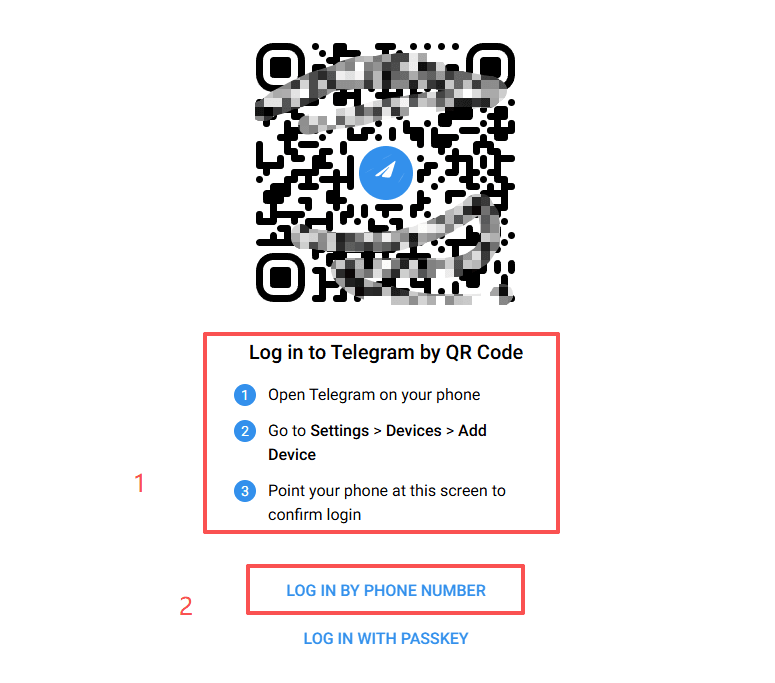
You will see a login screen with two main paths:
● QR code login
● Phone number login
Both are fine. QR is usually faster.
Method A: Login with QR code (fastest)
On your PC, open https://web.telegram.org. A large QR code will show up.
1. On your phone, open Telegram
2. Go to Settings
3. Tap Devices
4. Tap Link Desktop Device
5. Scan the QR code on your PC screen
That is it. Your chats load within seconds. You will see the same list of chats, groups, and channels you have on mobile. Messages sync in real time.
A small note. If your phone camera does not focus on the QR code, zoom the browser to 90% or 100% and try again.
Method B: Login with phone number (works everywhere)
If you cannot scan a QR code, do this:
1. On your PC, open https://web.telegram.org
2. Click Log in by phone number
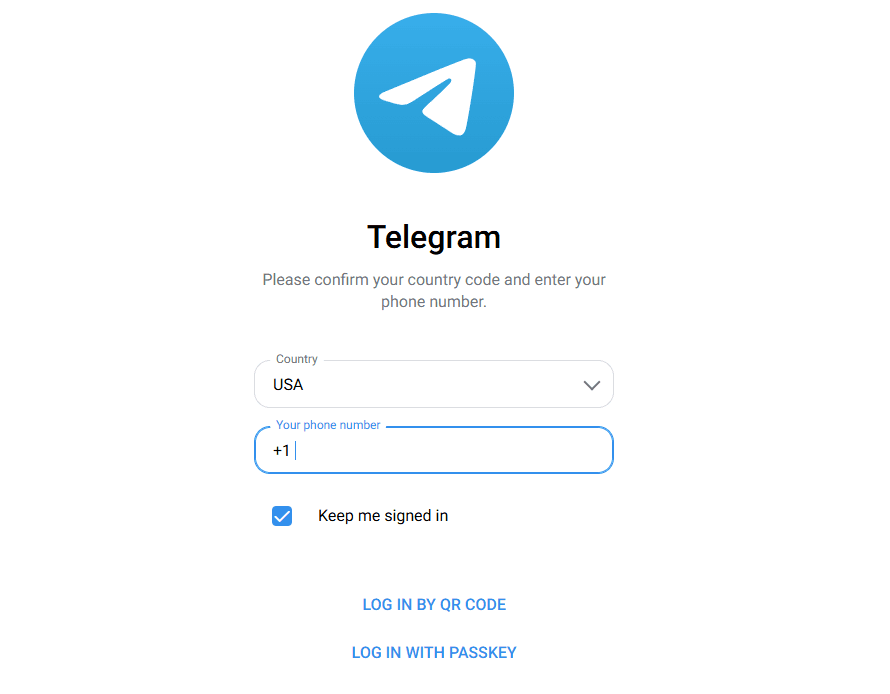
3. Choose your country
4. Enter your phone number
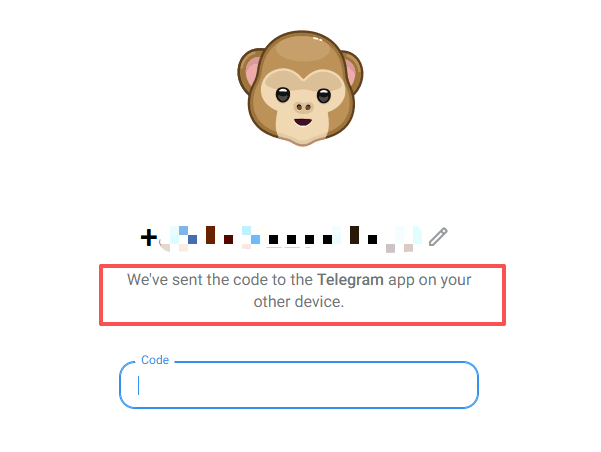
5. Telegram sends a login code to your Telegram mobile app
6. Enter that code on the web login screen
Important detail. Telegram usually sends the code inside Telegram itself, not as an SMS. So if you are waiting for a text message and nothing arrives, check your Telegram app messages.
Telegram Web Features
Telegram Web lets you:
● Send messages and files
● Search chat history
● Use groups and channels
● Send stickers and voice messages
● View shared media and pinned messages
Telegram Web Limitations
Compared with Telegram Desktop, Telegram Web:
● Does not support Secret Chats
● Has limited calling features
● Offers fewer advanced settings
● May have less reliable notifications
For heavy daily use, Telegram Desktop is usually the better option.
Does Telegram Web need your phone to stay online?
People ask this a lot, because WhatsApp Web trains everyone to think the phone must be connected.
Telegram works differently.
● After you log in, the web session becomes independent.
● Your phone does not need to stay online for the web session to keep working.
● If your phone battery dies, your browser session can still run.
You only need the phone for the initial login and for some security checks.
Safety tips when using Telegram Web on a shared or borrowed PC
This is the part that gets people in trouble. If you log in on a borrowed computer, do not just close the tab and walk away. Log out properly.
How to log out of Telegram Web
1. In Telegram Web, open the menu (top left)
2. Go to Settings
3. Find Log out
And if you forgot to log out, fix it from your phone:
1. On your phone: Telegram Settings
2. Devices
3. You will see all active sessions
4. Tap the session you do not recognize, or hit Terminate all other sessions
Also, avoid checking “remember me” style prompts on public machines. And do not save passwords in the browser.
Telegram Desktop setup guide (Windows, macOS, Linux)
If you want the full Telegram experience on PC, install Telegram Desktop.
Step 1: Download Telegram Desktop
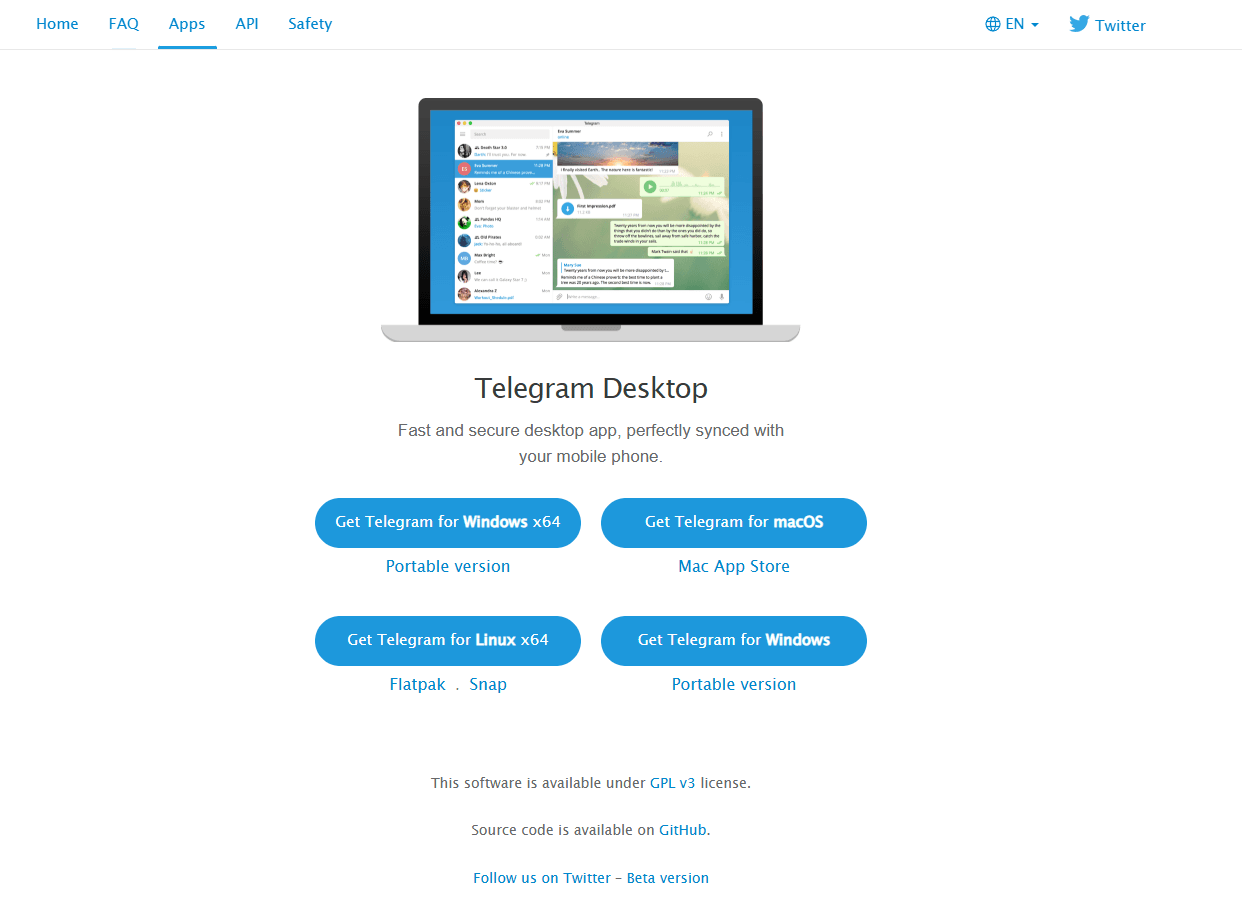
Go to the official page: https://desktop.telegram.org. Choose your OS. Install it like any normal app.
Step 2: Log in on Telegram Desktop
When you open Telegram Desktop, you will again get two login choices:
● QR code
● Phone number
Use the same steps as above.
QR login is usually:
● Telegram mobile app → Settings → Devices → Link Desktop Device → scan QR
Step 3: Basic setup you should do right away
Once logged in, I usually do these in the first two minutes:
● Turn on Dark Mode if you work at night
● Set notification behavior (Desktop notifications can get loud fast)
● Pin your important chats
● Check Downloads folder location so you know where files go
Desktop is also where Telegram feels more like a workstation tool. Drag and drop files, keep it running, jump between chats quickly. It is just smoother.
Managing multiple Telegram accounts on PC (without getting logged out)
Here is where things get messy.
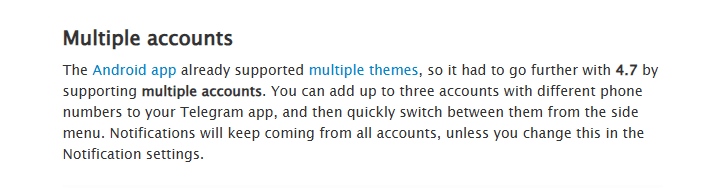
Telegram Desktop supports multiple accounts (commonly up to 3). Switching is built in.
But Telegram Web inside one normal browser profile is not great for multiple accounts. If you try logging into another account in the same browser context, you can end up logging out the first one. Cookies collide, sessions overwrite. It is not always consistent, but it is annoying when it happens.
What you can do for basic multi account use
If you only need two accounts occasionally:
● Use Telegram Web in one browser, and Telegram Desktop for the other account
● Or use two different browsers (Chrome for account A, Firefox for account B)
● Or use Incognito for one account, normal window for the other
This works, but it is fragile. You will eventually mix sessions or forget which window is which.
The clean way: isolated browser profiles per account
If you are managing multiple Telegram accounts seriously (teams, client accounts, regional accounts), you want fully isolated sessions. Separate cookies, separate storage, separate fingerprints.
This is where anti detect browsers come in.
BitBrowser for Telegram Web: Clean Separation for Multiple Accounts
BitBrowser is designed to run multiple isolated browser profiles, allowing each profile to function as its own independent browser environment with separate cookies, cache, local storage, and fingerprint configuration. This browser isolation for best privacy ensures that your online activities remain secure and private.
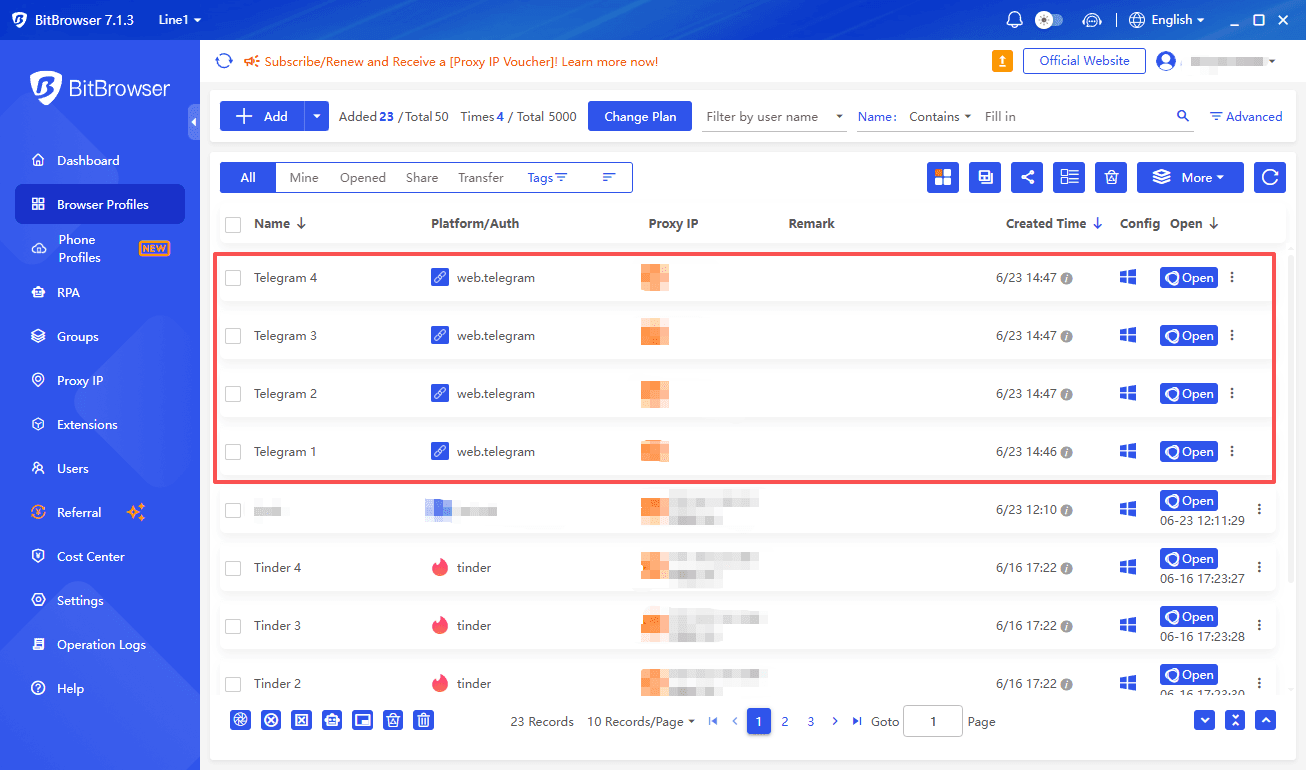
Instead of juggling 5 Telegram Web accounts within one browser and risking potential issues, you can easily manage:
Profile 1 → Telegram account 1
Profile 2 → Telegram account 2
Profile 3 → Telegram account 3
This setup guarantees no overlap, surprise logouts, and keeps everything organized.
Why BitBrowser Fits Telegram Web Use Cases
There are several reasons why BitBrowser works exceptionally well for Telegram Web, especially in a fast-paced digital landscape where users frequently switch devices:
● Real Profile Isolation: Each Telegram login remains in its own container, providing true separation and security.
● Fingerprint Control: Manage device type, OS, language, resolution, time zone, fonts, WebRTC. This feature helps maintain consistent profiles instead of presenting a strange rotating setup every day.
● Proxy Support: Assign different proxies per profile if you need clean separation across accounts.
● Team Workflows: Profiles can be grouped and managed more easily than a clutter of browser windows.
This functionality is particularly beneficial for frequent travelers, remote workers, or individuals managing multiple brands or communities on Telegram.
Basic BitBrowser Setup for Multiple Telegram Web Accounts
The setup process is straightforward:
1. Install BitBrowser on your PC.
2. Create a new browser profile for each Telegram account.
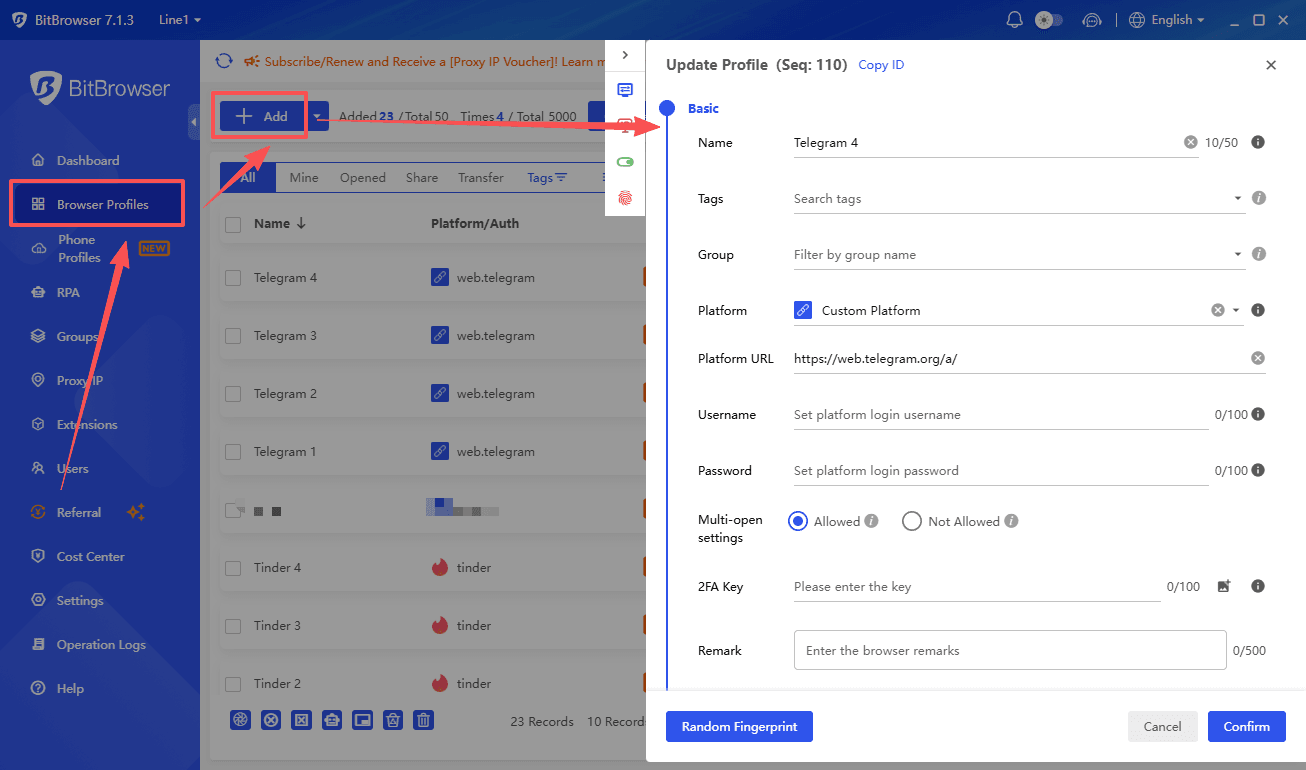
3. Configure fingerprint details (or use defaults if heavy customization isn't necessary).
4. Optionally assign a proxy to each profile.
5. Launch the profile. Go to https://web.telegram.org.
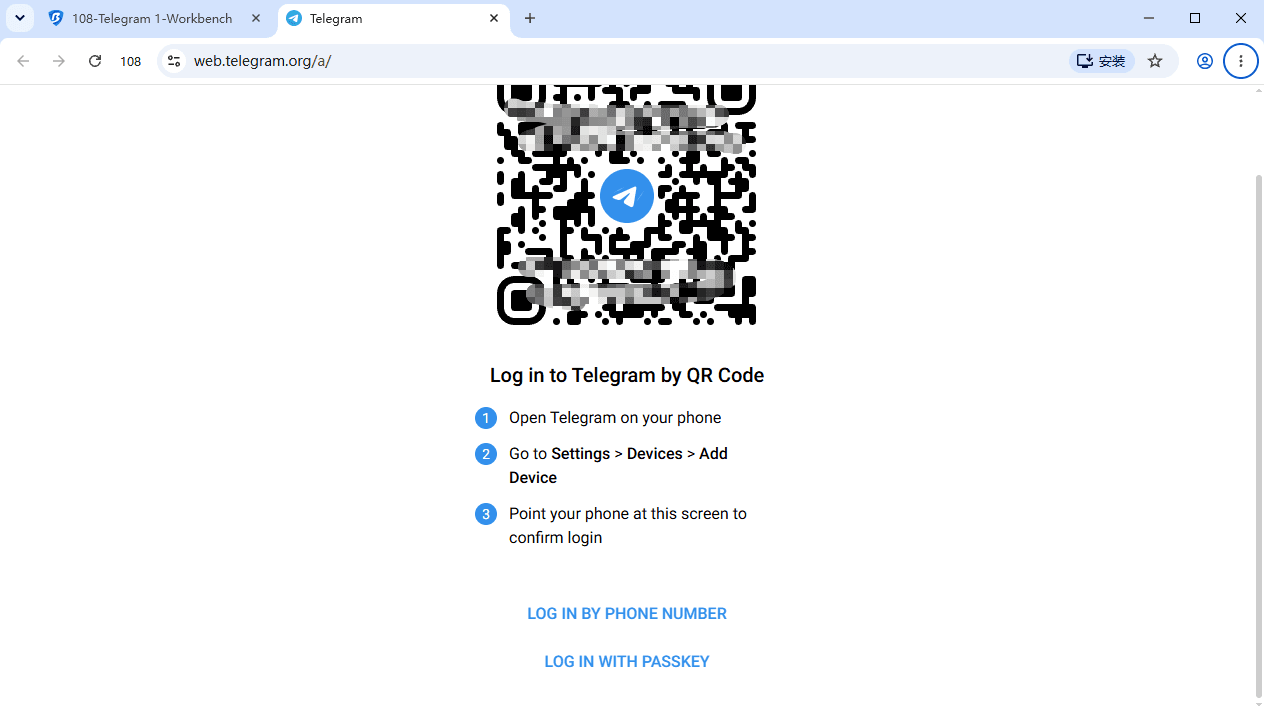
6. Log in via QR code or phone number.
7. Repeat for the next profile.
Now each account stays logged in within its own profile, enabling you to open them side by side without collisions.
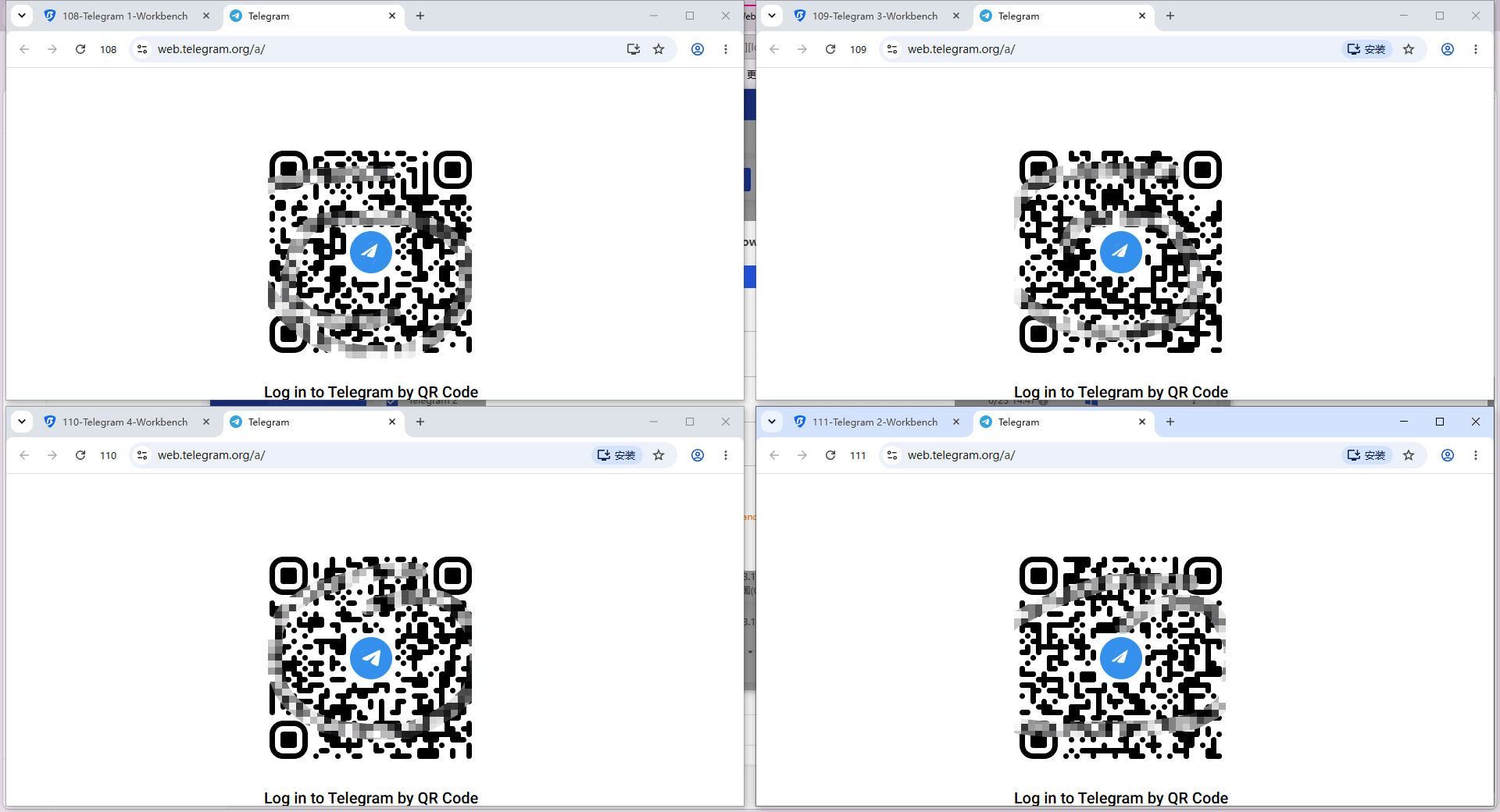
Additionally, this method aligns with recent findings in browser behavior analysis, which emphasize the importance of isolated browser environments in enhancing user experience and security online.
Common Telegram Web and Desktop issues (and quick fixes)
Problem 1: QR code will not scan
Try:
● Increase screen brightness
● Zoom browser to 90% or 100%
● Clean phone camera lens
● Use phone number login instead
Problem 2: Telegram Web loads but messages do not sync
Try:
● Refresh the tab
● Disable aggressive ad blockers for web.telegram.org
● Check if your network blocks Telegram traffic
● Try a different browser
Problem 3: No notifications in Telegram Web
Try:
● Allow notifications in browser site settings
● Check OS notification settings
● Keep the tab open (some browsers suspend background tabs)
● If you need reliable notifications, use Telegram Desktop
Problem 4: Logged in on a public PC and forgot to log out
Fix from phone:
● Telegram → Settings → Devices → terminate the web session
Conclusion
Using Telegram on a PC is simple, whether you choose Telegram Web for quick access or Telegram Desktop for a more complete experience. Both options let you stay connected across devices, manage chats efficiently, and access your files wherever you work.
If you only need occasional access, Telegram Web is usually enough. For daily communication, calls, and advanced features, Telegram Desktop is the better choice. And if you're managing multiple Telegram accounts, using separate BitBrowser environments can help keep sessions organized and avoid account conflicts.
Frequently Asked Questions
What are the main differences between Telegram Web and Telegram Desktop on PC?
Telegram Web runs inside your browser with no downloads, offering quick access and a lighter feature set. Telegram Desktop is a full app for Windows, macOS, and Linux providing the best experience with better calling support, easier multi-account switching (up to 3 accounts), more settings, chat export, and more stable notifications.
What features are not available on Telegram Web compared to Desktop or mobile apps?
Telegram Web does not support Secret Chats (mobile only), has limited voice and video calling features, lacks advanced privacy and security settings, cannot export chats, and notifications may be unreliable depending on browser and OS settings.
Does Telegram Web require my phone to stay online after logging in?
No. Unlike WhatsApp Web, after you log in once, the Telegram Web session becomes independent. Your phone does not need to stay online for the web session to keep working. The phone is only needed for initial login and some security checks.
Can I use multiple Telegram accounts simultaneously on one PC?
Telegram Desktop supports running up to 3 accounts simultaneously with easy switching. However, Telegram Web does not support multiple accounts within one browser profile effectively. For clean separation of multiple accounts on one PC, tools like BitBrowser can help.
How should I safely log out of Telegram Web on a shared or borrowed computer?
To log out safely from Telegram Web: open the menu (top left), go to Settings, then select Log out before closing the tab. If you forgot to log out, you can remotely terminate sessions from your phone by going to Telegram Settings > Devices and removing the active web session.

 Multi-Account Management
 Prevent Account Association
 Multi-Employee Management
Recommended
See More 



