Twitter Web Login: Complete 2026 Guide to Log in X Web Safely
 2026.03.03 13:36
 YT.Shi
Logging into X (yeah, most people still call it Twitter) on a browser is one of those simple things that somehow gets annoying the moment you’re in a rush. Captcha loops. “Unusual login” warnings. Password resets that never arrive. Or you’re managing multiple accounts for clients and suddenly you’re tiptoeing around shadowban risk like it’s a minefield.
So this guide is the clean, beginner friendly walkthrough. But I’ll also sprinkle in the stuff power users care about. Device fingerprint, IP patterns, session hygiene, and how not to accidentally trigger security systems when you’re doing serious work.
Does X/Twitter Have a Web Version?
Yes. X has a full web version that works in any modern browser, on desktop or mobile.
You access it by going to x.com (or twitter.com, which typically redirects). From there you can sign in, browse the feed, post, reply, manage DMs, and handle most account settings without installing an app.
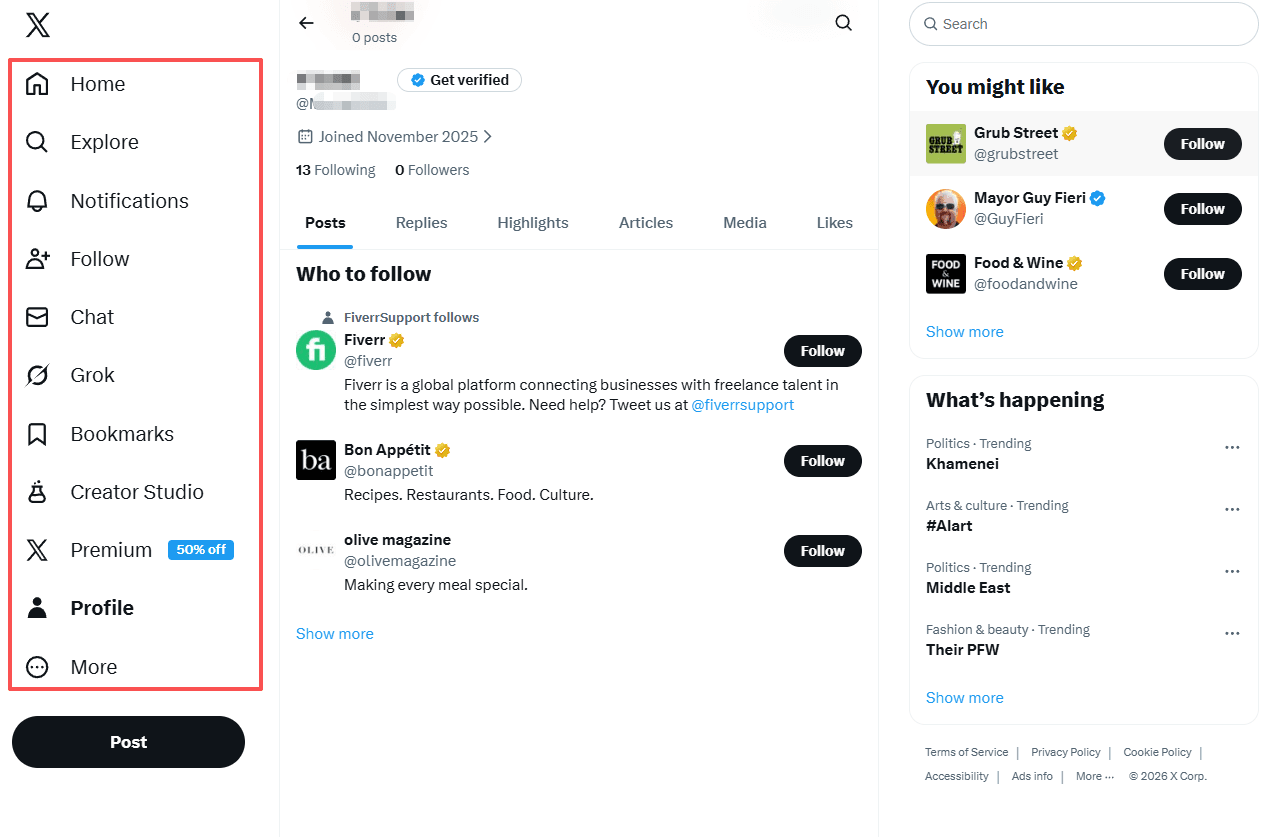
What X/Twitter Web actually is (and why it’s useful)
Think of X Web as the “browser app” version of Twitter. It’s not a stripped down portal. It’s basically the main product, just running in Chrome, Safari, Firefox, Edge, whatever you use.
A few reasons people stick with it:
● You can work faster with a keyboard and multiple tabs
● Easier account management, especially if you run multiple brands
● Less distraction than the mobile app (depending on your self control, honestly)
● Works well with desktop tools like spreadsheets, Canva, CRM systems, Notion, etc
And yes, X keeps adding and shifting things, but the core X Web login features are stable enough that most workflows still start in the browser.
Key Features of X/Twitter Web
The web version includes the stuff everyone expects. But it also has small advantages that don’t get talked about enough, especially for people who treat X like a work platform.
Below are the main Twitter Web login features, plus some practical upgrades and Twitter Web tips that make it feel less chaotic.
Real-time feed
Your Home feed updates in real time. You can:
● Scroll your timeline
● Switch to other timeline views (depending on what X is currently offering in your region/account)
● Open posts in new tabs for deep dives without losing your place
DMs (Direct Messages)
You can:
● Read and send DMs
● Share posts via DM
● Manage message requests (depending on your settings)
If you handle support, DMs on desktop are way faster.
Posting, reposting, liking, replying
All the basics are here:
● Post (tweet)
● Reply threads
● Repost/retweet
● Like
● Quote posts
For long threads, web is easier because you can draft in a doc, then paste and format without fighting a tiny phone keyboard.
Profile management
You can edit:
● Bio, display name, profile photo, header
● Links
● Location
● Professional info (if enabled on your account)
● Privacy and safety settings
Lists
Lists are one of the best features on X, especially if you hate noisy timelines.
Use Lists to:
● Track specific niches (crypto, ecommerce, local news, your industry)
● Follow competitors without following them publicly
● Monitor customers or brand mentions more intentionally
Bookmarks
Bookmarks are underrated. On web, they’re even more useful because you can:
● Bookmark research posts
● Save competitor promos
● Store ideas for later threads
● Keep “reply later” items in one place
Step-by-Step Twitter Web Login Process
This is the actual walkthrough. If you just need to sign in and move on, follow this and you’re good.
These steps cover Twitter Web login in 2026, and the flow is basically the same whether you call it Twitter or X. This is also your X Web login step by step section, in plain English.
1. Open the official site
In your browser, go to:
https://x.com or https://twitter.com (usually redirects to x.com)
Tip: if you’re on a shared device, use a private/incognito window to avoid auto sign in confusion.
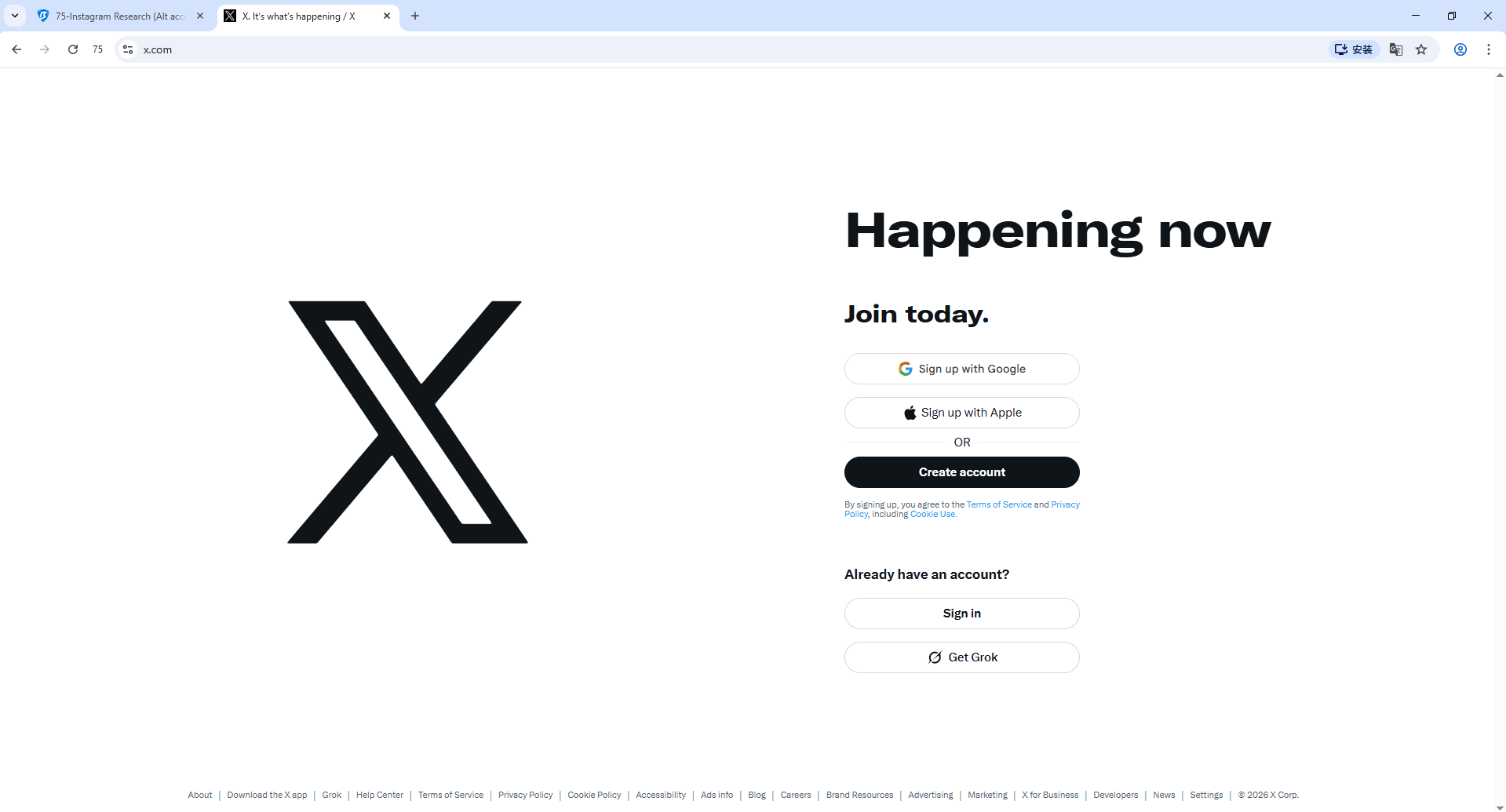
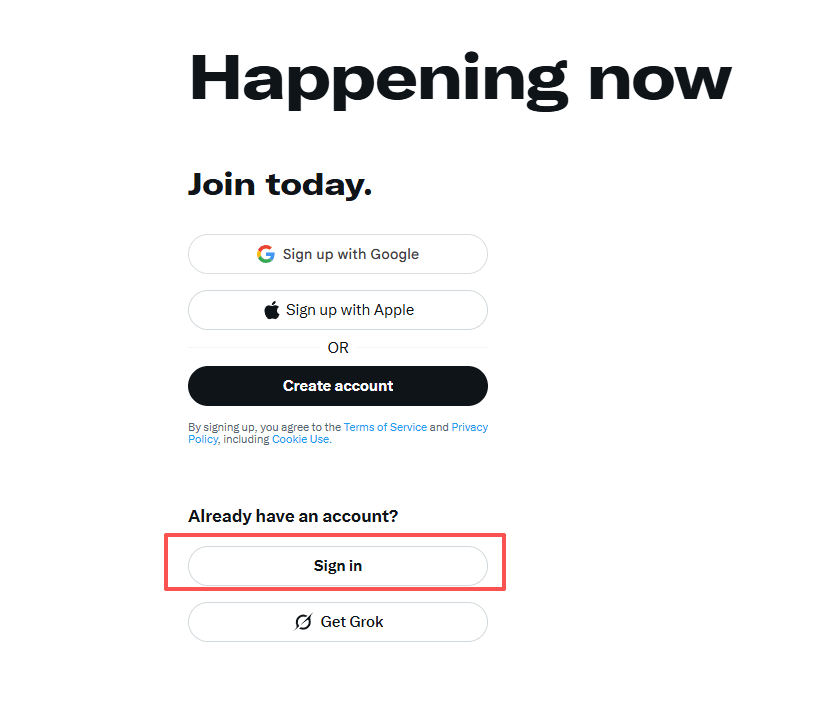
2. Click “Sign in”
On the homepage, look for: Sign in (sometimes shown as “Log in”)
Click it.
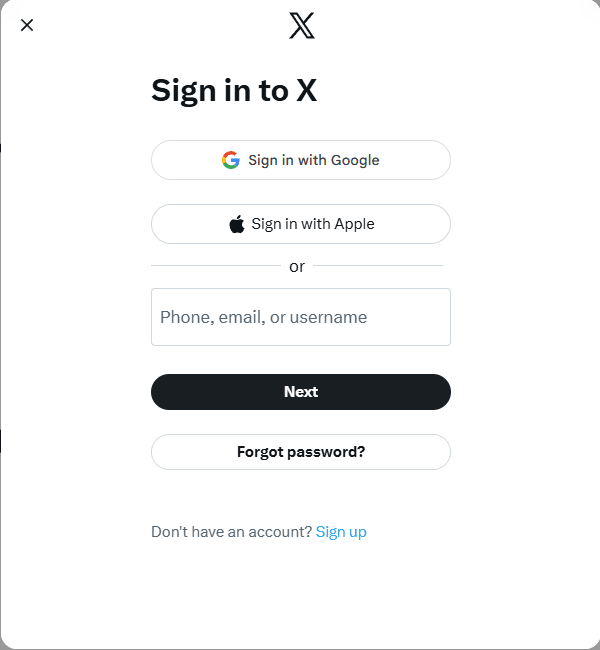
3. Enter your identifier
X may ask for one of the following:
● Username (handle)
● Email address
● Phone number
Enter the one tied to your account, then continue.
4. Enter your password
Type your password, then click Log in.
Basic but important: if your password manager fills the wrong credentials (happens more than you’d think), manually select the right entry.
5. Complete extra verification (if prompted)
Depending on your account security and risk signals, you may see:
● Email verification code
● SMS code
● Authenticator app code (2FA)
● Captcha / “I’m not a robot”
● “Confirm it’s you” prompts
Complete the prompt and proceed.
Optional: Sign in with Google or Apple (tips that prevent headaches)
If your account is connected, you may see:
● Sign in with Google
● Sign in with Apple
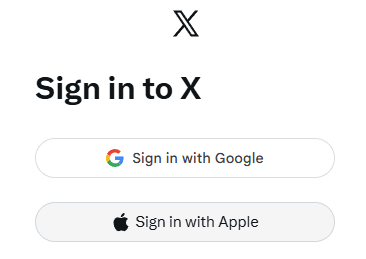
A couple of practical tips:
● Use the same browser profile you originally connected with, if possible. Switching environments can trigger extra verification.
● If you used Apple’s “Hide My Email,” make sure you still have access to the forwarding inbox. People forget this and then wonder why codes never arrive.
● If Google login loops, clear cookies for x.com and try again, or try another browser temporarily.
How to notice an unusual login before it becomes a lockout
X is sensitive to patterns. If you’re logging in from:
● a new country
● a new device
● a new browser
● a new IP range (especially datacenter or VPN)
● a “noisy” network (public Wi-Fi)
…you might trigger unusual login checks.
After you log in, do a quick safety check:
1. Go to Settings and privacy
2. Find Security and account access
3. Look for Apps and sessions (wording can vary)
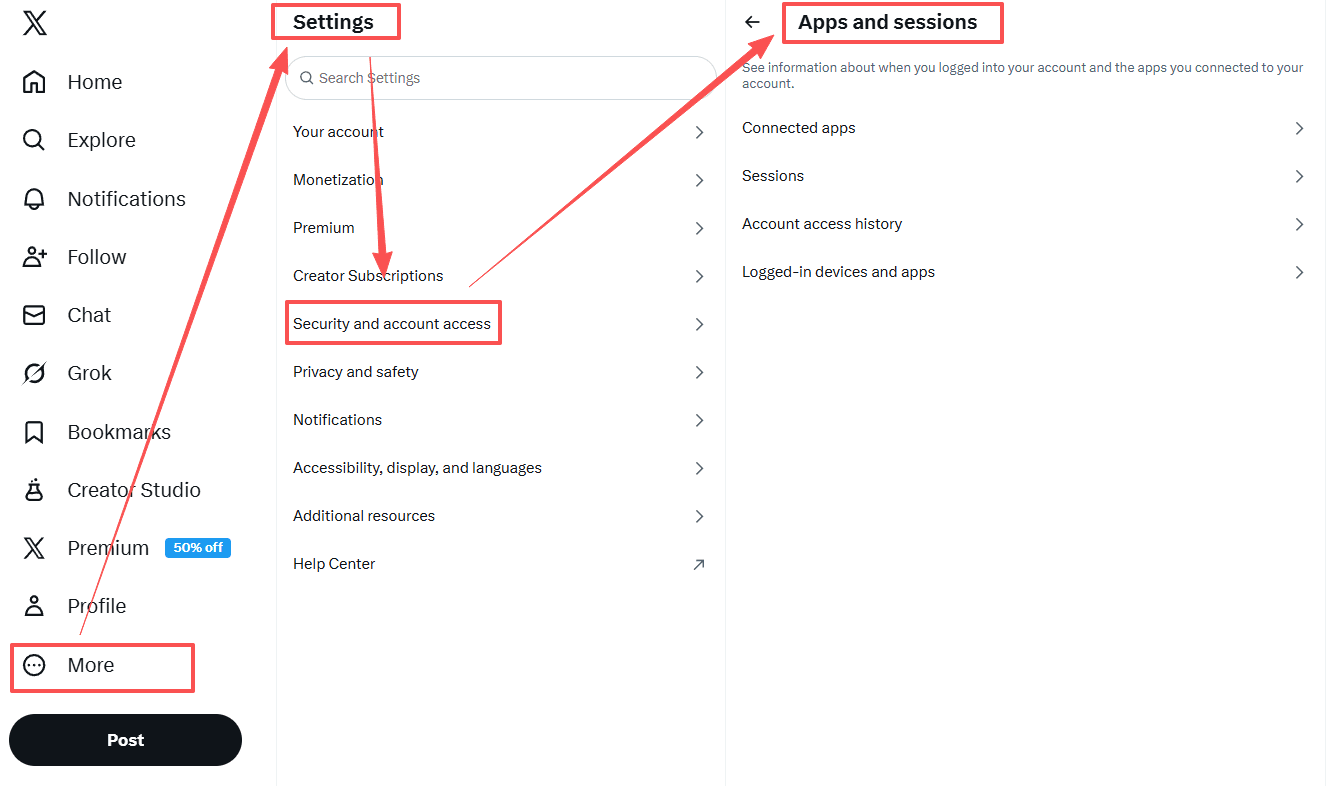
4. Review active sessions you don’t recognize
5. Log out of suspicious sessions and change your password if needed
If you manage brand accounts, do this regularly. Not every week, but often enough that you’ll actually notice weird activity.
Common Twitter Web Login Errors and Fixes
Login issues usually fall into a few buckets. Network. credentials. verification. security flags. Or your browser is doing something weird.
Here are the most common problems and what to do.
| Issue | Symptoms | Common Causes | Quick Fixes |
|---|---|---|---|
| Network errors | Blank page, infinite spinner, “Network error” | Network down, VPN, browser extensions | Check X status; switch network; disable VPN; clear cache; try another browser; disable ad/script blockers |
| Wrong password | Password rejected | Old autofill, wrong saved password | Check password manager; reset via “Forgot password”; clear autofill |
| Unusual login / blocked attempt | “Unusual login activity” or blocked | New device/IP, multiple attempts, VPN | Complete verification; wait 10–30 min; stick to one VPN/location; avoid frequent account switching |
| Captcha loop | Captcha repeats endlessly | Shared VPN, public Wi-Fi, extensions | Disable ad/script blockers; clear cookies; try another network/browser; avoid shared VPN |
| 2FA not working | Codes invalid or expired | Time drift, SMS delay | Enable auto time; use backup codes; wait for SMS; check carrier blocks |
| Verification code not received | Email or SMS never arrives | Spam filters, forwarding, delay | Check spam; search inbox; try alternate method; wait and retry |
| Account locked / restricted | Limited actions after login | Automated/risky behavior | Follow on-screen unlock steps; pause mass actions; remove suspicious apps; keep IP/browser consistent |
| Features not working | DMs, posts, buttons broken | Cache, extensions, account limits | Hard refresh; clear cache; disable extensions; try another browser; check account restrictions |
For a full step-by-step walkthrough, check out How to Fix X (Twitter) Login Issues in 2026? A Step by Step Guide.
How to Register a New X/Twitter Web Account
Creating a new account on X Web is simple:
1. Go to X/Twitter: Visit x.com.

2. Click "Create account": Start the registration process.
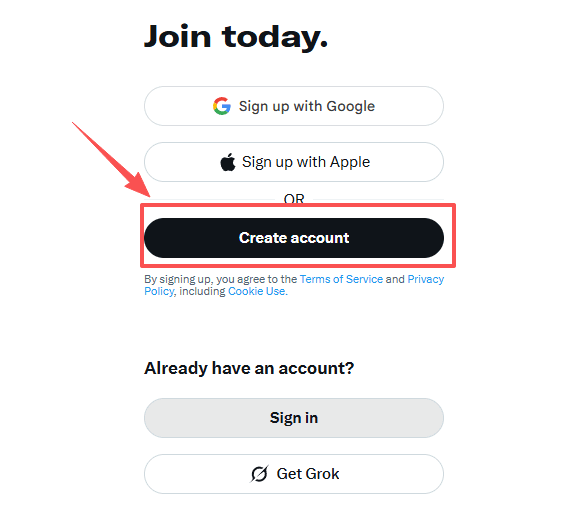
3. Fill Out Your Information: Enter name, email address, and date of birth.
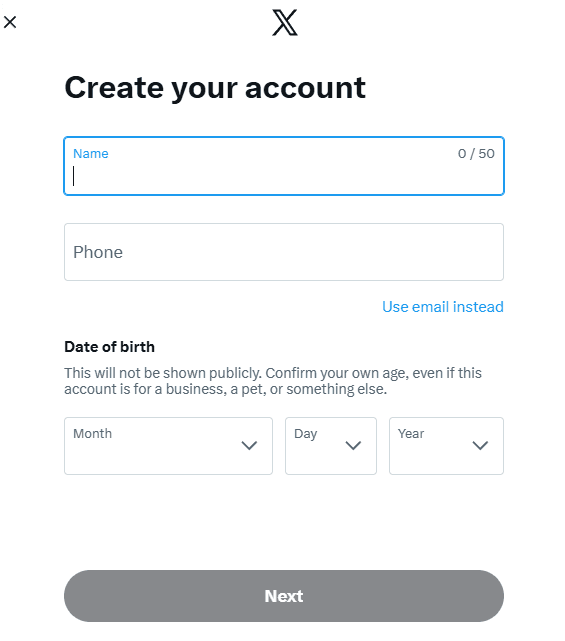
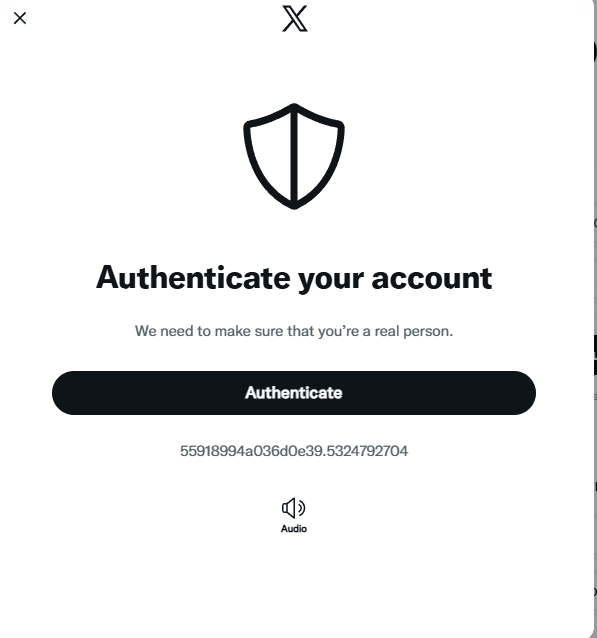
4. Authenticate: Complete CAPTCHA or image selection to verify you’re human.
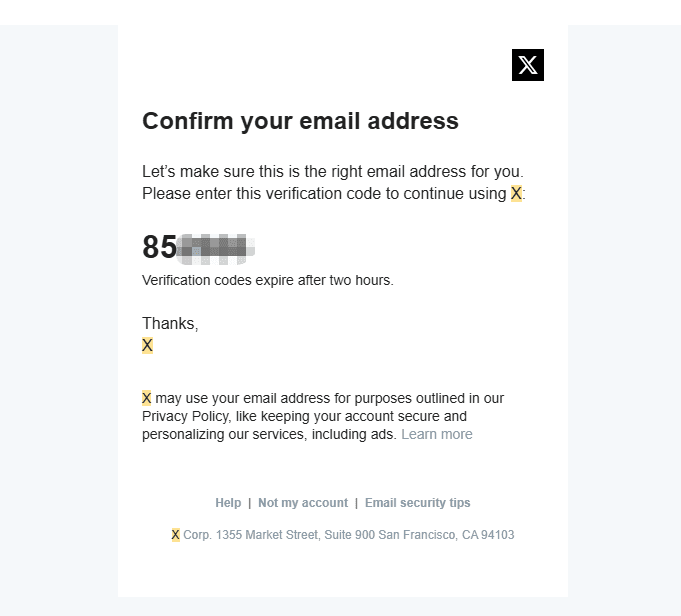
5. Verify Account: Enter the code sent via SMS or email.
6. Create a Strong Password: Use a mix of letters, numbers, and special characters.
7. Customize Your Profile: Add a profile picture, bio, and interests.
8. Follow Suggested Accounts: Choose to follow accounts based on your interests.
9. Start Tweeting: Engage with the X community.
Security Tip: Enable two-factor authentication for added protection.
Managing Multiple X/Twitter Web Accounts Securely
For agencies, e-commerce brands, and social media managers, handling multiple accounts through X Web login is common.
This is also where problems usually begin.
Not always a direct ban. Sometimes it’s an shadowban: your account is not suspended, but reach drops, engagement shrinks, and visibility quietly decreases.
Practical Account Hygiene Tips
If you manage multiple accounts, keep it clean:
● Avoid logging many accounts in one single browser profile
● Do not switch countries constantly using random VPN nodes
● Keep a stable IP per account
● Maintain consistent browser environments
Sudden changes in IP, device fingerprint, or login rhythm increase the risk of account linking.
Using BitBrowser for Cleaner Separation
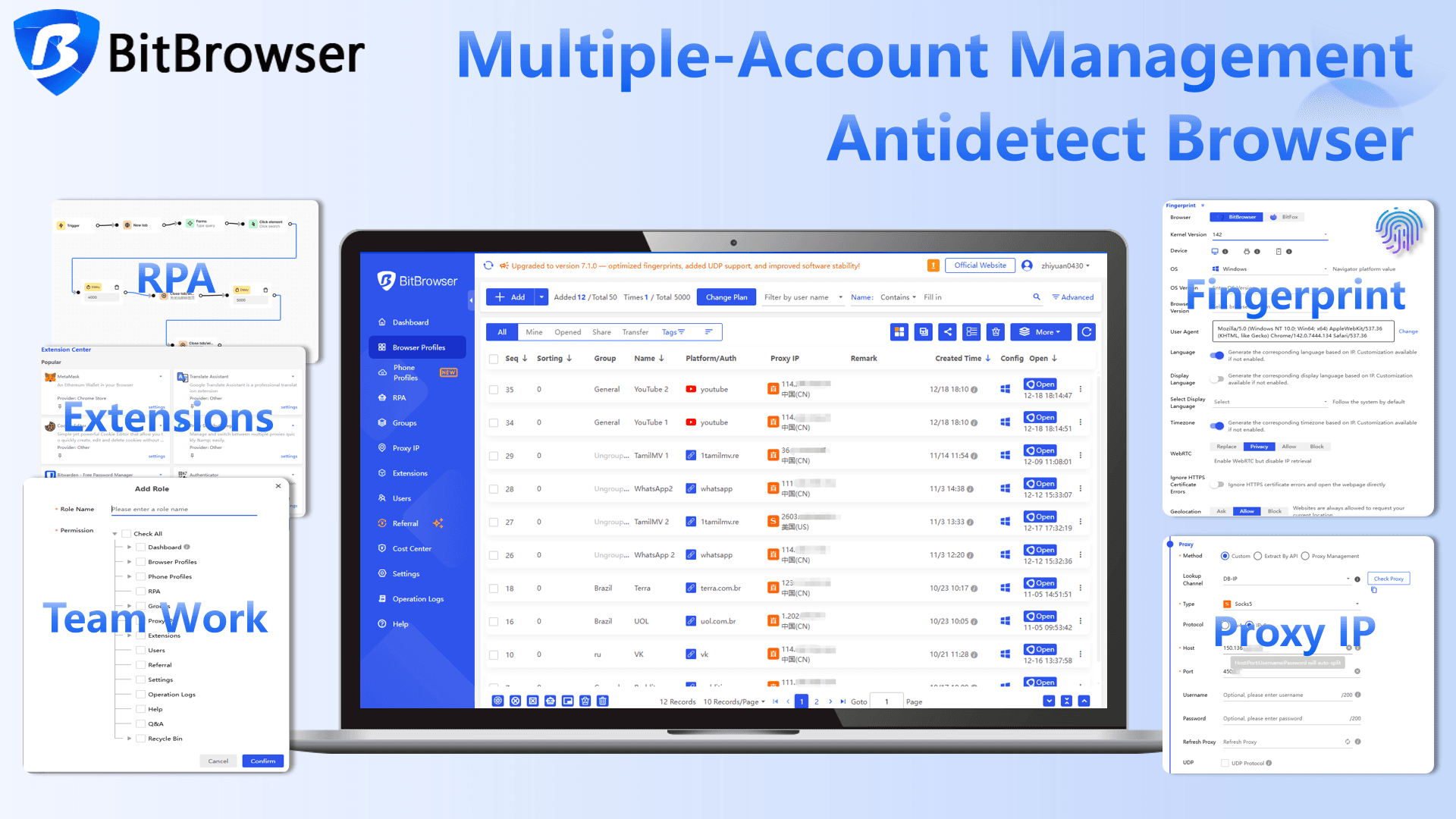
When stronger separation is needed, an antidetect browser like BitBrowser can help.
Not for trickery. For structure and stability.
Get 10 browser profiles permanently free
BitBrowser allows you to:
1. Create isolated browser profiles per account
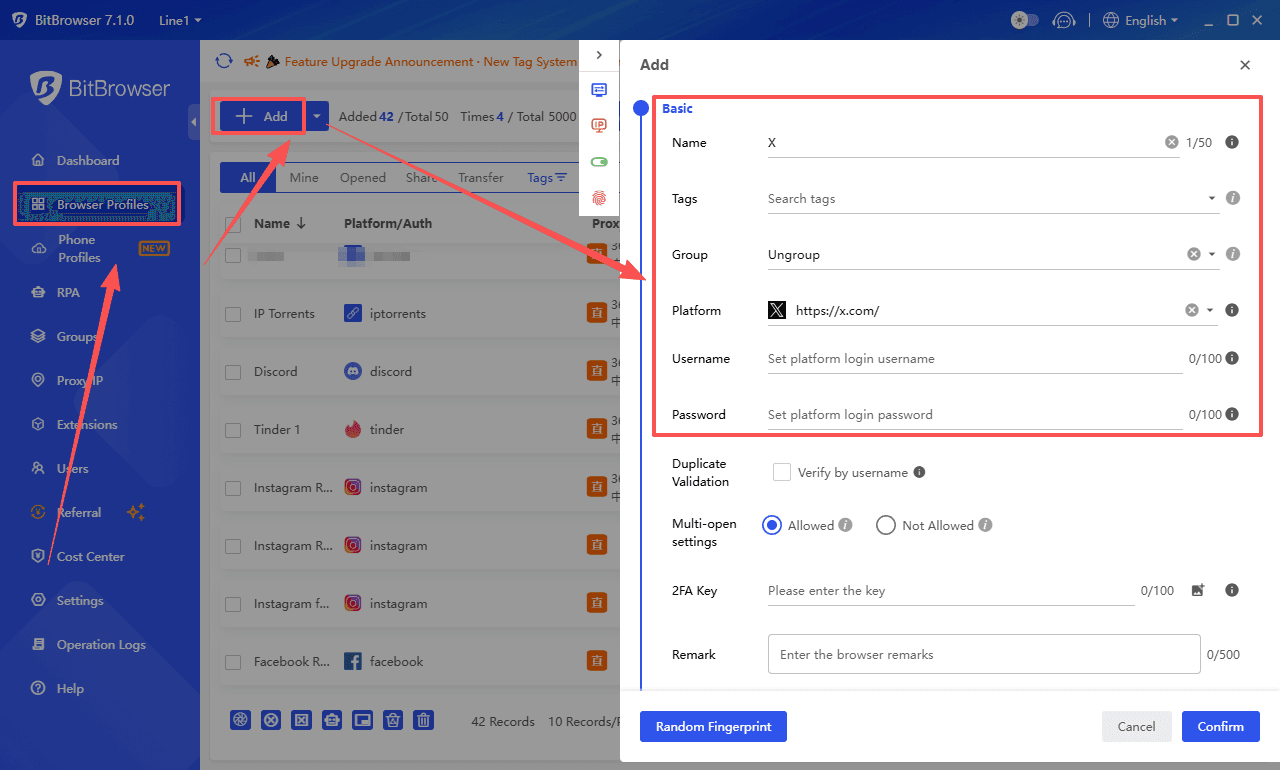
2. Integrate dedicated proxy IPs into each profile
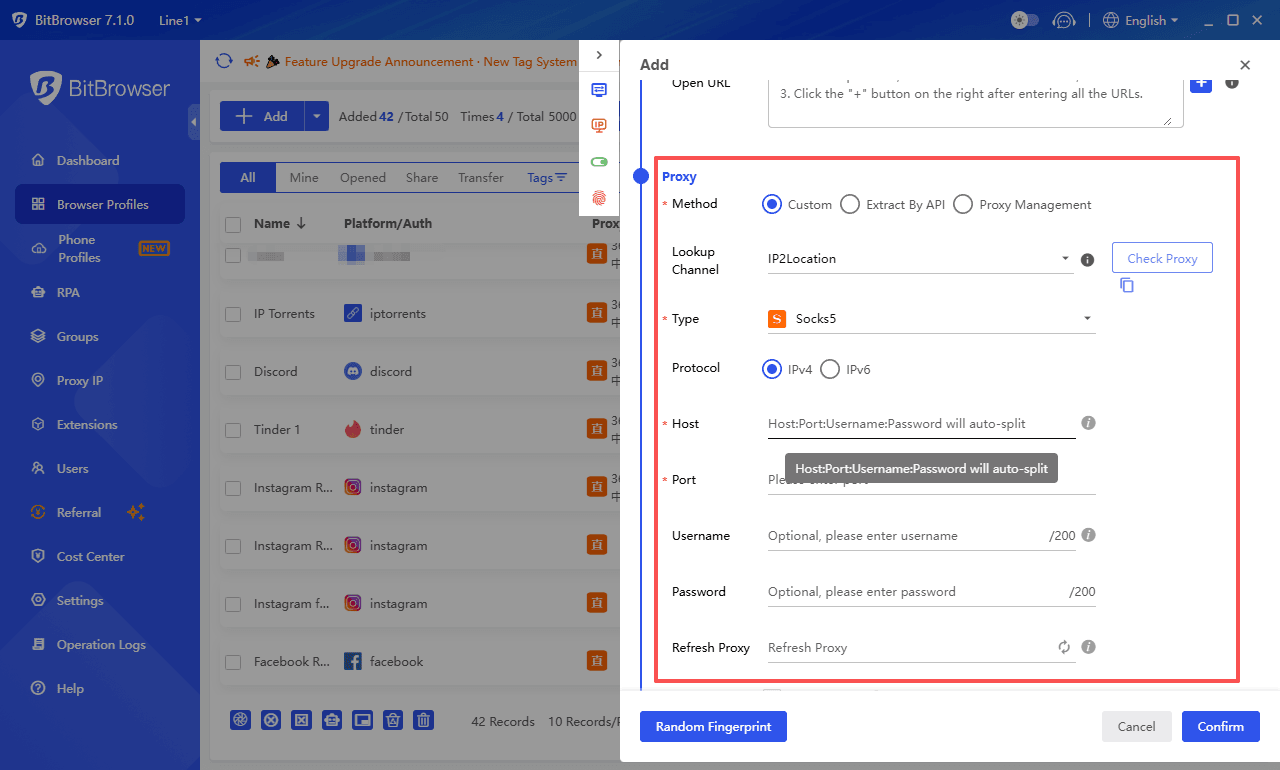
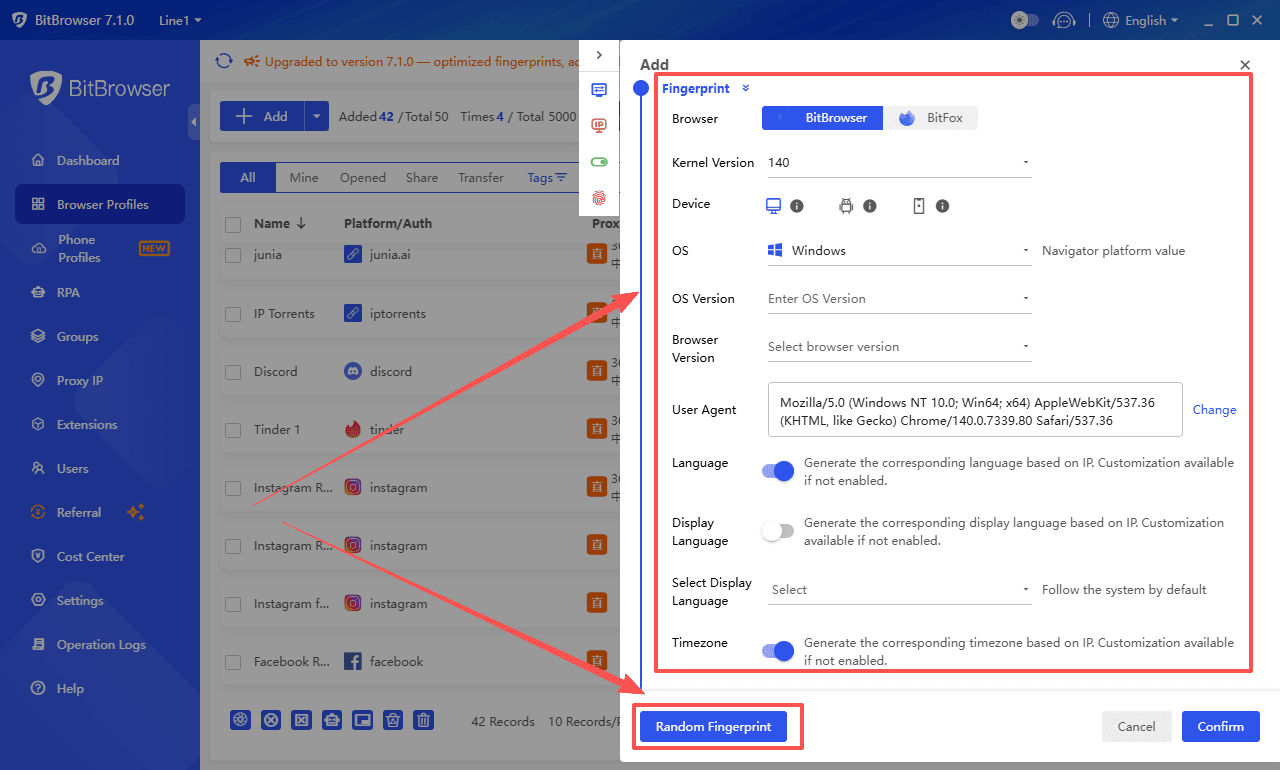
3. Control fingerprint settings. Beginners to anti-detect browsers can directly select the "Random Fingerprint" option to generate a unique and consistent fingerprint configuration with a single click.
4. Keep cookies and sessions separated and reduce accidental cross-account contamination
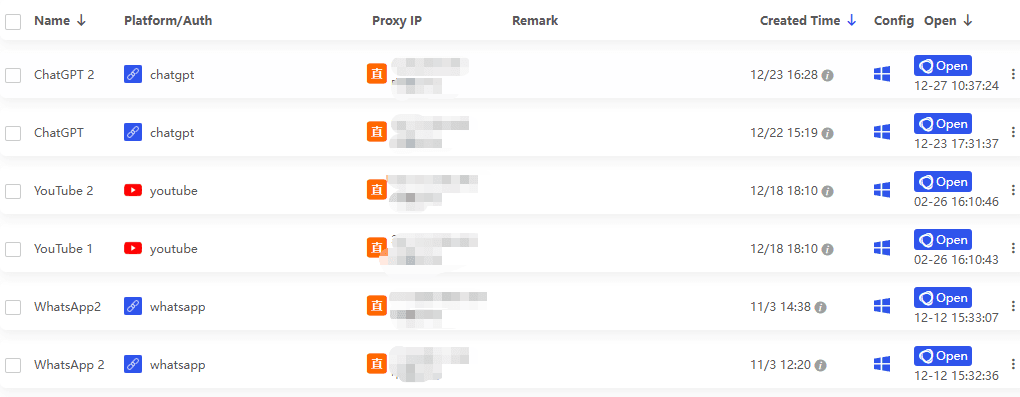
For professional multi-account operations, this setup improves stability and lowers the risk of bans.
Get 10 browser profiles permanently free
Conclusion
Twitter Web login doesn’t have to be complicated. Once you understand the X Web login process, common login errors, and basic security practices, signing in becomes quick and predictable.
Whether you’re accessing a single profile or handling multiple accounts, keeping stable IP settings and clean browser environments helps you complete your Twitter Web login securely and reduce the risk of restrictions or shadowban.
With the right setup, X Web login stays simple, stable, and stress‑free.
FAQs About Twitter Web Login
1. How do I log in to X Web on a browser?
Go to x.com (or twitter.com), click Sign in, enter your username/email/phone and password, then complete any verification steps if prompted.
2. Why am I seeing an “unusual login” warning?
This usually happens when you log in from a new IP, device, browser, or country. Keep your login environment stable and avoid frequent VPN switching to reduce risk signals.
3. What should I do if Twitter Web login keeps looping on captcha?
Clear browser cookies for x.com, disable extensions or VPN temporarily, switch networks, or try another browser profile.
4. Can logging into multiple accounts cause a shadowban?
Yes. Logging many accounts from the same IP or browser fingerprint can trigger linking signals, which may lead to reduced reach or account restrictions.
5. How can I manage multiple X Web accounts more safely?
Use separate browser profiles, assign a dedicated proxy IP per account, keep login behavior consistent, and avoid rapid switching between accounts or locations.

 Multi-Account Management
 Prevent Account Association
 Multi-Employee Management
Recommended
See More 



