How to Create Multiple Gmail Accounts with BitCloudPhone
 2026.11.10 10:32
 YT.Shi
Creating multiple Gmail accounts can help you keep personal messages, client communication, and different projects separate.
One practical approach is to use separate cloud phone environments for different Gmail accounts. You can access them from one computer and keep each account's mobile apps and login sessions organized without maintaining several physical phones.
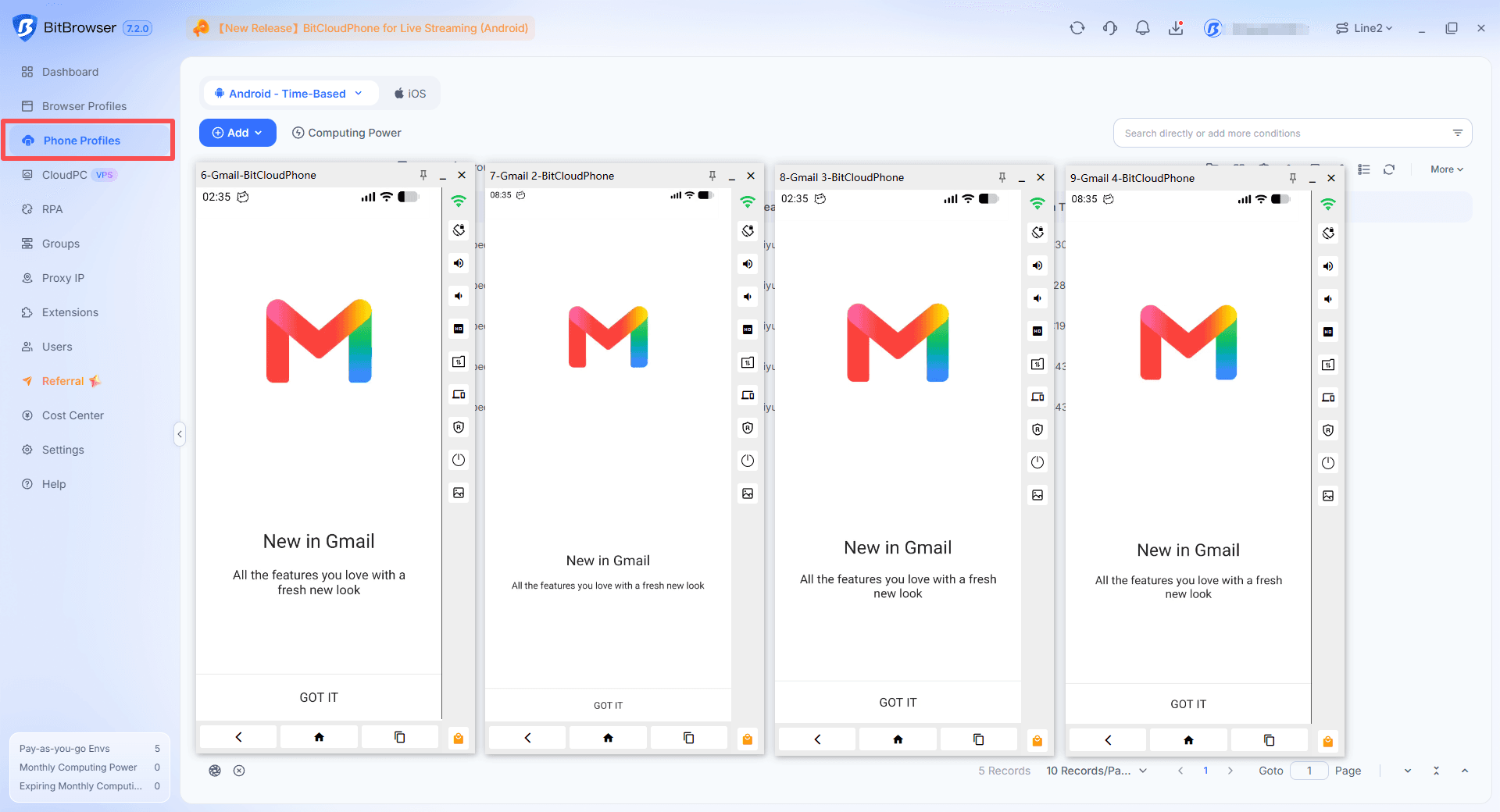
In this guide, we'll walk through how to create multiple Gmail accounts with BitCloudPhone, handle verification prompts, and manage the accounts after registration. The steps below focus on Android cloud phones.
Get Started with BitCloudPhone
Why Create Multiple Gmail Accounts?
A single inbox can become difficult to manage when it handles everything from personal subscriptions to client requests. Separate Gmail accounts give different activities their own inboxes, login details, and notification settings.
Common reasons to use multiple Gmail accounts include:
▸ Personal and work communication: Keep everyday messages separate from professional conversations.
▸ Different projects: Give each project a dedicated inbox so messages and account notifications are easier to find.
▸ Testing and QA: Use designated test accounts for authorized app testing without filling your main inbox with test messages.
▸ Mobile app workflows: Keep project-specific email and related Android apps together in one environment.
Before adding another account, decide what it will be used for and who will maintain it. A clear purpose makes it easier to choose a name, organize access, and decide when the account is no longer needed.
Can You Create Unlimited Gmail Accounts?
Google may require phone verification during registration or sign-in. Its verification guidance confirms that number usage is limited, without publishing a fixed allowance that applies to everyone.
BitCloudPhone provides the Android environment where you access an account. Google still controls registration, verification, and access to Gmail.
What You Need Before Creating Multiple Gmail Accounts
Prepare your account details and cloud phone setup before starting. This helps you complete one account at a time without mixing up passwords, recovery information, or device assignments.
1. Account Details and a Password Manager
Decide on the purpose of each account and prepare a few possible Gmail usernames. Use accurate registration information and a different strong password for every account. Store credentials in a password manager. Keep a separate organizational record showing which Gmail address belongs to which cloud phone.
2. Recovery Information
An cloud phone doesn't includes an SMS-capable telephone number. Have an accessible recovery email ready, along with a phone number you control if verification is requested. Think beyond the first login: you may need these recovery methods months later.
3. A BitCloudPhone Android Environment
BitCloudPhone lets you access cloud-based Android environments from your computer. Assign one cloud phone to each Gmail account.
4. A Working Network Connection
Prepare the network settings required by your cloud phone configuration. If you use a proxy, have its address, port, and authentication details ready, and test the connection before opening Google's registration page.
How to Create Multiple Gmail Accounts with BitCloudPhone
Start by setting up one Android cloud phone and completing one Gmail registration.
Menu labels can vary with the BitBrowser client version, Android version, and Google sign-in screen.
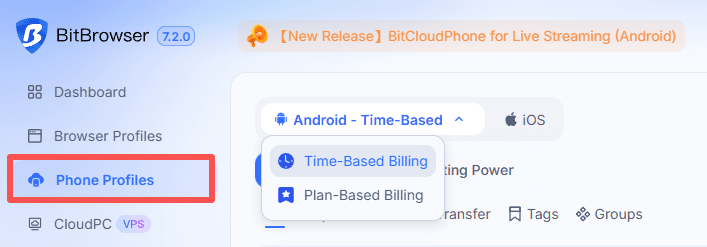
Step 1: Open the Android Cloud Phone Section
Log in to the BitBrowser client and open the Android section under your phone profiles. From here, you can manage existing cloud phones or create a new environment.
Choose an available plan or computing configuration suitable for your workflow. If you are setting up Gmail for the first time, begin with a single environment to check compatibility.
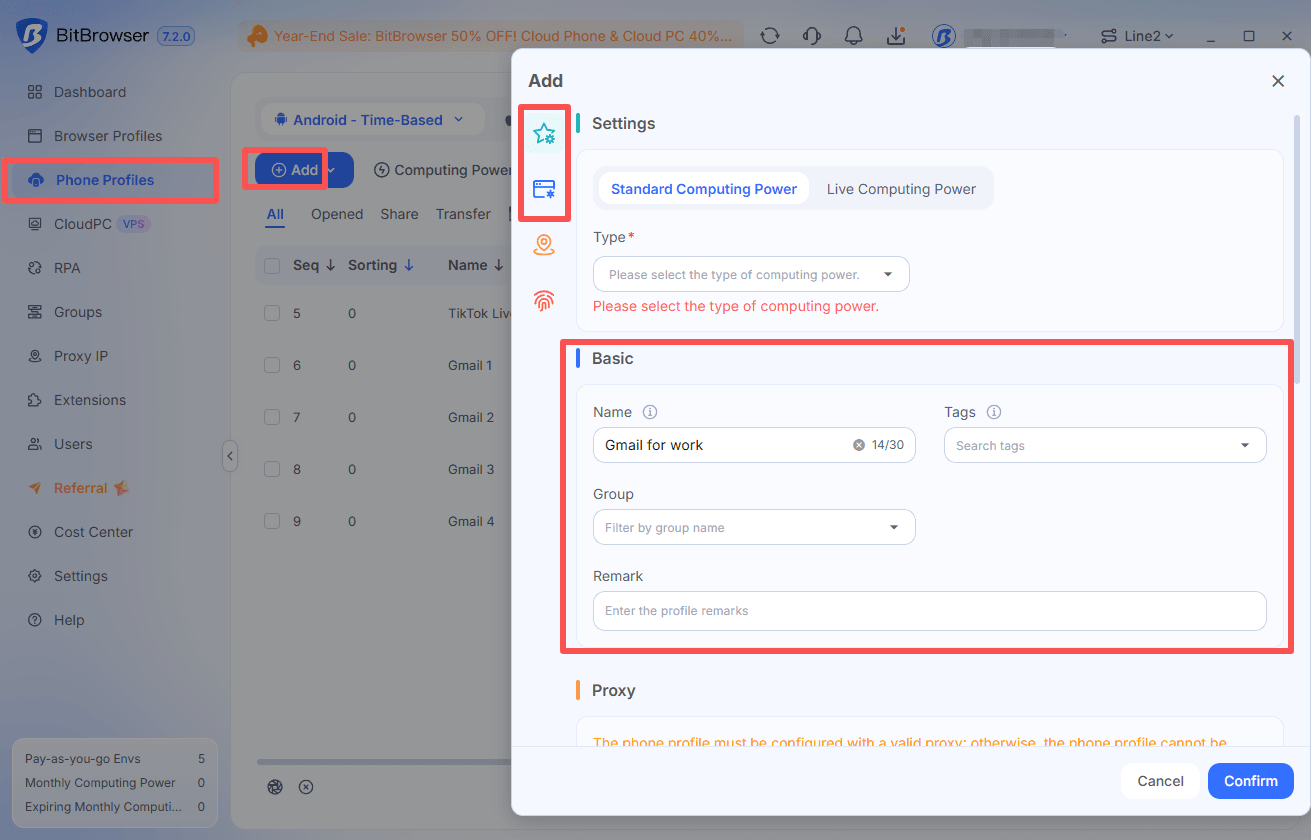
Step 2: Create and Name the Cloud Phone
Create an Android cloud phone profile and configure the available device settings. Give it a clear name, such as Gmail for Work or Gmail - App Testing.
Use the same naming pattern for future profiles. A descriptive name makes it easier to open the correct device without checking every inbox.
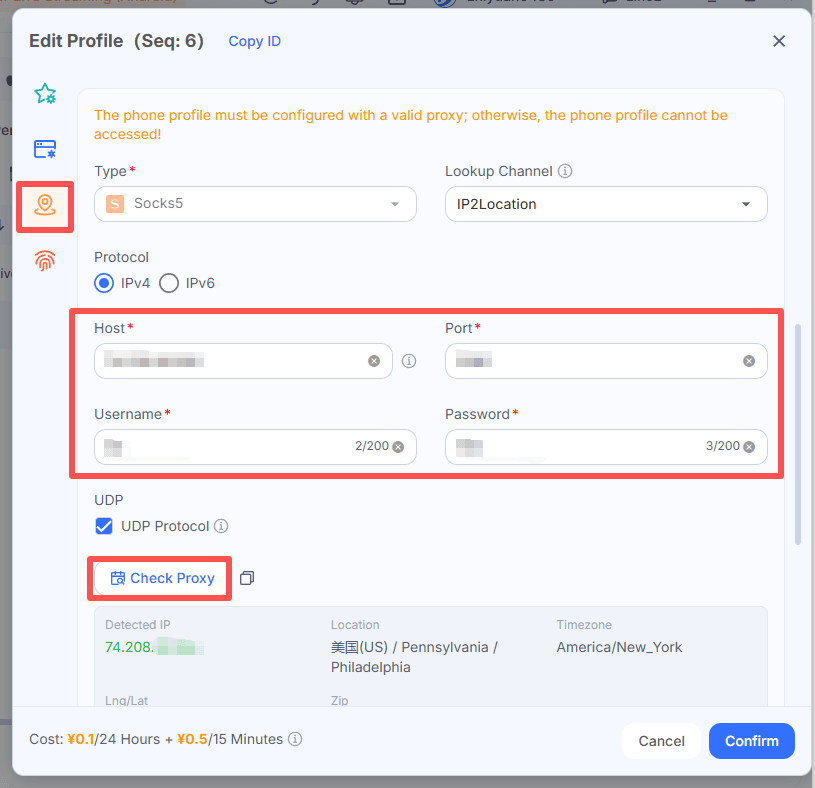
Step 3: Configure the Network and Start the Device
Enter the network or proxy settings required by your chosen configuration. Check the connection, save the profile, and start the cloud phone.
Once the Android interface opens, check that it can load a webpage. Resolve connection errors before starting registration so a network problem is not mistaken for a Google account issue.
Step 4: Open Google Account Setup
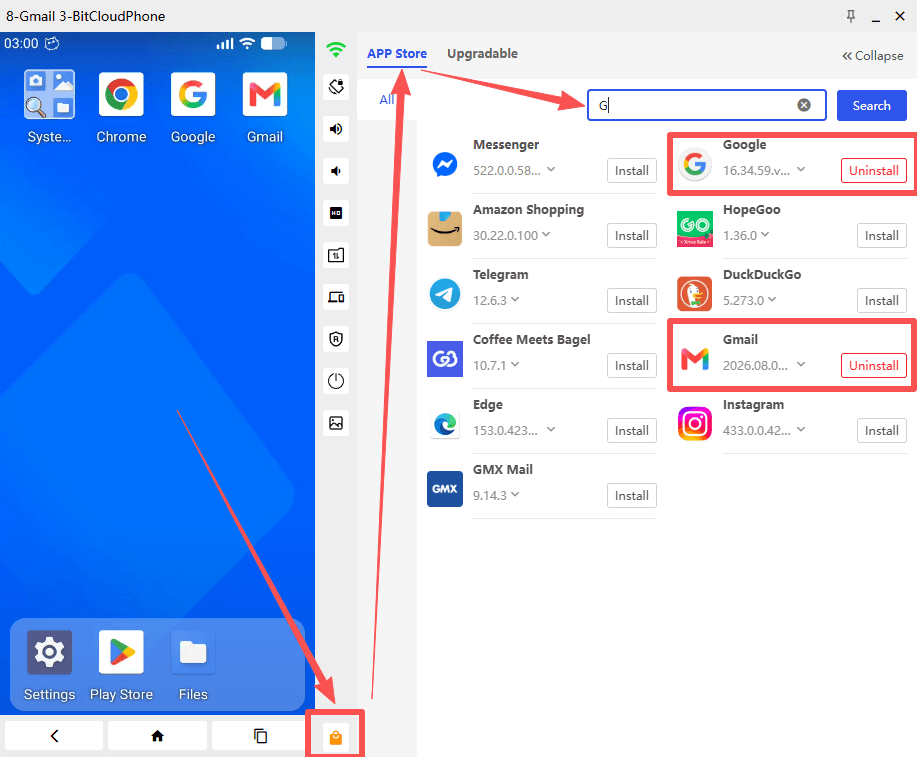
In the Android cloud phone window, click the orange shopping bag icon at the bottom to open BitCloudPhone’s built-in APP Store. Search for Gmail and click Install. You can also search for and install the Google app from the same panel.
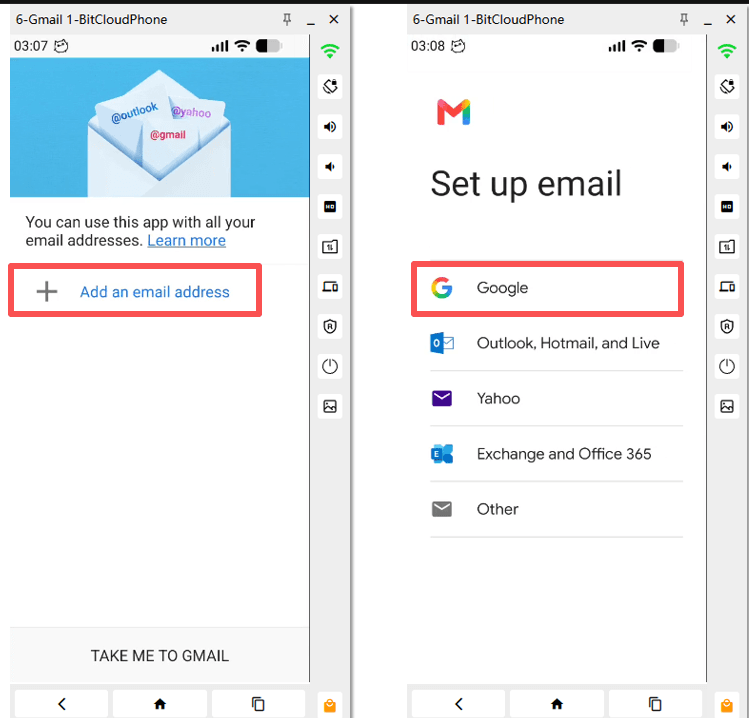
Open Gmail and choose Add an email address, then select Google. If an account is already signed in, tap the profile picture in the top-right corner, select Add another account, and choose Google to open the Google sign-in screen.
Step 5: Create Your Gmail Account
Select Create account and choose the account type. Enter your personal details, choose a new Gmail address, and set a strong password. If you already have an account, sign in instead.
Step 6: Complete Verification and Setup
Complete any verification Google requests, add recovery information, and review the terms to finish registration. Open Gmail and confirm that your inbox loads.
Step 7: Save Account Details and Add More Accounts
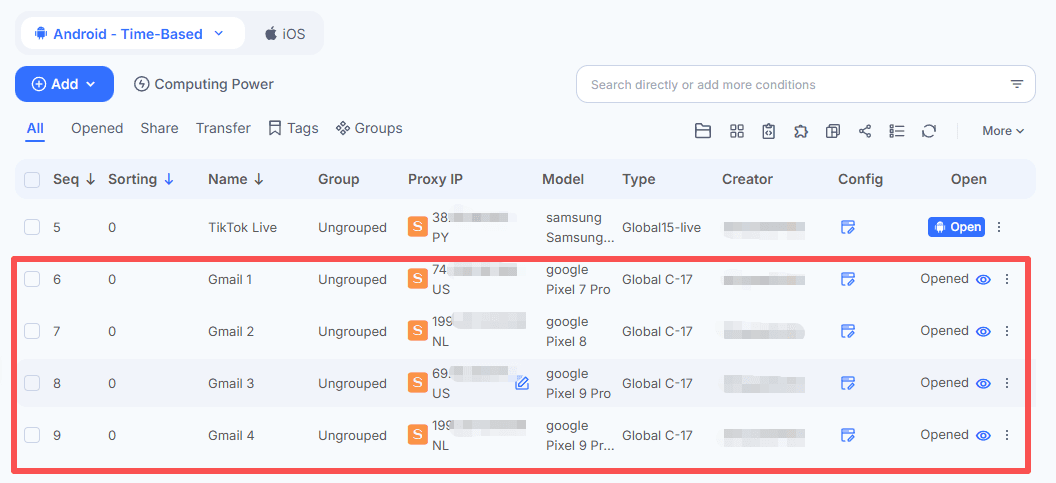
Save your credentials in a password manager and record the assigned cloud phone and proxy. When creating multiple Gmail accounts, use a separate cloud phone and a different proxy for each account. Keep these assignments consistent, and avoid mixing account details or proxy settings across cloud phones.
What If Gmail Registration or Verification Does Not Work?
A connection failure, a missing Google service, and a rejected phone number need different fixes.
▸ The Google page does not load: Check whether other websites open inside the cloud phone, then review its network settings.
▸ Google sign-in is missing or crashes: Check Google services compatibility and available updates.
▸ The username is unavailable: Choose another address or use an available suggestion from Google.
▸ The SMS is delayed: Check the number and carrier service, then wait a few minutes. Use a call option if Google offers one.
▸ The number is rejected or overused: Google directs users to another number. Follow its guidance using a number you are authorized to use.
▸ A retry message appears: Follow the instructions shown and avoid repeatedly submitting the same unsuccessful request.
For device or app compatibility issues, contact BitCloudPhone support with the Android version and exact error message.
For Google account verification, refer to Google's verification help. Never include passwords or verification codes in a support screenshot.
How BitCloudPhone Helps Manage Multiple Gmail Accounts
After registration, the main task is keeping each account accessible and organized.
Separate App Data and Sessions
With a dedicated cloud phone for each account, you can keep its Gmail session and related apps in the same environment. Open the corresponding device when you need that project instead of switching accounts inside a shared app.

Multiple Mobile Environments on One Computer
You can access your cloud phone environments through one interface and open the devices needed for the day's work. This avoids the charging, storage, and physical handling involved in keeping several phones on your desk.
Network Settings for Individual Environments
BitCloudPhone supports proxy configuration for individual cloud phones. You can maintain the connection assigned to a particular project and review its settings when troubleshooting access.
Access Management for Teams
Team features help organize who can access particular cloud phone environments. Assign devices according to responsibilities and review access when a project ends or someone leaves the team.
Treat access to a signed-in cloud phone as access to the accounts inside it. Anyone operating that environment may be able to read email and use connected apps.
Best Practices for Managing Multiple Gmail Accounts
Keep the account inventory simple, protect recovery access, and make routine checks part of your workflow.
▸ Use clear profile names: Identify the project or purpose without exposing passwords or other sensitive information.
▸ Keep recovery methods current: Update recovery details when your phone number, email address, or account owner changes.
▸ Review security settings: Set up an appropriate second verification method and keep recovery materials somewhere accessible outside the cloud phone.
▸ Check the sender before sending: Confirm the Gmail address shown in the app, particularly when several cloud phone windows are open.
▸ Avoid unnecessary resets: Before clearing app data or replacing an environment, confirm that you can sign in again and complete any required verification.
▸ Assign an account owner: Make someone responsible for security alerts, recovery information, and deciding when to retire the account.
▸ Use accounts responsibly: Follow Google's requirements and avoid using additional accounts to send spam or evade restrictions.
Frequently Asked Questions
Can I create multiple Gmail accounts on one computer?
You can use one computer to access several BitCloudPhone Android environments and complete Google's registration process in each. Every registration remains subject to Google's checks and requirements.
Do I need a separate cloud phone for every Gmail account?
No. Gmail supports adding multiple accounts to its app. This guide uses one account per cloud phone to keep different projects' app data and sessions separate. For basic inbox switching, you may not need separate environments.
Can I create Gmail accounts without a phone number?
Sometimes, if Google's registration flow allows it. BitCloudPhone cannot guarantee that phone verification will be optional.
Does BitCloudPhone provide a Gmail verification number?
Do not treat the cloud phone as a verification-number service. Prepare a separate number you control if Google asks for one.
Can I use an existing Gmail account on BitCloudPhone?
Yes, in an Android environment that supports Google sign-in. Choose the sign-in option, enter your existing account details, and complete any security checks Google requests.
Do I need Gmail installed before creating the account?
No. In a supported Android environment, you can begin through Settings by adding a Google account. After setup, use Google Play to install the official Gmail app if it is not already available.
Will separate cloud phones prevent Google from linking accounts?
Separate cloud phones keep local app data and sessions apart. That does not guarantee that accounts will appear unrelated to Google or remove its security checks.
Should I use a cloud phone or a browser profile for Gmail?
Choose a cloud phone when you need Gmail alongside Android apps or mobile testing. If your work happens mainly in desktop Gmail, a dedicated BitBrowser profile may fit that workflow better.
Conclusion
Creating multiple Gmail accounts is easier to manage when each account has a clear purpose, reliable recovery information, and an assigned environment. Complete the setup for one account, check that Gmail works, and record its details before adding another.
For projects that involve Android apps, BitCloudPhone lets you keep Gmail and related mobile workflows together in separate cloud phone environments. You can manage those environments from one computer and open the right device whenever that project needs attention.

 Multi-Account Management
 Prevent Account Association
 Multi-Employee Management
Recommended
See More